AnythingLLM is an open-source application built specifically for document-grounded chat — the kind where you upload a PDF, a folder of text files, or a website, and then ask questions about the content. This pattern, known as Retrieval-Augmented Generation (RAG), is one of the most practical uses of local LLMs for organizations that need to query internal knowledge bases without sending confidential documents to cloud providers. On Linux, AnythingLLM pairs naturally with Ollama as the inference backend, keeping everything on your own hardware.
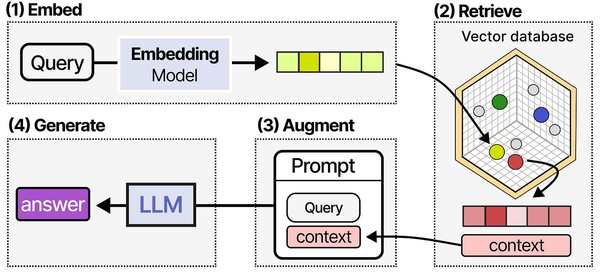
AnythingLLM implements what Grootendorst and Alammar call the "RAG pipeline" in An Illustrated Guide to AI Agents: the process of encoding documents into vector embeddings, storing them in a vector database, and retrieving the most relevant chunks at query time to inject into the LLM's context window. What makes AnythingLLM particularly effective is its workspace-based organization, which keeps document collections isolated. This prevents cross-contamination between different knowledge bases, a common problem in enterprise RAG deployments where HR documents, engineering specs, and customer data should remain separate.
What makes AnythingLLM different from just uploading a file to Open WebUI or LibreChat is the depth of its RAG pipeline. It gives you control over which vector database stores your embeddings, which embedding model generates them, how documents are chunked and processed, and how retrieved context is injected into prompts. If you have tried document chat with other tools and found the answers shallow or inaccurate, AnythingLLM's configurability is where you go to fix that. For the foundational setup, see our complete Ollama installation guide. For GPU driver setup, see our NVIDIA driver and CUDA installation guide.
Ranjan et al. discuss vector database selection extensively in Agentic AI in Enterprise, comparing options like ChromaDB, Pinecone, Weaviate, and pgvector. AnythingLLM supports several of these backends, and the choice matters more than most administrators realize. Brousseau and Sharp note in LLMs in Production that embedding quality and retrieval precision are often the weakest links in a RAG pipeline. They recommend tuning the chunk size (typically 512-1024 tokens), overlap (10-20%), and embedding model (a dedicated embedding model like nomic-embed-text often outperforms using the chat model's embeddings) before investing in more powerful hardware.
This guide covers both Docker and bare-metal installation, connecting Ollama as the LLM and embedding backend, ingesting different document types, configuring vector database options, setting up workspaces, and exposing the API for programmatic access.
Docker Installation
Docker is the recommended path for production deployments. AnythingLLM provides an official Docker image that includes the application server, a built-in LanceDB vector database, and all document processing dependencies.
# Create a directory for persistent data
sudo mkdir -p /opt/anythingllm/storage
sudo chown -R 1000:1000 /opt/anythingllm/storage

# Run AnythingLLM
docker run -d \
  --name anythingllm \
  -p 3001:3001 \
  -v /opt/anythingllm/storage:/app/server/storage \
  -e STORAGE_DIR=/app/server/storage \
  --add-host=host.docker.internal:host-gateway \
  --restart unless-stopped \
  mintplexlabs/anythingllm
The --add-host flag is necessary if Ollama runs on the host machine outside Docker. Without it, the container cannot reach host.docker.internal and Ollama connections fail silently.
Docker Compose Setup
For a more manageable deployment, use Docker Compose:
# /opt/anythingllm/docker-compose.yml
version: "3.8"
services:
  anythingllm:
    image: mintplexlabs/anythingllm
    container_name: anythingllm
    ports:
      - "127.0.0.1:3001:3001"
    volumes:
      - ./storage:/app/server/storage
    environment:
      - STORAGE_DIR=/app/server/storage
      - JWT_SECRET=change-this-to-a-random-string
      - SIG_KEY=another-random-string-here
      - SIG_SALT=random-salt-value
    extra_hosts:
      - "host.docker.internal:host-gateway"
    restart: unless-stopped

# Start it
# docker compose up -d
Binding to 127.0.0.1 instead of all interfaces means the application is only accessible through a reverse proxy, which is the correct setup for production.
Bare-Metal Installation
If you prefer running without Docker — useful on machines where Docker adds unwanted overhead or complexity — AnythingLLM can be installed directly. The application requires Node.js 18+ and yarn.
# Install Node.js 18 (using NodeSource repository)
curl -fsSL https://deb.nodesource.com/setup_18.x | sudo bash -
sudo apt install -y nodejs

# Install yarn globally
sudo npm install -g yarn

# Clone the repository
cd /opt
git clone https://github.com/Mintplex-Labs/anything-llm.git
cd anything-llm

# Install dependencies
cd server
yarn install

# Copy the example environment file
cp .env.example .env

# Edit .env with your settings
# At minimum, set:
# STORAGE_DIR=/opt/anything-llm/server/storage
# JWT_SECRET=your-random-secret

# Start the server
yarn start
The bare-metal approach requires more manual dependency management. Document processing depends on Python 3 and several system libraries for handling PDFs and DOCX files:
# Install system dependencies for document processing
sudo apt install -y python3 python3-pip poppler-utils tesseract-ocr

# For RHEL/Rocky/Alma:
sudo dnf install -y python3 python3-pip poppler-utils tesseract
Systemd Service for Bare Metal
# /etc/systemd/system/anythingllm.service
[Unit]
Description=AnythingLLM Document Chat
After=network.target ollama.service

[Service]
Type=simple
User=anythingllm
WorkingDirectory=/opt/anything-llm/server
ExecStart=/usr/bin/node index.js
Restart=on-failure
RestartSec=10
Environment=NODE_ENV=production
EnvironmentFile=/opt/anything-llm/server/.env

[Install]
WantedBy=multi-user.target
# Create service user and set permissions
sudo useradd -r -s /bin/false anythingllm
sudo chown -R anythingllm:anythingllm /opt/anything-llm
# Enable and start
sudo systemctl daemon-reload
sudo systemctl enable anythingllm.service
sudo systemctl start anythingllm.serviceConnecting Ollama as LLM Backend
After launching AnythingLLM, open the web interface (default: http://localhost:3001) and complete the initial setup wizard. The first screen asks you to choose an LLM provider.
Select "Ollama" and configure the connection:
- Ollama Base URL:
http://host.docker.internal:11434(Docker) orhttp://localhost:11434(bare metal) - Chat Model: Select from the dropdown (populated from your Ollama installation)
- Token Context Window: Match the model's context length (e.g., 8192 for Llama 3.1 8B default)
Make sure Ollama is listening on the correct interface. If running AnythingLLM in Docker and Ollama on the host:
# Verify Ollama accepts external connections
sudo systemctl edit ollama.service

# Add:
[Service]
Environment="OLLAMA_HOST=0.0.0.0"

sudo systemctl restart ollama

# Test from Docker
docker exec anythingllm curl -s http://host.docker.internal:11434/api/tags | head -c 200
The model selection matters for document chat quality. Larger models give better answers but respond slower. For most document Q&A tasks, a 14B parameter model like Qwen 2.5 14B offers a good balance between quality and speed:
# Pull recommended models for RAG
ollama pull qwen2.5:14b      # Good general-purpose RAG model
ollama pull llama3.1:8b       # Fast option for simple queries
ollama pull mistral:7b        # Alternative fast model
Document Ingestion
AnythingLLM's document processing pipeline handles multiple formats through a unified interface. Each document goes through extraction, chunking, embedding, and vector storage.
Supported Document Types
| Format | Extension | Processing Method | Notes |
|---|---|---|---|
| pdfjs / Tesseract OCR | OCR for scanned documents | ||
| Word Document | .docx | mammoth | Formatting preserved as text |
| Plain Text | .txt | Direct read | Fastest processing |
| Markdown | .md | Direct read | Headers used as chunk boundaries |
| Web Page | URL | Web scraper | Extracts main content, strips navigation |
| CSV | .csv | Row-based chunking | Each row becomes a chunk |
| Audio | .mp3, .wav | Whisper transcription | Requires Whisper model configured |
Uploading Documents Through the UI
In the workspace view, click the upload icon or drag files into the document panel. AnythingLLM processes each file immediately, showing a progress indicator as it extracts text, splits into chunks, and generates embeddings. For a 50-page PDF, processing takes 30-60 seconds depending on the embedding model and hardware.
Web Scraping
To ingest a web page, click "Link" in the document upload panel and enter the URL. AnythingLLM fetches the page, extracts the main content (stripping navigation, headers, footers, and ads), and processes it like any other document.
For bulk web scraping, the built-in website crawler can follow links from a starting URL:
# In the workspace settings, under Documents:
# Use the "Website" collector
# Enter the base URL and set depth (how many links deep to crawl)
# Set maximum pages to prevent runaway crawling
# The crawler respects robots.txt by default
Bulk Document Ingestion via CLI
For large-scale document ingestion (hundreds or thousands of files), the web interface is too slow. Use the collector API instead:
# Upload a local file via API
curl -X POST http://localhost:3001/api/v1/document/upload \
  -H "Authorization: Bearer YOUR_API_KEY" \
  -F "file=@/path/to/document.pdf"

# Upload all PDFs in a directory
for f in /data/documents/*.pdf; do
  curl -X POST http://localhost:3001/api/v1/document/upload \
    -H "Authorization: Bearer YOUR_API_KEY" \
    -F "file=@$f"
  echo "Uploaded: $f"
done
Vector Database Options
The vector database stores document embeddings and performs similarity search when you ask a question. AnythingLLM supports several vector databases, each with different trade-offs.
LanceDB (Default)
LanceDB is the built-in default. It stores vectors on the local filesystem, requires no external service, and handles up to several hundred thousand documents effectively. For most self-hosted setups, LanceDB is the right choice because it adds zero operational complexity.
# LanceDB stores data in the storage directory
# No configuration needed - it works out of the box
ls /opt/anythingllm/storage/lancedb/
Performance characteristics: LanceDB performs well up to about 500,000 document chunks. Beyond that, query latency starts to increase. For a typical organization with a few thousand documents, LanceDB handles the load without any tuning.
ChromaDB
ChromaDB is an open-source vector database that runs as a separate service. It offers better query performance at scale and supports more advanced filtering options than LanceDB.
# Run ChromaDB as a Docker container
docker run -d \
  --name chromadb \
  -p 8000:8000 \
  -v chroma-data:/chroma/chroma \
  -e ANONYMIZED_TELEMETRY=false \
  chromadb/chroma:latest

# In AnythingLLM settings, configure:
# Vector Database: ChromaDB
# ChromaDB URL: http://host.docker.internal:8000
Use ChromaDB when your document collection exceeds 500,000 chunks or when you need metadata filtering (searching only within documents that match certain tags or categories).
Pinecone
Pinecone is a managed cloud vector database. Using it defeats the purpose of a fully self-hosted setup, but it is an option for hybrid deployments where the LLM runs locally but the vector search is offloaded to a managed service. Configure it in AnythingLLM's settings with your Pinecone API key and index name.
Other Supported Backends
AnythingLLM also supports Weaviate, QDrant, Milvus, and Zilliz. The configuration for each follows the same pattern: run the vector database as a service, then point AnythingLLM to it through the settings panel. For self-hosted Linux deployments, LanceDB or ChromaDB cover the vast majority of use cases.
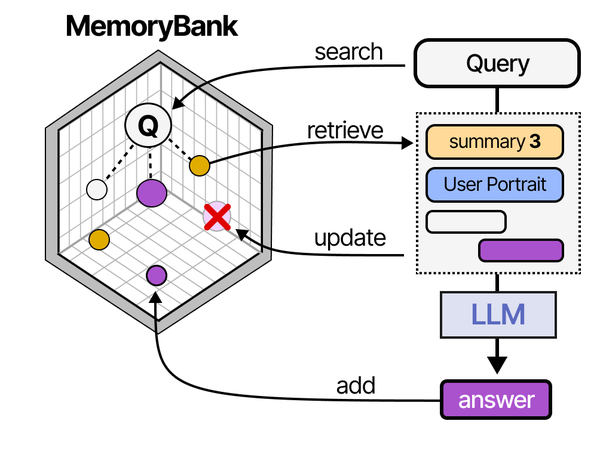
Embedding Model Selection
The embedding model converts text chunks into numerical vectors. The quality of your RAG results depends heavily on this choice — a poor embedding model means relevant documents will not be found even when they exist in your database.
Using Ollama for Embeddings
The simplest setup uses Ollama to serve both the LLM and the embedding model:
# Pull a dedicated embedding model
ollama pull nomic-embed-text    # 274M parameters, fast and capable
ollama pull mxbai-embed-large   # 335M parameters, higher quality

# In AnythingLLM settings:
# Embedding Provider: Ollama
# Embedding Model: nomic-embed-text
# Max Embedding Chunk Length: 8192
nomic-embed-text is the most popular choice for Ollama-based RAG. It produces 768-dimensional vectors, handles up to 8192 tokens per chunk, and runs quickly even on CPU. For better retrieval quality at the cost of slightly slower embedding, mxbai-embed-large produces 1024-dimensional vectors and generally outperforms nomic on benchmark tests.
Embedding Model Comparison
| Model | Dimensions | Max Tokens | Speed (chunks/sec on CPU) | Quality (MTEB avg) |
|---|---|---|---|---|
| nomic-embed-text | 768 | 8192 | ~45 | 62.4 |
| mxbai-embed-large | 1024 | 512 | ~30 | 64.7 |
| all-minilm (built-in) | 384 | 256 | ~80 | 56.3 |
If you change the embedding model after documents have been ingested, you must re-embed all documents. The old vectors are incompatible with the new model's vector space. AnythingLLM provides a re-embed button in the workspace settings for this purpose.
Workspace Configuration
Workspaces are AnythingLLM's organizational unit. Each workspace has its own document collection, chat history, and configuration settings. Think of them as separate projects or knowledge domains.
Creating Effective Workspaces
Organize workspaces around distinct knowledge domains rather than mixing everything together. A company might create:
- Engineering Docs — Technical documentation, architecture decisions, runbooks
- HR Policies — Employee handbook, benefits documentation, procedures
- Product Knowledge — Product specs, release notes, customer FAQs
Separating workspaces improves retrieval accuracy because the vector search only looks within the workspace's documents, eliminating false matches from unrelated content.
Workspace Chat Settings
Each workspace can override the global LLM settings:
# Per-workspace settings available:
# - LLM Model (override the global default)
# - Temperature (0.0 to 1.0)
# - System Prompt (custom instructions for this workspace)
# - Chat Mode: "chat" (conversational) or "query" (single Q&A)
# - Similarity Threshold (how closely a chunk must match to be included)
# - Top N Results (how many chunks to retrieve, default 4)
The similarity threshold is the most impactful setting for RAG quality. If set too low, irrelevant chunks pollute the context. If set too high, relevant chunks get excluded. Start with 0.25 and adjust based on the quality of responses. Monitor whether the model is citing the right sections of your documents.
Chat Modes: Chat vs. Query
Chat mode maintains conversation history and sends previous messages as context along with retrieved documents. This works well for follow-up questions ("What about the section on authentication?" after asking about the architecture).
Query mode treats each message independently. No conversation history is included — only the current question and retrieved document chunks. This produces more focused answers but loses the ability to refer to previous exchanges. Use query mode when precision matters more than conversational flow.
API Access
AnythingLLM exposes a REST API for programmatic access, enabling integration with scripts, automation pipelines, and custom applications.
Authentication
# Generate an API key in the AnythingLLM admin panel
# Settings > API Keys > Create New Key

# Test the connection
curl -s http://localhost:3001/api/v1/auth \
  -H "Authorization: Bearer YOUR_API_KEY" | python3 -m json.tool
Sending Chat Messages via API
# Send a message to a workspace
curl -X POST http://localhost:3001/api/v1/workspace/engineering-docs/chat \
  -H "Authorization: Bearer YOUR_API_KEY" \
  -H "Content-Type: application/json" \
  -d '{"message": "How do we deploy the payment service?", "mode": "query"}'
Uploading Documents via API
# Upload a document to a workspace
curl -X POST http://localhost:3001/api/v1/document/upload \
  -H "Authorization: Bearer YOUR_API_KEY" \
  -F "file=@runbook.pdf"

# Then move it to a workspace
curl -X POST http://localhost:3001/api/v1/workspace/engineering-docs/update-embeddings \
  -H "Authorization: Bearer YOUR_API_KEY" \
  -H "Content-Type: application/json" \
  -d '{"adds": ["custom-documents/runbook.pdf-hash.json"]}'
Building a Document Ingestion Pipeline
A practical use case is automating document updates. When your team pushes updated documentation to a shared folder, a script can upload and re-embed the changes:
#!/bin/bash
# /opt/scripts/sync-docs.sh
# Run via cron to keep AnythingLLM documents current

API_KEY="your-api-key"
WATCH_DIR="/data/shared-docs"
API_URL="http://localhost:3001/api/v1"

# Find files modified in the last 24 hours
find "$WATCH_DIR" -type f -mtime -1 \( -name "*.pdf" -o -name "*.docx" -o -name "*.txt" -o -name "*.md" \) | while read -r file; do
    echo "Uploading: $file"
    curl -s -X POST "$API_URL/document/upload" \
      -H "Authorization: Bearer $API_KEY" \
      -F "file=@$file"
done

echo "Document sync completed at $(date)"
Multi-User Workspaces
AnythingLLM supports multi-user mode where administrators control access to workspaces. Enable it during initial setup or in the admin settings.
User Roles
| Role | Capabilities |
|---|---|
| Admin | Full access: manage users, workspaces, settings, API keys, system config |
| Manager | Create and manage workspaces, upload documents, view all workspace chats |
| Default | Chat within assigned workspaces, upload documents to assigned workspaces |
Assigning Users to Workspaces
In multi-user mode, users only see workspaces they have been explicitly granted access to. An administrator assigns users to workspaces through the admin panel. This makes it possible to give the engineering team access to technical documentation while restricting HR documents to the HR workspace that only HR staff can access.
Thread Management
Each user's chat history within a workspace is private. Users can create multiple threads (conversation histories) within the same workspace, allowing them to explore different questions without mixing conversation contexts. Administrators can view all threads for auditing purposes.
Performance Tuning for Document Chat
Chunk Size and Overlap
The default chunk size (1000 characters with 200 character overlap) works for general documents. Adjust these based on your content:
- Technical documentation with code blocks: Increase chunk size to 1500-2000 to avoid splitting code examples across chunks
- Legal documents with short clauses: Decrease chunk size to 500-800 to keep each clause in its own chunk
- FAQ-style content: Chunk size of 500-600 with minimal overlap works well since each Q&A pair is self-contained
Retrieval Tuning
The number of retrieved chunks (Top N) affects both answer quality and context window usage:
# Top N = 4 (default): Good for focused questions
# Top N = 8: Better for broad questions spanning multiple sections
# Top N = 12+: Useful when documents are highly fragmented

# Each retrieved chunk uses ~200-500 tokens of context
# With a 4096 context window and Top N = 4:
# ~1500 tokens for retrieved context
# ~500 tokens for the system prompt
# ~2000 tokens remaining for conversation and response
If the model frequently answers with "I don't have enough information" despite relevant documents being uploaded, increase Top N. If answers contain irrelevant tangents, lower the similarity threshold to be more selective.
Frequently Asked Questions
Can AnythingLLM use different models for chat and embeddings?
Yes, and it should. The embedding model and chat model serve completely different purposes. Use a small, fast embedding model like nomic-embed-text through Ollama for generating vectors, and a larger model like qwen2.5:14b or llama3.1:8b for the actual chat responses. AnythingLLM configures these independently in the settings panel. Using a chat model for embeddings would be wasteful and produce inferior vector representations.
How much disk space does the vector database use per document?
With LanceDB and nomic-embed-text (768 dimensions), each document chunk requires approximately 3-4 KB of storage for the vector plus metadata. A 50-page PDF typically produces 200-400 chunks, so one document uses roughly 1-1.5 MB of vector storage. For 10,000 documents of similar size, expect 10-15 GB of vector database storage. The original documents are also stored in the storage directory, so factor in their size as well.
What happens if Ollama goes down while AnythingLLM is running?
AnythingLLM handles backend unavailability gracefully. If Ollama is unreachable, chat messages return an error explaining that the LLM provider is unavailable. Previously ingested documents and their embeddings remain intact in the vector database. Once Ollama comes back online, chat resumes immediately without any reconfiguration. Document uploads that require embedding will fail during the outage but can be retried after recovery.
Can I export my workspaces and documents to move to another server?
The entire AnythingLLM state is stored in the storage directory. To migrate to another server, stop the application, copy the storage directory to the new server, and start AnythingLLM pointing to the copied directory. All workspaces, documents, embeddings, chat histories, and user accounts transfer with the directory. The only thing you may need to reconfigure is the Ollama connection URL if it changes.
Is there a limit to how many documents a workspace can hold?
There is no hard-coded limit. The practical limit depends on your vector database choice and hardware. LanceDB handles several hundred thousand chunks effectively on a server with 8 GB of RAM. ChromaDB scales further with proper indexing. The main constraint is embedding time — uploading 10,000 documents requires generating embeddings for every chunk, which can take hours with a CPU-only embedding model. Using a GPU-accelerated embedding model through Ollama reduces this to minutes.
Related Articles
- Build a Self-Hosted RAG Pipeline on Linux: Chat with Your Documentation
- AI Document OCR on Linux: Open Source Pipeline with Tesseract and LLMs
- LibreChat on Linux: Complete Installation and Multi-Provider Configuration Guide
- Model Context Protocol (MCP) on Linux with Ollama: Connect AI to Your Tools
Further Reading
- Grootendorst, M. & Alammar, J. (2025). An Illustrated Guide to AI Agents. O'Reilly Media. Covers agent memory systems, RAG pipelines, tool usage, MCP protocol, and context engineering with clear visual explanations.
- Ranjan, R. et al. (2025). Agentic AI in Enterprise. Apress. Explores enterprise AI architecture, RAG vs fine-tuning trade-offs, vector databases, prompt engineering, GPU acceleration, and Kubernetes orchestration for production AI.
- Brousseau, D. & Sharp, T. (2025). LLMs in Production. Manning Publications. Covers neural network fundamentals, transformer architecture, GPU management, latency optimization, Kubernetes deployment, MLOps pipelines, embeddings, and model quantization.


