LibreChat is an open-source chat interface that solves a problem other frontends ignore: connecting to multiple LLM providers simultaneously from a single, unified interface. Instead of switching between ChatGPT's website, Claude's console, and your local Ollama instance, LibreChat puts every model behind one login screen. You pick the provider from a dropdown, and the conversation just works. On Linux servers, LibreChat pairs especially well with self-hosted backends because it runs natively on Docker Compose and handles its own user management, conversation storage, and API routing.
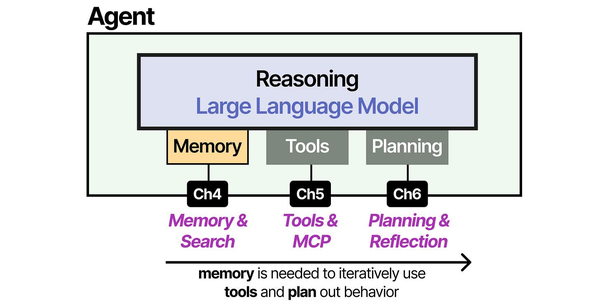
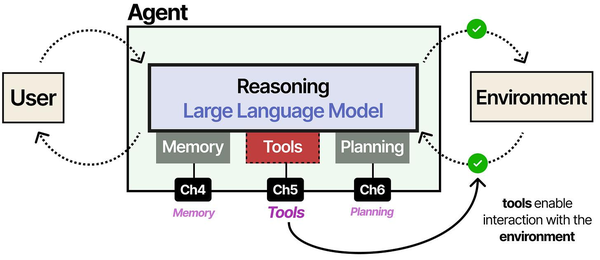
LibreChat's multi-provider architecture addresses a key challenge described by Grootendorst and Alammar in An Illustrated Guide to AI Agents: the NxM integration problem. Without a standardized protocol, connecting N frontends to M model providers requires N*M custom integrations. LibreChat solves this at the application layer by implementing adapters for OpenAI, Anthropic, Google, and local providers like Ollama behind a unified interface. This is the same principle that drives the Model Context Protocol (MCP), applied at the chat frontend level rather than the tool level.
This guide walks through deploying LibreChat on a production Linux server, connecting it to local (Ollama) and cloud (OpenAI, Anthropic, Azure) providers simultaneously, configuring SSO authentication, setting up MongoDB for persistent storage, and hardening the deployment behind nginx. Everything here was tested on Rocky Linux 9 and Ubuntu 24.04 with Docker 27.x. For the foundational setup, see our complete Ollama installation guide. For GPU driver setup, see our NVIDIA driver and CUDA installation guide.
Prerequisites and Architecture Overview
LibreChat runs as a Node.js application with a React frontend, backed by MongoDB for conversation and user data, and Meilisearch for full-text search across conversations. The recommended deployment uses Docker Compose to orchestrate all services together.
Before starting, make sure your server has:
# Check Docker and Docker Compose
docker --version    # Docker 24.0+ required
docker compose version  # Compose V2 required

# Minimum resources
# 2 CPU cores, 4 GB RAM (for LibreChat + MongoDB + Meilisearch)
# Ollama with models needs additional resources on top of this

# Required ports (internal, behind reverse proxy)
# 3080 - LibreChat frontend
# 27018 - MongoDB
# 7700 - Meilisearch
The architecture looks like this: nginx sits at the front handling TLS termination and proxying requests to LibreChat on port 3080. LibreChat talks to MongoDB for user and conversation data, to Meilisearch for search functionality, and to any number of LLM backends (Ollama locally, cloud APIs remotely). Each component runs in its own Docker container.
Docker Compose Deployment
Cloning and Initial Configuration
Start by cloning the LibreChat repository and creating the configuration files:
Ranjan et al. note in Agentic AI in Enterprise that multi-provider setups offer a strategic advantage for enterprises: you can route sensitive workloads to local models (through Ollama) while using cloud APIs for tasks requiring frontier model capabilities. Brousseau and Sharp add in LLMs in Production that this hybrid approach also provides natural fallback resilience. If the local Ollama instance is under heavy load or a cloud API experiences an outage, LibreChat can route requests to alternative providers without user intervention.
cd /opt
git clone https://github.com/danny-avila/LibreChat.git
cd LibreChat

# Create the environment file from the template
cp .env.example .env

# Create the LibreChat configuration file
cp librechat.example.yaml librechat.yaml
The .env file controls Docker Compose behavior, ports, and secrets. The librechat.yaml file defines which AI providers are available and how they are configured. Both files need editing before the first launch.
Environment File Configuration
Open the .env file and set these critical values:
# /opt/LibreChat/.env

# Generate a random secret for JWT tokens
CREDS_KEY=your-32-char-random-string-here
CREDS_IV=your-16-char-random-iv-here
JWT_SECRET=your-random-jwt-secret-here
JWT_REFRESH_SECRET=your-random-refresh-secret

# Generate these with:
# openssl rand -hex 16  (for CREDS_KEY)
# openssl rand -hex 8   (for CREDS_IV)
# openssl rand -hex 32  (for JWT secrets)

# MongoDB connection
MONGO_URI=mongodb://mongodb:27018/LibreChat

# Host and port
HOST=0.0.0.0
PORT=3080

# Meilisearch
MEILI_MASTER_KEY=your-meili-master-key
SEARCH=true
Security matters here. The CREDS_KEY and CREDS_IV are used to encrypt stored API keys. The JWT secrets control authentication tokens. Generate all of them randomly:
echo "CREDS_KEY=$(openssl rand -hex 16)"
echo "CREDS_IV=$(openssl rand -hex 8)"
echo "JWT_SECRET=$(openssl rand -hex 32)"
echo "JWT_REFRESH_SECRET=$(openssl rand -hex 32)"
echo "MEILI_MASTER_KEY=$(openssl rand -hex 16)"
Docker Compose File
The default docker-compose.yml included in the repository works for most setups. Here is a production-adjusted version with resource limits and proper networking:
version: "3.8"
services:
  librechat:
    image: ghcr.io/danny-avila/librechat:latest
    container_name: librechat
    ports:
      - "127.0.0.1:3080:3080"
    env_file:
      - .env
    volumes:
      - ./librechat.yaml:/app/librechat.yaml
      - ./images:/app/client/public/images
      - ./logs:/app/api/logs
    depends_on:
      - mongodb
      - meilisearch
    extra_hosts:
      - "host.docker.internal:host-gateway"
    restart: unless-stopped
    deploy:
      resources:
        limits:
          memory: 2G

  mongodb:
    image: mongo:7
    container_name: librechat-mongodb
    command: mongod --port 27018
    volumes:
      - mongodb-data:/data/db
    restart: unless-stopped
    deploy:
      resources:
        limits:
          memory: 1G

  meilisearch:
    image: getmeili/meilisearch:v1.7
    container_name: librechat-meilisearch
    environment:
      - MEILI_MASTER_KEY=${MEILI_MASTER_KEY}
      - MEILI_NO_ANALYTICS=true
    volumes:
      - meilisearch-data:/meili_data
    restart: unless-stopped
    deploy:
      resources:
        limits:
          memory: 512M

volumes:
  mongodb-data:
  meilisearch-data:
Notice that LibreChat binds only to 127.0.0.1:3080 rather than all interfaces. This ensures only the local nginx reverse proxy can reach it — the application is never directly exposed to the internet.
Connecting to Ollama (Local LLM Backend)
If Ollama runs on the same server as LibreChat, the Docker container reaches it through host.docker.internal. The connection is configured in librechat.yaml:
# /opt/LibreChat/librechat.yaml
version: 1.1.7
cache: true

endpoints:
  custom:
    - name: "Ollama"
      apiKey: "ollama"
      baseURL: "http://host.docker.internal:11434/v1/"
      models:
        default: [
          "llama3.1:8b",
          "llama3.1:70b",
          "codellama:13b",
          "mistral:7b",
          "qwen2.5:14b"
        ]
        fetch: true
      titleConvo: true
      titleModel: "llama3.1:8b"
      summarize: false
      forcePrompt: false
      modelDisplayLabel: "Ollama"
      iconURL: "https://ollama.com/public/ollama.png"
The fetch: true option tells LibreChat to query Ollama's API for available models, so any model you pull with ollama pull appears automatically in the dropdown. The default list provides a curated subset for the model selector.
Make sure Ollama is configured to accept connections from Docker's network. By default Ollama listens only on localhost, which blocks Docker containers:
# Edit the Ollama systemd service
sudo systemctl edit ollama.service

# Add these lines in the override file:
[Service]
Environment="OLLAMA_HOST=0.0.0.0"

# Restart Ollama
sudo systemctl restart ollama

# Verify it listens on all interfaces
ss -tlnp | grep 11434
Connecting to Cloud Providers
OpenAI
Add your OpenAI API key to the .env file:
# In .env
OPENAI_API_KEY=sk-your-openai-api-key-here
OpenAI support is built into LibreChat without any librechat.yaml configuration. Once the API key is set, GPT-4o, GPT-4 Turbo, and other OpenAI models appear in the model dropdown automatically.
Anthropic
For Claude models, add the Anthropic API key:
# In .env
ANTHROPIC_API_KEY=sk-ant-your-anthropic-key-here
LibreChat natively supports the Anthropic API format, so Claude models (Claude 3.5 Sonnet, Claude 3 Opus, etc.) appear alongside OpenAI models once the key is configured. No custom endpoint configuration needed.
Azure OpenAI
Azure requires more configuration because each deployment has its own endpoint and model mapping. Add to .env:
# In .env
AZURE_API_KEY=your-azure-api-key
AZURE_OPENAI_API_INSTANCE_NAME=your-instance-name
AZURE_OPENAI_API_DEPLOYMENT_NAME=gpt-4o
AZURE_OPENAI_API_VERSION=2024-02-01
For multiple Azure deployments (common in enterprise setups), use the librechat.yaml configuration:
# In librechat.yaml, under endpoints:
endpoints:
  azureOpenAI:
    titleModel: "gpt-4o-mini"
    groups:
      - group: "production"
        apiKey: "${AZURE_API_KEY}"
        instanceName: "your-production-instance"
        version: "2024-02-01"
        models:
          gpt-4o:
            deploymentName: "gpt4o-prod"
            version: "2024-08-06"
          gpt-4o-mini:
            deploymentName: "gpt4o-mini-prod"
            version: "2024-07-18"
Running All Providers Simultaneously
With Ollama, OpenAI, Anthropic, and Azure all configured, users see a provider selector at the top of the chat interface. Switching from a local Llama model to Claude to GPT-4o is a single click. Conversations remember which provider and model were used for each message, so you can even switch mid-conversation if a different model handles a particular task better.
This multi-provider approach is what makes LibreChat uniquely useful. Your team can use local models for routine queries (keeping costs at zero), switch to Claude for complex reasoning tasks, and fall back to GPT-4o for tasks where it excels — all from the same interface, with the same conversation history.
User Management and SSO
Local User Accounts
By default, LibreChat uses local username/password authentication. The first user to register becomes an admin. You can control registration behavior in the .env file:
# Allow open registration
ALLOW_REGISTRATION=true

# Or restrict to email domain
ALLOW_REGISTRATION=true
ALLOWED_EMAIL_DOMAINS=yourcompany.com,contractor.com

# Disable registration entirely (admin creates accounts)
ALLOW_REGISTRATION=false
OAuth SSO Configuration
LibreChat supports Google, GitHub, Discord, and generic OpenID Connect (OIDC) providers. Here is a Google OAuth setup:
# In .env
GOOGLE_CLIENT_ID=your-google-client-id.apps.googleusercontent.com
GOOGLE_CLIENT_SECRET=your-google-client-secret
GOOGLE_CALLBACK_URL=/oauth/google/callback

# For GitHub OAuth
GITHUB_CLIENT_ID=your-github-client-id
GITHUB_CLIENT_SECRET=your-github-client-secret
GITHUB_CALLBACK_URL=/oauth/github/callback
For enterprise environments using Keycloak, Authentik, or another OIDC provider:
# Generic OIDC configuration
OPENID_CLIENT_ID=librechat
OPENID_CLIENT_SECRET=your-client-secret
OPENID_ISSUER=https://auth.yourcompany.com/realms/main
OPENID_SCOPE=openid profile email
OPENID_CALLBACK_URL=/oauth/openid/callback
OPENID_BUTTON_LABEL="Sign in with Company SSO"
OAuth users are automatically created on first login. Their email address is pulled from the OAuth provider, and they are assigned the default user role. Administrators can then adjust roles through the admin panel.
MongoDB Setup and Maintenance
LibreChat uses MongoDB to store user accounts, conversations, messages, presets, and API key configurations. The Docker Compose setup handles this automatically, but production deployments benefit from a few adjustments.
Backup Strategy
# Backup MongoDB data
docker exec librechat-mongodb mongodump \
  --port 27018 \
  --db LibreChat \
  --out /dump/$(date +%Y%m%d)

# Copy the dump out of the container
docker cp librechat-mongodb:/dump ./backups/

# Automate with a cron job
# /etc/cron.d/librechat-backup
0 2 * * * root docker exec librechat-mongodb mongodump --port 27018 --db LibreChat --out /dump/daily && docker cp librechat-mongodb:/dump /opt/LibreChat/backups/
Restoring from Backup
# Copy backup into the container
docker cp ./backups/20260315 librechat-mongodb:/dump/restore

# Restore
docker exec librechat-mongodb mongorestore \
  --port 27018 \
  --db LibreChat \
  /dump/restore/LibreChat
Database Performance
For installations with more than 50 active users, create indexes manually to keep search and conversation loading fast:
# Connect to MongoDB
docker exec -it librechat-mongodb mongosh --port 27018

# Switch to the LibreChat database
use LibreChat

# Create indexes for common queries
db.messages.createIndex({ conversationId: 1, createdAt: 1 })
db.conversations.createIndex({ user: 1, updatedAt: -1 })
db.users.createIndex({ email: 1 }, { unique: true })
Nginx Reverse Proxy Configuration
A reverse proxy provides TLS termination, compression, and rate limiting for the LibreChat deployment. Here is a production nginx configuration:
server {
    listen 443 ssl http2;
    server_name chat.yourcompany.com;

    ssl_certificate /etc/letsencrypt/live/chat.yourcompany.com/fullchain.pem;
    ssl_certificate_key /etc/letsencrypt/live/chat.yourcompany.com/privkey.pem;
    ssl_protocols TLSv1.2 TLSv1.3;
    ssl_ciphers HIGH:!aNULL:!MD5;

    # Security headers
    add_header X-Frame-Options "SAMEORIGIN" always;
    add_header X-Content-Type-Options "nosniff" always;
    add_header Referrer-Policy "strict-origin-when-cross-origin" always;
    add_header Strict-Transport-Security "max-age=31536000; includeSubDomains" always;

    location / {
        proxy_pass http://127.0.0.1:3080;
        proxy_http_version 1.1;
        proxy_set_header Upgrade $http_upgrade;
        proxy_set_header Connection "upgrade";
        proxy_set_header Host $host;
        proxy_set_header X-Real-IP $remote_addr;
        proxy_set_header X-Forwarded-For $proxy_add_x_forwarded_for;
        proxy_set_header X-Forwarded-Proto $scheme;

        # Streaming responses need these timeouts
        proxy_read_timeout 300s;
        proxy_send_timeout 300s;
        proxy_buffering off;
    }

    # Larger upload limit for file attachments
    client_max_body_size 25M;
}

server {
    listen 80;
    server_name chat.yourcompany.com;
    return 301 https://$host$request_uri;
}
The proxy_buffering off directive is essential for streaming responses. Without it, nginx buffers the entire response before sending it to the client, which breaks the real-time token-by-token display that makes chat interfaces feel responsive.
Systemd Service for Automated Startup
Create a systemd service that starts LibreChat on boot and restarts it on failure:
# /etc/systemd/system/librechat.service
[Unit]
Description=LibreChat AI Chat Interface
After=docker.service
Requires=docker.service

[Service]
Type=oneshot
RemainAfterExit=yes
WorkingDirectory=/opt/LibreChat
ExecStart=/usr/bin/docker compose up -d
ExecStop=/usr/bin/docker compose down
ExecReload=/usr/bin/docker compose restart
TimeoutStartSec=120

[Install]
WantedBy=multi-user.target
# Enable and start the service
sudo systemctl daemon-reload
sudo systemctl enable librechat.service
sudo systemctl start librechat.service
# Check status
sudo systemctl status librechat.serviceProduction Hardening
Environment Variable Security
The .env file contains API keys and secrets. Lock down its permissions:
# Restrict .env file permissions
chmod 600 /opt/LibreChat/.env
chown root:root /opt/LibreChat/.env

# Restrict the librechat.yaml file
chmod 640 /opt/LibreChat/librechat.yaml
Network Isolation
Create a dedicated Docker network so LibreChat's internal services cannot be reached from other containers on the same host:
# Add to docker-compose.yml
networks:
  librechat-internal:
    driver: bridge
    internal: true
  librechat-external:
    driver: bridge

# Assign services to networks
services:
  librechat:
    networks:
      - librechat-internal
      - librechat-external
  mongodb:
    networks:
      - librechat-internal
  meilisearch:
    networks:
      - librechat-internal
With this configuration, MongoDB and Meilisearch are only accessible from the LibreChat container. They have no route to the internet or other Docker services.
Rate Limiting and Abuse Prevention
LibreChat has built-in rate limiting that can be configured per-provider:
# In librechat.yaml
rateLimits:
  fileUploads:
    ipMax: 100
    ipWindowInMinutes: 60
    userMax: 50
    userWindowInMinutes: 60
  conversationsImport:
    ipMax: 100
    ipWindowInMinutes: 60
    userMax: 50
    userWindowInMinutes: 60
Log Management
LibreChat writes logs to the logs directory. Configure log rotation to prevent disk fills:
# /etc/logrotate.d/librechat
/opt/LibreChat/logs/*.log {
    daily
    missingok
    rotate 14
    compress
    delaycompress
    notifempty
    create 0640 root root
    sharedscripts
    postrotate
        docker restart librechat > /dev/null 2>&1 || true
    endscript
}
Automatic Updates
Create a script to update LibreChat with zero-downtime:
#!/bin/bash
# /opt/LibreChat/update.sh
cd /opt/LibreChat

# Pull the latest images
docker compose pull

# Restart with new images (containers restart one at a time)
docker compose up -d

# Clean up old images
docker image prune -f

echo "LibreChat updated at $(date)"
Custom Endpoints and Advanced Configuration
Adding Custom OpenAI-Compatible Services
Any service that implements the OpenAI API format can be added as a custom endpoint. This includes vLLM, LocalAI, LM Studio, and many others:
# In librechat.yaml
endpoints:
  custom:
    - name: "vLLM Server"
      apiKey: "token-abc123"
      baseURL: "http://192.168.1.100:8000/v1/"
      models:
        default: ["meta-llama/Llama-3.1-70B-Instruct"]
        fetch: true
      titleConvo: true
      titleModel: "meta-llama/Llama-3.1-70B-Instruct"
      modelDisplayLabel: "vLLM"

    - name: "LM Studio"
      apiKey: "lm-studio"
      baseURL: "http://192.168.1.50:1234/v1/"
      models:
        default: ["loaded-model"]
        fetch: true
      modelDisplayLabel: "LM Studio"
Preset Configurations
Administrators can create presets that users select to quickly configure model, temperature, system prompt, and other parameters. This is useful for standardizing how teams interact with models for specific tasks. Presets are managed through the admin panel under the Presets section. You might create presets like "Code Review" with Claude 3.5 Sonnet at temperature 0.3, "Creative Writing" with GPT-4o at temperature 0.9, or "Quick Questions" with Ollama llama3.1:8b at temperature 0.7 for concise answers.
Troubleshooting Common Issues
LibreChat Cannot Connect to Ollama
# Verify Ollama is accessible from Docker
docker exec librechat curl -s http://host.docker.internal:11434/api/version

# If it fails, check Ollama is listening on all interfaces
ss -tlnp | grep 11434
# Should show 0.0.0.0:11434, not 127.0.0.1:11434

# Verify the extra_hosts directive is working
docker exec librechat getent hosts host.docker.internal
MongoDB Connection Failures
# Check MongoDB container logs
docker logs librechat-mongodb --tail 50

# Verify MongoDB is accepting connections
docker exec librechat-mongodb mongosh --port 27018 --eval "db.adminCommand('ping')"

# Check disk space
df -h
Streaming Responses Not Working Behind Nginx
# Ensure proxy_buffering is off in your nginx config
# Also check for any upstream caching
# Test without nginx first:
curl -N http://127.0.0.1:3080/api/chat \
  -H "Content-Type: application/json" \
  -H "Authorization: Bearer your-token" \
  -d '{"model":"llama3.1:8b","messages":[{"role":"user","content":"Hello"}]}'
Frequently Asked Questions
Can LibreChat store API keys per user so each person uses their own OpenAI account?
Yes. LibreChat supports user-provided API keys. In the librechat.yaml configuration, set userProvide: true for any endpoint. Users then enter their own API key in the interface settings. The key is encrypted with the CREDS_KEY from your .env file and stored in MongoDB. This way the organization does not need to share a single API key, and individuals control their own spending.
How does LibreChat handle conversations when switching between providers mid-chat?
Each message in a LibreChat conversation stores which provider and model generated it. You can start a conversation with Ollama's Llama 3.1, switch to Claude for a follow-up, and then use GPT-4o for the next message. The full conversation context is sent to whichever provider you select, formatted according to that provider's expected input format. Token counts and costs are tracked per-provider across the conversation.
Is there a way to restrict which models specific users can access?
Not through a built-in per-user model restriction at the time of writing, but you can control this at the provider level. If you only want certain users to access expensive cloud models, deploy separate LibreChat instances — one with cloud providers enabled for authorized users, and one with only Ollama for general use. Alternatively, use the userProvide: true setting so users must supply their own API keys to access cloud models.
What happens to conversations if I update LibreChat to a newer version?
Conversations and user data are stored in MongoDB, which persists across container restarts and updates. The LibreChat team includes database migration scripts in each release, so schema changes are handled automatically on startup. That said, always back up your MongoDB data before updating. The backup command takes seconds and has saved many administrators from data loss during edge-case migration failures.
Can I use LibreChat as an API gateway for other applications?
LibreChat exposes an API that other applications can consume, but it is primarily designed as a user-facing chat interface. If you need a true API gateway that routes requests to multiple providers with load balancing, key management, and request transformation, tools like LiteLLM or a custom API proxy are better suited. LibreChat's API works well for simple integrations, but it adds authentication overhead that a dedicated proxy avoids.
Related Articles
- Self-Hosted ChatGPT Alternatives on Linux: Complete Deployment Guide (2026)
- Deploy a Private ChatGPT on Your Linux Server with Ollama and Open WebUI
- AnythingLLM on Linux: Self-Hosted RAG with Ollama and Document Chat
- LocalAI on Linux: Deploy an OpenAI-Compatible API Server with Local Models
Further Reading
- Grootendorst, M. & Alammar, J. (2025). An Illustrated Guide to AI Agents. O'Reilly Media. Covers agent memory systems, RAG pipelines, tool usage, MCP protocol, and context engineering with clear visual explanations.
- Ranjan, R. et al. (2025). Agentic AI in Enterprise. Apress. Explores enterprise AI architecture, RAG vs fine-tuning trade-offs, vector databases, prompt engineering, GPU acceleration, and Kubernetes orchestration for production AI.
- Brousseau, D. & Sharp, T. (2025). LLMs in Production. Manning Publications. Covers neural network fundamentals, transformer architecture, GPU management, latency optimization, Kubernetes deployment, MLOps pipelines, embeddings, and model quantization.


