Ollama ships with exactly zero security features. No authentication, no TLS, no rate limiting — it binds to a port and serves requests to anyone who can reach it. That is perfectly fine when you are running it on your laptop, but the moment you expose Ollama to a network (even a private one), you are handing every user on that network unrestricted access to a GPU-backed inference service that can saturate your hardware in seconds. The solution that every production deployment eventually lands on is putting Nginx in front of Ollama as a reverse proxy, and this guide walks through the complete setup: SSL certificates, authentication, rate limiting, streaming support, and a Docker Compose stack that ties it all together.
Brousseau and Sharp add in LLMs in Production that reverse proxy configuration for LLM APIs requires attention to timeouts and buffer sizes that differ from typical web application proxying. LLM inference can take 10-60 seconds for long responses, and streaming responses (Server-Sent Events) require the proxy to keep the connection open without buffering. They recommend setting proxy_read_timeout to at least 300 seconds and disabling proxy_buffering for streaming endpoints to avoid response truncation and client-side timeouts.
Securing LLM endpoints is not optional for any production deployment. Ranjan et al. devote significant attention in Agentic AI in Enterprise to the security requirements of AI APIs, emphasizing that unauthenticated LLM endpoints are a critical vulnerability. An exposed Ollama API allows anyone to run inference on your hardware (consuming expensive GPU cycles), extract model information, and potentially exploit prompt injection vulnerabilities. The nginx reverse proxy pattern solves all three concerns simultaneously: TLS encryption protects data in transit, authentication blocks unauthorized access, and rate limiting prevents resource exhaustion. For GPU driver setup, see our NVIDIA driver and CUDA installation guide.
This is not a theoretical exercise. I have been running this exact configuration on a small team inference server for months, and the setup has caught everything from accidental infinite loops in client code to unauthorized access attempts from devices that should not have been hitting the API at all. If you are running Ollama anywhere beyond localhost, a reverse proxy is not optional — it is the minimum viable security layer.
Why Ollama Needs a Reverse Proxy
Ollama's API server is intentionally simple. It speaks HTTP, handles model loading, manages concurrent requests, and streams responses. What it does not do is anything related to security or traffic management. Here is the gap that Nginx fills:
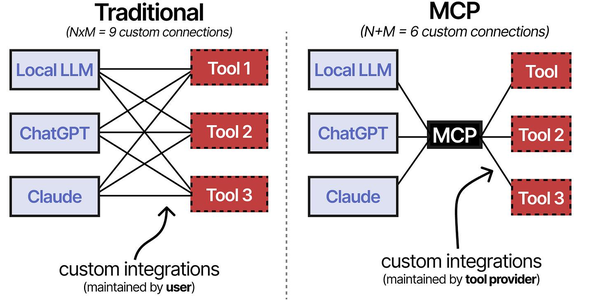
- TLS termination — Ollama does not support HTTPS. Every request and response, including the model output, travels in plaintext. On a shared network, that means anyone with packet capture tools can read every prompt and response.
- Authentication — There is no built-in mechanism to restrict who can access the API. Bind it to 0.0.0.0 and every device on the network can use it.
- Rate limiting — A single client can fire hundreds of concurrent requests. Without throttling, one runaway script can monopolize the GPU and starve other users.
- Logging and auditing — Ollama's logs are minimal. Nginx provides structured access logs with timestamps, client IPs, request sizes, and response times — essential for understanding usage patterns and debugging issues.
- Request filtering — You might want to block certain endpoints (like model deletion) or restrict access to specific models. Nginx makes this straightforward with location blocks and conditional logic.
The architecture is simple: clients connect to Nginx on ports 443 (HTTPS) and optionally 80 (HTTP redirect). Nginx authenticates the request, applies rate limits, then proxies it to Ollama running on localhost:11434. Ollama never sees external traffic directly.
Prerequisites and Base Setup
This guide assumes you have a Linux server with Ollama already installed and running. If you need to set that up first, the installation is a one-liner:
curl -fsSL https://ollama.com/install.sh | sh
ollama pull llama3.1:8b
systemctl status ollama
Make sure Ollama is bound to localhost only. Edit the systemd service to set the environment variable:
sudo systemctl edit ollamaAdd the following override:
[Service]
Environment="OLLAMA_HOST=127.0.0.1:11434"
Restart the service:
sudo systemctl daemon-reload
sudo systemctl restart ollama
Verify that Ollama is only listening on localhost:
ss -tlnp | grep 11434
# Expected output: LISTEN 0 4096 127.0.0.1:11434 0.0.0.0:*
This is critical. If Ollama listens on 0.0.0.0, clients can bypass Nginx entirely by connecting to port 11434 directly.
Installing Nginx
Install Nginx from your distribution's repositories:
# Debian/Ubuntu
sudo apt update && sudo apt install -y nginx

# RHEL/AlmaLinux/Rocky
sudo dnf install -y nginx

# Verify installation
nginx -v
sudo systemctl enable --now nginx
Remove the default site configuration to start clean:
sudo rm /etc/nginx/sites-enabled/default 2>/dev/null
sudo rm /etc/nginx/conf.d/default.conf 2>/dev/null
Basic Reverse Proxy Configuration
Start with a minimal configuration that proxies requests to Ollama without any authentication. This lets you verify the proxy works before adding security layers.
Create the configuration file:
sudo tee /etc/nginx/conf.d/ollama.conf > /dev/null <<'CONF'
upstream ollama_backend {
    server 127.0.0.1:11434;
    keepalive 32;
}

server {
    listen 80;
    server_name ollama.example.com;

    location / {
        proxy_pass http://ollama_backend;
        proxy_set_header Host $host;
        proxy_set_header X-Real-IP $remote_addr;
        proxy_set_header X-Forwarded-For $proxy_add_x_forwarded_for;
        proxy_set_header X-Forwarded-Proto $scheme;

        # Essential for streaming responses
        proxy_buffering off;
        proxy_cache off;

        # Timeouts for long-running generation
        proxy_read_timeout 600s;
        proxy_send_timeout 600s;
        proxy_connect_timeout 10s;
    }
}
CONF
Test and reload:
sudo nginx -t && sudo systemctl reload nginxVerify the proxy works:
curl http://ollama.example.com/api/tags
# Should return JSON listing available models
Understanding proxy_buffering off
This directive is the single most important setting for Ollama proxying. When Ollama generates text, it streams tokens one at a time using chunked transfer encoding. With buffering enabled (the default), Nginx accumulates the response in memory and only sends it to the client when the buffer fills or the response completes. This completely destroys the streaming experience — instead of seeing tokens appear in real time, the client gets nothing for seconds, then a large chunk all at once.
Setting proxy_buffering off tells Nginx to forward each chunk from Ollama to the client immediately. The response flows through Nginx as a transparent pipe, preserving the real-time token streaming that makes interactive chat usable.
SSL with Let's Encrypt
Install Certbot and obtain a certificate:
# Debian/Ubuntu
sudo apt install -y certbot python3-certbot-nginx

# RHEL/AlmaLinux
sudo dnf install -y certbot python3-certbot-nginx

# Obtain certificate
sudo certbot --nginx -d ollama.example.com \
    --non-interactive --agree-tos -m admin@example.com
Certbot modifies your Nginx configuration automatically, but the result is often messy. Here is a clean SSL configuration that you should use instead:
upstream ollama_backend {
    server 127.0.0.1:11434;
    keepalive 32;
}

# Redirect HTTP to HTTPS
server {
    listen 80;
    server_name ollama.example.com;
    return 301 https://$server_name$request_uri;
}

server {
    listen 443 ssl http2;
    server_name ollama.example.com;

    ssl_certificate /etc/letsencrypt/live/ollama.example.com/fullchain.pem;
    ssl_certificate_key /etc/letsencrypt/live/ollama.example.com/privkey.pem;
    ssl_protocols TLSv1.2 TLSv1.3;
    ssl_ciphers ECDHE-ECDSA-AES128-GCM-SHA256:ECDHE-RSA-AES128-GCM-SHA256:ECDHE-ECDSA-AES256-GCM-SHA384:ECDHE-RSA-AES256-GCM-SHA384;
    ssl_prefer_server_ciphers off;
    ssl_session_cache shared:SSL:10m;
    ssl_session_timeout 1d;
    ssl_session_tickets off;

    # HSTS header
    add_header Strict-Transport-Security "max-age=63072000; includeSubDomains" always;

    location / {
        proxy_pass http://ollama_backend;
        proxy_set_header Host $host;
        proxy_set_header X-Real-IP $remote_addr;
        proxy_set_header X-Forwarded-For $proxy_add_x_forwarded_for;
        proxy_set_header X-Forwarded-Proto $scheme;

        proxy_buffering off;
        proxy_cache off;
        proxy_read_timeout 600s;
        proxy_send_timeout 600s;
        proxy_connect_timeout 10s;

        client_max_body_size 100M;
    }
}
Verify SSL works:
curl https://ollama.example.com/api/tagsSet up automatic renewal:
sudo systemctl list-timers | grep certbot
# If no timer exists:
echo "0 3 * * * root certbot renew --quiet --deploy-hook 'systemctl reload nginx'" \
    | sudo tee /etc/cron.d/certbot-renew
Authentication: Basic Auth with htpasswd
The simplest authentication method is HTTP Basic Auth. It is supported by every HTTP client, easy to set up, and perfectly secure over HTTPS (credentials are base64-encoded, not encrypted, so TLS is mandatory).
Create a password file:
# Debian/Ubuntu
sudo apt install -y apache2-utils
# RHEL/AlmaLinux
sudo dnf install -y httpd-tools

# Create first user
sudo htpasswd -c /etc/nginx/.htpasswd apiuser

# Add additional users (no -c flag — that would overwrite the file)
sudo htpasswd /etc/nginx/.htpasswd anotheruser

# Set permissions
sudo chmod 640 /etc/nginx/.htpasswd
sudo chown root:nginx /etc/nginx/.htpasswd
Add authentication to the Nginx location block:
location / {
    auth_basic "Ollama API";
    auth_basic_user_file /etc/nginx/.htpasswd;

    proxy_pass http://ollama_backend;
    # ... rest of proxy settings
}
Test with curl:
# Without credentials — should return 401
curl -I https://ollama.example.com/api/tags
# HTTP/1.1 401 Unauthorized

# With credentials — should return 200
curl -u apiuser:yourpassword https://ollama.example.com/api/tags
Authentication: API Key via Custom Headers
Basic Auth works, but many API clients expect to authenticate with a bearer token or API key header. You can implement API key authentication in Nginx without any external modules using a map directive and conditional check.
# Add this OUTSIDE the server block, in the http context
map $http_authorization $api_key_valid {
    default 0;
    "Bearer sk-ollama-prod-a1b2c3d4e5f6" 1;
    "Bearer sk-ollama-dev-x9y8z7w6v5u4" 1;
}

server {
    # ... SSL config ...

    location / {
        if ($api_key_valid = 0) {
            return 401 '{"error": "Invalid or missing API key"}';
        }

        proxy_pass http://ollama_backend;
        # ... rest of proxy settings
    }
}
Test with curl:
# With API key
curl -H "Authorization: Bearer sk-ollama-prod-a1b2c3d4e5f6" \
     https://ollama.example.com/api/tags

# Without API key — returns 401
curl https://ollama.example.com/api/tags
This approach has a significant advantage over Basic Auth: the key format is compatible with OpenAI client libraries. If you use Open WebUI, LiteLLM, or any OpenAI SDK-based tool, you can set the API key directly in the client configuration without custom authentication handling.
For managing more than a handful of keys, store them in a separate file:
# /etc/nginx/api_keys.conf
map $http_authorization $api_key_valid {
    default 0;
    "Bearer sk-ollama-prod-a1b2c3d4e5f6" 1;
    "Bearer sk-ollama-dev-x9y8z7w6v5u4" 1;
    "Bearer sk-ollama-ci-m3n4o5p6q7r8" 1;
}

# In nginx.conf or ollama.conf, inside http block:
include /etc/nginx/api_keys.conf;
Rate Limiting per IP
Rate limiting prevents any single client from monopolizing the GPU. Nginx's built-in rate limiting module handles this well with minimal configuration.
Define rate limit zones outside the server block:
# In http context
limit_req_zone $binary_remote_addr zone=ollama_gen:10m rate=10r/m;
limit_req_zone $binary_remote_addr zone=ollama_api:10m rate=60r/m;
Apply different limits to different endpoints:
# Generation endpoints — strict limit (GPU-intensive)
location /api/generate {
    limit_req zone=ollama_gen burst=5 nodelay;
    limit_req_status 429;

    proxy_pass http://ollama_backend;
    proxy_buffering off;
    proxy_cache off;
    proxy_read_timeout 600s;
    proxy_send_timeout 600s;
    proxy_set_header Host $host;
    proxy_set_header X-Real-IP $remote_addr;
}

location /api/chat {
    limit_req zone=ollama_gen burst=5 nodelay;
    limit_req_status 429;

    proxy_pass http://ollama_backend;
    proxy_buffering off;
    proxy_cache off;
    proxy_read_timeout 600s;
    proxy_send_timeout 600s;
    proxy_set_header Host $host;
    proxy_set_header X-Real-IP $remote_addr;
}

# Non-generation endpoints — more relaxed
location / {
    limit_req zone=ollama_api burst=20 nodelay;
    limit_req_status 429;

    proxy_pass http://ollama_backend;
    proxy_set_header Host $host;
    proxy_set_header X-Real-IP $remote_addr;
}
The rate=10r/m setting allows 10 requests per minute per IP address to the generation endpoints. The burst=5 parameter permits short spikes of up to 5 additional requests that get processed immediately (nodelay) rather than queued. For a small team of 5-10 users, these values provide fair access without being too restrictive. Adjust based on your GPU capacity and user count.
Test rate limiting:
# Rapid-fire requests to trigger the limit
for i in $(seq 1 20); do
    echo "Request $i: $(curl -s -o /dev/null -w '%{http_code}' \
        -H 'Authorization: Bearer sk-ollama-prod-a1b2c3d4e5f6' \
        https://ollama.example.com/api/tags)"
done
# Later requests should return 429
Streaming and WebSocket Support
Ollama uses HTTP chunked transfer encoding for streaming, not WebSockets. However, some frontends (like Open WebUI) may use WebSocket connections for other features. Here is a configuration that supports both:
map $http_upgrade $connection_upgrade {
    default upgrade;
    '' close;
}

server {
    # ... SSL config ...

    location / {
        proxy_pass http://ollama_backend;
        proxy_http_version 1.1;
        proxy_set_header Upgrade $http_upgrade;
        proxy_set_header Connection $connection_upgrade;
        proxy_set_header Host $host;
        proxy_set_header X-Real-IP $remote_addr;
        proxy_set_header X-Forwarded-For $proxy_add_x_forwarded_for;
        proxy_set_header X-Forwarded-Proto $scheme;

        # Streaming support
        proxy_buffering off;
        proxy_cache off;
        chunked_transfer_encoding on;

        # Long timeouts for generation
        proxy_read_timeout 600s;
        proxy_send_timeout 600s;
    }
}
The key additions are proxy_http_version 1.1 (required for both chunked encoding and WebSocket upgrades), and the Upgrade/Connection headers for WebSocket passthrough. The chunked_transfer_encoding on directive is the default but being explicit prevents confusion.
Logging and Monitoring
Default Nginx logs are functional but not optimized for API monitoring. Create a custom log format that captures the information you actually need:
log_format ollama_log '$remote_addr - $remote_user [$time_local] '
                       '"$request" $status $body_bytes_sent '
                       '"$http_referer" "$http_user_agent" '
                       'rt=$request_time urt=$upstream_response_time';

server {
    # ... config ...
    access_log /var/log/nginx/ollama-access.log ollama_log;
    error_log /var/log/nginx/ollama-error.log warn;
}
The $request_time and $upstream_response_time fields are particularly valuable. They tell you how long each generation request took, which directly correlates with GPU utilization and model performance. Parse these logs for usage dashboards:
# Find the slowest requests from today
grep "$(date +%d/%b/%Y)" /var/log/nginx/ollama-access.log \
    | awk '{print $NF, $7}' | sort -t= -k2 -rn | head -20

# Count requests per IP
awk '{print $1}' /var/log/nginx/ollama-access.log | sort | uniq -c | sort -rn

# Average response time for /api/generate
grep "/api/generate" /var/log/nginx/ollama-access.log \
    | awk -F'rt=' '{split($2,a," "); sum+=a[1]; n++} END {print sum/n "s avg"}'
For real-time monitoring, enable Nginx's stub_status module:
location /nginx_status {
    stub_status;
    allow 127.0.0.1;
    deny all;
}
Blocking Dangerous Endpoints
Not every Ollama API endpoint should be publicly accessible. The delete and pull endpoints are particularly dangerous — a client could delete all your models or trigger downloads that fill your disk:
# Block model management endpoints
location /api/delete {
    return 403 '{"error": "Model deletion not permitted via API"}';
}

location /api/pull {
    # Only allow from admin IP
    allow 192.168.1.100;
    deny all;
    proxy_pass http://ollama_backend;
    proxy_set_header Host $host;
}

location /api/push {
    return 403 '{"error": "Model push not permitted via API"}';
}
Docker Compose: Nginx + Ollama Stack
If you prefer containerized deployments, here is a Docker Compose file that runs Ollama and Nginx together with all the security features configured:
# docker-compose.yml
version: "3.8"

services:
  ollama:
    image: ollama/ollama:latest
    container_name: ollama
    restart: unless-stopped
    volumes:
      - ollama_data:/root/.ollama
    deploy:
      resources:
        reservations:
          devices:
            - driver: nvidia
              count: all
              capabilities: [gpu]
    # No port mapping — only accessible via nginx
    networks:
      - ollama-net

  nginx:
    image: nginx:alpine
    container_name: ollama-proxy
    restart: unless-stopped
    ports:
      - "443:443"
      - "80:80"
    volumes:
      - ./nginx/ollama.conf:/etc/nginx/conf.d/ollama.conf:ro
      - ./nginx/api_keys.map:/etc/nginx/ollama_api_keys.map:ro
      - ./nginx/.htpasswd:/etc/nginx/.htpasswd:ro
      - /etc/letsencrypt:/etc/letsencrypt:ro
    depends_on:
      - ollama
    networks:
      - ollama-net

volumes:
  ollama_data:

networks:
  ollama-net:
    driver: bridge
Note that the Ollama container has no published ports. It is only reachable through the Nginx container via the ollama-net bridge network. In the Nginx config, change the upstream to reference the Docker service name:
upstream ollama_backend {
    server ollama:11434;
    keepalive 32;
}
Pre-load models after starting the stack:
docker compose up -d
docker exec ollama ollama pull llama3.1:8b
docker exec ollama ollama pull nomic-embed-text

# Verify through the proxy
curl -H "Authorization: Bearer sk-ollama-prod-a1b2c3d4e5f6" \
     https://ollama.example.com/api/tags
Complete Production Configuration Reference
Here is the full Nginx configuration combining every feature from this guide into a single, copy-paste-ready file. Save this as /etc/nginx/conf.d/ollama.conf and adjust the server_name, SSL paths, and API keys to match your environment:
limit_req_zone $binary_remote_addr zone=ollama_gen:10m rate=10r/m;
limit_req_zone $binary_remote_addr zone=ollama_api:10m rate=60r/m;

map $http_authorization $api_key_valid {
    default 0;
    "Bearer sk-your-production-key-here" 1;
    "Bearer sk-your-dev-key-here" 1;
}

map $http_upgrade $connection_upgrade {
    default upgrade;
    '' close;
}

log_format ollama_log '$remote_addr [$time_local] "$request" '
                       '$status $body_bytes_sent '
                       'rt=$request_time urt=$upstream_response_time';

upstream ollama_backend {
    server 127.0.0.1:11434;
    keepalive 32;
}

server {
    listen 80;
    server_name ollama.example.com;
    return 301 https://$server_name$request_uri;
}

server {
    listen 443 ssl http2;
    server_name ollama.example.com;

    ssl_certificate /etc/letsencrypt/live/ollama.example.com/fullchain.pem;
    ssl_certificate_key /etc/letsencrypt/live/ollama.example.com/privkey.pem;
    ssl_protocols TLSv1.2 TLSv1.3;
    ssl_prefer_server_ciphers off;
    add_header Strict-Transport-Security "max-age=63072000" always;

    access_log /var/log/nginx/ollama-access.log ollama_log;
    error_log /var/log/nginx/ollama-error.log warn;
    client_max_body_size 100M;

    if ($api_key_valid = 0) {
        return 401 '{"error":"Unauthorized"}';
    }

    location /api/delete { return 403; }
    location /api/push   { return 403; }

    location /api/generate {
        limit_req zone=ollama_gen burst=5 nodelay;
        proxy_pass http://ollama_backend;
        proxy_http_version 1.1;
        proxy_buffering off;
        proxy_read_timeout 600s;
        proxy_set_header Host $host;
        proxy_set_header X-Real-IP $remote_addr;
    }

    location /api/chat {
        limit_req zone=ollama_gen burst=5 nodelay;
        proxy_pass http://ollama_backend;
        proxy_http_version 1.1;
        proxy_buffering off;
        proxy_read_timeout 600s;
        proxy_set_header Host $host;
        proxy_set_header X-Real-IP $remote_addr;
    }

    location / {
        limit_req zone=ollama_api burst=20 nodelay;
        proxy_pass http://ollama_backend;
        proxy_http_version 1.1;
        proxy_set_header Upgrade $http_upgrade;
        proxy_set_header Connection $connection_upgrade;
        proxy_set_header Host $host;
        proxy_set_header X-Real-IP $remote_addr;
        proxy_set_header X-Forwarded-For $proxy_add_x_forwarded_for;
        proxy_set_header X-Forwarded-Proto $scheme;
        proxy_read_timeout 300s;
    }

    location /nginx_status {
        stub_status;
        allow 127.0.0.1;
        deny all;
    }
}
Troubleshooting Common Issues
504 Gateway Timeout on large prompts
If you see 504 errors when sending long prompts or generating long responses, increase the proxy timeouts. The default 60-second timeout is far too short for LLM inference. Set proxy_read_timeout to at least 600 seconds for generation endpoints.
Response not streaming — arrives all at once
Check three things: proxy_buffering off is set in the location block, proxy_cache off is set, and there is no caching reverse proxy (like Cloudflare or Varnish) in front of your Nginx instance. Also verify proxy_http_version 1.1 is set — HTTP/1.0 does not support chunked transfer encoding.
413 Request Entity Too Large
The default client_max_body_size is 1MB. Multimodal requests with images can easily exceed this. Set it to at least 100M in the server block.
WebSocket connections dropping
Ensure proxy_http_version 1.1 and the Upgrade/Connection headers are set. WebSocket requires HTTP/1.1 — it does not work through HTTP/2 in Nginx's proxy module. Also check that your proxy_read_timeout is long enough for idle WebSocket connections.
Frequently Asked Questions
Can I use Cloudflare in front of the Nginx reverse proxy?
You can, but Cloudflare's free tier has a 100-second timeout on requests. LLM generation frequently exceeds this, especially with larger models. You will see 524 errors on long prompts. If you must use Cloudflare, disable their proxy (grey cloud the DNS record) for the Ollama subdomain, or upgrade to an Enterprise plan with configurable timeouts. The Nginx SSL setup in this guide works perfectly without Cloudflare.
How many concurrent users can Nginx handle in front of Ollama?
Nginx itself can handle thousands of concurrent connections with minimal overhead — it is not the bottleneck. The limiting factor is Ollama and your GPU. A single consumer GPU (like an RTX 4090) can handle roughly 3-5 concurrent generation requests with a 7-8B parameter model before throughput degrades significantly. The rate limiting configuration in this guide prevents overloading by queuing or rejecting excess requests.
Should I use Basic Auth or API key authentication?
Use API key authentication if your clients are primarily programmatic (scripts, applications, OpenAI SDK-compatible tools). Use Basic Auth if humans are directly accessing the API through browsers or tools like curl that prompt for credentials. You can also combine both: require Basic Auth for browser-facing endpoints and API key auth for API endpoints.
Is it safe to use a self-signed certificate instead of Let's Encrypt?
A self-signed certificate provides the same encryption strength as a Let's Encrypt certificate. The difference is trust: clients will reject the certificate unless you explicitly trust it. For internal servers, that is fine — distribute the CA certificate to your team's machines and add it to the system trust store. For anything internet-facing, use Let's Encrypt. It is free and takes under a minute to set up.
Can I add IP whitelisting alongside authentication?
Yes. Add allow and deny directives to the server or location blocks. For example, allow 192.168.1.0/24; deny all; restricts access to your local network. This works alongside authentication — the IP check happens first, then the auth check. Combining both is the strongest configuration for internal deployments where you know every device that should have access.
Related Articles
- Traefik Reverse Proxy for Ollama and Open WebUI on Linux
- Ollama API Rate Limiting and Load Balancing on Linux
- Ollama Systemd Service: Production Hardening and Performance Tuning
- LLM Security on Linux: Prompt Injection, API Auth, and Network Isolation
Further Reading
- Grootendorst, M. & Alammar, J. (2025). An Illustrated Guide to AI Agents. O'Reilly Media. Covers agent memory systems, RAG pipelines, tool usage, MCP protocol, and context engineering with clear visual explanations.
- Ranjan, R. et al. (2025). Agentic AI in Enterprise. Apress. Explores enterprise AI architecture, RAG vs fine-tuning trade-offs, vector databases, prompt engineering, GPU acceleration, and Kubernetes orchestration for production AI.
- Brousseau, D. & Sharp, T. (2025). LLMs in Production. Manning Publications. Covers neural network fundamentals, transformer architecture, GPU management, latency optimization, Kubernetes deployment, MLOps pipelines, embeddings, and model quantization.


