Running a chatgpt alternative self-hosted linux setup gives you something the cloud cannot: total control over your data, your models, and your costs. No API keys bleeding money at scale. No terms of service that change overnight. No vendor deciding your use case violates their acceptable use policy. In 2026, the self-hosted AI landscape on Linux has matured to the point where a single engineer can deploy a production-grade chat interface backed by local LLMs in under an hour. This guide covers the five best frontends for doing exactly that.
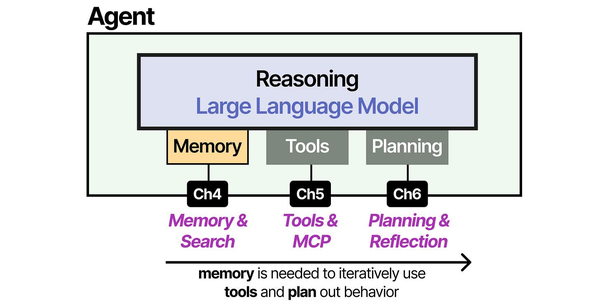
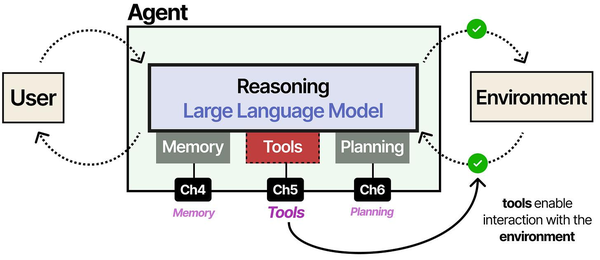
The distinction between a raw LLM and a usable chat assistant is precisely the set of augmentation modules wrapped around it. As Grootendorst and Alammar explain in An Illustrated Guide to AI Agents, an LLM without memory is a stateless function that forgets everything between calls. The self-hosted alternatives discussed here, from Open WebUI to LibreChat, each implement their own memory and conversation management layers on top of the underlying model. This is what transforms a bare Ollama endpoint into something that feels like ChatGPT. Ranjan et al. note in Agentic AI in Enterprise that enterprise deployments benefit from choosing frontends that support role-based access, audit logging, and integration with existing authentication systems like LDAP or SAML.
We are going to walk through Open WebUI, LibreChat, AnythingLLM, LobeChat, and text-generation-webui. Each one gets real install commands for Ubuntu and RHEL, hardware requirements, honest pros and cons, and production deployment guidance. By the end, you will know which tool fits your team, your hardware, and your workflow. For GPU driver setup, see our NVIDIA driver and CUDA installation guide.
Why Self-Host a ChatGPT Alternative on Linux
The reasons people self-host keep expanding. Here are the ones that actually matter in production environments:
Performance tuning for self-hosted chat interfaces is another critical consideration. Brousseau and Sharp point out in LLMs in Production that latency in LLM serving has two components: time-to-first-token (TTFT) and tokens-per-second (TPS) during generation. Users perceive TTFT most acutely, because it determines how long they wait before text starts streaming. Optimizations like KV-cache reuse, continuous batching, and speculative decoding can dramatically improve the interactive feel of a self-hosted chat system without requiring faster hardware.
Data sovereignty. If you work in healthcare, finance, legal, or government, sending prompts to OpenAI or Anthropic may violate compliance requirements. A self-hosted AI chat running on your own metal keeps every conversation inside your network boundary. GDPR, HIPAA, SOC 2 — self-hosting simplifies all of them.
Cost control at scale. API pricing works fine for prototyping. At 50 users sending 100 messages a day, GPT-4o-class API costs add up fast. A self-hosted setup with Ollama running Llama 3.3 70B on a dual-GPU workstation costs electricity and the one-time hardware investment. The amortised per-query cost drops to nearly zero after a few months.
Model flexibility. You are not locked to one provider's model lineup. Run Llama 3.3, Mistral Large, DeepSeek V3, Qwen 2.5, or any GGUF-quantized model you want. Swap models without changing frontends. Fine-tune on your own data and serve it immediately.
Customisation depth. Self-hosted frontends let you build custom system prompts, enforce guardrails, integrate RAG pipelines against your own documentation, and expose chat to your team behind your own authentication. Try doing that with ChatGPT Teams.
Uptime independence. When OpenAI has an outage — and they do, regularly — your self-hosted stack keeps running. Your LLM does not depend on someone else's infrastructure decisions.
The Stack: Ollama + Frontend
Every tool in this guide follows the same architecture: Ollama (or a compatible backend) serves the models, and a frontend UI provides the chat interface. Ollama handles model management, quantization, GPU offloading, and the inference API. The frontend handles users, conversations, prompt templates, RAG, and the web interface.
Install Ollama first. Everything else plugs into it:
# Install Ollama (all distros)
curl -fsSL https://ollama.com/install.sh | sh

# Verify it is running
systemctl status ollama

# Pull a model
ollama pull llama3.3:70b-instruct-q4_K_M

# Quick test
ollama run llama3.3:70b-instruct-q4_K_M "Explain TCP three-way handshake in two sentences"
Ollama listens on http://localhost:11434 by default. Every frontend in this guide connects to that endpoint. If you need Ollama to listen on all interfaces (for example, running the frontend on a different host), set the environment variable:
# /etc/systemd/system/ollama.service.d/override.conf
[Service]
Environment="OLLAMA_HOST=0.0.0.0:11434"
sudo systemctl daemon-reload
sudo systemctl restart ollamaQuick Comparison: Best Self-Hosted ChatGPT Alternatives for Linux
Before diving into individual installs, here is the landscape at a glance. This comparison table covers the five frontends we will deploy in this guide. All of them are open source, all run on Linux, and all connect to Ollama as a backend.
| Tool | Install Complexity | GPU Required | Multi-User | RAG Support | Active Development |
|---|---|---|---|---|---|
| Open WebUI | Low (Docker one-liner) | No (backend only) | Yes, built-in RBAC | Yes, native | Very active (daily commits) |
| LibreChat | Medium (Docker Compose) | No (backend only) | Yes, full auth system | Yes, via plugins | Very active |
| AnythingLLM | Low (installer script) | No (backend only) | Yes, workspaces | Yes, best-in-class | Active |
| LobeChat | Low (Docker one-liner) | No (backend only) | Yes (server mode) | Yes, via plugins | Very active |
| text-generation-webui | High (Python + deps) | Recommended | Limited | Via extensions | Active |
The GPU column deserves clarification. None of these frontends need a GPU. The GPU requirement lives in the backend — Ollama or whatever inference engine you use. If you run small models (7B–14B parameters) quantized to 4-bit, even a CPU-only server with 16 GB RAM can handle single-user workloads. For 70B models or multi-user concurrency, you want at least one NVIDIA GPU with 24 GB VRAM (RTX 3090, RTX 4090, or A5000-class).
Open WebUI — The Most Popular Choice
Open WebUI (formerly Ollama WebUI) is the runaway leader in self-hosted ChatGPT alternatives. Over 80,000 GitHub stars as of early 2026 and a daily commit cadence that would make some startups jealous. It looks and feels like ChatGPT, which means your non-technical team members can use it without training.
Hardware Requirements
- CPU: Any modern x86_64 or ARM64 processor
- RAM: 2 GB minimum for the frontend (plus whatever Ollama needs for your model)
- Disk: 500 MB for the application, plus model storage
- GPU: Not needed for Open WebUI itself; only for the Ollama backend
Install on Ubuntu 22.04 / 24.04
The Docker method is the officially supported path and the one you should use in production:
# Make sure Docker is installed
sudo apt update && sudo apt install -y docker.io docker-compose-v2
sudo systemctl enable --now docker
# Run Open WebUI with Ollama connectivity
docker run -d \
--name open-webui \
--restart always \
-p 3000:8080 \
-v open-webui:/app/backend/data \
-e OLLAMA_BASE_URL=http://host.docker.internal:11434 \
--add-host=host.docker.internal:host-gateway \
ghcr.io/open-webui/open-webui:mainOpen your browser to http://your-server:3000. The first user to register becomes the admin.
Install on RHEL 9 / AlmaLinux 9
# Install Docker CE on RHEL 9
sudo dnf install -y dnf-plugins-core
sudo dnf config-manager --add-repo https://download.docker.com/linux/rhel/docker-ce.repo
sudo dnf install -y docker-ce docker-ce-cli containerd.io docker-compose-plugin
sudo systemctl enable --now docker
# Run Open WebUI
docker run -d \
--name open-webui \
--restart always \
-p 3000:8080 \
-v open-webui:/app/backend/data \
-e OLLAMA_BASE_URL=http://host.docker.internal:11434 \
--add-host=host.docker.internal:host-gateway \
ghcr.io/open-webui/open-webui:mainScreenshot Description
The Open WebUI interface displays a clean, dark-themed chat window nearly identical to ChatGPT. A left sidebar lists conversation history with search and folder organisation. The top bar shows the currently selected model with a dropdown to switch between any model Ollama has pulled. The message input area at the bottom supports file attachments for RAG, image uploads for multimodal models, and a web search toggle. An admin panel (accessible via the gear icon) provides user management, model configuration, and RAG settings with a document upload interface.
Pros and Cons
Pros:
- Most polished UI of any self-hosted option — your users will feel at home immediately
- Built-in RAG: upload PDFs, markdown, text files and chat against them
- Role-based access control with admin, user, and pending roles
- Supports Ollama, OpenAI API, and any OpenAI-compatible endpoint simultaneously
- Model arena mode lets users blind-compare two models side by side
- Built-in web search integration (SearXNG, Google, Brave)
- Active community with new features landing weekly
Cons:
- Docker-only for production — pip install exists but is not recommended for multi-user
- Heavy feature set means more surface area for bugs after updates
- No native clustering or horizontal scaling — single instance only
LibreChat — Multi-Provider Support
LibreChat positions itself as the open-source ChatGPT clone that can talk to everything: OpenAI, Anthropic, Google, Mistral, local Ollama, and any OpenAI-compatible API. If your organisation uses a mix of cloud and local models, LibreChat lets you unify them behind a single interface. Users pick their provider and model from a dropdown; the backend routes accordingly.
Hardware Requirements
- CPU: 2+ cores recommended
- RAM: 4 GB minimum (MongoDB and Node.js run alongside the app)
- Disk: 2 GB for the application and database
- Dependencies: MongoDB (included in Docker Compose), Node.js 18+ (if building from source)
Install on Ubuntu 22.04 / 24.04
# Clone the repository
git clone https://github.com/danny-avila/LibreChat.git
cd LibreChat
# Copy environment template
cp .env.example .env
# Edit .env to configure providers
# At minimum, set OLLAMA_BASE_URL for local models:
# OLLAMA_BASE_URL=http://host.docker.internal:11434
# Start with Docker Compose
docker compose up -dLibreChat starts on port 3080 by default. The Docker Compose file brings up MongoDB, MeiliSearch (for conversation search), and the LibreChat app container.
Install on RHEL 9 / AlmaLinux 9
# Ensure Docker and git are installed
sudo dnf install -y docker-ce docker-ce-cli containerd.io docker-compose-plugin git
# Clone and configure
git clone https://github.com/danny-avila/LibreChat.git
cd LibreChat
cp .env.example .env
# Configure the librechat.yaml for Ollama
cat > librechat.yaml <<'YAML'
version: 1.2.1
cache: true
endpoints:
custom:
- name: "Ollama"
apiKey: "ollama"
baseURL: "http://host.docker.internal:11434/v1/"
models:
default:
- "llama3.3:70b-instruct-q4_K_M"
- "mistral-large:latest"
- "qwen2.5:32b"
fetch: true
titleConvo: true
titleModel: "llama3.3:70b-instruct-q4_K_M"
YAML
# Launch
docker compose up -dScreenshot Description
LibreChat presents a ChatGPT-style interface with a provider/model selector at the top of the conversation. The left sidebar organises chats into folders. A distinctive feature is the endpoint switcher: icons for OpenAI, Anthropic, Google, and custom endpoints sit in a horizontal bar above the chat. The settings panel exposes per-conversation parameters like temperature, top-p, max tokens, and system prompt. An admin dashboard shows user registrations, usage statistics, and provider configuration.
Pros and Cons
Pros:
- Unmatched multi-provider support — route different conversations to different backends
- Full authentication system with email/password, OAuth (Google, GitHub, Discord), and LDAP
- Conversation search powered by MeiliSearch
- Plugin system for web browsing, DALL-E image generation, code execution
- Granular preset management — save model + parameters + system prompt as reusable configs
- Active development with a responsive maintainer
Cons:
- Requires MongoDB — adds operational complexity compared to SQLite-based alternatives
- More complex configuration (YAML + .env files) before first run
- RAG support is less mature than Open WebUI or AnythingLLM
- Docker Compose stack uses more resources (3–4 containers)
AnythingLLM — Built-In RAG and Document Chat
AnythingLLM from Mintplex Labs is the best option if your primary use case is document-grounded chat. While Open WebUI and LibreChat bolt RAG on as a feature, AnythingLLM was built around it from day one. You create workspaces, upload documents (PDF, DOCX, TXT, source code, web pages), and the system chunks, embeds, and indexes them automatically. Every conversation in that workspace is grounded in your documents.
Hardware Requirements
- CPU: 2+ cores
- RAM: 4 GB minimum (the built-in vector database runs in-process)
- Disk: 1 GB plus document storage and vector embeddings
- Embedding model: Uses a built-in embedding engine by default, or can connect to Ollama for embeddings
Install on Ubuntu 22.04 / 24.04
AnythingLLM offers both Docker and a native installer. Docker is recommended for servers:
# Docker method
docker run -d \
--name anythingllm \
--restart always \
-p 3001:3001 \
-v anythingllm_data:/app/server/storage \
-e STORAGE_DIR="/app/server/storage" \
-e LLM_PROVIDER="ollama" \
-e OLLAMA_BASE_PATH="http://host.docker.internal:11434" \
-e OLLAMA_MODEL_PREF="llama3.3:70b-instruct-q4_K_M" \
-e EMBEDDING_ENGINE="ollama" \
-e EMBEDDING_MODEL_PREF="nomic-embed-text" \
-e VECTOR_DB="lancedb" \
--add-host=host.docker.internal:host-gateway \
mintplexlabs/anythingllmAlternatively, the native installer script for desktop and server use:
# Native install (for development or single-user setups)
curl -fsSL https://s3.us-west-1.amazonaws.com/public.anythingllm.com/latest/installer.sh | bash
cd AnythingLLM && yarn setup
yarn dev # development modeInstall on RHEL 9 / AlmaLinux 9
# Docker method (recommended)
sudo dnf install -y docker-ce docker-compose-plugin
sudo systemctl enable --now docker
# Pull the embedding model into Ollama first
ollama pull nomic-embed-text
# Run AnythingLLM
docker run -d \
--name anythingllm \
--restart always \
-p 3001:3001 \
-v anythingllm_data:/app/server/storage \
-e STORAGE_DIR="/app/server/storage" \
-e LLM_PROVIDER="ollama" \
-e OLLAMA_BASE_PATH="http://host.docker.internal:11434" \
-e OLLAMA_MODEL_PREF="llama3.3:70b-instruct-q4_K_M" \
-e EMBEDDING_ENGINE="ollama" \
-e EMBEDDING_MODEL_PREF="nomic-embed-text" \
-e VECTOR_DB="lancedb" \
--add-host=host.docker.internal:host-gateway \
mintplexlabs/anythingllmScreenshot Description
AnythingLLM opens to a workspace-centric interface. The left sidebar shows workspaces (each with its own document collection and chat history). Clicking a workspace reveals two tabs: Chat and Documents. The Documents tab displays uploaded files with their chunking status, embedding progress, and token counts. The Chat tab is a standard message interface with citations — when the model uses a document to answer, the response includes clickable source references showing the exact chunks used. An admin panel provides user management, workspace permissions, and system-wide LLM/embedding/vector-DB configuration.
Pros and Cons
Pros:
- Best-in-class RAG implementation — workspace-scoped document collections with citation support
- Built-in vector database (LanceDB) — no external dependencies for RAG
- Supports multiple vector databases: LanceDB, Chroma, Pinecone, Weaviate, QDrant, Milvus
- Workspace permissions let you isolate document collections per team
- Built-in web scraping — paste a URL and it fetches, chunks, and embeds the page
- API available for programmatic document upload and querying
Cons:
- Chat UI is functional but less polished than Open WebUI
- No model arena or blind comparison features
- Smaller community than Open WebUI or LibreChat
- Desktop app and server app share a codebase, which sometimes leads to UI choices optimised for desktop rather than server
LobeChat — Modern UI with Plugin Ecosystem
LobeChat is the aesthetically-forward option. Built with Next.js 14 and a design language that prioritises visual clarity, it looks more like a polished SaaS product than a self-hosted tool. The plugin ecosystem is its distinguishing feature: web browsing, image generation, code execution, and third-party integrations are all available as plugins that users can enable per-conversation.
Hardware Requirements
- CPU: 2+ cores
- RAM: 2 GB minimum (lightweight Node.js app)
- Disk: 500 MB for the application
- Database: PostgreSQL recommended for server-mode multi-user (SQLite for single-user)
Install on Ubuntu 22.04 / 24.04
LobeChat offers two deployment modes: a client-side only mode (data stays in the browser) and a full server mode with database backing. For team use, you want server mode:
# Simple single-user mode (data stored in browser)
docker run -d \
--name lobe-chat \
--restart always \
-p 3210:3210 \
-e OLLAMA_PROXY_URL=http://host.docker.internal:11434 \
--add-host=host.docker.internal:host-gateway \
lobehub/lobe-chatFor multi-user server mode with PostgreSQL:
# Create a docker-compose.yml for server mode
mkdir -p /opt/lobechat && cd /opt/lobechat
cat > docker-compose.yml <<'EOF'
services:
postgres:
image: pgvector/pgvector:pg17
restart: always
environment:
POSTGRES_USER: lobechat
POSTGRES_PASSWORD: your_secure_password_here
POSTGRES_DB: lobechat
volumes:
- pgdata:/var/lib/postgresql/data
lobe-chat:
image: lobehub/lobe-chat-database
restart: always
ports:
- "3210:3210"
depends_on:
- postgres
environment:
DATABASE_URL: postgresql://lobechat:your_secure_password_here@postgres:5432/lobechat
NEXT_AUTH_SECRET: generate_a_random_secret_here
NEXT_AUTH_SSO_PROVIDERS: ""
OLLAMA_PROXY_URL: http://host.docker.internal:11434
extra_hosts:
- "host.docker.internal:host-gateway"
volumes:
pgdata:
EOF
docker compose up -dInstall on RHEL 9 / AlmaLinux 9
# Install Docker
sudo dnf install -y docker-ce docker-compose-plugin
sudo systemctl enable --now docker
# Same Docker Compose setup works on RHEL
mkdir -p /opt/lobechat && cd /opt/lobechat
# Copy the docker-compose.yml from above, then:
docker compose up -dScreenshot Description
LobeChat opens with a visually striking interface featuring smooth animations and a design inspired by modern chat applications. The left panel displays conversation threads with avatar icons for each assistant. The top bar allows model selection and shows the active plugin configuration. A distinctive feature is the assistant marketplace: pre-configured assistants with specialised system prompts (coding assistant, writing editor, translator, etc.) can be browsed and activated in a storefront-like UI. The settings interface is extensive, covering theme customisation, plugin management, and model provider configuration with a visual connection-test feature.
Pros and Cons
Pros:
- Best-looking UI of any self-hosted option — smooth animations, modern design
- Rich plugin ecosystem: web browsing, image generation, code interpreter, search
- Assistant marketplace with community-contributed prompt configurations
- TTS (text-to-speech) and STT (speech-to-text) built in
- Client-side mode requires zero server infrastructure — just a static file host
- Progressive Web App (PWA) support for mobile
Cons:
- Server mode (multi-user with database) is more complex to set up than client mode
- Requires PostgreSQL with pgvector extension for full-featured server deployment
- RAG capabilities are plugin-dependent rather than built in
- Admin controls are less granular than Open WebUI or LibreChat for enterprise use
text-generation-webui — For Power Users
Oobabooga's text-generation-webui is the oldest and most technically deep option on this list. It is not trying to clone ChatGPT. It is a full model inference frontend that exposes every parameter, supports every quantization format, and gives you direct control over the generation pipeline. If you want to load GPTQ, AWQ, EXL2, GGUF, or HQQ models and fine-tune generation settings at the sampler level, this is your tool.
Hardware Requirements
- CPU: Modern x86_64 with AVX2 support
- RAM: 8 GB minimum (16+ GB recommended)
- GPU: Strongly recommended — NVIDIA with 8+ GB VRAM for reasonable inference speeds
- Disk: 2 GB plus model storage
- Python: 3.11 recommended
Install on Ubuntu 22.04 / 24.04
# Install system dependencies
sudo apt update && sudo apt install -y \
git python3.11 python3.11-venv python3.11-dev \
build-essential cmake
# Clone the repository
git clone https://github.com/oobabooga/text-generation-webui.git
cd text-generation-webui
# Run the automated installer
# It detects your GPU and installs the correct PyTorch version
bash start_linux.sh
# The installer creates a conda environment automatically
# On first run it will download dependencies (~5-10 minutes)
# To specify a model directory and listen on all interfaces:
bash start_linux.sh --model-dir /data/models --listen --listen-port 7860Install on RHEL 9 / AlmaLinux 9
# Install build dependencies
sudo dnf install -y git python3.11 python3.11-devel \
gcc gcc-c++ cmake make
# For NVIDIA GPU support (if not already installed)
sudo dnf install -y nvidia-driver nvidia-driver-cuda
# Clone and run
git clone https://github.com/oobabooga/text-generation-webui.git
cd text-generation-webui
bash start_linux.sh --listen --listen-port 7860To use text-generation-webui with Ollama models instead of loading models directly, enable the OpenAI-compatible API extension or point it to Ollama's API endpoint. However, most users of text-generation-webui load models directly for maximum control over the inference pipeline.
Screenshot Description
text-generation-webui presents a tabbed interface that shows its power-user DNA. The main tabs are: Chat, Default, Notebook, and the critical Parameters tab. The Chat tab offers three modes: chat (conversation with a character), instruct (structured prompt template), and chat-instruct (hybrid). The Model tab shows the model loader selection (Transformers, llama.cpp, ExLlamaV2, AutoGPTQ, AutoAWQ), GPU layer allocation sliders, context length settings, and quantization options. The Parameters tab exposes every sampler setting: temperature, top-p, top-k, typical-p, repetition penalty, min-p, and more, each with real-time sliders.
Pros and Cons
Pros:
- Most technically capable frontend — supports every model format and loader
- Granular sampler control that no other frontend matches
- Extension system for API serving, multimodal, long-term memory, and more
- Can load models without Ollama — it is its own inference engine
- Notebook mode for long-form generation and editing
- Training tab for LoRA fine-tuning directly in the UI
Cons:
- Not designed for multi-user access — single-user tool
- No built-in authentication or user management
- UI is functional but not polished — Gradio-based interface
- Complex dependency chain — Python version, CUDA version, and PyTorch version must all align
- RAG requires manual extension setup
- Steeper learning curve than any other tool on this list
Production Deployment Checklist
Getting any of these tools running locally is straightforward. Deploying them for a team in production requires additional work. Here is the checklist that covers all five tools.
systemd Service for Ollama
Ollama's installer creates a systemd unit automatically. Verify and customise it:
# Check the unit file
systemctl cat ollama
# Override for production settings
sudo mkdir -p /etc/systemd/system/ollama.service.d
cat | sudo tee /etc/systemd/system/ollama.service.d/override.conf <<'EOF'
[Service]
# Listen on all interfaces if frontend is on a different host
Environment="OLLAMA_HOST=0.0.0.0:11434"
# Set model storage location (default: ~/.ollama/models)
Environment="OLLAMA_MODELS=/data/ollama/models"
# Set number of parallel requests
Environment="OLLAMA_NUM_PARALLEL=4"
# Keep models loaded in memory for 30 minutes
Environment="OLLAMA_KEEP_ALIVE=30m"
# Restart on failure
Restart=always
RestartSec=5
EOF
sudo systemctl daemon-reload
sudo systemctl restart ollamasystemd Service for Docker-Based Frontends
If you used docker run with --restart always, Docker handles restarts automatically. For Docker Compose deployments, create a systemd unit:
# /etc/systemd/system/open-webui.service
[Unit]
Description=Open WebUI
After=docker.service ollama.service
Requires=docker.service

[Service]
Type=oneshot
RemainAfterExit=yes
WorkingDirectory=/opt/open-webui
ExecStart=/usr/bin/docker compose up -d
ExecStop=/usr/bin/docker compose down

[Install]
WantedBy=multi-user.target
sudo systemctl daemon-reload
sudo systemctl enable --now open-webuiNginx Reverse Proxy
Put nginx in front of your chatgpt alternative self-hosted linux setup. This gives you SSL termination, request logging, rate limiting, and a clean URL. The following configuration works for any of the five frontends — just change the proxy_pass port:
# /etc/nginx/conf.d/chat.example.com.conf
server {
    listen 443 ssl http2;
    server_name chat.example.com;

    ssl_certificate     /etc/letsencrypt/live/chat.example.com/fullchain.pem;
    ssl_certificate_key /etc/letsencrypt/live/chat.example.com/privkey.pem;
    ssl_protocols       TLSv1.2 TLSv1.3;
    ssl_ciphers         HIGH:!aNULL:!MD5;

    # WebSocket support (required for all five tools)
    location / {
        proxy_pass http://127.0.0.1:3000;
        proxy_http_version 1.1;
        proxy_set_header Upgrade $http_upgrade;
        proxy_set_header Connection "upgrade";
        proxy_set_header Host $host;
        proxy_set_header X-Real-IP $remote_addr;
        proxy_set_header X-Forwarded-For $proxy_add_x_forwarded_for;
        proxy_set_header X-Forwarded-Proto $scheme;

        # LLM responses can be slow for long outputs
        proxy_read_timeout 600s;
        proxy_send_timeout 600s;

        # Disable buffering for streaming responses
        proxy_buffering off;
        chunked_transfer_encoding on;
    }

    # Rate limiting (optional but recommended)
    limit_req_zone $binary_remote_addr zone=chat:10m rate=30r/m;
    location /api/ {
        limit_req zone=chat burst=10 nodelay;
        proxy_pass http://127.0.0.1:3000;
        proxy_http_version 1.1;
        proxy_set_header Upgrade $http_upgrade;
        proxy_set_header Connection "upgrade";
        proxy_set_header Host $host;
        proxy_set_header X-Real-IP $remote_addr;
        proxy_set_header X-Forwarded-For $proxy_add_x_forwarded_for;
        proxy_set_header X-Forwarded-Proto $scheme;
        proxy_buffering off;
    }
}

server {
    listen 80;
    server_name chat.example.com;
    return 301 https://$host$request_uri;
}
SSL with Let's Encrypt
# Install certbot
sudo apt install -y certbot python3-certbot-nginx   # Ubuntu
sudo dnf install -y certbot python3-certbot-nginx   # RHEL

# Obtain certificate
sudo certbot --nginx -d chat.example.com

# Auto-renewal (certbot sets this up, but verify)
sudo systemctl enable --now certbot-renew.timer
sudo certbot renew --dry-run
Authentication
Each frontend handles authentication differently:
- Open WebUI: Built-in user registration with admin approval. Supports OIDC/OAuth. Set
WEBUI_AUTH=true(default) andENABLE_SIGNUP=falseafter creating your users to lock registration. - LibreChat: Built-in email/password plus OAuth providers (Google, GitHub, Discord, OpenID). LDAP support for enterprise environments. Configure in
.env. - AnythingLLM: Built-in multi-user auth with workspace-level permissions. First user becomes admin. Configure in the admin UI.
- LobeChat: In server mode, supports NextAuth providers (GitHub, Google, Auth0, any OIDC provider). Configure via environment variables.
- text-generation-webui: No built-in auth. Use nginx
auth_basicor an external auth proxy like Authelia or Authentik.
For text-generation-webui specifically, add basic auth in your nginx config:
# Generate a password file
sudo apt install -y apache2-utils
sudo htpasswd -c /etc/nginx/.htpasswd admin

# Add to your nginx location block:
# auth_basic "Restricted";
# auth_basic_user_file /etc/nginx/.htpasswd;
Firewall Rules
Lock down the ports. The frontends and Ollama should only be accessible through nginx, never directly:
# UFW (Ubuntu)
sudo ufw allow 80/tcp
sudo ufw allow 443/tcp
sudo ufw deny 3000/tcp    # Open WebUI direct access
sudo ufw deny 3080/tcp    # LibreChat direct access
sudo ufw deny 3001/tcp    # AnythingLLM direct access
sudo ufw deny 3210/tcp    # LobeChat direct access
sudo ufw deny 7860/tcp    # text-generation-webui direct access
sudo ufw deny 11434/tcp   # Ollama direct access

# firewalld (RHEL)
sudo firewall-cmd --permanent --add-service=http
sudo firewall-cmd --permanent --add-service=https
sudo firewall-cmd --reload
Backup Strategy
Each tool stores data differently. Back these up regularly:
| Tool | Data Location | What to Back Up |
|---|---|---|
| Open WebUI | open-webui Docker volume |
SQLite DB (users, chats, configs, uploaded docs) |
| LibreChat | MongoDB data volume | MongoDB dump (conversations, users), .env, librechat.yaml |
| AnythingLLM | anythingllm_data Docker volume |
SQLite DB, vector store, uploaded documents |
| LobeChat | PostgreSQL data volume | PostgreSQL dump, environment config |
| text-generation-webui | Application directory | characters/, presets/, loras/, extensions/ directories |
# Example: backup Open WebUI Docker volume
docker run --rm \
  -v open-webui:/data \
  -v /backups:/backup \
  alpine tar czf /backup/open-webui-$(date +%Y%m%d).tar.gz -C /data .
Which Should You Choose?
After deploying all five tools, the decision comes down to your primary use case and team composition:
Choose Open WebUI if you want the closest thing to a self-hosted ChatGPT experience. It has the largest community, the most frequent updates, and the lowest barrier to entry. If you are deploying for a team that includes non-technical users, this is the safest bet. The built-in RAG is good enough for most use cases, and the admin controls give you the governance you need.
Choose LibreChat if your team uses a mix of cloud and local models. The multi-provider routing is genuinely useful — users can start a conversation with a local Llama model, then switch to Claude for a task that needs stronger reasoning, all within the same interface. It is also the best choice if you need LDAP integration for enterprise environments.
Choose AnythingLLM if document-grounded chat is your primary use case. If your team needs to query internal documentation, policy manuals, codebases, or research papers, AnythingLLM's workspace-scoped RAG is significantly ahead of the competition. The citation support — showing exactly which document chunks the model used — is essential for trust in enterprise settings.
Choose LobeChat if you want the best-looking interface and your users expect a SaaS-grade experience. The plugin ecosystem adds capabilities that other tools require external integrations for. The client-side mode is also uniquely useful for personal use: you get a full ChatGPT alternative without running any server infrastructure, just serve the static files.
Choose text-generation-webui if you are a researcher, model developer, or power user who needs direct access to model loading, sampler parameters, and fine-tuning. It is not a team tool. It is a workbench for individuals who care about the generation pipeline as much as the output. If you know what min-p sampling is and have opinions about repetition penalty decay, this is your tool.
For Most Teams: Start with Open WebUI
If you are reading this guide trying to decide where to start, install Open WebUI. You can have it running in five minutes, your team can use it immediately, and you can always deploy a second tool later if your needs change. The Ollama backend stays the same regardless of which frontend you connect to it.
Related Articles
- Deploy a Private ChatGPT on Your Linux Server with Ollama and Open WebUI
- LibreChat on Linux: Complete Installation and Multi-Provider Configuration Guide
- AnythingLLM on Linux: Self-Hosted RAG with Ollama and Document Chat
- LocalAI on Linux: Deploy an OpenAI-Compatible API Server with Local Models
Further Reading
- Grootendorst, M. & Alammar, J. (2025). An Illustrated Guide to AI Agents. O'Reilly Media. Covers agent memory systems, RAG pipelines, tool usage, MCP protocol, and context engineering with clear visual explanations.
- Ranjan, R. et al. (2025). Agentic AI in Enterprise. Apress. Explores enterprise AI architecture, RAG vs fine-tuning trade-offs, vector databases, prompt engineering, GPU acceleration, and Kubernetes orchestration for production AI.
- Brousseau, D. & Sharp, T. (2025). LLMs in Production. Manning Publications. Covers neural network fundamentals, transformer architecture, GPU management, latency optimization, Kubernetes deployment, MLOps pipelines, embeddings, and model quantization.
FAQ
Can I run a self-hosted ChatGPT alternative without a GPU?
Yes, but with caveats. Ollama supports CPU-only inference using llama.cpp. Small models (7B–14B parameters) at 4-bit quantization run acceptably on modern CPUs with 16+ GB RAM. Expect 5–15 tokens per second on a recent Xeon or Ryzen, which is usable for single-user workloads. For 70B models or multi-user concurrency, you need a GPU. An NVIDIA RTX 3090 (24 GB VRAM) or RTX 4090 (24 GB VRAM) is the sweet spot for self-hosted setups. For enterprise loads, consider an A100 (80 GB) or multiple GPUs.
How do I update these tools without losing data?
All Docker-based deployments use named volumes for persistent data. To update: pull the new image, stop the old container, start a new one with the same volume mounts. For example, updating Open WebUI:
docker pull ghcr.io/open-webui/open-webui:main
docker stop open-webui && docker rm open-webui
docker run -d \
  --name open-webui \
  --restart always \
  -p 3000:8080 \
  -v open-webui:/app/backend/data \
  -e OLLAMA_BASE_URL=http://host.docker.internal:11434 \
  --add-host=host.docker.internal:host-gateway \
  ghcr.io/open-webui/open-webui:main
Your conversations, users, and settings persist in the open-webui volume. Always back up the volume before major version upgrades.
Can I use these frontends with models other than Ollama's?
Yes. All five frontends support the OpenAI API format, which has become the de facto standard for LLM inference APIs. You can connect them to vLLM, TGI (Text Generation Inference by Hugging Face), LocalAI, LM Studio, or any service that exposes an OpenAI-compatible /v1/chat/completions endpoint. LibreChat and Open WebUI additionally support direct connections to cloud providers (OpenAI, Anthropic, Google) so you can mix local and cloud models.
What are the security risks of self-hosting an LLM chat interface?
The main risks are: (1) prompt injection — users crafting inputs that make the model bypass system prompts or reveal sensitive information from RAG documents; (2) model output containing harmful content if you run uncensored models; (3) the web interface itself being exposed without authentication; (4) Ollama's API being accessible directly, allowing model pulls and deletions. Mitigation: always put the frontend behind nginx with SSL, enable authentication, restrict Ollama to localhost or authenticated access only, and use models with appropriate safety tuning for your environment.
How much disk space do I need for models?
Model sizes at 4-bit quantization: a 7B parameter model uses approximately 4 GB, a 14B model uses around 8 GB, a 32B model takes roughly 18 GB, and a 70B model requires about 40 GB. Ollama stores models in ~/.ollama/models by default (override with OLLAMA_MODELS). Plan for at least 100 GB if you intend to keep several models available. A 1 TB NVMe is a sensible investment for a dedicated inference server — it leaves room for model experimentation without constantly deleting old models.


