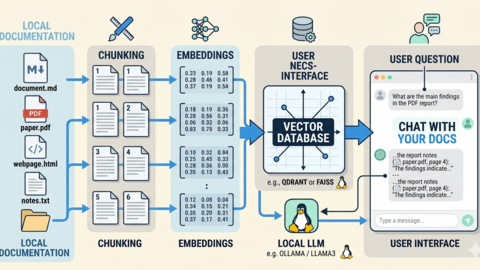
Docker has been the standard for containerizing applications for over a decade. In 2024, Docker introduced Model Runner — a built-in capability to pull, manage, and serve AI models directly through the Docker engine, the same way you pull and run container images. Instead of separately installing Ollama, configuring GPU passthrough, and managing model files, Docker Model Runner treats AI models as first-class citizens in the Docker ecosystem. You pull a model with docker model pull, run inference with the Docker CLI, and serve models through an OpenAI-compatible API endpoint — all managed by the Docker daemon you already have running.
For teams that already use Docker for their application stack, Model Runner eliminates a separate tool in the AI infrastructure chain. The models integrate with Docker Compose, use the same GPU access mechanisms as GPU-enabled containers, and their lifecycle is managed through familiar Docker commands. The API is compatible with OpenAI's format, so existing applications that call OpenAI or Ollama endpoints can switch to Docker Model Runner with minimal code changes.
This guide covers the complete setup: installing Docker with Model Runner support on Linux, configuring GPU access, pulling and managing models, serving inference through the API, integrating with existing Docker Compose stacks, production deployment patterns, and honest comparisons with Ollama and vLLM for different use cases. For GPU driver setup, see our NVIDIA driver and CUDA installation guide.
Prerequisites and Installation
Docker Model Runner requires Docker Desktop 4.40+ or Docker Engine with the model runner feature enabled. On Linux servers, Docker Engine is the standard path.
Install Docker Engine with Model Runner
# Install Docker Engine (if not already installed)
# Using Docker's official repository for the latest version

# Remove old Docker packages
sudo apt remove -y docker docker-engine docker.io containerd runc 2>/dev/null

# Add Docker's official GPG key and repository
sudo apt update
sudo apt install -y ca-certificates curl gnupg
sudo install -m 0755 -d /etc/apt/keyrings
curl -fsSL https://download.docker.com/linux/ubuntu/gpg | sudo gpg --dearmor -o /etc/apt/keyrings/docker.gpg
sudo chmod a+r /etc/apt/keyrings/docker.gpg

echo \
  "deb [arch=$(dpkg --print-architecture) signed-by=/etc/apt/keyrings/docker.gpg] https://download.docker.com/linux/ubuntu \
  $(. /etc/os-release && echo "$VERSION_CODENAME") stable" | \
  sudo tee /etc/apt/sources.list.d/docker.list > /dev/null

sudo apt update
sudo apt install -y docker-ce docker-ce-cli containerd.io docker-buildx-plugin docker-compose-plugin

# Verify Docker installation
docker --version
# Should be 27.x or later for Model Runner support
Install NVIDIA Container Toolkit
# Docker Model Runner uses the same GPU access as regular Docker containers
# The NVIDIA Container Toolkit is required for GPU inference

# Add the NVIDIA repository
distribution=$(. /etc/os-release;echo $ID$VERSION_ID)
curl -fsSL https://nvidia.github.io/libnvidia-container/gpgkey | \
  sudo gpg --dearmor -o /usr/share/keyrings/nvidia-container-toolkit-keyring.gpg

curl -s -L https://nvidia.github.io/libnvidia-container/stable/deb/nvidia-container-toolkit.list | \
  sed 's#deb https://#deb [signed-by=/usr/share/keyrings/nvidia-container-toolkit-keyring.gpg] https://#g' | \
  sudo tee /etc/apt/sources.list.d/nvidia-container-toolkit.list

sudo apt update
sudo apt install -y nvidia-container-toolkit

# Configure the Docker runtime for NVIDIA
sudo nvidia-ctk runtime configure --runtime=docker

# Restart Docker to apply changes
sudo systemctl restart docker

# Verify GPU access from Docker
docker run --rm --gpus all nvidia/cuda:12.4.0-base-ubuntu22.04 nvidia-smi
Enable Model Runner in Docker
# Enable the Model Runner feature in Docker daemon configuration
sudo tee /etc/docker/daemon.json <<'EOF'
{
  "features": {
    "model-runner": true
  },
  "default-runtime": "nvidia",
  "runtimes": {
    "nvidia": {
      "path": "nvidia-container-runtime",
      "runtimeArgs": []
    }
  }
}
EOF

# Restart Docker to enable Model Runner
sudo systemctl restart docker

# Verify Model Runner is available
docker model --help
Pulling and Managing Models
Docker Model Runner uses a model registry that hosts GGUF-format models. The pull/list/remove commands mirror the familiar Docker image commands.
Basic Model Operations
# List available model commands
docker model --help

# Pull a model from the Docker model registry
docker model pull ai/llama3.1:8b-instruct-q4_K_M

# Pull additional models
docker model pull ai/mistral:7b-instruct-q4_K_M
docker model pull ai/qwen2.5-coder:7b-instruct-q4_K_M
docker model pull ai/gemma2:9b-instruct-q4_K_M

# List downloaded models
docker model list

# Example output:
# MODEL                                    SIZE      CREATED
# ai/llama3.1:8b-instruct-q4_K_M          4.9 GB    2 minutes ago
# ai/mistral:7b-instruct-q4_K_M           4.1 GB    1 minute ago
# ai/qwen2.5-coder:7b-instruct-q4_K_M    4.7 GB    30 seconds ago

# Remove a model
docker model rm ai/gemma2:9b-instruct-q4_K_M

# Inspect a model's metadata
docker model inspect ai/llama3.1:8b-instruct-q4_K_M
Running Inference from the CLI
# Run a quick inference directly from the command line
docker model run ai/llama3.1:8b-instruct-q4_K_M "Explain how Docker Model Runner works."

# Run with streaming output
docker model run ai/llama3.1:8b-instruct-q4_K_M "List 5 Linux performance tuning tips."

# Run with a system prompt
docker model run --system "You are a Linux sysadmin expert." \
  ai/llama3.1:8b-instruct-q4_K_M "How do I troubleshoot high iowait?"
The Model Runner API
Docker Model Runner exposes an OpenAI-compatible API endpoint. This is the primary integration point for applications. The API runs on a configurable port and supports chat completions, completions, and model listing.
Start the Model Runner API Server
# The Model Runner API starts automatically when Docker starts
# with the model-runner feature enabled.
# It listens on a Unix socket by default.

# To expose it on a TCP port, configure Docker:
sudo tee /etc/docker/daemon.json <<'EOF'
{
  "features": {
    "model-runner": true
  },
  "model-runner": {
    "host": "tcp://127.0.0.1:12434"
  },
  "default-runtime": "nvidia",
  "runtimes": {
    "nvidia": {
      "path": "nvidia-container-runtime",
      "runtimeArgs": []
    }
  }
}
EOF

sudo systemctl restart docker

# Verify the API is accessible
curl http://127.0.0.1:12434/v1/models

# The API is OpenAI-compatible, so standard tools work:
curl http://127.0.0.1:12434/v1/chat/completions \
  -H "Content-Type: application/json" \
  -d '{
    "model": "ai/llama3.1:8b-instruct-q4_K_M",
    "messages": [
      {"role": "system", "content": "You are a helpful assistant."},
      {"role": "user", "content": "What is the purpose of /etc/fstab?"}
    ],
    "temperature": 0.7,
    "max_tokens": 500
  }'
Using the API from Python
#!/usr/bin/env python3
"""Example: Using Docker Model Runner with the OpenAI Python client."""

from openai import OpenAI

# Point the OpenAI client at the Docker Model Runner API
client = OpenAI(
    base_url="http://127.0.0.1:12434/v1",
    api_key="not-needed"  # No API key required for local inference
)

# List available models
models = client.models.list()
for model in models.data:
    print(f"Available: {model.id}")

# Chat completion
response = client.chat.completions.create(
    model="ai/llama3.1:8b-instruct-q4_K_M",
    messages=[
        {"role": "system", "content": "You are a Linux systems expert."},
        {"role": "user", "content": "How do I check disk I/O performance on Linux?"}
    ],
    temperature=0.7,
    max_tokens=1000,
)

print(response.choices[0].message.content)

# Streaming response
stream = client.chat.completions.create(
    model="ai/llama3.1:8b-instruct-q4_K_M",
    messages=[
        {"role": "user", "content": "Explain Linux cgroups v2 in simple terms."}
    ],
    stream=True,
)

for chunk in stream:
    if chunk.choices[0].delta.content:
        print(chunk.choices[0].delta.content, end="", flush=True)
print()
Docker Compose Integration
The real power of Docker Model Runner emerges when you integrate it with Docker Compose. Your application stack can reference AI models alongside your existing services.
Full Stack with Model Runner
# docker-compose.yml
version: '3.8'

services:
  # Your web application
  webapp:
    image: your-app:latest
    ports:
      - "8080:8080"
    environment:
      - LLM_API_URL=http://host.docker.internal:12434/v1
      - LLM_MODEL=ai/llama3.1:8b-instruct-q4_K_M
    depends_on:
      - redis

  # Redis for caching LLM responses
  redis:
    image: redis:7-alpine
    ports:
      - "127.0.0.1:6379:6379"
    volumes:
      - redis_data:/data

  # Open WebUI connected to Docker Model Runner
  open-webui:
    image: ghcr.io/open-webui/open-webui:main
    ports:
      - "127.0.0.1:3000:8080"
    environment:
      # Point Open WebUI at Docker Model Runner's OpenAI-compatible API
      - OPENAI_API_BASE_URL=http://host.docker.internal:12434/v1
      - OPENAI_API_KEY=not-needed
      - WEBUI_AUTH=true
    volumes:
      - webui_data:/app/backend/data

  # ChromaDB for RAG
  chromadb:
    image: chromadb/chroma:latest
    ports:
      - "127.0.0.1:8000:8000"
    volumes:
      - chroma_data:/chroma/chroma
    environment:
      - ANONYMIZED_TELEMETRY=false

volumes:
  redis_data:
  webui_data:
  chroma_data:
# Deploy the stack
docker compose up -d
# Verify all services are running
docker compose ps
# Check that the webapp can reach the Model Runner API
docker compose exec webapp curl -s http://host.docker.internal:12434/v1/modelsGPU Configuration and Resource Management
Controlling GPU Access
# Docker Model Runner uses the same GPU access as Docker containers.
# Configure which GPUs are available:

# Use all GPUs (default)
# In daemon.json: no additional config needed

# Restrict to specific GPUs
sudo tee /etc/docker/daemon.json <<'EOF'
{
  "features": {
    "model-runner": true
  },
  "model-runner": {
    "host": "tcp://127.0.0.1:12434",
    "gpu": {
      "visible_devices": "0,1"
    }
  },
  "default-runtime": "nvidia",
  "runtimes": {
    "nvidia": {
      "path": "nvidia-container-runtime",
      "runtimeArgs": []
    }
  }
}
EOF

sudo systemctl restart docker

# Monitor GPU usage during inference
watch -n 1 nvidia-smi
Memory and Concurrency Settings
# Configure Model Runner performance parameters
# These go in the daemon.json under "model-runner"

{
  "model-runner": {
    "host": "tcp://127.0.0.1:12434",
    "context_length": 4096,
    "parallel": 4,
    "gpu_memory_fraction": 0.9
  }
}
Docker Model Runner vs Ollama: When to Use Which
Both tools serve AI models locally, but they target different use cases and have different strengths.
# Docker Model Runner advantages:
# + Integrated with Docker ecosystem (Compose, Swarm, networking)
# + No separate service to manage — runs inside the Docker daemon
# + Same GPU configuration as Docker containers
# + Familiar commands for Docker users (pull, run, rm)
# + OpenAI-compatible API out of the box
#
# Ollama advantages:
# + More mature, larger community, more tested in production
# + Broader model format support (GGUF, safetensors via adapters)
# + Modelfiles for custom system prompts and parameters
# + Better model management (automatic quantization selection)
# + Dedicated embedding endpoint
# + Works without Docker installed
# + More granular GPU and memory configuration
#
# Recommendation:
# - Use Docker Model Runner if your stack is already Docker-based
#   and you want minimal additional tooling
# - Use Ollama if you need advanced model management, custom
#   Modelfiles, or run workloads outside Docker
# - Both can coexist on the same server (different ports)
Production Deployment Patterns
Health Checking
#!/bin/bash
# /opt/docker-model-runner/healthcheck.sh

API_URL="http://127.0.0.1:12434/v1"

# Check API responds
HTTP_CODE=$(curl -s -o /dev/null -w "%{http_code}" --max-time 5 "$API_URL/models")

if [ "$HTTP_CODE" != "200" ]; then
  echo "FAIL: Model Runner API returned HTTP $HTTP_CODE"
  # Restart Docker to recover Model Runner
  sudo systemctl restart docker
  exit 1
fi

# Check that models are loaded
MODEL_COUNT=$(curl -s --max-time 5 "$API_URL/models" | \
  python3 -c "import sys,json; print(len(json.load(sys.stdin).get('data',[])))" 2>/dev/null)

if [ -z "$MODEL_COUNT" ] || [ "$MODEL_COUNT" = "0" ]; then
  echo "WARNING: No models available"
  exit 1
fi

echo "OK: $MODEL_COUNT models available"
exit 0
Nginx Reverse Proxy
# /etc/nginx/conf.d/model-runner.conf
upstream model_runner {
    server 127.0.0.1:12434;
    keepalive 32;
}

limit_req_zone $binary_remote_addr zone=llm_api:10m rate=20r/m;

server {
    listen 443 ssl http2;
    server_name models.internal.company.com;

    ssl_certificate /etc/ssl/certs/models.crt;
    ssl_certificate_key /etc/ssl/private/models.key;

    location /v1/ {
        limit_req zone=llm_api burst=10 nodelay;

        auth_basic "Model API";
        auth_basic_user_file /etc/nginx/.htpasswd-models;

        proxy_pass http://model_runner;
        proxy_http_version 1.1;
        proxy_set_header Connection "";
        proxy_set_header Host $host;
        proxy_read_timeout 300s;

        # Support streaming responses
        proxy_buffering off;
        chunked_transfer_encoding on;
    }

    location /health {
        proxy_pass http://model_runner/v1/models;
        access_log off;
    }
}
Automated Model Pulling on Deployment
#!/bin/bash
# /opt/docker-model-runner/pull-models.sh
# Run after Docker starts to ensure required models are available

REQUIRED_MODELS=(
  "ai/llama3.1:8b-instruct-q4_K_M"
  "ai/qwen2.5-coder:7b-instruct-q4_K_M"
  "ai/nomic-embed-text:latest"
)

for model in "${REQUIRED_MODELS[@]}"; do
  echo "Ensuring model available: $model"
  if ! docker model list | grep -q "$model"; then
    echo "  Pulling $model..."
    docker model pull "$model"
  else
    echo "  Already available."
  fi
done

echo "All required models are available."
docker model list
# Create a systemd service to pull models after Docker starts
sudo tee /etc/systemd/system/docker-model-pull.service <<'EOF'
[Unit]
Description=Pull Required Docker AI Models
After=docker.service
Requires=docker.service
[Service]
Type=oneshot
ExecStartPre=/bin/sleep 10
ExecStart=/opt/docker-model-runner/pull-models.sh
RemainAfterExit=true
[Install]
WantedBy=multi-user.target
EOF
sudo systemctl daemon-reload
sudo systemctl enable docker-model-pullTroubleshooting
# Model Runner not responding
# Check Docker daemon logs
sudo journalctl -u docker.service --since "10 minutes ago" | grep -i model

# Verify the feature is enabled
docker info | grep -i model

# Check GPU is accessible to Docker
docker run --rm --gpus all nvidia/cuda:12.4.0-base-ubuntu22.04 nvidia-smi

# Model pull fails
# Check disk space (models are several GB each)
df -h /var/lib/docker
# Check network connectivity to the model registry
curl -I https://hub.docker.com/

# API returns errors during inference
# Check GPU memory (model may not fit)
nvidia-smi
# Reduce context_length in daemon.json if VRAM is tight
# Try a smaller model (7B instead of 13B)
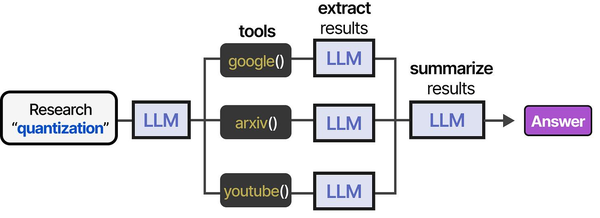
Docker Model Runner brings standardized model serving to containerized Linux environments, implementing the component interfaces described in An Illustrated Guide to AI Agents. Grootendorst and Alammar's analysis of the Model Context Protocol shows how inference backends need standardized APIs for agent frameworks to interact with them reliably — Docker Model Runner provides exactly this through an OpenAI-compatible API backed by GPU-accelerated containers. Brousseau and Sharp in LLMs in Production emphasize that containerized model serving simplifies deployment reproducibility: the same Docker Model Runner configuration runs identically across development laptops, CI/CD pipelines, and production Linux servers.
Related Articles
- Docker GPU Passthrough on Linux for AI Workloads
- Install NVIDIA Drivers and CUDA on Linux Server for AI: The No-Nonsense Guide (2026)
- NVIDIA Container Toolkit on Linux: GPU Setup for Docker AI Workloads
- Ollama Docker Compose: Complete GPU Stack for Linux
Further Reading
- An Illustrated Guide to AI Agents by Maarten Grootendorst and Jay Alammar — Visual guide to agent memory, tools, and reasoning.
- LLMs in Production by Christopher Brousseau and Matthew Sharp — Practical deployment of language models from training to production.
- Agentic AI in Enterprise by Sumit Ranjan, Divya Chembachere, and Lanwin Lobo — Enterprise architecture patterns for agentic AI systems.
Frequently Asked Questions
Does Docker Model Runner work on servers without a GPU?
Yes. Docker Model Runner supports CPU-only inference as a fallback when no GPU is available. Performance is significantly slower — expect 2-5 tokens per second for a 7B model on CPU, compared to 30-80 tokens per second on a modern GPU. CPU inference is viable for testing, development, and low-volume production workloads where response time is not critical. Configure sufficient RAM (at least twice the model size) for CPU inference.
Can I run Docker Model Runner alongside Ollama on the same server?
Yes. They use different ports and manage their model files independently. Docker Model Runner defaults to port 12434 (or a Unix socket), while Ollama uses port 11434. They can share the same GPU, though you need to ensure total VRAM usage across both does not exceed your GPU's capacity. Loaded models in one tool consume VRAM that the other cannot use, so coordinate which models are loaded in each tool.
What model formats does Docker Model Runner support?
Docker Model Runner primarily supports GGUF format models, which is the same format used by llama.cpp and Ollama. Models are pulled from Docker's model registry, which hosts curated, tested versions of popular models. You can also load local GGUF files if they are properly formatted. SafeTensors and other formats need to be converted to GGUF before use with Model Runner.
How does Docker Model Runner handle model updates?
Similar to Docker images, you can pull newer versions of a model by running docker model pull again. The updated model replaces the previous version. For production systems, pin specific model tags (like :8b-instruct-q4_K_M) rather than using :latest to prevent unexpected model changes from affecting your application. Test new model versions in a staging environment before updating production.
Is Docker Model Runner suitable for production workloads?
Docker Model Runner is relatively new compared to Ollama and vLLM. For production workloads where reliability is critical, Ollama has a longer track record and a larger community finding and fixing edge cases. Docker Model Runner is an excellent choice for teams already deep in the Docker ecosystem who want to minimize tool sprawl, and for development and staging environments. Monitor Docker's release notes for stability improvements as the feature matures.