Optical Character Recognition has existed for decades, but traditional OCR produces raw text that is riddled with errors, lacks structure, and requires significant manual cleanup. Tesseract — the most widely deployed open-source OCR engine — does an admirable job at extracting text from clean documents, but it struggles with handwriting, low-quality scans, complex layouts, and non-standard formatting. This is where LLMs transform the pipeline. By feeding OCR output through a local language model, you get automatic error correction, structural understanding, entity extraction, and the ability to convert messy document scans into clean, structured data.
The combination is powerful because each tool compensates for the other's weaknesses. Tesseract excels at character-level recognition but has no understanding of context — it cannot tell that "Arnount: $1,Z34.56" should be "Amount: $1,234.56" because it has no concept of what invoices look like. An LLM has exactly that contextual understanding. It knows that dollar amounts do not contain the letter Z, that "Arnount" is almost certainly "Amount," and that this looks like a financial document. Together, they produce results that neither could achieve alone.
This guide builds a complete document OCR pipeline on Linux: Tesseract for initial text extraction, image preprocessing to improve recognition quality, a local LLM (via Ollama) for intelligent post-processing, and a Python orchestration layer that ties everything into a practical command-line tool. Every component runs locally — no cloud APIs, no data leaving your network. For the foundational setup, see our complete Ollama installation guide. For GPU driver setup, see our NVIDIA driver and CUDA installation guide.
Installing the Foundation: Tesseract OCR
Tesseract 5.x is the current major version, and it includes an LSTM-based recognition engine that significantly outperforms the legacy engine. Most Linux distributions package it, though the version may lag behind the latest release.
Install Tesseract and Language Data
# Ubuntu/Debian
sudo apt update
sudo apt install -y tesseract-ocr tesseract-ocr-eng tesseract-ocr-deu \
  tesseract-ocr-fra tesseract-ocr-spa libtesseract-dev

# RHEL/AlmaLinux/Rocky (EPEL required)
sudo dnf install -y epel-release
sudo dnf install -y tesseract tesseract-langpack-eng tesseract-langpack-deu \
  tesseract-langpack-fra tesseract-devel

# Verify installation
tesseract --version
tesseract --list-langs

# For best-quality recognition, install the "best" trained data
# These are larger but more accurate than the default "fast" models
cd /usr/share/tesseract-ocr/5/tessdata/  # Debian path
# or /usr/share/tesseract/tessdata/       # RHEL path

sudo wget https://github.com/tesseract-ocr/tessdata_best/raw/main/eng.traineddata -O eng.traineddata
sudo wget https://github.com/tesseract-ocr/tessdata_best/raw/main/deu.traineddata -O deu.traineddata
Basic OCR Test
# Run OCR on a test image
tesseract /path/to/document.png output_text -l eng

# Output with confidence scores (useful for identifying low-quality regions)
tesseract /path/to/document.png output_text -l eng --oem 1 --psm 6 tsv

# Generate hOCR output (HTML with bounding box coordinates)
tesseract /path/to/document.png output_hocr -l eng hocr

# Generate searchable PDF
tesseract /path/to/document.png output_pdf -l eng pdf
Image Preprocessing for Better Recognition
The quality of OCR output is directly proportional to the quality of the input image. A few preprocessing steps can dramatically improve recognition accuracy, especially for scanned documents, photos of printed pages, and faxes.
Install Image Processing Tools
# Install ImageMagick and Python image libraries
sudo apt install -y imagemagick python3-pip
pip3 install Pillow opencv-python-headless numpy
Preprocessing Pipeline
#!/usr/bin/env python3
"""preprocess.py — Image preprocessing for OCR quality improvement."""

import sys
import cv2
import numpy as np
from pathlib import Path

def preprocess_for_ocr(input_path, output_path=None):
    """Apply a sequence of preprocessing steps to improve OCR quality."""
    img = cv2.imread(str(input_path))
    if img is None:
        print(f"Error: Cannot read {input_path}")
        sys.exit(1)

    # Step 1: Convert to grayscale
    gray = cv2.cvtColor(img, cv2.COLOR_BGR2GRAY)

    # Step 2: Deskew (straighten rotated scans)
    coords = np.column_stack(np.where(gray < 128))
    if len(coords) > 100:
        angle = cv2.minAreaRect(coords)[-1]
        if angle < -45:
            angle = 90 + angle
        if abs(angle) > 0.5:
            h, w = gray.shape
            center = (w // 2, h // 2)
            M = cv2.getRotationMatrix2D(center, angle, 1.0)
            gray = cv2.warpAffine(gray, M, (w, h),
                                   flags=cv2.INTER_CUBIC,
                                   borderMode=cv2.BORDER_REPLICATE)

    # Step 3: Noise removal with bilateral filter
    # Preserves edges while smoothing noise
    denoised = cv2.bilateralFilter(gray, 9, 75, 75)

    # Step 4: Adaptive thresholding for binarization
    # Works better than global thresholding on uneven lighting
    binary = cv2.adaptiveThreshold(
        denoised, 255, cv2.ADAPTIVE_THRESH_GAUSSIAN_C,
        cv2.THRESH_BINARY, 31, 10
    )

    # Step 5: Remove small noise components
    kernel = np.ones((2, 2), np.uint8)
    cleaned = cv2.morphologyEx(binary, cv2.MORPH_OPEN, kernel)

    if output_path is None:
        output_path = Path(input_path).with_suffix(".preprocessed.png")

    cv2.imwrite(str(output_path), cleaned)
    print(f"Preprocessed image saved to {output_path}")
    return str(output_path)

if __name__ == "__main__":
    if len(sys.argv) < 2:
        print("Usage: python3 preprocess.py input.png [output.png]")
        sys.exit(1)
    output = sys.argv[2] if len(sys.argv) > 2 else None
    preprocess_for_ocr(sys.argv[1], output)
Setting Up the LLM for Post-Processing
Ollama provides the simplest path to running a local LLM. For OCR post-processing, the model needs strong text comprehension and correction abilities rather than creative generation. Smaller models work well here because the task is constrained: fix OCR errors, extract structure, normalize formatting.
Install Ollama and Pull a Suitable Model
# Install Ollama
curl -fsSL https://ollama.com/install.sh | sh
sudo systemctl enable --now ollama

# Pull models suited to OCR correction tasks
# Llama 3.1 8B is fast and handles text correction well
ollama pull llama3.1:8b

# For more complex documents (tables, forms, multi-column layouts)
# use a larger model with better structural understanding
ollama pull qwen2.5:14b-instruct-q4_K_M

# Verify the model works
ollama run llama3.1:8b "Correct this OCR text: 'Teh quiclk brwon fox junps ovre teh lazy d0g'"
Building the Complete Pipeline
The orchestration script ties everything together: image preprocessing, Tesseract OCR, LLM-based correction and structuring, and output formatting. The pipeline is designed to handle single files or batch processing across entire directories.
The Pipeline Script
#!/usr/bin/env python3
"""ai-ocr: AI-enhanced OCR pipeline using Tesseract and Ollama."""

import argparse
import json
import subprocess
import sys
import tempfile
from pathlib import Path

import requests

OLLAMA_API = "http://localhost:11434/api/generate"
DEFAULT_MODEL = "llama3.1:8b"

def run_tesseract(image_path, lang="eng"):
    """Run Tesseract OCR and return the raw text."""
    result = subprocess.run(
        ["tesseract", str(image_path), "stdout",
         "-l", lang, "--oem", "1", "--psm", "6"],
        capture_output=True, text=True
    )
    if result.returncode != 0:
        print(f"Tesseract error: {result.stderr}", file=sys.stderr)
        return ""
    return result.stdout

def llm_correct(raw_text, model=DEFAULT_MODEL, doc_type="general"):
    """Send OCR text to the LLM for correction and structuring."""

    prompts = {
        "general": f"""Fix OCR errors in the following text. Correct misspellings caused by
character recognition mistakes (e.g., 'rn' misread as 'm', '0' misread as 'O',
'l' misread as '1'). Preserve the original meaning and structure. Return only
the corrected text with no commentary.

OCR Text:
{raw_text}""",

        "invoice": f"""This is OCR output from a scanned invoice. Fix recognition errors and
extract the following fields as JSON: vendor_name, invoice_number, date,
line_items (array with description, quantity, unit_price, total), subtotal,
tax, total_amount, currency. If a field cannot be determined, set it to null.
Return valid JSON only.

OCR Text:
{raw_text}""",

        "form": f"""This is OCR output from a scanned form. Fix recognition errors and extract
all field labels and their values as a JSON object. Map each label to its
corresponding value. Return valid JSON only.

OCR Text:
{raw_text}""",
    }

    prompt = prompts.get(doc_type, prompts["general"])

    response = requests.post(OLLAMA_API, json={
        "model": model,
        "prompt": prompt,
        "stream": False,
        "options": {"temperature": 0.1, "num_predict": 4096}
    }, timeout=120)

    if response.status_code == 200:
        return response.json().get("response", "")
    return raw_text  # Fall back to uncorrected text

def process_document(image_path, lang="eng", model=DEFAULT_MODEL,
                     doc_type="general", preprocess=True):
    """Full pipeline: preprocess, OCR, LLM correction."""
    image_path = Path(image_path)

    # Step 1: Preprocess (optional)
    if preprocess:
        from preprocess import preprocess_for_ocr
        with tempfile.NamedTemporaryFile(suffix=".png", delete=False) as tmp:
            preprocessed = preprocess_for_ocr(str(image_path), tmp.name)
            ocr_input = preprocessed
    else:
        ocr_input = str(image_path)

    # Step 2: Tesseract OCR
    raw_text = run_tesseract(ocr_input, lang)
    if not raw_text.strip():
        print("Warning: Tesseract returned empty text", file=sys.stderr)
        return {"raw": "", "corrected": "", "structured": None}

    # Step 3: LLM correction
    corrected = llm_correct(raw_text, model, doc_type)

    result = {
        "source_file": str(image_path),
        "language": lang,
        "model": model,
        "raw_ocr": raw_text,
        "corrected": corrected,
    }

    # Try to parse as JSON if the doc_type expects structured output
    if doc_type in ("invoice", "form"):
        try:
            result["structured"] = json.loads(corrected)
        except json.JSONDecodeError:
            result["structured"] = None

    return result

if __name__ == "__main__":
    parser = argparse.ArgumentParser(description="AI-enhanced OCR pipeline")
    parser.add_argument("input", help="Image file or directory to process")
    parser.add_argument("-l", "--lang", default="eng", help="Tesseract language")
    parser.add_argument("-m", "--model", default=DEFAULT_MODEL, help="Ollama model")
    parser.add_argument("-t", "--type", default="general",
                        choices=["general", "invoice", "form"],
                        help="Document type for LLM processing")
    parser.add_argument("--no-preprocess", action="store_true",
                        help="Skip image preprocessing")
    parser.add_argument("-o", "--output", help="Output file (default: stdout)")
    parser.add_argument("--json", action="store_true", help="Output as JSON")
    args = parser.parse_args()

    input_path = Path(args.input)

    if input_path.is_dir():
        results = []
        for img in sorted(input_path.glob("*")):
            if img.suffix.lower() in (".png", ".jpg", ".jpeg", ".tiff", ".bmp", ".pdf"):
                print(f"Processing: {img.name}", file=sys.stderr)
                results.append(process_document(
                    img, args.lang, args.model, args.type,
                    not args.no_preprocess
                ))
        output = json.dumps(results, indent=2) if args.json else "\n---\n".join(
            r["corrected"] for r in results
        )
    else:
        result = process_document(
            input_path, args.lang, args.model, args.type,
            not args.no_preprocess
        )
        output = json.dumps(result, indent=2) if args.json else result["corrected"]

    if args.output:
        Path(args.output).write_text(output)
    else:
        print(output)
Processing Different Document Types
The pipeline adapts its LLM prompt based on document type. Each type gets a specialized extraction strategy that maximizes the quality of the output.
Invoice Processing
# Process a scanned invoice and get structured JSON
python3 ai_ocr.py invoice_scan.png -t invoice --json -o invoice_data.json

# The output looks like:
# {
#   "vendor_name": "Acme Corporation",
#   "invoice_number": "INV-2024-0847",
#   "date": "2024-11-15",
#   "line_items": [
#     {"description": "Consulting Services", "quantity": 40, "unit_price": 150.00, "total": 6000.00},
#     {"description": "Infrastructure Audit", "quantity": 1, "unit_price": 2500.00, "total": 2500.00}
#   ],
#   "subtotal": 8500.00,
#   "tax": 1700.00,
#   "total_amount": 10200.00,
#   "currency": "EUR"
# }
Batch Processing a Directory of Scans
# Process all images in a directory
python3 ai_ocr.py /path/to/scanned_docs/ -t general --json -o all_documents.json

# Process with German language support
python3 ai_ocr.py /path/to/german_docs/ -l deu -t invoice --json

# Process without preprocessing (for already clean digital PDFs)
python3 ai_ocr.py document.pdf --no-preprocess -t form --json
Handling PDFs
PDFs require an extra step because Tesseract works on images, not PDF files directly. You need to convert each page to an image first, then run the OCR pipeline on each page.
# Install PDF-to-image converter
sudo apt install -y poppler-utils

# Convert PDF pages to images
pdftoppm -png -r 300 document.pdf /tmp/page

# This creates /tmp/page-1.png, /tmp/page-2.png, etc.
# Then process the entire directory
python3 ai_ocr.py /tmp/ -t general --json -o document_ocr.json
#!/usr/bin/env python3
"""pdf_ocr.py — Complete PDF OCR pipeline."""
import subprocess
import tempfile
from pathlib import Path
from ai_ocr import process_document
def ocr_pdf(pdf_path, lang="eng", model="llama3.1:8b", doc_type="general"):
"""Convert PDF to images and OCR each page."""
with tempfile.TemporaryDirectory() as tmpdir:
# Convert PDF to PNG images at 300 DPI
subprocess.run([
"pdftoppm", "-png", "-r", "300",
str(pdf_path), f"{tmpdir}/page"
], check=True)
results = []
for page_img in sorted(Path(tmpdir).glob("page-*.png")):
page_num = page_img.stem.split("-")[-1]
result = process_document(page_img, lang, model, doc_type)
result["page_number"] = int(page_num)
results.append(result)
return resultsQuality Measurement and Comparison
To validate that the LLM post-processing actually improves results, measure accuracy against ground truth. Character Error Rate (CER) and Word Error Rate (WER) are the standard metrics.
# Install jiwer for WER/CER calculation
pip install jiwer
#!/usr/bin/env python3
"""measure_accuracy.py — Compare OCR output against ground truth."""
from jiwer import wer, cer
def compare_accuracy(ground_truth, raw_ocr, corrected_ocr):
"""Calculate WER and CER for raw vs corrected OCR output."""
raw_wer = wer(ground_truth, raw_ocr)
raw_cer = cer(ground_truth, raw_ocr)
corrected_wer = wer(ground_truth, corrected_ocr)
corrected_cer = cer(ground_truth, corrected_ocr)
print(f"Raw OCR — WER: {raw_wer:.2%}, CER: {raw_cer:.2%}")
print(f"LLM-Corrected — WER: {corrected_wer:.2%}, CER: {corrected_cer:.2%}")
print(f"Improvement — WER: {(raw_wer - corrected_wer):.2%}, "
f"CER: {(raw_cer - corrected_cer):.2%}")
# Example usage with sample texts
ground_truth = "Invoice Amount: $1,234.56 Due Date: November 15, 2024"
raw_ocr = "lnvoice Arnount: $1,Z34.56 Due 0ate: Novernber l5, 2O24"
corrected = "Invoice Amount: $1,234.56 Due Date: November 15, 2024"
compare_accuracy(ground_truth, raw_ocr, corrected)Deploying as a Service
For production use, wrap the pipeline in a simple REST API that accepts document uploads and returns structured results.
# systemd service for the OCR API
sudo tee /etc/systemd/system/ai-ocr.service <<EOF
[Unit]
Description=AI Document OCR Service
After=network.target ollama.service
Requires=ollama.service

[Service]
Type=simple
User=ocr-service
Group=ocr-service
WorkingDirectory=/opt/ai-ocr
ExecStart=/opt/ai-ocr/venv/bin/python3 ocr_api.py
Restart=on-failure
RestartSec=5

NoNewPrivileges=true
ProtectSystem=strict
ProtectHome=true
ReadWritePaths=/var/lib/ai-ocr
PrivateTmp=true

[Install]
WantedBy=multi-user.target
EOF

sudo systemctl daemon-reload
sudo systemctl enable --now ai-ocr.service
Practical Tips for Better Results
After processing hundreds of documents through this pipeline, several patterns emerge that improve results consistently.
Scan quality matters far more than model size. A clean 300 DPI scan processed by Tesseract alone will outperform a blurry 150 DPI scan processed by Tesseract plus a 70B parameter model. Always start by improving input quality before reaching for a bigger LLM.
Document type-specific prompts are essential. A generic "fix OCR errors" prompt works, but telling the LLM "this is a medical lab report with patient names, test names, reference ranges, and result values" dramatically improves extraction accuracy. The LLM uses that context to resolve ambiguous characters — is that a zero or the letter O? In a lab result column, it is almost certainly a zero.
Temperature should be as low as possible. For OCR correction, you want deterministic output, not creative variation. Set temperature to 0.1 or even 0.0 in the Ollama API call. Higher temperatures introduce hallucinations where the LLM "corrects" text that was actually right.
Chunk long documents by page or section. Sending a 20-page document as a single prompt overwhelms the context window and produces worse results than processing each page individually. The pipeline script handles this automatically when given a directory of page images.
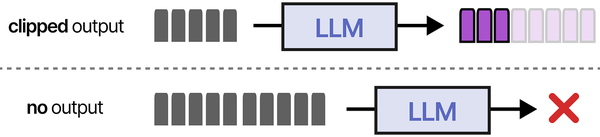
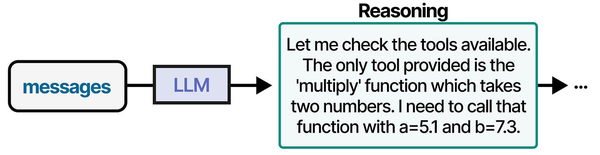
AI-powered document OCR on Linux serves as a critical input stage for Retrieval-Augmented Generation pipelines. As illustrated in An Illustrated Guide to AI Agents by Grootendorst and Alammar, the RAG pipeline begins with document ingestion — and OCR tools convert scanned documents into the text that agents can retrieve, reason about, and use to generate informed responses.
Related Articles
- Self-Hosted AI Translation Server on Linux with Ollama
- Build a Self-Hosted RAG Pipeline on Linux: Chat with Your Documentation
- AnythingLLM on Linux: Self-Hosted RAG with Ollama and Document Chat
- Piper TTS on Linux: Build a Self-Hosted Text-to-Speech Server
Further Reading
- An Illustrated Guide to AI Agents by Maarten Grootendorst and Jay Alammar — Visual guide to agent memory, tools, and reasoning.
- LLMs in Production by Christopher Brousseau and Matthew Sharp — Practical deployment of language models from training to production.
- Agentic AI in Enterprise by Sumit Ranjan, Divya Chembachere, and Lanwin Lobo — Enterprise architecture patterns for agentic AI systems.
Frequently Asked Questions
How much does the LLM correction actually improve OCR accuracy?
In testing across a variety of document types, LLM post-processing typically reduces Word Error Rate by 40-70% compared to raw Tesseract output on degraded scans. On clean, high-resolution documents where Tesseract already achieves 95%+ accuracy, the improvement is smaller (5-10%) but still meaningful — the LLM catches the remaining errors that are hardest for traditional OCR to resolve, like distinguishing between similar characters in context.
Can this pipeline handle handwritten documents?
Partially. Tesseract's handwriting recognition is limited, so the raw OCR quality on handwritten text is poor. The LLM can still help by using contextual clues to guess at words that Tesseract garbles, but the improvement ceiling is lower than with printed text. For serious handwriting OCR, consider using a dedicated handwriting recognition model (like TrOCR from Microsoft) as the first stage instead of Tesseract, then feed that output to the LLM for correction.
What hardware do I need to run this pipeline?
The Tesseract and image preprocessing components are lightweight — any modern CPU handles them. The bottleneck is the LLM. For the recommended Llama 3.1 8B model, you need a machine with either 8+ GB of VRAM (GPU inference) or 16+ GB of RAM (CPU inference, which will be slower). Processing time per page is roughly 2-5 seconds with GPU inference, or 15-30 seconds with CPU-only. Batch processing a 50-page document takes about 2-4 minutes on a GPU-equipped server.
How do I handle documents in multiple languages?
Tesseract supports multi-language OCR by specifying multiple language codes: tesseract image.png output -l eng+deu+fra. This increases processing time but handles mixed-language documents. On the LLM side, most modern models handle multilingual text well. Specify the expected languages in your prompt to help the model make better correction decisions — for example, "This document contains English text with German addresses."
Is it possible to fine-tune the LLM for specific document types?
Yes, and it produces significant improvements for repetitive document types. If you process thousands of invoices from the same vendor, fine-tuning on a few dozen manually corrected examples teaches the model the specific layout, terminology, and formatting patterns. Tools like Unsloth or Axolotl can fine-tune Llama models on a single GPU in under an hour with a few hundred training examples. The fine-tuned model is then served through Ollama like any other model.


