An AI email assistant that runs on your own server reads incoming messages, categorizes them, drafts replies, extracts action items, and routes emails to the right person — all without sending your email content to any external AI service. By combining n8n (a self-hosted workflow automation platform) with Ollama (a local LLM runtime), you build this entirely on Linux infrastructure you control.
This guide walks through the full stack: installing n8n and Ollama on Linux, connecting n8n to your email server via IMAP, building classification and reply-drafting workflows, handling attachments, and deploying the system for production use with proper error handling and monitoring.
Architecture Overview
The system has three components: For the foundational setup, see our complete Ollama installation guide. For GPU driver setup, see our NVIDIA driver and CUDA installation guide.
- Email Server (IMAP/SMTP): Your existing email infrastructure — could be self-hosted (Postfix/Dovecot), Exchange, Gmail, or any IMAP-compatible provider.
- n8n: The workflow automation engine. It polls for new emails, orchestrates the processing pipeline, and sends replies or notifications. Think of it as a self-hosted Zapier with a visual workflow editor.
- Ollama: The local LLM that handles the AI tasks — classification, summarization, reply drafting, and entity extraction.
The data flow is: new email arrives in the inbox, n8n detects it via IMAP trigger, sends the email content to Ollama for analysis, receives the AI output, and takes action (draft reply, forward to team member, create ticket, or archive).
Installing n8n on Linux
Method 1: Docker (Recommended)
mkdir -p /opt/n8n && cd /opt/n8n

cat > docker-compose.yml << 'EOF'
services:
  n8n:
    image: n8nio/n8n:latest
    container_name: n8n
    restart: unless-stopped
    ports:
      - "5678:5678"
    volumes:
      - n8n-data:/home/node/.n8n
    environment:
      - N8N_HOST=n8n.example.com
      - N8N_PORT=5678
      - N8N_PROTOCOL=https
      - WEBHOOK_URL=https://n8n.example.com/
      - N8N_ENCRYPTION_KEY=your-random-encryption-key-here
      - TZ=Europe/Dublin
    extra_hosts:
      - "host.docker.internal:host-gateway"

volumes:
  n8n-data:
EOF

docker compose up -d
docker compose logs -f n8n
The extra_hosts line lets n8n reach Ollama on the host machine at host.docker.internal:11434.
Method 2: Native Installation
# Install Node.js 20 LTS
curl -fsSL https://deb.nodesource.com/setup_20.x | sudo bash -
sudo apt install -y nodejs

# Install n8n globally
sudo npm install -g n8n

# Create a service user
sudo useradd -r -s /bin/false -d /opt/n8n n8n
sudo mkdir -p /opt/n8n/.n8n
sudo chown -R n8n:n8n /opt/n8n
Create a systemd service:
sudo tee /etc/systemd/system/n8n.service > /dev/null << EOF
[Unit]
Description=n8n Workflow Automation
After=network.target ollama.service

[Service]
Type=simple
User=n8n
ExecStart=/usr/bin/n8n start
Environment=N8N_PORT=5678
Environment=N8N_PROTOCOL=https
Environment=N8N_HOST=n8n.example.com
Restart=always
RestartSec=5

[Install]
WantedBy=multi-user.target
EOF

sudo systemctl daemon-reload
sudo systemctl enable --now n8n
Connecting n8n to Ollama
n8n can communicate with Ollama through HTTP Request nodes or through its built-in Ollama integration (available in recent n8n versions).
Method 1: HTTP Request Node
This works with any n8n version. Add an HTTP Request node configured to POST to Ollama's API:
URL: http://host.docker.internal:11434/api/generate
Method: POST
Body (JSON):
{
  "model": "llama3.1:8b",
  "prompt": "{{ $json.emailBody }}",
  "stream": false,
  "options": {
    "temperature": 0.1,
    "num_predict": 500
  }
}
Method 2: Built-in Ollama Node
In n8n 1.30+, there is a native Ollama Chat Model node. Configure it with:
- Base URL:
http://host.docker.internal:11434 - Model:
llama3.1:8b
This integrates directly with n8n's AI agent nodes and provides a cleaner workflow.
Workflow 1: Email Classification and Routing
The first workflow classifies incoming emails and routes them to the appropriate handler. Here is the workflow structure:
Step 1: IMAP Email Trigger — Monitors the inbox for new emails every 2 minutes.
Step 2: Extract email data — A Code node that cleans the email body and prepares it for the LLM:
// Code node: Prepare email for classification
const email = $input.first().json;

const cleanBody = email.text
    ? email.text.substring(0, 2000)  // Limit length
    : (email.html || '').replace(/<[^>]*>/g, '').substring(0, 2000);

return [{
    json: {
        subject: email.subject || 'No subject',
        from: email.from?.text || 'unknown',
        body: cleanBody,
        date: email.date,
        messageId: email.messageId
    }
}];
Step 3: Classify with Ollama — An HTTP Request node that asks the LLM to categorize the email:
{
  "model": "llama3.1:8b",
  "prompt": "Classify this email into exactly one category: support, sales, billing, spam, internal, newsletter.

From: {{ $json.from }}
Subject: {{ $json.subject }}
Body: {{ $json.body }}

Respond with only the category name, nothing else.",
  "stream": false,
  "options": {"temperature": 0.0, "num_predict": 20}
}
Step 4: Route based on category — A Switch node that branches based on the classification result:
- support → Forward to support@company.com
- sales → Forward to sales@company.com
- billing → Forward to finance@company.com
- spam → Move to spam folder, no action
- internal → Leave in inbox
- newsletter → Move to newsletters folder
Workflow 2: Auto-Draft Replies
This workflow generates draft replies for emails that need a response. It does not send automatically — it saves drafts for human review.
Ollama prompt for reply drafting:
{
  "model": "llama3.1:8b",
  "prompt": "You are a professional email assistant for a technology company. Draft a reply to this email.

Rules:
- Be professional and concise
- Address the sender's specific questions or concerns
- If technical details are needed that you do not know, indicate where the human should fill in specifics with [FILL IN]
- Sign off as 'Best regards, [NAME]'

Original email:
From: {{ $json.from }}
Subject: {{ $json.subject }}
{{ $json.body }}

Draft reply:",
  "stream": false,
  "options": {"temperature": 0.3, "num_predict": 800}
}
Save the draft by sending it via SMTP to yourself with a modified subject line (e.g., "[DRAFT] Re: Original Subject") or use your email server's IMAP APPEND to save directly to the Drafts folder.
Workflow 3: Action Item Extraction
Extract action items from emails and create tasks in your project management tool:
{
  "model": "llama3.1:8b",
  "prompt": "Extract action items from this email. Return a JSON array of objects with 'task' (description), 'assignee' (if mentioned), and 'deadline' (if mentioned, otherwise null).

Email:
{{ $json.body }}

Return only valid JSON, no other text.",
  "stream": false,
  "options": {"temperature": 0.0, "num_predict": 500}
}
Parse the JSON output in a Code node and create tasks via API calls to your project management system (Jira, Gitea, Nextcloud Tasks, or any tool with an API).
Handling Email Attachments
n8n can download email attachments. For text-based attachments (PDF, DOCX), extract the text and include it in the LLM prompt:
// Code node: Process attachments
const items = [];

for (const attachment of $input.first().json.attachments || []) {
    if (attachment.contentType === 'application/pdf') {
        // Use n8n's Extract From File node for PDF text extraction
        items.push({
            json: {
                filename: attachment.filename,
                type: 'pdf',
                content: attachment  // Pass to Extract From File node
            }
        });
    } else if (attachment.contentType === 'text/plain') {
        items.push({
            json: {
                filename: attachment.filename,
                type: 'text',
                content: attachment.content.toString()
            }
        });
    }
}

return items.length > 0 ? items : [{ json: { attachments: 'none' } }];
Error Handling and Reliability
Production email workflows need robust error handling because emails arrive continuously and failures should not cause message loss:
// Error handler node: Log failures and retry
const error = $input.first().json;

// Log the error
console.error('Email processing failed:', {
    messageId: error.messageId,
    subject: error.subject,
    error: error.errorMessage,
    timestamp: new Date().toISOString()
});

// Move the email to a "processing-failed" folder via IMAP
// so it can be reviewed manually
return [{
    json: {
        action: 'move_to_folder',
        folder: 'processing-failed',
        messageId: error.messageId
    }
}];
Also set workflow-level error handling in n8n: go to Workflow Settings and configure an Error Workflow that sends you a notification when any node fails.
Performance Considerations
- Polling frequency: Check for new emails every 2-5 minutes rather than every 30 seconds. Email is inherently asynchronous — nobody expects instant AI processing.
- Batch processing: If you receive many emails at once, process them sequentially rather than in parallel. Ollama handles one request at a time most efficiently.
- Model size: An 8B model is sufficient for classification, extraction, and basic reply drafting. Use a 14B or larger model only if you need higher quality on complex or multilingual emails.
- Prompt length: Truncate email bodies to 2000-3000 characters. Most relevant information is in the first few paragraphs, and longer prompts slow down inference without improving results.
Security Considerations
Email content is inherently sensitive. These security measures are non-negotiable:
- Never log full email bodies. Log metadata (subject line, sender, classification result) but not content.
- Use TLS for all connections. IMAP over TLS (port 993), SMTP over TLS (port 465 or 587), and HTTPS for the n8n interface.
- Run n8n behind authentication. Enable n8n's built-in authentication and put it behind a reverse proxy with an additional auth layer.
- Be aware of prompt injection via email. A malicious sender could craft an email that manipulates the LLM's classification or reply-drafting behavior. Apply the input sanitization techniques discussed in our LLM security article.

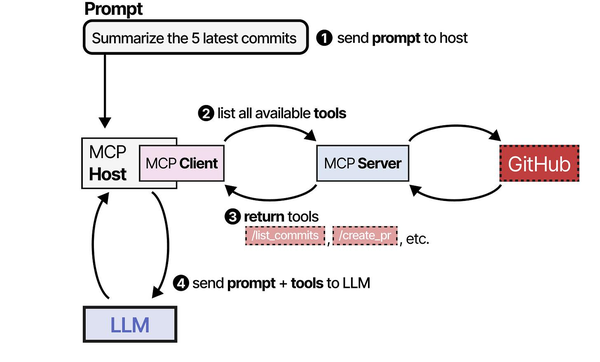
Building an AI email assistant with n8n and Ollama is a practical implementation of the Model Context Protocol patterns described in An Illustrated Guide to AI Agents. Grootendorst and Alammar show how MCP standardizes the communication flow between AI models and external tools — in this case, n8n serves as the orchestration layer that routes emails to Ollama for classification, summarization, or draft generation, then channels the responses back through the email system. This self-hosted approach, running entirely on Linux, delivers the automation capabilities of commercial AI email tools while keeping all message content within the organization's infrastructure.
Related Articles
- n8n and Ollama: Build Self-Hosted AI Automation Workflows on Linux
- Ollama Python API: Build Linux Administration Tools with Local LLMs
- AI-Powered Log Analysis on Linux: Use Ollama to Parse Syslog, Journald, and Application Logs
- AI-Powered Monitoring and Alerting on Linux with Open Source Tools
Further Reading
- An Illustrated Guide to AI Agents by Maarten Grootendorst and Jay Alammar — Visual guide to agent memory, tools, and reasoning.
- LLMs in Production by Christopher Brousseau and Matthew Sharp — Practical deployment of language models from training to production.
- Agentic AI in Enterprise by Sumit Ranjan, Divya Chembachere, and Lanwin Lobo — Enterprise architecture patterns for agentic AI systems.
Frequently Asked Questions
Can this system handle 500+ emails per day reliably?
Yes, with proper configuration. Each email takes 3-8 seconds to process through Ollama (classification + optional reply draft). At 8 seconds per email, 500 emails take about 67 minutes of total processing time. Spread across a day with 2-minute polling intervals, the system handles this comfortably. The bottleneck is Ollama inference speed, which depends on your GPU. A mid-range GPU (RTX 4060 Ti or better) handles this volume without issues. For 2,000+ emails per day, run multiple Ollama instances with load balancing.
How accurate is email classification with a local 8B model?
For straightforward categories (support vs. sales vs. spam), expect 85-95% accuracy with an 8B model like Llama 3.1. Accuracy depends heavily on how distinct your categories are and how well your prompt defines them. Providing 2-3 examples per category in the prompt (few-shot learning) typically pushes accuracy above 90%. For edge cases, add a "review" category and route uncertain classifications to a human. Over time, collect misclassified examples and use them to refine your prompt.
What happens if Ollama is down when an email arrives?
The n8n workflow will fail on the HTTP Request node that calls Ollama. Configure the workflow's error handling to: (1) retry the failed execution after 5 minutes, (2) after 3 retries, move the email to a "processing-failed" IMAP folder, and (3) send a notification about the failure. When Ollama comes back online, you can manually re-trigger processing for failed emails. The emails themselves are never lost — they remain in your IMAP mailbox regardless of processing status.


