Running AI models locally with Ollama is powerful, but a model sitting idle on a server waiting for manual prompts wastes most of its potential. The real value arrives when you connect it to automated workflows that process incoming data, make decisions, and take actions without human intervention. n8n is an open-source workflow automation platform — think Zapier or Make.com, but self-hosted and free — that connects directly to Ollama's API. This guide covers the complete n8n ollama ai automation linux setup: installing both services, connecting them, and building four practical workflows that solve real problems.
Brousseau and Sharp caution in LLMs in Production that automation workflows involving LLMs need robust error handling because model outputs are inherently non-deterministic. A workflow that works perfectly in testing may fail in production if the LLM generates an unexpected output format. They recommend implementing output validation at every step: check that JSON responses are valid, verify that extracted values are within expected ranges, and include fallback paths for when the LLM fails to follow the requested format. In n8n, this translates to adding IF nodes after every Ollama call to validate the response before passing it downstream.
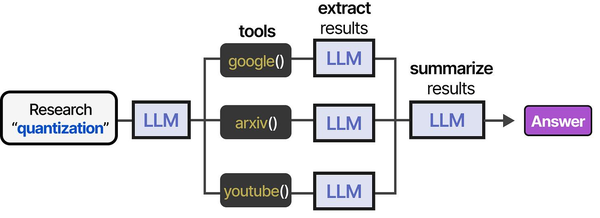
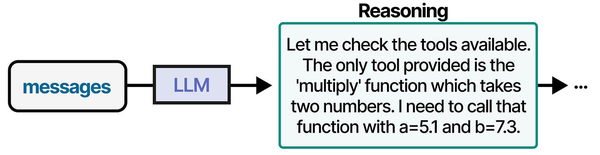
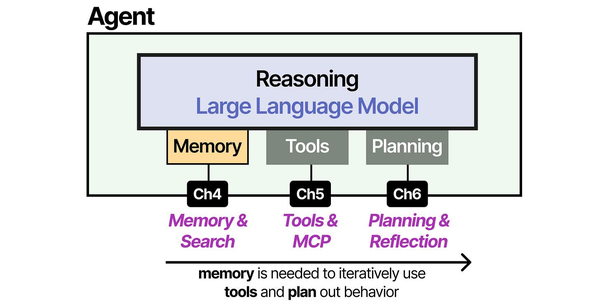
The combination of n8n and Ollama effectively creates an agentic AI system running entirely on your own infrastructure. Grootendorst and Alammar describe in An Illustrated Guide to AI Agents that an agent's power comes from its ability to autonomously search for, select, and utilize tools to interact with its environment. In an n8n workflow, each node (HTTP request, database query, email send, Slack notification) becomes a tool that the LLM can invoke through n8n's AI agent nodes. The workflow graph itself acts as the planning layer, defining which tools are available and in what order they can be executed. For GPU driver setup, see our NVIDIA driver and CUDA installation guide.
The combination of n8n and Ollama creates something unusual: a fully private, zero-cost AI automation stack. No data leaves your network. No per-request API charges accumulate. No vendor can change pricing or terms of service on you. Every email you summarize, every log you analyze, every ticket you classify runs through models on your own hardware. For organizations that handle sensitive data or simply want predictable costs, this stack eliminates entire categories of concern that come with cloud AI services.
Installing n8n on Linux
n8n runs as a Node.js application and can be installed via npm, Docker, or from source. Docker is the simplest for most deployments. npm installation is better if you want direct access to the filesystem for custom nodes.
Option 1: Docker Installation (Recommended)
# Create a directory for n8n data persistence
sudo mkdir -p /opt/n8n/data
sudo chown -R 1000:1000 /opt/n8n/data

# Run n8n with Docker
docker run -d \
  --name n8n \
  --restart unless-stopped \
  -p 5678:5678 \
  -e N8N_HOST=0.0.0.0 \
  -e N8N_PORT=5678 \
  -e N8N_PROTOCOL=http \
  -e WEBHOOK_URL=http://your-server-ip:5678/ \
  -e N8N_BASIC_AUTH_ACTIVE=true \
  -e N8N_BASIC_AUTH_USER=admin \
  -e N8N_BASIC_AUTH_PASSWORD=your-secure-password \
  -v /opt/n8n/data:/home/node/.n8n \
  --add-host=host.docker.internal:host-gateway \
  n8nio/n8n:latest

# The --add-host flag is critical: it lets n8n inside Docker
# reach Ollama running on the host at host.docker.internal:11434

# Verify n8n is running
docker logs n8n | tail -20
# You should see: "n8n ready on 0.0.0.0, port 5678"

# Access the web interface
echo "Open http://your-server-ip:5678 in your browser"
Option 2: npm Installation
# Install Node.js 20+ (required for n8n)
# Ubuntu/Debian:
curl -fsSL https://deb.nodesource.com/setup_20.x | sudo -E bash -
sudo apt install -y nodejs

# RHEL/Fedora:
curl -fsSL https://rpm.nodesource.com/setup_20.x | sudo -E bash -
sudo dnf install -y nodejs

# Install n8n globally
sudo npm install -g n8n

# Verify installation
n8n --version

# Start n8n (foreground, for testing)
n8n start
Option 3: Docker Compose (Best for Production)
# Create docker-compose.yml
sudo mkdir -p /opt/n8n && cd /opt/n8n

cat << 'EOF' > docker-compose.yml
version: "3.8"

services:
  n8n:
    image: n8nio/n8n:latest
    container_name: n8n
    restart: unless-stopped
    ports:
      - "5678:5678"
    environment:
      - N8N_HOST=0.0.0.0
      - N8N_PORT=5678
      - N8N_PROTOCOL=http
      - WEBHOOK_URL=http://your-server-ip:5678/
      - N8N_BASIC_AUTH_ACTIVE=true
      - N8N_BASIC_AUTH_USER=admin
      - N8N_BASIC_AUTH_PASSWORD=your-secure-password
      - N8N_ENCRYPTION_KEY=your-random-encryption-key-here
      - GENERIC_TIMEZONE=Europe/Dublin
    volumes:
      - n8n_data:/home/node/.n8n
    extra_hosts:
      - "host.docker.internal:host-gateway"

volumes:
  n8n_data:
EOF

# Start the stack
docker compose up -d

# Check status
docker compose ps
Creating a systemd Service for n8n (npm Installation)
If you installed n8n via npm rather than Docker, you need a systemd service to keep it running and start it on boot.
# Create a dedicated n8n user
sudo useradd -r -m -d /opt/n8n -s /bin/bash n8n

# Create the systemd service file
sudo tee /etc/systemd/system/n8n.service << 'EOF'
[Unit]
Description=n8n Workflow Automation
After=network.target ollama.service
Wants=ollama.service

[Service]
Type=simple
User=n8n
Environment="N8N_HOST=0.0.0.0"
Environment="N8N_PORT=5678"
Environment="N8N_PROTOCOL=http"
Environment="N8N_BASIC_AUTH_ACTIVE=true"
Environment="N8N_BASIC_AUTH_USER=admin"
Environment="N8N_BASIC_AUTH_PASSWORD=your-secure-password"
Environment="N8N_ENCRYPTION_KEY=generate-a-random-key-here"
Environment="N8N_USER_FOLDER=/opt/n8n"
ExecStart=/usr/bin/n8n start
Restart=always
RestartSec=10

[Install]
WantedBy=multi-user.target
EOF

# Enable and start the service
sudo systemctl daemon-reload
sudo systemctl enable n8n
sudo systemctl start n8n

# Check status
systemctl status n8n

# View logs
journalctl -u n8n -f
Configuring Ollama for n8n Access
Ollama needs to be accessible from n8n. If both run on the same machine, the default configuration works. If n8n runs in Docker, you need to ensure Ollama listens on an accessible interface.
# By default, Ollama listens on 127.0.0.1:11434
# For Docker-based n8n, Ollama needs to listen on all interfaces
# or at least on the Docker bridge network

# Edit the Ollama service to bind to all interfaces
sudo systemctl edit ollama

# Add:
[Service]
Environment="OLLAMA_HOST=0.0.0.0:11434"

# Reload and restart
sudo systemctl daemon-reload
sudo systemctl restart ollama

# Verify Ollama is accessible from Docker
docker exec n8n curl -s http://host.docker.internal:11434/api/tags | head -20
# Should return a JSON list of available models

# Pull the models you plan to use in workflows
ollama pull llama3.1:8b
ollama pull mistral:7b
Connecting n8n to Ollama
n8n has built-in Ollama nodes starting from version 1.30+. These nodes provide direct integration without needing custom HTTP requests.
Setting Up the Ollama Credential in n8n
- Open n8n in your browser (http://your-server-ip:5678)
- Create your account during first login
- Go to Settings → Credentials → Add Credential
- Search for "Ollama" and select it
- Enter the base URL:
- If n8n runs in Docker:
http://host.docker.internal:11434 - If n8n runs natively on the same host:
http://localhost:11434 - If Ollama runs on a different machine:
http://ollama-server-ip:11434
- If n8n runs in Docker:
- Click Test Connection — it should confirm connectivity
- Save the credential
With the credential saved, you can now use Ollama nodes in any workflow. n8n provides several AI-specific nodes: Ollama Chat Model, Ollama Embedding, and the AI Agent node that uses Ollama as its language model backend.
Workflow 1: AI Email Summarizer
This workflow monitors an email inbox (via IMAP), summarizes new emails using Ollama, and posts the summaries to a Slack channel or saves them to a file. It is useful for executives or support teams who receive high volumes of email and want AI-generated digests.
Workflow Structure
- IMAP Trigger — polls for new emails every 5 minutes
- Function Node — extracts email body text, strips HTML tags
- Ollama Chat Model Node — summarizes the email
- IF Node — checks if summary indicates urgency
- Slack / Email / File Node — routes output based on urgency
Building It Step by Step
Create a new workflow in n8n. Add an IMAP Email trigger node. Configure it with your email server credentials (IMAP host, port, username, password). Set the polling interval to 5 minutes and the mailbox to INBOX.
Next, add a Code node (JavaScript) to clean up the email content:
// Code node: Extract and clean email text
const items = $input.all();
const results = [];

for (const item of items) {
  const subject = item.json.subject || '(no subject)';
  const from = item.json.from?.text || 'unknown sender';

  // Strip HTML tags from email body
  let body = item.json.text || item.json.html || '';
  body = body.replace(/<[^>]*>/g, '');
  body = body.replace(/\s+/g, ' ').trim();

  // Truncate to avoid exceeding model context
  if (body.length > 3000) {
    body = body.substring(0, 3000) + '... [truncated]';
  }

  results.push({
    json: {
      subject,
      from,
      body,
      received: item.json.date
    }
  });
}

return results;
Add an Ollama Chat Model node. Select your saved Ollama credential. Set the model to llama3.1:8b. In the system prompt, write:
You are an email summarizer for a busy professional. Given an email,
provide a concise summary in 2-3 sentences. Then rate the urgency
as LOW, MEDIUM, or HIGH. Format your response as:

SUMMARY: [your summary here]
URGENCY: [LOW/MEDIUM/HIGH]
ACTION NEEDED: [Yes/No - brief description if yes]
Set the user message to an expression that references the previous node's output:
From: {{ $json.from }}
Subject: {{ $json.subject }}
Body: {{ $json.body }}
Add an IF node that checks the Ollama response for "URGENCY: HIGH". Route HIGH urgency to an immediate Slack notification or email alert. Route MEDIUM and LOW urgency to a daily digest file.
This workflow processes each incoming email in roughly 8–15 seconds on a P40 (the time for Ollama to generate a 50–100 token summary). For an inbox receiving 50 emails per day, total GPU time is about 10 minutes — well within the capacity of even budget hardware.
Workflow 2: Automated Log Analyzer Agent
This workflow watches a log directory for new entries, detects anomalies using Ollama, and creates alerts when something unusual appears. It is particularly useful for servers where you want AI-powered monitoring without sending log data to any external service.
Workflow Structure
- Schedule Trigger — runs every 15 minutes
- SSH / Execute Command Node — reads recent log entries
- Code Node — filters and batches log lines
- Ollama Chat Model Node — analyzes logs for anomalies
- IF Node — checks if anomalies were found
- Webhook / Email Node — sends alert if anomalies detected
Building the Log Collector
Add a Schedule Trigger set to run every 15 minutes. Then add an Execute Command node (or SSH node if monitoring a remote server):
# Command to get last 15 minutes of syslog entries
journalctl --since "15 minutes ago" --no-pager -o short-iso 2>/dev/null | tail -200
Add a Code node to prepare the logs for analysis:
// Code node: Prepare log batch for analysis
const items = $input.all();
const logText = items[0].json.stdout || '';

// Skip if no new log entries
if (!logText.trim()) {
  return [{ json: { skip: true, logs: '' } }];
}

// Truncate if too many lines (keep last 150 lines for context window)
const lines = logText.split('\n');
const trimmedLines = lines.slice(-150);

return [{
  json: {
    skip: false,
    logs: trimmedLines.join('\n'),
    lineCount: trimmedLines.length,
    timestamp: new Date().toISOString()
  }
}];
Add the Ollama Chat Model node with this system prompt:
You are a Linux system administrator reviewing server logs.
Analyze the following log entries and identify:

1. Any errors or failures that need attention
2. Unusual patterns (repeated failures, unexpected services, auth issues)
3. Security concerns (failed logins, permission denials, suspicious activity)

If everything looks normal, respond with: STATUS: NORMAL

If you find issues, respond with:
STATUS: ALERT
SEVERITY: [LOW/MEDIUM/HIGH/CRITICAL]
FINDINGS:
- [finding 1]
- [finding 2]
RECOMMENDED ACTIONS:
- [action 1]
- [action 2]

Be specific. Include relevant log lines in your findings.
Route the output through an IF node checking for "STATUS: ALERT". On alert, send a notification via your preferred channel — Slack, email, Telegram, or a webhook to your monitoring system.
This workflow turns Ollama into a context-aware log analyzer that understands patterns a simple regex-based alerting system would miss. It can detect things like "SSH login succeeded from an unusual IP range" or "disk I/O errors increasing in frequency" that require understanding rather than pattern matching.
Workflow 3: Automated Ticket Classifier
Support teams waste time manually categorizing and routing incoming tickets. This workflow reads new tickets from a webhook or email, classifies them using Ollama, assigns priority, and routes them to the appropriate team or queue.
Workflow Structure
- Webhook Trigger — receives incoming ticket data via HTTP POST
- Ollama Chat Model Node — classifies the ticket
- Code Node — parses the classification response
- Switch Node — routes based on category
- HTTP Request Nodes — updates the ticket in your ticketing system
The Classification Prompt
You are a support ticket classifier. Analyze the ticket and respond
with EXACTLY this JSON format (no other text):

{
  "category": "one of: billing, technical, account, feature-request, bug-report, general",
  "priority": "one of: P1-critical, P2-high, P3-medium, P4-low",
  "team": "one of: engineering, support-tier1, support-tier2, billing-team, product",
  "sentiment": "one of: angry, frustrated, neutral, positive",
  "summary": "one sentence summary of the issue",
  "suggested_response_template": "a brief suggested opening for the response"
}
The Code node after Ollama parses the JSON response:
// Code node: Parse classification
const items = $input.all();
const response = items[0].json.message?.content || items[0].json.text || '';

try {
  // Extract JSON from the response (model sometimes adds text around it)
  const jsonMatch = response.match(/\{[\s\S]*\}/);
  if (!jsonMatch) {
    throw new Error('No JSON found in response');
  }

  const classification = JSON.parse(jsonMatch[0]);

  return [{
    json: {
      ...classification,
      originalTicket: items[0].json.originalTicket || {},
      classifiedAt: new Date().toISOString()
    }
  }];
} catch (error) {
  // Fallback if model response is not valid JSON
  return [{
    json: {
      category: 'general',
      priority: 'P3-medium',
      team: 'support-tier1',
      sentiment: 'neutral',
      summary: 'Classification failed - manual review needed',
      error: error.message,
      rawResponse: response
    }
  }];
}
The Switch node routes based on the team field, sending the classified ticket to the appropriate queue via API calls to your ticketing system (Jira, Zendesk, Freshdesk, or even a simple database).
In testing, Llama 3.1 8B correctly classifies support tickets about 88–92% of the time when the categories are well-defined. That accuracy is sufficient for first-pass routing — human agents can reclassify the 8–12% that the model gets wrong, which is still much less work than classifying 100% manually.
Workflow 4: Document Processor and Knowledge Extractor
This workflow processes uploaded documents (PDFs, text files, markdown), extracts key information using Ollama, and stores structured data. It is useful for processing invoices, contracts, reports, or any documents that contain structured information buried in unstructured text.
Workflow Structure
- Webhook Trigger — receives file upload via HTTP POST
- Code Node — extracts text from the uploaded file
- Code Node — splits long documents into chunks
- Ollama Chat Model Node — extracts structured data from each chunk
- Code Node — merges extracted data from all chunks
- Database / Spreadsheet Node — stores the structured output
Document Chunking Strategy
Most LLMs running on Ollama have context windows of 4,096–32,768 tokens. A single page of text is roughly 500–800 tokens. For documents longer than a few pages, you need to split them into chunks that fit the context window while preserving enough context for meaningful extraction.
// Code node: Chunk document text
const items = $input.all();
const fullText = items[0].json.documentText || '';
const CHUNK_SIZE = 2000;  // characters per chunk
const OVERLAP = 200;       // overlap between chunks for context continuity

const chunks = [];
let startIndex = 0;

while (startIndex < fullText.length) {
  const endIndex = Math.min(startIndex + CHUNK_SIZE, fullText.length);
  chunks.push({
    json: {
      chunkIndex: chunks.length,
      totalChunks: Math.ceil(fullText.length / (CHUNK_SIZE - OVERLAP)),
      text: fullText.substring(startIndex, endIndex),
      documentId: items[0].json.documentId
    }
  });
  startIndex += CHUNK_SIZE - OVERLAP;
}

return chunks;
Each chunk flows through the Ollama node with a prompt tailored to your extraction needs. For invoices:
Extract the following information from this document section if present.
Return ONLY valid JSON. If a field is not found in this section, use null.

{
  "vendor_name": "string or null",
  "invoice_number": "string or null",
  "invoice_date": "YYYY-MM-DD or null",
  "due_date": "YYYY-MM-DD or null",
  "line_items": [
    {"description": "string", "quantity": number, "unit_price": number, "total": number}
  ],
  "subtotal": number or null,
  "tax": number or null,
  "total_amount": number or null,
  "currency": "string or null",
  "payment_terms": "string or null"
}
The final Code node merges results from all chunks, combining extracted fields and deduplicating line items. The merged result goes to a database node (PostgreSQL, MySQL, or a Google Sheet) for storage and further processing.
Security: Reverse Proxy and Authentication
n8n's web interface and webhook endpoints should not be exposed directly to the internet without proper security. A reverse proxy with TLS and authentication is mandatory for production deployments.
Nginx Reverse Proxy Configuration
# /etc/nginx/sites-available/n8n.conf (or add to aaPanel site config)
server {
    listen 443 ssl http2;
    server_name n8n.yourdomain.com;

    ssl_certificate /path/to/cert.pem;
    ssl_certificate_key /path/to/key.pem;

    location / {
        proxy_pass http://127.0.0.1:5678;
        proxy_http_version 1.1;
        proxy_set_header Upgrade $http_upgrade;
        proxy_set_header Connection "upgrade";
        proxy_set_header Host $host;
        proxy_set_header X-Real-IP $remote_addr;
        proxy_set_header X-Forwarded-For $proxy_add_x_forwarded_for;
        proxy_set_header X-Forwarded-Proto $scheme;

        # WebSocket support (required for n8n editor)
        proxy_read_timeout 86400;
        proxy_send_timeout 86400;
    }

    # Restrict webhook endpoints to specific IPs if possible
    location /webhook/ {
        # Allow only known webhook sources
        # allow 203.0.113.0/24;
        # deny all;

        proxy_pass http://127.0.0.1:5678;
        proxy_http_version 1.1;
        proxy_set_header Host $host;
        proxy_set_header X-Real-IP $remote_addr;
        proxy_set_header X-Forwarded-For $proxy_add_x_forwarded_for;
        proxy_set_header X-Forwarded-Proto $scheme;
    }
}

# Redirect HTTP to HTTPS
server {
    listen 80;
    server_name n8n.yourdomain.com;
    return 301 https://$host$request_uri;
}
Firewall Rules
# Only expose the nginx proxy port, not n8n directly
# If using firewalld:
sudo firewall-cmd --permanent --add-service=https
sudo firewall-cmd --permanent --remove-port=5678/tcp  # Block direct n8n access
sudo firewall-cmd --reload

# If using nftables directly:
# Allow HTTPS (443) from anywhere
# Block 5678 from external access (only localhost)
sudo nft add rule inet filter input tcp dport 5678 ip saddr != 127.0.0.1 drop
Additional Security Measures
# Generate a strong encryption key for n8n (used to encrypt credentials)
openssl rand -hex 32
# Add the output as N8N_ENCRYPTION_KEY in your environment/docker config

# Enable audit logging in n8n
# Add to environment:
# N8N_LOG_LEVEL=info
# N8N_LOG_OUTPUT=file
# N8N_LOG_FILE_LOCATION=/opt/n8n/logs/n8n.log

# Restrict which nodes can execute system commands
# Add to environment:
# N8N_BLOCK_ENV_ACCESS_IN_NODE=true
# EXECUTIONS_DATA_PRUNE=true
# EXECUTIONS_DATA_MAX_AGE=168  # Keep execution data for 7 days
Performance Considerations
Running n8n and Ollama on the same machine means they share CPU, RAM, and GPU resources. Here are practical guidelines for sizing your deployment.
Resource Allocation
| Workflow Volume | Recommended System | GPU | RAM |
|---|---|---|---|
| 1–50 workflows/day | Any modern system | P40 or better | 16 GB |
| 50–500 workflows/day | 4+ core CPU | P40 or RTX 3090 | 32 GB |
| 500–5,000 workflows/day | 8+ core CPU | RTX 3090 or A100 | 64 GB |
| 5,000+ workflows/day | Separate n8n and Ollama servers | A100 or multi-GPU | 64+ GB |
n8n itself is lightweight — it needs about 512 MB RAM and minimal CPU for workflow orchestration. The heavy resource consumption comes from Ollama processing the AI requests. If your workflows call Ollama for every trigger (like the email summarizer processing every incoming email), the GPU stays busy and queue times increase.
For high-volume deployments, consider running multiple Ollama instances on different GPUs or separate machines. n8n can be configured to call different Ollama endpoints for different workflows, spreading the inference load.
Queue Management
# Ollama processes one request at a time by default
# For workflows that generate many concurrent requests, set OLLAMA_NUM_PARALLEL
sudo systemctl edit ollama
# Add:
# [Service]
# Environment="OLLAMA_NUM_PARALLEL=4"
# This allows 4 concurrent inference requests (uses more VRAM)

# Monitor Ollama request queue and processing times
journalctl -u ollama -f | grep "request\|eval"
Practical Tips from Production Deployments
- Start with small models. Llama 3.1 8B handles most automation tasks (classification, summarization, extraction) well. Only move to larger models if quality is insufficient for your specific use case.
- Set timeouts in n8n. If Ollama is processing a long request, n8n's default HTTP timeout may expire. Set a custom timeout of 120–300 seconds on Ollama nodes for workflows that process long documents.
- Cache common responses. If your workflow classifies tickets into a small number of categories, consider caching the Ollama response for identical or very similar inputs. n8n does not do this natively, but you can add a Code node that checks a lookup table before calling Ollama.
- Test prompts thoroughly. The prompt engineering matters more than the model size for most automation tasks. Spend time refining your system prompts with edge cases before deploying to production. A well-crafted prompt on an 8B model often outperforms a generic prompt on a 70B model.
- Monitor execution history. n8n records the output of every workflow execution. Review these regularly to catch cases where the AI produces incorrect output. This is your feedback loop for improving prompts.
- Handle model errors gracefully. Ollama can occasionally return malformed output, especially with JSON extraction tasks. Always include error handling in your Code nodes that catches parsing failures and routes the item to a manual review queue rather than failing the entire workflow.
Frequently Asked Questions
Related Articles
- Self-Hosted AI Email Assistant on Linux with n8n and Ollama
- Ollama Python API: Build Linux Administration Tools with Local LLMs
- AI-Powered Log Analysis on Linux: Use Ollama to Parse Syslog, Journald, and Application Logs
- Ollama and LangChain on Linux: Build AI Agents with Local Models
Further Reading
- Grootendorst, M. & Alammar, J. (2025). An Illustrated Guide to AI Agents. O'Reilly Media. Covers agent memory systems, RAG pipelines, tool usage, MCP protocol, and context engineering with clear visual explanations.
- Ranjan, R. et al. (2025). Agentic AI in Enterprise. Apress. Explores enterprise AI architecture, RAG vs fine-tuning trade-offs, vector databases, prompt engineering, GPU acceleration, and Kubernetes orchestration for production AI.
- Brousseau, D. & Sharp, T. (2025). LLMs in Production. Manning Publications. Covers neural network fundamentals, transformer architecture, GPU management, latency optimization, Kubernetes deployment, MLOps pipelines, embeddings, and model quantization.
Can n8n connect to Ollama running on a different server?
Yes. When configuring the Ollama credential in n8n, enter the remote server's IP address and port (e.g., http://192.168.1.50:11434). Make sure Ollama on the remote server is configured with OLLAMA_HOST=0.0.0.0:11434 so it accepts connections from other machines, and that your firewall allows traffic on port 11434 from the n8n server. For security, restrict access to only the n8n server's IP. This setup is common in production: a dedicated GPU server runs Ollama while n8n runs on a separate, lighter machine. The separation lets you scale each component independently.
Which Ollama model works best for workflow automation tasks?
For most automation tasks (classification, summarization, data extraction), Llama 3.1 8B offers the best balance of speed and quality. It handles structured output (JSON) reliably when the prompt is well-crafted, and generates responses in 5–15 seconds on budget hardware. For tasks requiring higher accuracy, such as complex document analysis or nuanced sentiment analysis, step up to Qwen 2.5 14B or DeepSeek-R1 14B. Avoid using 70B+ models for automation workflows unless absolutely necessary — the slower inference speed creates bottlenecks when processing many items in sequence.
How do I handle workflow failures when Ollama is temporarily down?
n8n supports error handling at both the node and workflow level. Add an Error Trigger node to your workflow that activates when any node fails. Configure it to retry the failed execution after a delay (e.g., 5 minutes). For critical workflows, set up a fallback: if the Ollama node fails after retries, route the item to a manual processing queue (a database table, spreadsheet, or notification). You can also configure n8n to automatically retry failed executions: go to Settings and set the retry configuration for failed executions. Additionally, monitor Ollama health with a separate heartbeat workflow that pings http://localhost:11434/api/tags every few minutes and alerts you if it fails.
Is n8n free, and are there limitations on the self-hosted version?
n8n's self-hosted community edition is free and open source under the Sustainable Use License. You can run it on your own infrastructure with no limits on the number of workflows, executions, or connected services. The community edition includes all workflow automation features, all built-in nodes (including the Ollama integration), and webhook support. The paid n8n Cloud and Enterprise editions add features like user management with roles, SSO/SAML, environment management for staging/production, and log streaming. For a single-user or small-team deployment with Ollama, the free community edition has everything you need.
How much GPU time does a typical workflow automation use per day?
It varies enormously by workflow type and volume. As rough benchmarks: an email summarizer processing 100 emails per day uses about 15–25 minutes of GPU time (each summary takes 8–15 seconds). A ticket classifier processing 200 tickets uses about 20–30 minutes. A log analyzer running every 15 minutes uses about 10–20 minutes total (each analysis takes 10–20 seconds). A document processor handling 20 multi-page documents uses 30–60 minutes depending on document length and chunking. On a P40 or similar GPU, all four of these workflows can run simultaneously without any contention because their GPU usage is intermittent and non-overlapping most of the time. You would need thousands of daily workflow executions before GPU capacity becomes a bottleneck.


