vLLM is the high-throughput inference engine that changed how production LLM serving works on Linux. While Ollama is designed for individual users and small teams, vLLM is built for production workloads: thousands of concurrent requests, continuous batching, PagedAttention for efficient memory management, and throughput numbers that justify the GPU investment. If you are serving an LLM to an application with real users rather than running it for personal exploration, vLLM is where you end up.
This guide covers deploying vLLM on Linux for production inference. We go through hardware planning, installation, model loading, API server configuration, performance optimization, monitoring, and the operational patterns that keep a production LLM service running reliably. The focus is on practical deployment, not research use cases.
Why vLLM Over Other Inference Engines
The LLM inference engine space has multiple options: Ollama, llama.cpp, TGI (Text Generation Inference), TensorRT-LLM, and vLLM. Each occupies a different niche. For the foundational setup, see our complete Ollama installation guide.
vLLM's differentiating feature is PagedAttention, which manages the KV cache (attention memory) like an operating system manages virtual memory — in non-contiguous pages rather than large contiguous blocks. This eliminates the memory fragmentation that other engines suffer from and allows vLLM to serve 2-4x more concurrent requests with the same GPU memory. For production workloads where every GPU dollar matters, this efficiency gap justifies the deployment complexity.
vLLM also implements continuous batching, which dynamically groups incoming requests into batches rather than processing them sequentially. In traditional inference engines, a short request waits for a long request in the same batch to complete. Continuous batching allows short requests to finish and free their memory while long requests continue generating, dramatically improving average latency.
Hardware Requirements
vLLM is GPU-centric. CPU inference is not a supported use case. Plan your hardware based on the model size and expected throughput.
# Minimum viable hardware by model size:
# 7B model (FP16):    1x GPU with 16GB VRAM (RTX 4080, A4000)
# 7B model (AWQ/GPTQ): 1x GPU with 8GB VRAM (RTX 4060 Ti)
# 13B model (FP16):   1x GPU with 24GB VRAM (RTX 3090, A5000)
# 13B model (AWQ):    1x GPU with 16GB VRAM
# 70B model (FP16):   4x GPUs with 24GB each, or 2x A100 80GB
# 70B model (AWQ):    2x GPUs with 24GB each, or 1x A100 80GB

# Check your GPU
nvidia-smi
nvidia-smi --query-gpu=name,memory.total --format=csv
Installation
# Create a virtual environment
python3 -m venv /opt/vllm
source /opt/vllm/bin/activate

# Install vLLM (requires CUDA 12.1+)
pip install vllm

# Verify the installation
python3 -c "import vllm; print(f'vLLM version: {vllm.__version__}')"

# Check CUDA compatibility
python3 -c "import torch; print(f'CUDA available: {torch.cuda.is_available()}'); print(f'CUDA version: {torch.version.cuda}')"
Docker Installation
# Using the official vLLM Docker image (recommended for production)
docker pull vllm/vllm-openai:latest

# Run with GPU access
docker run -d   --name vllm-server   --gpus all   -p 8000:8000   -v /data/models:/models   vllm/vllm-openai:latest   --model /models/Meta-Llama-3.1-8B-Instruct   --port 8000

# Docker Compose
cat > docker-compose.yml << 'DEOF'
version: "3.8"
services:
  vllm:
    image: vllm/vllm-openai:latest
    container_name: vllm-server
    restart: unless-stopped
    ports:
      - "8000:8000"
    volumes:
      - /data/models:/models
      - vllm_cache:/root/.cache
    environment:
      - HUGGING_FACE_HUB_TOKEN=${HF_TOKEN}
    deploy:
      resources:
        reservations:
          devices:
            - driver: nvidia
              count: all
              capabilities: [gpu]
    command: >
      --model meta-llama/Meta-Llama-3.1-8B-Instruct
      --port 8000
      --tensor-parallel-size 1
      --max-model-len 8192
      --gpu-memory-utilization 0.9

volumes:
  vllm_cache:
DEOF
Starting the API Server
# Basic server startup
python3 -m vllm.entrypoints.openai.api_server   --model meta-llama/Meta-Llama-3.1-8B-Instruct   --port 8000

# Production configuration with optimizations
python3 -m vllm.entrypoints.openai.api_server   --model meta-llama/Meta-Llama-3.1-8B-Instruct   --port 8000   --host 0.0.0.0   --tensor-parallel-size 1   --max-model-len 8192   --gpu-memory-utilization 0.90   --max-num-batched-tokens 32768   --max-num-seqs 256   --enable-prefix-caching   --dtype auto   --enforce-eager false

# Multi-GPU with tensor parallelism (e.g., 2 GPUs)
python3 -m vllm.entrypoints.openai.api_server   --model meta-llama/Meta-Llama-3.1-70B-Instruct   --tensor-parallel-size 2   --port 8000   --gpu-memory-utilization 0.90
Key Configuration Parameters
--tensor-parallel-size: Number of GPUs to split the model across. Each GPU processes a portion of every layer in parallel. Set this to the number of GPUs you want to use. The model must fit in the combined VRAM.
--max-model-len: Maximum context length. Affects memory allocation. Set this to what your workload actually needs, not the model's theoretical maximum. A 8K context uses significantly less memory than 128K.
--gpu-memory-utilization: Fraction of GPU memory vLLM may use (0.0 to 1.0). Default is 0.9 (90%). The remaining 10% provides headroom for CUDA operations and other processes. Reduce this if other applications share the GPU.
--max-num-seqs: Maximum number of concurrent sequences (requests). Higher values allow more concurrency but increase memory pressure. Start with 256 and adjust based on monitoring.
--enable-prefix-caching: Caches common prompt prefixes (like system messages) across requests. Significantly reduces compute for applications where many requests share the same system prompt.
API Usage
vLLM serves an OpenAI-compatible API. Existing applications that use the OpenAI SDK work by changing the base URL.
# Health check
curl http://localhost:8000/health

# List available models
curl http://localhost:8000/v1/models | python3 -m json.tool

# Chat completion
curl http://localhost:8000/v1/chat/completions -H "Content-Type: application/json" -d '{
  "model": "meta-llama/Meta-Llama-3.1-8B-Instruct",
  "messages": [
    {"role": "system", "content": "You are a helpful assistant."},
    {"role": "user", "content": "Explain TCP window scaling in two sentences."}
  ],
  "temperature": 0.7,
  "max_tokens": 256
}'

# Streaming response
curl http://localhost:8000/v1/chat/completions -H "Content-Type: application/json" -d '{
  "model": "meta-llama/Meta-Llama-3.1-8B-Instruct",
  "messages": [{"role": "user", "content": "List 5 systemctl tips"}],
  "stream": true
}'

# Text completion (non-chat)
curl http://localhost:8000/v1/completions -H "Content-Type: application/json" -d '{
  "model": "meta-llama/Meta-Llama-3.1-8B-Instruct",
  "prompt": "The Linux kernel scheduler",
  "max_tokens": 200
}'
Quantized Model Deployment
For fitting larger models on limited hardware, vLLM supports quantized models in AWQ and GPTQ formats.
# Serve an AWQ quantized model
python3 -m vllm.entrypoints.openai.api_server   --model TheBloke/Llama-2-70B-Chat-AWQ   --quantization awq   --tensor-parallel-size 2   --port 8000

# GPTQ quantized model
python3 -m vllm.entrypoints.openai.api_server   --model TheBloke/Llama-2-13B-chat-GPTQ   --quantization gptq   --port 8000

# AWQ models typically use 4-bit quantization
# A 70B AWQ model fits on 2x 24GB GPUs
# A 13B AWQ model fits on 1x 8GB GPU
Systemd Service for Production
sudo cat > /etc/systemd/system/vllm.service << 'EOF'
[Unit]
Description=vLLM Inference Server
After=network-online.target
Wants=network-online.target

[Service]
Type=simple
User=vllm
Group=vllm
WorkingDirectory=/opt/vllm
Environment="PATH=/opt/vllm/bin:/usr/local/bin:/usr/bin"
Environment="HUGGING_FACE_HUB_TOKEN=your-token-here"
ExecStart=/opt/vllm/bin/python3 -m vllm.entrypoints.openai.api_server   --model meta-llama/Meta-Llama-3.1-8B-Instruct   --host 0.0.0.0   --port 8000   --tensor-parallel-size 1   --max-model-len 8192   --gpu-memory-utilization 0.90   --enable-prefix-caching
Restart=on-failure
RestartSec=30
LimitMEMLOCK=infinity
LimitNOFILE=65535
StandardOutput=journal
StandardError=journal

[Install]
WantedBy=multi-user.target
EOF

sudo useradd -r -s /bin/false vllm
sudo systemctl daemon-reload
sudo systemctl enable vllm
sudo systemctl start vllm
Performance Monitoring
# vLLM exposes Prometheus metrics at /metrics
curl -s http://localhost:8000/metrics | head -30

# Key metrics to monitor:
# vllm:num_requests_running — current concurrent requests
# vllm:num_requests_waiting — queued requests
# vllm:gpu_cache_usage_perc — KV cache utilization
# vllm:avg_generation_throughput_toks_per_s — tokens per second
# vllm:avg_prompt_throughput_toks_per_s — prompt processing speed

# Prometheus scrape configuration
# Add to prometheus.yml:
# scrape_configs:
#   - job_name: 'vllm'
#     static_configs:
#       - targets: ['localhost:8000']
#     metrics_path: '/metrics'
#     scrape_interval: 15s
Load Balancing Multiple vLLM Instances
# nginx load balancer for multiple vLLM instances
# /etc/nginx/conf.d/vllm-lb.conf

upstream vllm_cluster {
    least_conn;  # Route to the instance with fewest active connections
    server gpu-server-1:8000;
    server gpu-server-2:8000;
    server gpu-server-3:8000;
}

server {
    listen 443 ssl;
    server_name llm-api.internal.example.com;

    ssl_certificate     /etc/nginx/certs/fullchain.pem;
    ssl_certificate_key /etc/nginx/certs/privkey.pem;

    location / {
        proxy_pass http://vllm_cluster;
        proxy_http_version 1.1;
        proxy_set_header Connection "";
        proxy_set_header Host $host;
        proxy_read_timeout 300s;
        proxy_send_timeout 300s;

        # SSE streaming support
        proxy_set_header Accept-Encoding "";
        proxy_buffering off;
        chunked_transfer_encoding on;
    }

    # Health check endpoint
    location /health {
        proxy_pass http://vllm_cluster/health;
    }
}
Benchmarking
# vLLM includes a benchmarking tool
python3 -m vllm.entrypoints.openai.api_server   --model meta-llama/Meta-Llama-3.1-8B-Instruct --port 8000 &

# Run the benchmark
python3 -m vllm.benchmark_serving   --backend openai   --base-url http://localhost:8000   --model meta-llama/Meta-Llama-3.1-8B-Instruct   --dataset-name sharegpt   --num-prompts 1000   --request-rate 10

# The benchmark reports:
# - Requests per second
# - Average/P50/P99 latency
# - Time to first token (TTFT)
# - Tokens per second throughput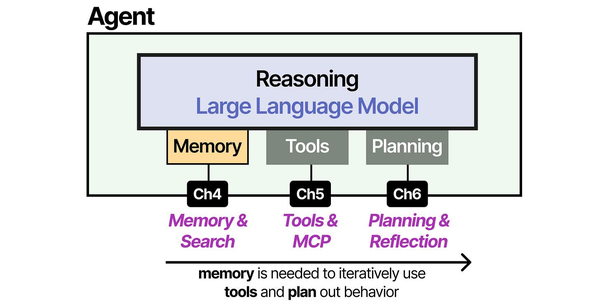
vLLM represents the state of the art in high-throughput LLM serving on Linux. As Brousseau and Sharp explain in LLMs in Production, vLLM's PagedAttention mechanism revolutionizes memory management by treating KV-cache as virtual memory pages, dramatically improving throughput for concurrent requests. Grootendorst and Alammar in An Illustrated Guide to AI Agents show how the inference backend is the performance bottleneck in agent architectures — deploying vLLM as that backend, with its continuous batching and tensor parallelism capabilities, directly translates to faster agent response times and higher concurrent user capacity on Linux production servers.
Related Articles
- Ollama vs vLLM: Which LLM Server Should Linux Admins Choose?
- Kubernetes Ollama Deployment: Production GPU Scheduling and Scaling Guide
- Private LLM for Enterprise: Linux Deployment Architecture and Security Guide
- Self-Hosted AI Stack for Linux Sysadmins: Complete Reference Architecture
Further Reading
- An Illustrated Guide to AI Agents by Maarten Grootendorst and Jay Alammar — Visual guide to agent memory, tools, and reasoning.
- LLMs in Production by Christopher Brousseau and Matthew Sharp — Practical deployment of language models from training to production.
- Agentic AI in Enterprise by Sumit Ranjan, Divya Chembachere, and Lanwin Lobo — Enterprise architecture patterns for agentic AI systems.
Frequently Asked Questions
How does vLLM throughput compare to Ollama for the same model?
vLLM typically delivers 3-5x higher throughput than Ollama for concurrent requests. For a single user sending one request at a time, the difference is minimal — both engines generate tokens at roughly the same speed. The gap appears under load. Ollama processes requests sequentially by default (or with limited parallelism). vLLM's continuous batching and PagedAttention serve hundreds of concurrent requests efficiently, achieving near-linear scaling up to the GPU's compute capacity. If your use case is a single developer chatting with a model, Ollama is simpler. If you are serving an API to an application with multiple users, vLLM's throughput advantage matters.
Can I use GGUF models with vLLM?
vLLM added experimental GGUF support, but the primary model formats are the original Hugging Face format (SafeTensors), AWQ, and GPTQ. For production deployments, use AWQ quantized models for the best combination of quality and memory efficiency. AWQ at 4-bit is roughly comparable to GGUF Q4_K_M in quality but runs faster in vLLM because the engine is optimized for that format. If you have a specific GGUF model you need to serve at high throughput, consider converting it back to Hugging Face format or finding the equivalent AWQ version.
What is the recommended GPU for production vLLM deployment?
The NVIDIA A100 80GB is the production standard for a reason — the HBM2e memory bandwidth feeds vLLM's batching engine efficiently, and 80GB fits large models without tensor parallelism overhead. For smaller budgets, the RTX 4090 (24GB) handles 7B-13B models well. The A6000 (48GB) fits 34B models and provides enterprise features like ECC memory. For multi-GPU setups, minimize the number of GPUs per model (fewer larger GPUs beat more smaller ones) because tensor parallelism adds inter-GPU communication latency. Two A100s outperform four RTX 4090s for a 70B model despite having less total VRAM.


