A single Ollama instance handles one inference request at a time by default. When multiple users or services hit the API simultaneously, requests queue up and response times degrade rapidly. Without rate limiting, a single misbehaving client can monopolize the GPU and starve everyone else. Without load balancing, your expensive second GPU sits idle while the first one is overwhelmed.
This article covers both problems with practical, production-tested solutions on Linux. We configure nginx as a reverse proxy with per-client rate limiting, set up upstream load balancing across multiple Ollama instances (same machine or multiple servers), implement health checks that automatically remove overloaded backends, and build a request queue with priority levels for different API consumers.
The Problem: Ollama Under Load
Ollama's API endpoint on port 11434 accepts HTTP requests and processes them sequentially. When you set OLLAMA_NUM_PARALLEL to allow concurrent requests, the GPU's VRAM is split across those requests, which reduces per-request speed. The fundamental constraints are: For GPU driver setup, see our NVIDIA driver and CUDA installation guide.
- GPU compute is finite. A single GPU can generate at a fixed maximum token rate regardless of how many clients are waiting.
- VRAM is finite. Each concurrent request consumes VRAM proportional to the model's KV cache size. Allowing too many parallel requests causes out-of-memory crashes.
- There is no built-in per-client fairness. The first request in the queue runs to completion before the next one starts (unless parallel mode is enabled).
Rate limiting and load balancing are the standard solutions, and nginx is the standard tool for implementing both on Linux.
Basic Rate Limiting with nginx
Install nginx
# Ubuntu/Debian
sudo apt install -y nginx

# Fedora/RHEL
sudo dnf install -y nginx

sudo systemctl enable --now nginx
Configure Rate Limiting
Create the Ollama proxy configuration:
sudo tee /etc/nginx/conf.d/ollama-proxy.conf > /dev/null << 'NGINXEOF'
# Rate limit zones
# $binary_remote_addr uses 16 bytes per client (IPv6) vs ~64 bytes for $remote_addr
limit_req_zone $binary_remote_addr zone=ollama_per_ip:10m rate=10r/m;
limit_req_zone $http_authorization zone=ollama_per_key:10m rate=30r/m;

# Connection limit
limit_conn_zone $binary_remote_addr zone=ollama_conn:10m;

server {
    listen 8080;
    server_name _;

    # Global connection limit per IP
    limit_conn ollama_conn 5;

    # Custom error responses for rate-limited requests
    limit_req_status 429;
    limit_conn_status 429;

    location /api/generate {
        # Strict rate limit for generation (expensive operation)
        limit_req zone=ollama_per_ip burst=3 nodelay;

        proxy_pass http://127.0.0.1:11434;
        proxy_set_header Host $host;
        proxy_read_timeout 300s;
        proxy_send_timeout 300s;
    }

    location /api/chat {
        # Slightly more lenient for chat (streaming reduces perceived wait)
        limit_req zone=ollama_per_ip burst=5 nodelay;

        proxy_pass http://127.0.0.1:11434;
        proxy_set_header Host $host;
        proxy_read_timeout 300s;
        proxy_buffering off;
    }

    location /api/embed {
        # Embeddings are lightweight - higher rate
        limit_req zone=ollama_per_ip burst=20 nodelay;

        proxy_pass http://127.0.0.1:11434;
        proxy_set_header Host $host;
        proxy_read_timeout 60s;
    }

    location / {
        # Default rate limit for all other endpoints
        limit_req zone=ollama_per_ip burst=10 nodelay;

        proxy_pass http://127.0.0.1:11434;
        proxy_set_header Host $host;
    }
}
NGINXEOF

sudo nginx -t && sudo systemctl reload nginx
This configuration applies different rate limits to different endpoints. Generation requests are expensive (they hold the GPU for seconds to minutes), so they get a strict limit of 10 per minute with a burst of 3. Embedding requests are cheap, so they get a higher allowance.
Testing Rate Limits
# Send 15 rapid requests - expect the first ~13 to succeed and the rest to get 429
for i in $(seq 1 15); do
    code=$(curl -s -o /dev/null -w "%{http_code}" \
        http://localhost:8080/api/generate \
        -d '{"model":"llama3.1:8b","prompt":"hi","stream":false,"options":{"num_predict":5}}')
    echo "Request $i: HTTP $code"
done
API Key-Based Rate Limiting
Per-IP rate limiting is a blunt instrument — all users behind a NAT share the same limit. For more granular control, rate-limit based on API keys passed in the Authorization header:
# Map API keys to rate limit tiers
map $http_authorization $rate_limit_tier {
    default                      "basic";
    "Bearer sk-admin-key-001"    "premium";
    "Bearer sk-service-key-002"  "premium";
    "Bearer sk-batch-key-003"    "batch";
}

# Different zones for different tiers
limit_req_zone $http_authorization zone=tier_basic:10m rate=5r/m;
limit_req_zone $http_authorization zone=tier_premium:10m rate=30r/m;
limit_req_zone $http_authorization zone=tier_batch:10m rate=60r/m;
Then apply the appropriate zone based on the tier in each location block. This lets you give internal services higher rate limits than external users.
Load Balancing Across Multiple Ollama Instances
Multiple Instances on the Same Machine
If your machine has multiple GPUs, run a separate Ollama instance per GPU:
# Instance 1 on GPU 0
CUDA_VISIBLE_DEVICES=0 OLLAMA_HOST=127.0.0.1:11434 ollama serve &

# Instance 2 on GPU 1
CUDA_VISIBLE_DEVICES=1 OLLAMA_HOST=127.0.0.1:11435 ollama serve &
For proper systemd management, create separate service files:
sudo tee /etc/systemd/system/ollama-gpu0.service > /dev/null << EOF
[Unit]
Description=Ollama on GPU 0
After=network.target

[Service]
ExecStart=/usr/local/bin/ollama serve
Environment=CUDA_VISIBLE_DEVICES=0
Environment=OLLAMA_HOST=127.0.0.1:11434
Environment=OLLAMA_MODELS=/var/lib/ollama/models
User=ollama
Group=ollama
Restart=always

[Install]
WantedBy=multi-user.target
EOF

sudo tee /etc/systemd/system/ollama-gpu1.service > /dev/null << EOF
[Unit]
Description=Ollama on GPU 1
After=network.target

[Service]
ExecStart=/usr/local/bin/ollama serve
Environment=CUDA_VISIBLE_DEVICES=1
Environment=OLLAMA_HOST=127.0.0.1:11435
Environment=OLLAMA_MODELS=/var/lib/ollama/models
User=ollama
Group=ollama
Restart=always

[Install]
WantedBy=multi-user.target
EOF

sudo systemctl daemon-reload
sudo systemctl enable --now ollama-gpu0 ollama-gpu1
nginx Upstream Configuration
upstream ollama_backends {
    # Least connections: route to the backend with fewest active connections
    least_conn;

    server 127.0.0.1:11434 max_fails=3 fail_timeout=30s;
    server 127.0.0.1:11435 max_fails=3 fail_timeout=30s;

    # For multi-server setups
    # server gpu-server-2:11434 max_fails=3 fail_timeout=30s;
    # server gpu-server-3:11434 max_fails=3 fail_timeout=30s;
}

server {
    listen 8080;

    location / {
        limit_req zone=ollama_per_ip burst=5 nodelay;

        proxy_pass http://ollama_backends;
        proxy_set_header Host $host;
        proxy_read_timeout 300s;
        proxy_next_upstream error timeout http_502 http_503;
        proxy_next_upstream_tries 2;
    }
}
The least_conn directive routes each new request to the backend with the fewest active connections, which naturally distributes load based on actual processing capacity. The proxy_next_upstream directive retries failed requests on a different backend — important when a GPU server runs out of memory.
Health Checks
nginx's open-source version supports passive health checks (marking backends as down after failures). For active health checks (probing backends periodically), use a simple monitoring script:
#!/bin/bash
# ollama_health_check.sh - Active health monitoring for Ollama backends

BACKENDS=("127.0.0.1:11434" "127.0.0.1:11435")
CONF_FILE="/etc/nginx/conf.d/ollama-backends.conf"

generate_upstream() {
    echo "upstream ollama_backends {"
    echo "    least_conn;"
    for backend in "${BACKENDS[@]}"; do
        health=$(curl -s -o /dev/null -w "%{http_code}" \
            --connect-timeout 2 --max-time 5 \
            "http://$backend/api/tags")

        if [ "$health" = "200" ]; then
            echo "    server $backend max_fails=3 fail_timeout=30s;"
        else
            echo "    server $backend down;  # Failed health check"
        fi
    done
    echo "}"
}

NEW_CONF=$(generate_upstream)
OLD_CONF=$(cat "$CONF_FILE" 2>/dev/null)

if [ "$NEW_CONF" != "$OLD_CONF" ]; then
    echo "$NEW_CONF" | sudo tee "$CONF_FILE" > /dev/null
    sudo nginx -t && sudo nginx -s reload
    echo "$(date): Backend configuration updated" >> /var/log/ollama-health.log
fi
Run this script every 30 seconds via a systemd timer to automatically remove unhealthy backends and add them back when they recover.
Request Queuing with Priority
For workloads where some requests are more important than others (interactive chat vs. background batch processing), implement a request queue with Redis:
#!/usr/bin/env python3
# priority_queue.py - Priority-based request queue for Ollama

import redis
import json
import time
import requests
import threading

r = redis.Redis(host="localhost", port=6379)
OLLAMA_URL = "http://localhost:11434/api/generate"

QUEUES = {
    "high": "ollama:queue:high",      # Interactive chat
    "normal": "ollama:queue:normal",   # Standard API requests
    "low": "ollama:queue:low",         # Batch processing
}

def enqueue_request(priority, request_data, callback_url=None):
    """Add a request to the priority queue."""
    job = {
        "request": request_data,
        "callback_url": callback_url,
        "queued_at": time.time(),
    }
    queue_name = QUEUES.get(priority, QUEUES["normal"])
    r.rpush(queue_name, json.dumps(job))

def process_queue():
    """Process requests in priority order."""
    while True:
        # Check queues in priority order
        for priority in ["high", "normal", "low"]:
            queue_name = QUEUES[priority]
            job_data = r.lpop(queue_name)

            if job_data:
                job = json.loads(job_data)
                try:
                    response = requests.post(OLLAMA_URL, json=job["request"], timeout=300)
                    if job.get("callback_url"):
                        requests.post(job["callback_url"], json=response.json(), timeout=10)
                except Exception as e:
                    print(f"Error processing job: {e}")
                break
        else:
            time.sleep(0.1)

if __name__ == "__main__":
    workers = []
    for i in range(2):  # Number of concurrent workers
        t = threading.Thread(target=process_queue, daemon=True)
        t.start()
        workers.append(t)

    print("Queue processor running with 2 workers")
    for t in workers:
        t.join()
Monitoring Rate Limits and Load
Track rate limit hits and backend health with these monitoring approaches:
# Check nginx rate limit rejections in real time
tail -f /var/log/nginx/error.log | grep "limiting requests"

# Count 429 responses per hour
awk '$9 == 429 {count++} END {print count}' /var/log/nginx/access.log

# Monitor Ollama backend response times
awk '{print $NF}' /var/log/nginx/access.log | sort -n | tail -20
Add custom nginx log format to capture upstream response times:
log_format ollama_metrics '$remote_addr - $time_iso8601 - $status - '
                          'upstream: $upstream_addr - '
                          'response_time: $upstream_response_time - '
                          'request: $request';

access_log /var/log/nginx/ollama_metrics.log ollama_metrics;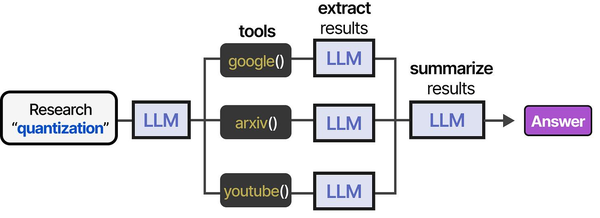
Rate limiting and load balancing the Ollama API is essential infrastructure for agent-based systems that make frequent tool calls. As shown in An Illustrated Guide to AI Agents by Grootendorst and Alammar, agents execute multi-step tool pipelines that generate sustained API traffic — making proper rate limiting and load distribution critical for reliable operation at scale.
Related Articles
- Ollama Behind Nginx: Reverse Proxy with Authentication, SSL, and Rate Limiting
- Ollama REST API Reference: Complete Endpoint Guide for Linux Developers
- Kubernetes Ollama Deployment: Production GPU Scheduling and Scaling Guide
- Ollama Systemd Service: Production Hardening and Performance Tuning
Further Reading
- An Illustrated Guide to AI Agents by Maarten Grootendorst and Jay Alammar — Visual guide to agent memory, tools, and reasoning.
- LLMs in Production by Christopher Brousseau and Matthew Sharp — Practical deployment of language models from training to production.
- Agentic AI in Enterprise by Sumit Ranjan, Divya Chembachere, and Lanwin Lobo — Enterprise architecture patterns for agentic AI systems.
Frequently Asked Questions
What rate limits should I set for a team of 10 developers using Ollama?
For a team of 10 using Ollama interactively (coding assistance, chat), start with 20 requests per minute per user with a burst of 5. This allows rapid back-and-forth conversation while preventing any single user from flooding the queue. Monitor actual usage patterns for the first week and adjust — if users consistently hit limits during normal work, increase them. If the GPU is always at 100% utilization, either reduce limits or add another GPU.
Does load balancing work if different Ollama instances have different models loaded?
It depends on your approach. If all instances have the same models, round-robin or least-connections works perfectly. If instances specialize in different models, you need content-based routing — inspect the request body to determine which model is requested and route to the correct backend. This requires nginx's njs module or an application-level proxy. The simpler approach is to ensure all instances have identical model sets.
How do I handle long-running generation requests that time out through the proxy?
Increase proxy_read_timeout to at least 300 seconds (5 minutes) for generation endpoints. Long prompts with high num_predict values can easily take several minutes on smaller GPUs. For streaming endpoints (/api/chat with stream: true), set proxy_buffering off so nginx forwards tokens as they are generated rather than buffering the entire response. Also consider setting keepalive_timeout to match, so connections remain open for the duration of generation.


