A single GPU can handle 7B and 13B parameter models comfortably. Push beyond that — 34B, 70B, or the increasingly popular mixture-of-experts models — and a single GPU runs out of VRAM. A 70B model with 4-bit quantization needs approximately 40 GB of VRAM. No consumer GPU has that much. Even the NVIDIA RTX 4090 tops out at 24 GB. You need multiple GPUs, and making them work together for LLM inference is not as simple as plugging in a second card.
Multi-GPU inference on Linux works through two distinct mechanisms: tensor parallelism (splitting a single model across multiple GPUs so they process each request cooperatively) and model replication (running separate copies of a model on each GPU and load balancing requests between them). Tensor parallelism lets you run models that exceed a single GPU's VRAM. Model replication lets you serve more concurrent requests. The right choice depends on whether your bottleneck is model size or throughput.
This guide covers the complete multi-GPU setup on Linux: hardware topology and interconnect considerations, NVIDIA driver configuration for multi-GPU, Ollama's automatic model splitting, vLLM's tensor parallelism, building a load balancer for multiple inference instances, NUMA-aware configuration for multi-socket servers, and performance benchmarking to validate that adding GPUs actually improves throughput. For the foundational setup, see our complete Ollama installation guide.
Hardware Topology Matters
Before configuring software, understand your GPU interconnect topology. The connection between GPUs determines how fast they can exchange data during tensor-parallel inference. Slow interconnects create bottlenecks that can make multi-GPU inference slower than single-GPU for some workloads.
Check Your GPU Topology
# Display GPU interconnect topology
nvidia-smi topo -m

# Example output for a 2x RTX 4090 workstation:
#         GPU0  GPU1  CPU Affinity  NUMA Affinity
# GPU0     X    PHB    0-15          0
# GPU1    PHB    X     0-15          0
#
# Legend:
# X    = Self
# SYS  = Connected via system bus (slowest — crosses CPU socket)
# NODE = Connected to same NUMA node but different PCIe root
# PHB  = Connected via PCIe Host Bridge (same CPU socket)
# PXB  = Connected via PCIe Bridge
# PIX  = Connected via single PCIe switch
# NV#  = Connected via NVLink (fastest — #=number of NVLink connections)

# Check PCIe link speed for each GPU
nvidia-smi --query-gpu=pci.link.gen.current,pci.link.width.current --format=csv
# Ideal: Gen4 x16 for each GPU

# Check NUMA node association
nvidia-smi topo -m | grep -E "NUMA|GPU"
The interconnect speed matters most for tensor parallelism. When a model is split across GPUs, intermediate activations must be transferred between GPUs at every layer. NVLink provides 600+ GB/s bidirectional bandwidth between GPUs. PCIe Gen4 x16 provides only 32 GB/s. A model that runs well across NVLink-connected A100s may perform poorly across PCIe-connected consumer GPUs because the interconnect becomes the bottleneck.
Practical Implications
# Rule of thumb for multi-GPU decisions:
#
# NVLink connected GPUs (A100, H100, data center):
#   - Tensor parallelism works well up to 8 GPUs
#   - Near-linear scaling for most model sizes
#
# PCIe connected GPUs (RTX 4090, consumer/workstation):
#   - Tensor parallelism works acceptably for 2 GPUs
#   - Diminishing returns beyond 2 GPUs for inference
#   - Model replication (load balancing) often better for 3+ GPUs
#
# Mixed GPU setups (different models or different VRAM sizes):
#   - Use model replication, assign different models to different GPUs
#   - Do NOT use tensor parallelism with mismatched GPUs
NVIDIA Driver Configuration for Multi-GPU
Install and Verify Drivers
# Verify all GPUs are detected
nvidia-smi -L
# Should list every GPU in the system

# Check that all GPUs are using the same driver version
nvidia-smi --query-gpu=driver_version --format=csv,noheader
# All GPUs must show the same version

# Enable persistence mode on all GPUs (keeps driver loaded)
sudo nvidia-smi -pm 1

# Set all GPUs to maximum performance mode
sudo nvidia-smi --power-limit=300 --id=0
sudo nvidia-smi --power-limit=300 --id=1
# Adjust power limit to your GPU's TDP

# Verify PCIe ACS is not causing IOMMU group issues
# (relevant if you also run VMs with GPU passthrough)
find /sys/kernel/iommu_groups/ -type l | sort -V | while read -r group; do
  echo "Group: $(basename $(dirname $group))"
  lspci -nns "$(basename $group)"
done | grep -A1 NVIDIA
CUDA Device Ordering
# By default, CUDA orders GPUs by PCI bus ID.
# This can be confusing if nvidia-smi shows a different order.

# Force consistent ordering across all tools:
export CUDA_DEVICE_ORDER=PCI_BUS_ID

# Make it persistent in /etc/environment:
echo 'CUDA_DEVICE_ORDER=PCI_BUS_ID' | sudo tee -a /etc/environment

# Verify GPU ordering matches across tools:
nvidia-smi  # Check GPU 0, GPU 1 order
python3 -c "import subprocess; subprocess.run(['nvidia-smi', '-L'])"
Ollama Multi-GPU Configuration
Ollama handles multi-GPU inference automatically when a model is too large for a single GPU. It splits the model layers across available GPUs based on their VRAM capacity. No manual layer assignment is needed for basic setups.
Basic Multi-GPU with Ollama
# Ollama automatically detects and uses all available NVIDIA GPUs
# Install Ollama normally
curl -fsSL https://ollama.com/install.sh | sh

# Pull a large model that requires multi-GPU
ollama pull llama3.1:70b-instruct-q4_K_M  # ~40 GB, needs 2x 24GB GPUs

# Run the model — Ollama will split it across GPUs automatically
ollama run llama3.1:70b-instruct-q4_K_M "Explain multi-GPU inference."

# Monitor GPU usage during inference
watch -n 1 nvidia-smi

# You should see both GPUs with allocated memory and active utilization
Controlling GPU Assignment
# To restrict Ollama to specific GPUs, use CUDA_VISIBLE_DEVICES

# Use only GPU 0 and GPU 1 (skip GPU 2 if you have 3 GPUs)
CUDA_VISIBLE_DEVICES=0,1 ollama serve

# In the systemd service file:
# Environment=CUDA_VISIBLE_DEVICES=0,1

# To run separate Ollama instances on different GPUs:
# Instance 1: Small models on GPU 0
CUDA_VISIBLE_DEVICES=0 OLLAMA_HOST=0.0.0.0:11434 ollama serve

# Instance 2: Large models on GPUs 1 and 2
CUDA_VISIBLE_DEVICES=1,2 OLLAMA_HOST=0.0.0.0:11435 ollama serve
Ollama Multi-GPU Environment Variables
# Key environment variables for multi-GPU Ollama:

# Number of parallel inference requests (shared across all GPUs)
OLLAMA_NUM_PARALLEL=4

# Maximum number of models loaded simultaneously
# With multi-GPU, each loaded model may span multiple GPUs
# Be conservative — 2 large models across 2 GPUs uses all VRAM
OLLAMA_MAX_LOADED_MODELS=2

# Keep models loaded for longer (reduces cold-start latency)
OLLAMA_KEEP_ALIVE=30m

# Enable flash attention (reduces VRAM usage, improves speed)
OLLAMA_FLASH_ATTENTION=1

# Set in the systemd override
sudo mkdir -p /etc/systemd/system/ollama.service.d/
sudo tee /etc/systemd/system/ollama.service.d/multigpu.conf <<'EOF'
[Service]
Environment=CUDA_VISIBLE_DEVICES=0,1
Environment=OLLAMA_NUM_PARALLEL=4
Environment=OLLAMA_MAX_LOADED_MODELS=2
Environment=OLLAMA_KEEP_ALIVE=30m
Environment=OLLAMA_FLASH_ATTENTION=1
Environment=CUDA_DEVICE_ORDER=PCI_BUS_ID
EOF

sudo systemctl daemon-reload
sudo systemctl restart ollama
vLLM for High-Throughput Multi-GPU Inference
When you need higher throughput than Ollama provides — more concurrent requests, continuous batching, speculative decoding — vLLM is the production-grade option. It supports tensor parallelism natively and is designed for multi-GPU deployments.
Install vLLM
# Create a virtual environment
python3 -m venv /opt/vllm
source /opt/vllm/bin/activate

# Install vLLM with CUDA support
pip install vllm

# Verify CUDA detection
python3 -c "import torch; print(f'GPUs: {torch.cuda.device_count()}')"
Launch vLLM with Tensor Parallelism
# Run a 70B model across 2 GPUs with tensor parallelism
python3 -m vllm.entrypoints.openai.api_server \
  --model meta-llama/Llama-3.1-70B-Instruct \
  --tensor-parallel-size 2 \
  --host 0.0.0.0 \
  --port 8000 \
  --max-model-len 4096 \
  --gpu-memory-utilization 0.90 \
  --enforce-eager

# Key parameters:
# --tensor-parallel-size 2    Split model across 2 GPUs
# --gpu-memory-utilization    Use 90% of VRAM (leave headroom)
# --max-model-len 4096        Limit context length to save VRAM
# --enforce-eager              Disable CUDA graphs (more stable, slightly slower)

# For 4 GPUs:
python3 -m vllm.entrypoints.openai.api_server \
  --model meta-llama/Llama-3.1-70B-Instruct \
  --tensor-parallel-size 4 \
  --host 0.0.0.0 \
  --port 8000
vLLM Systemd Service
sudo tee /etc/systemd/system/vllm.service <<'EOF'
[Unit]
Description=vLLM Inference Server
After=network.target nvidia-persistenced.service

[Service]
Type=simple
User=vllm
Group=vllm
WorkingDirectory=/opt/vllm

ExecStart=/opt/vllm/bin/python3 -m vllm.entrypoints.openai.api_server \
  --model /var/lib/models/Llama-3.1-70B-Instruct \
  --tensor-parallel-size 2 \
  --host 127.0.0.1 \
  --port 8000 \
  --max-model-len 4096 \
  --gpu-memory-utilization 0.90

Restart=on-failure
RestartSec=30
Environment=CUDA_VISIBLE_DEVICES=0,1
Environment=CUDA_DEVICE_ORDER=PCI_BUS_ID
LimitNOFILE=65536
LimitMEMLOCK=infinity

[Install]
WantedBy=multi-user.target
EOF

sudo systemctl daemon-reload
sudo systemctl enable --now vllm
Load Balancing Across Multiple Instances
When you have enough GPUs to run multiple model instances (or multiple different models), a load balancer distributes requests for optimal throughput.
Nginx Load Balancer for Multiple Ollama Instances
# /etc/nginx/conf.d/llm-loadbalancer.conf

# Backend pool — multiple Ollama instances on different GPUs
upstream llm_backends {
    # Least connections routing — send requests to the least busy instance
    least_conn;

    # Instance 1: GPU 0 (small models, fast responses)
    server 127.0.0.1:11434 weight=2;

    # Instance 2: GPU 1 (small models, fast responses)
    server 127.0.0.1:11435 weight=2;

    # Instance 3: GPUs 2-3 (large models, tensor parallel)
    server 127.0.0.1:11436 weight=1;

    keepalive 32;
}

server {
    listen 8080;
    server_name localhost;

    # Long timeouts for LLM inference
    proxy_connect_timeout 10s;
    proxy_read_timeout 300s;
    proxy_send_timeout 60s;

    location /api/ {
        proxy_pass http://llm_backends;
        proxy_http_version 1.1;
        proxy_set_header Connection "";
        proxy_set_header Host $host;
        proxy_set_header X-Real-IP $remote_addr;

        # Buffer streaming responses
        proxy_buffering off;
    }

    # Health check endpoint
    location /health {
        proxy_pass http://llm_backends/api/tags;
        access_log off;
    }
}
Systemd Template for Multiple Ollama Instances
# /etc/systemd/system/ollama@.service
[Unit]
Description=Ollama LLM Instance (GPU %i)
After=network.target nvidia-persistenced.service

[Service]
Type=simple
User=ollama
Group=ollama
ExecStart=/usr/local/bin/ollama serve
Restart=on-failure
RestartSec=10

EnvironmentFile=/etc/ollama/instance-%i.conf

NoNewPrivileges=true
ProtectSystem=strict
ReadWritePaths=/var/lib/ollama/instance-%i
PrivateTmp=true
LimitNOFILE=65536
LimitMEMLOCK=infinity

[Install]
WantedBy=multi-user.target
# Create instance configurations
sudo mkdir -p /etc/ollama /var/lib/ollama/instance-{0,1,2}
# Instance 0: GPU 0, port 11434
sudo tee /etc/ollama/instance-0.conf <<'EOF'
OLLAMA_HOST=127.0.0.1:11434
OLLAMA_MODELS=/var/lib/ollama/instance-0/models
CUDA_VISIBLE_DEVICES=0
OLLAMA_NUM_PARALLEL=4
OLLAMA_MAX_LOADED_MODELS=2
EOF
# Instance 1: GPU 1, port 11435
sudo tee /etc/ollama/instance-1.conf <<'EOF'
OLLAMA_HOST=127.0.0.1:11435
OLLAMA_MODELS=/var/lib/ollama/instance-1/models
CUDA_VISIBLE_DEVICES=1
OLLAMA_NUM_PARALLEL=4
OLLAMA_MAX_LOADED_MODELS=2
EOF
# Instance 2: GPUs 2-3, port 11436 (for large models)
sudo tee /etc/ollama/instance-2.conf <<'EOF'
OLLAMA_HOST=127.0.0.1:11436
OLLAMA_MODELS=/var/lib/ollama/instance-2/models
CUDA_VISIBLE_DEVICES=2,3
OLLAMA_NUM_PARALLEL=2
OLLAMA_MAX_LOADED_MODELS=1
EOF
sudo chown -R ollama:ollama /var/lib/ollama/
# Start all instances
sudo systemctl enable --now ollama@0 ollama@1 ollama@2
# Verify all instances are running
for port in 11434 11435 11436; do
echo "Port $port: $(curl -s http://127.0.0.1:$port/api/tags | python3 -c 'import sys,json; print(len(json.load(sys.stdin).get("models",[])))') models"
doneNUMA Optimization for Multi-Socket Servers
On dual-socket servers, GPU placement relative to CPU sockets significantly affects inference performance. A GPU connected to NUMA node 0 that is accessed by a process running on NUMA node 1 suffers cross-socket memory access penalties of 20-40%.
# Check NUMA topology
numactl --hardware

# Check which NUMA node each GPU is connected to
nvidia-smi topo -m
# Look at the "NUMA Affinity" column

# Pin each Ollama instance to the NUMA node matching its GPU
# In the instance configuration:

# If GPU 0 is on NUMA node 0:
# ExecStart=numactl --cpunodebind=0 --membind=0 /usr/local/bin/ollama serve

# If GPU 1 is on NUMA node 1:
# ExecStart=numactl --cpunodebind=1 --membind=1 /usr/local/bin/ollama serve

# Alternative: use AllowedCPUs in the systemd unit
# AllowedCPUs=0-15    # CPUs on NUMA node 0
# AllowedCPUs=16-31   # CPUs on NUMA node 1
Benchmarking Multi-GPU Performance
#!/bin/bash
# benchmark_multigpu.sh — Compare single-GPU vs multi-GPU performance

MODEL="llama3.1:70b-instruct-q4_K_M"
PROMPT="Write a detailed explanation of how TCP congestion control works, including slow start, congestion avoidance, fast retransmit, and fast recovery phases."
ITERATIONS=3

echo "=== Multi-GPU Inference Benchmark ==="
echo "Model: $MODEL"
echo ""

for endpoint in "http://127.0.0.1:11434" "http://127.0.0.1:11435"; do
  echo "--- Endpoint: $endpoint ---"
  total_tps=0
  for i in $(seq 1 $ITERATIONS); do
    result=$(curl -s "$endpoint/api/generate" \
      -d "{\"model\": \"$MODEL\", \"prompt\": \"$PROMPT\", \"stream\": false}" | \
      python3 -c "
import sys, json
d = json.load(sys.stdin)
tokens = d.get('eval_count', 0)
duration = d.get('eval_duration', 1) / 1e9
tps = tokens / duration if duration > 0 else 0
print(f'{tps:.1f}')
")
    echo "  Run $i: ${result} tok/s"
  done
  echo ""
done
Monitoring Multi-GPU Deployments
# Monitor all GPUs simultaneously
watch -n 1 'nvidia-smi --query-gpu=index,name,temperature.gpu,utilization.gpu,memory.used,memory.total,power.draw --format=csv,noheader'

# Prometheus metrics for multi-GPU (nvidia_gpu_exporter)
# All GPUs are automatically exported with a gpu="N" label

# Useful Prometheus queries for multi-GPU:
# Per-GPU utilization:
#   nvidia_gpu_duty_cycle{gpu="0"}
#
# Total VRAM used across all GPUs:
#   sum(nvidia_gpu_memory_used_bytes)
#
# GPU temperature alerts:
#   nvidia_gpu_temperature_celsius > 85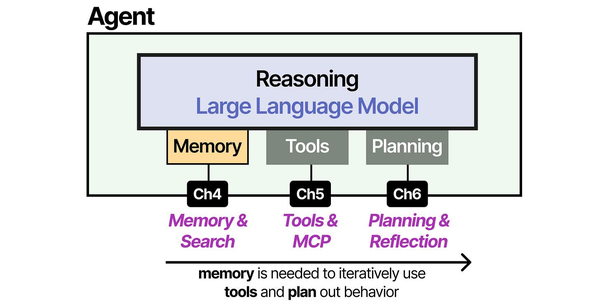
Multi-GPU inference on Linux unlocks the ability to run larger models and serve more concurrent users. Brousseau and Sharp in LLMs in Production provide detailed analysis of tensor parallelism versus pipeline parallelism strategies, showing how NVLink-connected GPUs can achieve near-linear scaling for inference workloads when properly configured. As Grootendorst and Alammar illustrate in An Illustrated Guide to AI Agents, the inference layer is the computational foundation of the entire agent architecture — distributing this layer across multiple GPUs with frameworks like vLLM or DeepSpeed on Linux servers is essential for running 70B+ parameter models that deliver the reasoning quality advanced agent applications demand.
Related Articles
- Best GPU for Running LLMs Locally on Linux: 2026 Buyer's Guide
- Install NVIDIA Drivers and CUDA on Linux Server for AI: The No-Nonsense Guide (2026)
- Docker GPU Passthrough on Linux for AI Workloads
- Ollama on Proxmox: GPU Passthrough for LXC and VM AI Workloads
Further Reading
- An Illustrated Guide to AI Agents by Maarten Grootendorst and Jay Alammar — Visual guide to agent memory, tools, and reasoning.
- LLMs in Production by Christopher Brousseau and Matthew Sharp — Practical deployment of language models from training to production.
- Agentic AI in Enterprise by Sumit Ranjan, Divya Chembachere, and Lanwin Lobo — Enterprise architecture patterns for agentic AI systems.
Frequently Asked Questions
Can I mix different GPU models for multi-GPU inference?
For tensor parallelism (splitting one model across GPUs), the GPUs should be identical — same model, same VRAM. Mismatched GPUs cause the faster GPU to idle while waiting for the slower one, and unequal VRAM means the smaller GPU limits the maximum model size. For model replication (separate instances per GPU), mixing GPU models works well. Run a smaller model on the GPU with less VRAM and a larger model on the GPU with more VRAM. The nginx load balancer routes requests to the appropriate instance based on the model parameter.
How many concurrent users can a multi-GPU setup handle?
It depends on the model size and response length. With a 7B model on 2x RTX 4090 GPUs (one instance per GPU), expect 20-40 concurrent users with acceptable latency (under 5 seconds time-to-first-token). With a 70B model split across the same 2 GPUs via tensor parallelism, expect 3-6 concurrent users because the model consumes all available VRAM, leaving less room for parallel request contexts. The OLLAMA_NUM_PARALLEL setting directly controls the concurrency level per instance.
Is NVLink required for multi-GPU inference?
Not required, but it makes a significant difference for tensor parallelism. PCIe Gen4 x16 provides 32 GB/s bandwidth between GPUs, while NVLink on A100 provides 600 GB/s. For a 70B model split across 2 GPUs, the PCIe bottleneck can reduce token generation speed by 30-50% compared to NVLink. For model replication (separate instances), NVLink is irrelevant because the GPUs operate independently. If you are buying hardware specifically for multi-GPU inference without NVLink, consider whether model replication with smaller models might serve your needs better.
Does adding a third GPU always improve performance?
Not necessarily. For tensor parallelism over PCIe, the communication overhead increases with each additional GPU. Two GPUs is usually the sweet spot for PCIe-connected systems. Beyond that, the interconnect overhead can outweigh the additional compute capacity. Benchmark before and after adding each GPU. For model replication, a third GPU scales linearly because each instance operates independently — throughput scales almost perfectly with the number of replicas.
How do I handle GPU failures in a multi-GPU setup?
Configure the nginx load balancer with health checks that verify each Ollama instance is responding. If a GPU fails, the corresponding Ollama instance stops responding, and nginx removes it from the active pool. For tensor-parallel configurations (where one model spans multiple GPUs), a single GPU failure takes down the entire model — there is no graceful degradation. This is why production deployments often run multiple independent instances (model replication) rather than a single tensor-parallel deployment, even if it means running smaller models.


