Traefik is a cloud-native reverse proxy that automatically discovers services and configures routing based on labels, file providers, or API calls. For AI workloads running Ollama and Open WebUI on Linux, Traefik offers several advantages over traditional nginx setups: automatic Let's Encrypt certificates, dynamic service discovery with Docker, built-in middleware for authentication and rate limiting, and a real-time dashboard for monitoring traffic patterns. This article walks through deploying Traefik as the front door for your self-hosted AI stack.
We will set up Traefik with Docker Compose, configure it to route traffic to both Ollama's API and Open WebUI's web interface, add automatic TLS, implement basic authentication and rate limiting middleware, and enable the Traefik dashboard for monitoring. Every configuration is production-ready — not a dev toy.
Architecture Overview
The target architecture looks like this: For GPU driver setup, see our NVIDIA driver and CUDA installation guide.
- Traefik listens on ports 80 and 443, handles TLS termination, and routes requests to backend services based on hostnames or path prefixes.
- Ollama runs on port 11434 internally and is exposed through Traefik at
api.ai.example.com. - Open WebUI runs on port 8080 internally and is exposed through Traefik at
chat.ai.example.com. - All three run as Docker containers on the same Docker network. Traefik discovers the backends automatically through Docker labels.
This setup assumes you have a Linux server with Docker and Docker Compose installed, DNS records pointing api.ai.example.com and chat.ai.example.com to your server, and ports 80/443 open in your firewall.
Installing Traefik with Docker Compose
Create a project directory and set up the base configuration:
mkdir -p /opt/ai-stack && cd /opt/ai-stack
mkdir -p traefik/config traefik/certs
Traefik Static Configuration
Create the main Traefik configuration file:
cat > traefik/traefik.yml << 'EOF'
api:
  dashboard: true
  insecure: false

entryPoints:
  web:
    address: ":80"
    http:
      redirections:
        entryPoint:
          to: websecure
          scheme: https
  websecure:
    address: ":443"
    http:
      tls:
        certResolver: letsencrypt

certificatesResolvers:
  letsencrypt:
    acme:
      email: admin@example.com
      storage: /certs/acme.json
      httpChallenge:
        entryPoint: web

providers:
  docker:
    endpoint: "unix:///var/run/docker.sock"
    exposedByDefault: false
    network: ai-network
  file:
    directory: /config
    watch: true

log:
  level: INFO

accessLog:
  filePath: /var/log/traefik/access.log
  bufferingSize: 100
EOF
Dynamic Configuration for Middleware
Create a file provider for reusable middleware chains:
cat > traefik/config/middleware.yml << 'EOF'
http:
  middlewares:
    rate-limit-api:
      rateLimit:
        average: 30
        burst: 50
        period: 1m

    rate-limit-strict:
      rateLimit:
        average: 10
        burst: 15
        period: 1m

    security-headers:
      headers:
        browserXssFilter: true
        contentTypeNosniff: true
        frameDeny: true
        stsIncludeSubdomains: true
        stsPreload: true
        stsSeconds: 31536000
        customFrameOptionsValue: "SAMEORIGIN"

    api-auth:
      basicAuth:
        users:
          - "admin:$apr1$xyz$hashedpassword"
EOF
Generate the basic auth password hash:
sudo apt install -y apache2-utils
htpasswd -nb admin your-secure-password
Replace the placeholder in middleware.yml with the generated hash.
Docker Compose Stack
Now create the complete Docker Compose file with Traefik, Ollama, and Open WebUI:
cat > docker-compose.yml << 'EOF'
services:
  traefik:
    image: traefik:v3.2
    container_name: traefik
    restart: unless-stopped
    ports:
      - "80:80"
      - "443:443"
    volumes:
      - /var/run/docker.sock:/var/run/docker.sock:ro
      - ./traefik/traefik.yml:/traefik.yml:ro
      - ./traefik/config:/config:ro
      - ./traefik/certs:/certs
      - /var/log/traefik:/var/log/traefik
    networks:
      - ai-network
    labels:
      - "traefik.enable=true"
      - "traefik.http.routers.dashboard.rule=Host(`traefik.ai.example.com`)"
      - "traefik.http.routers.dashboard.service=api@internal"
      - "traefik.http.routers.dashboard.middlewares=api-auth@file"
      - "traefik.http.routers.dashboard.tls.certresolver=letsencrypt"

  ollama:
    image: ollama/ollama:latest
    container_name: ollama
    restart: unless-stopped
    volumes:
      - ollama-data:/root/.ollama
    deploy:
      resources:
        reservations:
          devices:
            - driver: nvidia
              count: all
              capabilities: [gpu]
    networks:
      - ai-network
    labels:
      - "traefik.enable=true"
      - "traefik.http.routers.ollama.rule=Host(`api.ai.example.com`)"
      - "traefik.http.routers.ollama.tls.certresolver=letsencrypt"
      - "traefik.http.routers.ollama.middlewares=rate-limit-api@file,security-headers@file,api-auth@file"
      - "traefik.http.services.ollama.loadbalancer.server.port=11434"

  open-webui:
    image: ghcr.io/open-webui/open-webui:main
    container_name: open-webui
    restart: unless-stopped
    volumes:
      - webui-data:/app/backend/data
    environment:
      - OLLAMA_BASE_URL=http://ollama:11434
    depends_on:
      - ollama
    networks:
      - ai-network
    labels:
      - "traefik.enable=true"
      - "traefik.http.routers.webui.rule=Host(`chat.ai.example.com`)"
      - "traefik.http.routers.webui.tls.certresolver=letsencrypt"
      - "traefik.http.routers.webui.middlewares=rate-limit-strict@file,security-headers@file"
      - "traefik.http.services.webui.loadbalancer.server.port=8080"

networks:
  ai-network:
    name: ai-network

volumes:
  ollama-data:
  webui-data:
EOF
Deploying the Stack
# Create the certificate storage file with correct permissions
touch /opt/ai-stack/traefik/certs/acme.json
chmod 600 /opt/ai-stack/traefik/certs/acme.json

# Create log directory
sudo mkdir -p /var/log/traefik

# Launch everything
cd /opt/ai-stack
docker compose up -d

# Check status
docker compose ps
docker compose logs traefik --tail 50
Traefik will automatically request Let's Encrypt certificates for all configured hostnames. Check the logs for successful certificate acquisition — you should see lines like "certificate obtained successfully" within a minute or two.
Testing the Routes
Verify each service is accessible through Traefik:
# Test Ollama API (with basic auth)
curl -u admin:your-secure-password https://api.ai.example.com/api/tags

# Test Open WebUI
curl -I https://chat.ai.example.com

# Test Traefik dashboard
curl -u admin:your-secure-password https://traefik.ai.example.com/api/overview
Path-Based Routing Alternative
If you only have a single domain, you can route by path prefix instead of hostname:
# In the Ollama service labels
- "traefik.http.routers.ollama.rule=Host(`ai.example.com`) && PathPrefix(`/ollama`)"
- "traefik.http.middlewares.strip-ollama.stripprefix.prefixes=/ollama"
- "traefik.http.routers.ollama.middlewares=strip-ollama,rate-limit-api@file"

# In the Open WebUI service labels
- "traefik.http.routers.webui.rule=Host(`ai.example.com`) && PathPrefix(`/chat`)"
- "traefik.http.middlewares.strip-chat.stripprefix.prefixes=/chat"
- "traefik.http.routers.webui.middlewares=strip-chat,rate-limit-strict@file"
The StripPrefix middleware removes the path prefix before forwarding to the backend, so Ollama still receives requests at /api/ as it expects.
Advanced Middleware Configuration
IP Whitelisting
Restrict Ollama API access to specific IP ranges — useful when only your internal services should be able to call the LLM:
# In traefik/config/middleware.yml
http:
  middlewares:
    ip-whitelist-internal:
      ipAllowList:
        sourceRange:
          - "10.0.0.0/8"
          - "172.16.0.0/12"
          - "192.168.0.0/16"
Request Body Size Limits
Ollama requests can include large prompts or base64-encoded images for multimodal models. Set appropriate limits:
    buffering-large:
      buffering:
        maxRequestBodyBytes: 10485760   # 10 MB
        maxResponseBodyBytes: 52428800  # 50 MB
Retry and Circuit Breaker
If Ollama is under heavy load and occasionally times out, add retry logic and a circuit breaker to prevent cascading failures:
    ollama-retry:
      retry:
        attempts: 3
        initialInterval: 500ms

    ollama-circuit-breaker:
      circuitBreaker:
        expression: "LatencyAtQuantileMS(50.0) > 30000"
The circuit breaker trips when median latency exceeds 30 seconds, which indicates Ollama is overloaded. While tripped, Traefik returns 503 immediately instead of queuing more requests.
Monitoring with the Traefik Dashboard
The Traefik dashboard shows real-time information about routers, services, middlewares, and their health. Access it at your configured domain (e.g., https://traefik.ai.example.com) after authenticating.
Key metrics to watch:
- Service health: Green status for Ollama and Open WebUI means Traefik can reach them.
- Request rates: Monitor how many requests per second each service handles.
- Error rates: A spike in 5xx errors usually means Ollama is out of memory or the GPU is fully loaded.
- Latency: LLM inference requests are inherently slow (seconds, not milliseconds). Set your monitoring thresholds accordingly.
For more detailed metrics, enable Traefik's Prometheus exporter and scrape it with your existing monitoring stack:
# Add to traefik.yml
metrics:
  prometheus:
    entryPoint: websecure
    addEntryPointsLabels: true
    addServicesLabels: true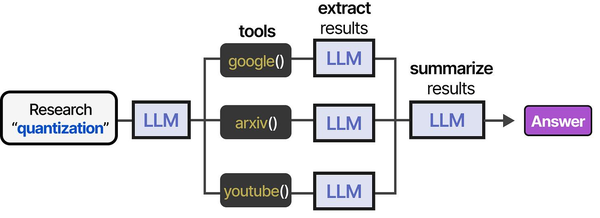
Deploying Traefik as a reverse proxy for Ollama and Open WebUI creates the networking layer that enables agent tool pipelines to function reliably. As outlined in An Illustrated Guide to AI Agents by Grootendorst and Alammar, agents depend on reliable tool communication — and proper reverse proxy configuration ensures that API calls between agent components are routed securely and efficiently.
Related Articles
- Ollama Behind Nginx: Reverse Proxy with Authentication, SSL, and Rate Limiting
- Deploy a Private ChatGPT on Your Linux Server with Ollama and Open WebUI
- Ollama API Rate Limiting and Load Balancing on Linux
- LLM Security on Linux: Prompt Injection, API Auth, and Network Isolation
Further Reading
- An Illustrated Guide to AI Agents by Maarten Grootendorst and Jay Alammar — Visual guide to agent memory, tools, and reasoning.
- LLMs in Production by Christopher Brousseau and Matthew Sharp — Practical deployment of language models from training to production.
- Agentic AI in Enterprise by Sumit Ranjan, Divya Chembachere, and Lanwin Lobo — Enterprise architecture patterns for agentic AI systems.
Frequently Asked Questions
Why use Traefik instead of nginx for AI services?
Traefik's Docker provider automatically detects new containers and configures routes without reloading. When you scale Ollama to multiple replicas or add new services, Traefik picks them up via Docker labels with zero manual config. It also handles Let's Encrypt certificate lifecycle automatically. For static setups where the number of services rarely changes, nginx is perfectly fine. Traefik shines when your AI stack evolves frequently or you run multiple services across a Docker Swarm or Kubernetes cluster.
How do I handle WebSocket connections for Open WebUI through Traefik?
Traefik handles WebSocket connections automatically — no special configuration needed. When a client sends an HTTP Upgrade request, Traefik forwards it to the backend and maintains the WebSocket connection. Open WebUI uses WebSockets for real-time streaming of LLM responses. If you experience disconnections, increase the transport timeout: add traefik.http.services.webui.loadbalancer.server.scheme=http and set respondingTimeouts.readTimeout=300s in the entrypoint configuration.
Can I load balance across multiple Ollama instances with Traefik?
Yes. Run multiple Ollama containers (each on a different GPU) and Traefik will round-robin across them automatically. Use Docker Compose's deploy.replicas or run separate containers with the same Traefik labels. Add health checks so Traefik removes unhealthy instances: traefik.http.services.ollama.loadbalancer.healthcheck.path=/api/tags and traefik.http.services.ollama.loadbalancer.healthcheck.interval=10s. Traefik will only route to instances that pass the health check.


