The default Ollama installation gets you running quickly. The install script drops a binary, creates a basic systemd unit, and starts the service. That is fine for testing on a workstation, but it is not how you should run Ollama in production. The default unit runs without resource limits, has minimal security isolation, uses default GPU scheduling parameters, and does not handle the specific failure modes that occur under sustained load. When a 32B model consumes all available memory during inference, or a runaway request ties up the GPU for 90 seconds, or a burst of concurrent API calls exhausts VRAM — the default configuration offers no protection.
Production hardening means configuring Ollama to fail gracefully under pressure, restart cleanly after failures, protect the host system from resource exhaustion, limit the attack surface, and perform optimally for your specific hardware. Every tweak in this guide addresses a real problem encountered in production deployments — not theoretical concerns, but issues that cause 3 AM pages and degraded performance.
This guide covers the complete production configuration: a hardened systemd unit file with security directives, cgroup-based resource controls, GPU-specific tuning, health checking and automatic recovery, log management, and performance optimization for different hardware profiles. We will also cover multi-instance configurations for serving different models with different resource allocations.
The Default Unit File: What Needs to Change
Ollama's installer creates a minimal unit file. Let us examine what it looks like and why each default is insufficient for production.
# View the current unit file
systemctl cat ollama.service

# Typical default unit:
# [Unit]
# Description=Ollama Service
# After=network-online.target
#
# [Service]
# ExecStart=/usr/local/bin/ollama serve
# User=ollama
# Group=ollama
# Restart=always
# RestartSec=3
#
# [Install]
# WantedBy=default.target
This unit has no memory limits (OOM killer decides), no CPU controls, no security sandboxing, no GPU configuration, no timeout handling, and aggressive restart behavior that can cause restart loops during persistent failures.
The Hardened Unit File
Create a drop-in override rather than modifying the installed unit file directly. This survives Ollama package updates.
# Create the override directory
sudo mkdir -p /etc/systemd/system/ollama.service.d/

# Create the hardened override
sudo tee /etc/systemd/system/ollama.service.d/hardened.conf <<'EOF'
[Unit]
Description=Ollama LLM Service (Production)
After=network-online.target
Wants=network-online.target

# Start after GPU drivers are loaded
After=nvidia-persistenced.service
After=systemd-modules-load.service

# Optional: wait for dependent services
After=local-fs.target

[Service]
# ---- Resource Controls ----
# Memory limit: prevent OOM from affecting other services
# Set to ~80% of total system RAM for a dedicated inference server
# For shared servers, reduce to the amount needed for your largest model + 20%
MemoryMax=56G
MemoryHigh=48G

# CPU weight (default is 100). Higher = more CPU when contending
CPUWeight=150

# Limit to specific CPUs to prevent interference with system services
# AllowedCPUs=0-15  # Uncomment and adjust for NUMA-aware pinning

# IO scheduling priority (best-effort, class 2, priority 4)
IOSchedulingClass=best-effort
IOSchedulingPriority=4

# ---- Timeouts and Restart Policy ----
# Longer timeout for model loading (large models take time)
TimeoutStartSec=300
TimeoutStopSec=120

# Restart policy with backoff
Restart=on-failure
RestartSec=10
RestartMaxDelaySec=300
RestartSteps=5

# Give up after too many restarts in a short period
StartLimitIntervalSec=600
StartLimitBurst=5

# ---- Environment Configuration ----
# Ollama configuration via environment variables
Environment=OLLAMA_HOST=0.0.0.0:11434
Environment=OLLAMA_MODELS=/var/lib/ollama/models
Environment=OLLAMA_NUM_PARALLEL=4
Environment=OLLAMA_MAX_LOADED_MODELS=2
Environment=OLLAMA_KEEP_ALIVE=10m
Environment=OLLAMA_MAX_QUEUE=128

# GPU configuration
Environment=CUDA_VISIBLE_DEVICES=0
# Uncomment for multi-GPU:
# Environment=CUDA_VISIBLE_DEVICES=0,1

# Performance tuning
Environment=OLLAMA_FLASH_ATTENTION=1
Environment=GOMAXPROCS=16

# ---- Security Hardening ----
# Prevent privilege escalation
NoNewPrivileges=true

# Filesystem protection
ProtectSystem=strict
ProtectHome=true
ReadWritePaths=/var/lib/ollama
ReadOnlyPaths=/usr/local/bin/ollama

# Restrict /tmp access to private namespace
PrivateTmp=true

# Protect kernel interfaces
ProtectKernelTunables=true
ProtectKernelModules=true
ProtectKernelLogs=true

# Hide other users' processes
ProtectProc=invisible

# Restrict hostname changes
ProtectHostname=true

# Restrict clock changes
ProtectClock=true

# Control group namespacing
ProtectControlGroups=true

# Network restrictions (allow only what is needed)
RestrictAddressFamilies=AF_INET AF_INET6 AF_UNIX AF_NETLINK

# Restrict system calls to what Ollama needs
SystemCallFilter=@system-service @resources
SystemCallFilter=~@privileged @obsolete

# Restrict namespace creation
RestrictNamespaces=true

# Restrict real-time scheduling
RestrictRealtime=true

# Lock memory to prevent swapping (important for GPU inference)
LockPersonality=true

# Device access: allow GPU devices
DeviceAllow=/dev/nvidia0 rw
DeviceAllow=/dev/nvidiactl rw
DeviceAllow=/dev/nvidia-uvm rw
DeviceAllow=/dev/nvidia-uvm-tools rw
# Add more for multi-GPU: DeviceAllow=/dev/nvidia1 rw

# ---- Logging ----
StandardOutput=journal
StandardError=journal
SyslogIdentifier=ollama
SyslogFacility=daemon

# ---- Process Limits ----
LimitNOFILE=65536
LimitNPROC=4096
LimitMEMLOCK=infinity

[Install]
WantedBy=multi-user.target
EOF

# Apply the changes
sudo systemctl daemon-reload
sudo systemctl restart ollama

# Verify the override is loaded
systemctl show ollama.service | grep -E 'MemoryMax|NoNewPrivileges|ProtectSystem'
Understanding Each Security Directive
Systemd's security directives form layers of defense. Each one restricts a specific attack surface. Here is why each matters for an LLM inference service.
NoNewPrivileges=true prevents the Ollama process (or anything it spawns) from gaining additional privileges through setuid/setgid binaries or filesystem capabilities. Since Ollama should never need elevated privileges after starting, this blocks an entire class of privilege escalation attacks.
ProtectSystem=strict mounts the entire filesystem read-only except for explicitly listed paths. Ollama only needs to write to its model directory and temporary files. If the process is compromised, it cannot modify system binaries, configuration files, or other services.
SystemCallFilter restricts which kernel system calls the process can make. The @system-service preset allows the basic calls needed for a network service. The ~@privileged exclusion blocks calls like mount, reboot, kexec_load, and other dangerous operations that a legitimate LLM service never needs.
RestrictAddressFamilies limits which network protocols the process can use. Ollama needs IPv4, IPv6, Unix sockets, and Netlink (for network interface queries). Blocking everything else (Bluetooth, packet sockets, etc.) reduces the attack surface.
Resource Control Configuration
Getting resource limits right requires understanding how Ollama uses memory. The loaded model weights go into VRAM (GPU memory), but the inference context, request queues, and Go runtime overhead consume system RAM. A 7B model with 4-bit quantization needs roughly 4 GB of VRAM and 2-3 GB of system RAM. A 70B model needs 40+ GB of VRAM and 8-12 GB of system RAM.
Memory Limits
# Calculate appropriate memory limits for your setup

# Check total system RAM
free -h

# Check GPU memory
nvidia-smi --query-gpu=memory.total,memory.used --format=csv,noheader

# Memory planning worksheet:
# System RAM: 64 GB total
# OS and system services: ~4 GB
# Ollama overhead per loaded model: ~2-3 GB system RAM
# Max loaded models (OLLAMA_MAX_LOADED_MODELS): 2
# Safety margin: 20%
#
# Calculation: 64 - 4 = 60 GB available
# Ollama allocation: 60 * 0.80 = 48 GB (MemoryHigh)
# Hard limit: 60 * 0.93 = 56 GB (MemoryMax)

# Monitor actual memory usage to validate your limits
systemctl status ollama.service
cat /sys/fs/cgroup/system.slice/ollama.service/memory.current
cat /sys/fs/cgroup/system.slice/ollama.service/memory.peak
CPU Configuration for NUMA Systems
# On multi-socket servers, NUMA-aware CPU pinning prevents
# cross-socket memory access that kills performance

# Identify NUMA topology
numactl --hardware

# If GPU 0 is on NUMA node 0 (check with nvidia-smi topo -m)
# pin Ollama to node 0 CPUs:
# In the systemd unit:
# AllowedCPUs=0-15  # Adjust to your NUMA node 0 CPUs

# Or use numactl in ExecStart:
# ExecStart=numactl --cpunodebind=0 --membind=0 /usr/local/bin/ollama serve

# Verify CPU affinity after starting
taskset -cp $(pgrep ollama)
GPU-Specific Tuning
NVIDIA GPUs have several tunable parameters that affect LLM inference performance. The defaults are often wrong for sustained inference workloads.
Persistence Mode and Power Management
# Enable persistence mode (keeps GPU initialized, reduces cold-start latency)
sudo nvidia-smi -pm 1

# Set GPU to maximum performance mode (prevents power-state downclocking)
sudo nvidia-smi -pl 300  # Set to your GPU's TDP, check with nvidia-smi -q -d POWER

# Lock GPU clocks to maximum for consistent inference performance
# (prevents frequency scaling during inference)
sudo nvidia-smi -lgc 1800,1800  # Set to your GPU's max clock

# Verify settings
nvidia-smi -q -d PERFORMANCE

# Make these settings persistent across reboots via a systemd service
sudo tee /etc/systemd/system/nvidia-power.service <<'EOF'
[Unit]
Description=NVIDIA GPU Power Configuration
After=nvidia-persistenced.service

[Service]
Type=oneshot
RemainAfterExit=yes
ExecStart=/usr/bin/nvidia-smi -pm 1
ExecStart=/usr/bin/nvidia-smi -pl 300
ExecStart=/usr/bin/nvidia-smi -lgc 1800,1800

[Install]
WantedBy=multi-user.target
EOF

sudo systemctl enable nvidia-power.service
VRAM Management
# Monitor VRAM usage during inference
watch -n 1 nvidia-smi

# Ollama environment variables for VRAM management:

# Maximum number of models loaded simultaneously
# Each model consumes VRAM. Set based on your available VRAM.
# OLLAMA_MAX_LOADED_MODELS=2

# Time to keep a model loaded after the last request
# Shorter = less VRAM usage, higher = faster response for repeated queries
# OLLAMA_KEEP_ALIVE=10m  # Default: 5m

# Number of parallel inference requests per model
# Each parallel slot uses additional VRAM for the KV cache
# OLLAMA_NUM_PARALLEL=4

# If VRAM is tight, reduce parallel slots and loaded models
# For a 24GB GPU running a 13B model:
# OLLAMA_MAX_LOADED_MODELS=1
# OLLAMA_NUM_PARALLEL=2
# OLLAMA_KEEP_ALIVE=5m
Health Checking and Automatic Recovery
Ollama can enter states where the process is running but not serving requests — GPU driver issues, VRAM exhaustion, deadlocked inference threads. A health check system detects these conditions and triggers recovery.
Health Check Script
#!/bin/bash
# /opt/ollama/healthcheck.sh — Ollama health verification

OLLAMA_API="http://localhost:11434"
MAX_RESPONSE_TIME=10
LOG_TAG="ollama-healthcheck"

# Check 1: API responds
HTTP_CODE=$(curl -s -o /dev/null -w "%{http_code}" \
  --max-time $MAX_RESPONSE_TIME "$OLLAMA_API/api/tags")

if [ "$HTTP_CODE" != "200" ]; then
  logger -t "$LOG_TAG" "FAIL: API returned HTTP $HTTP_CODE"
  systemctl restart ollama
  logger -t "$LOG_TAG" "Triggered restart due to API failure"
  exit 1
fi

# Check 2: Can list models (verifies model directory access)
MODEL_COUNT=$(curl -s --max-time $MAX_RESPONSE_TIME "$OLLAMA_API/api/tags" | \
  python3 -c "import sys,json; print(len(json.load(sys.stdin).get('models',[])))" 2>/dev/null)

if [ -z "$MODEL_COUNT" ] || [ "$MODEL_COUNT" = "0" ]; then
  logger -t "$LOG_TAG" "WARNING: No models available"
fi

# Check 3: GPU is accessible (NVIDIA specific)
if command -v nvidia-smi >/dev/null; then
  if ! nvidia-smi >/dev/null 2>&1; then
    logger -t "$LOG_TAG" "FAIL: GPU not accessible"
    # GPU failures often require a full service restart
    systemctl restart ollama
    logger -t "$LOG_TAG" "Triggered restart due to GPU failure"
    exit 1
  fi

  # Check GPU memory usage - if at 99%+, model loading may be stuck
  GPU_MEM_USED=$(nvidia-smi --query-gpu=memory.used --format=csv,noheader,nounits | head -1)
  GPU_MEM_TOTAL=$(nvidia-smi --query-gpu=memory.total --format=csv,noheader,nounits | head -1)
  GPU_MEM_PCT=$((GPU_MEM_USED * 100 / GPU_MEM_TOTAL))

  if [ "$GPU_MEM_PCT" -gt 98 ]; then
    logger -t "$LOG_TAG" "WARNING: GPU memory at ${GPU_MEM_PCT}%"
  fi
fi

logger -t "$LOG_TAG" "OK: API healthy, $MODEL_COUNT models available"
exit 0
# Make it executable and schedule it
sudo chmod +x /opt/ollama/healthcheck.sh
# Run every 2 minutes via systemd timer
sudo tee /etc/systemd/system/ollama-healthcheck.timer <<'EOF'
[Unit]
Description=Ollama Health Check Timer
[Timer]
OnCalendar=*:0/2
Persistent=true
[Install]
WantedBy=timers.target
EOF
sudo tee /etc/systemd/system/ollama-healthcheck.service <<'EOF'
[Unit]
Description=Ollama Health Check
[Service]
Type=oneshot
ExecStart=/opt/ollama/healthcheck.sh
EOF
sudo systemctl daemon-reload
sudo systemctl enable --now ollama-healthcheck.timerLog Management
Ollama's default logging is verbose during model loading and inference, which can consume significant disk space on busy servers.
# Configure journal log retention for Ollama
sudo mkdir -p /etc/systemd/journald.conf.d/

sudo tee /etc/systemd/journald.conf.d/ollama.conf <<'EOF'
# Limit Ollama log storage
[Journal]
SystemMaxUse=2G
SystemMaxFileSize=100M
MaxRetentionSec=7d
EOF

sudo systemctl restart systemd-journald

# View Ollama logs with filtering
journalctl -u ollama.service --since "1 hour ago" --no-pager

# Follow logs in real-time
journalctl -u ollama.service -f

# Show only errors
journalctl -u ollama.service -p err

# Export logs for analysis
journalctl -u ollama.service --since "2024-01-01" --output json > ollama_logs.json
Multi-Instance Configuration
For servers with multiple GPUs or different model serving requirements, running multiple Ollama instances with separate configurations lets you dedicate resources per workload.
# Create a template unit for multiple instances
sudo tee /etc/systemd/system/ollama@.service <<'EOF'
[Unit]
Description=Ollama LLM Service (Instance %i)
After=network-online.target nvidia-persistenced.service

[Service]
Type=simple
User=ollama
Group=ollama

ExecStart=/usr/local/bin/ollama serve
Restart=on-failure
RestartSec=10

EnvironmentFile=/etc/ollama/%i.conf

NoNewPrivileges=true
ProtectSystem=strict
ProtectHome=true
ReadWritePaths=/var/lib/ollama/%i
PrivateTmp=true
LimitNOFILE=65536
LimitMEMLOCK=infinity

[Install]
WantedBy=multi-user.target
EOF

# Create instance configurations
sudo mkdir -p /etc/ollama /var/lib/ollama/gpu0 /var/lib/ollama/gpu1

# Instance 1: Small models on GPU 0 (fast responses)
sudo tee /etc/ollama/gpu0.conf <<'EOF'
OLLAMA_HOST=0.0.0.0:11434
OLLAMA_MODELS=/var/lib/ollama/gpu0/models
CUDA_VISIBLE_DEVICES=0
OLLAMA_NUM_PARALLEL=8
OLLAMA_MAX_LOADED_MODELS=3
OLLAMA_KEEP_ALIVE=30m
EOF

# Instance 2: Large models on GPU 1 (quality responses)
sudo tee /etc/ollama/gpu1.conf <<'EOF'
OLLAMA_HOST=0.0.0.0:11435
OLLAMA_MODELS=/var/lib/ollama/gpu1/models
CUDA_VISIBLE_DEVICES=1
OLLAMA_NUM_PARALLEL=2
OLLAMA_MAX_LOADED_MODELS=1
OLLAMA_KEEP_ALIVE=15m
EOF

sudo chown -R ollama:ollama /var/lib/ollama/

# Start both instances
sudo systemctl enable --now ollama@gpu0
sudo systemctl enable --now ollama@gpu1

# Verify both are running
systemctl status ollama@gpu0 ollama@gpu1
curl http://localhost:11434/api/tags
curl http://localhost:11435/api/tags
Performance Benchmarking
# Benchmark inference speed with different configurations
#!/bin/bash
# benchmark_ollama.sh — Measure inference performance

MODEL="llama3.1:8b"
PROMPT="Explain the difference between TCP and UDP in networking."
ITERATIONS=5

echo "Benchmarking $MODEL ($ITERATIONS iterations)"
echo "---"

total_tps=0
for i in $(seq 1 $ITERATIONS); do
  RESULT=$(curl -s http://localhost:11434/api/generate \
    -d "{\"model\": \"$MODEL\", \"prompt\": \"$PROMPT\", \"stream\": false}" | \
    python3 -c "
import sys, json
d = json.load(sys.stdin)
tokens = d.get('eval_count', 0)
duration_ns = d.get('eval_duration', 1)
tps = tokens / (duration_ns / 1e9)
print(f'{tokens} tokens in {duration_ns/1e9:.2f}s = {tps:.1f} tok/s')
")
  echo "  Run $i: $RESULT"
done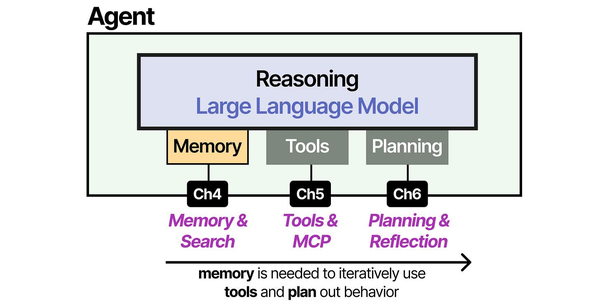
Hardening Ollama as a systemd service is a critical production concern that bridges AI deployment with traditional Linux systems administration. As Brousseau and Sharp detail in LLMs in Production, inference servers must be treated as production-grade services with proper process supervision, resource limits, health checks, and graceful shutdown handling. The agent architecture patterns described by Grootendorst and Alammar in An Illustrated Guide to AI Agents assume a reliable inference backend — when that backend is Ollama on Linux, systemd provides the process lifecycle management, automatic restart policies, and resource isolation (via cgroups) that production workloads demand.
Related Articles
- Ollama on Ubuntu 24.04 LTS: Known Issues, Fixes, and Optimization
- Ollama Backup and Migration: Move Models Between Linux Servers
- Running Multiple Ollama Models: Memory Management and Optimization Guide
- Ollama Behind Nginx: Reverse Proxy with Authentication, SSL, and Rate Limiting
Further Reading
- An Illustrated Guide to AI Agents by Maarten Grootendorst and Jay Alammar — Visual guide to agent memory, tools, and reasoning.
- LLMs in Production by Christopher Brousseau and Matthew Sharp — Practical deployment of language models from training to production.
- Agentic AI in Enterprise by Sumit Ranjan, Divya Chembachere, and Lanwin Lobo — Enterprise architecture patterns for agentic AI systems.
Frequently Asked Questions
Should I use the systemd override or replace the entire unit file?
Always use a drop-in override (/etc/systemd/system/ollama.service.d/). Ollama package updates may replace the main unit file, but drop-in overrides survive updates. The override is merged with the original unit, so you only need to specify the directives you want to change or add. Run systemctl cat ollama.service to see the effective merged configuration.
How do I determine the right MemoryMax value for my setup?
Start by measuring actual usage under load. Run your largest model with maximum parallel requests and observe cat /sys/fs/cgroup/system.slice/ollama.service/memory.peak. Add 20% headroom to that peak value for your MemoryHigh setting, and 40% for MemoryMax. If Ollama hits MemoryHigh, the kernel throttles allocations (slowing inference). If it hits MemoryMax, the OOM killer terminates the process (triggering a restart). The goal is to have MemoryHigh trigger first as a natural backpressure mechanism.
Why does ProtectSystem=strict cause issues with some Ollama features?
ProtectSystem=strict makes the entire filesystem read-only except paths listed in ReadWritePaths. If Ollama tries to write outside its model directory (for example, downloading models to a different location, or writing to /tmp without PrivateTmp), it will fail with permission denied. The fix is to add any additional write paths to ReadWritePaths, not to weaken ProtectSystem. Check journalctl -u ollama for EPERM errors that indicate missing write paths.
Is there a performance penalty from the security directives?
Negligible. The systemd security directives use Linux kernel namespaces and seccomp filters, which have near-zero overhead for the types of operations Ollama performs. SystemCallFilter adds a one-time seccomp filter installation at service start. ProtectSystem uses bind mounts. None of these affect inference speed. The only directive with measurable impact is AllowedCPUs if it restricts the process to fewer cores than it could effectively use — measure throughput before and after CPU pinning.


