Running a single model on Ollama is straightforward. Running multiple models simultaneously — for example, a fast 8B model for quick questions, a 70B model for complex analysis, and an embedding model for RAG — is where memory management becomes the central challenge. Ollama loads models into GPU VRAM and system RAM, and without deliberate configuration, you end up with models fighting for memory, random unloading, and degraded performance for everyone using the server.
This guide covers the environment variables and strategies that control how Ollama handles multiple loaded models, how to partition VRAM effectively, techniques for fitting more models than your hardware should theoretically support, and monitoring tools to see exactly what is happening inside Ollama's memory at any given moment.
How Ollama Manages Model Memory
Before tuning anything, you need to understand what happens when Ollama receives a request. The default behavior follows this sequence: For the foundational setup, see our complete Ollama installation guide.
- A request arrives for a model (e.g.,
llama3.1:8b) - Ollama checks if the model is already loaded in memory
- If loaded, the request is processed immediately
- If not loaded, Ollama loads the model into VRAM (and overflow into RAM if needed)
- If loading requires memory that another model occupies, the least recently used model is unloaded first
- After the request completes, the model stays loaded for a keep-alive period (default: 5 minutes)
- After the keep-alive period expires with no requests, the model is unloaded
This default behavior works fine for single-model use. For multi-model setups, the constant loading and unloading creates delays (cold starts of 3-15 seconds per model swap) and makes performance unpredictable.
OLLAMA_MAX_LOADED_MODELS
This environment variable controls how many models Ollama keeps in memory simultaneously. By default, Ollama uses a dynamic value based on available memory. Setting it explicitly tells Ollama to keep a specific number of models loaded regardless of memory pressure.
# Set in the Ollama systemd service override
sudo systemctl edit ollama.service

# Add:
[Service]
Environment="OLLAMA_MAX_LOADED_MODELS=3"

sudo systemctl restart ollama
Setting this to 3 means Ollama will keep up to three models in memory simultaneously. When a fourth model is requested, the least recently used model is evicted. The key benefit is that your most-used models stay warm — no cold start latency when users switch between them.
Calculating the Right Value
You need to know how much memory each model uses. Check the actual loaded size (not the file size on disk):
# List running models and their memory usage
curl -s http://localhost:11434/api/ps | python3 -m json.tool
This returns the currently loaded models with their VRAM and RAM usage. Use this data to calculate how many models fit in your available VRAM:
| Model | Quantization | VRAM Usage |
|---|---|---|
| llama3.1:8b | Q4_K_M | ~5.1 GB |
| qwen2.5:14b | Q4_K_M | ~9.0 GB |
| llama3.1:70b | Q4_K_M | ~40.0 GB |
| nomic-embed-text | F16 | ~0.5 GB |
| mistral:7b | Q4_K_M | ~4.4 GB |
On a 24 GB GPU, you can keep llama3.1:8b (5.1 GB), mistral:7b (4.4 GB), and nomic-embed-text (0.5 GB) loaded simultaneously, using about 10 GB and leaving 14 GB free. Setting OLLAMA_MAX_LOADED_MODELS=3 makes sense here. Adding a 14B model would push you to 19 GB, still within range but leaving little room for context memory.
OLLAMA_NUM_PARALLEL
This variable controls how many requests a single model can handle concurrently. Each parallel slot allocates memory for an independent context window.
# Allow 4 parallel requests per model
sudo systemctl edit ollama.service

[Service]
Environment="OLLAMA_NUM_PARALLEL=4"
Environment="OLLAMA_MAX_LOADED_MODELS=2"

sudo systemctl restart ollama
Each parallel slot costs memory. The amount depends on the model's context length. For a model with a 4096-token context at Q4 quantization, each parallel slot adds roughly 256-512 MB of VRAM usage. With a 128K context model, each slot could consume several gigabytes.
Balancing Parallel Slots and Loaded Models
There is a direct trade-off: more parallel slots per model means fewer models can stay loaded simultaneously. Consider your usage patterns:
- Multi-user chat (10 concurrent users, 1 model): Set
OLLAMA_NUM_PARALLEL=8andOLLAMA_MAX_LOADED_MODELS=1 - Multiple tools each using different models (RAG + chat + code): Set
OLLAMA_NUM_PARALLEL=2andOLLAMA_MAX_LOADED_MODELS=3 - Single user experimenting with different models: Set
OLLAMA_NUM_PARALLEL=1andOLLAMA_MAX_LOADED_MODELS=2
Memory Scheduling Behavior
Ollama's memory scheduler decides where to place model layers — GPU VRAM, system RAM, or a combination. Understanding this behavior helps you plan multi-model deployments.
GPU-Only Loading
When a model fits entirely in VRAM, all layers run on the GPU. This gives the best performance. Ollama prefers this approach and will only spill to RAM when VRAM is insufficient.
Partial GPU Offloading
When VRAM cannot hold the entire model, Ollama automatically splits layers between GPU and CPU. The GPU handles as many layers as fit, and the rest run on CPU through system RAM. This is how you run a 40 GB model on a 24 GB GPU — about 60% of the layers run on the GPU and 40% on CPU.
# Check how many layers are on GPU vs CPU
curl -s http://localhost:11434/api/ps | python3 -c "
import json, sys
data = json.load(sys.stdin)
for model in data.get('models', []):
    name = model['name']
    vram = model.get('size_vram', 0) / 1e9
    total = model.get('size', 0) / 1e9
    ram = total - vram
    gpu_pct = (vram / total * 100) if total > 0 else 0
    print(f'{name}: {vram:.1f} GB VRAM + {ram:.1f} GB RAM ({gpu_pct:.0f}% GPU)')
"
Performance degrades proportionally to how many layers are on CPU. A model with 80% of layers on GPU runs nearly at full speed. A model with 30% on GPU is significantly slower because CPU-bound layers become the bottleneck.
CPU-Only Loading
If no GPU is available or VRAM is fully occupied by other models, Ollama loads the entire model into system RAM. This is the slowest option — generation speeds drop to 5-15 tokens per second for 8B models on typical server hardware. But it works, and for background tasks like embedding generation or batch processing, CPU-only loading is perfectly functional.
Model Preloading Strategies
Rather than waiting for the first user request to trigger a cold load, you can preload models at startup so they are ready immediately.
Preload with a Keep-Alive Request
# Preload a model by sending a request with an empty prompt
curl http://localhost:11434/api/generate -d '{
  "model": "llama3.1:8b",
  "keep_alive": -1
}'

# keep_alive: -1 means "keep loaded forever" (until explicitly unloaded)
# keep_alive: "24h" means "keep loaded for 24 hours"
# keep_alive: 0 means "unload immediately after response"
Systemd Preload Script
Create a systemd service that preloads your essential models after Ollama starts:
# /etc/systemd/system/ollama-preload.service
[Unit]
Description=Preload Ollama Models
After=ollama.service
Requires=ollama.service

[Service]
Type=oneshot
ExecStartPre=/bin/sleep 5
ExecStart=/usr/local/bin/ollama-preload.sh
RemainAfterExit=yes

[Install]
WantedBy=multi-user.target
#!/bin/bash
# /usr/local/bin/ollama-preload.sh
# Preload frequently used models
MODELS=("llama3.1:8b" "nomic-embed-text" "mistral:7b")
for model in "${MODELS[@]}"; do
echo "Preloading $model..."
curl -s http://localhost:11434/api/generate -d "{
\"model\": \"$model\",
\"keep_alive\": -1
}" > /dev/null
echo "$model loaded"
done
echo "All models preloaded at $(date)"# Make the script executable and enable the service
sudo chmod +x /usr/local/bin/ollama-preload.sh
sudo systemctl daemon-reload
sudo systemctl enable ollama-preload.serviceThe keep_alive: -1 value tells Ollama to keep the model loaded indefinitely. It will not be automatically unloaded due to inactivity. The only way to unload it is through an explicit API call or by restarting Ollama.
GPU VRAM Partitioning
Single GPU with Multiple Models
On a single GPU, VRAM is shared between all loaded models. There is no way to reserve specific VRAM amounts for specific models — Ollama's scheduler allocates memory on a first-come, first-served basis. The practical approach is to calculate your total VRAM budget and choose models that fit within it:
# Example: 24 GB GPU VRAM budget
# Reserve 1 GB for system/CUDA overhead
# Available: 23 GB

# Option A: Two medium models
# llama3.1:8b (5.1 GB) + qwen2.5:14b (9.0 GB) = 14.1 GB
# Remaining: 8.9 GB for context windows and parallel slots

# Option B: One large model + one small model
# llama3.1:70b-q4 partial load (20 GB VRAM + 20 GB RAM) + nomic-embed-text (0.5 GB)
# Remaining: 2.5 GB for context

# Option C: Three small models
# llama3.1:8b (5.1 GB) + mistral:7b (4.4 GB) + codellama:7b (4.4 GB) = 13.9 GB
# Remaining: 9.1 GB for contextMulti-GPU Setups
If your server has multiple GPUs, Ollama can spread a single model across them or load different models on different GPUs. The behavior depends on the environment variable CUDA_VISIBLE_DEVICES:
# Use all GPUs (default) - a large model spans both GPUs
# No environment variable needed

# Restrict Ollama to specific GPUs
Environment="CUDA_VISIBLE_DEVICES=0,1"

# Run separate Ollama instances on different GPUs
# Instance 1 on GPU 0 (port 11434)
CUDA_VISIBLE_DEVICES=0 ollama serve

# Instance 2 on GPU 1 (port 11435)
CUDA_VISIBLE_DEVICES=1 OLLAMA_HOST=0.0.0.0:11435 ollama serve
Running separate Ollama instances gives you complete isolation — each instance manages its own models independently, and memory contention between instances is impossible. The downside is managing two services, two ports, and configuring your frontend (Open WebUI, LibreChat) to connect to both.
Monitoring Loaded Models via API
Effective multi-model management requires visibility into what Ollama is doing. The /api/ps endpoint shows all currently loaded models:
# Check loaded models
curl -s http://localhost:11434/api/ps | python3 -m json.tool

# Sample output:
# {
#   "models": [
#     {
#       "name": "llama3.1:8b",
#       "model": "llama3.1:8b",
#       "size": 5368709120,
#       "size_vram": 5368709120,
#       "digest": "abc123...",
#       "details": { ... },
#       "expires_at": "2026-03-17T15:30:00Z"
#     }
#   ]
# }
Building a Monitoring Script
#!/usr/bin/env python3
"""Monitor Ollama model loading and VRAM usage."""

import json
import urllib.request
import time
from datetime import datetime

def get_loaded_models():
    """Query Ollama for currently loaded models."""
    try:
        req = urllib.request.urlopen('http://localhost:11434/api/ps')
        return json.loads(req.read())
    except Exception as e:
        return {'error': str(e)}

def format_size(bytes_val):
    """Format bytes as human-readable size."""
    for unit in ['B', 'KB', 'MB', 'GB']:
        if bytes_val < 1024:
            return f"{bytes_val:.1f} {unit}"
        bytes_val /= 1024
    return f"{bytes_val:.1f} TB"

def display_status():
    """Display current Ollama model status."""
    data = get_loaded_models()
    if 'error' in data:
        print(f"Error: {data['error']}")
        return

    models = data.get('models', [])
    print(f"\n{'='*70}")
    print(f"Ollama Model Status - {datetime.now().strftime('%Y-%m-%d %H:%M:%S')}")
    print(f"{'='*70}")

    if not models:
        print("No models currently loaded.")
        return

    total_vram = 0
    total_ram = 0

    for m in models:
        name = m['name']
        size = m.get('size', 0)
        vram = m.get('size_vram', 0)
        ram = size - vram
        expires = m.get('expires_at', 'never')

        total_vram += vram
        total_ram += ram

        gpu_pct = (vram / size * 100) if size > 0 else 0
        print(f"\n  Model: {name}")
        print(f"  VRAM:  {format_size(vram)} ({gpu_pct:.0f}% GPU)")
        if ram > 0:
            print(f"  RAM:   {format_size(ram)}")
        print(f"  Total: {format_size(size)}")
        print(f"  Expires: {expires}")

    print(f"\n{'='*70}")
    print(f"Total VRAM: {format_size(total_vram)}")
    print(f"Total RAM:  {format_size(total_ram)}")
    print(f"Models loaded: {len(models)}")

if __name__ == "__main__":
    import sys
    if '--watch' in sys.argv:
        while True:
            display_status()
            time.sleep(10)
    else:
        display_status()
# One-time check
python3 ollama_monitor.py
# Continuous monitoring (updates every 10 seconds)
python3 ollama_monitor.py --watchUnloading Models Programmatically
Sometimes you need to free VRAM immediately — for example, before loading a large model or when switching between workloads. You can unload a model by sending a generate request with keep_alive: 0:
# Unload a specific model
curl http://localhost:11434/api/generate -d '{
  "model": "llama3.1:70b",
  "keep_alive": 0
}'

# Unload all models (by unloading each one)
for model in $(curl -s http://localhost:11434/api/ps | python3 -c "
import json, sys
data = json.load(sys.stdin)
for m in data.get('models', []):
    print(m['name'])
"); do
    echo "Unloading $model..."
    curl -s http://localhost:11434/api/generate -d "{\"model\": \"$model\", \"keep_alive\": 0}" > /dev/null
done
Automated VRAM Management
For servers that switch between workloads at different times of day, automate model loading and unloading:
# /etc/cron.d/ollama-schedule
# During business hours: load chat models
0 8 * * 1-5 root /usr/local/bin/ollama-load-chat.sh
# After hours: load batch processing model
0 18 * * 1-5 root /usr/local/bin/ollama-load-batch.sh
#!/bin/bash
# /usr/local/bin/ollama-load-chat.sh
# Unload batch models, load chat models
# Unload everything first
for model in $(curl -s http://localhost:11434/api/ps | python3 -c "
import json, sys
for m in json.load(sys.stdin).get('models', []):
print(m['name'])
"); do
curl -s http://localhost:11434/api/generate -d "{\"model\": \"$model\", \"keep_alive\": 0}" > /dev/null
done
sleep 2
# Load chat models
curl -s http://localhost:11434/api/generate -d '{"model": "llama3.1:8b", "keep_alive": -1}' > /dev/null
curl -s http://localhost:11434/api/generate -d '{"model": "nomic-embed-text", "keep_alive": -1}' > /dev/null
echo "Chat models loaded at $(date)"Quantization to Fit More Models
If your models do not fit in available VRAM, quantization is the most effective way to reduce their memory footprint. Ollama automatically downloads quantized models, but you can choose the quantization level.
Quantization Levels and Memory Impact
| Quantization | Bits per Weight | 8B Model Size | Quality Impact |
|---|---|---|---|
| F16 | 16 | ~16 GB | Full quality |
| Q8_0 | 8 | ~8.5 GB | Negligible loss |
| Q6_K | 6.5 | ~6.6 GB | Very minor loss |
| Q5_K_M | 5.5 | ~5.7 GB | Minor loss |
| Q4_K_M | 4.5 | ~5.1 GB | Slight loss, good trade-off |
| Q4_0 | 4 | ~4.7 GB | Noticeable on complex tasks |
| Q3_K_M | 3.5 | ~3.9 GB | Moderate quality loss |
| Q2_K | 2.5 | ~3.0 GB | Significant degradation |
The default Ollama downloads use Q4_K_M, which is the sweet spot for most use cases. If you need to squeeze more models into VRAM, you can create a custom Modelfile that specifies a smaller quantization:
# Create a Q3 quantized version of a model
# First, find the model you want on Ollama's library
# Then pull a specific quantization tag if available:
ollama pull llama3.1:8b-instruct-q3_K_M

# Check the size difference
ollama list | grep llama3.1
Practical Example: Fitting 3 Models in 16 GB VRAM
# Default Q4_K_M quantization:
# llama3.1:8b    = 5.1 GB
# mistral:7b     = 4.4 GB
# codellama:7b   = 4.4 GB
# Total: 13.9 GB (fits, but tight with context overhead)

# Using Q3_K_M quantization:
# llama3.1:8b-q3_K_M    = 3.9 GB
# mistral:7b-q3_K_M     = 3.5 GB
# codellama:7b-q3_K_M   = 3.5 GB
# Total: 10.9 GB (plenty of room for context)

# The quality trade-off at Q3 is noticeable for creative writing
# but acceptable for code assistance and log analysis
Docker Resource Limits for Multi-Model Setups
When Ollama runs in Docker, you can use Docker's resource management to control memory allocation:
# docker-compose.yml for Ollama with resource limits
version: "3.8"
services:
  ollama:
    image: ollama/ollama
    container_name: ollama
    ports:
      - "11434:11434"
    volumes:
      - ollama-data:/root/.ollama
    environment:
      - OLLAMA_MAX_LOADED_MODELS=3
      - OLLAMA_NUM_PARALLEL=2
      - OLLAMA_KEEP_ALIVE=10m
    deploy:
      resources:
        limits:
          memory: 32G
        reservations:
          devices:
            - driver: nvidia
              count: all
              capabilities: [gpu]
    restart: unless-stopped

volumes:
  ollama-data:
The memory: 32G limit prevents Ollama from consuming all system RAM when models overflow from VRAM. Without this limit, a 70B model loaded with partial GPU offloading can consume 40+ GB of system RAM, potentially starving other services on the same host.
Limiting GPU Memory per Container
NVIDIA's container toolkit does not support fine-grained VRAM limits the way Docker limits system RAM. However, you can restrict which GPUs a container sees:
# Only expose GPU 0 to the Ollama container
deploy:
  resources:
    reservations:
      devices:
        - driver: nvidia
          device_ids: ['0']
          capabilities: [gpu]

# Or use environment variable
environment:
  - NVIDIA_VISIBLE_DEVICES=0
For setups where you want isolated GPU access for different services (Ollama on GPU 0, a training job on GPU 1), this is the correct approach. Each container sees only its assigned GPU and cannot interfere with memory on other GPUs.
Practical Multi-Model Configuration Examples
Development Server (24 GB GPU)
# /etc/systemd/system/ollama.service.d/override.conf
[Service]
Environment="OLLAMA_MAX_LOADED_MODELS=3"
Environment="OLLAMA_NUM_PARALLEL=2"
Environment="OLLAMA_KEEP_ALIVE=30m"

# Models: llama3.1:8b (chat), codellama:7b (code), nomic-embed-text (RAG)
# Total VRAM: ~10 GB, leaving 14 GB for context and overhead
Production Team Server (2x 48 GB GPUs)
# Two Ollama instances for complete isolation
# Instance 1: Chat models on GPU 0
# /etc/systemd/system/ollama-chat.service
[Service]
Environment="CUDA_VISIBLE_DEVICES=0"
Environment="OLLAMA_HOST=0.0.0.0:11434"
Environment="OLLAMA_MAX_LOADED_MODELS=2"
Environment="OLLAMA_NUM_PARALLEL=8"
Environment="OLLAMA_KEEP_ALIVE=-1"
ExecStart=/usr/local/bin/ollama serve

# Instance 2: Batch/RAG models on GPU 1
# /etc/systemd/system/ollama-batch.service
[Service]
Environment="CUDA_VISIBLE_DEVICES=1"
Environment="OLLAMA_HOST=0.0.0.0:11435"
Environment="OLLAMA_MAX_LOADED_MODELS=4"
Environment="OLLAMA_NUM_PARALLEL=4"
Environment="OLLAMA_KEEP_ALIVE=-1"
ExecStart=/usr/local/bin/ollama serve
Budget Server (16 GB GPU, 64 GB RAM)
# Lean GPU configuration, use RAM overflow strategically
[Service]
Environment="OLLAMA_MAX_LOADED_MODELS=2"
Environment="OLLAMA_NUM_PARALLEL=2"
Environment="OLLAMA_KEEP_ALIVE=15m"

# Load a small model fully on GPU + a large model partially
# llama3.1:8b: 5.1 GB fully on GPU (fast)
# llama3.1:70b: 10 GB on GPU + 30 GB in RAM (slower but capable)
# Total VRAM: ~15.1 GB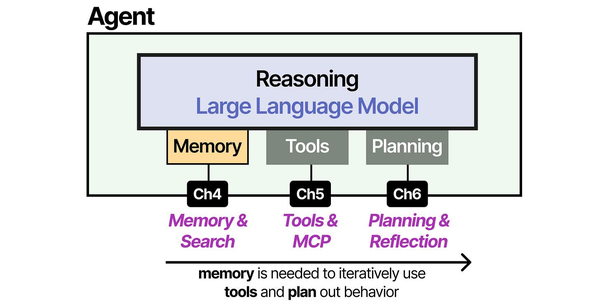
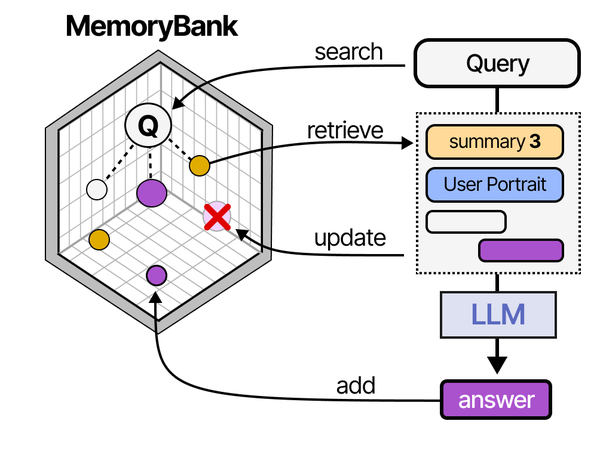
Managing multiple models in memory is closely tied to how AI agents handle context and state. As explored in An Illustrated Guide to AI Agents by Grootendorst and Alammar, the memory subsystem of an agent must efficiently allocate, retrieve, and release resources — a pattern directly applicable to Ollama's multi-model memory management on Linux.
Related Articles
- Ollama GPU Memory Not Enough: Complete Troubleshooting Guide for Linux
- LLM Context Windows Explained: How Token Limits Affect Linux Server RAM
- Best Ollama Models for Linux Servers: 2026 Benchmarks and Recommendations
- Ollama Systemd Service: Production Hardening and Performance Tuning
Further Reading
- An Illustrated Guide to AI Agents by Maarten Grootendorst and Jay Alammar — Visual guide to agent memory, tools, and reasoning.
- LLMs in Production by Christopher Brousseau and Matthew Sharp — Practical deployment of language models from training to production.
- Agentic AI in Enterprise by Sumit Ranjan, Divya Chembachere, and Lanwin Lobo — Enterprise architecture patterns for agentic AI systems.
Frequently Asked Questions
What happens when Ollama runs out of VRAM and RAM simultaneously?
If Ollama cannot allocate enough memory for a model, it returns an error rather than crashing. The error message indicates insufficient memory. To recover, unload other models using the keep_alive: 0 API call to free VRAM, or reduce the OLLAMA_NUM_PARALLEL setting to decrease context memory allocation. If the model genuinely does not fit in your available VRAM + RAM combined, you need a smaller quantization or a different model.
Does OLLAMA_NUM_PARALLEL affect all models or just the active one?
It applies to every loaded model. If you set OLLAMA_NUM_PARALLEL=4, each of the models tracked by OLLAMA_MAX_LOADED_MODELS reserves context memory for 4 parallel slots. This means the total context memory usage is (number of loaded models) times (parallel slots) times (context memory per slot). On a memory-constrained server, keep this value low — 1 or 2 — unless you have a specific need for high concurrency.
Can I set different keep-alive times for different models?
Yes. The OLLAMA_KEEP_ALIVE environment variable sets the global default, but each API request can override it with the keep_alive parameter. Set the global default to a short duration (5-10 minutes) for most models, then use keep_alive: -1 in your preload script for critical models that should never be unloaded. This gives you per-model control without needing multiple Ollama instances.
How do I know if a model is running on GPU or has spilled to CPU?
The /api/ps endpoint returns both size (total model memory) and size_vram (memory on GPU) for each loaded model. If size_vram is less than size, the difference is running on CPU via system RAM. You can also monitor with nvidia-smi to see actual VRAM usage per process, and htop or free -h to see system RAM consumption. A model running partially on CPU will show reduced generation speed — typically 30-50% slower per 25% of layers offloaded to CPU.
Is there a way to prioritize certain models so they never get unloaded?
Load priority models with keep_alive: -1 so they stay loaded indefinitely. Models with infinite keep-alive are only unloaded when Ollama restarts or when you explicitly unload them with a keep_alive: 0 request. Combine this with OLLAMA_MAX_LOADED_MODELS set high enough to include your priority models plus any additional on-demand models. For example, if you have 2 priority models and want 1 on-demand slot, set OLLAMA_MAX_LOADED_MODELS=3.


