Ubuntu 24.04 LTS (Noble Numbat) introduced kernel updates, new library versions, and systemd changes that interact with Ollama in ways that previous Ubuntu releases did not. If you upgraded from 22.04 or installed Ollama on a fresh 24.04 system and ran into problems — GPU detection failures, service startup issues, permission errors, or unexpected memory behavior — you are not alone. These issues have straightforward fixes once you know what causes them.
This guide documents the known issues with running Ollama on Ubuntu 24.04 LTS as of early 2026, along with tested fixes and performance optimizations specific to this release. We cover NVIDIA driver compatibility, systemd service configuration, AppArmor interactions, CUDA library conflicts, memory management tuning, and the Ubuntu-specific quirks that affect LLM inference workloads.
NVIDIA Driver Installation on Ubuntu 24.04
Ubuntu 24.04 ships with the 535 NVIDIA driver in its default repositories, but Ollama and newer CUDA versions work best with driver 545 or newer. The kernel 6.8 that ships with 24.04 introduced changes to module signing and secure boot handling that can break NVIDIA driver installation if not handled correctly.
Recommended Driver Installation Method
# Check your current driver (if any)
nvidia-smi 2>/dev/null || echo "No NVIDIA driver detected"

# List available drivers
ubuntu-drivers devices

# Install the recommended driver
sudo ubuntu-drivers autoinstall

# Or install a specific version (recommended: 545 or newer)
sudo apt install nvidia-driver-550

# If using secure boot, you will be prompted to set a MOK password
# After installation, reboot
sudo reboot

# After reboot (if secure boot is enabled):
# The MOK Manager will appear — select "Enroll MOK" and enter your password

# Verify after reboot
nvidia-smi
Resolving Driver/Kernel Mismatch
Ubuntu 24.04's HWE (Hardware Enablement) kernel updates can break NVIDIA driver compatibility. If nvidia-smi fails after a kernel update, the driver modules need to be rebuilt.
# Check if NVIDIA modules are loaded
lsmod | grep nvidia

# If empty, the modules failed to load. Check why:
dmesg | grep -i nvidia
journalctl -b | grep -i "nvidia\|nvrm"

# Rebuild DKMS modules for the current kernel
sudo dkms autoinstall

# If DKMS fails, reinstall the driver
sudo apt install --reinstall nvidia-driver-550

# Nuclear option: remove and reinstall
sudo apt purge 'nvidia-*'
sudo apt autoremove
sudo reboot
# Then reinstall:
sudo apt install nvidia-driver-550
sudo reboot
Ollama Installation and Service Issues
Installation
# Standard installation
curl -fsSL https://ollama.com/install.sh | sh

# Verify Ollama is running
systemctl status ollama

# Check if GPU is detected
ollama run llama3.1:8b "test" 2>&1 | head -5
# Look for "using GPU" or "using CPU" in the logs
journalctl -u ollama --no-pager | tail -20
Systemd Service Not Starting
Ubuntu 24.04 uses systemd 255, which introduced stricter sandboxing defaults. The default Ollama service file may need adjustments.
# Check service status and errors
systemctl status ollama
journalctl -u ollama -e --no-pager

# Common error: "Failed to start ollama.service: Unit ollama.service has a bad unit file setting"
# Fix: override the service file
sudo systemctl edit ollama.service
# Add overrides for Ubuntu 24.04 compatibility
# This opens an editor. Add between the comment markers:
[Service]
# Ensure GPU device access
DeviceAllow=/dev/nvidia* rwm
DeviceAllow=/dev/nvidiactl rwm
DeviceAllow=/dev/nvidia-uvm rwm
DeviceAllow=/dev/nvidia-uvm-tools rwm
# Environment variables
Environment="OLLAMA_HOST=0.0.0.0"
Environment="OLLAMA_MODELS=/usr/share/ollama/.ollama/models"
Environment="HOME=/usr/share/ollama"
# Memory and resource limits
LimitMEMLOCK=infinity
LimitNOFILE=65535# Apply the changes
sudo systemctl daemon-reload
sudo systemctl restart ollama
systemctl status ollamaPermission Issues with Model Storage
Ollama creates its model directory at /usr/share/ollama/.ollama by default when running as a service. On Ubuntu 24.04, filesystem permission enforcement is stricter due to updated AppArmor policies.
# Check model directory permissions
ls -la /usr/share/ollama/.ollama/

# Fix ownership if models are not accessible
sudo chown -R ollama:ollama /usr/share/ollama/.ollama/

# If using a custom model directory
sudo mkdir -p /data/ollama/models
sudo chown ollama:ollama /data/ollama/models

# Update the service to use the custom directory
sudo systemctl edit ollama.service
# Add: Environment="OLLAMA_MODELS=/data/ollama/models"

sudo systemctl daemon-reload
sudo systemctl restart ollama
AppArmor Conflicts
Ubuntu 24.04 enables AppArmor by default with updated profiles that can interfere with Ollama's GPU access and file operations.
# Check if AppArmor is blocking Ollama
sudo aa-status | grep ollama
journalctl -k | grep "apparmor.*DENIED"

# If you see denied operations related to Ollama:
# Option 1: Put Ollama in complain mode (logs but does not block)
sudo aa-complain /usr/local/bin/ollama

# Option 2: Create a custom AppArmor profile
sudo cat > /etc/apparmor.d/local/usr.local.bin.ollama << 'EOF'
# Ollama AppArmor overrides for Ubuntu 24.04
/usr/share/ollama/.ollama/** rwk,
/dev/nvidia* rw,
/dev/nvidiactl rw,
/dev/nvidia-uvm rw,
/dev/nvidia-uvm-tools rw,
/proc/driver/nvidia/** r,
/sys/bus/pci/devices/** r,
/run/nvidia-persistenced/** r,
EOF

sudo apparmor_parser -r /etc/apparmor.d/usr.local.bin.ollama 2>/dev/null || true
sudo systemctl restart ollama
CUDA Library Conflicts
Ubuntu 24.04's package manager can install CUDA libraries that conflict with the NVIDIA Container Toolkit or with Ollama's bundled CUDA runtime.
# Check for conflicting CUDA installations
dpkg -l | grep -i cuda
dpkg -l | grep -i libcudnn

# Ollama bundles its own CUDA runtime. System CUDA packages
# can cause library version conflicts.
# Check which CUDA libraries Ollama is using:
ldd /usr/local/bin/ollama 2>/dev/null | grep cuda

# If you see errors like "CUDA driver version is insufficient":
# Verify driver and CUDA compatibility
nvidia-smi  # Shows maximum CUDA version supported by driver

# Common fix: update the NVIDIA driver
sudo apt install nvidia-driver-550
sudo reboot
Snap vs. APT NVIDIA Packages
Ubuntu 24.04 offers NVIDIA drivers through both APT and Snap. Mixing the two causes conflicts.
# Check if NVIDIA drivers are installed via snap
snap list | grep nvidia

# If both snap and apt versions exist, remove one:
# Remove snap version (recommended — use APT instead)
sudo snap remove nvidia-driver-550

# Ensure only APT version is installed
sudo apt install nvidia-driver-550
sudo reboot
Memory Management Optimization
Ubuntu 24.04's default kernel parameters are tuned for general-purpose workloads, not LLM inference. Several sysctl settings can improve performance.
# Create Ollama-specific sysctl configuration
sudo cat > /etc/sysctl.d/90-ollama.conf << 'EOF'
# Reduce swappiness — keep model data in RAM
vm.swappiness=10

# Increase max memory map areas (needed for large models)
vm.max_map_count=262144

# Allow larger shared memory segments
kernel.shmmax=68719476736
kernel.shmall=4294967296

# Increase file descriptor limits
fs.file-max=1048576

# Network tuning for API serving
net.core.somaxconn=65535
net.ipv4.tcp_max_syn_backlog=65535
EOF

# Apply immediately
sudo sysctl -p /etc/sysctl.d/90-ollama.conf

# Verify
sysctl vm.swappiness vm.max_map_count
Transparent Huge Pages
Ubuntu 24.04 enables transparent huge pages (THP) by default. For LLM workloads, this can cause latency spikes during memory compaction.
# Check current THP status
cat /sys/kernel/mm/transparent_hugepage/enabled

# Set to 'madvise' for better LLM performance
echo madvise | sudo tee /sys/kernel/mm/transparent_hugepage/enabled

# Make it persistent across reboots
sudo cat > /etc/tmpfiles.d/thp-ollama.conf << 'EOF'
w /sys/kernel/mm/transparent_hugepage/enabled - - - - madvise
EOF
GPU Power Management
Ubuntu 24.04's default power management can throttle GPU performance when the system considers it idle between inference requests.
# Check current GPU performance state
nvidia-smi -q -d PERFORMANCE

# Set persistent mode to prevent GPU from entering low-power state
sudo nvidia-smi -pm 1

# Set maximum performance mode
sudo nvidia-smi -ac 9501,1980  # Values depend on your GPU model

# Make persistent mode survive reboots
# Add to /etc/rc.local or create a systemd service:
sudo cat > /etc/systemd/system/nvidia-perf.service << 'EOF'
[Unit]
Description=NVIDIA GPU Performance Settings
After=nvidia-persistenced.service

[Service]
Type=oneshot
ExecStart=/usr/bin/nvidia-smi -pm 1
RemainAfterExit=yes

[Install]
WantedBy=multi-user.target
EOF

sudo systemctl enable nvidia-perf.service
Ollama Performance Tuning on Ubuntu 24.04
# Optimal environment variables for Ubuntu 24.04
sudo systemctl edit ollama.service

# Add these environment overrides:
[Service]
Environment="OLLAMA_HOST=0.0.0.0"
Environment="OLLAMA_NUM_PARALLEL=4"
Environment="OLLAMA_MAX_LOADED_MODELS=2"
Environment="OLLAMA_FLASH_ATTENTION=1"
Environment="OLLAMA_KEEP_ALIVE=30m"
Environment="CUDA_VISIBLE_DEVICES=0"

# Apply and restart
sudo systemctl daemon-reload
sudo systemctl restart ollama

# Verify settings
systemctl show ollama | grep Environment
Firewall Configuration
Ubuntu 24.04 installs UFW (Uncomplicated Firewall) by default, which blocks Ollama's port if enabled.
# Check if UFW is active
sudo ufw status

# Allow Ollama API access from local network only
sudo ufw allow from 192.168.0.0/16 to any port 11434 proto tcp

# Or allow from any source (less secure)
sudo ufw allow 11434/tcp

# Verify
sudo ufw status verbose
Unattended Upgrades Considerations
Ubuntu 24.04 enables unattended-upgrades by default, which can update NVIDIA packages and break GPU support without warning.
# Prevent unattended-upgrades from touching NVIDIA packages
sudo cat > /etc/apt/apt.conf.d/51unattended-nvidia << 'EOF'
Unattended-Upgrade::Package-Blacklist {
    "nvidia-driver-.*";
    "libnvidia-.*";
    "nvidia-utils-.*";
    "nvidia-container-.*";
};
EOF

# Verify the blacklist is active
sudo unattended-upgrades --dry-run --debug 2>&1 | grep -i nvidia
Diagnostic Commands Reference
# Complete diagnostic script for Ollama on Ubuntu 24.04
echo "=== System ===" && lsb_release -a 2>/dev/null
echo "=== Kernel ===" && uname -r
echo "=== NVIDIA Driver ===" && nvidia-smi --query-gpu=driver_version --format=csv,noheader 2>/dev/null || echo "No driver"
echo "=== CUDA ===" && nvidia-smi --query-gpu=compute_cap --format=csv,noheader 2>/dev/null
echo "=== Ollama Version ===" && ollama --version 2>/dev/null
echo "=== Ollama Service ===" && systemctl is-active ollama
echo "=== GPU Memory ===" && nvidia-smi --query-gpu=memory.used,memory.total --format=csv 2>/dev/null
echo "=== Loaded Models ===" && curl -s http://localhost:11434/api/ps 2>/dev/null | python3 -m json.tool
echo "=== AppArmor ===" && sudo aa-status 2>/dev/null | head -5
echo "=== Disk Space ===" && df -h /usr/share/ollama/ 2>/dev/null
echo "=== Recent Errors ===" && journalctl -u ollama --since "1 hour ago" --no-pager -p err 2>/dev/null | tail -10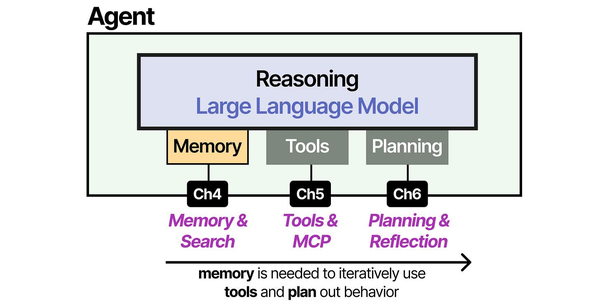
Ubuntu 24.04's transition to newer system libraries and kernel interfaces creates friction points for AI workloads that Brousseau and Sharp address in LLMs in Production. Their deployment troubleshooting chapters cover the exact class of issues Ollama users encounter — CUDA driver mismatches with updated kernel modules, systemd service changes affecting process management, and AppArmor profile conflicts with GPU device access. Understanding the full agent architecture as described by Grootendorst and Alammar in An Illustrated Guide to AI Agents helps contextualize why these low-level system issues cascade into model loading failures and inference errors at the application layer.
Related Articles
- Ollama Systemd Service: Production Hardening and Performance Tuning
- How to Install Ollama on Linux: Complete Guide for Ubuntu, Fedora, and RHEL (2026)
- Ollama Backup and Migration: Move Models Between Linux Servers
- Ollama GPU Memory Not Enough: Complete Troubleshooting Guide for Linux
Further Reading
- An Illustrated Guide to AI Agents by Maarten Grootendorst and Jay Alammar — Visual guide to agent memory, tools, and reasoning.
- LLMs in Production by Christopher Brousseau and Matthew Sharp — Practical deployment of language models from training to production.
- Agentic AI in Enterprise by Sumit Ranjan, Divya Chembachere, and Lanwin Lobo — Enterprise architecture patterns for agentic AI systems.
Frequently Asked Questions
Should I use the Ubuntu PPA or the official Ollama install script?
Use the official Ollama install script (curl -fsSL https://ollama.com/install.sh | sh). It handles the systemd service creation, user setup, and binary installation in a way that works consistently across Ubuntu versions. There is no official Ubuntu PPA for Ollama. The install script detects your system architecture, downloads the correct binary, and configures the service with appropriate permissions. For updates, simply re-run the install script — it updates the binary while preserving your models and configuration.
Why does Ollama fall back to CPU on Ubuntu 24.04 even though nvidia-smi shows my GPU?
The most common cause is the NVIDIA Container Toolkit not being installed or configured correctly. Ollama uses the NVIDIA runtime libraries to access the GPU, not the driver directly. Run sudo nvidia-ctk runtime configure and restart the Ollama service. The second most common cause is a CUDA library version mismatch — check journalctl -u ollama for CUDA-related errors. The third cause is AppArmor blocking access to /dev/nvidia* devices. Check journalctl -k | grep apparmor for denied operations.
How do I roll back after an NVIDIA driver update breaks Ollama?
Ubuntu 24.04 keeps previous driver versions in the APT cache. List available versions with apt list -a nvidia-driver-550, then install a specific version with sudo apt install nvidia-driver-550=550.90.07-0ubuntu1. If the system is unbootable, boot into recovery mode from GRUB, drop to a root shell, and use apt purge nvidia-driver-* followed by reinstalling the working version. To prevent this scenario, pin the driver version with sudo apt-mark hold nvidia-driver-550 after confirming it works with Ollama. Unhold it only when you are ready for a deliberate upgrade.


