Ollama stores models as large binary files — a single 70B parameter model can occupy 40+ GB of disk space. When you have invested hours downloading models, creating custom Modelfiles, and tuning configurations, losing that data to a disk failure or needing to replicate it on a new server becomes a real operational concern. Unlike application configs that fit in a git repo, model data requires deliberate backup strategies that account for massive file sizes and efficient transfer methods.
This article covers everything you need for Ollama backup and migration on Linux: understanding the storage layout, backing up models and configurations, migrating between servers, automating backups with systemd timers, and handling edge cases like partial models, custom Modelfiles, and cross-architecture moves.
Understanding Ollama's Storage Layout
Before backing up, you need to know what lives where. Ollama stores everything under a single directory, which defaults to /usr/share/ollama/.ollama when installed via the official script (running as the ollama system user) or ~/.ollama when running as your own user.
# Find where Ollama stores its data
# Method 1: Check the running process
ps aux | grep ollama
ls -la /usr/share/ollama/.ollama/

# Method 2: Check the systemd environment
systemctl show ollama | grep Environment
# Look for OLLAMA_MODELS if set

# Method 3: Default locations
ls -la /usr/share/ollama/.ollama/models/
ls -la ~/.ollama/models/
The storage structure looks like this:
/usr/share/ollama/.ollama/
├── models/
│   ├── manifests/
│   │   └── registry.ollama.ai/
│   │       └── library/
│   │           ├── llama3.1/
│   │           │   └── 8b          # manifest JSON
│   │           └── mistral/
│   │               └── latest      # manifest JSON
│   └── blobs/
│       ├── sha256-abcdef123...     # model weights (large)
│       ├── sha256-789xyz456...     # tokenizer data
│       └── sha256-def000111...     # template/config
└── history                         # CLI chat history
The manifests directory contains small JSON files that describe each model — name, tag, and references to blobs. The blobs directory contains the actual data: model weights, tokenizers, templates, and system prompts. Blobs are content-addressed (named by their SHA-256 hash), and multiple models can share blobs (for example, two quantizations of the same base model share the tokenizer blob).
Quick Backup: Full Directory Copy
The simplest backup method is copying the entire Ollama data directory:
# Stop Ollama to ensure consistent state
sudo systemctl stop ollama

# Full backup with tar
sudo tar -czf /backup/ollama-backup-$(date +%Y%m%d).tar.gz \
    -C /usr/share/ollama .ollama

# Restart Ollama
sudo systemctl start ollama

echo "Backup size:"
ls -lh /backup/ollama-backup-*.tar.gz
This works but has a problem: model files compress poorly (they are already quantized binary data), so the tar.gz will be nearly the same size as the raw files. For a setup with 100 GB of models, you need 100 GB of backup space. Skip the -z flag if compression is not worth the CPU time:
# Uncompressed tar (much faster for large model collections)
sudo tar -cf /backup/ollama-backup-$(date +%Y%m%d).tar \
    -C /usr/share/ollama .ollama
Selective Backup: Export Specific Models
Often you do not need to back up every model — just the ones you actually use in production. Ollama does not have a built-in export command, but you can identify and copy the relevant blobs for specific models:
#!/bin/bash
# backup_model.sh - Back up a specific Ollama model

MODEL_NAME="${1:?Usage: backup_model.sh model:tag}"
OLLAMA_DIR="/usr/share/ollama/.ollama"
BACKUP_DIR="/backup/ollama-models"

mkdir -p "$BACKUP_DIR/$MODEL_NAME"

# Get the manifest
MANIFEST_PATH=$(find "$OLLAMA_DIR/models/manifests" -path "*/${MODEL_NAME/://}" 2>/dev/null)
if [ -z "$MANIFEST_PATH" ]; then
    echo "Model $MODEL_NAME not found"
    exit 1
fi

echo "Found manifest: $MANIFEST_PATH"

# Copy manifest
MANIFEST_DEST="$BACKUP_DIR/$MODEL_NAME/manifest.json"
cp "$MANIFEST_PATH" "$MANIFEST_DEST"

# Extract blob references from manifest and copy them
BLOBS=$(python3 -c "
import json
with open('$MANIFEST_PATH') as f:
    m = json.load(f)
for layer in m.get('layers', []):
    print(layer['digest'].replace(':', '-'))
print(m['config']['digest'].replace(':', '-'))
")

for blob in $BLOBS; do
    SRC="$OLLAMA_DIR/models/blobs/$blob"
    if [ -f "$SRC" ]; then
        SIZE=$(du -h "$SRC" | cut -f1)
        echo "Copying blob $blob ($SIZE)..."
        cp "$SRC" "$BACKUP_DIR/$MODEL_NAME/"
    else
        echo "WARNING: Blob $blob not found"
    fi
done

echo "Backup complete: $BACKUP_DIR/$MODEL_NAME"
du -sh "$BACKUP_DIR/$MODEL_NAME"
chmod +x backup_model.sh
./backup_model.sh llama3.1:8b
./backup_model.sh mistral:latestMigration Between Servers
Method 1: Direct rsync (Fastest for Large Collections)
For migrating the entire model library between servers, rsync is the best tool. It handles large files efficiently, supports resume on interrupted transfers, and only copies changed data on subsequent syncs:
# On the source server, sync to destination
sudo rsync -avP --delete \
    /usr/share/ollama/.ollama/ \
    user@destination-server:/usr/share/ollama/.ollama/

# -a: archive mode (preserves permissions, timestamps)
# -v: verbose
# -P: show progress and allow resume
# --delete: remove models on destination that were deleted on source
After the transfer, fix ownership on the destination server:
# On the destination server
sudo chown -R ollama:ollama /usr/share/ollama/.ollama
sudo systemctl restart ollama

# Verify models are available
ollama list
Method 2: SSH Tunnel with tar (Single Transfer)
For a one-time migration without installing rsync:
# Stream the directory directly to the remote server
sudo tar -cf - -C /usr/share/ollama .ollama | \
    ssh user@destination-server "sudo tar -xf - -C /usr/share/ollama"
Method 3: Re-pull from Registry (Cleanest)
If your models are all from the Ollama registry (not custom), the cleanest migration is to just re-pull them:
# On the source server, get the list of models
ollama list | awk 'NR>1 {print $1}' > model_list.txt

# Copy the list to the destination
scp model_list.txt user@destination-server:~/

# On the destination server, pull each model
while read model; do
    echo "Pulling $model..."
    ollama pull "$model"
done < model_list.txt
This is slower (re-downloads everything) but guarantees clean, verified model files. It is also the only option that works when migrating between different architectures (x86 to ARM, for example).
Backing Up Custom Modelfiles
If you have created custom models with Modelfiles (custom system prompts, parameters, or merged adapters), back up the Modelfiles separately. Ollama does not store the original Modelfile — it is consumed during creation and the result is stored as blobs.
# Show a model's configuration (reconstructed from metadata)
ollama show llama3.1:8b --modelfile

# Save all custom model configs
mkdir -p /backup/ollama-modelfiles
for model in $(ollama list | awk 'NR>1 {print $1}'); do
    safe_name=$(echo "$model" | tr ':/' '_')
    ollama show "$model" --modelfile > "/backup/ollama-modelfiles/${safe_name}.Modelfile" 2>/dev/null
    echo "Saved Modelfile for $model"
done
Keep these Modelfiles in version control. They are small text files and represent the intellectual property of your model configurations — the parameters, system prompts, and template overrides that make a model work well for your use case.
Automated Backup with systemd Timer
Set up automated daily backups with rotation:
sudo tee /etc/systemd/system/ollama-backup.service > /dev/null << EOF
[Unit]
Description=Ollama Model Backup
After=ollama.service

[Service]
Type=oneshot
ExecStart=/opt/scripts/ollama-backup.sh
User=root
EOF

sudo tee /etc/systemd/system/ollama-backup.timer > /dev/null << EOF
[Unit]
Description=Daily Ollama backup

[Timer]
OnCalendar=*-*-* 02:00:00
Persistent=true
RandomizedDelaySec=900

[Install]
WantedBy=timers.target
EOF
Create the backup script with rotation:
sudo tee /opt/scripts/ollama-backup.sh > /dev/null << 'SCRIPT'
#!/bin/bash
set -euo pipefail

BACKUP_DIR="/backup/ollama"
OLLAMA_DIR="/usr/share/ollama/.ollama"
KEEP_DAYS=7
DATE=$(date +%Y%m%d_%H%M%S)

mkdir -p "$BACKUP_DIR"

echo "[$(date)] Starting Ollama backup..."

# Use rsync for incremental backups (only copy changed blobs)
rsync -a --delete "$OLLAMA_DIR/" "$BACKUP_DIR/latest/"

# Create a dated hard-link copy (space efficient — shared unchanged files)
cp -al "$BACKUP_DIR/latest" "$BACKUP_DIR/backup-$DATE"

# Rotate old backups
find "$BACKUP_DIR" -maxdepth 1 -name "backup-*" -mtime +$KEEP_DAYS -exec rm -rf {} +

# Log results
TOTAL_SIZE=$(du -sh "$BACKUP_DIR/latest" | cut -f1)
MODEL_COUNT=$(find "$BACKUP_DIR/latest/models/manifests" -type f | wc -l)
echo "[$(date)] Backup complete. $MODEL_COUNT models, $TOTAL_SIZE total"
SCRIPT

sudo chmod +x /opt/scripts/ollama-backup.sh
sudo systemctl daemon-reload
sudo systemctl enable --now ollama-backup.timer
Verifying Backup Integrity
A backup is worthless if it is corrupted. Verify backups by checking blob hashes against manifests:
#!/bin/bash
# verify_backup.sh - Verify Ollama backup integrity

BACKUP_DIR="${1:-/backup/ollama/latest}"

echo "Verifying backup at $BACKUP_DIR..."
errors=0

for manifest in $(find "$BACKUP_DIR/models/manifests" -type f); do
    model_name=$(echo "$manifest" | sed "s|$BACKUP_DIR/models/manifests/||")

    # Extract expected digests
    digests=$(python3 -c "
import json
with open('$manifest') as f:
    m = json.load(f)
for layer in m.get('layers', []):
    print(layer['digest'])
print(m['config']['digest'])
")

    for digest in $digests; do
        blob_file="$BACKUP_DIR/models/blobs/${digest//:/-}"
        if [ ! -f "$blob_file" ]; then
            echo "MISSING: $blob_file (referenced by $model_name)"
            errors=$((errors + 1))
            continue
        fi

        # Verify hash
        expected_hash="${digest#sha256:}"
        actual_hash=$(sha256sum "$blob_file" | cut -d' ' -f1)

        if [ "$expected_hash" != "$actual_hash" ]; then
            echo "CORRUPT: $blob_file (hash mismatch)"
            errors=$((errors + 1))
        fi
    done
done

if [ $errors -eq 0 ]; then
    echo "All blobs verified successfully"
else
    echo "WARNING: $errors errors found"
fi
Network Transfer Optimization
Transferring tens of gigabytes of model data over the network benefits from these optimizations:
# Use compression only for manifests (small JSON), not for blobs (incompressible)
rsync -avP --compress-choice=none /usr/share/ollama/.ollama/ remote:/usr/share/ollama/.ollama/

# Limit bandwidth to avoid saturating the network
rsync -avP --bwlimit=100000 /usr/share/ollama/.ollama/ remote:/usr/share/ollama/.ollama/
# 100000 KB/s = ~100 MB/s

# For very slow links, use --partial to resume interrupted transfers
rsync -avP --partial --partial-dir=.rsync-partial \
    /usr/share/ollama/.ollama/ remote:/usr/share/ollama/.ollama/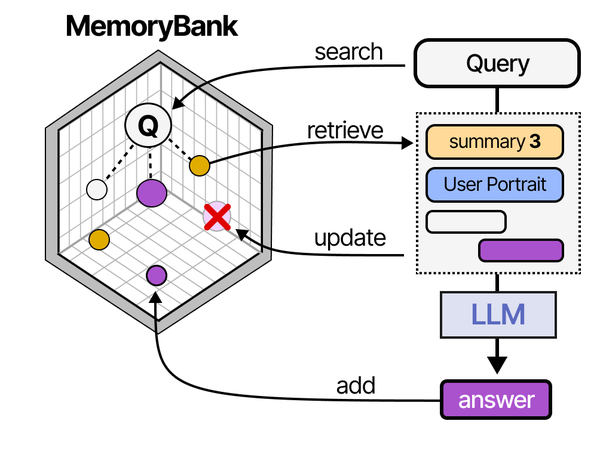
Backing up and migrating Ollama installations requires understanding how LLM serving systems persist state. As Grootendorst and Alammar describe in An Illustrated Guide to AI Agents, the MemoryBank architecture maintains persistent knowledge across sessions through structured storage — a concept that maps directly to Ollama's model blob storage, manifests, and configuration files. Brousseau and Sharp in LLMs in Production stress that production LLM deployments must include disaster recovery plans covering model weights, custom Modelfiles, conversation templates, and runtime configurations. On Linux servers, this means developing systematic backup strategies for /usr/share/ollama/.ollama/models and related configuration paths.
Related Articles
- Ollama Systemd Service: Production Hardening and Performance Tuning
- Ollama on Ubuntu 24.04 LTS: Known Issues, Fixes, and Optimization
- Running Multiple Ollama Models: Memory Management and Optimization Guide
- Ollama on RHEL 9 and Rocky Linux: Enterprise Setup and SELinux Guide
Further Reading
- An Illustrated Guide to AI Agents by Maarten Grootendorst and Jay Alammar — Visual guide to agent memory, tools, and reasoning.
- LLMs in Production by Christopher Brousseau and Matthew Sharp — Practical deployment of language models from training to production.
- Agentic AI in Enterprise by Sumit Ranjan, Divya Chembachere, and Lanwin Lobo — Enterprise architecture patterns for agentic AI systems.
Frequently Asked Questions
Can I back up Ollama models while the service is running?
Yes, for reading existing models. Ollama's blob storage is append-only and content-addressed — once a blob is written, it is never modified. This means you can safely copy blobs while Ollama is running without getting corrupted files. The only risk is catching a partially-written blob during an active model download. To be completely safe, either stop Ollama briefly during backup or verify blob hashes after copying. The rsync approach handles this naturally because a partially-copied file will fail the hash check and be re-copied on the next run.
How do I migrate models between x86 and ARM Linux servers?
GGUF model files are architecture-independent — the same quantized model file runs on both x86 and ARM. You can directly copy blobs between architectures. The manifests and blob data are identical. However, the Ollama binary itself is architecture-specific, so ensure you install the correct Ollama version for the destination architecture. After copying the model files, run ollama list on the destination to verify all models are recognized.
My model collection is 500 GB. What is the most efficient backup strategy?
Use rsync with hard-link rotation as shown in the automated backup section. After the initial full copy (which will take hours depending on your storage speed), subsequent daily backups only copy changed or new blobs — typically just a few gigabytes if you are pulling new models occasionally. The hard-link rotation means each dated backup appears to be a full copy but only consumes additional space for files that actually changed. For off-site backup, consider using rclone to sync to an S3-compatible object store, which handles large files efficiently and provides geographic redundancy.


