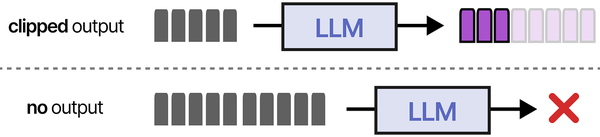
Every LLM has a context window — a hard limit on how much text it can process in a single interaction. When you chat with a model, every token in your conversation history, system prompt, and the model's own responses counts against this limit. For Linux administrators running local models with Ollama, context windows are not just an abstract specification. They directly translate to physical RAM and VRAM consumption on your server. A 128K context window on a 7B model sounds impressive until you realize it can consume 8GB of memory just for the attention cache, on top of the model weights themselves.
This guide explains how context windows work, what tokens actually are, how context length affects memory consumption on Linux servers, and how to configure your Ollama deployment to balance context capacity against available hardware resources. We will do the math, measure real memory usage, and provide concrete configuration guidance.
What Are Tokens?
Tokens are the fundamental units that LLMs process. They are not words and they are not characters — they are subword units derived from a tokenizer trained alongside the model. Understanding tokenization matters because context limits are measured in tokens, not words or characters. For the foundational setup, see our complete Ollama installation guide. For GPU driver setup, see our NVIDIA driver and CUDA installation guide.
Most modern LLMs use byte-pair encoding (BPE) or SentencePiece tokenization. Common English words typically map to a single token. Less common words get split into multiple tokens. Numbers, code, and non-English text tend to consume more tokens per character.
# Count tokens for a given text using Ollama's API
curl -s http://localhost:11434/api/embed   -d '{"model": "llama3.1:8b", "input": "How much RAM does a 7B model need?"}' |   python3 -c "import sys,json; print(len(json.load(sys.stdin).get('embeddings',[[]])))"

# Rough token estimation rules:
# English prose: ~1.3 tokens per word (or ~0.75 words per token)
# Source code: ~2-3 tokens per line (varies heavily by language)
# JSON/XML: ~3-5 tokens per element (markup is token-expensive)
# A typical 1000-word article: ~1300 tokens
The ratio matters for capacity planning. If your application sends 10 pages of documentation as context for a question, that is roughly 5,000 words or about 6,500 tokens. Add the system prompt (typically 200-500 tokens), the user's question, and room for the model's response, and you are consuming 8,000-10,000 tokens of your context window for a single interaction.
How Context Windows Work Internally
A transformer-based LLM processes tokens through self-attention layers. Each layer needs to compute relationships between every token in the context and every other token. The computational and memory cost of this operation grows with context length.
The KV cache (key-value cache) is where context window memory consumption lives. During inference, the model computes key and value vectors for each token at each attention layer. These vectors are cached so they do not need to be recomputed when generating the next token. The cache grows linearly with context length and model size.
KV Cache Memory Formula
The memory required for the KV cache can be calculated directly.
# KV Cache Memory = 2 * num_layers * num_kv_heads * head_dim * context_length * bytes_per_value
#
# For Llama 3.1 8B:
#   num_layers = 32
#   num_kv_heads = 8 (GQA - grouped query attention)
#   head_dim = 128
#   bytes_per_value = 2 (FP16) or varies with quantization
#
# At 4096 context:
#   2 * 32 * 8 * 128 * 4096 * 2 = 536,870,912 bytes = 512 MB
#
# At 32768 context (32K):
#   2 * 32 * 8 * 128 * 32768 * 2 = 4,294,967,296 bytes = 4 GB
#
# At 131072 context (128K):
#   2 * 32 * 8 * 128 * 131072 * 2 = 17,179,869,184 bytes = 16 GB
Those numbers are for Llama 3.1 8B alone. For a 70B model with more layers and heads, multiply accordingly. The jump from 4K to 128K context consumes 32 times more KV cache memory. This is why context window configuration is a critical deployment decision, not a setting you blindly maximize.
Context Windows in Common Models
Different models support different maximum context lengths, and the maximum is not always what you should use.
Llama 3.1 (8B/70B): 128K tokens maximum. Default in Ollama: 2048 tokens. The model was trained with 128K context using RoPE (Rotary Position Embeddings) scaling, but quality degrades for most tasks beyond 32K-64K context in practice.
Mistral 7B: 32K tokens maximum (sliding window attention). Effective for long documents up to the full 32K. Memory efficiency is better than standard attention due to the sliding window mechanism.
Phi-3 (3.8B): 128K tokens maximum. Remarkably long context for its size, but the small parameter count means quality drops faster at very long contexts compared to larger models.
Gemma 2 (9B/27B): 8K tokens default. Efficient for its designed context length but does not extend as gracefully as Llama 3.1 to very long contexts.
Configuring Context Length in Ollama
Ollama defaults to a 2048 token context window regardless of the model's maximum capability. This conservative default keeps memory usage low, but it is insufficient for many applications. Here is how to configure it properly.
Per-Request Configuration
# Set context length for a specific chat session
curl http://localhost:11434/api/chat -d '{
  "model": "llama3.1:8b",
  "messages": [{"role": "user", "content": "Explain TCP handshake"}],
  "options": {
    "num_ctx": 8192
  }
}'

# For the CLI
ollama run llama3.1:8b --num-ctx 8192
Permanent Configuration with a Modelfile
# Create a custom model with a specific context length
cat > Modelfile <<EOF
FROM llama3.1:8b

PARAMETER num_ctx 16384
PARAMETER num_gpu 99
EOF

ollama create llama3.1-16k -f Modelfile

# Now this model always uses 16K context
ollama run llama3.1-16k
Monitoring Memory Usage at Different Context Lengths
# Watch GPU memory while loading a model
watch -n 1 nvidia-smi

# In another terminal, make requests with increasing context
# Start with default 2048
curl -s http://localhost:11434/api/chat -d '{
  "model": "llama3.1:8b",
  "messages": [{"role": "user", "content": "Hello"}],
  "options": {"num_ctx": 2048}
}'

# Increase to 8192 and observe memory jump
curl -s http://localhost:11434/api/chat -d '{
  "model": "llama3.1:8b",
  "messages": [{"role": "user", "content": "Hello"}],
  "options": {"num_ctx": 8192}
}'

# Check system memory usage
free -h
cat /proc/meminfo | grep -E "MemTotal|MemAvailable|SwapTotal|SwapFree"
Memory Planning for Linux Servers
When provisioning a Linux server for Ollama, you need to account for three memory consumers: model weights, the KV cache (context window), and system overhead.
Total Memory Budget
# Total VRAM needed = Model Weights + KV Cache + Overhead
#
# Example: Llama 3.1 8B Q4_K_M with 16K context
#   Model weights: ~4.4 GB
#   KV cache (16K): ~2 GB
#   Overhead: ~0.5 GB
#   Total: ~6.9 GB  (fits in 8GB GPU)
#
# Same model with 32K context:
#   Model weights: ~4.4 GB
#   KV cache (32K): ~4 GB
#   Overhead: ~0.5 GB
#   Total: ~8.9 GB  (needs 12GB+ GPU)
#
# Same model with 128K context:
#   Model weights: ~4.4 GB
#   KV cache (128K): ~16 GB
#   Overhead: ~0.5 GB
#   Total: ~20.9 GB  (needs 24GB GPU)
This math explains why a model that "supports 128K context" does not mean you should always set 128K. On an 8GB GPU, you have roughly 3.5GB for KV cache after loading the model, which gives you approximately 7,000-8,000 tokens of effective context. Exceeding this causes Ollama to offload to system RAM, where inference speed drops by 10-20x.
Multi-Model and Multi-User Considerations
Each concurrent model instance allocates its own KV cache. If you run two models simultaneously with 8K context each, you need KV cache memory for both. Parallel requests to the same model (controlled by OLLAMA_NUM_PARALLEL) also multiply the KV cache.
# Environment variables for memory management
export OLLAMA_NUM_PARALLEL=2    # 2x KV cache per loaded model
export OLLAMA_MAX_LOADED_MODELS=2  # 2 models in memory

# With 2 parallel requests on Llama 3.1 8B Q4_K_M at 8K context:
#   Model weights: 4.4 GB (shared)
#   KV cache: 1 GB * 2 parallel = 2 GB
#   Total: ~7 GB

# With 2 loaded models, each with 2 parallel at 8K:
#   Model 1 weights + cache: 4.4 + 2 = 6.4 GB
#   Model 2 weights + cache: 4.4 + 2 = 6.4 GB
#   Total: ~13 GB (needs 16GB+ GPU)
GPU Offloading and Split Inference
When a model plus its context does not fit entirely in GPU VRAM, Ollama can split the workload between GPU and CPU. Some layers run on the GPU while others fall back to system RAM. This is functional but slow — each layer that runs on the CPU instead of the GPU adds latency to every token generated.
# Control GPU layer allocation
# In a Modelfile:
PARAMETER num_gpu 20  # Load 20 layers on GPU, rest on CPU

# Check how many layers a model has
ollama show llama3.1:8b --modelfile | grep -i layer

# Monitor where computation is happening
# GPU utilization drops when layers run on CPU
nvidia-smi dmon -s u -d 1
The practical rule: if less than about 70% of the model layers fit on the GPU, performance is so slow that you should consider a smaller model or lower quantization instead. A fully GPU-loaded Q4_K_M model will generate tokens 10-20x faster than a partially CPU-offloaded Q5_K_M model of the same size.
Optimizing Context Usage
Rather than maximizing context length, optimize how you use the context you have.
System prompt efficiency: System prompts consume context tokens on every request. A 500-token system prompt on a 4K context window uses 12.5% of your capacity before the user even speaks. Keep system prompts concise and specific.
Conversation trimming: For multi-turn conversations, older messages contribute less to the current response. Open WebUI and other frontends can trim conversation history to keep the most recent exchanges. Configure trimming to leave room for both context and response generation.
RAG over huge context: Instead of stuffing a 100-page document into the context window, use retrieval-augmented generation to extract the 5-10 most relevant paragraphs. This produces better responses with less memory consumption.
# Check current context usage via the Ollama API
curl -s http://localhost:11434/api/ps | python3 -m json.tool
# Shows loaded models and their configured context sizes
Swap and OOM Considerations on Linux
When LLM inference exhausts available memory, Linux's OOM killer may terminate the Ollama process. Configure your server to handle this gracefully.
# Prevent Ollama from being OOM-killed (if using systemd)
sudo systemctl edit ollama.service
# Add: [Service]
# OOMScoreAdjust=-500

# Set up swap as a safety net (not for performance)
sudo fallocate -l 32G /swapfile
sudo chmod 600 /swapfile
sudo mkswap /swapfile
sudo swapon /swapfile

# Reduce swappiness to prevent unnecessary swapping
echo "vm.swappiness=10" | sudo tee -a /etc/sysctl.d/99-ollama.conf
sudo sysctl -p /etc/sysctl.d/99-ollama.conf

# Monitor memory pressure
vmstat 1 5
Context window limitations are one of the core challenges in deploying LLMs, and modern agent architectures address this through memory systems and RAG. As detailed in An Illustrated Guide to AI Agents by Grootendorst and Alammar, agents use memory banks and retrieval-augmented generation to effectively extend their working context far beyond raw token limits — a key consideration when sizing RAM for LLM deployments.
Related Articles
- Running Multiple Ollama Models: Memory Management and Optimization Guide
- Ollama GPU Memory Not Enough: Complete Troubleshooting Guide for Linux
- Best Ollama Models for Linux Servers: 2026 Benchmarks and Recommendations
- GGUF Model Format Explained: Quantization Guide for Ollama Users
Further Reading
- An Illustrated Guide to AI Agents by Maarten Grootendorst and Jay Alammar — Visual guide to agent memory, tools, and reasoning.
- LLMs in Production by Christopher Brousseau and Matthew Sharp — Practical deployment of language models from training to production.
- Agentic AI in Enterprise by Sumit Ranjan, Divya Chembachere, and Lanwin Lobo — Enterprise architecture patterns for agentic AI systems.
Frequently Asked Questions
Why does Ollama default to 2048 tokens when the model supports 128K?
Ollama's conservative default exists to prevent accidental memory exhaustion. Allocating 128K context on a model that supports it would immediately consume 16+ GB of VRAM for the KV cache alone, potentially crashing the system. The 2048 default works reliably on virtually any hardware, including machines with 4GB GPUs or CPU-only inference. Increase the context length deliberately based on your hardware capacity, using num_ctx in requests or a custom Modelfile.
Does the full context window memory get allocated immediately, or only when tokens are used?
Ollama pre-allocates the entire KV cache when a model is loaded with a specific context length. If you set num_ctx: 32768, the full 4GB of KV cache memory is reserved immediately, even if your first message is only 50 tokens. This pre-allocation ensures consistent performance and avoids fragmentation during inference. It means you should set the context length to what you actually need, not the maximum the model supports.
Can I use system RAM to extend the effective context window beyond my GPU's VRAM?
Yes, but with a severe performance penalty. When the model plus KV cache exceeds VRAM, Ollama offloads layers and cache to system RAM. Inference speed drops from typically 30-80 tokens per second on GPU to 2-8 tokens per second with CPU offloading. This is usable for occasional long-context queries where you can wait, but not for interactive chat. If you regularly need long contexts, upgrading GPU VRAM or using a smaller quantized model is a better solution than relying on RAM offloading.


