Running into ollama gpu memory not enough errors is one of the most common problems when deploying LLMs on Linux. You load a model, Ollama begins allocating VRAM, and then it either crashes, falls back to CPU-only inference at glacial speed, or kills another model that was already loaded. The frustration is real — you have a perfectly capable GPU, but the model won't fit. The good news: nearly every GPU memory problem in Ollama has a concrete fix, and most don't require buying new hardware. This guide covers the full diagnostic and resolution workflow, from understanding why models consume the VRAM they do, through quantization selection and GPU/CPU split offloading, to system-level tricks that squeeze every last megabyte out of your setup.
Understanding where GPU memory actually goes during LLM inference is essential for effective troubleshooting. Brousseau and Sharp break this down in LLMs in Production: model weights consume a fixed amount of VRAM determined by parameter count and quantization level, but the KV-cache (key-value cache used during attention computation) grows dynamically with context length and batch size. This means a model that loads fine with short prompts can run out of VRAM when processing long documents. Monitoring KV-cache utilization alongside total VRAM usage gives a much clearer picture of memory pressure than watching nvidia-smi alone.
Before getting into solutions, it helps to understand what's actually happening when Ollama loads a model. Ollama uses llama.cpp under the hood for GGUF models, and llama.cpp tries to load as many model layers as possible into GPU VRAM. When there isn't enough VRAM, different things happen depending on your configuration: the model might partially load (some layers on GPU, the rest on CPU RAM), it might refuse to load entirely, or it might evict a previously loaded model to make room. Understanding these behaviors gives you the foundation to pick the right fix.
Why Ollama Runs Out of GPU Memory
GPU memory exhaustion in Ollama comes down to arithmetic. Every model has a known size determined by its parameter count and quantization level. The formula for estimating VRAM usage is:
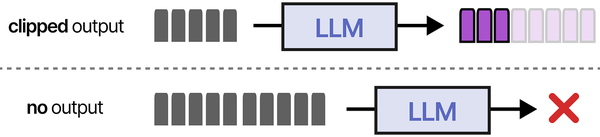
VRAM Required ≈ (Parameters × Bits per Weight / 8) + KV Cache + Overhead
Here's what each component means in practice:
Model Weight Memory
A 7B parameter model at full 16-bit precision needs approximately 14 GB just for the weights (7 billion × 2 bytes). Quantization reduces this dramatically. At Q4_K_M (roughly 4.8 bits per weight on average), that same 7B model drops to about 4.9 GB. At Q8_0 (8 bits per weight), it's around 7.7 GB. The quantization format determines the baseline memory floor — you cannot load a model into less VRAM than its quantized weight size.
KV Cache Memory
The key-value cache stores attention state for the context window. Its size depends on the model architecture and context length. For a typical 7B model with a 4096-token context, the KV cache adds roughly 256–512 MB. Bump the context to 32K tokens and the KV cache can balloon to 2–4 GB, depending on the model's attention head configuration. This is a frequent surprise — people calculate weight size but forget the KV cache, then wonder why their model doesn't fit.
CUDA and Runtime Overhead
The CUDA runtime, cuBLAS libraries, and Ollama's own process consume VRAM before any model loads. On most systems this amounts to 300–700 MB. Your desktop environment's GPU compositor (X11/Wayland) also claims VRAM — typically 200–500 MB depending on resolution and number of monitors. This means a GPU that reports 8 GB total might have only 7.0–7.3 GB actually available for model loading.
VRAM Budget Calculation Example
Suppose you have an RTX 3060 12GB and want to run Llama 3.1 8B at Q4_K_M:
- Total VRAM: 12,288 MB
- CUDA/compositor overhead: ~600 MB
- Available for model: ~11,688 MB
- Model weights (Q4_K_M): ~4,920 MB
- KV cache (4K context): ~400 MB
- Total model requirement: ~5,320 MB
- Headroom remaining: ~6,368 MB
This fits easily. But change to a 70B model at Q4_K_M (~40.5 GB) and the same GPU can only hold about 28% of the layers, forcing the rest to CPU RAM and dropping generation speed from 40+ tokens/sec to around 5–8 tokens/sec.
Diagnose the Problem: nvidia-smi and Ollama Logs
Before changing anything, get a clear picture of current VRAM usage. Running fixes blindly wastes time. The following commands form a complete diagnostic toolkit for ollama gpu memory not enough situations.
nvidia-smi: Your Primary Diagnostic Tool
The single most important command:
nvidia-smiThis shows total VRAM, used VRAM, free VRAM, and which processes are consuming it. For continuous monitoring while loading a model:
watch -n 1 nvidia-smiFor a more detailed breakdown that shows per-process GPU memory:
nvidia-smi --query-compute-apps=pid,name,used_memory --format=csv,noheaderOllama-Specific Diagnostics
Ollama itself provides diagnostic output when you enable debug logging:
OLLAMA_DEBUG=1 ollama serveWith debug mode on, Ollama logs exactly how many layers it loads to GPU vs. CPU, and the precise memory allocation. Look for lines like:
llm_load_tensors: offloading 32/32 layers to GPU
llm_load_tensors: VRAM used: 4613 MB
If you see fewer layers offloaded than the total (e.g., "offloading 20/32 layers to GPU"), that means Ollama detected insufficient VRAM and is splitting between GPU and CPU.
Checking What Ollama Has Loaded
ollama psThis shows currently loaded models, their size, the processor being used (GPU or CPU), and how long until they expire from memory. Multiple loaded models is one of the most common causes of VRAM exhaustion.
Diagnostic Command Reference Table
| Command | What It Shows | What to Look For |
|---|---|---|
nvidia-smi |
GPU utilization, VRAM usage, processes | Free memory column, process list eating VRAM |
nvidia-smi -q -d MEMORY |
Detailed memory breakdown per GPU | Reserved vs. used vs. free; BAR1 memory info |
nvidia-smi --query-gpu=memory.total,memory.used,memory.free --format=csv |
Clean CSV of memory stats | Scriptable; use in monitoring pipelines |
ollama ps |
Loaded models, sizes, processor assignment | Models sitting in VRAM you're not using |
OLLAMA_DEBUG=1 ollama serve |
Detailed layer loading, VRAM allocation | Number of layers offloaded, VRAM used line |
ollama show modelname --modelfile |
Model's Modelfile configuration | Context size, quantization, parameters |
cat /var/log/syslog | grep -i "out of memory" |
OOM killer events | Whether Linux killed the Ollama process |
journalctl -u ollama -n 100 |
Ollama systemd service logs | Error messages, CUDA errors, memory failures |
dmesg | grep -i nvidia |
Kernel-level NVIDIA driver messages | GPU fallen off bus, Xid errors, driver crashes |
Common Error Messages and Their Meaning
These are real error messages from Ollama GitHub issues that indicate GPU memory problems:
Error: model requires more system memory (XX.X GiB) than is available (XX.X GiB)This means total required memory (VRAM + system RAM for spilled layers) exceeds what's available. Common when running large models without enough RAM as fallback.
CUDA error: out of memory
CUDA_ERROR_OUT_OF_MEMORY
Direct CUDA allocation failure. The GPU has no free VRAM for the requested allocation. Usually happens mid-load when the estimated fit was marginal.
llama_model_load: error loading model: create_backend_buffer: failed to allocate X.XX GiBThe llama.cpp backend couldn't allocate a contiguous memory block on the GPU. Even if nvidia-smi shows free VRAM, fragmentation can prevent large allocations.
level=WARN msg="gpu memory not enough, falling back to CPU"Ollama detected insufficient VRAM and is routing entirely to CPU. The model will work but will be extremely slow.
Solution 1: Use a Smaller Quantization
Quantization is the single most effective lever for fitting models into limited VRAM. The difference between Q8_0 and Q4_K_M for a 7B model is roughly 3 GB — that's the difference between fitting and not fitting on many GPUs.
Understanding Quantization Formats
GGUF models come in multiple quantization levels. Here's what matters for ollama vram planning:
- Q4_K_M — The sweet spot for most users. Uses mixed 4/5-bit quantization with K-quant optimization. Quality loss is minimal for instruction-following and chat. Roughly 4.85 bits/weight on average.
- Q5_K_M — Slightly higher quality than Q4_K_M, about 5.68 bits/weight. Adds roughly 15–20% more VRAM usage compared to Q4_K_M. Worth it when you have the headroom and want better reasoning.
- Q8_0 — 8-bit quantization. Minimal quality loss compared to FP16, but uses roughly 60% more VRAM than Q4_K_M. Good for smaller models (7B–8B) on GPUs with 12+ GB VRAM.
- Q3_K_M — When Q4_K_M still won't fit. Noticeable quality degradation, especially on complex reasoning tasks, but can shrink a model by another 20% compared to Q4_K_M.
- Q2_K — Emergency-tier. Significant quality loss. Only useful when you absolutely must run a specific model and nothing else fits.
Switching Quantization in Ollama
To pull a specific quantization from the Ollama registry:
ollama pull llama3.1:8b-instruct-q4_K_MYou can list available tags for a model on the Ollama library page. If the quantization you want isn't available as a pre-built tag, create a custom Modelfile:
FROM ./your-model-q4_K_M.gguf
PARAMETER num_ctx 4096
TEMPLATE """{{ .System }}
{{ .Prompt }}"""
Then create the model in Ollama:
ollama create mymodel -f ModelfileReducing Context Length
Context length directly affects KV cache size. If you don't need the full context window, reducing it frees significant VRAM:
ollama run llama3.1:8b-instruct-q4_K_M /set parameter num_ctx 2048Or in a Modelfile:
FROM llama3.1:8b-instruct-q4_K_M
PARAMETER num_ctx 2048
Going from 8192 to 2048 context can reclaim 1–3 GB of VRAM depending on the model architecture. This is a high-impact change that many people overlook.
Solution 2: Split Between GPU and CPU
When a model is too large for your GPU but you still want GPU acceleration for the layers that do fit, partial ollama gpu offload is the answer. Ollama handles this automatically in most cases — it loads as many layers as fit in VRAM and spills the rest to system RAM. But you can control this behavior explicitly.
How Layer Offloading Works
A transformer model is organized in layers (typically 32 for 7B models, 80 for 70B models). Each layer consumes roughly equal VRAM. When Ollama detects insufficient VRAM, it offloads the excess layers to CPU. The GPU processes its layers fast, then waits while the CPU processes the remaining layers. Generation speed is determined by the slowest component — so even offloading a few layers to CPU creates a bottleneck.
Controlling GPU Layer Count
Use the num_gpu parameter to set exactly how many layers are loaded to GPU:
FROM llama3.1:70b-instruct-q4_K_M
PARAMETER num_gpu 20
Setting num_gpu to 0 forces full CPU inference. Setting it higher than the model's layer count loads everything to GPU (if VRAM allows). The right value depends on your available VRAM. Start with the total layers, subtract until it fits:
# Check how many layers the model has
OLLAMA_DEBUG=1 ollama run llama3.1:70b-instruct-q4_K_M "test" 2>&1 | grep "offloading"
If you see "offloading 40/80 layers to GPU", then your GPU fits 40 layers. You might set num_gpu 38 to leave VRAM headroom for the KV cache.
Optimizing the Split for Speed
Partial offloading follows a cliff-curve performance model. Going from 100% GPU to 90% GPU (a few layers on CPU) might cut speed by 40%. Going from 90% to 50% GPU might only cut speed by another 30%. The first layers offloaded to CPU hurt the most because you're introducing the CPU bottleneck. So: maximize GPU layers aggressively, even if it means the model barely fits.
System RAM Requirements for Offloading
Whatever doesn't fit in VRAM goes to system RAM. A 70B Q4_K_M model is roughly 40 GB total. If 20 GB fits on your GPU, you need at least 20 GB of free system RAM for the rest, plus another 2–4 GB for the KV cache and runtime overhead. Monitor with:
free -h
watch -n 1 free -h
If system RAM is also tight, the next sections on swap and zram become relevant.
Solution 3: Limit Loaded Models
Ollama keeps models loaded in VRAM for 5 minutes by default after the last request. If you chat with Model A, then switch to Model B, both remain in VRAM until their timers expire. Two 7B Q4_K_M models simultaneously need roughly 10–11 GB of VRAM. On an 8 GB GPU, that's an instant ollama out of memory situation.
OLLAMA_MAX_LOADED_MODELS
This environment variable controls how many models Ollama keeps in memory simultaneously:
# Only keep one model loaded at a time
export OLLAMA_MAX_LOADED_MODELS=1
With this set to 1, loading a new model automatically evicts the previous one. For systems with limited VRAM, this is essential. Set it in your systemd service file for persistence:
sudo systemctl edit ollamaAdd the override:
[Service]
Environment="OLLAMA_MAX_LOADED_MODELS=1"
Then restart:
sudo systemctl daemon-reload
sudo systemctl restart ollama
OLLAMA_KEEP_ALIVE
Controls how long models stay in memory after the last request:
# Unload models immediately after each request
export OLLAMA_KEEP_ALIVE=0

# Keep for 60 seconds instead of default 5 minutes
export OLLAMA_KEEP_ALIVE=60s
Setting this to 0 means models unload as soon as a request finishes. Subsequent requests incur a reload penalty (a few seconds) but VRAM stays free between requests. For shared servers where multiple users run different models, this is the recommended configuration.
Manually Unloading Models
To immediately free VRAM without waiting for the keep-alive timer:
# List loaded models
ollama ps

# Unload a specific model via API
curl http://localhost:11434/api/generate -d '{"model": "llama3.1:8b", "keep_alive": 0}'
Solution 4: Multi-GPU Distribution
If you have multiple GPUs, Ollama can spread a model across them. This is the cleanest solution for large models because you get full GPU speed on all layers — no CPU bottleneck. A dual RTX 3060 12GB setup gives you 24 GB of effective VRAM, enough for 70B Q4_K_M models with room to spare for a reasonable context window.
Automatic Multi-GPU in Ollama
When Ollama detects multiple NVIDIA GPUs, it automatically distributes model layers across them. You don't need to configure anything — just make sure both GPUs are visible:
nvidia-smi -LShould list all GPUs. If a GPU is missing, check the driver installation and PCIe seating.
CUDA_VISIBLE_DEVICES
Use this environment variable to control which GPUs Ollama can use:
# Use only GPU 0
export CUDA_VISIBLE_DEVICES=0

# Use GPUs 0 and 1
export CUDA_VISIBLE_DEVICES=0,1

# Use only GPU 1 (skip the one your display is on)
export CUDA_VISIBLE_DEVICES=1
A common pattern is dedicating GPU 0 to your desktop display and GPU 1 to Ollama. This prevents model loading from competing with your compositor for VRAM:
# In /etc/systemd/system/ollama.service.d/override.conf
[Service]
Environment="CUDA_VISIBLE_DEVICES=1"
Mismatched GPU Sizes
If your GPUs have different VRAM sizes (e.g., RTX 3090 24GB + RTX 3060 12GB), Ollama will allocate layers proportionally. The larger GPU gets more layers. This works automatically but can lead to suboptimal splitting. You can influence the distribution by setting num_gpu to control the total number of GPU layers, but you cannot currently assign specific layer counts to specific GPUs in stock Ollama.
PCIe Bandwidth Considerations
Multi-GPU setups are sensitive to PCIe bandwidth. Layers on different GPUs need to pass intermediate activations between them. Running two GPUs on a consumer motherboard with x16/x4 split (common on boards with the second slot running through chipset lanes) means the second GPU gets a fraction of the bandwidth. For inference (as opposed to training), this matters less because the data transferred between GPUs per token is relatively small — but it does add latency. Use lspci -vv to verify link speeds:
lspci -vv | grep -A 20 "NVIDIA" | grep -i "lnksta"Look for "Speed 16GT/s" (PCIe 4.0 x16) or "Speed 8GT/s" (PCIe 3.0 x16). If you see "Width x4" on a GPU that should be x16, reseat it or check your motherboard manual for slot limitations.
Solution 5: System-Level Memory Tricks
When you've exhausted GPU-side optimizations, system-level changes can provide the last few gigabytes needed to make things work. These techniques are especially relevant for CPU-offloaded layers that live in system RAM.
Swap Space
If system RAM is tight (because the CPU-offloaded layers fill it), adding swap prevents the OOM killer from terminating Ollama. Performance is terrible for layers that actually live in swap, but it prevents crashes:
# Create a 32 GB swap file
sudo fallocate -l 32G /swapfile
sudo chmod 600 /swapfile
sudo mkswap /swapfile
sudo swapon /swapfile

# Make persistent
echo '/swapfile none swap sw 0 0' | sudo tee -a /etc/fstab
For NVMe drives, swap read speeds of 3+ GB/s mean that occasional swap access isn't catastrophic. On spinning disks, swap-based inference is essentially unusable.
zram: Compressed RAM
zram creates a compressed block device in RAM, effectively increasing usable memory at the cost of CPU cycles for compression. Model weights compress reasonably well, yielding roughly 1.5–2x effective memory expansion:
# Load zram module
sudo modprobe zram

# Create a 16GB compressed RAM device
echo 16G | sudo tee /sys/block/zram0/disksize

# Format and enable
sudo mkswap /sys/block/zram0
sudo swapon -p 100 /dev/zram0
Set the swap priority higher than disk swap so zram is used first. On systems with fast CPUs but limited RAM, zram can turn an 32 GB system into one that behaves like it has 48–56 GB for model loading purposes.
For persistent configuration, use systemd-zram-setup or create a systemd unit:
# Install zram-generator on Fedora/RHEL
sudo dnf install zram-generator

# Configure in /etc/systemd/zram-generator.conf
[zram0]
zram-size = ram * 0.5
compression-algorithm = zstd
Docker GPU Memory Limits
If you're running Ollama in Docker, the container runtime adds another layer of memory management. The standard Docker GPU deployment:
Ranjan et al. point out in Agentic AI in Enterprise that enterprise AI deployments on GPU clusters typically implement memory quotas and preemption policies to prevent a single model from monopolizing GPU resources. While Ollama does not yet have built-in multi-tenant memory management, Linux administrators can achieve similar isolation using NVIDIA MPS (Multi-Process Service), cgroups v2 with GPU resource controllers, or containerized deployments with explicit --gpus and memory limits set at the Docker or Kubernetes level.
docker run -d --gpus all \
  -v ollama:/root/.ollama \
  -p 11434:11434 \
  --name ollama \
  ollama/ollama
Docker doesn't limit GPU memory by default — the container can use all available VRAM. But if you're running multiple GPU-accelerated containers, you need to partition. Use NVIDIA's device plugin or CUDA_VISIBLE_DEVICES:
# Give this container only GPU 0
docker run -d --gpus '"device=0"' \
  -v ollama:/root/.ollama \
  -p 11434:11434 \
  ollama/ollama

# Or use the NVIDIA runtime with specific memory limits
docker run -d --runtime=nvidia \
  -e NVIDIA_VISIBLE_DEVICES=0 \
  -v ollama:/root/.ollama \
  -p 11434:11434 \
  ollama/ollama
To set a hard VRAM limit per container, use NVIDIA's MPS (Multi-Process Service) or MIG (Multi-Instance GPU) on supported GPUs (A100, A30, H100):
# Enable MIG on an A100 (creates isolated GPU instances)
sudo nvidia-smi mig -cgi 9,9,9 -C
sudo nvidia-smi mig -lgi
For consumer GPUs without MIG, the practical approach is limiting via CUDA_VISIBLE_DEVICES and OLLAMA_MAX_LOADED_MODELS inside the container.
Killing VRAM-Hungry Processes
Sometimes the solution is reclaiming VRAM from other processes. Common offenders:
# Find all processes using GPU memory
nvidia-smi --query-compute-apps=pid,name,used_memory --format=csv

# Common culprits:
# - Firefox/Chrome with hardware acceleration (500MB-2GB)
# - Desktop compositors (200-500MB)
# - Previous Ollama instances that didn't clean up
# - Jupyter notebooks with GPU kernels
Disabling hardware acceleration in your browser can reclaim 1+ GB of VRAM. On a headless server, switching from a graphical target to multi-user.target frees the compositor's VRAM entirely:
sudo systemctl set-default multi-user.target
sudo systemctl isolate multi-user.target
Quick Reference: Model Sizes and VRAM Requirements
This table shows approximate VRAM requirements for popular models at different ollama quantization levels. All values include a 4096-token KV cache and runtime overhead estimates.
| Model | Q4_K_M | Q5_K_M | Q8_0 | FP16 |
|---|---|---|---|---|
| Llama 3.1 8B | ~5.4 GB | ~6.1 GB | ~8.5 GB | ~16.2 GB |
| Llama 3.1 70B | ~41 GB | ~48 GB | ~72 GB | ~140 GB |
| Mistral 7B | ~5.1 GB | ~5.8 GB | ~8.0 GB | ~14.5 GB |
| Mixtral 8x7B | ~27 GB | ~31 GB | ~49 GB | ~94 GB |
| Qwen 2.5 7B | ~5.2 GB | ~5.9 GB | ~8.2 GB | ~15 GB |
| Qwen 2.5 72B | ~42 GB | ~49 GB | ~74 GB | ~144 GB |
| Phi-3 Mini (3.8B) | ~3.0 GB | ~3.4 GB | ~4.6 GB | ~7.8 GB |
| Gemma 2 9B | ~6.0 GB | ~6.8 GB | ~9.8 GB | ~18.5 GB |
| CodeLlama 34B | ~20 GB | ~24 GB | ~36 GB | ~68 GB |
| DeepSeek Coder V2 236B | ~130 GB | ~153 GB | ~240 GB | ~472 GB |
GPU quick fit guide:
- 8 GB VRAM (RTX 3060 Ti, RTX 4060, etc.): 7B–8B models at Q4_K_M comfortably. Q5_K_M possible with reduced context.
- 12 GB VRAM (RTX 3060, RTX 4070, etc.): 7B–9B at Q8_0, 13B at Q4_K_M, larger models require offloading.
- 16 GB VRAM (RTX 4060 Ti 16GB, RTX A4000): 13B at Q5_K_M, 34B at Q4_K_M with tight fit.
- 24 GB VRAM (RTX 3090, RTX 4090, Tesla P40): 34B at Q5_K_M, 70B at Q4_K_M needs offloading or dual GPUs.
- 48 GB VRAM (RTX A6000, dual 24GB): 70B at Q4_K_M with room for large context.
Related Articles
- Install NVIDIA Drivers and CUDA on Linux Server for AI: The No-Nonsense Guide (2026)
- Running Multiple Ollama Models: Memory Management and Optimization Guide
- Best GPU for Running LLMs Locally on Linux: 2026 Buyer's Guide
- LLM Context Windows Explained: How Token Limits Affect Linux Server RAM
Further Reading
- Grootendorst, M. & Alammar, J. (2025). An Illustrated Guide to AI Agents. O'Reilly Media. Covers agent memory systems, RAG pipelines, tool usage, MCP protocol, and context engineering with clear visual explanations.
- Ranjan, R. et al. (2025). Agentic AI in Enterprise. Apress. Explores enterprise AI architecture, RAG vs fine-tuning trade-offs, vector databases, prompt engineering, GPU acceleration, and Kubernetes orchestration for production AI.
- Brousseau, D. & Sharp, T. (2025). LLMs in Production. Manning Publications. Covers neural network fundamentals, transformer architecture, GPU management, latency optimization, Kubernetes deployment, MLOps pipelines, embeddings, and model quantization.
FAQ
Why does Ollama say "out of memory" when nvidia-smi shows free VRAM?
VRAM fragmentation is the most common cause. nvidia-smi reports total free memory, but model loading requires contiguous blocks. If your VRAM is fragmented from previous model loads and unloads, there may be 3 GB free total but no single contiguous block larger than 1 GB. The fix: restart the Ollama service (sudo systemctl restart ollama) or even unload all models with ollama ps followed by keep_alive=0 API calls, which clears the VRAM allocations and defragments the space. In stubborn cases, a GPU reset works: sudo nvidia-smi --gpu-reset.
Can I use system RAM as overflow for GPU memory?
Yes, and Ollama does this automatically. When a model's layers don't all fit in VRAM, the excess layers run on CPU using system RAM. This is the default behavior controlled by the num_gpu parameter. You don't need to configure anything special — Ollama detects available VRAM and splits accordingly. The trade-off is speed: CPU-processed layers are 5–15x slower than GPU layers. For chatbot use cases where you can tolerate 5–10 tokens/sec, partial offloading works well. For high-throughput applications, you need enough VRAM for all layers.
Does using a swap file help with GPU memory specifically?
Swap does not extend GPU VRAM. VRAM is physically on the GPU card and cannot be extended by any system-level trick. What swap helps with is the CPU-offloaded layers that live in system RAM. If you're running a 70B model with half the layers on CPU and your 32 GB of RAM is nearly full, swap prevents the OOM killer from terminating Ollama. The layers in swap will be extremely slow to process, but the system stays stable. For GPU VRAM specifically, your only options are quantization, reducing context length, model selection, or adding/upgrading GPUs.
How do I run two different models simultaneously on one GPU?
Set OLLAMA_MAX_LOADED_MODELS=2 and ensure both models together fit in your available VRAM. Check the size table above and add both models' VRAM requirements. Also account for a separate KV cache per model. For example, two 7B Q4_K_M models with 4K context need roughly 5.4 + 5.4 = 10.8 GB total. An RTX 3060 12GB can handle this, but an RTX 4060 8GB cannot. If they don't fit simultaneously, set OLLAMA_MAX_LOADED_MODELS=1 so loading one automatically evicts the other. The reload penalty is typically 2–5 seconds.
Is there a way to monitor VRAM usage in real time while Ollama loads a model?
Run watch -n 0.5 nvidia-smi in one terminal while loading the model in another. You'll see VRAM usage climb as layers are loaded. For more detailed tracking, use nvitop — a community tool that provides an htop-like interface for GPU monitoring:
pip install nvitop
nvitop
nvitop shows per-process VRAM usage, GPU utilization, memory bandwidth utilization, and temperature in real time. It's significantly more informative than nvidia-smi for tracking model loading behavior. Another option is gpustat:
pip install gpustat
gpustat -i 1

