Running Ollama directly on a Linux host works fine for experimenting with models. But the moment you need reproducible deployments, version pinning, multi-service orchestration, or isolation between projects, Docker Compose becomes the obvious next step. Add GPU passthrough into the mix, and what should be a straightforward containerization exercise turns into a maze of driver versions, runtime configurations, and device mappings that trip up even experienced Docker users.
This guide walks through deploying a complete Ollama stack with Docker Compose on Linux. We cover NVIDIA GPU passthrough (the most common use case), persistent model storage, Open WebUI as a frontend, resource constraints, health checks, and networking considerations. Every configuration shown here has been tested on both Ubuntu 22.04/24.04 and RHEL 9 with current NVIDIA drivers.
Prerequisites: NVIDIA Container Toolkit
Docker itself cannot talk to NVIDIA GPUs. You need the NVIDIA Container Toolkit, which provides a custom container runtime that maps GPU devices into containers. Before touching Docker Compose files, get this foundation right.
Verify Your GPU and Driver
# Check that the NVIDIA driver is loaded
nvidia-smi

# You should see your GPU model, driver version, and CUDA version
# Minimum driver version for current Ollama images: 525.60.13+
# Recommended: 535.x or newer for best compatibility
If nvidia-smi returns an error, you need to install or fix your NVIDIA driver before proceeding. The NVIDIA Container Toolkit does not install drivers — it only bridges the gap between Docker and an already-working driver installation.
Install NVIDIA Container Toolkit
# Add the NVIDIA container toolkit repository (Ubuntu/Debian)
curl -fsSL https://nvidia.github.io/libnvidia-container/gpgkey |   sudo gpg --dearmor -o /usr/share/keyrings/nvidia-container-toolkit-keyring.gpg

curl -s -L https://nvidia.github.io/libnvidia-container/stable/deb/nvidia-container-toolkit.list |   sed 's#deb https://#deb [signed-by=/usr/share/keyrings/nvidia-container-toolkit-keyring.gpg] https://#g' |   sudo tee /etc/apt/sources.list.d/nvidia-container-toolkit.list

sudo apt-get update
sudo apt-get install -y nvidia-container-toolkit

# For RHEL/Rocky/Alma
curl -s -L https://nvidia.github.io/libnvidia-container/stable/rpm/nvidia-container-toolkit.repo |   sudo tee /etc/yum.repos.d/nvidia-container-toolkit.repo
sudo dnf install -y nvidia-container-toolkit

# Configure Docker to use the NVIDIA runtime
sudo nvidia-ctk runtime configure --runtime=docker
sudo systemctl restart docker

# Verify GPU access inside a container
docker run --rm --gpus all nvidia/cuda:12.4.0-base-ubuntu22.04 nvidia-smi
That last command should display the same GPU information you see when running nvidia-smi on the host. If it does, Docker can see your GPU and you are ready for Compose.
Basic Ollama Docker Compose Configuration
Let us start with the simplest working configuration and build from there. This gets Ollama running with GPU access and persistent model storage.
# docker-compose.yml
version: "3.8"

services:
  ollama:
    image: ollama/ollama:latest
    container_name: ollama
    restart: unless-stopped
    ports:
      - "11434:11434"
    volumes:
      - ollama_data:/root/.ollama
    deploy:
      resources:
        reservations:
          devices:
            - driver: nvidia
              count: all
              capabilities: [gpu]

volumes:
  ollama_data:
The key section is deploy.resources.reservations.devices. This tells Docker Compose to pass GPU devices into the container using the NVIDIA runtime. The count: all directive passes every available GPU. If you have multiple GPUs and want to restrict access, use count: 1 or specify device IDs directly.
Specifying Individual GPUs
# Pass specific GPUs by device ID
deploy:
  resources:
    reservations:
      devices:
        - driver: nvidia
          device_ids: ["0", "1"]
          capabilities: [gpu]

# Or use just one GPU
deploy:
  resources:
    reservations:
      devices:
        - driver: nvidia
          device_ids: ["0"]
          capabilities: [gpu]
Find your GPU device IDs with nvidia-smi -L. This matters when you run multiple services that each need dedicated GPU access, or when you want to reserve one GPU for Ollama and keep another for other workloads.
Full Stack: Ollama + Open WebUI + Monitoring
A production-ready Ollama deployment usually needs more than just the inference server. Here is a complete stack with Open WebUI for a chat interface, proper networking, health checks, and environment configuration.
# docker-compose.yml — Full GPU stack
version: "3.8"

services:
  ollama:
    image: ollama/ollama:latest
    container_name: ollama-server
    restart: unless-stopped
    ports:
      - "127.0.0.1:11434:11434"
    volumes:
      - ollama_models:/root/.ollama
    environment:
      - OLLAMA_HOST=0.0.0.0
      - OLLAMA_NUM_PARALLEL=4
      - OLLAMA_MAX_LOADED_MODELS=2
      - OLLAMA_FLASH_ATTENTION=1
    deploy:
      resources:
        reservations:
          devices:
            - driver: nvidia
              count: all
              capabilities: [gpu]
    healthcheck:
      test: ["CMD", "curl", "-f", "http://localhost:11434/api/version"]
      interval: 30s
      timeout: 10s
      retries: 3
      start_period: 60s
    networks:
      - ollama-net

  open-webui:
    image: ghcr.io/open-webui/open-webui:main
    container_name: open-webui
    restart: unless-stopped
    ports:
      - "3000:8080"
    volumes:
      - webui_data:/app/backend/data
    environment:
      - OLLAMA_BASE_URL=http://ollama-server:11434
      - WEBUI_AUTH=true
      - WEBUI_SECRET_KEY=change-this-to-a-random-string
    depends_on:
      ollama:
        condition: service_healthy
    networks:
      - ollama-net

volumes:
  ollama_models:
  webui_data:

networks:
  ollama-net:
    driver: bridge
Several things to note about this configuration. The Ollama port binding uses 127.0.0.1:11434:11434 instead of just 11434:11434. This restricts access to localhost only — the API is not exposed to your network. Open WebUI communicates with Ollama over the internal Docker network using the service name ollama-server.
The depends_on with condition: service_healthy ensures Open WebUI does not start until Ollama is actually responding to API requests, not just until the container is running. The start_period of 60 seconds gives Ollama time to initialize, especially when loading models into GPU memory on first boot.
Environment Variables That Matter
Ollama exposes several environment variables that significantly affect performance and resource usage in containerized deployments.
OLLAMA_NUM_PARALLEL controls how many concurrent requests a single model can handle. The default is 1, which means requests are queued. Setting this to 4 allows four simultaneous inference requests, but each consumes additional GPU memory. For a 24GB GPU running a 7B model, 4 parallel requests is comfortable. For a 13B model, you may need to drop to 2.
OLLAMA_MAX_LOADED_MODELS determines how many models can be loaded into memory simultaneously. Each loaded model consumes GPU VRAM even when not actively processing requests. Set this based on your available VRAM and the sizes of models you use. Two 7B quantized models fit easily on a 24GB GPU. Two 13B models might not.
OLLAMA_FLASH_ATTENTION enables Flash Attention, which reduces memory usage and improves throughput. There is almost no reason not to enable this on modern NVIDIA GPUs (Ampere and newer).
Persistent Storage and Model Management
Docker named volumes (ollama_models in our configuration) persist across container restarts and image updates. But there are scenarios where you want more control over storage location.
# Use a bind mount to a specific directory
services:
  ollama:
    volumes:
      - /data/ollama/models:/root/.ollama

# Or a specific path on a fast NVMe drive
services:
  ollama:
    volumes:
      - /nvme-fast/ollama:/root/.ollama
Bind mounts let you place model files on a specific disk, which matters when you have multiple storage tiers. Models can be large — a single 70B quantized model at Q4 is around 40GB — and you want them on fast storage. Loading a model from a spinning disk adds significant startup time.
Pre-Loading Models on Startup
After the stack comes up, you still need to pull models. You can automate this with an entrypoint script or a companion service.
# docker-compose.yml addition
services:
  model-loader:
    image: curlimages/curl:latest
    container_name: model-loader
    depends_on:
      ollama:
        condition: service_healthy
    entrypoint: ["sh", "-c"]
    command:
      - |
        echo "Pulling models..."
        curl -s http://ollama-server:11434/api/pull -d '{"name": "llama3.1:8b"}'
        curl -s http://ollama-server:11434/api/pull -d '{"name": "codellama:13b"}'
        echo "Models ready."
    networks:
      - ollama-net
    restart: "no"
This companion container runs once after Ollama is healthy, pulls the specified models, then exits. On subsequent docker compose up commands, if the models already exist in the persistent volume, the pull completes instantly.
Resource Limits and GPU Memory Management
In shared environments, you need to prevent Ollama from consuming all available GPU memory. Docker Compose does not directly support GPU memory limits through the deploy syntax, but you can control this through Ollama's environment variables and CUDA settings.
services:
  ollama:
    environment:
      - CUDA_VISIBLE_DEVICES=0
      - OLLAMA_MAX_LOADED_MODELS=1
      - OLLAMA_NUM_PARALLEL=2
    deploy:
      resources:
        limits:
          cpus: "4.0"
          memory: 16G
        reservations:
          devices:
            - driver: nvidia
              device_ids: ["0"]
              capabilities: [gpu]
The CPU and RAM limits are straightforward Docker constraints. GPU memory management happens at the application level through OLLAMA_MAX_LOADED_MODELS and model selection. A Q4 quantized 7B model uses roughly 4-5GB of VRAM. A Q4 13B model uses around 8-9GB. Plan your limits accordingly.
Networking and Security Considerations
The default Docker bridge network provides container-to-container communication by service name. For production deployments, consider these additional configurations.
Reverse Proxy with TLS
# Add to docker-compose.yml
services:
  nginx:
    image: nginx:alpine
    container_name: ollama-proxy
    restart: unless-stopped
    ports:
      - "443:443"
    volumes:
      - ./nginx.conf:/etc/nginx/conf.d/default.conf:ro
      - ./certs:/etc/nginx/certs:ro
    depends_on:
      - open-webui
    networks:
      - ollama-net
# nginx.conf
server {
listen 443 ssl;
server_name llm.internal.example.com;
ssl_certificate /etc/nginx/certs/fullchain.pem;
ssl_certificate_key /etc/nginx/certs/privkey.pem;
location / {
proxy_pass http://open-webui:8080;
proxy_set_header Host ;
proxy_set_header X-Real-IP ;
proxy_set_header X-Forwarded-For ;
proxy_set_header X-Forwarded-Proto ;
# WebSocket support for streaming responses
proxy_http_version 1.1;
proxy_set_header Upgrade ;
proxy_set_header Connection upgrade;
}
}Even on internal networks, TLS prevents credential interception. Open WebUI sends authentication tokens with every request, and Ollama's API has no built-in authentication. If someone gains network access, unencrypted traffic exposes everything.
Troubleshooting Common GPU Issues
GPU passthrough in Docker has several failure modes. Here are the ones you will actually encounter.
Container Cannot See GPU
# Inside the container, run nvidia-smi
docker exec -it ollama-server nvidia-smi

# If this fails, check the NVIDIA runtime configuration
docker info | grep -i runtime

# You should see nvidia listed as a runtime
# If not, reconfigure:
sudo nvidia-ctk runtime configure --runtime=docker
sudo systemctl restart docker
CUDA Version Mismatch
The CUDA version shown by nvidia-smi is the maximum CUDA version your driver supports, not the version installed. Ollama images bundle their own CUDA runtime, so as long as your driver is new enough, this usually works. If you see CUDA errors, update your NVIDIA driver to the latest production branch.
Out of Memory Errors
# Check GPU memory usage
nvidia-smi --query-gpu=memory.used,memory.total --format=csv

# If Ollama fails to load a model, reduce the quantization level
# or use a smaller model. Check what is consuming VRAM:
nvidia-smi pmon -c 1
Docker Compose Profiles for Development and Production
Use Compose profiles to maintain a single configuration file that works for different environments.
version: "3.8"

services:
  ollama:
    image: ollama/ollama:latest
    # ... base configuration ...

  open-webui:
    image: ghcr.io/open-webui/open-webui:main
    profiles: ["ui", "full"]
    # ... configuration ...

  nginx:
    image: nginx:alpine
    profiles: ["full"]
    # ... configuration ...

  model-loader:
    profiles: ["setup"]
    # ... configuration ...
# Development — just Ollama with GPU
docker compose up -d
# Development with UI
docker compose --profile ui up -d
# Full production stack
docker compose --profile full up -d
# Initial setup — pull models
docker compose --profile setup upUpdating the Stack
Keeping Ollama and Open WebUI current is important for security patches, model compatibility, and performance improvements.
# Pull latest images
docker compose pull

# Recreate containers with new images, keeping volumes
docker compose up -d --force-recreate

# Verify the update
docker exec ollama-server ollama --version
docker compose logs --tail=20 open-webui
Named volumes persist through container recreation, so your models and Open WebUI configuration survive updates. This is why we use named volumes rather than anonymous volumes — they have a predictable lifecycle.
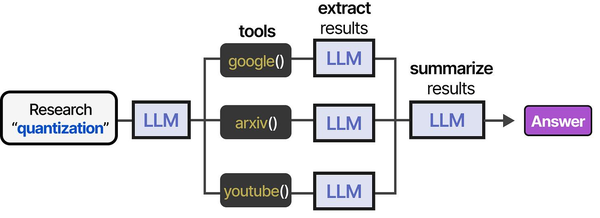
Containerizing Ollama with Docker Compose and GPU passthrough creates the infrastructure backbone for AI agent tool pipelines. As illustrated in An Illustrated Guide to AI Agents by Grootendorst and Alammar, robust tool execution environments are essential for agents — and a well-configured Docker GPU stack provides exactly that foundation on Linux.
Related Articles
- NVIDIA Container Toolkit on Linux: GPU Setup for Docker AI Workloads
- Docker GPU Passthrough on Linux for AI Workloads
- Install NVIDIA Drivers and CUDA on Linux Server for AI: The No-Nonsense Guide (2026)
- Kubernetes Ollama Deployment: Production GPU Scheduling and Scaling Guide
Further Reading
- An Illustrated Guide to AI Agents by Maarten Grootendorst and Jay Alammar — Visual guide to agent memory, tools, and reasoning.
- LLMs in Production by Christopher Brousseau and Matthew Sharp — Practical deployment of language models from training to production.
- Agentic AI in Enterprise by Sumit Ranjan, Divya Chembachere, and Lanwin Lobo — Enterprise architecture patterns for agentic AI systems.
Frequently Asked Questions
Can I use AMD GPUs with Ollama in Docker Compose?
Ollama supports AMD GPUs through ROCm, but Docker GPU passthrough for AMD requires a different runtime configuration. You need the rocm/rocm-terminal base image approach or the AMD Container Toolkit. Replace the NVIDIA deploy section with devices: ["/dev/kfd", "/dev/dri"] in your Compose file. AMD support is less mature than NVIDIA in containerized environments, so expect more troubleshooting.
How much GPU memory do I need for running multiple models simultaneously?
Budget approximately 4-5GB VRAM per 7B Q4-quantized model and 8-9GB per 13B Q4-quantized model. With a 24GB GPU, you can comfortably run two 7B models concurrently or one 13B model with parallel request handling. The OLLAMA_MAX_LOADED_MODELS environment variable controls how many models stay loaded. Setting this too high relative to your VRAM causes models to swap to system RAM, which is dramatically slower.
Should I use Docker Compose or Kubernetes for Ollama in production?
Docker Compose is appropriate for single-node deployments where one server handles inference. If you need multi-node scaling, automatic failover, or GPU scheduling across a cluster, Kubernetes with the NVIDIA GPU Operator is the better choice. For most teams running internal LLM services, a single well-configured server with Docker Compose handles the load. Kubernetes adds significant operational complexity that is only justified at scale — typically when you need more inference capacity than a single multi-GPU server provides.


