Running AI workloads in Docker containers on Linux is standard practice — it isolates dependencies, makes deployments reproducible, and lets you run multiple framework versions side by side. But containers do not see GPUs by default. The Linux kernel's device isolation means a container only sees what you explicitly pass through, and GPUs require driver-level cooperation between the host kernel, the NVIDIA driver, and the container runtime.
This article covers the complete setup: installing the NVIDIA Container Toolkit, configuring Docker to use the NVIDIA runtime, passing single or multiple GPUs to containers, setting GPU memory limits, configuring Docker Compose for GPU workloads, troubleshooting common failures, and optimizing the setup for production AI services like Ollama, vLLM, and ComfyUI.
How GPU Passthrough Works in Docker
Docker's GPU passthrough is not true hardware passthrough like what you see in QEMU/KVM virtualization. Instead, it uses the NVIDIA Container Toolkit (formerly nvidia-docker) to inject the host's GPU driver libraries and device files into the container at runtime. The container shares the host's NVIDIA kernel driver — it does not have its own driver stack.
The chain of dependencies is:
- Host kernel: Loads the NVIDIA kernel modules (
nvidia.ko,nvidia_uvm.ko) - Host NVIDIA driver: Provides the userspace libraries and manages GPU hardware
- NVIDIA Container Toolkit: Hooks into Docker's container creation process to mount the right driver files and device nodes into the container
- Container runtime: Runs the container with access to
/dev/nvidia*devices and the mounted driver libraries - Container application: Uses CUDA through the mounted libraries, which talk to the host kernel driver
The key implication: the CUDA toolkit version inside the container must be compatible with the NVIDIA driver version on the host. You cannot run CUDA 12.4 containers on a host with driver 525 (which only supports up to CUDA 12.0). The host driver determines the maximum CUDA version available to containers.
Prerequisites
Before starting, verify your system has a working NVIDIA GPU and driver:
# Check GPU is detected
lspci | grep -i nvidia

# Check driver is loaded
nvidia-smi

# Check driver version and CUDA compatibility
nvidia-smi --query-gpu=driver_version,compute_cap --format=csv
If nvidia-smi does not work, install the NVIDIA driver first. On Ubuntu:
sudo apt install -y nvidia-driver-560
sudo reboot
On RHEL/Rocky/Alma:
sudo dnf install -y nvidia-driver nvidia-driver-cuda
sudo reboot
Also ensure Docker is installed and running:
docker --version
systemctl status docker
Installing the NVIDIA Container Toolkit
Ubuntu/Debian
# Add the NVIDIA container repository
curl -fsSL https://nvidia.github.io/libnvidia-container/gpgkey | \
    sudo gpg --dearmor -o /usr/share/keyrings/nvidia-container-toolkit-keyring.gpg

curl -s -L https://nvidia.github.io/libnvidia-container/stable/deb/nvidia-container-toolkit.list | \
    sed 's#deb https://#deb [signed-by=/usr/share/keyrings/nvidia-container-toolkit-keyring.gpg] https://#g' | \
    sudo tee /etc/apt/sources.list.d/nvidia-container-toolkit.list

sudo apt update
sudo apt install -y nvidia-container-toolkit
Fedora/RHEL/Rocky
curl -s -L https://nvidia.github.io/libnvidia-container/stable/rpm/nvidia-container-toolkit.repo | \
    sudo tee /etc/yum.repos.d/nvidia-container-toolkit.repo

sudo dnf install -y nvidia-container-toolkit
Configure Docker to Use the NVIDIA Runtime
# Configure the runtime
sudo nvidia-ctk runtime configure --runtime=docker

# Restart Docker to apply changes
sudo systemctl restart docker

# Verify the runtime is registered
docker info | grep -i nvidia
The nvidia-ctk runtime configure command modifies /etc/docker/daemon.json to register the NVIDIA runtime. Verify the file was updated:
cat /etc/docker/daemon.jsonYou should see something like:
{
    "runtimes": {
        "nvidia": {
            "args": [],
            "path": "nvidia-container-runtime"
        }
    }
}
Running GPU Containers
Basic GPU Access
# Pass all GPUs to the container
docker run --rm --gpus all nvidia/cuda:12.4.0-base-ubuntu22.04 nvidia-smi

# Pass a specific GPU by index
docker run --rm --gpus device=0 nvidia/cuda:12.4.0-base-ubuntu22.04 nvidia-smi

# Pass multiple specific GPUs
docker run --rm --gpus device=0,1 nvidia/cuda:12.4.0-base-ubuntu22.04 nvidia-smi

# Pass GPU by UUID (useful for consistent assignment)
GPU_UUID=$(nvidia-smi --query-gpu=uuid --format=csv,noheader | head -1)
docker run --rm --gpus "device=$GPU_UUID" nvidia/cuda:12.4.0-base-ubuntu22.04 nvidia-smi
Running Ollama with GPU
docker run -d \
    --name ollama \
    --gpus all \
    -v ollama-data:/root/.ollama \
    -p 11434:11434 \
    --restart unless-stopped \
    ollama/ollama

# Pull and test a model
docker exec ollama ollama pull llama3.1:8b
docker exec ollama ollama run llama3.1:8b "Hello, test GPU inference"
Running vLLM with GPU
docker run -d \
    --name vllm \
    --gpus all \
    -v /models:/models \
    -p 8000:8000 \
    --ipc=host \
    vllm/vllm-openai:latest \
    --model /models/Meta-Llama-3.1-8B-Instruct \
    --gpu-memory-utilization 0.9
The --ipc=host flag is important for vLLM and other frameworks that use shared memory for inter-process communication during inference.
Docker Compose with GPU Support
Docker Compose v2 supports GPU resources through the deploy section:
services:
  ollama:
    image: ollama/ollama:latest
    container_name: ollama
    volumes:
      - ollama-data:/root/.ollama
    ports:
      - "11434:11434"
    restart: unless-stopped
    deploy:
      resources:
        reservations:
          devices:
            - driver: nvidia
              count: 1
              capabilities: [gpu]

  # Service using a specific GPU
  comfyui:
    image: comfyui:latest
    volumes:
      - ./models:/opt/ComfyUI/models
    ports:
      - "8188:8188"
    deploy:
      resources:
        reservations:
          devices:
            - driver: nvidia
              device_ids: ["1"]
              capabilities: [gpu, compute, utility]

volumes:
  ollama-data:
The count field requests N GPUs (any available). The device_ids field requests specific GPUs by index. You cannot use both in the same device reservation.
Multi-GPU Configuration Strategies
Dedicated GPU per Service
The most common pattern for AI workloads is assigning each service its own GPU to avoid VRAM contention:
services:
  ollama-chat:
    image: ollama/ollama:latest
    deploy:
      resources:
        reservations:
          devices:
            - driver: nvidia
              device_ids: ["0"]
              capabilities: [gpu]
    environment:
      - OLLAMA_HOST=0.0.0.0:11434

  ollama-embeddings:
    image: ollama/ollama:latest
    deploy:
      resources:
        reservations:
          devices:
            - driver: nvidia
              device_ids: ["1"]
              capabilities: [gpu]
    environment:
      - OLLAMA_HOST=0.0.0.0:11435

  image-gen:
    image: comfyui:latest
    deploy:
      resources:
        reservations:
          devices:
            - driver: nvidia
              device_ids: ["2"]
              capabilities: [gpu]
GPU Memory Limits
NVIDIA's MPS (Multi-Process Service) or MIG (Multi-Instance GPU) on supported hardware lets you partition a single GPU. For simpler setups, use environment variables to constrain VRAM usage:
services:
  ollama:
    image: ollama/ollama:latest
    environment:
      - CUDA_MEM_FRACTION=0.5
    deploy:
      resources:
        reservations:
          devices:
            - driver: nvidia
              count: all
              capabilities: [gpu]
Troubleshooting GPU Passthrough
Container cannot see GPU
# Verify the NVIDIA runtime is available
docker info | grep -A5 Runtimes

# Check if nvidia-container-cli works
sudo nvidia-container-cli info

# Test with a minimal container
docker run --rm --gpus all ubuntu:22.04 ls /dev/nvidia*
CUDA version mismatch
# Check host driver CUDA compatibility
nvidia-smi | grep "CUDA Version"

# Check container CUDA version
docker run --rm --gpus all nvidia/cuda:12.4.0-base-ubuntu22.04 nvcc --version
If the container's CUDA version exceeds what the host driver supports, you need to either upgrade the host driver or use a container image built for an older CUDA version.
Permission denied on /dev/nvidia*
# Check device permissions
ls -la /dev/nvidia*

# Ensure the container user has access
# Option 1: Run as root (common for AI containers)
docker run --rm --gpus all --user root nvidia/cuda:12.4.0-base-ubuntu22.04 nvidia-smi

# Option 2: Add the user to the video group
docker run --rm --gpus all --group-add video nvidia/cuda:12.4.0-base-ubuntu22.04 nvidia-smi
GPU out of memory in container
# Check what is using GPU memory on the host
nvidia-smi

# Kill orphaned GPU processes
sudo fuser -v /dev/nvidia*

# Restart Docker to clean up stale GPU allocations
sudo systemctl restart docker
Production Hardening
For production AI container deployments, apply these security and reliability measures:
services:
  ollama:
    image: ollama/ollama:latest
    restart: unless-stopped
    deploy:
      resources:
        reservations:
          devices:
            - driver: nvidia
              count: 1
              capabilities: [gpu]
        limits:
          memory: 16g
          cpus: "4.0"
    security_opt:
      - no-new-privileges:true
    read_only: true
    tmpfs:
      - /tmp:size=1g
    volumes:
      - ollama-data:/root/.ollama
    healthcheck:
      test: ["CMD", "curl", "-f", "http://localhost:11434/api/tags"]
      interval: 30s
      timeout: 10s
      retries: 3
      start_period: 60s
    logging:
      driver: json-file
      options:
        max-size: "50m"
        max-file: "3"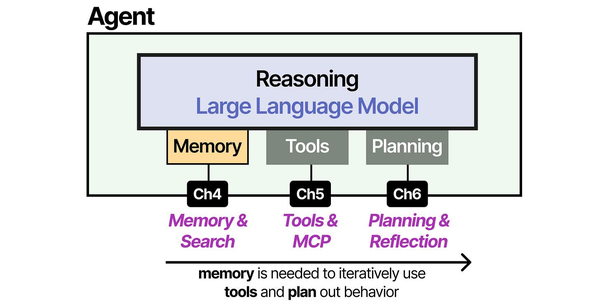
GPU passthrough in containerized environments is a foundational requirement for running production AI workloads. As illustrated in An Illustrated Guide to AI Agents by Grootendorst and Alammar, modern agent architectures depend on efficient hardware utilization to maintain responsive inference times. Docker's NVIDIA Container Toolkit bridges the gap between host GPU drivers and containerized models, enabling the same hardware acceleration that bare-metal deployments enjoy. Brousseau and Sharp in LLMs in Production emphasize that proper GPU isolation and resource allocation in container orchestration is critical for multi-tenant AI serving environments on Linux.
Related Articles
- Install NVIDIA Drivers and CUDA on Linux Server for AI: The No-Nonsense Guide (2026)
- NVIDIA Container Toolkit on Linux: GPU Setup for Docker AI Workloads
- Ollama Docker Compose: Complete GPU Stack for Linux
- Ollama on Proxmox: GPU Passthrough for LXC and VM AI Workloads
Further Reading
- An Illustrated Guide to AI Agents by Maarten Grootendorst and Jay Alammar — Visual guide to agent memory, tools, and reasoning.
- LLMs in Production by Christopher Brousseau and Matthew Sharp — Practical deployment of language models from training to production.
- Agentic AI in Enterprise by Sumit Ranjan, Divya Chembachere, and Lanwin Lobo — Enterprise architecture patterns for agentic AI systems.
Frequently Asked Questions
Can I use GPU passthrough with rootless Docker?
Yes, but it requires additional configuration. The NVIDIA Container Toolkit supports rootless Docker as of version 1.14. Run nvidia-ctk runtime configure --runtime=docker --config=$HOME/.config/docker/daemon.json to configure the rootless Docker instance. The user running rootless Docker must have read access to the NVIDIA device files in /dev/. Add the user to the video and render groups: sudo usermod -aG video,render $USER.
Does GPU passthrough work with Podman instead of Docker?
Yes. The NVIDIA Container Toolkit supports Podman natively. Configure it with sudo nvidia-ctk cdi generate --output=/etc/cdi/nvidia.yaml to generate a CDI (Container Device Interface) specification. Then run containers with podman run --device nvidia.com/gpu=all. CDI is the newer, vendor-neutral approach and works with both Podman and Docker.
How do I monitor GPU usage inside running containers?
Run nvidia-smi on the host — it shows all GPU processes regardless of whether they run in containers or on the host. To map PID to container, cross-reference with docker top container_name. For continuous monitoring, use nvidia-smi dmon -s pucvmet -d 5 which outputs GPU metrics every 5 seconds in a parseable format. For dashboards, the NVIDIA DCGM Exporter runs as a container and exposes GPU metrics in Prometheus format.


