Proxmox VE is the virtualization platform of choice for many Linux sysadmins and homelabbers. It runs KVM virtual machines and LXC containers on the same host, provides a web management interface, supports clustering, and costs nothing for the base platform. When you add GPU-accelerated AI workloads to the mix, things get interesting — and complicated. GPU passthrough on Proxmox requires specific BIOS settings, kernel parameters, driver configurations, and container or VM settings that are not intuitive to set up correctly.
There are two fundamentally different approaches to giving Ollama access to a GPU on Proxmox: passing the GPU through to a VM (full PCI passthrough via IOMMU/VFIO) or sharing it with an LXC container (device bind mount). Each has distinct advantages and limitations. VM passthrough gives the guest exclusive, bare-metal GPU access with full driver compatibility, but the GPU can only be used by one VM at a time. LXC GPU sharing lets the container use the host's NVIDIA driver stack, which means multiple containers can share a single GPU — but it requires matching driver versions and is less isolated.
This guide covers both methods in detail, including BIOS and kernel configuration, Proxmox-specific setup, driver installation, Ollama deployment inside both container types, and troubleshooting the specific failure modes that each approach creates.
Prerequisites: Host Configuration
Both approaches require the Proxmox host to be configured correctly first. The IOMMU must be enabled in BIOS and the kernel, even for LXC GPU sharing.
Enable IOMMU in BIOS/UEFI
Enter your server's BIOS/UEFI setup and enable the following settings. The exact names vary by motherboard manufacturer:
# For Intel systems, enable:
# - VT-d (Intel Virtualization Technology for Directed I/O)
# - IOMMU (may be under Advanced > System Agent or Chipset settings)

# For AMD systems, enable:
# - AMD-Vi / IOMMU (under Advanced > NBIO or AMD CBS settings)
# - SVM (Secure Virtual Machine) — usually already enabled for Proxmox

# Some motherboards also have an "ACS Enable" or "ACS Override" setting
# that improves IOMMU group separation — enable it if available.
Configure Kernel Parameters
# Edit the GRUB configuration on the Proxmox host
nano /etc/default/grub

# For Intel CPUs, add to GRUB_CMDLINE_LINUX_DEFAULT:
GRUB_CMDLINE_LINUX_DEFAULT="quiet intel_iommu=on iommu=pt"

# For AMD CPUs:
GRUB_CMDLINE_LINUX_DEFAULT="quiet amd_iommu=on iommu=pt"

# Update GRUB and reboot
update-grub
reboot

# Verify IOMMU is active after reboot
dmesg | grep -i -e DMAR -e IOMMU
# You should see messages like:
# DMAR: IOMMU enabled
# or: AMD-Vi: AMD IOMMUv2 loaded
Identify Your GPU's IOMMU Group
# List all IOMMU groups and their devices
#!/bin/bash
for d in /sys/kernel/iommu_groups/*/devices/*; do
  n=${d#*/iommu_groups/*}; n=${n%%/*}
  printf 'IOMMU Group %s: ' "$n"
  lspci -nns "${d##*/}"
done | sort -V

# Find your NVIDIA GPU specifically
lspci -nn | grep -i nvidia
# Example output:
# 41:00.0 VGA compatible controller [0300]: NVIDIA Corporation GA102 [GeForce RTX 3090] [10de:2204] (rev a1)
# 41:00.1 Audio device [0403]: NVIDIA Corporation GA102 High Definition Audio Controller [10de:1aef] (rev a1)

# Note the PCI IDs (41:00.0 and 41:00.1) and device IDs (10de:2204, 10de:1aef)
# ALL devices in the same IOMMU group must be passed through together
Approach 1: LXC Container with GPU Sharing (Recommended)
LXC GPU sharing is the preferred approach for most Ollama deployments on Proxmox. It avoids the overhead of full virtualization, allows multiple containers to share the GPU, and provides near-native performance. The tradeoff is that the host and container must use the same NVIDIA driver version.
Install NVIDIA Drivers on the Proxmox Host
# Add the non-free repository (Proxmox is Debian-based)
echo "deb http://deb.debian.org/debian bookworm main contrib non-free non-free-firmware" > /etc/apt/sources.list.d/non-free.list
apt update

# Install kernel headers and build tools
apt install -y pve-headers-$(uname -r) build-essential

# Install NVIDIA drivers
# Option A: Use Debian packages (simpler, may lag behind)
apt install -y nvidia-driver nvidia-smi

# Option B: Use NVIDIA's .run installer (latest version, more control)
# Download from https://www.nvidia.com/Download/index.aspx
wget https://us.download.nvidia.com/XFree86/Linux-x86_64/550.120/NVIDIA-Linux-x86_64-550.120.run
chmod +x NVIDIA-Linux-x86_64-550.120.run
./NVIDIA-Linux-x86_64-550.120.run --no-questions --ui=none --disable-nouveau

# Load the NVIDIA modules
modprobe nvidia
modprobe nvidia_uvm

# Verify the driver is loaded
nvidia-smi

# Make modules load at boot
echo "nvidia" >> /etc/modules-load.d/nvidia.conf
echo "nvidia_uvm" >> /etc/modules-load.d/nvidia.conf

# Create a udev rule to ensure device nodes exist
echo 'KERNEL=="nvidia", RUN+="/bin/bash -c '/usr/bin/nvidia-smi -L'"' > /etc/udev/rules.d/70-nvidia.rules
echo 'KERNEL=="nvidia_uvm", RUN+="/bin/bash -c '/usr/bin/nvidia-modprobe -c 0 -u'"' >> /etc/udev/rules.d/70-nvidia.rules
udevadm control --reload-rules
Create the LXC Container
# Create a privileged LXC container (GPU sharing requires privileged mode
# or specific device cgroup rules for unprivileged containers)

# Using the Proxmox CLI:
pct create 200 local:vztmpl/ubuntu-22.04-standard_22.04-1_amd64.tar.zst \
  --hostname ollama-ai \
  --memory 32768 \
  --swap 0 \
  --cores 8 \
  --rootfs local-lvm:50 \
  --net0 name=eth0,bridge=vmbr0,ip=dhcp \
  --features nesting=1 \
  --unprivileged 0

# Note: --unprivileged 0 creates a privileged container
# This is needed for direct GPU device access
Configure GPU Passthrough for the LXC Container
# Edit the container configuration on the Proxmox host
nano /etc/pve/lxc/200.conf

# Add these lines to pass through NVIDIA GPU devices:
lxc.cgroup2.devices.allow: c 195:* rwm
lxc.cgroup2.devices.allow: c 511:* rwm
lxc.cgroup2.devices.allow: c 510:* rwm
lxc.cgroup2.devices.allow: c 509:* rwm

lxc.mount.entry: /dev/nvidia0 dev/nvidia0 none bind,optional,create=file
lxc.mount.entry: /dev/nvidiactl dev/nvidiactl none bind,optional,create=file
lxc.mount.entry: /dev/nvidia-uvm dev/nvidia-uvm none bind,optional,create=file
lxc.mount.entry: /dev/nvidia-uvm-tools dev/nvidia-uvm-tools none bind,optional,create=file

# For multiple GPUs, add additional nvidia* entries:
# lxc.mount.entry: /dev/nvidia1 dev/nvidia1 none bind,optional,create=file

# Start the container
pct start 200

# Enter the container
pct enter 200
Install NVIDIA Drivers Inside the Container
# Inside the LXC container (pct enter 200):

# Install the SAME driver version as the host, but ONLY the userspace libraries
# Do NOT install the kernel module — the container uses the host's kernel module

# Check what version the host is running:
cat /proc/driver/nvidia/version

# Install matching userspace libraries
apt update
apt install -y wget

# Download the same driver version as the host
wget https://us.download.nvidia.com/XFree86/Linux-x86_64/550.120/NVIDIA-Linux-x86_64-550.120.run
chmod +x NVIDIA-Linux-x86_64-550.120.run

# Install ONLY userspace components (no kernel module)
./NVIDIA-Linux-x86_64-550.120.run --no-kernel-module --no-questions --ui=none

# Verify GPU is accessible from inside the container
nvidia-smi
Install Ollama in the LXC Container
# Still inside the container:

# Install Ollama
curl -fsSL https://ollama.com/install.sh | sh

# The installer will detect the NVIDIA GPU
# Start the service
systemctl enable --now ollama

# Verify Ollama can use the GPU
ollama run llama3.1:8b "What GPU am I running on?"

# Check that GPU inference is active
nvidia-smi  # Should show ollama using GPU memory
Approach 2: VM with Full PCI Passthrough
Full PCI passthrough gives a VM exclusive access to the GPU. The VM runs its own NVIDIA drivers independently of the host. This is necessary when you need a different driver version, want to run Windows in the VM, or require complete isolation.
Blacklist NVIDIA Drivers on the Host
# The host must NOT load NVIDIA drivers for the GPU being passed through

# Blacklist NVIDIA modules on the host
echo "blacklist nvidia" > /etc/modprobe.d/blacklist-nvidia.conf
echo "blacklist nvidia_uvm" >> /etc/modprobe.d/blacklist-nvidia.conf
echo "blacklist nvidia_drm" >> /etc/modprobe.d/blacklist-nvidia.conf
echo "blacklist nouveau" >> /etc/modprobe.d/blacklist-nvidia.conf

# Configure VFIO to claim the GPU
# Use the device IDs from the lspci output earlier
echo "options vfio-pci ids=10de:2204,10de:1aef" > /etc/modprobe.d/vfio.conf

# Ensure VFIO modules load early
echo "vfio" >> /etc/modules-load.d/vfio.conf
echo "vfio_iommu_type1" >> /etc/modules-load.d/vfio.conf
echo "vfio_pci" >> /etc/modules-load.d/vfio.conf

# Rebuild initramfs and reboot
update-initramfs -u -k all
reboot

# After reboot, verify VFIO has claimed the GPU
lspci -nnk -s 41:00.0
# Should show: Kernel driver in use: vfio-pci
Create the VM with GPU Passthrough
# Create the VM via Proxmox CLI
qm create 300 \
  --name ollama-vm \
  --memory 32768 \
  --cores 8 \
  --sockets 1 \
  --cpu host \
  --bios ovmf \
  --machine q35 \
  --net0 virtio,bridge=vmbr0 \
  --scsihw virtio-scsi-single \
  --scsi0 local-lvm:100,iothread=1 \
  --ide2 local:iso/ubuntu-24.04-live-server-amd64.iso,media=cdrom \
  --boot order=ide2

# Add the GPU as a PCI device
qm set 300 -hostpci0 41:00,pcie=1,x-vga=0

# Important settings for GPU passthrough:
# pcie=1 — Use PCIe mode (required for modern GPUs)
# x-vga=0 — Do not use as primary display (set to 1 only for GPU console)

# If your IOMMU group contains both GPU and audio:
# qm set 300 -hostpci0 41:00,pcie=1,x-vga=0
# This passes both 41:00.0 (GPU) and 41:00.1 (audio) automatically

# Add EFI disk for UEFI boot
qm set 300 -efidisk0 local-lvm:1,efitype=4m

# Start the VM and install the OS
qm start 300
Install NVIDIA Drivers and Ollama in the VM
# After the OS is installed, connect via SSH or console

# Install NVIDIA drivers (full installation, including kernel modules)
sudo apt update
sudo apt install -y ubuntu-drivers-common
sudo ubuntu-drivers install

# Reboot to load the driver
sudo reboot

# Verify the GPU is detected
nvidia-smi

# Install Ollama
curl -fsSL https://ollama.com/install.sh | sh
sudo systemctl enable --now ollama

# Pull a model and test
ollama pull llama3.1:8b
ollama run llama3.1:8b "Confirm GPU inference is working."
LXC vs VM: Decision Matrix
The choice between LXC and VM passthrough depends on your specific requirements:
# LXC GPU Sharing:
# + Multiple containers can share one GPU
# + Near-zero overhead (no hypervisor layer for GPU access)
# + Faster startup (seconds vs minutes)
# + Less RAM overhead (no duplicate OS kernel)
# + Simpler storage management
# - Requires matching driver versions (host and container)
# - Less isolation (shared kernel, privileged container)
# - Cannot run Windows workloads
# - GPU memory not strictly partitioned between containers
#
# VM PCI Passthrough:
# + Complete isolation (separate kernel, drivers, everything)
# + Independent driver versions per VM
# + Can run Windows or any OS
# + Strict GPU memory isolation
# + Better for untrusted workloads
# - Exclusive GPU access (one VM per GPU)
# - Higher RAM overhead (full OS in each VM)
# - Slower startup
# - More complex initial setup (IOMMU groups, VFIO)
Troubleshooting Common Issues
LXC: "NVIDIA-SMI has failed because it couldn't communicate with the NVIDIA driver"
# This usually means a driver version mismatch between host and container.

# Check host driver version:
# On the Proxmox host:
nvidia-smi --query-gpu=driver_version --format=csv,noheader

# Check container driver version:
# Inside the container:
cat /proc/driver/nvidia/version

# If they differ, reinstall the matching version in the container.

# Another common cause: the NVIDIA kernel modules are not loaded on the host
# On the Proxmox host:
lsmod | grep nvidia
# If empty:
modprobe nvidia
modprobe nvidia_uvm

# Check that device files exist on the host:
ls -la /dev/nvidia*
# If missing, run: nvidia-smi (this creates the device files)
VM: GPU Passthrough Fails with "Unknown PCI header type"
# This usually means IOMMU is not properly configured.

# Verify IOMMU is active:
dmesg | grep -i iommu

# Verify VFIO is claiming the device:
lspci -nnk -s 41:00
# Must show: Kernel driver in use: vfio-pci

# If the GPU is in a group with other devices (like a USB controller),
# ALL devices in that group must be passed through or bound to vfio-pci.

# Check what else is in the IOMMU group:
ls /sys/bus/pci/devices/0000:41:00.0/iommu_group/devices/

# If you cannot pass all devices, use the ACS override patch
# (last resort, has security implications)
VM: Poor GPU Performance After Passthrough
# Ensure CPU topology is correct — mismatched topology causes NUMA penalties
qm set 300 --cpu host
# Use 'host' CPU type, not 'kvm64' or 'qemu64'

# Check that the VM sees the full PCIe bandwidth:
# Inside the VM:
sudo lspci -vv -s 00:10.0 | grep -i width
# Should show: LnkSta: Speed 16GT/s, Width x16

# If showing x1 or lower speed, check the Proxmox hostpci settings:
# Ensure pcie=1 is set in the hostpci configuration

# Enable hugepages for better memory performance
qm set 300 --hugepages 1024
Production Deployment Tips
# Automated Proxmox host configuration backup
# Run this before making GPU passthrough changes

pvesh get /nodes/$(hostname)/config --output-format json > /backup/pve_node_config.json
cat /etc/pve/lxc/200.conf > /backup/lxc_200.conf.bak
cat /etc/pve/qemu-server/300.conf > /backup/vm_300.conf.bak

# Monitor GPU temperature from the Proxmox host
# (useful even when GPU is passed through to LXC)
watch -n 5 nvidia-smi --query-gpu=temperature.gpu,utilization.gpu,memory.used --format=csv

# Set up automated model preloading after container/VM start
# Inside the container/VM:
sudo tee /etc/systemd/system/ollama-preload.service <<'EOF'
[Unit]
Description=Preload Ollama Models
After=ollama.service
Requires=ollama.service

[Service]
Type=oneshot
ExecStartPre=/bin/sleep 10
ExecStart=/usr/local/bin/ollama pull llama3.1:8b
ExecStart=/usr/local/bin/ollama pull qwen2.5-coder:7b
RemainAfterExit=true

[Install]
WantedBy=multi-user.target
EOF
systemctl enable ollama-preload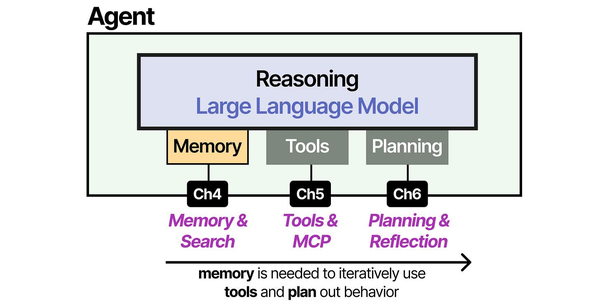
Running Ollama in Proxmox virtualized environments requires careful GPU passthrough configuration that Brousseau and Sharp address in LLMs in Production. Their infrastructure chapters detail the IOMMU group management, PCIe device assignment, and driver binding strategies that apply directly to Proxmox's QEMU/KVM and LXC implementations. As Grootendorst and Alammar illustrate in An Illustrated Guide to AI Agents, the agent architecture assumes direct hardware access for inference — when that hardware sits behind a virtualization layer, proper passthrough configuration becomes the critical path to achieving bare-metal inference performance in multi-tenant homelab and enterprise environments.
Related Articles
- Docker GPU Passthrough on Linux for AI Workloads
- Install NVIDIA Drivers and CUDA on Linux Server for AI: The No-Nonsense Guide (2026)
- NVIDIA Container Toolkit on Linux: GPU Setup for Docker AI Workloads
- GPU Monitoring for AI Workloads on Linux: Tools, Dashboards, and Alerts
Further Reading
- An Illustrated Guide to AI Agents by Maarten Grootendorst and Jay Alammar — Visual guide to agent memory, tools, and reasoning.
- LLMs in Production by Christopher Brousseau and Matthew Sharp — Practical deployment of language models from training to production.
- Agentic AI in Enterprise by Sumit Ranjan, Divya Chembachere, and Lanwin Lobo — Enterprise architecture patterns for agentic AI systems.
Frequently Asked Questions
Can I split one GPU between multiple LXC containers?
Yes, and this is one of the main advantages of the LXC approach. Multiple containers can access the same GPU simultaneously. Ollama manages VRAM allocation per model, so as long as the total VRAM usage across all containers does not exceed the GPU's capacity, they coexist without issues. There is no hard partitioning — containers compete for GPU time and memory. For workload isolation, use NVIDIA MPS (Multi-Process Service) or MIG (Multi-Instance GPU, available on A100/A30/H100) to partition the GPU at the hardware level.
Do I need an NVIDIA GPU, or does AMD work with Proxmox passthrough?
AMD GPUs work for VM passthrough (VFIO/IOMMU) with the amdgpu kernel driver in the guest VM. However, Ollama's AMD support requires ROCm, which is limited to specific AMD GPU models (RX 7000 series, MI-series, some RX 6000). LXC GPU sharing with AMD is possible but less well-documented and tested than NVIDIA. For the most reliable experience with Ollama on Proxmox, NVIDIA GPUs remain the safer choice.
What happens to the container/VM when the Proxmox host reboots?
Configure the container or VM to start automatically after host boot. In Proxmox: set the "Start at boot" option in the VM/container settings (or onboot: 1 in the config file). Set start delays if you have multiple GPU workloads to prevent them from competing for GPU initialization simultaneously. For LXC, verify that the NVIDIA kernel modules are loaded before the container starts by setting proper systemd dependencies.
Is there a performance difference between LXC GPU sharing and bare-metal Ollama?
LXC GPU sharing introduces negligible overhead — typically less than 1% performance difference compared to bare-metal. The container uses the host kernel directly, and GPU device access is a direct passthrough of the device files. VM passthrough has slightly more overhead (2-5%) due to the IOMMU translation layer and virtualized PCIe bus, but this is still excellent performance. Both approaches are vastly better than CPU-only inference.


