Linux software RAID with mdadm lets the kernel handle disk redundancy and striping without a dedicated hardware controller. The mdadm utility has been the standard software RAID management tool since the early 2.6 kernel days and remains the primary way to build, monitor, and recover arrays on bare-metal servers and virtual machines. If you already understand LVM basics and partition management, software RAID is the next layer to master for production storage infrastructure.
This article covers RAID level selection, array creation, monitoring, disk replacement, growing arrays, bitmap resync, and mdadm recovery procedures. All examples target current distributions: Debian 13.3, Ubuntu 24.04.3 LTS, Fedora 43, and RHEL 10.1 (with RHEL 9.7 compatibility notes where relevant).
RAID Levels Compared: Capacity, Resilience, and Performance
Picking the right RAID level is a capacity-versus-resilience tradeoff. Here is a concrete comparison for the levels mdadm supports natively.
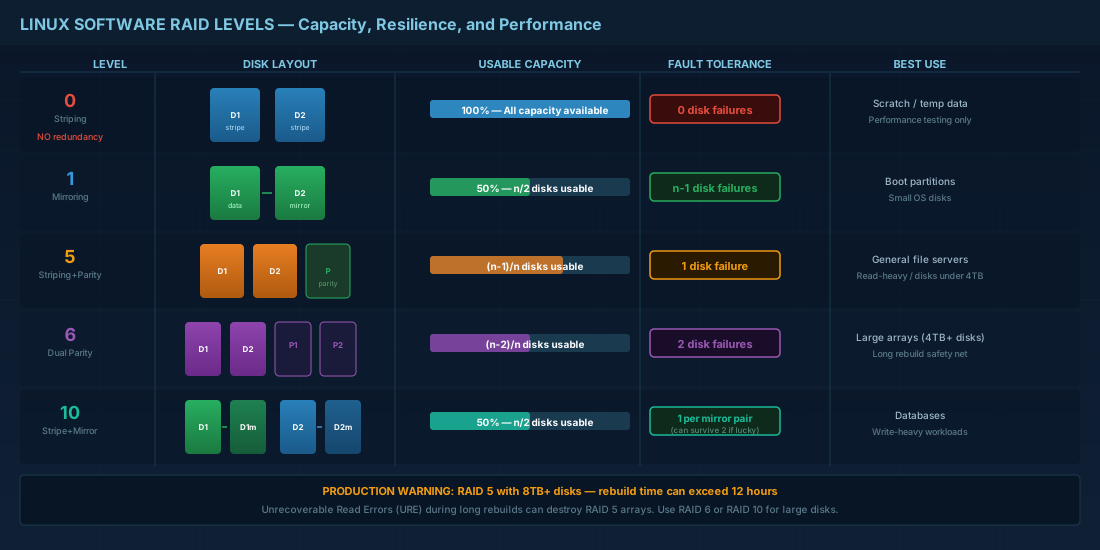
| Level | Min disks | Usable capacity | Disk failures tolerated | Write penalty | Best for |
|---|---|---|---|---|---|
| RAID 0 | 2 | 100% | 0 | None | Scratch/temp data, performance testing |
| RAID 1 | 2 | 50% | n-1 | Low | Boot partitions, small OS disks |
| RAID 5 | 3 | (n-1)/n | 1 | Moderate (parity calc) | General file servers, read-heavy loads |
| RAID 6 | 4 | (n-2)/n | 2 | Higher (dual parity) | Large arrays with big disks (4TB+) |
| RAID 10 | 4 | 50% | 1 per mirror pair | Low | Databases, write-heavy workloads |
A common production mistake: using RAID 5 with 8TB or larger disks. Rebuild times on large disks can exceed 12 hours, and an unrecoverable read error (URE) during rebuild kills the whole array. RAID 6 or RAID 10 is safer for large-capacity drives. The math is straightforward: with a URE rate of 1 in 10^14 bits, a 10TB disk rebuild reads about 10^13 bytes, giving you a meaningful chance of hitting an error.
Creating Software RAID Arrays with mdadm
Before creating an array, prepare your disks with GPT partition tables. Modern systems should use GPT exclusively. MBR has a 2TB limit per partition, and UEFI systems expect GPT.
# Install mdadm
# Debian 13.3 / Ubuntu 24.04.3 LTS
sudo apt install -y mdadm

# Fedora 43 / RHEL 10.1
sudo dnf install -y mdadm

# Partition disks with GPT and set RAID type
# Repeat for each disk (sdb, sdc, sdd, sde)
sudo parted /dev/sdb --script mklabel gpt
sudo parted /dev/sdb --script mkpart primary 1MiB 100%
sudo parted /dev/sdb --script set 1 raid on

# Verify partitions before array creation
lsblk -o NAME,SIZE,TYPE,PARTTYPE /dev/sd{b,c,d,e}

# Create a RAID 6 array with 4 disks and a bitmap for faster resync
sudo mdadm --create /dev/md0 --level=6 --raid-devices=4 \
  --bitmap=internal /dev/sd{b,c,d,e}1

# Watch initial sync progress
watch cat /proc/mdstat
The --bitmap=internal flag stores a write-intent bitmap inside the array metadata. During a clean shutdown and restart, the kernel only resyncs blocks that were being written, instead of scanning the entire array. On a 4x4TB RAID 6, this can reduce resync time from hours to minutes after a reboot.
Persist the mdadm Configuration
If you skip this step, the array may not assemble on reboot. The kernel scans for arrays automatically, but relying on auto-detection is fragile. Always write the config explicitly.
# Save array definition to mdadm.conf
sudo mdadm --detail --scan | sudo tee -a /etc/mdadm/mdadm.conf

# On RHEL/Fedora the file is /etc/mdadm.conf
sudo mdadm --detail --scan | sudo tee -a /etc/mdadm.conf

# Rebuild initramfs so early boot knows about the array
# Debian/Ubuntu
sudo update-initramfs -u

# Fedora/RHEL
sudo dracut --force
Failing to update initramfs after changing mdadm.conf is the number one cause of arrays not assembling at boot. If the root filesystem is on RAID, this means a rescue boot.
Creating a RAID 1 Boot Mirror: Step-by-Step Example
A RAID 1 boot mirror is one of the most common mdadm use cases. It ensures the server can boot even if one disk fails entirely. Here is a complete walkthrough for mirroring the boot partition across two disks.
# Partition both disks identically for boot mirror
sudo parted /dev/sdb --script mklabel gpt
sudo parted /dev/sdb --script mkpart primary 1MiB 1GiB
sudo parted /dev/sdb --script set 1 raid on

sudo parted /dev/sdc --script mklabel gpt
sudo parted /dev/sdc --script mkpart primary 1MiB 1GiB
sudo parted /dev/sdc --script set 1 raid on

# Create the RAID 1 mirror for /boot
sudo mdadm --create /dev/md0 --level=1 --raid-devices=2 \
  --metadata=1.0 /dev/sdb1 /dev/sdc1

# metadata=1.0 places superblock at the end of the device,
# which is required for GRUB to read the array at boot time

# Format with ext4 (recommended for /boot)
sudo mkfs.ext4 /dev/md0

# Mount and verify
sudo mount /dev/md0 /boot
df -h /boot

# Install GRUB on both disks for redundancy
sudo grub-install /dev/sdb
sudo grub-install /dev/sdc

# Save config and update initramfs
sudo mdadm --detail --scan | sudo tee -a /etc/mdadm/mdadm.conf
sudo update-initramfs -u
Using --metadata=1.0 is essential for boot arrays because GRUB cannot read metadata version 1.2 (the default). The 1.0 format places the superblock at the end of the device, allowing GRUB to see the filesystem directly. Installing GRUB on both disks ensures the system boots regardless of which disk survives.
Monitoring and RAID Failure Detection
A RAID array without monitoring is a silent time bomb. You need to know when a disk fails so you can replace it before a second failure destroys the array.
# Check array status
sudo mdadm --detail /dev/md0

# Quick status from /proc
cat /proc/mdstat

# Start the mdadm monitor daemon (sends email on events)
# Verify mailname/MTA is configured, then:
sudo mdadm --monitor --daemonise --mail=admin@example.com --scan

# On systemd systems, enable the monitor service instead
sudo systemctl enable --now mdmonitor.service

# Manually test alert (mark a disk as faulty, then re-add)
# WARNING: only do this in a test environment
sudo mdadm /dev/md0 --fail /dev/sde1
sudo mdadm /dev/md0 --remove /dev/sde1
sudo mdadm /dev/md0 --add /dev/sde1
On RHEL 10.1 and Fedora 43, the mdmonitor.service unit handles monitoring. On Debian 13.3 and Ubuntu, the package installs an equivalent systemd service. Either way, confirm it is running with systemctl status mdmonitor. Enterprise teams often forward mdadm events to a central alerting system (Prometheus Alertmanager, PagerDuty) rather than relying on local email.
Scheduled Scrubbing for Silent Data Corruption
Even when no disk has failed, silent bit rot can accumulate on drives. A RAID scrub (also called a consistency check) reads all blocks and verifies parity. If it finds a mismatch, it repairs the data using parity. Most distributions schedule this automatically, but you should verify.
# Trigger a manual scrub
echo check > /sys/block/md0/md/sync_action

# Monitor scrub progress
cat /proc/mdstat

# View mismatch count after scrub completes
cat /sys/block/md0/md/mismatch_cnt
# A non-zero value means corrected mismatches were found

# On Debian/Ubuntu, check the cron job
cat /etc/cron.d/mdadm
# Typically runs on the first Sunday of each month

# On RHEL/Fedora, check the systemd timer
systemctl list-timers | grep mdcheck
A mismatch_cnt greater than zero after a scrub deserves investigation. On RAID 5 and RAID 6, mismatches usually indicate a prior unclean shutdown or a failing drive. Check smartctl data for the drives and consider proactive replacement if error counts are rising.
Replacing a Failed Disk in a Linux RAID Array
Disk replacement in a running array is a core sysadmin task. The procedure is the same regardless of RAID level (except RAID 0, where a failure means data loss).
# 1. Identify the failed disk
sudo mdadm --detail /dev/md0
# Look for "faulty" or "removed" state

# 2. If the disk was not auto-removed, mark it and remove
sudo mdadm /dev/md0 --fail /dev/sde1
sudo mdadm /dev/md0 --remove /dev/sde1

# 3. Physically replace the disk (hot-swap if hardware supports it)
# 4. Partition the new disk identically to the others
sudo parted /dev/sde --script mklabel gpt
sudo parted /dev/sde --script mkpart primary 1MiB 100%
sudo parted /dev/sde --script set 1 raid on

# 5. Add the new disk to the array
sudo mdadm /dev/md0 --add /dev/sde1

# 6. Monitor the rebuild
watch cat /proc/mdstat

# 7. Update mdadm.conf if UUIDs changed
sudo mdadm --detail --scan | sudo tee /etc/mdadm/mdadm.conf
sudo update-initramfs -u   # Debian/Ubuntu
# sudo dracut --force       # RHEL/Fedora
Rebuild time depends on array size, RAID level, and I/O load. A 4TB RAID 6 rebuild can take 6-10 hours under moderate load. During rebuild, the array is degraded. For RAID 5, one more failure during rebuild means total data loss. For RAID 6, you can survive one more failure, which is why RAID 6 is preferred for large disks.
You can control rebuild speed with the kernel tunables /proc/sys/dev/raid/speed_limit_min and speed_limit_max. Increasing the minimum speeds up rebuilds but hurts application I/O. A reasonable production setting is speed_limit_min=50000 (50 MB/s) and speed_limit_max=200000 (200 MB/s).
Growing and Reshaping mdadm Arrays Online
mdadm can grow an array by adding disks and then reshaping. This is an online operation, but it takes time and has risk.
# Add a fifth disk to a 4-disk RAID 6
sudo mdadm /dev/md0 --add /dev/sdf1

# Grow the array to use 5 devices
sudo mdadm --grow /dev/md0 --raid-devices=5

# Monitor reshape progress
cat /proc/mdstat

# After reshape completes, grow the filesystem
# If the array holds an LVM PV:
sudo pvresize /dev/md0
sudo lvextend -l +100%FREE /dev/vg_data/lv_data
sudo xfs_growfs /mount/point
The reshape process rewrites all data blocks to distribute parity across the new disk count. On large arrays this can take a day or more. A power failure during reshape is survivable because mdadm checkpoints progress, but it adds significant time. Consider using a UPS and scheduling reshapes during low-activity windows.
You can also change the RAID level of an existing array using mdadm --grow --level=. For example, converting a RAID 1 mirror to a RAID 5 array with an additional disk is a supported online operation. However, not all level transitions are possible; consult the mdadm man page for the supported conversion paths.
mdadm Software RAID Quick Reference
| Task | Command |
|---|---|
| Create RAID 5, 3 disks | mdadm --create /dev/md0 --level=5 --raid-devices=3 /dev/sd{b,c,d}1 |
| Create RAID 10, 4 disks | mdadm --create /dev/md1 --level=10 --raid-devices=4 /dev/sd{b,c,d,e}1 |
| Add bitmap to existing array | mdadm --grow /dev/md0 --bitmap=internal |
| View array detail | mdadm --detail /dev/md0 |
| Live status | cat /proc/mdstat |
| Save config | mdadm --detail --scan >> /etc/mdadm/mdadm.conf |
| Fail a disk | mdadm /dev/md0 --fail /dev/sdX1 |
| Remove failed disk | mdadm /dev/md0 --remove /dev/sdX1 |
| Add replacement disk | mdadm /dev/md0 --add /dev/sdX1 |
| Grow array to more devices | mdadm --grow /dev/md0 --raid-devices=N |
| Set rebuild speed | echo 200000 > /proc/sys/dev/raid/speed_limit_max |
| Trigger scrub/check | echo check > /sys/block/md0/md/sync_action |
| Stop an array | mdadm --stop /dev/md0 |
| Assemble from config | mdadm --assemble --scan |
Summary
Software RAID with mdadm is a mature, well-tested approach to disk redundancy on Linux. It works on any hardware without vendor lock-in. The key decisions are: pick the right RAID level for your workload and disk sizes, always use GPT partitions, always persist the configuration in mdadm.conf and the initramfs, and always run monitoring.
For production servers, RAID 6 or RAID 10 should be the default choice for data arrays. RAID 1 is fine for OS/boot mirrors. Bitmaps make reboots faster. Rebuilds are the most dangerous window, so having RAID 6 gives you a buffer when a second disk starts showing errors during a long resync. Test your replacement procedure before you need it in an emergency. For the underlying storage layers, explore device mapper and storage virtualization or learn about encrypting your RAID volumes with LUKS.