LVM (Logical Volume Manager) lets you manage disk space in layers instead of fixed partitions. For a beginner, this matters because servers rarely stay the same size. Logs grow, databases grow, and new disks get attached later. With LVM, you can often extend storage without rebuilding the whole system.
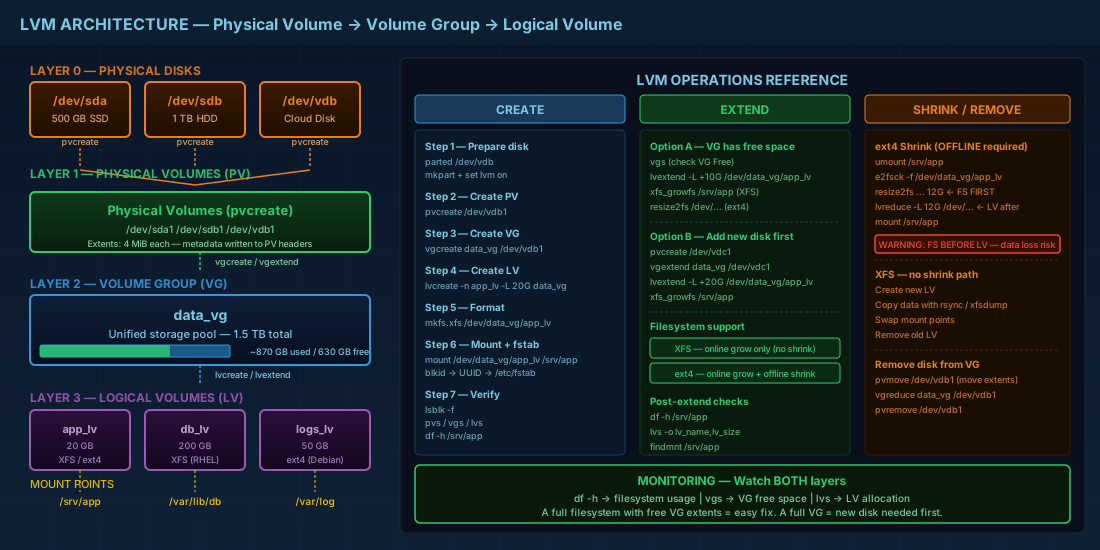
You only need three terms to start: PV, VG, and LV. A physical volume (PV) is a disk or partition prepared for LVM. A volume group (VG) is a storage pool made from one or more PVs. A logical volume (LV) is the usable block device that you format and mount. This article explains each layer with commands you can run in labs and production.
PV, VG, and LV in plain language
Think of LVM as a warehouse model. PVs are storage rooms, a VG is the whole warehouse floor, and LVs are the shelves you assign to applications. If one shelf gets full, you can make it larger if the warehouse has free space.
Why operators like this model: it reduces emergency migrations. Without LVM, a full partition often means downtime and data moves. With LVM, a planned extension can be a short maintenance task.
# Inspect existing block devices and filesystems
lsblk -f

# Show LVM structures if they already exist
sudo pvs
sudo vgs
sudo lvs -a -o +devices
Production consequence: if you only watch filesystem usage (`df -h`) and ignore VG free space (`vgs`), you can miss capacity risk. Teams should monitor both. An LV can be 95% full while the VG still has free extents, which is an easy fix. If the VG is also full, you need a new disk first.
Create your first LVM layout safely
The example below uses a new disk `/dev/vdb` and creates one LV for application data. Replace names to match your environment.
# Install LVM tools (package name is lvm2 on all listed distros)
# Debian 13.3 / Ubuntu 24.04.3 LTS / Ubuntu 25.10
sudo apt update && sudo apt install -y lvm2

# Fedora 43 / RHEL 10.1 / RHEL 9.7
sudo dnf install -y lvm2

# Verify target disk first; never guess
lsblk -o NAME,SIZE,TYPE,MODEL,SERIAL

# Optional but common: create a GPT partition for LVM
sudo parted /dev/vdb --script mklabel gpt
sudo parted /dev/vdb --script mkpart primary 1MiB 100%
sudo parted /dev/vdb --script set 1 lvm on

# Build LVM layers
sudo pvcreate /dev/vdb1
sudo vgcreate data_vg /dev/vdb1
sudo lvcreate -n app_lv -L 20G data_vg

# Format and mount (XFS shown; ext4 is also common)
sudo mkfs.xfs /dev/data_vg/app_lv
sudo mkdir -p /srv/app
sudo mount /dev/data_vg/app_lv /srv/app

# Persist mount by UUID
sudo blkid /dev/data_vg/app_lv
# Add line in /etc/fstab with the UUID and xfs/ext4 type
sudo editor /etc/fstab
sudo mount -a
findmnt /srv/app
`pvcreate` and `vgcreate` overwrite metadata on the target device. Run `lsblk` and check disk size and serial before every destructive command.
Beginner tip: use meaningful names like `data_vg`, `db_lv`, or `logs_lv`. During incidents, readable names save time.
Extend an LV online with minimal downtime
Growth is the main reason people choose LVM. In many cases, extending is an online operation. The exact filesystem step depends on XFS or ext4.
# Option A: VG already has free space
sudo vgs
sudo lvextend -L +10G /dev/data_vg/app_lv

# Grow filesystem after LV extension
# For XFS (must be mounted)
sudo xfs_growfs /srv/app

# For ext4 (can grow online when mounted)
# sudo resize2fs /dev/data_vg/app_lv

# Option B: no VG free space, add another disk
sudo pvcreate /dev/vdc1
sudo vgextend data_vg /dev/vdc1
sudo lvextend -L +20G /dev/data_vg/app_lv
sudo xfs_growfs /srv/app

# Confirm result
df -h /srv/app
sudo lvs -o lv_name,vg_name,lv_size,data_percent,metadata_percent
Practical consequence in production: extending late at night is common when alerting catches full disks. A documented runbook with these commands prevents panic changes that cause boot failures or wrong-disk writes.
Reduce size and remove disks carefully
Shrinking is where incidents happen. LVM can reduce an LV, but the filesystem inside the LV must support shrinking safely.
- XFS cannot be shrunk. To make it smaller, create a new LV, copy data, and switch mounts.
- ext4 can be shrunk, but usually offline and only after a filesystem check.
# Example ext4 shrink workflow (service downtime required)
sudo umount /srv/app
sudo e2fsck -f /dev/data_vg/app_lv
sudo resize2fs /dev/data_vg/app_lv 12G
sudo lvreduce -L 12G /dev/data_vg/app_lv
sudo mount /srv/app

# Remove an old PV from a VG safely
sudo pvmove /dev/vdb1            # Move extents off this disk
sudo vgreduce data_vg /dev/vdb1  # Detach disk from VG
sudo pvremove /dev/vdb1          # Clear LVM metadata
Production consequence: running `lvreduce` before shrinking ext4 can corrupt data. The safe order is filesystem first, then LV size. For XFS, plan migrations instead of shrink operations.
Distro compatibility notes (2026 baseline)
The core LVM commands (`pvcreate`, `vgcreate`, `lvcreate`, `lvextend`) are consistent across current major distributions. Differences are usually in default filesystem choices and installer defaults.
| Distribution | LVM package/tools | Common filesystem context | Beginner note |
|---|---|---|---|
| Debian 13.3 | `lvm2` via `apt` | ext4 common in basic installs | Good platform to learn ext4 resize flow. |
| Ubuntu 24.04.3 LTS / 25.10 | `lvm2` via `apt` | ext4 typical; LVM optional in installer | Check installer layout before assuming LVM is enabled. |
| Fedora 43 | `lvm2` via `dnf` | Btrfs common on Workstation installs | LVM is often used in server/custom layouts, less in default desktop installs. |
| RHEL 10.1 / RHEL 9.7 | `lvm2` via `dnf` | XFS is the enterprise default in many deployments | Remember: XFS growth is easy, shrink is not supported. |
Compatibility note for mixed fleets: command syntax is stable across RHEL 9.7 and 10.1, so one runbook can usually serve both versions if filesystem differences are called out.
Operational checks that prevent common outages
After any LVM change, verify more than one layer. This takes two minutes and catches most mistakes.
# Verify mapping chain and mount target
lsblk -f
findmnt /srv/app
sudo lvs -a -o lv_name,vg_name,lv_size,lv_attr,devices
sudo vgs -o vg_name,vg_size,vg_free

# Verify boot-time mount configuration
sudo mount -a
sudo systemctl daemon-reload
For beginners: write down the exact device path, VG name, LV name, and mount point before starting. For operators: add these checks to CI or post-change automation so drift is detected early.
Summary
PV, VG, and LV are simple once you see the layers: disks feed a pool, and volumes are carved from that pool. LVM is valuable because growth is routine in real systems, not a rare event. Use clear naming, verify target disks, mount by UUID, and check both filesystem usage and VG free space.
If you are new, practice create and extend workflows first. Treat shrink and disk removal as advanced operations with a maintenance window and backup. That approach matches real production habits on Debian 13.3, Ubuntu 24.04.3 LTS and 25.10, Fedora 43, and RHEL 10.1 with RHEL 9.7 compatibility.