OpenSSH does far more than give you a remote shell. Mastering SSH tunneling, SSH certificates, and sshd hardening is essential for securing production Linux infrastructure. At LPIC-2 level, you need to know how to tunnel arbitrary traffic through encrypted SSH connections, replace individual key management with a certificate authority, and lock down sshd so that it resists automated attacks. OpenSSH 9.x (shipped on Debian 13.3, Ubuntu 24.04.3 LTS, Fedora 43, RHEL 10.1) includes features like FIDO2 hardware key support and stricter defaults that older guides do not cover.
This article covers the advanced SSH configuration that separates a secure production setup from the defaults that ship with the OS. For foundational SSH key management and basic hardening, see OpenSSH for Admins: Keys, Hardening, and Tunneling.
SSH Tunneling: Local, Remote, and Dynamic Port Forwarding
SSH tunnels encrypt traffic between two endpoints through an SSH connection. They are the simplest way to access internal services securely without deploying a full VPN. Understanding how SSH forwarding works at the protocol level is easier when you know the underlying TCP/IP stack internals.
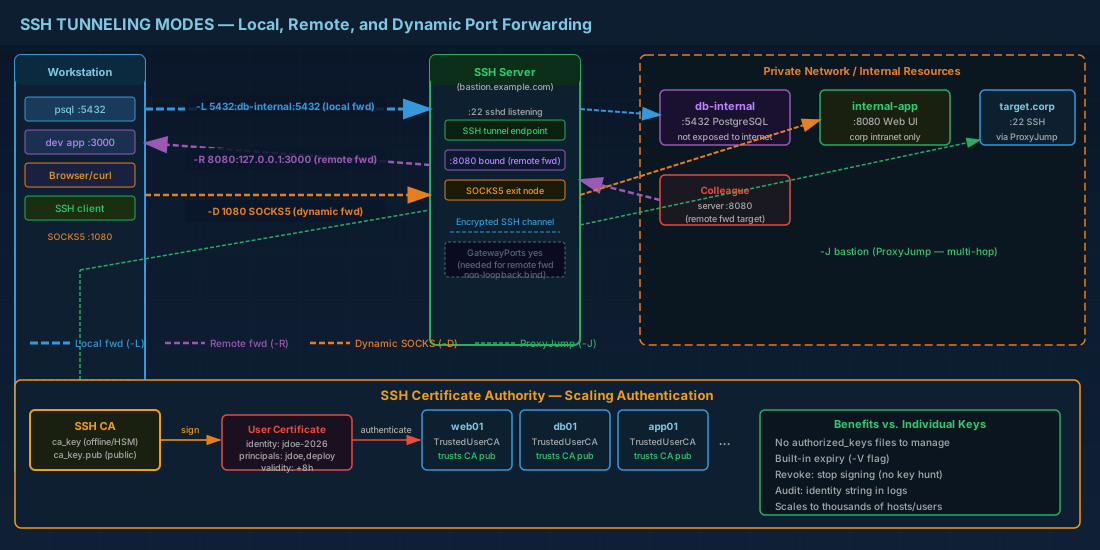
Local port forwarding (-L) for secure database access
Local forwarding binds a port on your machine and forwards traffic through the SSH server to a destination. Use case: accessing a database on a private network from your workstation.
# Forward local port 5432 through bastion to internal database server
ssh -L 5432:db-internal.example.com:5432 user@bastion.example.com

# Now connect to the database as if it were local
psql -h 127.0.0.1 -p 5432 -U appuser mydb

# Run in background without a shell
ssh -fNL 5432:db-internal.example.com:5432 user@bastion.example.com
# -f = background after auth, -N = no remote command
Remote port forwarding (-R) for exposing local services
Remote forwarding binds a port on the SSH server and forwards traffic back to your machine (or another host you can reach). Use case: exposing a local development service to a colleague through a shared jump host.
# Make your local port 3000 accessible on the server's port 8080
ssh -R 8080:127.0.0.1:3000 user@server.example.com

# Anyone who connects to server.example.com:8080 reaches your local :3000
# Requires GatewayPorts yes in sshd_config on the server for non-loopback binding
Dynamic port forwarding (-D) as a SOCKS5 proxy
Dynamic forwarding creates a SOCKS5 proxy on your machine. All traffic routed through the proxy exits from the SSH server. Use case: browsing internal web UIs through a bastion without setting up individual tunnels.
# Create a SOCKS5 proxy on local port 1080
ssh -D 1080 user@bastion.example.com

# Configure your browser or curl to use the proxy
curl --socks5-hostname 127.0.0.1:1080 http://internal-app.corp:8080/health
SSH jump hosts with ProxyJump for multi-hop connections
Instead of manually SSHing to a bastion and then to the target, use ProxyJump to chain connections automatically. This is cleaner and works with SCP and rsync too.
# Command line
ssh -J bastion.example.com internal-server.corp

# Multi-hop
ssh -J bastion1.example.com,bastion2.example.com target.corp

# In ~/.ssh/config (persistent configuration)
Host internal-*
    ProxyJump bastion.example.com
    User deploy

Host bastion.example.com
    User jumpuser
    IdentityFile ~/.ssh/bastion_ed25519
    Port 22
ProxyJump replaced the older ProxyCommand with nc or ssh -W. It is simpler and handles key negotiation for each hop independently.
Practical tunnel management tips
Managing multiple SSH tunnels in production requires discipline. Here are patterns that prevent common operational issues:
- Use ssh_config for persistent tunnels -- define tunnel configurations in
~/.ssh/configwithLocalForwardandRemoteForwarddirectives rather than typing long command lines each time. - Monitor tunnel health -- use
ServerAliveInterval 30andServerAliveCountMax 3in your ssh_config to detect dead connections and auto-reconnect with a wrapper script orautossh. - Bind to specific interfaces -- by default, local forwards bind to
127.0.0.1. Usessh -L 0.0.0.0:5432:db:5432only when you intentionally want other hosts to use your tunnel, and combine it with firewall rules.
# autossh: automatically restart SSH tunnels on failure
# Install: apt install autossh (Debian/Ubuntu) or dnf install autossh (Fedora/RHEL)
autossh -M 0 -fNL 5432:db-internal:5432 user@bastion.example.com \
  -o "ServerAliveInterval=30" -o "ServerAliveCountMax=3"
SSH Certificates: Scaling Authentication with a Certificate Authority
Individual SSH keys work fine for a team of five. At fifty or five hundred, distributing and revoking public keys across hundreds of servers becomes a management nightmare. SSH certificates solve this: a Certificate Authority (CA) signs short-lived certificates, and servers trust the CA instead of individual keys.
Setting up an SSH Certificate Authority
# Generate the CA key pair (store the private key securely -- offline or in HSM)
ssh-keygen -t ed25519 -f /etc/ssh/ca_key -C "SSH CA for example.com"

# The public key is what servers need to trust
cat /etc/ssh/ca_key.pub
# ssh-ed25519 AAAAC3NzaC1lZDI1NTE5AAAA... SSH CA for example.com
Signing user certificates with time-limited validity
# Sign a user's public key, valid for 8 hours, with specific principals
ssh-keygen -s /etc/ssh/ca_key \
  -I "jdoe-2026-02-28" \
  -n jdoe,deploy \
  -V +8h \
  /home/jdoe/.ssh/id_ed25519.pub

# This creates /home/jdoe/.ssh/id_ed25519-cert.pub
# -I = certificate identity (for logging)
# -n = principals (usernames) this certificate is valid for
# -V = validity period (+8h = 8 hours from now)
Configuring servers to trust the SSH CA
# Copy the CA public key to each server
# /etc/ssh/ca_key.pub -> /etc/ssh/trusted_ca.pub

# In /etc/ssh/sshd_config:
TrustedUserCAKeys /etc/ssh/trusted_ca.pub

# Optional: restrict which principals can log in
AuthorizedPrincipalsFile /etc/ssh/authorized_principals/%u

# Create the principals file for user "deploy":
echo "deploy" > /etc/ssh/authorized_principals/deploy

# Reload sshd
systemctl reload sshd
With this setup, any user whose certificate is signed by the CA and includes the "deploy" principal can log in as the "deploy" user. No authorized_keys files to manage on any server. When someone leaves the team, you stop signing certificates for them -- no keys to hunt down and remove across the fleet.
Signing host certificates to eliminate fingerprint prompts
Host certificates eliminate the "trust this host fingerprint?" prompt. The CA signs the server's host key, and clients trust the CA.
# On the SSH server, sign its host key
ssh-keygen -s /etc/ssh/ca_key \
  -I "web01.example.com" \
  -h \
  -n web01.example.com,10.0.1.15 \
  -V +52w \
  /etc/ssh/ssh_host_ed25519_key.pub

# Add to sshd_config:
HostCertificate /etc/ssh/ssh_host_ed25519_key-cert.pub

# On clients, trust the CA for host verification
# In ~/.ssh/known_hosts or /etc/ssh/ssh_known_hosts:
@cert-authority *.example.com ssh-ed25519 AAAAC3NzaC1lZDI1NTE5AAAA...
SSH certificates vs. key-based authentication comparison
| Aspect | Individual Keys | Certificates |
|---|---|---|
| Provisioning | Copy pubkey to every server | Sign once, valid everywhere CA is trusted |
| Revocation | Remove key from every authorized_keys file | Stop signing, or use RevokedKeys file |
| Expiration | Keys never expire by default | Built-in validity period (-V flag) |
| Audit trail | Key fingerprint in logs | Certificate identity string in logs |
| Scale | Manageable for small teams | Scales to thousands of hosts and users |
Hardening sshd_config for Production Linux Servers
The default OpenSSH configuration is permissive to work out of the box. Production SSH hardening requires tighter settings. Here is a hardened sshd_config block with explanations. These settings complement a broader Linux security baseline.
# /etc/ssh/sshd_config.d/hardening.conf
# (Using the sshd_config.d drop-in directory, supported in OpenSSH 8.2+)

# Disable root login entirely
 PermitRootLogin no

# Disable password authentication (keys/certificates only)
 PasswordAuthentication no
KbdInteractiveAuthentication no

# Limit authentication attempts and grace period
MaxAuthTries 3
LoginGraceTime 30

# Restrict to specific users or groups
AllowUsers deploy monitoring
# Or use groups:
# AllowGroups ssh-users

# Disable agent forwarding by default (re-enable per-host in Match blocks)
AllowAgentForwarding no
AllowTcpForwarding no

# Disable X11 forwarding (rarely needed on servers)
X11Forwarding no

# Idle timeout: disconnect after 5 minutes of inactivity
ClientAliveInterval 300
ClientAliveCountMax 0

# Use only strong key exchange, ciphers, and MACs
KexAlgorithms sntrup761x25519-sha512@openssh.com,curve25519-sha256
Ciphers chacha20-poly1305@openssh.com,aes256-gcm@openssh.com
MACs hmac-sha2-256-etm@openssh.com,hmac-sha2-512-etm@openssh.com

# Log more detail for security auditing
LogLevel VERBOSE
Using Match blocks for conditional SSH configuration
Match blocks let you override settings for specific users, groups, or source addresses. This is how you allow tunnel forwarding for specific service accounts while keeping it disabled for everyone else.
# Allow TCP forwarding only for the tunnel-user account from trusted network
Match User tunnel-user Address 10.0.0.0/8
    AllowTcpForwarding yes
    PermitOpen db.internal:5432 redis.internal:6379
    ForceCommand none

# Allow SFTP-only access for file-transfer accounts
Match Group sftp-only
    ForceCommand internal-sftp
    ChrootDirectory /srv/sftp/%u
    AllowTcpForwarding no
    AllowAgentForwarding no
    X11Forwarding no
SSH agent forwarding security risks and alternatives
Agent forwarding (-A or ForwardAgent yes) lets a remote server use your local SSH keys. The risk: anyone with root on the intermediate server can hijack your agent socket and authenticate as you to other systems. In practice, this means a compromised bastion gives an attacker access to every server your keys can reach.
The safer alternative is ProxyJump, which keeps your agent local and never exposes it to intermediate hosts. If you must use agent forwarding, combine it with ssh-add -c (confirmation prompt for each use) and limit which keys are loaded.
FIDO2/U2F Hardware Key Support for SSH Authentication
OpenSSH 8.2+ supports FIDO2 security keys (YubiKey 5, SoloKey, etc.) as SSH key types. The private key material never leaves the hardware token -- even if your workstation is compromised, the attacker cannot extract the key.
# Generate an ed25519-sk key (requires a FIDO2 key plugged in)
ssh-keygen -t ed25519-sk -C "jdoe@yubikey-2026"

# For resident keys (stored on the FIDO2 device, portable between machines)
ssh-keygen -t ed25519-sk -O resident -C "jdoe@yubikey-resident"

# Retrieve resident keys from the hardware token on a new machine
ssh-keygen -K
The -sk suffix stands for "security key." When you authenticate, OpenSSH prompts you to tap the physical token. This provides true two-factor authentication: something you have (the token) plus the SSH connection credential. On RHEL 10.1 and Fedora 43, the libfido2 library is available in the base repositories. On Debian 13.3 and Ubuntu 24.04.3, install libfido2-dev if building from source, though the packaged OpenSSH already includes FIDO2 support.
Auditing Your SSH Server Configuration with ssh-audit
ssh-audit is an open-source tool that tests an SSH server's algorithms, key exchange methods, and configuration against known vulnerabilities and best practices.
# Install (available via pip or package managers)
pip install ssh-audit

# Audit a server
ssh-audit target.example.com

# Audit your local sshd
ssh-audit 127.0.0.1

# Output shows color-coded results:
# Green = good, Yellow = warn, Red = fail
# It flags weak algorithms, obsolete key types, and missing hardening options
Run ssh-audit after every sshd_config change and before deploying a new server to production. It catches configuration mistakes that are easy to miss in manual review, like accidentally leaving diffie-hellman-group14-sha1 enabled.
OpenSSH Advanced Configuration Quick Reference
| Task | Command |
|---|---|
| Local port forward | ssh -L 5432:db:5432 user@bastion |
| Remote port forward | ssh -R 8080:127.0.0.1:3000 user@server |
| SOCKS proxy | ssh -D 1080 user@bastion |
| Jump host | ssh -J bastion.example.com target.corp |
| Generate CA key | ssh-keygen -t ed25519 -f /etc/ssh/ca_key |
| Sign user certificate | ssh-keygen -s ca_key -I "id" -n user -V +8h pubkey.pub |
| Sign host certificate | ssh-keygen -s ca_key -I "host" -h -n hostname -V +52w host_key.pub |
| Generate FIDO2 key | ssh-keygen -t ed25519-sk |
| Resident FIDO2 key | ssh-keygen -t ed25519-sk -O resident |
| Retrieve resident keys | ssh-keygen -K |
| Audit SSH server | ssh-audit target.example.com |
| Validate sshd_config | sshd -t |
| Reload sshd safely | sshd -t && systemctl reload sshd |
Summary
SSH tunneling replaces the need for a full VPN in many scenarios -- local forwarding for database access, dynamic forwarding for web browsing through a bastion, and ProxyJump for transparent multi-hop connections. All of this works with the OpenSSH client shipped on every modern Linux distribution.
SSH certificates are the single biggest operational improvement you can make to SSH at scale. They eliminate authorized_keys management, provide built-in expiration, and give you meaningful audit logs. The CA setup takes an hour; the time savings compound for years.
Hardening sshd_config is straightforward but must be done deliberately: disable passwords, limit users, restrict forwarding by default, use Match blocks for exceptions, and enforce strong algorithms. FIDO2 keys add hardware-backed authentication that resists credential theft even from a compromised workstation. Run ssh-audit after every change to verify that your configuration actually matches your intent. On Debian 13.3, Ubuntu 24.04.3 LTS, Fedora 43, and RHEL 10.1, all of these features work out of the box with the shipped OpenSSH 9.x packages.