Linux filesystem maintenance is essential for production systems. Filesystems degrade over time: metadata inconsistencies creep in after crashes, bit rot corrupts sectors silently, and disks develop bad blocks as they age. The tools covered in this article -- fsck, e2fsck, tune2fs, xfs_repair, and SMART monitoring with smartctl -- let you detect problems before they become outages and repair damage when it does occur. Building a proactive maintenance routine with these tools is the difference between planned maintenance and 3 AM emergencies.
All commands apply to Debian 13.3, Ubuntu 24.04.3 LTS / 25.10, Fedora 43, and RHEL 10.1 (with RHEL 9.7 compatibility notes where relevant). The packages you need are e2fsprogs (ext4 tools), xfsprogs (XFS tools), and smartmontools (SMART monitoring). For a deeper understanding of the filesystems these tools operate on, see our guide on Linux filesystem internals: ext4, XFS, Btrfs, and tmpfs.
fsck Workflow: When and How to Check Linux Filesystems
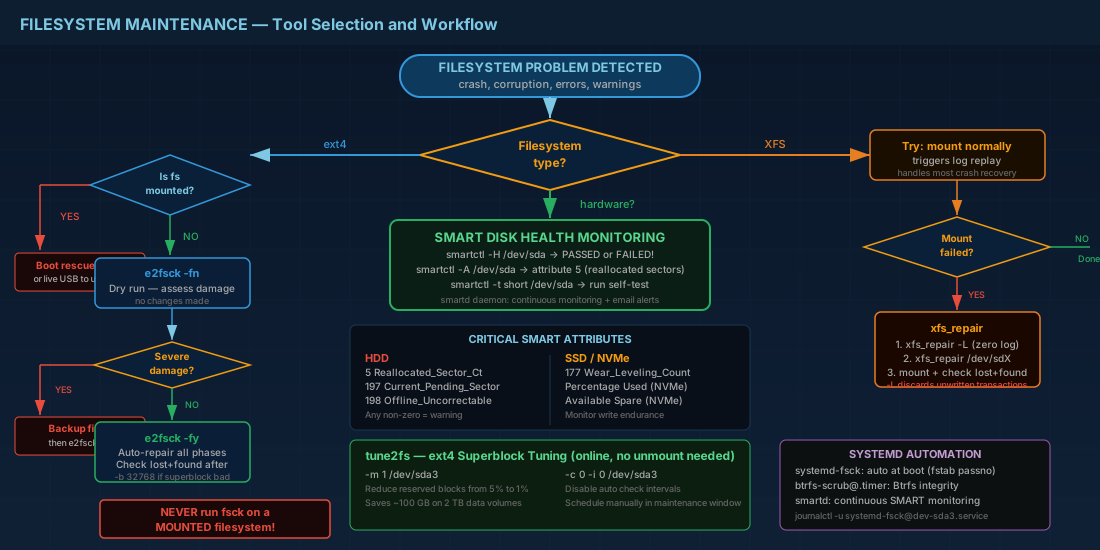
fsck is a front-end that dispatches to the appropriate filesystem checker: e2fsck for ext4, xfs_repair for XFS, fsck.btrfs (a no-op stub) for Btrfs. The critical rule: never run fsck on a mounted filesystem. On ext4, this can cause data corruption. On XFS, xfs_repair refuses to run if the filesystem is mounted.
When Does fsck Run Automatically?
On modern systemd-based distributions, fsck runs automatically at boot when the filesystem's "dirty" flag is set (indicating an unclean shutdown) or when the mount count or time interval configured in the superblock triggers a check. The relevant fstab field is the sixth column (fs_passno): 1 for root, 2 for other filesystems, 0 to skip.
# Check if a filesystem is marked dirty
sudo dumpe2fs -h /dev/sda2 2>/dev/null | grep "Filesystem state"
# "clean" = no check needed at next boot
# "not clean" = fsck will run at next boot

# Force a check at next boot (ext4)
sudo tune2fs -C 999 /dev/sda2
# Or simply create the legacy trigger file:
sudo touch /forcefsck
# (systemd honors this file on most distributions)
Running fsck Manually: Safe Procedure for ext4 and XFS
Unmount the filesystem first. Running fsck on a mounted ext4 filesystem can corrupt data and turn a recoverable problem into a catastrophic one.
# Unmount the filesystem
sudo umount /dev/sda3

# Run fsck (auto-detect filesystem type)
sudo fsck /dev/sda3

# For ext4 specifically, with verbose output and auto-repair
sudo e2fsck -fvy /dev/sda3
# -f = force check even if clean
# -v = verbose
# -y = assume yes to all repair questions (use cautiously)

# Dry run (show what would be repaired without changing anything)
sudo e2fsck -fn /dev/sda3
In production, use -fn first to assess damage, then -fy to apply repairs. The -y flag can occasionally make destructive choices on severely damaged filesystems, so review the dry-run output when possible. For root filesystems that cannot be unmounted, boot into a live USB or rescue mode.
e2fsck for ext4: Multi-Phase Filesystem Repair
e2fsck performs five phases of ext4 filesystem repair: inode checks, directory structure checks, directory connectivity, reference count verification, and group summary checks. On a large filesystem (multi-TB), a full check can take hours. Understanding these phases helps you estimate repair times and interpret the output.
# Full check with progress indicator
sudo e2fsck -fvy -C 0 /dev/sda3
# -C 0 = show progress on stdout

# Check and repair bad blocks on the device (slow, reads entire disk)
sudo e2fsck -fvy -c /dev/sda3
# -c = run badblocks before checking (read-only test)
# -cc = run badblocks with read-write test (destructive! data on bad blocks is lost)

# View the superblock backup locations
sudo dumpe2fs /dev/sda3 | grep "Backup superblock"

# Recover using an alternate superblock (if primary is corrupted)
sudo e2fsck -b 32768 /dev/sda3
The alternate superblock recovery technique has saved many filesystems. ext4 stores backup superblocks at predictable block offsets (typically 32768, 98304, 163840, etc.). If the primary superblock is corrupted, specifying -b with a backup location lets e2fsck reconstruct it. You can find backup locations using mkfs.ext4 -n /dev/sdX (dry run, non-destructive).
xfs_repair: Repairing XFS Filesystems After Crashes
XFS uses xfs_repair instead of fsck. Unlike e2fsck, XFS normally relies on log replay at mount time to fix inconsistencies after a crash. You only need xfs_repair when log replay fails or when you suspect structural corruption beyond what the log can resolve.
# First, try mounting normally (triggers log replay)
sudo mount /dev/sda4 /mnt/data
# If mount fails with "Structure needs cleaning":

# Step 1: Try replaying the log
sudo xfs_repair -L /dev/sda4
# -L = zero (discard) the log. This is safe if mount already failed.
# WARNING: -L discards pending transactions. Data from the last few seconds
# before the crash may be lost.

# Step 2: Run repair
sudo xfs_repair /dev/sda4

# Step 3: Mount and verify
sudo mount /dev/sda4 /mnt/data
ls -la /mnt/data/

# Dry run (no modifications)
sudo xfs_repair -n /dev/sda4
After xfs_repair, check the lost+found directory. Orphaned files that xfs_repair detaches from the directory tree end up there. In a database server scenario, this might contain critical tablespace files that need to be moved back to their correct locations.
xfs_info and xfs_db for XFS Filesystem Diagnostics
# Show filesystem geometry (works on mounted filesystem)
xfs_info /mnt/data

# Advanced: examine XFS internal structures
sudo xfs_db -r /dev/sda4
# xfs_db> sb 0
# xfs_db> print
# xfs_db> quit
The xfs_info command is particularly useful for verifying allocation group layout on large volumes. For a deeper look at how XFS allocation groups affect parallel I/O performance, refer to our XFS architecture overview.
tune2fs: Adjusting ext4 Superblock Parameters for Production
tune2fs modifies ext4 superblock parameters without unmounting. These adjustments affect reserved space, automatic check intervals, filesystem features, and labels. Proper tuning can recover significant wasted space and prevent disruptive boot-time checks on large volumes.
Reducing ext4 Reserved Blocks on Data Volumes
By default, ext4 reserves 5% of blocks for root. On a 2 TB volume, that is 100 GB wasted if the volume is used for data storage (not the root filesystem). Reduce it to 1% or 0% for data volumes.
# Show current reserved block percentage
sudo tune2fs -l /dev/sda3 | grep "Reserved block count"

# Set reserved blocks to 1%
sudo tune2fs -m 1 /dev/sda3

# Set reserved blocks to 0 (data volume, not root)
sudo tune2fs -m 0 /dev/sda3

# Set reserved blocks to an absolute count
sudo tune2fs -r 10000 /dev/sda3
For the root filesystem, keep at least 1-2% reserved. This prevents the system from becoming unusable if a process fills the disk, because root can still write to reserved space for recovery operations. To monitor actual disk usage before space runs out, see our disk capacity monitoring guide with df and du.
Configuring ext4 Automatic Check Intervals and Mount Counts
# Show current check interval and mount count settings
sudo tune2fs -l /dev/sda3 | grep -E "(Mount count|Check interval|Maximum mount count)"

# Set maximum mount count before forced check
sudo tune2fs -c 50 /dev/sda3

# Disable mount-count-based checks
sudo tune2fs -c 0 /dev/sda3

# Set time-based check interval (e.g., every 3 months)
sudo tune2fs -i 3m /dev/sda3

# Disable time-based checks
sudo tune2fs -i 0 /dev/sda3
On production servers with large filesystems, periodic forced fsck at boot is disruptive (it can take 30+ minutes on multi-TB volumes). Many teams disable automatic checks and schedule them during maintenance windows instead. This is a valid approach, but you must actually schedule and run those checks; do not simply disable them and forget.
Modifying ext4 Filesystem Features and Labels
# Set or change the filesystem label
sudo tune2fs -L "app-data" /dev/sda3

# Enable a feature (e.g., large_dir for > 2 billion files per directory)
sudo tune2fs -O large_dir /dev/sda3

# View all enabled features
sudo tune2fs -l /dev/sda3 | grep "Filesystem features"

# View complete superblock information
sudo dumpe2fs -h /dev/sda3
Labels set with tune2fs appear in blkid output and can be used in /etc/fstab with LABEL= instead of UUID. This improves readability, especially on systems with many data volumes. When combined with LVM logical volume naming, clear labels make it easy to identify volumes in maintenance scripts.
SMART Monitoring with smartctl: Detecting Disk Failures Early
SMART (Self-Monitoring, Analysis and Reporting Technology) is built into HDDs and SSDs. It tracks internal health metrics: reallocated sectors, read error rates, temperature, wear leveling count (SSDs), and more. A disk can report SMART data for weeks before it fails, giving you time to migrate data and replace the hardware proactively.
smartctl: Manual Disk Health Checks
# Install smartmontools
sudo apt install smartmontools    # Debian/Ubuntu
sudo dnf install smartmontools    # Fedora/RHEL

# Check if SMART is supported and enabled
sudo smartctl -i /dev/sda

# Enable SMART on a disk (usually already enabled)
sudo smartctl -s on /dev/sda

# Quick health check
sudo smartctl -H /dev/sda
# "PASSED" = OK, "FAILED" = replace immediately

# Full SMART attributes
sudo smartctl -A /dev/sda

# Key attributes to watch for HDDs:
# 5   Reallocated_Sector_Ct    - any non-zero value = concern
# 187 Reported_Uncorrect       - uncorrectable errors
# 197 Current_Pending_Sector   - sectors waiting for reallocation
# 198 Offline_Uncorrectable    - bad sectors found during offline tests

# Key attributes for SSDs:
# 177 Wear_Leveling_Count      - remaining write endurance
# 233 Media_Wearout_Indicator   - percentage of life remaining

# For NVMe drives:
sudo smartctl -a /dev/nvme0

# Run a short self-test (takes 1-2 minutes)
sudo smartctl -t short /dev/sda

# Run an extended self-test (can take hours)
sudo smartctl -t long /dev/sda

# View test results
sudo smartctl -l selftest /dev/sda
smartd: Automated SMART Monitoring Daemon
smartd runs in the background and checks SMART attributes on a schedule. When it detects a problem, it can send email, log to syslog, or execute a custom script. Configuring smartd is one of the most important proactive measures for any Linux server.
# Main configuration file
sudo editor /etc/smartd.conf

# Monitor all disks, run short tests weekly, long tests monthly, email on failure
DEVICESCAN -a -o on -S on -s (S/../.././02|L/../../6/03) -m admin@example.com -M exec /usr/share/smartmontools/smartd_warning.sh

# Monitor a specific disk with custom thresholds
/dev/sda -a -o on -S on -W 4,45,55 -m admin@example.com
# -W 4,45,55 = report if temp changes by 4C, warn at 45C, critical at 55C

# Start/enable the daemon
sudo systemctl enable --now smartd
On RHEL 10.1 and Fedora 43, smartd ships with a default configuration that monitors all disks and logs to the journal. Check with journalctl -u smartd to see what it has found.
NVMe Drive Health Monitoring with smartctl and nvme-cli
NVMe drives expose health data through the NVMe specification rather than traditional SMART, but smartctl handles both. Pay attention to the "Percentage Used" field, which indicates how much of the drive's rated write endurance has been consumed.
# NVMe health summary
sudo smartctl -a /dev/nvme0

# Key NVMe fields:
# Percentage Used:         3%     (life consumed)
# Available Spare:         100%   (spare blocks remaining)
# Media and Data Integrity Errors: 0
# Critical Warning:        0x00

# Alternative: use nvme-cli directly
sudo nvme smart-log /dev/nvme0
Automating Filesystem Checks with systemd Timers
systemd provides built-in mechanisms for scheduling disk health operations. Beyond the automatic fsck at boot (via systemd-fsck), you can create timers for periodic maintenance tasks like SMART tests and Btrfs scrubs.
# systemd-fsck runs automatically at boot for entries in fstab with passno > 0
# Check its logs:
journalctl -u systemd-fsck@dev-sda3.service

# For Btrfs scrub, systemd timers are included:
sudo systemctl enable btrfs-scrub@-.timer          # root filesystem
sudo systemctl enable btrfs-scrub@mnt-data.timer   # /mnt/data

# Check scrub timer status
systemctl list-timers | grep btrfs

# Create a custom timer for SMART long tests (example)
# /etc/systemd/system/smart-longtest.service
# [Unit]
# Description=Run SMART long test on /dev/sda
#
# [Service]
# Type=oneshot
# ExecStart=/usr/sbin/smartctl -t long /dev/sda

# /etc/systemd/system/smart-longtest.timer
# [Unit]
# Description=Monthly SMART long test
#
# [Timer]
# OnCalendar=monthly
# Persistent=true
#
# [Install]
# WantedBy=timers.target

sudo systemctl enable --now smart-longtest.timer
Troubleshooting Common Filesystem and Disk Failures
Here are patterns that come up regularly in production Linux environments and their solutions:
- ext4 mount fails with "bad superblock": Try an alternate superblock with
e2fsck -b 32768 /dev/sdX. Get backup locations frommkfs.ext4 -n /dev/sdX(dry run, non-destructive). - XFS mount fails with "Structure needs cleaning": Run
xfs_repair /dev/sdX. If that fails, tryxfs_repair -L /dev/sdXto zero the log (last resort, loses in-flight data). - SMART reports Reallocated_Sector_Ct increasing: The disk is remapping bad sectors from its spare pool. A slowly increasing count (1-2 per month) is a warning. A rapidly increasing count means the disk is dying. Start migration immediately.
- SMART self-test fails with "read failure": Specific sectors are unreadable. If the sector belongs to a file, that file is likely corrupted. Use
smartctl -l selftest /dev/sdato see the failing LBA, then usehdparm --read-sectorto test specific sectors. - Filesystem is read-only after errors: The kernel remounted it read-only to prevent further damage. Check
dmesg | grep -i ext4ordmesg | grep -i xfsfor the root cause, unmount, run the appropriate repair tool, then remount. - ext4 journal corruption: If
e2fsckreports journal errors, you may need to recreate the journal withtune2fs -O ^has_journal /dev/sdXfollowed bytune2fs -j /dev/sdX. This removes and recreates the journal without affecting data.
Filesystem Maintenance Quick Reference Commands
| Task | Command |
|---|---|
| Check ext4 (force, verbose, auto-yes) | sudo e2fsck -fvy /dev/sdX |
| Dry-run ext4 check | sudo e2fsck -fn /dev/sdX |
| Repair ext4 with backup superblock | sudo e2fsck -b 32768 /dev/sdX |
| Repair XFS | sudo xfs_repair /dev/sdX |
| XFS repair with log zero | sudo xfs_repair -L /dev/sdX |
| View ext4 superblock | sudo dumpe2fs -h /dev/sdX |
| Set reserved blocks to 1% | sudo tune2fs -m 1 /dev/sdX |
| Disable auto-check intervals | sudo tune2fs -c 0 -i 0 /dev/sdX |
| Set filesystem label | sudo tune2fs -L "label" /dev/sdX |
| SMART quick health | sudo smartctl -H /dev/sdX |
| SMART full attributes | sudo smartctl -A /dev/sdX |
| Run SMART short test | sudo smartctl -t short /dev/sdX |
| Run SMART long test | sudo smartctl -t long /dev/sdX |
| View SMART test results | sudo smartctl -l selftest /dev/sdX |
| NVMe health log | sudo smartctl -a /dev/nvme0 |
| Force ext4 check at next boot | sudo touch /forcefsck |
| XFS filesystem geometry | xfs_info /mount/point |
| Enable smartd monitoring | sudo systemctl enable --now smartd |
Summary
Filesystem maintenance is not optional in production Linux environments. ext4 and XFS both have mature repair tools, but they work differently: e2fsck performs a multi-pass structural check, while XFS relies primarily on log replay and only needs xfs_repair when that fails. Use tune2fs to reduce wasted reserved blocks on data volumes and to control automatic check scheduling. Monitor disk hardware with smartctl and smartd, paying special attention to reallocated sectors on HDDs and wear leveling on SSDs.
Build a maintenance routine: run SMART short tests weekly, SMART long tests monthly, and schedule filesystem checks during planned maintenance windows. Automate what you can with systemd timers and smartd. When a disk starts reporting increasing SMART errors, treat it as a countdown. The question is not whether it will fail, but when. Migrate data early, replace the hardware, and save yourself the 3 AM incident.