New Linux technicians often mix up three terms: partition, filesystem, and mount point. In production, confusing them can cause real downtime. A partition is a slice of a disk. A filesystem is the format inside that slice. A mount point is where users and services see that data in the directory tree. This guide shows how these layers fit together and how to work with ext4, XFS, and Btrfs safely.
Commands below are relevant for Debian 13.3, Ubuntu 24.04.3 LTS, Ubuntu 25.10, Fedora 43, RHEL 10.1, and RHEL 9.7. Tool names are mostly the same across these systems (`lsblk`, `blkid`, `mount`, `findmnt`), but default filesystem choices differ by distro and edition.
Partition, filesystem, and mount are separate layers
Think in layers when troubleshooting. If an app cannot write data, first ask: is the disk visible, is the partition present, is the filesystem healthy, and is it mounted where the app expects?
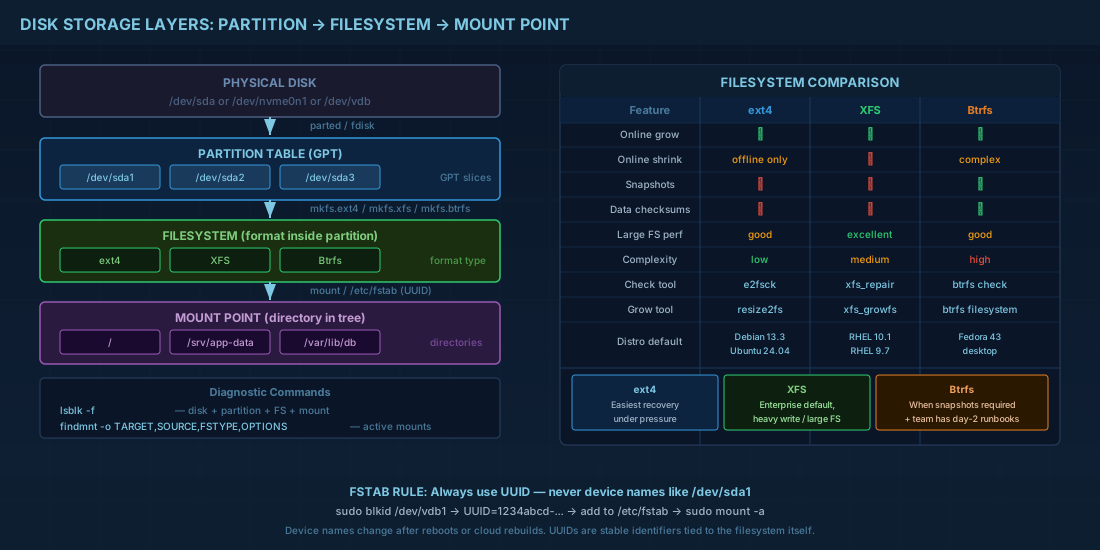
# Show disks, partitions, filesystems, and mount points
lsblk -f

# Show stable identifiers (UUID) used for persistent mounts
sudo blkid

# Show current mounts with source and options
findmnt -o TARGET,SOURCE,FSTYPE,OPTIONS
Production consequence: if someone mounts a new disk at `/data` but the service writes to `/var/lib/app`, the new disk sits empty while the root filesystem fills up. Always verify the target path with `findmnt` and the service config.
Create partitions safely with GPT
GPT is the standard partition table on modern systems. It handles large disks better than old MBR layouts. Before creating partitions, identify the correct device more than once.
`parted` changes are immediate. If you choose the wrong device, data loss is immediate too. Verify with `lsblk` and disk size before pressing Enter.
# Example: prepare /dev/vdb as one data partition
# Replace /dev/vdb with your real device
sudo lsblk -o NAME,SIZE,MODEL,SERIAL

sudo parted /dev/vdb --script mklabel gpt
sudo parted /dev/vdb --script mkpart primary 1MiB 100%
sudo partprobe /dev/vdb

# Confirm /dev/vdb1 exists
lsblk /dev/vdb
Why this matters in production: cloud instances are often rebuilt from templates. Device names can change (`/dev/vdb` vs `/dev/nvme1n1`). Good runbooks include a size and serial check instead of relying on a device name alone.
Choosing ext4, XFS, or Btrfs with current distro context
There is no universal best filesystem. Pick based on recovery needs, growth pattern, and vendor support policy.
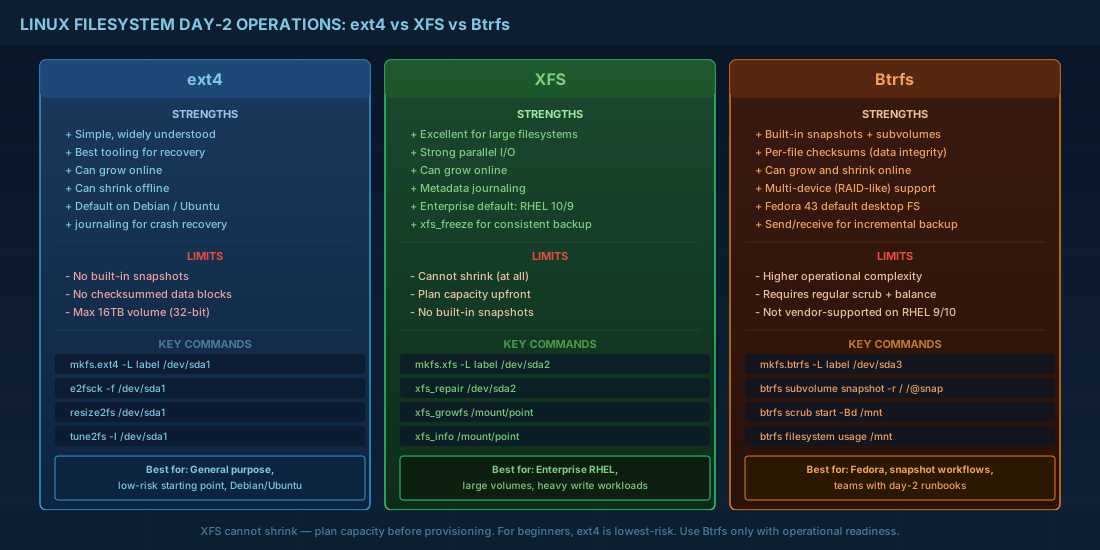
| Filesystem | Strong points | Limits to remember | Practical distro notes |
|---|---|---|---|
| ext4 | Simple, stable, widely known tools (`e2fsck`, `resize2fs`) | No built-in snapshots or checksummed data blocks | Common default on Debian 13.3 and Ubuntu 24.04.3 LTS/25.10 installs |
| XFS | Excellent for large filesystems and parallel I/O; strong metadata handling | Can grow online, but cannot shrink | Primary enterprise default on RHEL 10.1 and RHEL 9.7; also common on server builds |
| Btrfs | Snapshots, checksums, subvolumes, built-in multi-device features | More operational complexity; requires planned maintenance (`scrub`, balance) | Used widely on Fedora 43 desktop/workstation variants; not vendor-supported for standard RHEL 9.7/10.1 deployments |
For beginners: ext4 is usually easiest to recover under pressure. For operators: XFS is often the safer enterprise default for large growth and heavy write load. Use Btrfs where snapshot workflows are a real requirement and your team is ready to operate it.
Format and mount with UUID, not guessed device names
After partitioning, format once with the filesystem you selected. Then mount by UUID in `/etc/fstab`. UUIDs survive device renaming after reboot.
# Pick ONE format command for /dev/vdb1
sudo mkfs.ext4 -L app_data /dev/vdb1
# sudo mkfs.xfs -L app_data /dev/vdb1
# sudo mkfs.btrfs -L app_data /dev/vdb1

# Create mount point
sudo mkdir -p /srv/app-data

# Temporary mount for validation
sudo mount /dev/vdb1 /srv/app-data
findmnt /srv/app-data

# Get UUID and add persistent mount
sudo blkid /dev/vdb1
# Example fstab line (replace UUID)
# UUID=1234abcd-56ef-7890-abcd-1234567890ab /srv/app-data ext4 defaults,noatime 0 2

sudo editor /etc/fstab
sudo mount -a
findmnt /srv/app-data
Production consequence: using `/dev/vdb1` directly in `fstab` may fail after kernel updates or cloud reordering. A failed mount can block services at boot. Always validate with `mount -a` before rebooting.
Day-2 operations: grow, check, and recover
The first mount is not the end of the job. Filesystems have different day-2 behavior, and this is where many incidents happen.
# ext4 growth after partition/LVM expansion
sudo resize2fs /dev/vdb1

# XFS growth (target is mount point)
sudo xfs_growfs /srv/app-data

# Btrfs health operations
sudo btrfs filesystem usage /srv/app-data
sudo btrfs scrub start -Bd /srv/app-data- ext4: can grow online, and can shrink offline with careful steps.
- XFS: plan capacity ahead because shrinking is not supported.
- Btrfs: schedule scrub checks and monitor space distribution to avoid surprises.
On RHEL 9.7 and 10.1 fleets, teams usually standardize on XFS tooling and monitoring. On Debian/Ubuntu environments, ext4 remains common for straightforward service partitions. Fedora 43 labs often use Btrfs snapshot workflows, which can speed up rollback tests if the team documents subvolume layout clearly.
Summary
Keep the model simple: disk partition first, then filesystem, then mount point. Validate each layer with commands, not assumptions. Use UUID in `fstab`, test with `mount -a`, and match filesystem choice to operational reality.
If your team is new, ext4 is usually the lowest-risk starting point. If your platform is RHEL-focused, XFS is typically the default path and should be treated as the baseline unless a clear requirement says otherwise. Use Btrfs when you need snapshot and subvolume features, and only when you have day-2 runbooks for scrub, balance, and recovery.