Continue.dev is an open-source AI coding assistant that integrates directly into VS Code and JetBrains IDEs. What makes it interesting for Linux developers is its first-class support for local models through Ollama. No cloud dependency, no API keys, no sending your proprietary codebase to someone else's servers. Your code stays on your machine, the model runs on your hardware, and you get autocomplete, chat, inline editing, and code explanation without any external connectivity.
This guide covers installing and configuring Continue.dev with Ollama on a Linux workstation or a remote Linux server. We go beyond the basic setup to cover model selection for coding tasks, context providers that give the model awareness of your entire project, custom slash commands, and performance tuning to keep the experience responsive. If you spend your days writing code on Linux, this setup replaces cloud-based assistants with something you own entirely.
Why Continue.dev Over Other Extensions
The VS Code extension marketplace has several AI coding tools. GitHub Copilot is the most polished but requires a subscription and sends code to Microsoft's servers. Cody by Sourcegraph is strong for code search but also cloud-dependent. Tabby is self-hosted but requires separate server infrastructure. Continue.dev occupies a specific niche: it is open source, integrates with any OpenAI-compatible API (including Ollama), and runs with zero external dependencies when pointed at a local model. For GPU driver setup, see our NVIDIA driver and CUDA installation guide.
The trade-off is quality. A local 7B or 13B model does not match GPT-4 or Claude for complex reasoning tasks. But for autocomplete, boilerplate generation, code explanation, test writing, and documentation — the tasks that make up 80% of coding assistant usage — a well-chosen local model performs surprisingly well. You also get consistent latency regardless of internet quality, which matters if you have ever lost focus waiting for a cloud API to respond during peak hours.
Installation
Install Ollama with a Code-Focused Model
# Install Ollama if not already present
curl -fsSL https://ollama.com/install.sh | sh

# Pull models optimized for code
# Primary code model — excellent for completion and generation
ollama pull codellama:13b

# Alternative: DeepSeek Coder V2 for strong coding performance
ollama pull deepseek-coder-v2:16b

# Smaller option for faster autocomplete
ollama pull codellama:7b-code

# Chat model for the sidebar conversation
ollama pull llama3.1:8b

# Verify models are available
ollama list
Install Continue.dev Extension
# Install via VS Code CLI
code --install-extension Continue.continue

# Or install from VS Code:
# 1. Open Extensions sidebar (Ctrl+Shift+X)
# 2. Search for "Continue"
# 3. Install "Continue - Codestral, Claude, GPT, Gemini, ..."
# 4. Reload VS Code when prompted
After installation, Continue.dev appears as a sidebar panel (typically on the left or right) with a chat interface. The default configuration tries to connect to cloud providers. We need to reconfigure it for Ollama.
Configuration for Ollama
Continue.dev stores its configuration in ~/.continue/config.json. Open it from VS Code by clicking the gear icon in the Continue panel, or edit the file directly.
# Open the configuration file
code ~/.continue/config.json
Here is a complete configuration for a local-only Ollama setup.
{
  "models": [
    {
      "title": "CodeLlama 13B",
      "provider": "ollama",
      "model": "codellama:13b",
      "apiBase": "http://localhost:11434",
      "contextLength": 16384,
      "completionOptions": {
        "temperature": 0.3,
        "topP": 0.9,
        "maxTokens": 2048
      }
    },
    {
      "title": "Llama 3.1 Chat",
      "provider": "ollama",
      "model": "llama3.1:8b",
      "apiBase": "http://localhost:11434",
      "contextLength": 8192
    },
    {
      "title": "DeepSeek Coder",
      "provider": "ollama",
      "model": "deepseek-coder-v2:16b",
      "apiBase": "http://localhost:11434",
      "contextLength": 16384
    }
  ],
  "tabAutocompleteModel": {
    "title": "CodeLlama Autocomplete",
    "provider": "ollama",
    "model": "codellama:7b-code",
    "apiBase": "http://localhost:11434"
  },
  "embeddingsProvider": {
    "provider": "ollama",
    "model": "nomic-embed-text",
    "apiBase": "http://localhost:11434"
  },
  "allowAnonymousTelemetry": false
}
Key configuration points: The models array defines chat models available in the sidebar dropdown. tabAutocompleteModel configures the inline autocomplete that triggers as you type. embeddingsProvider enables the codebase indexing feature that lets the model understand your entire project. Setting allowAnonymousTelemetry to false prevents Continue.dev from sending usage data.
Model Selection for Coding Tasks
Not all models are equally good at all coding tasks. Here is what works well based on practical testing.
Autocomplete (tab completion): Use CodeLlama 7B Code. The "code" variant is specifically trained for fill-in-the-middle (FIM) completion, which is exactly what autocomplete needs. It is small enough to respond in under 200ms on a modern GPU, which keeps typing fluid. DeepSeek Coder 1.3B is even faster but less accurate.
Code generation (chat-based): CodeLlama 13B or DeepSeek Coder V2 16B. Larger models produce better structured code with fewer errors. The latency penalty is acceptable because you are waiting for a deliberate response, not inline suggestions.
Code explanation and documentation: Llama 3.1 8B. General-purpose chat models are better at explaining code in natural language than pure code models. CodeLlama can explain code too, but Llama 3.1 produces more readable explanations.
Debugging and error analysis: DeepSeek Coder V2 16B. It handles error messages and stack traces well and suggests targeted fixes rather than rewriting entire functions.
Context Providers
Context providers give the model information beyond the current file. Continue.dev supports several that work with local Ollama setups.
Codebase Indexing
When configured with an embeddings provider, Continue.dev indexes your entire project and can retrieve relevant code when answering questions.
// In config.json, add to the existing configuration:
{
  "contextProviders": [
    {
      "name": "codebase",
      "params": {
        "nRetrieve": 15,
        "nFinal": 5,
        "useReranking": false
      }
    },
    {
      "name": "folder",
      "params": {}
    },
    {
      "name": "diff",
      "params": {}
    },
    {
      "name": "terminal",
      "params": {}
    }
  ]
}
The codebase provider indexes your project files using the configured embeddings model. When you ask a question in the chat, it automatically retrieves the most relevant code files and includes them as context. The diff provider includes your current git diff. The terminal provider captures recent terminal output, which is useful when asking about error messages.
Using Context in Chat
# In the Continue chat sidebar, use @ to reference context:
# @codebase — search the indexed codebase
# @file — include a specific file
# @folder — include all files in a folder
# @diff — include current git changes
# @terminal — include recent terminal output
# @docs — reference documentation

# Example chat message:
# "Based on @codebase, what authentication middleware does this project use?"
# "Explain the error in @terminal and suggest a fix based on @diff"
Custom Slash Commands
Slash commands are predefined prompts that you trigger with a / prefix in the chat. They are useful for repetitive tasks.
// Add to config.json:
{
  "customCommands": [
    {
      "name": "test",
      "prompt": "Write comprehensive unit tests for the selected code. Use the testing framework already present in the project. Include edge cases and error conditions. Do not use mocks unless absolutely necessary.",
      "description": "Generate unit tests for selected code"
    },
    {
      "name": "review",
      "prompt": "Review the selected code for: 1) Security vulnerabilities (injection, XSS, CSRF) 2) Performance issues 3) Error handling gaps 4) Code style inconsistencies. Be specific about line numbers and suggest concrete fixes.",
      "description": "Security and quality code review"
    },
    {
      "name": "doc",
      "prompt": "Write clear, concise docstrings/comments for the selected code. Follow the documentation conventions already used in this project. Include parameter descriptions, return values, and usage examples where appropriate.",
      "description": "Generate documentation for code"
    },
    {
      "name": "refactor",
      "prompt": "Refactor the selected code to improve readability and maintainability. Break up long functions, extract repeated logic, improve variable names, and simplify control flow. Explain each change you make.",
      "description": "Suggest refactoring improvements"
    }
  ]
}
Use these by typing /test, /review, /doc, or /refactor in the chat with code selected in the editor.
Remote Ollama Server Configuration
If your development machine lacks a GPU, you can run Ollama on a separate Linux server and connect Continue.dev to it remotely.
# On the Ollama server, configure it to listen on all interfaces
sudo systemctl edit ollama.service

# Add these lines:
# [Service]
# Environment="OLLAMA_HOST=0.0.0.0"

sudo systemctl restart ollama

# Verify it is listening
ss -tlnp | grep 11434

# On your development machine, update Continue config:
# Change apiBase in all model configurations to:
# "apiBase": "http://ollama-server.internal:11434"
For security, use an SSH tunnel instead of exposing Ollama directly on the network.
# Create an SSH tunnel from your workstation to the Ollama server
ssh -N -L 11434:localhost:11434 user@ollama-server.internal

# Now use http://localhost:11434 in your Continue config
# The traffic is encrypted over SSH
Performance Tuning
The responsiveness of the coding assistant depends on model loading time, generation speed, and how often the model needs to reload.
# Keep models loaded longer to avoid reload delays
export OLLAMA_KEEP_ALIVE=30m

# Or set per-model in Continue config:
{
  "models": [{
    "title": "CodeLlama 13B",
    "provider": "ollama",
    "model": "codellama:13b",
    "requestOptions": {
      "headers": {}
    },
    "completionOptions": {
      "keepAlive": 1800
    }
  }]
}

# For autocomplete, speed is critical
# Use the smallest effective model
# codellama:7b-code generates ~40-80 tokens/sec on RTX 3090
# That means autocomplete appears in 50-150ms — fast enough to feel instant
Keyboard Shortcuts
Efficient use of Continue.dev depends on keyboard shortcuts rather than mouse interaction.
# Default keybindings (customizable in VS Code settings):
# Ctrl+L          — Open Continue chat sidebar
# Ctrl+I          — Inline editing mode (edit code in place)
# Ctrl+Shift+L    — Add selected code to chat context
# Tab             — Accept autocomplete suggestion
# Escape          — Dismiss autocomplete suggestion

# Inline editing workflow:
# 1. Select code in the editor
# 2. Press Ctrl+I
# 3. Type your instruction: "Add error handling" or "Convert to async"
# 4. Review the diff and accept or reject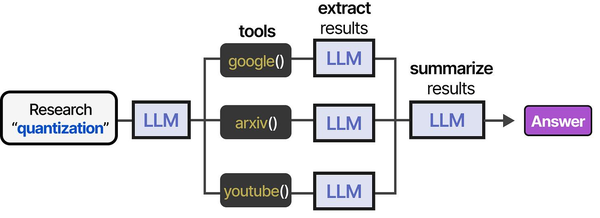
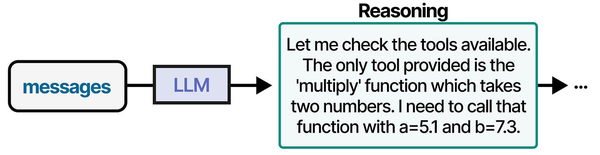
The integration of AI coding assistants with local LLMs represents a significant shift in developer tooling architecture. As Grootendorst and Alammar detail in An Illustrated Guide to AI Agents, the tool-usage pipeline that powers assistants like Continue.dev follows a structured pattern: the IDE extension defines available tools (code context, file access, terminal commands), the local LLM selects the appropriate tool based on the developer's query, and the results are fed back into the generation loop. This architecture, running entirely on local hardware through Ollama, eliminates the latency and privacy concerns of cloud-based alternatives while preserving the sophisticated reasoning capabilities that make AI-assisted coding productive.
Related Articles
- 5 Best AI Coding Assistants for the Linux Terminal: Hands-On Comparison
- Model Context Protocol (MCP) on Linux with Ollama: Connect AI to Your Tools
- Ollama Python API: Build Linux Administration Tools with Local LLMs
- Generate Ansible Playbooks with Local LLMs: AI-Assisted Infrastructure as Code
Further Reading
- An Illustrated Guide to AI Agents by Maarten Grootendorst and Jay Alammar — Visual guide to agent memory, tools, and reasoning.
- LLMs in Production by Christopher Brousseau and Matthew Sharp — Practical deployment of language models from training to production.
- Agentic AI in Enterprise by Sumit Ranjan, Divya Chembachere, and Lanwin Lobo — Enterprise architecture patterns for agentic AI systems.
Frequently Asked Questions
How does the coding quality of local models compare to GitHub Copilot?
For straightforward code completion — finishing function bodies, generating boilerplate, writing standard patterns — CodeLlama 13B and DeepSeek Coder V2 are within 80-90% of Copilot's quality. Where cloud models pull ahead is in complex multi-file reasoning, understanding obscure APIs, and generating novel algorithms. The practical impact depends on what you code daily. If most of your work involves standard patterns in established frameworks, local models handle it well. If you frequently work with rare libraries or need creative problem-solving, you will notice the gap.
Can I use Continue.dev on a Linux server over SSH with VS Code Remote?
Yes, and this is actually an excellent setup. Install VS Code Remote-SSH on your local machine, connect to your Linux server, and install the Continue.dev extension on the remote side. If Ollama runs on the same server, Continue.dev connects to localhost with no networking complexity. This gives you the full GPU of the server for inference while coding from any client machine, even a lightweight laptop or Chromebook.
What is the minimum hardware needed for a usable coding assistant experience?
For autocomplete only (the most impactful feature), CodeLlama 7B Code at Q4_K_M needs about 4.5GB VRAM. An 8GB GPU handles this comfortably with room for the KV cache. For chat-based code generation, a 13B model at Q4_K_M needs about 8-9GB VRAM. A 12GB GPU (RTX 3060 12GB or 4070) provides a good experience. CPU-only inference works but autocomplete latency increases from milliseconds to seconds, which breaks the typing flow. If you have no GPU, consider running Ollama on a separate machine and connecting remotely.


