systemd is the init system on every major Linux distribution you will encounter in 2026: Debian 13.3, Ubuntu 24.04.3 LTS, Ubuntu 25.10, Fedora 43, RHEL 10.1, and RHEL 9.7. If you already know how to run systemctl start and systemctl enable, this article goes deeper into how systemd boot targets work, what dependency directives actually mean, how to read and write unit files, and how to measure and optimize boot times. For the basics of service management with systemctl, see our systemctl practical playbook.
systemd Architecture: Units, Targets, and the Dependency Graph
systemd organizes everything as units. A unit is a configuration file that describes a resource: a service, a mount point, a device, a socket, a timer, or a target. Targets are the key concept for understanding boot flow. They group other units together and replace the old SysV runlevel model, providing named synchronization points that the boot process passes through in sequence.
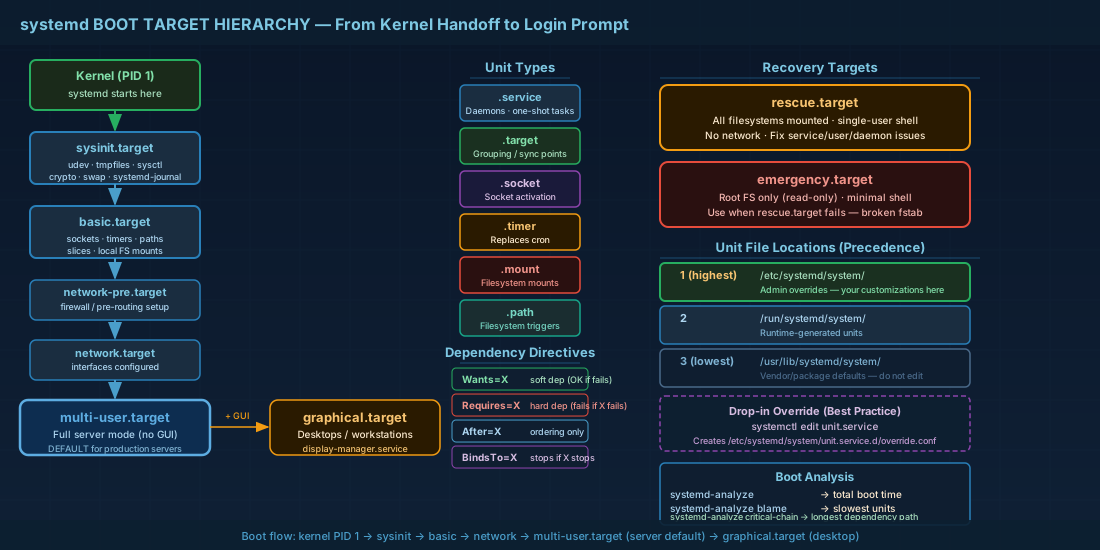
The main unit types you will work with:
| Unit type | Suffix | Purpose |
|---|---|---|
| Service | .service | Daemons and one-shot tasks |
| Target | .target | Grouping unit (like a synchronization point) |
| Mount | .mount | Filesystem mount points (auto-generated from fstab) |
| Socket | .socket | Socket-activated services (starts service on first connection) |
| Timer | .timer | Scheduled execution (replaces cron for many use cases) |
| Path | .path | Triggers a unit when a filesystem path changes |
All units form a dependency graph. systemd calculates the graph at boot and starts units in parallel wherever dependencies allow it. This parallelism is what makes systemd boots faster than sequential SysV init scripts. Understanding this graph is essential for troubleshooting startup ordering issues and writing correct unit files.
Boot Target Hierarchy: From Kernel Handoff to Login Prompt
When the kernel hands control to systemd (PID 1), systemd activates the default target and pulls in its entire dependency chain. The GRUB2 bootloader loads the kernel and initramfs -- as described in our UEFI and GRUB2 configuration guide -- then systemd takes over. The standard boot target hierarchy looks like this:
# Simplified dependency chain for multi-user.target boot:

sysinit.target          # Early system initialization (udev, tmpfiles, sysctl)
  |
basic.target            # Sockets, timers, paths, slices
  |
network-pre.target
  |
network.target          # Network interfaces up
  |
multi-user.target       # Full multi-user system (no GUI)
  |
graphical.target        # Desktop environment (pulls in display-manager.service)
In production servers, the default target is almost always multi-user.target. Desktop and workstation installs use graphical.target. Two special targets exist for recovery:
- rescue.target
- Mounts all filesystems, starts a single-user shell. Network is not started. Roughly equivalent to old SysV runlevel 1. Use this when you need to fix service configurations, user accounts, or daemon problems while having full filesystem access.
- emergency.target
- Mounts only the root filesystem (often read-only), starts an emergency shell. Almost nothing else runs. Use this when rescue.target itself fails -- typically because of a broken
/etc/fstabentry or corrupt filesystem that prevents normal mounting.
Viewing and changing the default boot target
# Check current default target
systemctl get-default
# multi-user.target

# Change default target to graphical
sudo systemctl set-default graphical.target

# Change default target to multi-user (no GUI)
sudo systemctl set-default multi-user.target
Switching targets at runtime with systemctl isolate
The isolate command switches to a target immediately, stopping all units that the new target does not need. This is how you change the effective "runlevel" on a running system without rebooting:
# Switch from graphical to multi-user (stops display manager)
sudo systemctl isolate multi-user.target

# Switch to rescue mode (drops most services)
sudo systemctl isolate rescue.target

# Switch to emergency mode
sudo systemctl isolate emergency.target
Not every target supports isolate. A target must have AllowIsolate=yes in its unit file. The standard boot targets (multi-user, graphical, rescue, emergency) all have this set. Custom targets you create must explicitly include this directive if you want to isolate to them.
Unit File Anatomy: Writing and Understanding systemd Service Files
Understanding how to write correct systemd unit files is a core skill for Linux administration. Unit files live in three locations, in order of precedence:
/etc/systemd/system/- administrator overrides (highest priority)/run/systemd/system/- runtime-generated units/usr/lib/systemd/system/- vendor/package defaults (lowest priority)
A typical service unit file has three sections:
# /etc/systemd/system/myapp.service

[Unit]
Description=My Application Server
Documentation=https://docs.example.com/myapp
After=network.target postgresql.service
Requires=postgresql.service
Wants=redis.service

[Service]
Type=notify
User=myapp
Group=myapp
WorkingDirectory=/opt/myapp
ExecStartPre=/opt/myapp/bin/check-config
ExecStart=/opt/myapp/bin/server --config /etc/myapp/config.yml
ExecReload=/bin/kill -HUP $MAINPID
Restart=on-failure
RestartSec=5
TimeoutStartSec=30
TimeoutStopSec=30
Environment=NODE_ENV=production
LimitNOFILE=65536

[Install]
WantedBy=multi-user.target
Dependency Directives: Wants, Requires, After, and Before
These are the directives that administrators confuse most often. Getting them wrong leads to services that start before their dependencies are ready, or services that fail silently because a soft dependency was not pulled in:

- After=X
- Ordering only. "Start me after X starts." Does not pull X into the transaction. If X is not otherwise requested, After=X has no effect by itself.
- Requires=X
- Hard dependency. If X fails to start, this unit also fails. If X is stopped or restarted, this unit is stopped too. Use this for services that genuinely cannot function without X.
- Wants=X
- Soft dependency. Tries to start X, but this unit continues even if X fails. This is the recommended default for most dependencies where your service prefers X but can degrade gracefully without it.
- BindsTo=X
- Like Requires but also stops this unit if X is deactivated at any time, not just during startup. Use this for units that are tightly coupled to a specific device or mount point.
A common mistake: using After=network.target alone. This orders your service after network.target, but does not guarantee the network is actually ready. If your service needs working DNS or a routable IP, use:
[Unit]
After=network-online.target
Wants=network-online.target
The network-online.target waits until at least one interface has a configured address. This distinction matters on servers with slow DHCP or bonded interfaces. For deeper understanding of how kernel modules interact with hardware detection during early boot, see our kernel modules and hardware detection overview.
The [Install] section and WantedBy
The [Install] section is only read by systemctl enable and systemctl disable. When you enable a service, systemd creates a symlink in the target's .wants directory:
# Enabling a service
sudo systemctl enable myapp.service
# Created symlink /etc/systemd/system/multi-user.target.wants/myapp.service
#   -> /etc/systemd/system/myapp.service

# Disabling removes the symlink
sudo systemctl disable myapp.service
If you modify a unit file, reload the systemd daemon before the change takes effect:
sudo systemctl daemon-reloadBoot Time Analysis and Optimization with systemd-analyze
systemd includes built-in boot profiling tools. On a production server, slow boots waste time during maintenance windows and delay failover recovery. Identifying and eliminating boot bottlenecks can shave minutes off your recovery time during outages.
# Overall boot time breakdown
systemd-analyze
# Startup finished in 2.345s (firmware) + 1.012s (loader) + 1.889s (kernel)
#                  + 8.234s (userspace) = 13.480s total

# List units by startup time (slowest first)
systemd-analyze blame
# 4.201s NetworkManager-wait-online.service
# 1.892s dracut-initqueue.service
# 1.345s firewalld.service
# 0.987s systemd-udev-settle.service
# ...

# Show the critical chain (the longest dependency path)
systemd-analyze critical-chain
# graphical.target @8.234s
#   multi-user.target @8.233s
#     postgresql.service @6.012s +2.221s
#       network-online.target @5.998s
#         NetworkManager-wait-online.service @1.789s +4.201s
#           ...

# Generate an SVG boot chart
systemd-analyze plot > /tmp/boot-chart.svg
Common boot bottlenecks and how to fix them
After running systemd-analyze blame, you will often find the same culprits at the top of the list. Here are the most common bottlenecks and their solutions:
- NetworkManager-wait-online.service
- Often the slowest unit, sometimes taking 10-30 seconds on systems with multiple interfaces or slow DHCP servers. If the service waiting for network does not actually need it at boot, remove the
Wants=network-online.targetdependency from that service. On servers with static IPs, this unit typically completes quickly -- if it does not, check for unconfigured interfaces that NetworkManager is waiting on. - systemd-udev-settle.service
- Waits for all udev events to finish processing. Usually only needed for specific hardware setups. Mask it if nothing depends on it:
sudo systemctl mask systemd-udev-settle.service. Before masking, verify withsystemctl list-dependencies --reverse systemd-udev-settle.servicethat no critical units require it. - Slow storage initialization
- Shows up in dracut/initramfs time. Check for unnecessary LVM scans, broken multipath configurations, or storage controllers with long initialization times. On virtual machines, ensure the virtio storage driver is included in the initramfs.
Using drop-in overrides to customize units safely
Instead of editing vendor unit files directly (which get overwritten on package updates), use drop-in overrides. This is the systemd-native way to customize service behavior:
# Create a drop-in directory and override file
sudo systemctl edit myapp.service
# This creates /etc/systemd/system/myapp.service.d/override.conf
# and opens it in your editor

# Example override: increase file descriptor limit and add environment variable
[Service]
LimitNOFILE=131072
Environment=DEBUG=true
Verify the effective configuration after overrides:
systemctl show myapp.service --property=LimitNOFILE,Environment

# To see the full merged unit file:
systemctl cat myapp.service
systemd Boot Targets and Service Management Quick Reference
| Task | Command |
|---|---|
| Check default boot target | systemctl get-default |
| Set default boot target | sudo systemctl set-default multi-user.target |
| Switch target at runtime | sudo systemctl isolate rescue.target |
| List all loaded targets | systemctl list-units --type=target |
| Show failed units | systemctl --failed |
| Analyze boot time | systemd-analyze |
| Show slowest units | systemd-analyze blame |
| Show critical boot path | systemd-analyze critical-chain |
| Generate boot chart SVG | systemd-analyze plot > boot.svg |
| Edit unit with drop-in override | sudo systemctl edit myapp.service |
| Reload after unit file changes | sudo systemctl daemon-reload |
| Show effective unit config | systemctl cat myapp.service |
| List all dependencies of a unit | systemctl list-dependencies multi-user.target |
| Mask a unit (prevent starting) | sudo systemctl mask unit.service |
Summary
systemd manages the entire Linux boot sequence through a dependency graph of units and targets. The default target (usually multi-user.target on servers) determines what gets started. Understanding the dependency directives -- After for ordering, Requires for hard dependencies, Wants for soft ones -- prevents the most common service startup failures. Use systemd-analyze blame and critical-chain to identify boot bottlenecks. Write drop-in overrides instead of editing vendor unit files. And when things go wrong, rescue.target and emergency.target give you the minimal environments needed to diagnose and repair without a live USB. For detailed procedures on using those recovery targets to fix kernel failures and filesystem problems, continue to our system recovery and emergency targets guide.