Systems fail. Kernels panic, /etc/fstab entries get corrupted, bootloaders disappear after disk operations. The difference between a quick Linux system recovery and a prolonged outage comes down to whether you have practiced the recovery procedures before you need them. This article walks through the concrete steps for diagnosing and fixing the most common boot-time failures on modern Linux systems, including kernel panic troubleshooting, emergency target procedures, initramfs regeneration, chroot recovery from live media, and filesystem repair. For background on how the boot process works from firmware through GRUB to the kernel handoff, see our UEFI and GRUB2 configuration guide.
Emergency Target vs Rescue Target: Choosing the Right Recovery Mode
systemd provides two recovery modes, and they serve different purposes. Choosing the wrong one can waste time or prevent you from reaching the system at all. Understanding when to use each target is the first decision in any Linux system recovery scenario.
| Characteristic | rescue.target | emergency.target |
|---|---|---|
| Root filesystem | Mounted read-write | Mounted read-only (often) |
| Other filesystems | All fstab entries mounted | Only root filesystem |
| Network | Not started | Not started |
| Services running | sysinit.target dependencies | Almost nothing (no sysinit) |
| When to use | Service/daemon problems, user issues | Broken fstab, corrupt filesystem, sysinit failures |
Booting into rescue or emergency mode from GRUB
To boot into either mode, interrupt GRUB at the boot menu, press e to edit the kernel command line, and append one of the following parameters to the linux line:
# For rescue mode:
systemd.unit=rescue.target

# For emergency mode:
systemd.unit=emergency.target
Then press Ctrl+X or F10 to boot with the modified parameters. For details on how GRUB2 menu editing works and how to make these changes persistent, see our GRUB2 configuration article.
If rescue.target hangs or fails (usually because fstab mounts are broken), fall back to emergency.target. Emergency mode skips fstab processing entirely, so a bad mount entry cannot block you. This is the most important distinction: when a broken fstab prevents rescue.target from completing, emergency.target is your only path into the system without external media.
Fixing a Broken /etc/fstab in Emergency Mode
A bad /etc/fstab entry is one of the most common reasons a Linux system drops to emergency mode after a reboot. The symptoms are clear: systemd prints mount failures and drops you to a root shell with the filesystem mounted read-only. Common causes include UUID typos after cloning a disk, removing a partition that fstab still references, or changing a filesystem type without updating fstab.
Step-by-step fstab repair procedure
# You land in emergency mode with root mounted read-only.
# First, remount root as read-write:
mount -o remount,rw /

# Check which fstab entries failed
systemctl --failed
# (Look for .mount units in failed state)

# Or check the journal for mount errors
journalctl -b -p err | grep -i mount

# Edit fstab
vi /etc/fstab

# Common fixes:
# - Comment out the broken line with #
# - Fix UUID typo (verify with blkid)
# - Fix mount point path
# - Correct filesystem type

# Verify UUIDs against actual devices
blkid

# Test all fstab entries without actually mounting
mount -a --fake
# If this produces no errors, the syntax is correct

# If corrections look good, reboot
systemctl reboot
Always use nofail on non-critical fstab entries (data partitions, NFS shares, USB storage). Without nofail, a missing or slow device will block boot entirely and force you into emergency mode. Example: UUID=xxx /data ext4 defaults,nofail 0 2. For NFS mounts, combine nofail with x-systemd.automount to defer mounting until first access and avoid blocking boot if the NFS server is unreachable.
Kernel Panic Diagnosis and Recovery
A kernel panic means the kernel hit a condition it cannot recover from. The two most common scenarios after a system update: a new kernel is incompatible with hardware drivers, or the initramfs is missing or corrupt. Both scenarios result in a system that does not reach the login prompt.
Identifying the cause of a kernel panic
Kernel panics print a stack trace to the console. On headless servers, you need serial console or IPMI access to read it. Key lines to look for:
# Typical panic from missing root device:
Kernel panic - not syncing: VFS: Unable to mount root fs on unknown-block(0,0)

# This means the initramfs could not find the root device.
# Common causes:
# - initramfs does not include the storage driver (SCSI, NVMe, virtio)
# - Root device UUID changed (after cloning a disk)
# - LVM metadata is inconsistent

# Typical panic from driver issue:
BUG: unable to handle page fault at ffffffff82345678
# Points to a kernel module crash - identify the module from the stack trace
The "VFS: Unable to mount root fs" message is the single most common kernel panic in production. It almost always points to an initramfs that is missing the storage driver needed to access the root device. This can happen when a virtual machine is migrated between hypervisors (e.g., from VMware to KVM) and the storage driver changes from PVSCSI to virtio-blk.
Booting an older kernel from the GRUB menu
The fastest fix for a kernel panic is to boot the previous working kernel from the GRUB menu:
# At the GRUB menu, select "Advanced options" or the submenu
# Choose a kernel version you know works
# If GRUB_DISABLE_SUBMENU=true, all kernels appear in the main menu

# After booting the old kernel, you can investigate and fix the new one
This is why keeping multiple kernel versions installed is critical for production systems. A single kernel means a single point of failure.
Preventing accidental kernel removal
On Fedora 43 and RHEL 10.1, the installonly_limit setting in /etc/dnf/dnf.conf controls how many kernel versions are kept. The default is 3. On production servers, consider increasing this to give yourself more fallback options:
# /etc/dnf/dnf.conf
[main]
installonly_limit=5
On Debian 13.3 and Ubuntu 24.04.3 LTS, old kernels are removed by apt autoremove. Pin a known-good kernel to prevent accidental removal:
# Prevent removal of a specific kernel on Debian/Ubuntu
sudo apt-mark hold linux-image-6.8.0-45-generic

# To unhold when you want to update:
sudo apt-mark unhold linux-image-6.8.0-45-generic
Initramfs Regeneration with dracut and initramfs-tools
The initramfs (initial RAM filesystem) is a compressed archive loaded by the bootloader alongside the kernel. It contains the minimum drivers and tools needed to find and mount the real root filesystem. If it is missing, corrupt, or missing a critical driver, the kernel panics with the "VFS: Unable to mount root fs" message. Understanding how to rebuild the initramfs is an essential Linux system recovery skill. For related information on how kernel modules are loaded from the initramfs, see our guide on kernel modules and hardware detection.
Regenerating initramfs on Fedora and RHEL with dracut
# Regenerate initramfs for the current kernel
sudo dracut --force /boot/initramfs-$(uname -r).img $(uname -r)

# Regenerate for a specific kernel version
sudo dracut --force /boot/initramfs-6.12.8-200.fc43.x86_64.img 6.12.8-200.fc43.x86_64

# Include a specific driver module
sudo dracut --force --add-drivers "nvme nvme_core" /boot/initramfs-$(uname -r).img $(uname -r)

# List what is inside an initramfs
lsinitrd /boot/initramfs-$(uname -r).img | head -50

# Check if a specific module is included
lsinitrd /boot/initramfs-$(uname -r).img | grep nvme
Regenerating initramfs on Debian and Ubuntu with initramfs-tools
# Regenerate initramfs for the current kernel
sudo update-initramfs -u

# Regenerate for a specific kernel version
sudo update-initramfs -u -k 6.8.0-45-generic

# Regenerate all initramfs images
sudo update-initramfs -u -k all

# Add a module to always include
echo "nvme" | sudo tee -a /etc/initramfs-tools/modules
sudo update-initramfs -u
Chroot Recovery from Live Media
When the installed system cannot boot at all -- no working kernel, corrupted GRUB, destroyed initramfs -- you need external media. Chroot recovery involves booting from a live USB or network PXE image, then entering the installed system's filesystem to repair it from the inside. This technique lets you run any repair command as if you had booted normally.
Full chroot procedure for Linux system recovery
# Boot from live media (Fedora, Ubuntu, or any rescue ISO)

# Identify the root partition
lsblk
# NAME          MAJ:MIN RM   SIZE RO TYPE  MOUNTPOINTS
# sda             8:0    0   100G  0 disk
# ├─sda1          8:1    0   600M  0 part                 # ESP
# ├─sda2          8:2    0     1G  0 part                 # /boot
# └─sda3          8:3    0  98.4G  0 part                 # LVM PV
#   ├─vg0-root  253:0    0    50G  0 lvm
#   └─vg0-swap  253:1    0     4G  0 lvm

# If LVM, activate volume groups first
sudo vgchange -ay

# Mount the root filesystem
sudo mount /dev/vg0/root /mnt

# Mount boot and ESP
sudo mount /dev/sda2 /mnt/boot
sudo mount /dev/sda1 /mnt/boot/efi

# Mount virtual filesystems required by the chroot
sudo mount --bind /dev /mnt/dev
sudo mount --bind /dev/pts /mnt/dev/pts
sudo mount --bind /proc /mnt/proc
sudo mount --bind /sys /mnt/sys
sudo mount --bind /run /mnt/run

# If the system uses EFI variables
sudo mount -t efivarfs efivarfs /mnt/sys/firmware/efi/efivars 2>/dev/null

# Enter the chroot
sudo chroot /mnt /bin/bash

# Now you are "inside" the installed system
# You can run any repair command as if you booted normally
Common repair tasks inside a chroot environment
# Reinstall GRUB (Fedora / RHEL UEFI)
grub2-install --efi-directory=/boot/efi --bootloader-id=fedora
grub2-mkconfig -o /boot/efi/EFI/fedora/grub.cfg

# Reinstall GRUB (Debian / Ubuntu UEFI)
grub-install --efi-directory=/boot/efi --bootloader-id=ubuntu
update-grub

# Regenerate initramfs (Fedora / RHEL)
dracut --force /boot/initramfs-$(uname -r).img $(uname -r)

# Regenerate initramfs (Debian / Ubuntu)
update-initramfs -u

# Reinstall a kernel package (Fedora / RHEL)
dnf reinstall kernel-core

# Reinstall a kernel package (Debian / Ubuntu)
apt install --reinstall linux-image-$(uname -r)

# Fix SELinux labels after manual file edits (RHEL / Fedora)
touch /.autorelabel
# (triggers full relabel on next boot)

# Reset root password
passwd root

# Exit chroot and unmount
exit
sudo umount -R /mnt
sudo reboot
One important caveat with chroot recovery: $(uname -r) inside the chroot returns the live media's kernel version, not the installed system's kernel version. To regenerate the initramfs for the correct kernel, list the available kernels with ls /lib/modules/ and specify the version explicitly.
Filesystem Repair Tools for ext4, XFS, and Btrfs
Filesystem corruption can prevent mounting and cause boot failures. The repair tools differ by filesystem type, and using the wrong tool or running it on a mounted filesystem can cause data loss rather than prevent it.
# XFS (default on RHEL / Fedora)
# XFS repair requires the filesystem to be unmounted
sudo xfs_repair /dev/vg0/root

# If xfs_repair complains about a dirty log:
sudo xfs_repair -L /dev/vg0/root
# WARNING: -L destroys the log, which may lose recent data

# ext4 (default on Debian / Ubuntu)
sudo e2fsck -f /dev/sda2
# -f forces check even if filesystem seems clean

# Check and repair automatically
sudo e2fsck -fy /dev/sda2
# -y answers yes to all repair prompts

# Btrfs
sudo btrfs check /dev/sda2
# For actual repair (use with caution):
sudo btrfs check --repair /dev/sda2
Never run filesystem repair tools on a mounted filesystem. Always unmount first, or perform repairs from live media. Running e2fsck on a mounted ext4 filesystem will cause data corruption. Running xfs_repair on a mounted XFS filesystem will be refused by the tool itself, but attempting it indicates a misunderstanding of the repair workflow.
When the root filesystem itself is corrupt
If root is the corrupt filesystem, you cannot unmount it while booted from it. Your options, in order of preference:
- Boot from live media and repair from there (safest approach, gives you full access to unmounted filesystems).
- Boot to emergency mode, remount root read-only (
mount -o remount,ro /), then run the repair tool. This works for XFS and ext4 but is less reliable than live media. - Use the
rd.breakkernel parameter to drop into the initramfs before root is mounted, then repair from there. This is useful when you do not have live media available but can edit the GRUB command line.
Linux System Recovery Quick Reference Commands
| Task | Command / Action |
|---|---|
| Boot to rescue mode | Append systemd.unit=rescue.target to kernel cmdline in GRUB |
| Boot to emergency mode | Append systemd.unit=emergency.target to kernel cmdline in GRUB |
| Drop to initramfs shell | Append rd.break to kernel cmdline in GRUB |
| Remount root read-write | mount -o remount,rw / |
| Verify fstab syntax | mount -a --fake |
| Check device UUIDs | blkid |
| Regenerate initramfs (Fedora/RHEL) | sudo dracut --force /boot/initramfs-$(uname -r).img $(uname -r) |
| Regenerate initramfs (Debian/Ubuntu) | sudo update-initramfs -u |
| Inspect initramfs contents | lsinitrd /boot/initramfs-$(uname -r).img |
| Activate LVM volumes (from live media) | sudo vgchange -ay |
| Chroot into installed system | Mount root, boot, ESP, bind /dev /proc /sys /run, then chroot /mnt /bin/bash |
| Repair XFS filesystem | sudo xfs_repair /dev/device |
| Repair ext4 filesystem | sudo e2fsck -fy /dev/device |
| Reinstall GRUB (Fedora/RHEL UEFI) | grub2-install --efi-directory=/boot/efi --bootloader-id=fedora |
| Force SELinux relabel on next boot | touch /.autorelabel |
| Pin kernel on Debian/Ubuntu | sudo apt-mark hold linux-image-VERSION |
| Keep more kernels on Fedora/RHEL | Set installonly_limit=5 in /etc/dnf/dnf.conf |
Summary
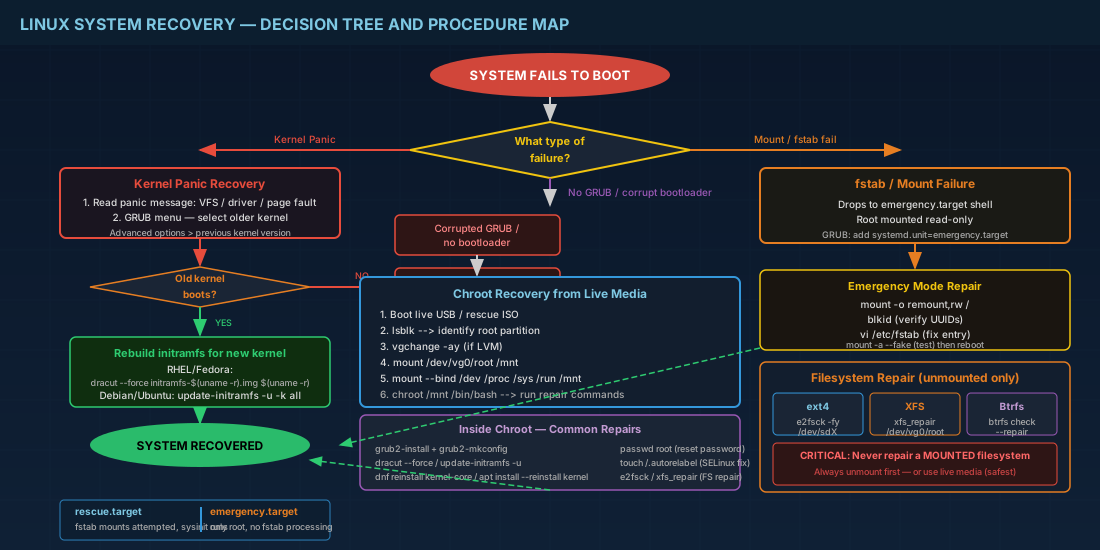
Linux system recovery follows a clear decision tree. If services fail but the system boots, use rescue.target. If fstab or sysinit is broken, use emergency.target. If the kernel panics, boot an older kernel from GRUB. If everything is broken, boot from live media, chroot in, and rebuild from there: reinstall GRUB, regenerate the initramfs with dracut or initramfs-tools, fix fstab, repair filesystems. The key habit for production environments is preparation: keep multiple kernel versions available, use nofail on non-critical fstab entries, test recovery procedures on staging systems before you need them in an outage, and maintain out-of-band console access for every server. For a deeper understanding of how systemd targets work and how to manage service dependencies that affect boot reliability, see our systemd boot targets deep dive. Recovery is not a rare event -- it is a skill you will use regularly.