Every Linux administrator eventually faces a server that refuses to boot. Maybe a kernel update broke GRUB2, maybe the EFI System Partition got corrupted, or maybe someone accidentally ran grub2-mkconfig with a misconfigured /etc/default/grub. Understanding the full UEFI boot chain from firmware to kernel handoff is the difference between a 5-minute fix and hours of blind troubleshooting. This guide covers advanced UEFI configuration, GRUB2 customization, and bootloader recovery techniques that every Linux sysadmin needs to master.
UEFI vs Legacy BIOS Boot: What Actually Changed
Legacy BIOS boots by reading the first 512 bytes of a disk (the MBR), which contains a tiny bootloader stub and a partition table limited to four primary partitions and 2 TB disks. UEFI (Unified Extensible Firmware Interface) replaces that entire model. Instead of reading raw disk sectors, UEFI firmware reads files from a FAT32 partition called the EFI System Partition (ESP). If you are coming from a foundational understanding of how Linux starts up, our Linux boot process overview covers the basics of BIOS, UEFI, GRUB, and systemd in sequence.
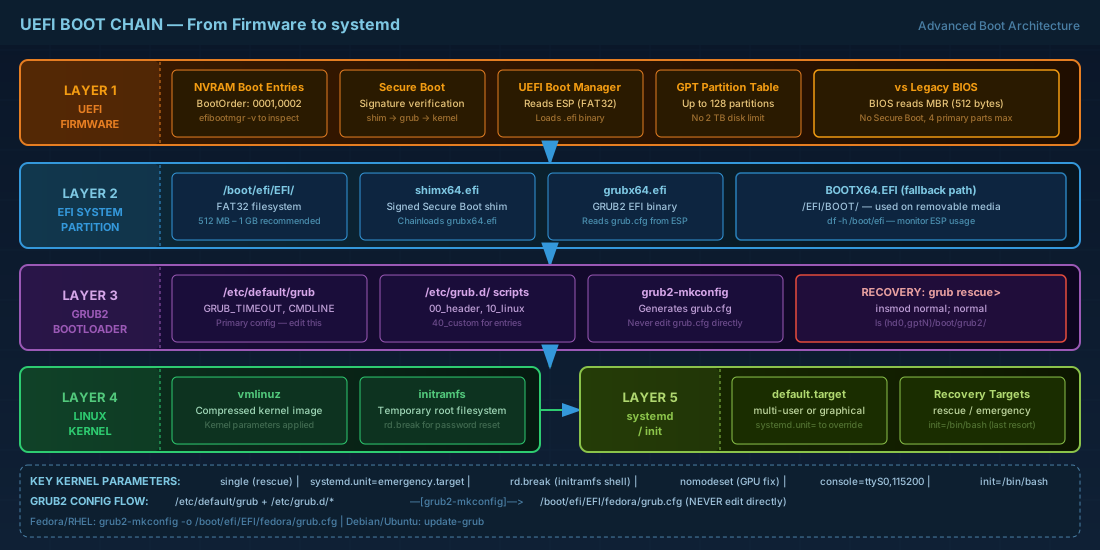
The practical differences matter for day-to-day administration:
| Characteristic | Legacy BIOS | UEFI |
|---|---|---|
| Partition table | MBR (max 2 TB, 4 primary) | GPT (up to 9.4 ZB, 128 partitions default) |
| Boot medium | Raw sector (MBR boot code) | FAT32 filesystem on ESP |
| Boot entries | Single chain from MBR | Multiple named entries in NVRAM |
| Secure Boot | Not available | Supported (signature verification chain) |
| Boot manager | Relies on bootloader in MBR | Built-in UEFI boot manager |
Managing UEFI boot entries with efibootmgr
On a UEFI system, the firmware reads NVRAM variables to determine which ESP file to execute. You can inspect and modify these entries with efibootmgr:
# List all UEFI boot entries
efibootmgr -v

# Sample output (trimmed):
# BootCurrent: 0001
# Boot0001* fedora  HD(1,GPT,...)/File(\EFI\fedora\shimx64.efi)
# Boot0002* ubuntu  HD(1,GPT,...)/File(\EFI\ubuntu\shimx64.efi)

# Change default boot order (boot Ubuntu first, then Fedora)
sudo efibootmgr -o 0002,0001

# Delete a stale boot entry
sudo efibootmgr -b 0003 -B
Production note: on multi-boot servers, stale UEFI entries from old OS installs can cause confusion during remote IPMI reboots. Clean them up with efibootmgr -b <num> -B after decommissioning an OS. On systems where Secure Boot is active, the firmware will only load signed EFI binaries; see our detailed guide on Secure Boot and bootloader hardening for the full key management workflow.
EFI System Partition Layout and Maintenance
The ESP is typically mounted at /boot/efi and formatted as FAT32. Its layout follows a standard directory structure:
/boot/efi/
  EFI/
    BOOT/
      BOOTX64.EFI          # Fallback bootloader (removable media path)
    fedora/
      shimx64.efi          # Signed shim for Secure Boot
      grubx64.efi          # GRUB2 EFI binary
      grub.cfg              # Minimal GRUB config (points to /boot/grub2)
    ubuntu/
      shimx64.efi
      grubx64.efi
      grub.cfg
On RHEL 10.1 and Fedora 43, the ESP is typically 600 MB. Debian 13.3 and Ubuntu 24.04.3 LTS default to 512 MB. For multi-boot setups with multiple kernels, 512 MB is tight; 1 GB avoids problems during kernel updates when old kernels are not immediately purged.
Monitoring ESP disk usage
A full EFI System Partition is a silent time bomb. When the ESP runs out of space during a kernel update, the new kernel's EFI stub may fail to install, leaving you with a partially updated system. Check your ESP usage regularly, and automate alerts if you manage many servers:
# Check ESP usage
df -h /boot/efi

# List ESP contents with sizes
du -sh /boot/efi/EFI/*

# Remove old kernel EFI entries if space is low (Fedora/RHEL)
sudo dnf remove $(dnf repoquery --installonly --latest-limit=-2 -q)
GRUB2 Configuration Files and Generation Workflow
GRUB2 uses two layers of configuration. You edit the source files, then generate the final config. Never edit the generated grub.cfg directly, because your changes will be overwritten the next time any kernel update or grub2-mkconfig runs.
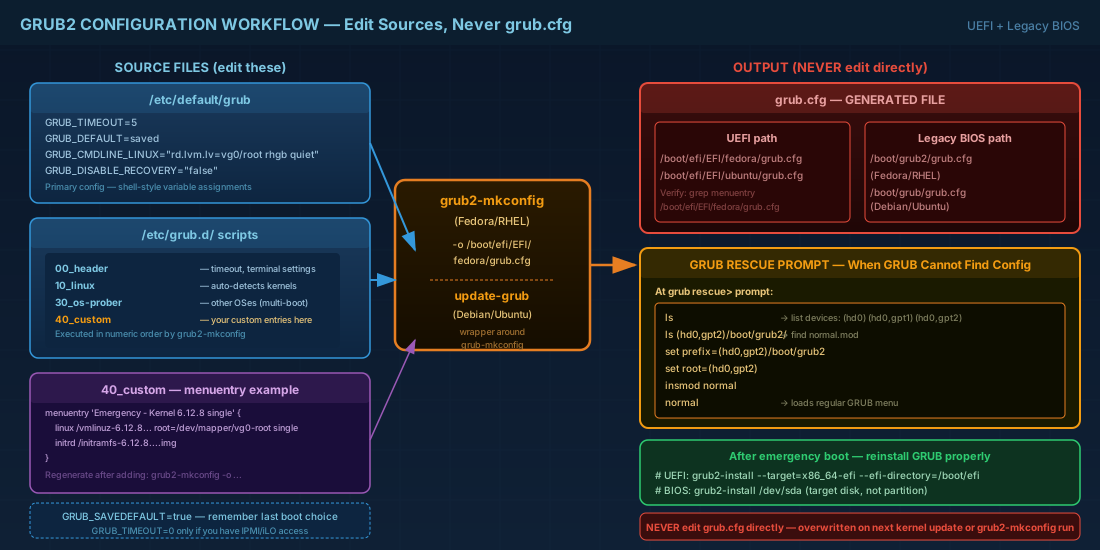
/etc/default/grub: the primary configuration file
This is the primary file you modify. It contains shell-style variable assignments:
# /etc/default/grub on a Fedora 43 / RHEL 10.1 system

GRUB_TIMEOUT=5
GRUB_DISTRIBUTOR="$(sed 's, release .*$,,g' /etc/system-release)"
GRUB_DEFAULT=saved
GRUB_SAVEDEFAULT=true
GRUB_DISABLE_SUBMENU=true
GRUB_TERMINAL_OUTPUT="console"
GRUB_CMDLINE_LINUX="rd.lvm.lv=vg0/root rd.lvm.lv=vg0/swap rhgb quiet"
GRUB_DISABLE_RECOVERY="false"
Key GRUB2 configuration parameters worth knowing:
GRUB_DEFAULT=savedwithGRUB_SAVEDEFAULT=true- Remembers the last-booted menu entry. Useful for multi-kernel testing where you want the system to keep booting the kernel you selected last time.
GRUB_CMDLINE_LINUX- Passes arguments to every kernel entry. Add
console=ttyS0,115200here for serial console access on headless servers. This line is where you define LVM root devices, enable or disable graphical boot splash, and add debugging options. GRUB_DISABLE_RECOVERY="false"- Ensures recovery entries appear in the GRUB menu. Never set this to
trueon production servers -- those recovery entries are your safety net when the primary kernel fails. GRUB_TIMEOUT=5- Gives you 5 seconds to interrupt boot. Set this to 0 only on fully automated systems where you have out-of-band access (IPMI/iLO).
/etc/grub.d/ scripts
The numbered scripts in /etc/grub.d/ are executed in order by grub2-mkconfig to build the final config:
ls -la /etc/grub.d/
# 00_header        - Sets up defaults, timeout, terminal
# 10_linux         - Auto-detects installed kernels
# 20_linux_xen     - Xen hypervisor entries
# 30_os-prober     - Detects other OSes for multi-boot
# 40_custom        - Your custom entries go here
# 41_custom        - Sources external custom file
Generating grub.cfg safely
Never edit grub.cfg directly. Regenerate it after any change to /etc/default/grub or /etc/grub.d/:
# Fedora / RHEL (UEFI)
sudo grub2-mkconfig -o /boot/efi/EFI/fedora/grub.cfg

# Fedora / RHEL (legacy BIOS)
sudo grub2-mkconfig -o /boot/grub2/grub.cfg

# Debian / Ubuntu
sudo update-grub
# (This is a wrapper that calls grub-mkconfig -o /boot/grub/grub.cfg)
Always verify the generated grub.cfg before rebooting a remote server. Run grep menuentry /boot/efi/EFI/fedora/grub.cfg and confirm your expected kernel entries appear. A missing or corrupt grub.cfg means no boot menu, which on a headless server hundreds of miles away means a long drive or a support ticket to your data center.
Custom GRUB Menu Entries and Kernel Parameters
Add custom entries to /etc/grub.d/40_custom. A common use case is adding a known-good kernel fallback that administrators can select when a new kernel causes problems:
#!/bin/sh
exec tail -n +3 $0
# This file provides an easy way to add custom menu entries.

menuentry 'Emergency - Kernel 6.12.8 single user' {
    load_video
    set gfxpayload=keep
    insmod gzio
    insmod part_gpt
    insmod ext2
    search --no-floppy --fs-uuid --set=root a1b2c3d4-e5f6-7890-abcd-ef1234567890
    linux /vmlinuz-6.12.8-200.fc43.x86_64 root=/dev/mapper/vg0-root ro single
    initrd /initramfs-6.12.8-200.fc43.x86_64.img
}
After adding the entry, regenerate: sudo grub2-mkconfig -o /boot/efi/EFI/fedora/grub.cfg
Essential kernel command-line parameters for troubleshooting
These kernel parameters are essential for diagnosing and recovering from boot failures. You can apply them temporarily by editing the GRUB menu entry at boot time (press e on the GRUB screen), or permanently by adding them to GRUB_CMDLINE_LINUX in /etc/default/grub:
singleor1- Boots to single-user mode (
rescue.targetunder systemd). Mounts all filesystems and provides a root shell, but does not start most services or networking. systemd.unit=emergency.target- Minimal emergency shell with the root filesystem typically mounted read-only. Use this when rescue.target itself fails to load. See our system recovery guide for full emergency target procedures.
rd.break- Drops to a shell inside the initramfs before the real root filesystem is mounted. This is the standard method for root password resets on RHEL and Fedora systems.
nomodeset- Disables kernel mode-setting for GPU drivers. Use this when graphics drivers cause boot hangs or display corruption that prevents you from reaching a login prompt.
console=ttyS0,115200- Redirects console output to the first serial port. Essential for headless servers managed through IPMI, iLO, or iDRAC serial-over-LAN.
init=/bin/bash- Bypasses the init system entirely and drops to a bare shell. This is a last resort when systemd itself is broken. No services run, no filesystems are mounted beyond what the initramfs provides.
GRUB Rescue: Recovering a Broken Bootloader
When GRUB cannot find its configuration or modules, it drops to the grub rescue> prompt. This happens when the partition layout changes, the ESP gets corrupted, or someone deletes GRUB files. Recognizing this prompt and knowing the recovery commands is a critical skill for any Linux administrator managing UEFI systems.
From the rescue prompt, you need to find and load the normal module manually:
# At the grub rescue> prompt:

# List available devices and partitions
ls
# (hd0) (hd0,gpt1) (hd0,gpt2) (hd0,gpt3)

# Probe each partition for grub files
ls (hd0,gpt2)/boot/grub2/
# If this shows files like normal.mod, you found it

# Set the prefix and root
set prefix=(hd0,gpt2)/boot/grub2
set root=(hd0,gpt2)

# Load the normal module and boot
insmod normal
normal
This gets you to the regular GRUB menu temporarily. Once booted, reinstall GRUB properly:
# UEFI systems - reinstall GRUB to ESP
# Fedora / RHEL
sudo grub2-install --efi-directory=/boot/efi --bootloader-id=fedora
sudo grub2-mkconfig -o /boot/efi/EFI/fedora/grub.cfg

# Debian / Ubuntu
sudo grub-install --efi-directory=/boot/efi --bootloader-id=ubuntu
sudo update-grub
If the system is too damaged to boot at all, you will need to perform a chroot recovery from live media. The full procedure, including LVM activation and virtual filesystem binding, is covered in our system recovery and emergency targets article.
Multi-Boot UEFI Configuration
When running multiple Linux distributions on one machine (common in lab environments and some specialized production setups), each OS installs its own EFI binary in a subdirectory of the ESP. The os-prober utility detects other installed systems and adds them to GRUB's menu.
# Enable os-prober (disabled by default on some distros since 2022)
# Add to /etc/default/grub:
GRUB_DISABLE_OS_PROBER=false

# Then regenerate
sudo grub2-mkconfig -o /boot/efi/EFI/fedora/grub.cfg
On enterprise servers, multi-boot is rare. But when it exists, designate one OS as the "boot owner" that manages GRUB. The other OS installations should not run grub2-mkconfig or they will fight over the boot menu. Use efibootmgr to switch between them at the firmware level instead.
For labs and development environments, consider using separate ESPs per disk rather than sharing one. This avoids the risk of one OS's kernel update accidentally overwriting another's GRUB configuration. Each disk's ESP can be selected independently through the UEFI firmware boot menu or via efibootmgr -o.
UEFI and GRUB2 Quick Reference Commands
| Task | Command |
|---|---|
| List UEFI boot entries | efibootmgr -v |
| Change UEFI boot order | sudo efibootmgr -o 0002,0001 |
| Delete stale UEFI entry | sudo efibootmgr -b 0003 -B |
| Regenerate GRUB config (Fedora/RHEL UEFI) | sudo grub2-mkconfig -o /boot/efi/EFI/fedora/grub.cfg |
| Regenerate GRUB config (Debian/Ubuntu) | sudo update-grub |
| Reinstall GRUB to ESP (Fedora/RHEL) | sudo grub2-install --efi-directory=/boot/efi --bootloader-id=fedora |
| Check ESP disk usage | df -h /boot/efi |
| Boot to single-user mode (kernel param) | single or systemd.unit=rescue.target |
| Boot to emergency shell (kernel param) | systemd.unit=emergency.target |
| Drop to initramfs shell (kernel param) | rd.break |
| Serial console output (kernel param) | console=ttyS0,115200 |
| Enable os-prober for multi-boot | Set GRUB_DISABLE_OS_PROBER=false in /etc/default/grub |
Summary
The UEFI boot process replaces the old BIOS/MBR model with a filesystem-based approach through the EFI System Partition. GRUB2 configuration lives in /etc/default/grub and the scripts under /etc/grub.d/, and changes only take effect after running grub2-mkconfig (or update-grub on Debian/Ubuntu). When something breaks, knowing how to work the GRUB rescue prompt and reinstall the bootloader from a live environment can save a machine that otherwise looks dead. For multi-boot setups, manage boot entries at the firmware level with efibootmgr rather than letting each OS fight over grub.cfg. Keep recovery entries enabled, maintain your ESP, and always verify the generated configuration before rebooting a headless server. Once the bootloader hands off to the kernel, the init system takes over -- continue to systemd boot targets and init system deep dive to understand the next phase of the Linux startup sequence.