Linux system messaging through wall, MOTD, /etc/issue, and login banners is one of those things that seem trivial until an auditor asks for proof that all users see a legal disclaimer before authentication. On production Linux servers, messaging also serves an operational purpose: telling engineers that a server is in maintenance, notifying users about scheduled downtime, or broadcasting an urgent message to all logged-in sessions. Linux provides several mechanisms for system messaging, and each one triggers at a different stage of the login process. Understanding the difference between pre-login banners, post-login MOTD messages, and real-time wall broadcasts is essential for both security compliance and day-to-day server administration.
Linux pre-login banners: configuring /etc/issue and /etc/issue.net
The file /etc/issue is displayed by agetty on local virtual consoles before the login prompt appears. If someone sits at a physical terminal or connects via a serial console, they see this text first. The file /etc/issue.net serves the same role for network services, most commonly SSH (when configured to use it).
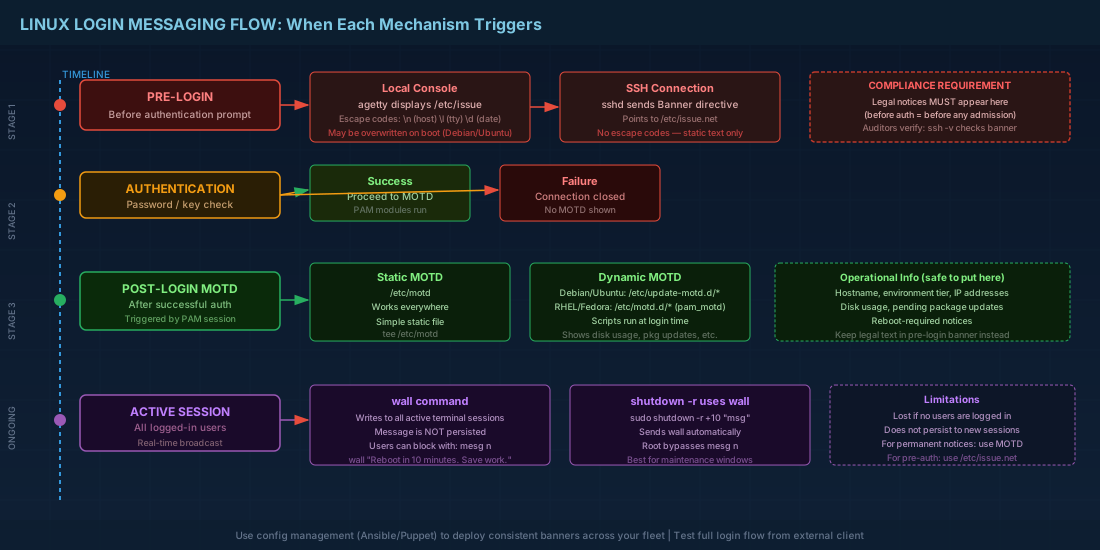
Both files support escape sequences that agetty expands at display time:
# /etc/issue with dynamic fields
# \n = hostname, \l = tty line, \d = date, \t = time
Authorized access only. Unauthorized use is prohibited.
Host: \n  |  TTY: \l  |  Date: \d \t
On Debian 13.3 and Ubuntu 24.04.3 LTS, /etc/issue is typically overwritten by default on each boot. To make it persistent, disable the regeneration. On Ubuntu, that means removing or masking the relevant cloud-init or pam_motd hook that rewrites it. On Fedora 43 and RHEL 10.1, the file stays as you write it unless a package postinstall script replaces it.
Enabling /etc/issue.net in SSH
OpenSSH does not display /etc/issue.net by default. You need to set the Banner directive in /etc/ssh/sshd_config or a drop-in file:
# /etc/ssh/sshd_config.d/banner.conf
Banner /etc/issue.net
# Reload sshd to pick up the change
sudo systemctl reload sshd
# Test from another machine
ssh -v user@server 2>&1 | grep -i bannerOne thing to watch: the SSH Banner is sent before authentication. The escape sequences from agetty (like \n) are not interpreted by sshd. If you need dynamic content in the SSH banner, use a script that writes the file periodically or at boot via a systemd oneshot service. For a thorough walkthrough of systemd service management including reload and oneshot units, see our systemctl practical playbook.
Post-login MOTD messages: /etc/motd and pam_motd configuration
After a user authenticates successfully, the Message of the Day (MOTD) is displayed. The classic approach is a static file at /etc/motd. Modern distributions go further with pam_motd, which can execute scripts to generate dynamic content.
Static MOTD
Simply write your message to /etc/motd. Every interactive login session (console, SSH, or via su -l) will show it. This is the simplest approach and works everywhere:
sudo tee /etc/motd <<'EOF'
============================================
  PRODUCTION SERVER - db-primary-01
  Change management required for all changes
  Contact: ops@example.com
============================================
EOF
Dynamic MOTD with pam_motd and update-motd
Ubuntu and Debian use the update-motd framework. Scripts placed in /etc/update-motd.d/ are executed in order (by filename prefix) each time a user logs in. The output is concatenated and displayed as the MOTD. This is how Ubuntu shows system load, package update counts, and reboot-required notices.
# List the default MOTD scripts on Ubuntu 24.04.3
ls -la /etc/update-motd.d/
# 00-header  10-help-text  50-motd-news  90-updates-available  98-reboot-required

# Create a custom script that shows disk usage
sudo tee /etc/update-motd.d/60-disk-usage <<'SCRIPT'
#!/bin/bash
echo ""
echo "=== Disk Usage ==="
df -h / /var /tmp 2>/dev/null | column -t
echo ""
SCRIPT
sudo chmod 755 /etc/update-motd.d/60-disk-usage
On Fedora 43 and RHEL 10.1, the update-motd framework is not installed by default. Instead, pam_motd.so in /etc/pam.d/login and /etc/pam.d/sshd handles MOTD display. You can still achieve dynamic MOTD by configuring pam_motd to run scripts from a directory:
# In /etc/pam.d/sshd (RHEL 10.1 / Fedora 43)
# The motd= parameter points to static file(s)
# The motd_dir= parameter points to a directory of executable scripts
session    optional     pam_motd.so motd=/run/motd.d/motd motd_dir=/etc/motd.d
Place executable scripts in /etc/motd.d/ and their stdout becomes the MOTD. The key difference from Ubuntu: the directory name is /etc/motd.d/ rather than /etc/update-motd.d/.
Disabling parts of the MOTD
When you inherit a system with chatty MOTD scripts (advertising Canonical Livepatch, Ubuntu Pro, or motd-news), you can disable specific parts:
# Disable Ubuntu's advertising news fetcher
sudo chmod -x /etc/update-motd.d/50-motd-news

# Or disable it systemwide via configuration
sudo tee /etc/default/motd-news <<'EOF'
ENABLED=0
EOF

# Disable all dynamic scripts and use only static /etc/motd
sudo chmod -x /etc/update-motd.d/*
Broadcasting messages with the wall command and systemd-ask-password
The wall command writes a message to all currently logged-in terminal sessions. It does not persist anywhere; if nobody is logged in, the message is lost. This makes it ideal for real-time operational announcements.
# Send a maintenance warning to all logged-in users
wall "System reboot in 10 minutes for kernel update. Save your work."

# Send from a file
wall < /tmp/maintenance-notice.txt

# The shutdown command uses wall internally
sudo shutdown -r +10 "Kernel update - rebooting in 10 minutes"
Users can block wall messages with mesg n on their terminal. The root user can bypass this restriction. In practice, on servers where only admins log in, wall works reliably. On shared multi-user systems, some users may miss the message.
The systemd-ask-password mechanism is different. It prompts for passwords during boot (for encrypted disks, for example) and can relay queries to the wall subsystem. You typically do not use it directly for messaging, but understanding it helps when debugging boot-time password prompts for LUKS volumes on headless servers.
Legal and compliance login banners for Linux servers
Many organizations require a legal notice before login. In the US, the Department of Defense mandates specific banner text. In the EU, GDPR-related notices about monitoring may be required. The placement matters legally: the banner must appear before authentication, which means /etc/issue for local logins and the SSH Banner directive for remote access. SSH hardening practices, including banner configuration, are covered in depth in our guide on advanced OpenSSH tunneling, certificates, and hardening.
A typical compliance setup:
# /etc/issue.net — pre-authentication legal banner for SSH
###############################################################
#  This system is for authorized users only.                  #
#  All activity is monitored and logged.                      #
#  Unauthorized access will be prosecuted.                    #
###############################################################

# /etc/ssh/sshd_config.d/compliance.conf
Banner /etc/issue.net

# /etc/motd — post-authentication operational info
# Keep this separate from legal text
Welcome to web-frontend-03.example.com
Tier: Production | DC: eu-west-1 | Team: Platform Engineering
Auditors specifically check that the legal banner appears before the password prompt. Test this by connecting via SSH with verbose mode (ssh -v) and confirming the banner text arrives before the "Password:" prompt. For local consoles, verify by checking the getty output on a virtual TTY.
Putting it together: a consistent Linux messaging strategy
In an enterprise environment with hundreds of servers, configure messaging through configuration management (Ansible, Puppet, Salt). Push the same /etc/issue.net legal banner to every host. Use dynamic MOTD scripts to display host-specific operational data like hostname, environment tier, IP addresses, and pending updates. Use wall in maintenance runbooks for ad-hoc announcements. PAM modules govern how MOTD scripts are triggered during login; if you need to customize authentication policies beyond messaging, see our tutorial on PAM basics, authentication policy, and account locking.
A practical Ansible snippet for reference:
# roles/base/tasks/banners.yml
- name: Deploy pre-login legal banner
  ansible.builtin.copy:
    src: files/issue.net
    dest: /etc/issue.net
    owner: root
    group: root
    mode: '0644'

- name: Configure SSH to display banner
  ansible.builtin.lineinfile:
    path: /etc/ssh/sshd_config
    regexp: '^#?Banner'
    line: 'Banner /etc/issue.net'
  notify: reload sshd

- name: Deploy disk usage MOTD script
  ansible.builtin.copy:
    src: files/60-disk-usage
    dest: "{{ motd_script_dir }}"
    mode: '0755'
Linux system messaging quick reference cheat sheet
| Mechanism | File / Command | When Shown |
|---|---|---|
| Local pre-login banner | /etc/issue |
Before local console login prompt |
| SSH pre-login banner | /etc/issue.net + Banner in sshd_config |
Before SSH authentication |
| Static MOTD | /etc/motd |
After successful login |
| Dynamic MOTD (Debian/Ubuntu) | /etc/update-motd.d/* |
After login, scripts run and output displayed |
| Dynamic MOTD (RHEL/Fedora) | /etc/motd.d/* via pam_motd |
After login, configured in PAM |
| Broadcast to active sessions | wall "message" |
Immediately to all logged-in terminals |
| Scheduled shutdown notice | shutdown -r +N "msg" |
wall broadcast at schedule time |
| Disable user wall reception | mesg n |
Per-session, root can override |
Summary
Linux system messaging is split across two boundaries: before authentication and after authentication. Pre-login banners (/etc/issue, /etc/issue.net, SSH Banner) handle legal and compliance requirements. Post-login messages (/etc/motd, pam_motd, update-motd scripts) provide operational information. The wall command covers real-time announcements to active sessions. In production, use configuration management to keep banners consistent across your fleet, and test the full login flow from an external client to confirm the right messages appear at the right time. Auditors will check.