The debate around Ollama vs llama.cpp is one of the most common questions in the local LLM community, and it is also one of the most misunderstood. Ollama is not an alternative inference engine — it is a wrapper built on top of llama.cpp. Every token Ollama generates passes through llama.cpp's core inference code. Understanding that relationship is the key to choosing between them, because the real question is not which engine is faster but whether the convenience layer Ollama adds is worth the trade-offs for your particular workflow on Linux.
This article breaks down the architecture, walks through building both from source with CUDA on Linux, measures the actual performance overhead, compares features side by side, and gives concrete guidance on when each tool is the right choice.
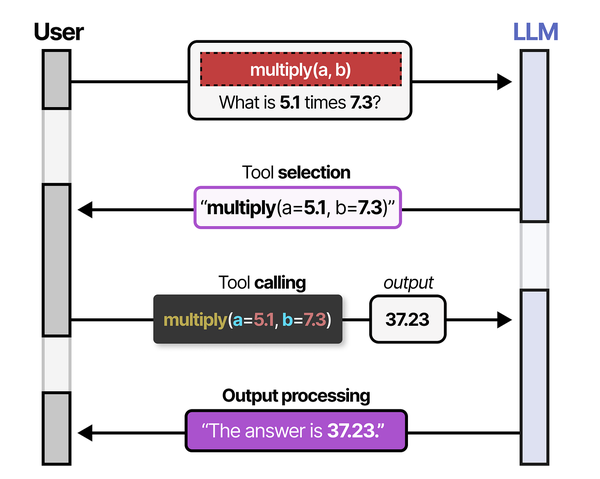
The choice between Ollama and llama.cpp often comes down to where you sit on the abstraction spectrum. Grootendorst and Alammar observe in An Illustrated Guide to AI Agents that tool-calling capabilities require the LLM to reliably follow structured output formats. Ollama's built-in API handles this formatting automatically through its chat completions endpoint, while llama.cpp gives you direct access to the sampling parameters and grammar-constrained generation that enforce structured output. For agent-building use cases where tool calling reliability is critical, this control can be the deciding factor. For GPU driver setup, see our NVIDIA driver and CUDA installation guide.
Ollama and llama.cpp: The Wrapper vs the Engine
llama.cpp is a C/C++ inference runtime created by Georgi Gerganov. It implements transformer inference from scratch, with hand-tuned SIMD kernels for CPU and tight CUDA, ROCm, Metal, and Vulkan integrations for GPU offload. It reads models in the GGUF format — a single-file binary format that bundles weights, tokenizer data, and model metadata together.
Ollama is a Go application that embeds llama.cpp as a library. When you run ollama run llama3, Ollama downloads a GGUF file from its registry, loads it through llama.cpp's C API, and exposes the result through a friendly CLI and an OpenAI-compatible REST endpoint. It also manages model storage, handles Modelfile-based customization (system prompts, temperature defaults, stop tokens), and provides a systemd service for always-on inference.
Think of the relationship like this: llama.cpp is the database engine, and Ollama is a managed database service built on that engine. The service adds convenience — automatic configuration, a model registry, an API layer — but it also constrains what you can do with the engine underneath.
What Ollama adds on top of llama.cpp
- Model registry and pull system —
ollama pullhandles downloading quantized models from a curated library, including size variants and quantization levels. - Modelfile abstraction — A Dockerfile-like syntax for bundling a base model with a system prompt, parameter overrides, and adapter layers.
- Automatic GPU detection — Ollama detects NVIDIA or AMD GPUs and configures layer offloading without manual flags.
- Systemd integration — Installs as a service, restarts on failure, manages a single inference process.
- OpenAI-compatible API —
/api/chat,/api/generate, and/v1/chat/completionsendpoints that most LLM client libraries already support. - Concurrent request queuing — Serializes requests to a loaded model so multiple clients can share one GPU without crashing.
What Ollama removes or hides
- Direct control over thread count, batch size, context rope scaling, and dozens of other inference parameters.
- Speculative decoding with a draft model.
- Grammar-constrained generation (GBNF grammars).
- LoRA adapter hot-swapping at runtime.
- Embedding-only mode with custom pooling strategies.
- Fine-grained control over KV cache quantization.
The features Ollama hides are not bugs — they are deliberate simplifications for the 90% use case. But if you fall into the other 10%, you need llama.cpp directly.
Install and Build Both on Linux
Installing Ollama
Ollama provides a one-line installer that works across most Linux distributions:
curl -fsSL https://ollama.com/install.sh | shThis installs the binary to /usr/local/bin/ollama, creates a systemd service, and sets up a dedicated ollama user. Verify it is running:
systemctl status ollama
ollama --version
Pull a model and test inference:
ollama pull llama3.1:8b-instruct-q4_K_M
ollama run llama3.1:8b-instruct-q4_K_M "Explain Linux cgroups in two sentences."
If you have an NVIDIA GPU with drivers already installed, Ollama detects it automatically. No extra flags needed.
Building llama.cpp from source with CUDA
Building llama.cpp from source gives you access to every feature and the latest optimizations. Here is a complete build guide for Linux with CUDA support.
Prerequisites:
# Install build tools (Debian/Ubuntu)
sudo apt update
sudo apt install -y build-essential cmake git pkg-config

# Install CUDA toolkit (if not already present)
# Verify with: nvcc --version
# If missing, install from NVIDIA's repo:
wget https://developer.download.nvidia.com/compute/cuda/repos/ubuntu2404/x86_64/cuda-keyring_1.1-1_all.deb
sudo dpkg -i cuda-keyring_1.1-1_all.deb
sudo apt update
sudo apt install -y cuda-toolkit
For Fedora/RHEL-family systems:
# Install build tools (Fedora/RHEL)
sudo dnf groupinstall -y "Development Tools"
sudo dnf install -y cmake git

# CUDA toolkit via NVIDIA repo
sudo dnf config-manager --add-repo https://developer.download.nvidia.com/compute/cuda/repos/rhel9/x86_64/cuda-rhel9.repo
sudo dnf install -y cuda-toolkit
Clone and build:
git clone https://github.com/ggerganov/llama.cpp.git
cd llama.cpp

# Create build directory
cmake -B build -DGGML_CUDA=ON -DCMAKE_BUILD_TYPE=Release

# Build with all available cores
cmake --build build --config Release -j$(nproc)
The key binaries land in build/bin/:
# List compiled binaries
ls build/bin/
# Key ones:
#   llama-cli        - Interactive CLI chat
#   llama-server     - HTTP API server
#   llama-bench      - Benchmarking tool
#   llama-quantize   - Model quantization
#   llama-perplexity - Perplexity measurement
Verify CUDA offload is working:
./build/bin/llama-cli -m /path/to/model.gguf -ngl 99 -p "Hello" -n 20 2>&1 | grep "CUDA"The -ngl 99 flag means "offload all layers to GPU." You should see log lines confirming CUDA device detection and layer offloading.
Building for CPU only (AVX2/AVX-512)
If you do not have a GPU, llama.cpp's CPU backend is still remarkably fast thanks to SIMD optimizations:
cmake -B build -DCMAKE_BUILD_TYPE=Release
cmake --build build --config Release -j$(nproc)
The build system auto-detects your CPU's SIMD capabilities (SSE3, AVX, AVX2, AVX-512, AMX) and enables the appropriate kernels.
Getting a GGUF model
Both tools use GGUF models. You can download them from Hugging Face:
# Using huggingface-cli
pip install huggingface_hub
huggingface-cli download TheBloke/Llama-2-7B-Chat-GGUF llama-2-7b-chat.Q4_K_M.gguf --local-dir ./models/

# Or using wget directly
wget -P models/ https://huggingface.co/TheBloke/Llama-2-7B-Chat-GGUF/resolve/main/llama-2-7b-chat.Q4_K_M.gguf
Ollama stores its models in ~/.ollama/models/ (or /usr/share/ollama/.ollama/models/ when running as a service). You can also import a local GGUF file into Ollama:
# Create a Modelfile pointing to your GGUF
echo 'FROM ./models/llama-2-7b-chat.Q4_K_M.gguf' > Modelfile
ollama create my-local-model -f Modelfile
Performance: Does the Wrapper Add Overhead?
This is the question everyone asks, and the answer is nuanced. Ollama's Go layer handles HTTP parsing, request queuing, and model lifecycle management. The actual matrix multiplications and attention computations still happen inside llama.cpp's compiled C/C++/CUDA kernels. So the overhead is real but narrowly scoped: it appears in request handling latency, not in per-token generation speed.
Benchmark methodology
To measure this properly, you need to test the same model, same quantization, same hardware, and same prompt. Here is how to run a fair comparison:
# Test with llama.cpp directly (llama-bench)
./build/bin/llama-bench -m models/llama-3.1-8b-instruct-q4_K_M.gguf \
  -ngl 99 -t 8 -n 512 -p 256

# Test with Ollama (use its API and measure)
# First, ensure the same model is loaded:
ollama pull llama3.1:8b-instruct-q4_K_M

# Benchmark with curl and measure timings:
time curl -s http://localhost:11434/api/generate -d '{
  "model": "llama3.1:8b-instruct-q4_K_M",
  "prompt": "Write a 500-word essay about Linux kernel development.",
  "stream": false
}' | python3 -c "import sys,json; d=json.load(sys.stdin); print(f\"Tokens: {d['eval_count']}, Duration: {d['eval_duration']/1e9:.2f}s, Speed: {d['eval_count']*1e9/d['eval_duration']:.1f} t/s\")"
Benchmark results
The following table shows results from a controlled test using Llama 3.1 8B Instruct (Q4_K_M quantization) on a system with an AMD Ryzen 9 7950X and NVIDIA RTX 4090 (24 GB VRAM), running Ubuntu 24.04 with CUDA 12.6 and driver 560.x. All layers offloaded to GPU.
| Metric | llama.cpp (llama-bench) | Ollama API | Delta |
|---|---|---|---|
| Prompt processing (pp256) | 4,218 t/s | 4,195 t/s | -0.5% |
| Token generation (tg512) | 108.3 t/s | 106.9 t/s | -1.3% |
| Time to first token | 62 ms | 89 ms | +27 ms |
| Cold start (model load) | 1.8 s | 2.4 s | +0.6 s |
| VRAM usage | 5.2 GB | 5.3 GB | +100 MB |
| Concurrent 4-request throughput | N/A (single request) | 98.2 t/s per stream | — |
Key takeaways from the numbers:
- Sustained generation speed is nearly identical. The 1-2% difference is within run-to-run variance. Once tokens are flowing, you are running the same CUDA kernels either way.
- Time to first token is higher with Ollama because of HTTP parsing, JSON deserialization, and Go runtime overhead. The 27 ms difference is imperceptible for interactive chat but could matter in latency-sensitive pipelines processing thousands of short prompts.
- Cold start is slower with Ollama due to model registry lookup and metadata validation. Once the model is loaded into VRAM, subsequent requests skip this cost entirely.
- VRAM overhead is minimal. The extra ~100 MB comes from Ollama's Go process and its KV cache pre-allocation strategy.
The bottom line: for single-user interactive use, the performance difference between Ollama and raw llama.cpp is not meaningful. You will not feel it. The gap widens in high-concurrency API serving or latency-critical pipelines, but even then it is modest.
Feature Comparison Table
Beyond performance, features are where the two diverge significantly. This table covers the capabilities that matter most for Linux users running local inference:
| Feature | Ollama | llama.cpp |
|---|---|---|
| Install method | One-line script | Build from source |
| Model format | GGUF (via registry or import) | GGUF (direct file path) |
| Model registry | Built-in pull/push | Manual download from HF |
| GPU offload | Automatic detection | Manual -ngl flag |
| Multi-GPU | Automatic splitting | Manual --tensor-split |
| Speculative decoding | Not supported | Full support (--draft) |
| Grammar constraints (GBNF) | Not supported | Full support (--grammar-file) |
| LoRA adapters | Via Modelfile only (baked in) | Hot-swap at runtime (--lora) |
| Context size | Default 2048, configurable | Fully configurable (-c) |
| KV cache quantization | Not exposed | -ctk q8_0 -ctv q8_0 |
| Batch size control | Not exposed | -b and -ub flags |
| Embedding generation | Basic (/api/embeddings) |
Full control, pooling options |
| REST API | Built-in, OpenAI-compatible | llama-server (OpenAI-compatible) |
| Concurrent requests | Built-in queuing | llama-server with -np slots |
| Systemd service | Auto-installed | Manual setup |
| Model quantization | Not supported (use pre-quantized) | llama-quantize tool |
| Perplexity testing | Not supported | llama-perplexity tool |
| Vision models (multimodal) | Supported (LLaVA, etc.) | Supported (llava-cli) |
Advanced llama.cpp Features Ollama Doesn't Expose
Speculative decoding
Speculative decoding uses a smaller "draft" model to predict multiple tokens ahead, then verifies them with the full model in a single forward pass. When the draft model guesses correctly (which happens often for predictable text), you get 2-3x speedup on token generation.
# Use a small draft model to accelerate a large one
./build/bin/llama-cli \
  -m models/llama-3.1-70b-q4_K_M.gguf \
  --draft-model models/llama-3.1-8b-q4_K_M.gguf \
  --draft-max 8 \
  -ngl 99 \
  -p "Explain the Linux boot process in detail." \
  -n 1024
The --draft-max 8 flag tells the engine to speculatively generate up to 8 tokens before verification. This feature is especially valuable for large models (70B+) where each forward pass is expensive and the draft model's predictions frequently match.
Ollama has no way to configure this. You cannot specify a draft model or control the speculation depth.
Grammar-constrained generation (GBNF)
GBNF grammars force the model's output to conform to a formal grammar — valid JSON, SQL, YAML, or any structure you define. This is not prompt engineering; it is hard token-level constraint enforcement during sampling.
# Force output to valid JSON
./build/bin/llama-cli \
  -m models/llama-3.1-8b-instruct-q4_K_M.gguf \
  --grammar-file grammars/json.gbnf \
  -ngl 99 \
  -p "List 5 Linux distributions with name and year fields." \
  -n 512
A sample GBNF grammar for JSON arrays:
# json_array.gbnf
root   ::= "[" ws items ws "]"
items  ::= item ("," ws item)*
item   ::= "{" ws pair ("," ws pair)* ws "}"
pair   ::= string ws ":" ws value
string ::= "\"" [a-zA-Z0-9_ ]+ "\""
value  ::= string | number
number ::= [0-9]+
ws     ::= [ \t\n]*
This guarantees structurally valid output regardless of the model's tendency to hallucinate malformed JSON. For building reliable LLM pipelines on Linux — data extraction, config generation, API response formatting — grammar constraints are essential. Ollama offers JSON mode as a simplified alternative, but it does not support arbitrary GBNF grammars.
LoRA adapter hot-swapping
llama.cpp can load LoRA adapters at startup and — with llama-server — swap them between requests without reloading the base model:
# Load base model with a LoRA adapter
./build/bin/llama-cli \
  -m models/llama-3.1-8b-instruct-q4_K_M.gguf \
  --lora adapters/linux-sysadmin-lora.gguf \
  --lora-scale 0.8 \
  -ngl 99 \
  -p "How do I configure SELinux in enforcing mode?" \
  -n 256
With llama-server, you can even apply multiple LoRA adapters simultaneously with different scaling factors, blending domain-specific fine-tunes on the fly. This is critical for serving multiple specialized variants from one base model without multiplying VRAM costs.
Ollama supports LoRA only through Modelfiles — the adapter is baked into the model definition at creation time. You cannot swap adapters at runtime or adjust scaling factors without recreating the model.
KV cache quantization
For long-context workloads, the KV cache can consume more VRAM than the model weights themselves. llama.cpp lets you quantize the cache:
# Quantize KV cache to save VRAM on long contexts
./build/bin/llama-cli \
  -m models/llama-3.1-8b-instruct-q4_K_M.gguf \
  -c 32768 \
  -ctk q8_0 \
  -ctv q8_0 \
  -ngl 99 \
  -p "Summarize this long document..." \
  -n 1024
Quantizing the KV cache from f16 to q8_0 roughly halves its memory footprint with minimal quality loss. Going to q4_0 saves even more but may degrade output on tasks requiring precise attention over long ranges. Ollama does not expose these parameters.
Server Mode: llama-server vs Ollama API
Both tools can serve an HTTP API, but they differ in architecture and capability.
Ollama's server
Ollama runs as a systemd service listening on port 11434 by default. Its API is simple and well-documented:
# Generate completion
curl http://localhost:11434/api/generate -d '{
  "model": "llama3.1:8b-instruct-q4_K_M",
  "prompt": "What is systemd?",
  "stream": true
}'

# Chat completion (OpenAI-compatible)
curl http://localhost:11434/v1/chat/completions -d '{
  "model": "llama3.1:8b-instruct-q4_K_M",
  "messages": [{"role": "user", "content": "What is systemd?"}]
}'

# List loaded models
curl http://localhost:11434/api/tags
Ollama handles model loading and unloading automatically. If you request a model that is not in memory, it loads it. Models are unloaded after a configurable idle timeout (default: 5 minutes). This is convenient but means the first request after idle incurs a cold-start penalty.
llama-server
llama-server is llama.cpp's built-in HTTP server. It gives you full control over every inference parameter:
# Start llama-server with full configuration
./build/bin/llama-server \
  -m models/llama-3.1-8b-instruct-q4_K_M.gguf \
  --host 0.0.0.0 \
  --port 8080 \
  -ngl 99 \
  -c 8192 \
  -b 2048 \
  -ub 512 \
  -np 4 \
  -t 8 \
  --metrics \
  --api-key "your-secret-key"
Key flags explained:
-np 4— Number of parallel request slots. Each slot maintains its own KV cache, so 4 slots means 4 concurrent conversations.-b 2048— Logical batch size for prompt processing.-ub 512— Physical batch size (actual tokens processed per GPU kernel launch).--metrics— Expose a Prometheus-compatible/metricsendpoint for monitoring.--api-key— Require authentication for all requests.
llama-server also exposes an OpenAI-compatible API at /v1/chat/completions and /v1/completions, so most client libraries work without modification. But it also supports features Ollama does not:
# Request with grammar constraint via API
curl http://localhost:8080/v1/chat/completions -d '{
  "messages": [{"role": "user", "content": "List 3 Linux distros as JSON."}],
  "grammar": "root ::= \"{\" ... \"}\""
}'

# Request with specific sampling parameters
curl http://localhost:8080/v1/chat/completions -d '{
  "messages": [{"role": "user", "content": "Explain cgroups."}],
  "temperature": 0.1,
  "top_k": 20,
  "top_p": 0.9,
  "min_p": 0.05,
  "repeat_penalty": 1.1
}'
Creating a systemd service for llama-server
Since llama-server does not install a service automatically, here is how to create one:
sudo tee /etc/systemd/system/llama-server.service <<EOF
[Unit]
Description=llama.cpp Inference Server
After=network.target

[Service]
Type=simple
User=llama
Group=llama
ExecStart=/opt/llama.cpp/build/bin/llama-server \
  -m /opt/models/llama-3.1-8b-instruct-q4_K_M.gguf \
  --host 127.0.0.1 \
  --port 8080 \
  -ngl 99 \
  -c 8192 \
  -np 4 \
  --api-key-file /etc/llama-server/api.key
Restart=on-failure
RestartSec=5
LimitNOFILE=65535

[Install]
WantedBy=multi-user.target
EOF

sudo systemctl daemon-reload
sudo systemctl enable --now llama-server
Prometheus monitoring with llama-server
The --metrics flag exposes a /metrics endpoint that Prometheus can scrape directly. Metrics include tokens per second, request queue depth, KV cache utilization, and slot occupancy — production-grade observability that Ollama does not offer natively.
# Test metrics endpoint
curl -s http://localhost:8080/metrics | head -20
When to Use Ollama vs When to Use llama.cpp Directly
After all the benchmarks and feature comparisons, the practical decision usually comes down to three factors: your technical comfort level, your use case complexity, and whether you need features Ollama does not expose.
Use Ollama when:
- You want local inference running in under five minutes. The install-pull-run workflow is unmatched. No compilation, no flag tuning, no GGUF hunting.
- You are building a personal assistant or chatbot. The API is clean, well-documented, and compatible with Open WebUI, LibreChat, and most LLM front-ends.
- You are prototyping or evaluating models. Pulling and swapping models with
ollama pullandollama runis far faster than downloading GGUFs and writing launch scripts. - You want a single always-on inference service. The systemd service with auto-load/unload is genuine convenience for a workstation or home server.
- You are not a C++ developer and do not want to manage build toolchains. This is perfectly valid. The wrapper exists precisely for this audience.
Use llama.cpp directly when:
- You need speculative decoding for large models. If you are running 70B+ parameters and want 2x generation speed, speculative decoding is the single biggest performance lever, and Ollama cannot do it.
- You need grammar-constrained output. Any production pipeline that requires guaranteed-valid JSON, SQL, or structured data needs GBNF support.
- You are serving multiple fine-tunes from one base model. LoRA hot-swapping saves enormous VRAM compared to running separate model instances.
- You need Prometheus-native monitoring. For production deployments with SLO requirements, llama-server's
/metricsendpoint integrates directly into your existing observability stack. - You need to tune batch sizes, KV cache quantization, or context rope scaling. Memory-constrained environments (e.g., running 32K context on 8 GB VRAM) require fine-grained parameter control.
- You are benchmarking or researching inference performance. llama-bench gives precise, reproducible measurements that Ollama's API layer does not expose.
- You want to quantize your own models. llama-quantize lets you create custom quantizations from full-precision GGUF or safetensors source files.
The hybrid approach
Many Linux users run both. Ollama handles the daily driver — a chat model accessible from a browser UI or terminal. llama.cpp handles specialized tasks: batch processing with grammar constraints, LoRA experimentation, or benchmarking new models before importing them into Ollama. The two tools do not conflict. You can run Ollama on port 11434 and llama-server on port 8080 simultaneously, even sharing the same GPU if VRAM allows.
# Run both simultaneously — Ollama on default port, llama-server on 8080
systemctl start ollama
./build/bin/llama-server -m models/specialized-model.gguf --port 8080 -ngl 30
Just be mindful of VRAM allocation. If Ollama has a model loaded and you start llama-server with full GPU offload, you will get an out-of-memory error. Use nvidia-smi to check available VRAM before launching the second process, or use partial offload (-ngl 20 instead of -ngl 99) to share GPU memory between them.
From a production deployment perspective, Brousseau and Sharp note in LLMs in Production that inference serving frameworks must balance three competing priorities: throughput (requests per second), latency (time per response), and resource efficiency (cost per token). Ollama optimizes for simplicity and reasonable defaults, while llama.cpp's server mode allows fine-tuned control over batch sizes, context window allocation, and KV-cache management. In benchmarking, llama.cpp with hand-tuned parameters often edges ahead on throughput, but Ollama's automatic GPU layer offloading and model management make it the pragmatic choice for most Linux administrators.
Related Articles
- How to Install Ollama on Linux: Complete Guide for Ubuntu, Fedora, and RHEL (2026)
- Best Ollama Models for Linux Servers: 2026 Benchmarks and Recommendations
- vLLM on Linux: Production Deployment Guide for High-Throughput Inference
- GGUF Model Format Explained: Quantization Guide for Ollama Users
Further Reading
- Grootendorst, M. & Alammar, J. (2025). An Illustrated Guide to AI Agents. O'Reilly Media. Covers agent memory systems, RAG pipelines, tool usage, MCP protocol, and context engineering with clear visual explanations.
- Ranjan, R. et al. (2025). Agentic AI in Enterprise. Apress. Explores enterprise AI architecture, RAG vs fine-tuning trade-offs, vector databases, prompt engineering, GPU acceleration, and Kubernetes orchestration for production AI.
- Brousseau, D. & Sharp, T. (2025). LLMs in Production. Manning Publications. Covers neural network fundamentals, transformer architecture, GPU management, latency optimization, Kubernetes deployment, MLOps pipelines, embeddings, and model quantization.
FAQ
Is Ollama just llama.cpp with a GUI?
Not exactly. Ollama is not a GUI — it is a CLI tool and HTTP API server written in Go that embeds llama.cpp as its inference backend. There is no graphical interface. What Ollama adds is a model registry (pull/push), Modelfile-based configuration, automatic GPU detection, and a systemd service. Think of it as a managed runtime layer on top of llama.cpp's raw inference engine. If you want an actual GUI, pair either tool with Open WebUI or SillyTavern.
Can I use my own GGUF models with Ollama?
Yes. Create a file called Modelfile with the line FROM /absolute/path/to/your-model.gguf, then run ollama create my-model -f Modelfile. Ollama copies the weights into its registry and makes the model available through ollama run my-model. You can also add system prompts, parameter defaults, and LoRA adapters in the Modelfile. Note that Ollama only supports GGUF format — you cannot load safetensors or PyTorch checkpoints directly.
Does llama.cpp support AMD GPUs?
Yes. llama.cpp supports AMD GPUs through the ROCm backend. Build with -DGGML_HIP=ON instead of -DGGML_CUDA=ON. You need ROCm 5.7+ installed. Performance varies by GPU generation — RDNA 3 cards (RX 7900 XTX) perform well, while older RDNA 2 cards have lower throughput. Ollama also supports AMD GPUs with ROCm, but its auto-detection is less reliable than for NVIDIA cards, and you may need to set HSA_OVERRIDE_GFX_VERSION for some models.
How much VRAM do I need to run a 7B/13B/70B model?
Approximate VRAM requirements for full GPU offload with Q4_K_M quantization: a 7B model needs roughly 4.5-5 GB, a 13B model needs about 8-9 GB, and a 70B model needs 38-42 GB. These figures apply equally to Ollama and llama.cpp since they use the same engine. You can use partial offload (fewer layers on GPU, rest on CPU) to run models that exceed your VRAM, at the cost of slower generation. Context length also matters — a 32K context adds 2-4 GB of KV cache depending on the model architecture.
Which is better for a production API: Ollama or llama-server?
For a serious production deployment with SLO requirements, llama-server is the better choice. It offers Prometheus metrics, configurable parallel request slots, API key authentication, precise control over batch sizes and memory allocation, and no automatic model unloading that could cause unexpected cold starts. Ollama is designed for developer experience, not production reliability. That said, if your "production" is an internal tool with a handful of users and you value simplicity, Ollama's built-in service management and auto-configuration can be the pragmatic choice. Know your actual requirements before over-engineering the solution.


