Flux is the family of open-weight image generation models released by Black Forest Labs, the team behind the original Stable Diffusion architecture. Flux.1 Dev, Schnell, and Pro represent the current state of the art in open image generation — producing photorealistic images, accurate text rendering, and strong prompt adherence that rivals closed commercial services. Running Flux on your own Linux server means unlimited generation with no per-image costs, complete control over the pipeline, and the ability to process images containing sensitive or proprietary content without sending anything to a third-party API.
This article covers the full deployment: hardware requirements, installing ComfyUI as the generation backend, downloading Flux models, configuring API access for programmatic use, batch processing pipelines, and running the whole stack as a production-grade systemd service behind a reverse proxy.
Hardware Requirements for Flux
Flux models are large. The full Flux.1 Dev model requires roughly 23 GB of VRAM for fp16 inference, which puts it out of reach of consumer GPUs. However, quantized and optimized versions bring the requirements down substantially: For the foundational setup, see our complete Ollama installation guide. For GPU driver setup, see our NVIDIA driver and CUDA installation guide.
- Flux.1 Schnell (quantized fp8): 12 GB VRAM minimum. Works on RTX 3060 12GB, RTX 4070 Ti, and similar cards. Generates images in 4 steps (fast).
- Flux.1 Dev (quantized fp8): 12-16 GB VRAM. RTX 4070 Ti Super (16 GB) or Tesla P40 (24 GB). Generates images in 20-30 steps (higher quality).
- Flux.1 Dev (fp16 full precision): 24 GB VRAM. RTX 4090, A5000, or A6000. Best quality but requires expensive hardware.
- NF4 quantized variants: 8-10 GB VRAM. Fits on RTX 3060 8GB. Some quality loss but surprisingly capable.
System RAM should be at least 32 GB. Model loading is memory-intensive, and you want headroom for the rest of the system. A fast NVMe SSD matters too — Flux model files are 10-24 GB and need to load into VRAM on startup.
CPU-only generation
Technically possible but impractical. A single 1024x1024 image takes 20-45 minutes on a modern CPU versus 5-30 seconds on a GPU. Use CPU generation only for testing pipelines before deploying to GPU hardware.
Installing ComfyUI as the Backend
ComfyUI is a node-based interface for diffusion models that also exposes a powerful API. It is the most flexible and widely-used backend for running Flux on Linux servers, especially for automated pipelines.
System Dependencies
# Ubuntu/Debian
sudo apt update && sudo apt install -y python3 python3-pip python3-venv git wget

# Fedora/RHEL
sudo dnf install -y python3 python3-pip git wget
Clone and Set Up ComfyUI
cd /opt
sudo git clone https://github.com/comfyanonymous/ComfyUI.git
sudo chown -R $USER:$USER /opt/ComfyUI
cd /opt/ComfyUI

python3 -m venv venv
source venv/bin/activate

# For NVIDIA GPUs
pip install torch torchvision torchaudio --index-url https://download.pytorch.org/whl/cu124
pip install -r requirements.txt
Download Flux Models
Flux models are distributed through Hugging Face. You need a Hugging Face account and an access token for gated models:
# Install huggingface CLI
pip install huggingface-hub

# Login (you will need an access token from huggingface.co/settings/tokens)
huggingface-cli login

# Download Flux.1 Schnell (fastest, no gating)
huggingface-cli download black-forest-labs/FLUX.1-schnell \
    --local-dir /opt/ComfyUI/models/unet/flux1-schnell \
    --include "flux1-schnell.safetensors"

# Download the required text encoders
huggingface-cli download comfyanonymous/flux_text_encoders \
    --local-dir /opt/ComfyUI/models/clip/ \
    --include "*.safetensors"

# Download the VAE
huggingface-cli download black-forest-labs/FLUX.1-schnell \
    --local-dir /opt/ComfyUI/models/vae/ \
    --include "ae.safetensors"
Verify Installation
cd /opt/ComfyUI
source venv/bin/activate
python main.py --listen 0.0.0.0 --port 8188
Open http://your-server:8188 in a browser. You should see the ComfyUI node editor. Load a Flux workflow and generate a test image to confirm everything works.
API-Based Image Generation
For server deployments, the web interface is secondary — you want programmatic API access. ComfyUI's API accepts workflow JSON via POST requests and returns generated images.
Creating an API Workflow
First, build your Flux generation workflow in the ComfyUI web interface, then export it as API-format JSON. Alternatively, here is a minimal Flux Schnell workflow for the API:
import json
import urllib.request
import urllib.parse
import random

COMFYUI_URL = "http://127.0.0.1:8188"

def generate_image(prompt, width=1024, height=1024, steps=4):
    workflow = {
        "3": {
            "class_type": "KSampler",
            "inputs": {
                "seed": random.randint(0, 2**32),
                "steps": steps,
                "cfg": 1.0,
                "sampler_name": "euler",
                "scheduler": "simple",
                "denoise": 1.0,
                "model": ["1", 0],
                "positive": ["2", 0],
                "negative": ["7", 0],
                "latent_image": ["5", 0]
            }
        },
        "1": {
            "class_type": "UNETLoader",
            "inputs": {"unet_name": "flux1-schnell/flux1-schnell.safetensors", "weight_dtype": "fp8_e4m3fn"}
        },
        "2": {
            "class_type": "CLIPTextEncode",
            "inputs": {"text": prompt, "clip": ["4", 0]}
        },
        "4": {
            "class_type": "DualCLIPLoader",
            "inputs": {"clip_name1": "t5xxl_fp8_e4m3fn.safetensors", "clip_name2": "clip_l.safetensors", "type": "flux"}
        },
        "5": {
            "class_type": "EmptyLatentImage",
            "inputs": {"width": width, "height": height, "batch_size": 1}
        },
        "7": {
            "class_type": "CLIPTextEncode",
            "inputs": {"text": "", "clip": ["4", 0]}
        },
        "8": {
            "class_type": "VAEDecode",
            "inputs": {"samples": ["3", 0], "vae": ["9", 0]}
        },
        "9": {
            "class_type": "VAELoader",
            "inputs": {"vae_name": "ae.safetensors"}
        },
        "10": {
            "class_type": "SaveImage",
            "inputs": {"filename_prefix": "flux_api", "images": ["8", 0]}
        }
    }

    data = json.dumps({"prompt": workflow}).encode("utf-8")
    req = urllib.request.Request(f"{COMFYUI_URL}/prompt", data=data,
                                 headers={"Content-Type": "application/json"})
    response = urllib.request.urlopen(req)
    return json.loads(response.read())

result = generate_image("A Linux penguin sitting at a desk typing on a mechanical keyboard, photorealistic")
print(f"Queued: {result['prompt_id']}")
Batch Processing Pipeline
For bulk generation — marketing assets, dataset creation, automated thumbnails — wrap the API in a batch processor:
import time
import os

prompts = [
    "Professional headshot of a software engineer, studio lighting",
    "Server room with blue LED lights, wide angle photograph",
    "Linux terminal showing htop output, close-up macro photo",
    "Network cables and switches, data center, shallow depth of field",
]

output_dir = "/opt/flux-output"
os.makedirs(output_dir, exist_ok=True)

for i, prompt in enumerate(prompts):
    result = generate_image(prompt)
    prompt_id = result["prompt_id"]
    print(f"[{i+1}/{len(prompts)}] Queued: {prompt[:50]}... (ID: {prompt_id})")
    time.sleep(1)  # Brief pause between submissions

print(f"All {len(prompts)} images queued. Check {output_dir} for results.")
Running ComfyUI as a systemd Service
For a production image generation server, run ComfyUI under systemd with automatic restarts:
sudo tee /etc/systemd/system/comfyui.service > /dev/null << EOF
[Unit]
Description=ComfyUI Image Generation Server
After=network.target

[Service]
Type=simple
User=comfyui
Group=comfyui
WorkingDirectory=/opt/ComfyUI
ExecStart=/opt/ComfyUI/venv/bin/python main.py --listen 127.0.0.1 --port 8188 --disable-auto-launch
Restart=always
RestartSec=10
Environment=CUDA_VISIBLE_DEVICES=0

[Install]
WantedBy=multi-user.target
EOF

sudo useradd -r -s /bin/false -d /opt/ComfyUI comfyui
sudo chown -R comfyui:comfyui /opt/ComfyUI
sudo systemctl daemon-reload
sudo systemctl enable --now comfyui
sudo systemctl status comfyui
Reverse Proxy with Nginx
Put ComfyUI behind nginx for TLS termination, basic authentication, and rate limiting:
# /etc/nginx/sites-available/flux-api.conf
upstream comfyui {
    server 127.0.0.1:8188;
}

server {
    listen 443 ssl http2;
    server_name flux.example.com;

    ssl_certificate /etc/letsencrypt/live/flux.example.com/fullchain.pem;
    ssl_certificate_key /etc/letsencrypt/live/flux.example.com/privkey.pem;

    # Rate limit: 10 requests per minute per IP
    limit_req_zone $binary_remote_addr zone=flux_limit:10m rate=10r/m;

    location / {
        limit_req zone=flux_limit burst=5 nodelay;
        auth_basic "Flux API";
        auth_basic_user_file /etc/nginx/.flux_htpasswd;

        proxy_pass http://comfyui;
        proxy_http_version 1.1;
        proxy_set_header Upgrade $http_upgrade;
        proxy_set_header Connection "upgrade";
        proxy_read_timeout 300s;
    }
}
The WebSocket upgrade headers are important — ComfyUI uses WebSocket connections to report generation progress and deliver results.
Optimizing Generation Performance
Several configuration options can meaningfully improve generation speed:
- Use fp8 quantization. Flux models quantized to fp8_e4m3fn produce images nearly indistinguishable from fp16 while using half the VRAM and running faster.
- Enable --use-pytorch-cross-attention if you are on PyTorch 2.x. This uses the built-in scaled dot-product attention, which is faster than the default implementation on newer GPUs.
- Set CUDA_VISIBLE_DEVICES to restrict ComfyUI to a specific GPU if you have multiple cards and want to dedicate one to image generation.
- Use Schnell for speed-critical workflows. Flux.1 Schnell produces acceptable images in just 4 steps versus 20-30 for Dev. The quality gap is noticeable for photorealistic content but minimal for illustrations and icons.
- Pre-warm the model. After starting ComfyUI, send a dummy generation request to load the model into VRAM before real requests arrive.
Monitoring and Logging
Track GPU utilization and generation throughput:
# Watch GPU usage in real time
watch -n 1 nvidia-smi

# Check ComfyUI logs
journalctl -u comfyui -f

# Count images generated today
find /opt/ComfyUI/output -name "flux_api_*.png" -newer /tmp/today_marker -type f | wc -l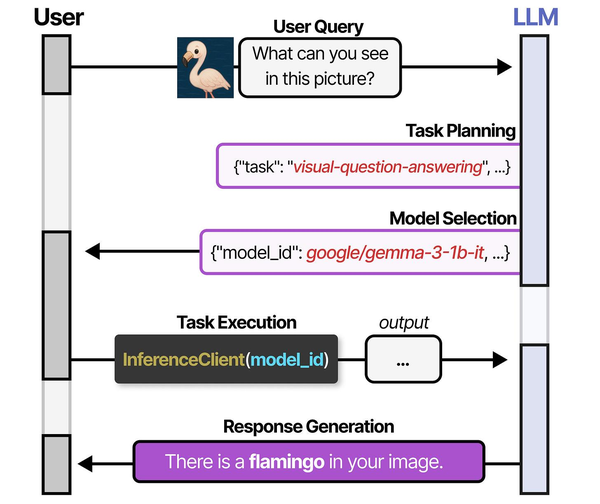
Running Flux image generation on a Linux server showcases the multi-model orchestration paradigm explored in An Illustrated Guide to AI Agents by Grootendorst and Alammar. The book details how systems like HuggingGPT plan tasks and select specialized models — a pattern that applies directly to deploying and managing image generation models on self-hosted infrastructure.
Related Articles
- ComfyUI on a Headless Linux Server: Stable Diffusion with API Access
- Install NVIDIA Drivers and CUDA on Linux Server for AI: The No-Nonsense Guide (2026)
- Docker GPU Passthrough on Linux for AI Workloads
- Best GPU for Running LLMs Locally on Linux: 2026 Buyer's Guide
Further Reading
- An Illustrated Guide to AI Agents by Maarten Grootendorst and Jay Alammar — Visual guide to agent memory, tools, and reasoning.
- LLMs in Production by Christopher Brousseau and Matthew Sharp — Practical deployment of language models from training to production.
- Agentic AI in Enterprise by Sumit Ranjan, Divya Chembachere, and Lanwin Lobo — Enterprise architecture patterns for agentic AI systems.
Frequently Asked Questions
What is the difference between Flux.1 Schnell, Dev, and Pro?
Schnell is optimized for speed — it generates images in 1-4 steps with an Apache 2.0 license, making it suitable for commercial use. Dev is the higher-quality research model that requires 20-50 steps and uses a non-commercial license. Pro is the closed commercial model available only through Black Forest Labs' API. For self-hosted servers, Schnell gives you the best speed-to-quality ratio, while Dev is the choice when image quality is the top priority and generation time is secondary.
Can I run Flux on an AMD GPU?
Yes, through ROCm. Install the ROCm version of PyTorch instead of the CUDA version when setting up ComfyUI: pip install torch torchvision --index-url https://download.pytorch.org/whl/rocm6.1. AMD RX 7900 XTX (24 GB VRAM) handles Flux.1 Dev at fp16 without issues. Performance is roughly 15-30% slower than equivalent NVIDIA hardware due to less mature software optimizations, but the gap is closing with each ROCm release.
How much disk space do I need for a Flux server?
Plan for 50-80 GB minimum. The Flux.1 Dev model files total about 24 GB. Text encoders add another 10 GB. The VAE is roughly 300 MB. Then you need space for generated images — a single 1024x1024 PNG is about 2-4 MB, so 10,000 generated images consume 20-40 GB. Set up a cron job or systemd timer to prune old generated images if disk space is a concern.


