ComfyUI has become the preferred interface for Stable Diffusion workflows among people who take image generation seriously. Its node-based editor lets you build complex pipelines — multi-step upscaling, ControlNet, LoRA stacking, regional prompting — that would be impossible in simpler UIs like Automatic1111. But most ComfyUI guides assume you are running it on a desktop with a monitor attached. If your GPU lives in a rack-mounted server, a cloud instance, or a headless workstation under your desk, you need a different approach. This guide covers the complete setup for running ComfyUI on a headless Linux server, including API access for programmatic image generation, systemd service management, and remote access patterns.
The good news is that ComfyUI works perfectly without a display. It is a web application at its core — the node editor runs in your browser, and the backend is a Python process that manages the inference pipeline. The only thing you lose by going headless is the ability to preview images in a desktop window, which you never needed in the first place since the web UI handles that. What you gain is a stable, always-available image generation service that you can access from any device on your network and automate through its API.
Hardware Requirements
ComfyUI's requirements depend entirely on which models you run. Here are the practical minimums: For the foundational setup, see our complete Ollama installation guide.
| Model | Minimum VRAM | Recommended VRAM | Notes |
|---|---|---|---|
| SD 1.5 | 4 GB | 6 GB | 512x512 default, fast generation |
| SDXL | 8 GB | 12 GB | 1024x1024, noticeably better quality |
| Flux.1 Dev | 12 GB | 24 GB | State of the art, requires significant memory |
| Flux.1 Schnell | 10 GB | 16 GB | Faster variant, slightly lower quality |
For server deployments, I recommend a minimum of 12 GB VRAM (RTX 3060 12GB or RTX 4070 Ti) if you plan to run SDXL. For Flux models, you realistically need a 24 GB card (RTX 3090, RTX 4090, or an A5000). System RAM should be at least 32 GB — model loading temporarily uses system memory, and some operations (like large batch processing) need substantial RAM as a buffer.
Storage matters more than you might expect. A single SDXL checkpoint is 6-7 GB. Add a few LoRAs, a VAE, ControlNet models, and an upscaler, and you are easily at 50-100 GB. Use an SSD for the models directory — loading a checkpoint from spinning disk adds 30+ seconds to every workflow restart.
Installing ComfyUI on a Headless Server
Start with the NVIDIA drivers and CUDA toolkit. If you already have these for Ollama or other GPU workloads, skip ahead.
# Verify GPU is visible
nvidia-smi

# If not installed, install NVIDIA drivers
# Ubuntu/Debian
sudo apt install -y nvidia-driver-550 nvidia-utils-550

# RHEL/AlmaLinux
sudo dnf install -y nvidia-driver nvidia-driver-cuda
Python Virtual Environment Setup
ComfyUI should always run in a virtual environment. Never install its dependencies globally — they include specific PyTorch versions that will conflict with other Python applications.
# Install Python 3.11 (recommended for PyTorch compatibility)
# Ubuntu/Debian
sudo apt install -y python3.11 python3.11-venv python3.11-dev git

# RHEL/AlmaLinux
sudo dnf install -y python3.11 python3.11-devel git

# Create a dedicated user
sudo useradd -r -m -d /opt/comfyui -s /bin/bash comfyui

# Switch to the comfyui user
sudo -u comfyui -i

# Clone ComfyUI
git clone https://github.com/comfyanonymous/ComfyUI.git /opt/comfyui/app
cd /opt/comfyui/app

# Create virtual environment
python3.11 -m venv venv
source venv/bin/activate

# Install PyTorch with CUDA support
pip install torch torchvision torchaudio --index-url https://download.pytorch.org/whl/cu121

# Install ComfyUI dependencies
pip install -r requirements.txt
Verify the installation:
# Still in the venv
python3 -c "import torch; print(f'PyTorch {torch.__version__}, CUDA available: {torch.cuda.is_available()}, GPU: {torch.cuda.get_device_name(0)}')"

# Expected output:
# PyTorch 2.x.x, CUDA available: True, GPU: NVIDIA GeForce RTX 4090
Downloading Models
ComfyUI expects models in specific subdirectories under its models/ folder. The organization is straightforward:
/opt/comfyui/app/models/
├── checkpoints/     # Main SD models (.safetensors)
├── vae/             # VAE models
├── loras/           # LoRA models
├── controlnet/      # ControlNet models
├── upscale_models/  # Upscaler models (ESRGAN, etc.)
├── clip/            # CLIP models (for Flux)
├── unet/            # UNET models (for Flux)
└── embeddings/      # Textual inversion embeddings
SDXL Models
cd /opt/comfyui/app/models

# SDXL base checkpoint
wget -P checkpoints/ \
    https://huggingface.co/stabilityai/stable-diffusion-xl-base-1.0/resolve/main/sd_xl_base_1.0.safetensors

# SDXL VAE (better than built-in)
wget -P vae/ \
    https://huggingface.co/stabilityai/sdxl-vae/resolve/main/sdxl_vae.safetensors

# 4x upscaler
wget -P upscale_models/ \
    https://huggingface.co/Kim2091/4xUltraSharp/resolve/main/4xUltrasharp_4xUltrasharpV10.safetensors
Flux Models
Flux uses a different architecture that splits the model into separate CLIP, UNET, and VAE components:
# Flux.1 Dev (requires HuggingFace authentication for some repos)
# CLIP models
wget -P clip/ \
    https://huggingface.co/comfyanonymous/flux_text_encoders/resolve/main/clip_l.safetensors
wget -P clip/ \
    https://huggingface.co/comfyanonymous/flux_text_encoders/resolve/main/t5xxl_fp8_e4m3fn.safetensors

# UNET
wget -P unet/ \
    https://huggingface.co/black-forest-labs/FLUX.1-dev/resolve/main/flux1-dev.safetensors

# VAE
wget -P vae/ \
    https://huggingface.co/black-forest-labs/FLUX.1-dev/resolve/main/ae.safetensors
Popular LoRAs
# Download LoRAs to the loras directory
wget -P loras/ \
    "https://huggingface.co/example/lora-name/resolve/main/lora.safetensors"

# Rename for clarity
mv loras/lora.safetensors loras/descriptive-name-v1.safetensors
Set proper permissions:
chown -R comfyui:comfyui /opt/comfyui/app/models/Running ComfyUI as a Systemd Service
Create a systemd service so ComfyUI starts automatically and restarts on crashes:
sudo tee /etc/systemd/system/comfyui.service > /dev/null <<'EOF'
[Unit]
Description=ComfyUI Stable Diffusion Server
After=network.target

[Service]
Type=simple
User=comfyui
Group=comfyui
WorkingDirectory=/opt/comfyui/app
Environment="PATH=/opt/comfyui/app/venv/bin:/usr/local/bin:/usr/bin:/bin"
ExecStart=/opt/comfyui/app/venv/bin/python main.py \
    --listen 127.0.0.1 \
    --port 8188 \
    --dont-print-server
Restart=always
RestartSec=10
LimitNOFILE=65536

# Security hardening
NoNewPrivileges=true
ProtectSystem=strict
ReadWritePaths=/opt/comfyui
PrivateTmp=true

[Install]
WantedBy=multi-user.target
EOF

sudo systemctl daemon-reload
sudo systemctl enable --now comfyui
Check status:
sudo systemctl status comfyui
sudo journalctl -u comfyui -f
The --listen 127.0.0.1 flag binds ComfyUI to localhost only. We will set up remote access through SSH tunneling or a reverse proxy in the next sections. Never bind to 0.0.0.0 without authentication — ComfyUI has no built-in auth and allows arbitrary code execution through custom nodes.
Remote Access: SSH Tunnel
The simplest and most secure way to access ComfyUI from your local machine is an SSH tunnel. No firewall changes needed, no reverse proxy to configure, and the connection is encrypted by default.
# From your local machine
ssh -L 8188:127.0.0.1:8188 user@your-server-ip

# Now open in your browser:
# http://localhost:8188
For persistent access, add an SSH config entry:
# ~/.ssh/config
Host comfyui-server
    HostName your-server-ip
    User your-username
    LocalForward 8188 127.0.0.1:8188
    ServerAliveInterval 60
Then just ssh comfyui-server and open http://localhost:8188 in your browser.
Remote Access: Reverse Proxy with Nginx
For team access or when you need a proper URL, set up Nginx as a reverse proxy with authentication:
server {
    listen 443 ssl http2;
    server_name comfyui.example.com;

    ssl_certificate /etc/letsencrypt/live/comfyui.example.com/fullchain.pem;
    ssl_certificate_key /etc/letsencrypt/live/comfyui.example.com/privkey.pem;

    auth_basic "ComfyUI";
    auth_basic_user_file /etc/nginx/.htpasswd;

    location / {
        proxy_pass http://127.0.0.1:8188;
        proxy_http_version 1.1;
        proxy_set_header Upgrade $http_upgrade;
        proxy_set_header Connection "upgrade";
        proxy_set_header Host $host;
        proxy_set_header X-Real-IP $remote_addr;

        # ComfyUI uses WebSockets for progress updates
        proxy_read_timeout 86400;
        proxy_send_timeout 86400;

        # Large uploads for image-to-image
        client_max_body_size 100M;
    }
}
The WebSocket support (Upgrade and Connection headers) is essential — ComfyUI uses WebSockets to push generation progress and preview images to the browser in real time.
API Mode: Programmatic Image Generation
ComfyUI's API is one of its most powerful features for server deployments. Every workflow you create in the node editor is represented as a JSON structure that you can submit via the API. This means you can automate image generation without touching the web UI.
Exporting a Workflow as JSON
In the ComfyUI web interface, click "Save (API Format)" in the menu. This saves the workflow as a JSON file where each node is addressed by its ID number. Here is a simplified example for a basic SDXL text-to-image workflow:
{
    "3": {
        "class_type": "KSampler",
        "inputs": {
            "cfg": 7.5,
            "denoise": 1.0,
            "model": ["4", 0],
            "latent_image": ["5", 0],
            "positive": ["6", 0],
            "negative": ["7", 0],
            "sampler_name": "euler",
            "scheduler": "normal",
            "seed": 42,
            "steps": 25
        }
    },
    "4": {
        "class_type": "CheckpointLoaderSimple",
        "inputs": {
            "ckpt_name": "sd_xl_base_1.0.safetensors"
        }
    },
    "5": {
        "class_type": "EmptyLatentImage",
        "inputs": {
            "batch_size": 1,
            "height": 1024,
            "width": 1024
        }
    },
    "6": {
        "class_type": "CLIPTextEncode",
        "inputs": {
            "clip": ["4", 1],
            "text": "a professional photograph of a mountain landscape"
        }
    },
    "7": {
        "class_type": "CLIPTextEncode",
        "inputs": {
            "clip": ["4", 1],
            "text": "blurry, low quality, watermark"
        }
    },
    "8": {
        "class_type": "VAEDecode",
        "inputs": {
            "samples": ["3", 0],
            "vae": ["4", 2]
        }
    },
    "9": {
        "class_type": "SaveImage",
        "inputs": {
            "filename_prefix": "api_output",
            "images": ["8", 0]
        }
    }
}
Submitting Workflows via API
# Queue a workflow
curl -X POST http://127.0.0.1:8188/prompt \
    -H "Content-Type: application/json" \
    -d "{\"prompt\": $(cat workflow.json)}"

# Response includes a prompt_id for tracking
# {"prompt_id": "abc123-def456-..."}
Monitoring Generation Progress
Use WebSockets to monitor progress in real time:
#!/usr/bin/env python3
"""Submit a ComfyUI workflow and wait for completion."""
import json
import urllib.request
import websocket

SERVER = "127.0.0.1:8188"

def queue_prompt(workflow):
    data = json.dumps({"prompt": workflow}).encode('utf-8')
    req = urllib.request.Request(
        f"http://{SERVER}/prompt",
        data=data,
        headers={"Content-Type": "application/json"}
    )
    resp = urllib.request.urlopen(req)
    return json.loads(resp.read())["prompt_id"]

def wait_for_completion(prompt_id):
    ws = websocket.WebSocket()
    ws.connect(f"ws://{SERVER}/ws?clientId=batch-script")

    while True:
        msg = ws.recv()
        if isinstance(msg, str):
            data = json.loads(msg)
            if data["type"] == "executing":
                node = data["data"]["node"]
                if node is None:
                    # Execution complete
                    break
                print(f"  Executing node: {node}")
            elif data["type"] == "progress":
                step = data["data"]["value"]
                total = data["data"]["max"]
                print(f"  Step {step}/{total}")

    ws.close()

def get_images(prompt_id):
    resp = urllib.request.urlopen(f"http://{SERVER}/history/{prompt_id}")
    history = json.loads(resp.read())
    outputs = history[prompt_id]["outputs"]

    images = []
    for node_id, node_output in outputs.items():
        if "images" in node_output:
            for img in node_output["images"]:
                img_url = f"http://{SERVER}/view?filename={img['filename']}&subfolder={img.get('subfolder','')}&type={img['type']}"
                images.append(img_url)
    return images

# Load and submit workflow
with open("workflow.json") as f:
    workflow = json.load(f)

# Modify prompt dynamically
workflow["6"]["inputs"]["text"] = "a cyberpunk cityscape at night, neon lights"
workflow["3"]["inputs"]["seed"] = 12345

prompt_id = queue_prompt(workflow)
print(f"Queued: {prompt_id}")

wait_for_completion(prompt_id)
print("Generation complete!")

for url in get_images(prompt_id):
    print(f"Image: {url}")
Batch Processing Script
For generating multiple images with different prompts, seeds, or parameters, here is a batch processing script:
#!/usr/bin/env python3
"""Batch generate images from a list of prompts."""
import json
import urllib.request
import time
import sys
import os

SERVER = "127.0.0.1:8188"
OUTPUT_DIR = "/opt/comfyui/output/batch"

prompts = [
    "a serene Japanese garden in autumn, golden leaves",
    "an industrial datacenter corridor, blue LED lights",
    "a medieval castle on a cliff during sunset",
    "an underwater coral reef with tropical fish",
    "a cozy log cabin in a snowy forest at night",
]

with open("workflow_api.json") as f:
    base_workflow = json.load(f)

os.makedirs(OUTPUT_DIR, exist_ok=True)

for i, prompt_text in enumerate(prompts):
    workflow = json.loads(json.dumps(base_workflow))
    workflow["6"]["inputs"]["text"] = prompt_text
    workflow["3"]["inputs"]["seed"] = 1000 + i
    workflow["9"]["inputs"]["filename_prefix"] = f"batch_{i:04d}"

    data = json.dumps({"prompt": workflow}).encode('utf-8')
    req = urllib.request.Request(
        f"http://{SERVER}/prompt",
        data=data,
        headers={"Content-Type": "application/json"}
    )
    resp = urllib.request.urlopen(req)
    result = json.loads(resp.read())
    print(f"[{i+1}/{len(prompts)}] Queued: {prompt_text[:60]}... (id: {result['prompt_id'][:8]})")

    # Simple polling for completion
    time.sleep(2)

print(f"\nAll {len(prompts)} prompts queued. Images will be saved to ComfyUI output directory.")
Installing Custom Nodes
Custom nodes extend ComfyUI's capabilities. On a headless server, install them via git clone:
cd /opt/comfyui/app/custom_nodes

# ComfyUI Manager — essential for managing other nodes
git clone https://github.com/ltdrdata/ComfyUI-Manager.git

# Install dependencies for the custom node
cd ComfyUI-Manager
/opt/comfyui/app/venv/bin/pip install -r requirements.txt
cd ..

# Restart ComfyUI to load new nodes
sudo systemctl restart comfyui
Some popular custom nodes for server deployments:
- ComfyUI-Manager — Web-based node installer and updater
- ComfyUI-Impact-Pack — Face detection, inpainting, batch processing
- ComfyUI-Inspire-Pack — Regional prompting, wildcard support
- rgthree's ComfyUI Nodes — Quality-of-life improvements for complex workflows
GPU Memory Management
On a headless server, GPU memory management matters more than on a desktop because the server may run continuously for weeks without restart. ComfyUI has several flags for controlling memory usage:
# In the systemd service ExecStart line, add flags:
ExecStart=/opt/comfyui/app/venv/bin/python main.py \
    --listen 127.0.0.1 \
    --port 8188 \
    --dont-print-server \
    --lowvram          # Use if VRAM is tight (slower but uses less memory)
    # --highvram       # Keep models in VRAM (fastest, needs lots of VRAM)
    # --gpu-only       # Force everything on GPU (fastest, needs most VRAM)
Monitor GPU memory usage over time:
# Continuous monitoring
watch -n 5 nvidia-smi

# Log GPU usage to file for analysis
nvidia-smi --query-gpu=timestamp,gpu_name,utilization.gpu,memory.used,memory.total,temperature.gpu \
    --format=csv -l 30 >> /var/log/gpu-usage.csv &
Backup and Model Organization
Models are your most valuable and hardest-to-replace assets. Set up automated backups:
# Backup model configs (not the models themselves — those are too large)
# Models can be re-downloaded; workflows and configs cannot
tar -czf /backup/comfyui-config-$(date +%Y%m%d).tar.gz \
    /opt/comfyui/app/custom_nodes/ \
    /opt/comfyui/app/extra_model_paths.yaml \
    /opt/comfyui/app/user/

# List all models with sizes
find /opt/comfyui/app/models -name "*.safetensors" -o -name "*.ckpt" \
    | xargs ls -lh | awk '{print $5, $NF}'
Troubleshooting Headless Issues
CUDA out of memory
The most common error on headless servers. If you are running other GPU workloads (like Ollama), check what is consuming VRAM:
nvidia-smi
# Check if other processes are using the GPU
# Kill anything that should not be there
Add --lowvram to the ComfyUI startup flags, or use smaller models.
Permission denied on model files
If ComfyUI runs as a dedicated user, ensure all model files are readable:
sudo chown -R comfyui:comfyui /opt/comfyui/app/models/
sudo chmod -R 755 /opt/comfyui/app/models/
WebSocket connection failing through reverse proxy
Make sure your Nginx config includes the WebSocket upgrade headers. Without them, the node editor loads but shows no progress updates and images never appear in the preview.
Using Extra Model Paths
If you already have models downloaded for another Stable Diffusion interface (like Automatic1111), you do not need to duplicate them. ComfyUI supports an extra model paths configuration file that points to existing model directories:
# /opt/comfyui/app/extra_model_paths.yaml
a1111:
    base_path: /opt/stable-diffusion-webui/

    checkpoints: models/Stable-diffusion
    vae: models/VAE
    loras: |
        models/Lora
        models/LyCORIS
    upscale_models: models/ESRGAN
    embeddings: embeddings
    controlnet: models/ControlNet
ComfyUI merges these paths with its own model directory. Both locations appear in the model selection dropdowns in the web UI and are available via the API. This is particularly useful on servers where storage is expensive — you can share a single model directory across multiple applications.
Optimizing for Server Workloads
Desktop users optimize for interactivity — fast previews, responsive UI. Server deployments optimize for throughput — maximum images per hour with stable resource usage. Here are server-specific optimizations:
Disable preview generation
In the web UI settings, disable the live preview feature. Preview generation consumes GPU cycles that could be used for actual generation. On a server where most requests come through the API rather than the browser, previews are wasted computation.
Use fixed seeds for reproducibility
In production pipelines, always set explicit seeds in your workflow JSON. Random seeds make debugging impossible — if a generated image has artifacts, you cannot reproduce the issue. Fixed seeds also enable A/B testing of different parameters while keeping the random component constant.
Queue management
ComfyUI processes one workflow at a time. On a server handling multiple concurrent requests, workflows queue up. Monitor the queue length by querying the /queue endpoint:
# Check current queue
curl -s http://127.0.0.1:8188/queue | python3 -m json.tool

# Clear the queue if stuck
curl -X POST http://127.0.0.1:8188/queue -H "Content-Type: application/json" \
    -d '{"clear": true}'
For high-throughput requirements, run multiple ComfyUI instances on separate GPUs. Use a simple load balancer (even a round-robin nginx upstream) to distribute requests across instances. Each instance maintains its own queue, effectively multiplying your throughput by the number of instances.
Disk space management
ComfyUI stores every generated image by default. On a server processing hundreds of images daily, the output directory grows rapidly. Set up a cleanup cron job:
# Delete generated images older than 7 days
echo "0 4 * * * find /opt/comfyui/app/output -name '*.png' -mtime +7 -delete" | sudo tee -a /var/spool/cron/crontabs/comfyui
If you need to retain images long-term, move them to cheaper storage (S3, NFS) rather than letting them accumulate on the GPU server's local SSD. Write a post-processing script that copies completed images to archive storage and removes the local copy.
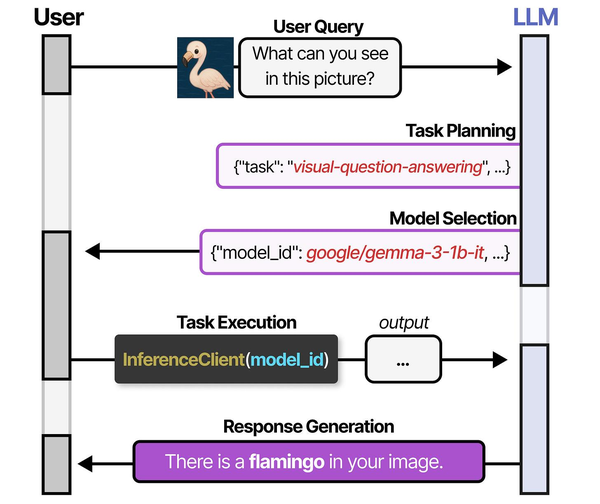
Running ComfyUI in headless mode on a Linux server exemplifies the multi-model orchestration pattern described in An Illustrated Guide to AI Agents by Grootendorst and Alammar. Just as HuggingGPT decomposes tasks and routes them to specialized models, ComfyUI's node-based workflow pipelines chain together multiple AI models for image generation on server infrastructure.
Related Articles
- Flux Image Generation on Linux: Self-Hosted AI Art Server
- Install NVIDIA Drivers and CUDA on Linux Server for AI: The No-Nonsense Guide (2026)
- Docker GPU Passthrough on Linux for AI Workloads
- Best GPU for Running LLMs Locally on Linux: 2026 Buyer's Guide
Further Reading
- An Illustrated Guide to AI Agents by Maarten Grootendorst and Jay Alammar — Visual guide to agent memory, tools, and reasoning.
- LLMs in Production by Christopher Brousseau and Matthew Sharp — Practical deployment of language models from training to production.
- Agentic AI in Enterprise by Sumit Ranjan, Divya Chembachere, and Lanwin Lobo — Enterprise architecture patterns for agentic AI systems.
Frequently Asked Questions
Can ComfyUI run without a GPU at all?
Technically yes, but practically no. CPU inference for Stable Diffusion takes 5-30 minutes per image depending on your CPU and model size. On a GPU, the same generation takes 5-30 seconds. If you are setting up a server specifically for image generation, a GPU is not optional. Even a modest GTX 1660 Ti (6 GB VRAM) running SD 1.5 models is orders of magnitude faster than any CPU.
How do I update ComfyUI on a running server?
Stop the service, pull the latest code, update dependencies, and restart. Your models and custom nodes are preserved since they live in separate directories. Run sudo systemctl stop comfyui && cd /opt/comfyui/app && git pull && venv/bin/pip install -r requirements.txt && sudo systemctl start comfyui. Check the changelog before updating — breaking changes do happen, especially around Flux model support.
Can multiple users access ComfyUI simultaneously?
The web UI supports multiple browser sessions. However, image generation is sequential — if two users queue prompts, the second waits for the first to finish. There is no built-in user isolation, so everyone shares the same model library and output directory. For multi-user deployments, run separate ComfyUI instances on different ports, each assigned to a different GPU if available.
How do I use LoRA models through the API?
Add a LoraLoader node to your workflow JSON. It connects between the checkpoint loader and the positive/negative CLIP encoders. In the API JSON, specify the LoRA filename and strength. You can chain multiple LoraLoader nodes to stack multiple LoRAs. Keep total LoRA strength below 1.5 to avoid artifacts — typically 0.6-0.8 per LoRA is a good starting point.
What is the best way to serve generated images to a web application?
ComfyUI saves generated images to its output directory by default. The simplest approach is to configure your web application to serve images from that directory. Alternatively, use the API to retrieve images after generation completes — the /history endpoint returns filenames, and /view serves the actual image data. For production, set the SaveImage node's output directory to a path your web server already serves, avoiding a secondary fetch step.


