Btrfs subvolumes and snapshots are what set this filesystem apart from traditional Linux storage solutions. Btrfs is not just another filesystem with snapshots bolted on -- its entire design revolves around subvolumes, copy-on-write semantics, and built-in data integrity features that traditional filesystems delegate to external tools like LVM, mdadm, or separate backup scripts. If your environment runs Fedora 43 or openSUSE, you are already on Btrfs by default. This article covers how to use Btrfs advanced features in production, including subvolume management, snapshot rollback, send/receive backups, zstd compression, and RAID profiles.
Commands here apply to Fedora 43, openSUSE Tumbleweed/Leap, Debian 13.3, and Ubuntu 24.04.3 LTS / 25.10. On RHEL 10.1 and 9.7, Btrfs is not supported by Red Hat, but the kernel module is present and the tools work identically if you install btrfs-progs. For a foundational understanding of how Btrfs compares with ext4, XFS, and tmpfs, see our guide on Linux filesystem internals.
Btrfs Subvolumes: The Organizational Unit for Flexible Storage
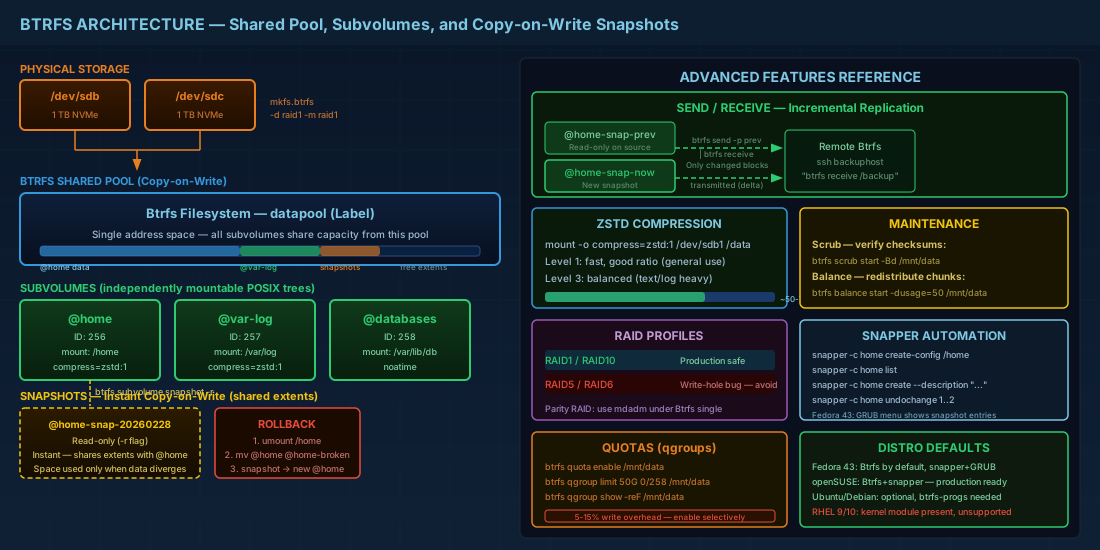
A Btrfs subvolume is an independently mountable POSIX file tree within a Btrfs filesystem. Think of it as a directory that can be snapshotted, sent to another system, or given its own mount options. Unlike LVM logical volumes, Btrfs subvolumes share the same pool of storage. There is no pre-allocated size; space is consumed on demand from the shared pool, making capacity planning more flexible.
# Create a Btrfs filesystem (if you don't have one yet)
sudo mkfs.btrfs -L datapool /dev/sdb1

# Mount the top-level subvolume (ID 5)
sudo mount /dev/sdb1 /mnt/pool

# Create subvolumes
sudo btrfs subvolume create /mnt/pool/@home
sudo btrfs subvolume create /mnt/pool/@var-log
sudo btrfs subvolume create /mnt/pool/@databases

# List all subvolumes
sudo btrfs subvolume list /mnt/pool
The @ prefix is a convention (used by Ubuntu and openSUSE installers), not a requirement. It makes subvolumes visually distinct from regular directories. Fedora 43 uses a flat layout with subvolumes named root and home.
Mounting Specific Btrfs Subvolumes with fstab
Each subvolume can be mounted independently at any path. This is how distributions set up their default Btrfs layouts: the root filesystem is one subvolume, /home is another, and snapshots live in a third location.
# Mount a specific subvolume by name
sudo mount -o subvol=@home /dev/sdb1 /home

# Mount by subvolume ID (useful in recovery)
sudo mount -o subvolid=258 /dev/sdb1 /home

# Persistent mount in /etc/fstab
# UUID=abc123 /home btrfs subvol=@home,defaults,noatime,compress=zstd:1 0 0
# UUID=abc123 /var/log btrfs subvol=@var-log,defaults,noatime,compress=zstd:1 0 0
Production tip: always mount subvolumes by name or ID, not by path. If you reorganize the top-level layout, path-based mounts break. The subvol= mount option is the reliable reference.
Deleting Btrfs Subvolumes Safely
# Delete a subvolume (must not be mounted)
sudo btrfs subvolume delete /mnt/pool/@databases

# Force deletion (queues async cleanup)
sudo btrfs subvolume delete --commit-after /mnt/pool/@databases
Before deleting a subvolume, always verify it is not currently mounted and has no dependent snapshots you want to keep. Use sudo btrfs subvolume list /mnt/pool to review the hierarchy first.
Btrfs Snapshots: Instant Point-in-Time Copies with Copy-on-Write
A Btrfs snapshot is a subvolume that shares data blocks with its source at the moment of creation. Because Btrfs uses copy-on-write, creating a snapshot is nearly instantaneous regardless of the data size -- a 500 GB subvolume snapshots in under a second. Space is only consumed as the source or the snapshot diverge over time.
# Create a read-only snapshot (recommended for backups)
sudo btrfs subvolume snapshot -r /mnt/pool/@home /mnt/pool/@home-snap-20260228

# Create a writable snapshot (useful for testing changes)
sudo btrfs subvolume snapshot /mnt/pool/@home /mnt/pool/@home-test

# List snapshots (they appear as subvolumes)
sudo btrfs subvolume list -s /mnt/pool
Rolling Back to a Btrfs Snapshot
Rollback on Btrfs is a rename operation, not a data copy. The process is: unmount the current subvolume, rename it out of the way, rename (or snapshot) the desired snapshot into place, then remount. This makes Btrfs snapshot rollback orders of magnitude faster than restoring from traditional backups.
# Example: rolling back @home to a snapshot
# Step 1: Unmount (or reboot into rescue mode if rolling back root)
sudo umount /home

# Step 2: Mount top-level to access all subvolumes
sudo mount -o subvolid=5 /dev/sdb1 /mnt/pool

# Step 3: Rename current and promote snapshot
sudo mv /mnt/pool/@home /mnt/pool/@home-broken
sudo btrfs subvolume snapshot /mnt/pool/@home-snap-20260228 /mnt/pool/@home

# Step 4: Remount
sudo umount /mnt/pool
sudo mount -o subvol=@home /dev/sdb1 /home
Rolling back the root subvolume requires booting into a live environment or rescue mode. On Fedora 43 and openSUSE, the GRUB menu offers snapshot boot entries that simplify this. Test your rollback procedure before you need it in an emergency.
Btrfs Send/Receive for Incremental Off-Site Backups
Btrfs send/receive serializes a snapshot into a stream that can be piped to another Btrfs filesystem, stored as a file, or sent over SSH to a remote host. Incremental sends transmit only the delta between two snapshots, making this an efficient replication mechanism that outperforms rsync for Btrfs volumes.
# Full send to another Btrfs filesystem
sudo btrfs send /mnt/pool/@home-snap-20260228 | sudo btrfs receive /mnt/backup/

# Incremental send (requires previous read-only snapshot on both sides)
sudo btrfs send -p /mnt/pool/@home-snap-20260227 /mnt/pool/@home-snap-20260228 \
  | sudo btrfs receive /mnt/backup/

# Send over SSH to a remote host
sudo btrfs send /mnt/pool/@home-snap-20260228 \
  | ssh backuphost "sudo btrfs receive /mnt/backup/"

# Incremental send over SSH
sudo btrfs send -p /mnt/pool/@home-snap-20260227 /mnt/pool/@home-snap-20260228 \
  | ssh backuphost "sudo btrfs receive /mnt/backup/"
For enterprise backups, Btrfs send/receive replaces rsync-based approaches for Btrfs volumes. Incremental sends are faster than rsync because they use filesystem-level change tracking rather than comparing file modification times. In environments that also use LVM thin provisioning and snapshots, Btrfs send/receive provides a native alternative without the LVM overhead.
Btrfs Transparent Compression with zstd
Btrfs supports transparent compression. Data is compressed as it is written and decompressed on read, invisible to applications. The recommended algorithm in 2026 is zstd, which offers better compression ratios than lzo at similar CPU cost. The compression level is specified as zstd:N where N ranges from 1 (fast, less compression) to 15 (slow, more compression). Level 1 or 3 is typical for general use.
# Enable compression on mount
sudo mount -o compress=zstd:1 /dev/sdb1 /mnt/data

# In /etc/fstab
# UUID=abc123 /mnt/data btrfs defaults,noatime,compress=zstd:1 0 0

# Retroactively compress existing files (defragment + compress)
sudo btrfs filesystem defragment -r -czstd /mnt/data/

# Check compression ratio
sudo compsize /mnt/data
# (requires the 'compsize' package: apt install btrfs-compsize or dnf install compsize)
On a typical log directory, zstd:1 compression can reduce space usage by 50-70%. On already-compressed data (JPEG images, compressed archives), the filesystem detects incompressibility and stores blocks uncompressed, so there is no penalty for enabling it globally. This makes zstd compression especially valuable for /var/log subvolumes and source code repositories.
Btrfs Built-in RAID Profiles: RAID 1 and RAID 10
Btrfs can manage multiple devices internally, without mdadm. It supports RAID 0, RAID 1, RAID 10, RAID 5, and RAID 6 profiles. However, RAID 5 and RAID 6 have had long-standing write-hole bugs. As of kernel 6.x in 2026, RAID 5/6 are still not recommended for production data. Use RAID 1 or RAID 10 for redundancy. For parity-based RAID, use Linux software RAID with mdadm underneath Btrfs instead.
# Create a Btrfs RAID 1 (mirrored) across two devices
sudo mkfs.btrfs -d raid1 -m raid1 /dev/sdb /dev/sdc

# Add a device to an existing filesystem
sudo btrfs device add /dev/sdd /mnt/data
sudo btrfs balance start -dconvert=raid1 -mconvert=raid1 /mnt/data

# Check device status
sudo btrfs device stats /mnt/data
Do not use Btrfs RAID 5 or RAID 6 for data you care about. The write hole issue can cause silent data loss after a crash. For parity-based redundancy, use mdadm RAID underneath Btrfs single profile instead.
Btrfs Maintenance: Scrub, Balance, and Data Integrity Checks
Running Btrfs Scrub to Detect Silent Data Corruption
A Btrfs scrub reads every data and metadata block and verifies its checksum. If a block is corrupt and a good copy exists (RAID 1, DUP), Btrfs repairs it automatically. Run scrubs monthly on production data to catch silent data corruption (bit rot) before it spreads.
# Start scrub (foreground, shows progress)
sudo btrfs scrub start -Bd /mnt/data

# Check scrub status
sudo btrfs scrub status /mnt/data

# Automate monthly scrub with systemd timer
sudo systemctl enable btrfs-scrub@mnt-data.timer
Btrfs Balance for Chunk Redistribution
Balance redistributes data and metadata across chunks. It is needed when you add or remove devices, or when chunk allocation becomes fragmented and btrfs filesystem usage shows allocated but unused space growing.
# Balance with a usage filter (only relocate chunks less than 50% full)
sudo btrfs balance start -dusage=50 -musage=50 /mnt/data

# Check balance status
sudo btrfs balance status /mnt/data
Btrfs Quotas and Qgroups for Per-Subvolume Space Limits
Btrfs quotas (qgroups) let you limit space consumption per subvolume. Each subvolume gets a qgroup, and you can set limits on how much exclusive or shared space it can consume. This is particularly useful for multi-tenant environments or shared development servers.
# Enable quota tracking (one-time setup)
sudo btrfs quota enable /mnt/data

# Set a 50 GiB limit on a subvolume (qgroup 0/258 = subvolid 258)
sudo btrfs qgroup limit 50G 0/258 /mnt/data

# Show quota usage
sudo btrfs qgroup show -reF /mnt/data
Be aware that quota accounting adds overhead to every write. On high-throughput workloads, enabling quotas can reduce write performance by 5-15%. Enable quotas only on subvolumes where you need space enforcement. For disk-level capacity monitoring alongside Btrfs quotas, see our guide on disk health and capacity monitoring with df, du, and smartctl.
Snapper Integration for Automated Btrfs Snapshot Management
Snapper is a tool from openSUSE that automates snapshot creation and cleanup on Btrfs. It integrates with zypper on SUSE, dnf on Fedora 43, and can be used standalone on any Btrfs system. Snapper creates pre/post snapshots around package operations, allowing one-command rollback of failed updates.
# Install snapper
sudo dnf install snapper        # Fedora 43
sudo apt install snapper        # Debian 13.3 / Ubuntu

# Create a snapper config for a subvolume
sudo snapper -c home create-config /home

# List snapshots
sudo snapper -c home list

# Create a manual snapshot
sudo snapper -c home create --description "Before database migration"

# Compare two snapshots
sudo snapper -c home diff 1..2

# Undo changes between snapshots (rollback specific files)
sudo snapper -c home undochange 1..2

# Automatic cleanup keeps only N recent snapshots
# Edit /etc/snapper/configs/home: TIMELINE_LIMIT_HOURLY, DAILY, etc.
On Fedora 43, snapper integrates with the GRUB boot menu. If a system update breaks the boot, you can select a previous snapshot from the GRUB menu and boot directly into it. openSUSE has offered this workflow since 2015, and it is one of the most compelling reasons to use Btrfs on workstations. Combined with a properly configured snapper timeline, you get automatic hourly, daily, and weekly snapshots with configurable retention.
Btrfs Subvolumes and Snapshots Quick Reference Commands
| Task | Command |
|---|---|
| Create subvolume | sudo btrfs subvolume create /mnt/pool/@name |
| List subvolumes | sudo btrfs subvolume list /mnt/pool |
| Delete subvolume | sudo btrfs subvolume delete /mnt/pool/@name |
| Create read-only snapshot | sudo btrfs subvolume snapshot -r /source /dest |
| Create writable snapshot | sudo btrfs subvolume snapshot /source /dest |
| Incremental send/receive | sudo btrfs send -p /old-snap /new-snap | sudo btrfs receive /backup/ |
| Enable zstd compression | mount -o compress=zstd:1 ... |
| Check compression ratio | sudo compsize /mnt/data |
| Run scrub | sudo btrfs scrub start -Bd /mnt/data |
| Balance with usage filter | sudo btrfs balance start -dusage=50 /mnt/data |
| Enable quotas | sudo btrfs quota enable /mnt/data |
| Set subvolume quota | sudo btrfs qgroup limit 50G 0/ID /mnt/data |
| Snapper create snapshot | sudo snapper -c config create --description "label" |
| Snapper rollback diff | sudo snapper -c config undochange N1..N2 |
Summary
Btrfs subvolumes replace the role of LVM logical volumes for many workloads, with the added benefit of instant snapshots and integrated data integrity checks. The key operational practices are: organize data into subvolumes with clear naming conventions, take read-only snapshots before risky changes, use Btrfs send/receive for incremental off-site backups, enable zstd compression for log and text-heavy data, and run monthly scrubs to catch silent corruption early.
Avoid Btrfs RAID 5/6 for production data. Use snapper to automate snapshot lifecycle management, especially on Fedora 43 and openSUSE where it integrates with the package manager and GRUB boot menu. Be cautious with quotas on high-throughput workloads. And always test your rollback procedure before the day you actually need it.