Samba file server configuration is the standard method for sharing files between Linux and Windows systems in enterprise networks. In production, a Samba server handles far more than basic file sharing: user authentication, printer sharing, Active Directory domain membership, and even acting as a full AD domain controller. This article covers Samba 4.x configuration for file shares with proper SMB authentication and Windows integration on Linux -- the core knowledge you need for mixed-OS enterprise environments. Since Samba shares rely heavily on Linux file permissions, you may want to review Linux permissions, chmod, chown, and umask before proceeding.
Samba Architecture: Understanding smbd, nmbd, and winbindd Daemons
Samba runs three main daemons, each responsible for a different layer of functionality:
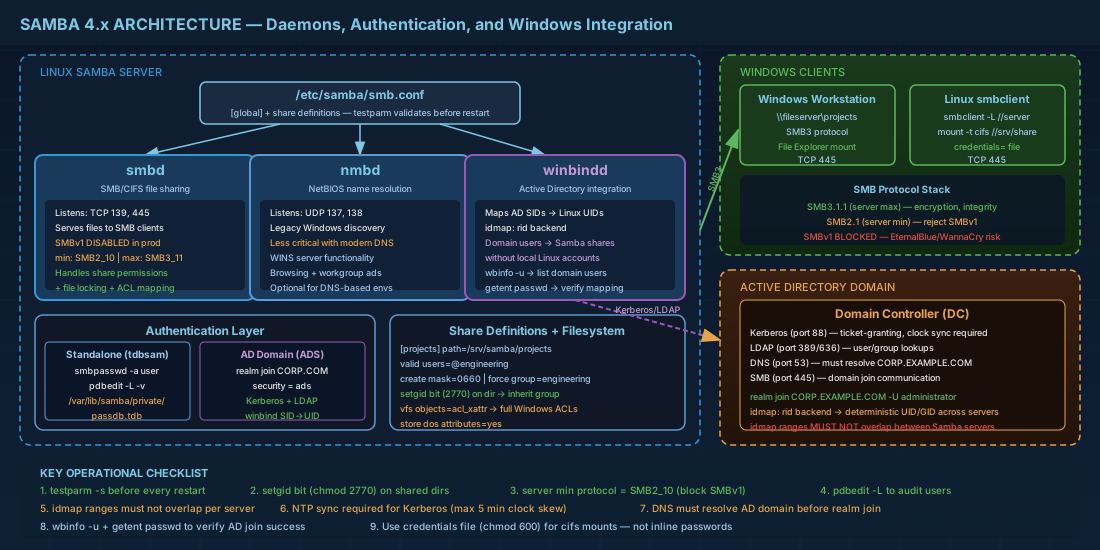
- smbd -- handles SMB/CIFS file sharing and printer sharing. This is the daemon that actually serves files to clients. It listens on TCP ports 139 and 445.
- nmbd -- provides NetBIOS name resolution and browsing services. In legacy networks without DNS, this daemon lets Windows machines find the Samba server by name. Less critical in modern environments with proper DNS, but still needed for some discovery features.
- winbindd -- integrates with Active Directory or NT4-style domains. It maps Windows SIDs to Linux UIDs/GIDs, allowing domain users to access Samba shares without needing separate local Linux accounts.
On systemd-based distributions (Debian 13.3, Ubuntu 24.04.3, Fedora 43, RHEL 10.1), these run as separate units: smbd.service, nmbd.service, and winbind.service. You enable only what you need. A standalone Samba file server needs smbd at minimum. Add nmbd if you want NetBIOS browsing, and winbindd only when joining an AD domain.
Configuring smb.conf: Global Settings and Share Definitions
The entire Samba configuration lives in /etc/samba/smb.conf. It follows an INI-style format with a mandatory [global] section and one section per share.
Global section basics
[global]
   workgroup = CORP
   server string = File Server (Linux)
   security = user
   map to guest = never

   # Logging - one log file per client, rotate at 1 MB
   log file = /var/log/samba/log.%m
   max log size = 1000

   # Modern protocol enforcement - reject SMBv1
   server min protocol = SMB2_10
   server max protocol = SMB3_11

   # DNS proxy for NetBIOS - turn off if you have proper DNS
   dns proxy = no
The security = user line means clients authenticate with a username and password against the Samba user database. This is the default and the right choice for standalone servers. Setting server min protocol = SMB2_10 disables SMBv1, which has known security vulnerabilities and should never be used in production. For additional hardening beyond protocol enforcement, see Linux server security with nftables and firewalld to restrict access to SMB ports.
Creating a Samba file share
Each share is a named section pointing to a filesystem path:
[projects]
   comment = Project files
   path = /srv/samba/projects
   browseable = yes
   read only = no
   valid users = @engineering
   create mask = 0660
   directory mask = 0770
   force group = engineering
Key parameters explained:
valid users = @engineering-- only members of the Linux group "engineering" can access this share. The@prefix means a group.create maskanddirectory mask-- control Linux permissions on newly created files and directories. Files get rw-rw----, directories get rwxrwx---.force group = engineering-- all files created in this share will be owned by the engineering group, regardless of the user's primary group. This prevents permission fights when multiple users write to the same share.
Create the directory and set ownership before restarting Samba:
sudo mkdir -p /srv/samba/projects
sudo chgrp engineering /srv/samba/projects
sudo chmod 2770 /srv/samba/projects
The setgid bit (2770) ensures new files inherit the group ownership. Without it, files created by different users get different group ownership, breaking collaborative access. For a deeper look at setgid and other special permission bits, see ACLs and special permissions on Linux.
Read-only and public shares
Not every share needs write access. A documentation or ISO repository share is best configured as read-only with restricted access:
[docs]
   comment = Documentation repository
   path = /srv/samba/docs
   browseable = yes
   read only = yes
   valid users = @allusers
   guest ok = no
Setting read only = yes ensures no client can modify the content regardless of filesystem permissions. Combine this with guest ok = no to require authentication for every connection. If you need a temporary guest-accessible share for onboarding, set guest ok = yes and map to guest = bad user in the global section, but never leave guest shares active in production without a clear business justification.
Samba User Authentication: smbpasswd and tdbsam Backend
Samba maintains its own password database, separate from /etc/shadow. A user must exist in both Linux and Samba to authenticate. The default backend since Samba 3.x is tdbsam, which stores credentials in /var/lib/samba/private/passdb.tdb.
# Create a Linux user first (if they don't exist)
sudo useradd -M -s /usr/sbin/nologin jdoe

# Add the user to Samba's password database
sudo smbpasswd -a jdoe

# Enable the account (if it was disabled)
sudo smbpasswd -e jdoe

# List all Samba users
sudo pdbedit -L -v
The -M flag skips home directory creation and -s /usr/sbin/nologin prevents SSH login. This is the right approach for accounts that only need SMB access. After adding a user, always verify with pdbedit -L to confirm the entry exists.
Disabling and removing Samba users
Account lifecycle management is just as important as creation. When an employee leaves or changes roles:
# Disable a Samba account (preserves the entry)
sudo smbpasswd -d jdoe

# Permanently remove a user from the Samba database
sudo smbpasswd -x jdoe

# Verify the user was removed
sudo pdbedit -L | grep jdoe
Always disable before deleting when investigating access issues. A disabled account can be re-enabled; a deleted one must be recreated from scratch.
After changing smb.conf, validate the configuration before restarting:
# Check for syntax errors
testparm -s

# Restart Samba daemons
sudo systemctl restart smbd nmbd
The testparm command catches typos and deprecated parameters before they cause a failed start. Get in the habit of running it every time you edit smb.conf.
Active Directory Integration with Samba on Linux
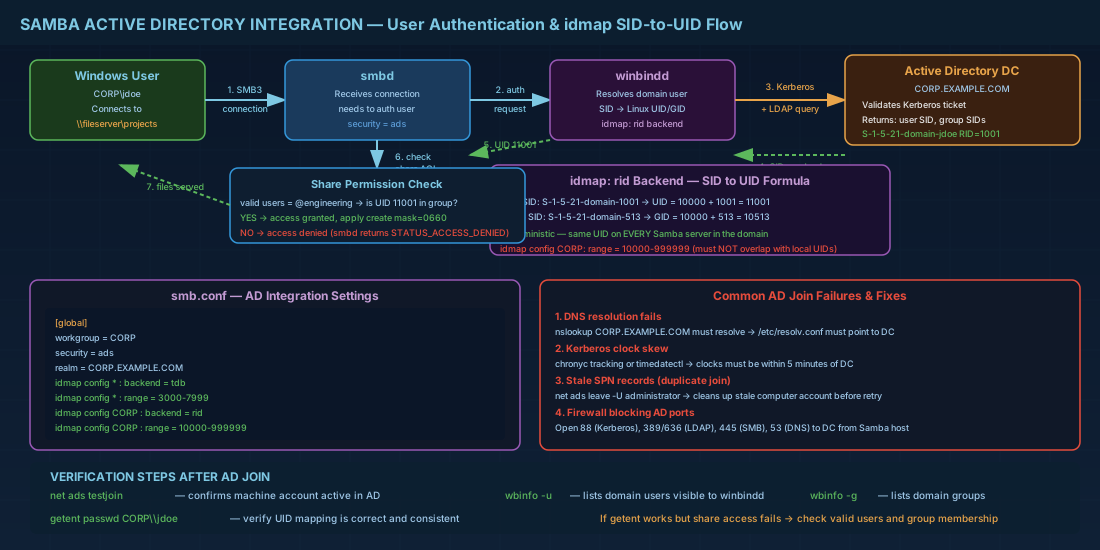
In enterprise environments, standalone Samba authentication does not scale. You want domain users to access shares without separate Samba passwords. This requires joining the Linux server to an Active Directory domain.
Prerequisites
Install the required packages:
# Debian / Ubuntu
sudo apt install samba winbind libpam-winbind libnss-winbind krb5-user

# Fedora / RHEL
sudo dnf install samba samba-winbind samba-winbind-clients krb5-workstation
Kerberos configuration and domain join
Configure /etc/krb5.conf with your AD domain (Samba and realm tools often handle this automatically):
[libdefaults]
    default_realm = CORP.EXAMPLE.COM
    dns_lookup_realm = true
    dns_lookup_kdc = true
Join the domain using the net command or realm join:
# Using realm (recommended on systemd distributions)
sudo realm join CORP.EXAMPLE.COM -U administrator

# Or using net ads
sudo net ads join -U administrator
Update smb.conf for AD integration:
[global]
   workgroup = CORP
   security = ads
   realm = CORP.EXAMPLE.COM

   # winbind settings
   idmap config * : backend = tdb
   idmap config * : range = 3000-7999
   idmap config CORP : backend = rid
   idmap config CORP : range = 10000-999999

   winbind use default domain = yes
   winbind enum users = no
   winbind enum groups = no
The idmap configuration is where most AD integration problems occur. The rid backend generates deterministic UIDs/GIDs from Windows RIDs, which means the same domain user always maps to the same UID across all your Linux servers. The ranges must not overlap. After joining, enable and start winbind:
sudo systemctl enable --now winbind
# Verify domain users are visible
wbinfo -u
getent passwd administrator@corp.example.com
Troubleshooting AD join failures
The most common problems when joining a Linux server to Active Directory:
- DNS resolution -- the Linux server must resolve the AD domain name. Verify with
nslookup CORP.EXAMPLE.COM. If it fails, check/etc/resolv.confand ensure the nameserver points to the AD DNS server. - Time synchronization -- Kerberos requires clocks to be within 5 minutes of each other. Run
chronyc trackingortimedatectlto verify NTP sync. - Duplicate SPNs -- if a previous join attempt failed and left stale records, use
net ads leave -U administratorto clean up before retrying. - Firewall blocking -- AD uses ports 88 (Kerberos), 389/636 (LDAP), 445 (SMB), and 53 (DNS). All must be open from the Linux server to the domain controller.
Permission Mapping Between Linux and Windows ACLs
Standard Linux permissions (owner/group/other with rwx) are simpler than Windows ACLs. Samba maps between them, but the mapping has limits. Basic file permissions work for simple shares, but enterprise environments often need Windows-style ACLs stored in extended attributes.
To enable full Windows ACL support on a share:
[projects]
   path = /srv/samba/projects
   vfs objects = acl_xattr
   map acl inherit = yes
   store dos attributes = yes
   acl_xattr:ignore system acls = yes
The filesystem must support extended attributes. For ext4 or XFS (the default on RHEL 10.1 and Fedora 43), xattr support is enabled by default. Verify with:
sudo getfattr -d -m ".*" /srv/samba/projectsOnce configured, Windows administrators can set permissions through the standard Windows Security tab in file properties, and those ACLs persist correctly on the Linux side.
Browsing, Discovery, and Samba Client Tools
From a Linux client, smbclient is the standard tool for testing and browsing Samba shares:
# List shares on a server
smbclient -L //fileserver.corp.example.com -U jdoe

# Connect to a share interactively
smbclient //fileserver.corp.example.com/projects -U jdoe

# Mount a share on Linux
sudo mount -t cifs //fileserver/projects /mnt/projects \
  -o username=jdoe,domain=CORP,uid=1000,gid=1000
For persistent mounts, add an entry to /etc/fstab with a credentials file to avoid storing passwords in plaintext:
# /etc/fstab entry
//fileserver/projects /mnt/projects cifs credentials=/root/.smbcreds,uid=1000,gid=1000 0 0
# /root/.smbcreds (chmod 600)
username=jdoe
password=secretpass
domain=CORPSamba as Active Directory Domain Controller
Samba 4.x can act as a full Active Directory Domain Controller, providing LDAP, Kerberos, DNS, and Group Policy services. This is a separate deployment model from file sharing. You provision it with samba-tool domain provision and run the samba service (not smbd/nmbd). In production, this is viable for small to medium environments but requires careful testing. Most large enterprises use Windows AD controllers and join Linux servers as domain members instead.
Samba File Server Quick Reference
| Task | Command |
|---|---|
| Validate smb.conf syntax | testparm -s |
| Add Samba user | smbpasswd -a username |
| List Samba users | pdbedit -L -v |
| Join AD domain | realm join DOMAIN.COM -U admin |
| List AD domain users via winbind | wbinfo -u |
| List shares on a remote server | smbclient -L //server -U user |
| Mount CIFS share | mount -t cifs //server/share /mnt -o user=x |
| Restart Samba services | systemctl restart smbd nmbd |
| Check AD join status | net ads testjoin |
| Disable SMBv1 in smb.conf | server min protocol = SMB2_10 |
Summary
A well-configured Samba file server gives Linux systems first-class citizenship in Windows-dominated networks. The key decisions are: standalone (tdbsam) vs. AD-joined authentication, basic POSIX permissions vs. Windows ACL mapping via acl_xattr, and whether you need NetBIOS browsing or can rely on DNS alone. Always enforce a minimum protocol of SMB2_10 to block SMBv1 attacks, validate configuration with testparm before restarting, and use the setgid bit on shared directories to prevent group ownership conflicts. For AD integration, the idmap configuration and non-overlapping UID/GID ranges are the areas where most deployments break down, so test wbinfo -u and getent passwd before declaring the join complete.