Resource monitoring and capacity planning are what separate proactive Linux administration from firefighting. A server that runs fine today can quietly approach its limits over weeks or months. CPU saturation creeps in as traffic grows. Memory pressure builds until the OOM killer starts picking off processes. Disk I/O latency climbs as database tables grow. The difference between reacting to an outage and preventing one is systematic monitoring with tools like sar, vmstat, and iostat, combined with trend analysis. This article covers the core tools for resource monitoring on Linux: the sysstat suite (sar, iostat, mpstat), vmstat, the /proc virtual filesystem, cgroups v2 resource accounting, and practical approaches to capacity planning. For disk-specific health monitoring including SMART diagnostics, see our Level 1 guide on disk health and capacity monitoring with df, du, and smartctl.
The sysstat package: sar, iostat, and mpstat on Linux
The sysstat package is the foundation of historical performance data on Linux. On Debian 13.3 and Ubuntu 24.04.3 LTS, install with apt install sysstat. On Fedora 43 and RHEL 10.1, use dnf install sysstat. After installation, enable the data collection service:
# Enable sysstat data collection (systemd timer)
sudo systemctl enable --now sysstat

# On Debian/Ubuntu, also ensure collection is enabled in config
sudo sed -i 's/ENABLED="false"/ENABLED="true"/' /etc/default/sysstat
sudo systemctl restart sysstat
sysstat collects samples every 10 minutes by default (configured in /etc/cron.d/sysstat or the systemd timer) and stores them in binary files under /var/log/sysstat/ or /var/log/sa/. These files are the historical record you query with sar.
sar: querying historical performance data on Linux
sar reads from the collected data files and produces reports for CPU, memory, disk, network, and more. Each flag selects a different subsystem:
# CPU usage for today, all processors combined
sar -u

# CPU usage for a specific date
sar -u -f /var/log/sysstat/sa25

# Memory usage (including swap) for today
sar -r

# Disk I/O statistics
sar -d -p

# Network interface statistics
sar -n DEV

# Context switches and process creation rate
sar -w

# CPU per-core breakdown
sar -P ALL

# Specific time range: 09:00 to 12:00
sar -u -s 09:00:00 -e 12:00:00
The real value of sar is trend analysis. If CPU utilization averaged 40% last month and averages 65% this month with no new services deployed, something changed. Compare sar output across weeks to spot gradual degradation before it becomes an incident.
iostat: real-time disk I/O monitoring
iostat provides current disk I/O statistics. The extended mode (-x) gives the most useful metrics:
# Extended I/O stats, refreshing every 2 seconds, 5 samples
iostat -xz 2 5

# Key columns to watch:
# r/s, w/s       — reads/writes per second
# rkB/s, wkB/s   — throughput in KB/s
# await           — average I/O latency in milliseconds
# %util           — percentage of time the device was busy
The %util column approaching 100% means the device is saturated. But on modern NVMe drives with parallel queues, %util can be misleading because the device handles many concurrent operations. Focus on await (latency) instead. If await climbs above 10-20ms on NVMe or 20-50ms on SATA SSDs, investigate further.
mpstat: per-CPU statistics
# Per-CPU utilization, 1-second interval
mpstat -P ALL 1 5

# Watch for imbalance: if one CPU is at 100% while others are idle,
# you have a single-threaded bottleneck
vmstat: a quick Linux system health snapshot
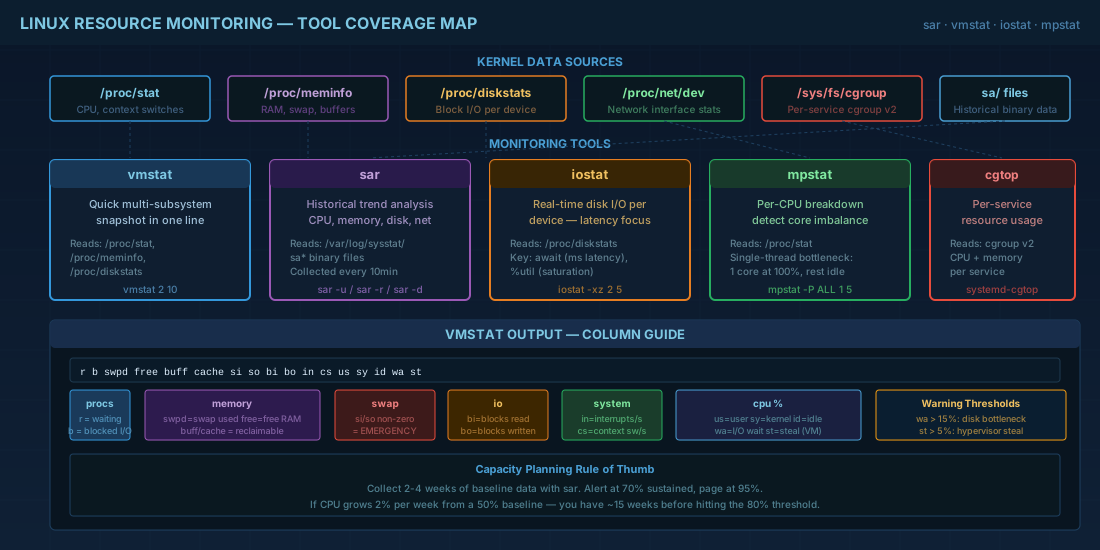
vmstat provides a compact overview of CPU, memory, I/O, and process scheduling in a single output. It is one of the first commands to run when investigating performance issues because it covers multiple subsystems at once.
# vmstat with 2-second intervals, 10 samples
vmstat 2 10

# Typical output:
# procs -----------memory---------- ---swap-- -----io---- -system-- ------cpu-----
#  r  b   swpd   free   buff  cache   si   so    bi    bo   in   cs us sy id wa st
#  1  0      0 2048576 128456 4096128   0    0    12    45 1024 2048 15  3 80  2  0
Here is what each column group tells you:
- procs r — processes waiting for CPU time. If this consistently exceeds the number of CPU cores, the system is CPU-saturated.
- procs b — processes in uninterruptible sleep (usually waiting for I/O). Persistently high values indicate disk or network bottlenecks.
- memory swpd — swap space in use. Any swap usage on a production server warrants investigation.
- memory free/buff/cache — free memory is not the whole picture. Linux aggressively uses free memory for buffer/cache. Available memory (free + reclaimable cache) is what matters.
- swap si/so — swap in/out. If these are non-zero, the system is actively swapping. This is a performance emergency on most production workloads.
- io bi/bo — blocks read/written per second.
- cpu wa — percentage of time CPUs waited for I/O. High values (above 10-15%) point to disk bottlenecks.
- cpu st — steal time. On virtual machines, this is CPU time taken by the hypervisor for other VMs. High steal means the host is overcommitted.
Reading /proc for raw kernel performance data
The /proc filesystem exposes kernel data structures as readable files. For capacity planning, two files are essential:
# /proc/meminfo — detailed memory breakdown
# MemTotal, MemFree, MemAvailable, Buffers, Cached, SwapTotal, SwapFree
grep -E '^(MemTotal|MemAvailable|SwapTotal|SwapFree|Dirty|Writeback)' /proc/meminfo

# /proc/loadavg — load averages and process counts
cat /proc/loadavg
# Output: 1.52 1.34 1.21 3/412 28753
# Fields: 1min 5min 15min running/total last_pid

# A quick rule of thumb: if the 5-minute load average exceeds
# the number of CPU cores, the system is likely overloaded
nproc   # compare this with load average
MemAvailable in /proc/meminfo is the metric to watch for memory pressure. It estimates how much memory is available for new processes without swapping, accounting for reclaimable cache. MemFree alone is misleading because the kernel caches aggressively and that cache is mostly reclaimable.
cgroups v2 resource accounting and per-service monitoring
On Debian 13.3, Ubuntu 24.04.3 LTS, Fedora 43, and RHEL 10.1, cgroups v2 is the default cgroup hierarchy. Every systemd service runs in its own cgroup, which means you get per-service resource accounting for free.
# Check that cgroups v2 is active
mount | grep cgroup2
# Expected: cgroup2 on /sys/fs/cgroup type cgroup2

# View CPU and memory usage for a specific service
systemctl status nginx --no-pager
# The "Memory:" and "CPU:" lines in the output come from cgroup accounting

# More detailed cgroup stats
cat /sys/fs/cgroup/system.slice/nginx.service/memory.current
cat /sys/fs/cgroup/system.slice/nginx.service/cpu.stat

# List all cgroup resource usage with systemd-cgtop
systemd-cgtop -n 1
systemd-cgtop is like top but organized by cgroup (service). This is valuable when multiple services run on the same host and you need to identify which one is consuming resources. For managing these services and understanding their lifecycle, see our systemctl practical playbook. For capacity planning, you can track per-service memory growth over time and predict when a service will need more resources or a dedicated host.
Setting resource limits with cgroups v2
# Limit a service to 2 GB of memory (hard limit)
sudo systemctl set-property nginx.service MemoryMax=2G

# Limit CPU to 150% (1.5 cores)
sudo systemctl set-property nginx.service CPUQuota=150%

# These create drop-in files under /etc/systemd/system/nginx.service.d/
# and persist across reboots
Additional monitoring tools: nmon and dool
For interactive performance analysis, nmon provides a terminal-based dashboard covering CPU, memory, disk, network, and more in a single screen. Install with apt install nmon or dnf install nmon. Press keys to toggle subsystems: c for CPU, m for memory, d for disk, n for network.
The classic dstat tool was discontinued and replaced by dool (a Python 3 rewrite). On Fedora 43 and recent distributions, install with dnf install dool. On Debian/Ubuntu, dstat may still be available as a transitional package.
# dool: combined CPU, disk, net, memory, system stats
dool --cpu --disk --net --mem --sys 2

# nmon in batch mode for data collection (useful for overnight captures)
nmon -f -s 30 -c 2880   # 30-second intervals for 24 hours
Linux capacity planning in practice
Monitoring tells you what is happening now. Capacity planning predicts when you will run out of headroom. The process is straightforward but requires discipline:
- Establish baselines. Collect 2-4 weeks of sar data during normal operations. Record average and peak CPU, memory, disk I/O, and network utilization.
- Identify trends. Plot weekly averages. If memory usage grows 2% per week, you have roughly 15 weeks before hitting 80% utilization from a 50% starting point.
- Set alerting thresholds. A common pattern: warn at 70% sustained utilization, alert at 85%, page at 95%. Adjust based on how quickly you can add capacity.
- Correlate with business metrics. If CPU usage correlates with request count, and marketing plans a 3x traffic campaign next quarter, you can predict resource needs.
# Export sar data to a CSV-friendly format for trend analysis
sar -u -f /var/log/sysstat/sa25 | awk 'NR>3 && /^[0-9]/ {print $1","$3","$5","$8}'

# Quick baseline: average CPU idle over the last 7 days
for i in $(seq 20 27); do
  echo -n "Day $i: "
  sar -u -f /var/log/sysstat/sa$i 2>/dev/null | tail -1
done

# Memory trend: daily average MemUsed percentage
sar -r | tail -1   # %memused is in the last summary line
For teams with monitoring infrastructure (Prometheus, Grafana, Zabbix), feed sar data or node_exporter metrics into dashboards. The sysstat data files are a safety net for hosts where the monitoring agent might be down or not yet deployed.
Troubleshooting common Linux performance scenarios
High CPU but low load average
This usually means a few processes are busy but not blocked on I/O. Check mpstat -P ALL for per-core imbalance. A single-threaded application will max out one core while others sit idle.
High load average but low CPU usage
Processes are stuck in uninterruptible sleep (D state), usually waiting for disk or NFS I/O. Check vmstat column b and wa. Investigate disk health with iostat -x or check NFS mount responsiveness. For disk-level diagnostics, run smartctl and df as described in our guide on filesystem maintenance with fsck, tune2fs, xfs_repair, and SMART.
Memory appears full but no swap usage
Linux uses free memory for filesystem cache. Check MemAvailable in /proc/meminfo, not MemFree. If MemAvailable is healthy (above 15-20% of total), the system is fine. The cache will be reclaimed when applications need memory.
Resource monitoring quick reference cheat sheet
| Task | Command |
|---|---|
| Install sysstat | apt install sysstat / dnf install sysstat |
| Enable collection | systemctl enable --now sysstat |
| CPU history (today) | sar -u |
| Memory history | sar -r |
| Disk I/O history | sar -d -p |
| Network history | sar -n DEV |
| Real-time disk I/O | iostat -xz 2 |
| Per-CPU stats | mpstat -P ALL 1 |
| Quick system snapshot | vmstat 2 10 |
| Available memory | grep MemAvailable /proc/meminfo |
| Per-service resource usage | systemd-cgtop -n 1 |
| Set service memory limit | systemctl set-property svc.service MemoryMax=2G |
| Interactive dashboard | nmon or dool --cpu --disk --net --mem 2 |
Summary
Resource monitoring on Linux starts with the sysstat package for historical data collection and sar for querying it. vmstat gives you a quick multi-subsystem snapshot. iostat and mpstat drill into disk and CPU details. The /proc filesystem provides raw kernel metrics when you need specifics. cgroups v2 and systemd-cgtop break resource usage down by service, which is essential on hosts running multiple workloads. For capacity planning, the discipline is straightforward: establish baselines from normal operation, track trends weekly, set alerting thresholds before you hit saturation, and correlate resource usage with business metrics to predict growth. The tools are all in the base repositories of Debian 13.3, Ubuntu 24.04.3 LTS, Fedora 43, and RHEL 10.1. The hard part is not installing them; it is consistently reviewing the data and acting on trends before they become incidents.