Building software from source on a production Linux system is a legitimate practice when the version in your distribution's package manager is not enough. You need a newer release, a custom compile flag, or a patch that has not been backported yet. However, compiling from source carries real risk: untracked files, broken library paths, conflicts with package-managed software, and difficulty reproducing the build later. This article covers the essential build tools (configure, make, cmake, meson), the packaging step most people skip (checkinstall, FPM, rpmbuild), and the best practices that keep production systems maintainable. For foundational concepts, see our Level 1 guide on building and installing software from source safely.
The classic build workflow: configure, make, make install
The traditional C/C++ build process on Linux uses GNU Autotools. You download the source tarball, run ./configure to detect system libraries and set options, make to compile, and make install to copy binaries and libraries into the target prefix.
# Install build dependencies (Debian 13.3 / Ubuntu 24.04.3)
sudo apt install build-essential autoconf automake libtool pkg-config

# On Fedora 43 / RHEL 10.1
sudo dnf groupinstall "Development Tools"
sudo dnf install autoconf automake libtool pkgconfig

# Download, configure, build, and install (example: jq)
wget https://github.com/jqlang/jq/releases/download/jq-1.7.1/jq-1.7.1.tar.gz
tar xzf jq-1.7.1.tar.gz
cd jq-1.7.1
./configure --prefix=/usr/local
make -j$(nproc)
sudo make install
The --prefix=/usr/local flag is critical. It tells the build system to install under /usr/local rather than /usr, which is managed by your distribution's package manager. This avoids file conflicts with packaged software. The Filesystem Hierarchy Standard designates /usr/local specifically for locally compiled software.
When to use /opt instead of /usr/local
Use /opt/<package-name> when the software is self-contained and you want to isolate it completely. Commercial software, large application stacks, or software that ships its own library tree fits better in /opt. The trade-off: binaries in /opt are not on the default $PATH, so you need to add them manually or create symlinks.
# Install into /opt with a dedicated prefix
./configure --prefix=/opt/myapp-2.5
make -j$(nproc)
sudo make install

# Add to path for all users
echo 'export PATH="/opt/myapp-2.5/bin:$PATH"' | sudo tee /etc/profile.d/myapp.sh
Modern build systems: cmake and meson on Linux
Many projects have moved away from Autotools. cmake and meson are the most common replacements. Both generate build files for a backend (usually ninja or make), then you invoke the backend to compile.
cmake
# Install cmake (all major distros)
sudo apt install cmake ninja-build   # Debian/Ubuntu
sudo dnf install cmake ninja-build   # Fedora/RHEL

# Build a cmake project (out-of-source build)
git clone https://github.com/example/project.git
cd project
cmake -B build -G Ninja \
  -DCMAKE_INSTALL_PREFIX=/usr/local \
  -DCMAKE_BUILD_TYPE=Release
cmake --build build --parallel $(nproc)
sudo cmake --install build
meson
# Install meson
sudo apt install meson ninja-build   # Debian/Ubuntu
sudo dnf install meson ninja-build   # Fedora/RHEL

# Build a meson project
git clone https://github.com/example/project.git
cd project
meson setup builddir --prefix=/usr/local --buildtype=release
ninja -C builddir -j$(nproc)
sudo ninja -C builddir install
The out-of-source build pattern (building in a separate build or builddir directory) keeps the source tree clean. You can delete the build directory and start over without re-downloading or re-cloning.
Handling shared libraries: ldconfig and pkg-config configuration
After installing libraries to /usr/local/lib, the dynamic linker may not find them. This causes "cannot open shared object file" errors at runtime. The fix is ldconfig:
# Ensure /usr/local/lib is in the linker search path
echo '/usr/local/lib' | sudo tee /etc/ld.so.conf.d/local.conf
sudo ldconfig

# Verify the library is found
ldconfig -p | grep libexample
pkg-config is the other piece. It provides compile and link flags for libraries. When you install a library from source with the correct prefix, it installs a .pc file. Other software that depends on it can then query pkg-config for the correct flags:
# Check what flags pkg-config provides for a library
pkg-config --cflags --libs libexample

# If pkg-config can't find it, set PKG_CONFIG_PATH
export PKG_CONFIG_PATH="/usr/local/lib/pkgconfig:$PKG_CONFIG_PATH"
pkg-config --cflags --libs libexample
The real problem: untracked installs and the packaging solution
Running make install directly scatters files across the filesystem with no tracking. Six months later, you cannot cleanly uninstall or upgrade the software. You do not know which files belong to the custom build. This is the single biggest risk of building from source on production systems.
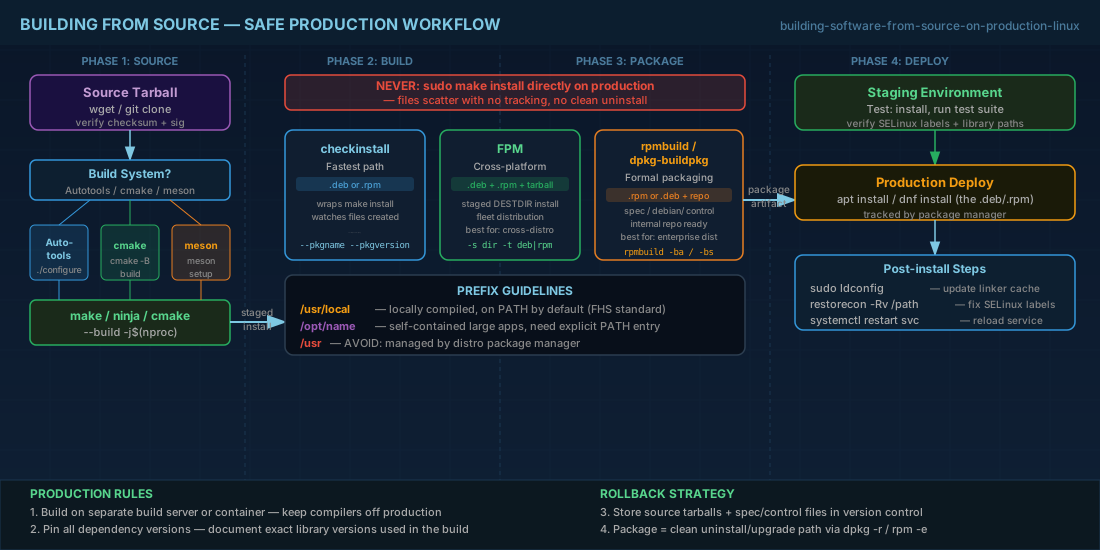
The solution is to package the software before installing it, even if you built it yourself.
checkinstall: quick and simple packaging
checkinstall wraps make install, watches which files it creates, and builds a .deb or .rpm package that you install through the package manager. It is the fastest path from compiled source to a tracked package.
# Instead of "sudo make install", use checkinstall
sudo apt install checkinstall   # Debian/Ubuntu

# Build the package (creates a .deb)
sudo checkinstall --pkgname=jq-custom --pkgversion=1.7.1 \
  --pkgrelease=1 --default make install

# The .deb is installed and tracked by dpkg
dpkg -l | grep jq-custom
dpkg -L jq-custom   # list all files owned by this package
FPM: flexible package creation for Linux
FPM (Effing Package Management) is more flexible than checkinstall. It can create RPMs, DEBs, or tarballs from a staged directory. This is the tool to use when you need to distribute custom builds across a fleet.
# Install FPM (Ruby gem)
sudo apt install ruby ruby-dev   # or dnf install ruby ruby-devel
sudo gem install fpm

# Stage the install into a temporary directory
make DESTDIR=/tmp/jq-stage install

# Build a .deb from the staged directory
fpm -s dir -t deb \
  --name jq-custom --version 1.7.1 --iteration 1 \
  --description "Custom-built jq 1.7.1" \
  --depends libc6 \
  -C /tmp/jq-stage .

# Build an .rpm instead
fpm -s dir -t rpm \
  --name jq-custom --version 1.7.1 --iteration 1 \
  --description "Custom-built jq 1.7.1" \
  -C /tmp/jq-stage .
Building RPMs with rpmbuild
For RHEL 10.1 and Fedora 43 environments, building a proper RPM with a spec file is the most maintainable approach, especially if you have internal RPM repositories. The spec file is a recipe that defines how to build, where to install, and what files the package owns.
# Install RPM build tools
sudo dnf install rpm-build rpmdevtools

# Set up the build tree
rpmdev-setuptree

# A minimal spec file: ~/rpmbuild/SPECS/jq-custom.spec
cat <<'SPEC' > ~/rpmbuild/SPECS/jq-custom.spec
Name:       jq-custom
Version:    1.7.1
Release:    1%{?dist}
Summary:    Custom-built jq JSON processor
License:    MIT
Source0:    jq-1.7.1.tar.gz

BuildRequires: autoconf automake libtool gcc

%description
Custom-built jq for internal use.

%prep
%autosetup -n jq-1.7.1

%build
./configure --prefix=/usr/local
make %{?_smp_mflags}

%install
make install DESTDIR=%{buildroot}

%files
/usr/local/bin/jq
/usr/local/share/man/man1/jq.1*
/usr/local/lib/libjq.*
/usr/local/include/jq.h
/usr/local/include/jv.h
SPEC

# Build the RPM (place source tarball in ~/rpmbuild/SOURCES/)
rpmbuild -ba ~/rpmbuild/SPECS/jq-custom.spec
Building DEBs with dpkg-buildpackage
On Debian 13.3 and Ubuntu 24.04.3 LTS, the equivalent formal process uses a debian/ directory with control files. For quick internal packages, FPM is usually more practical. For packages destined for an internal APT repository, use the full debian packaging toolchain:
# Install Debian packaging tools
sudo apt install devscripts debhelper dh-make

# Inside the source directory, create the debian packaging skeleton
dh_make --createorig -s -y

# Edit debian/control to set dependencies and description
# Edit debian/rules if the build process needs customization

# Build the .deb
dpkg-buildpackage -us -uc -b

# The resulting .deb is in the parent directory
ls ../*.deb
Risks and best practices for building software on production servers
Building from source on production is sometimes necessary but should be the exception, not the norm. Here are the rules that keep it manageable:
- Never run make install directly on production. Always package first with checkinstall, FPM, or rpmbuild. This gives you clean uninstall, upgrade, and rollback.
- Build on a separate build server or in a container. Keep compilers and development headers off production hosts. Build, package, then deploy only the package.
- Pin your build dependencies. Document the exact versions of libraries used. A rebuild with different library versions can produce subtly different behavior.
- Store source tarballs and spec/control files in version control. Six months from now, you need to rebuild. If the upstream tarball disappears or changes, you are stuck.
- Test in staging before production. Run the custom build through your test suite and integration tests in a staging environment that mirrors production.
On RHEL 10.1 and RHEL 9.7, be aware of SELinux contexts. Custom binaries installed to non-standard paths may lack the correct SELinux labels. Run restorecon after installation, or define a custom SELinux policy module if needed.
If you need to build the Linux kernel itself rather than application software, the process involves additional steps such as configuring the kernel options, managing modules, and updating the bootloader. Our article on compiling a custom Linux kernel from source covers that workflow in detail. For understanding the filesystem hierarchy and where custom-built software should reside, refer to our guide on the Linux filesystem layout and FHS.
Build from source quick reference cheat sheet
| Task | Command |
|---|---|
| Install build tools (Debian/Ubuntu) | sudo apt install build-essential cmake meson ninja-build |
| Install build tools (Fedora/RHEL) | sudo dnf groupinstall "Development Tools" && sudo dnf install cmake meson |
| Autotools build | ./configure --prefix=/usr/local && make -j$(nproc) |
| cmake build | cmake -B build -DCMAKE_INSTALL_PREFIX=/usr/local && cmake --build build |
| meson build | meson setup builddir --prefix=/usr/local && ninja -C builddir |
| Update linker cache | sudo ldconfig |
| Package with checkinstall | sudo checkinstall --pkgname=name --pkgversion=1.0 make install |
| Package with FPM (.deb) | fpm -s dir -t deb --name pkg --version 1.0 -C /staged-dir . |
| Package with FPM (.rpm) | fpm -s dir -t rpm --name pkg --version 1.0 -C /staged-dir . |
| Build RPM from spec | rpmbuild -ba ~/rpmbuild/SPECS/package.spec |
| Query installed pkg files | dpkg -L pkg or rpm -ql pkg |
Summary
Building software from source remains a necessary skill for production Linux administrators. The build system varies by project (Autotools, cmake, meson), but the principles are the same: use /usr/local or /opt as the install prefix, update ldconfig after installing shared libraries, and always package the result before deploying. Tools like checkinstall, FPM, rpmbuild, and dpkg-buildpackage turn loose files into tracked packages that your system can manage, upgrade, and remove cleanly. Build on a dedicated build host, test in staging, and keep your source and spec files in version control. Treating custom builds with the same rigor as packaged software is what separates a maintainable production environment from a minefield of untracked binaries.