Most administrators never need to compile a custom Linux kernel. Distribution kernels from Debian 13.3, Fedora 43, or RHEL 10.1 cover the vast majority of hardware and workloads. But sometimes you need a feature that is disabled in the distro config, a driver that only exists in a newer kernel, or a stripped-down kernel for embedded or real-time use. Knowing how to build a Linux kernel from source is a core LPIC-2 skill and a safety net for edge cases. Before diving in, make sure you understand the Linux kernel architecture, modules, and version scheme, which provides the foundation for this process.
When and Why to Compile a Custom Linux Kernel
Before investing the time, be honest about whether you actually need a custom kernel build. Valid reasons include:
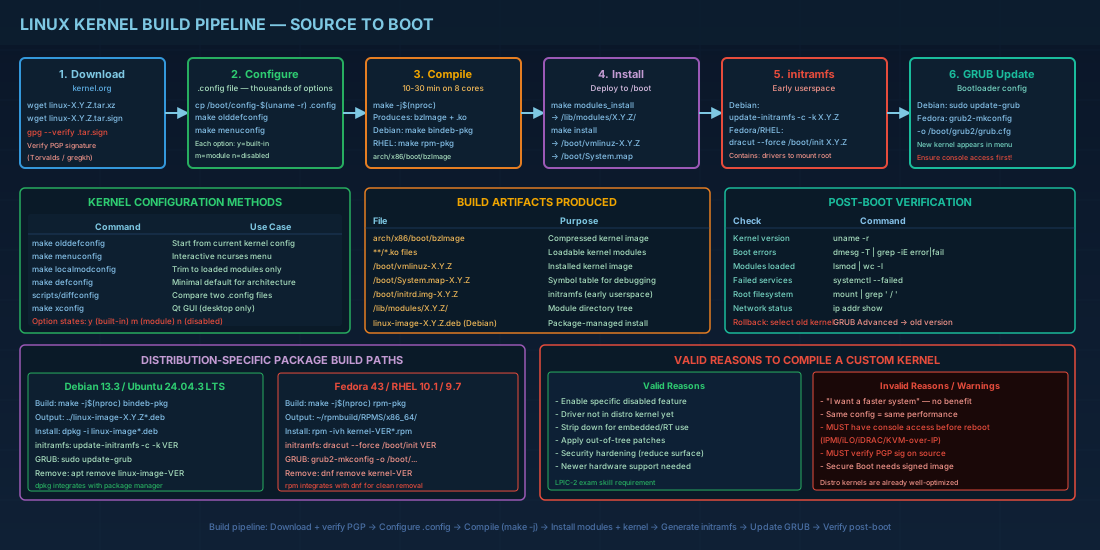
- Enabling a specific kernel feature that the distribution disabled (e.g., a scheduler option, an obscure filesystem, or a networking subsystem like CAKE qdisc compiled as built-in).
- Running a newer kernel than the distribution provides, to get hardware support that has not been backported yet.
- Stripping the kernel down for an embedded device, appliance, or real-time workload where boot time and memory footprint matter.
- Patching the kernel with out-of-tree patches (e.g., custom schedulers, vendor-specific fixes).
- Security hardening by disabling unnecessary features, reducing the attack surface of the kernel for dedicated-purpose servers.
Invalid reasons: "I want a faster system." A custom kernel with the same configuration as the distro kernel will not be noticeably faster. The distribution kernel team already optimizes for general-purpose performance.
Downloading the Linux Kernel Source Code
Always get kernel sources from kernel.org. The site lists the current mainline, stable, and LTS releases with their tarballs and PGP signatures.
# Install build dependencies
# Debian 13.3 / Ubuntu 24.04.3 LTS
sudo apt install build-essential libncurses-dev bison flex libssl-dev \
  libelf-dev bc dwarves debhelper

# Fedora 43 / RHEL 10.1
sudo dnf install gcc make ncurses-devel bison flex elfutils-libelf-devel \
  openssl-devel bc dwarves rpm-build

# Download and verify kernel source
cd /usr/src
wget https://cdn.kernel.org/pub/linux/kernel/v6.x/linux-6.12.8.tar.xz
wget https://cdn.kernel.org/pub/linux/kernel/v6.x/linux-6.12.8.tar.sign

# Decompress first, then verify the signature against the .tar
unxz linux-6.12.8.tar.xz
gpg --locate-keys torvalds@kernel.org gregkh@kernel.org
gpg --verify linux-6.12.8.tar.sign linux-6.12.8.tar

tar xf linux-6.12.8.tar
cd linux-6.12.8
Always verify the PGP signature. A compromised kernel tarball is a root-level supply chain attack. Do not skip this step in production environments.
Configuring the Kernel: The .config File
The kernel configuration lives in a single file called .config at the root of the source tree. It contains thousands of options, each set to y (built-in), m (module), or n (disabled). You rarely write this file by hand. Instead, use one of these methods:
Starting from the running kernel's config
# Copy the distribution's current config as a starting point
cp /boot/config-$(uname -r) .config

# Update it for the new kernel version, accepting defaults for new options
make olddefconfig
This is the safest approach. You get a working config that matches your hardware and simply update new options to their defaults.
make menuconfig: interactive kernel configuration
# Terminal-based menu configuration (requires ncurses)
make menuconfig
This opens a text-based menu where you can navigate kernel subsystems, search for options by name (press /), and toggle features. Use this after make olddefconfig to make specific changes. The search feature is essential: with thousands of options, browsing menus is impractical for finding a specific driver.
Other kernel config methods
make defconfig— generates a minimal default config for your architecture. Good for embedded builds but will miss many drivers needed on real hardware.make oldconfig— likeolddefconfigbut prompts you interactively for each new option. Useful when you want to review every change between kernel versions.make localmodconfig— trims the config to only modules currently loaded. Produces a lean kernel, but will miss drivers for hardware not connected at config time (USB devices you plug in later, for example).make xconfig— a graphical Qt-based configuration tool. Useful on workstations with a desktop environment for visual exploration of kernel options.
Practical tip: comparing kernel configurations
When upgrading from one kernel version to another, it helps to compare configurations to see what changed:
# Compare old and new kernel configs to see differences
scripts/diffconfig /boot/config-$(uname -r) .config

# Output shows changed options:
# CONFIG_NEW_FEATURE n -> y
# CONFIG_REMOVED_OPTION y -> (not set)
# +CONFIG_BRAND_NEW_OPTION y
Building the Linux Kernel from Source
The actual kernel compilation is straightforward but time-consuming. On a modern 8-core machine, a full kernel build takes 10-30 minutes depending on the config.
# Build the kernel image and modules
# -j$(nproc) uses all available CPU cores
make -j$(nproc)

# This produces:
# arch/x86/boot/bzImage    -- the compressed kernel image
# thousands of .ko files   -- loadable modules

# Build modules separately (if needed)
make modules

# Install modules to /lib/modules/6.12.8/
sudo make modules_install

# Install the kernel image and System.map
sudo make install
# This copies bzImage to /boot/vmlinuz-6.12.8
# and System.map to /boot/System.map-6.12.8
Debian/Ubuntu: building a .deb kernel package
On Debian-based systems, you can build a proper .deb package instead of using make install directly. This integrates with the package manager for clean upgrades and removal:
# Build kernel as .deb packages
make -j$(nproc) bindeb-pkg LOCALVERSION=-custom

# This produces .deb files in the parent directory:
# ../linux-image-6.12.8-custom_*.deb
# ../linux-headers-6.12.8-custom_*.deb

# Install with dpkg
sudo dpkg -i ../linux-image-6.12.8-custom_*.deb
sudo dpkg -i ../linux-headers-6.12.8-custom_*.deb
Fedora/RHEL: building an RPM kernel package
# Build kernel as RPM packages
make -j$(nproc) rpm-pkg LOCALVERSION=-custom

# Install the resulting RPM
sudo rpm -ivh ~/rpmbuild/RPMS/x86_64/kernel-6.12.8_custom-*.rpm
Generating the initramfs for the Custom Kernel
After installing the kernel and modules, you need an initramfs (initial RAM filesystem) that contains the drivers and scripts needed to mount the real root filesystem. Without it, the kernel cannot find its root disk on most systems.
# Debian 13.3 / Ubuntu 24.04.3 LTS
sudo update-initramfs -c -k 6.12.8-custom

# Fedora 43 / RHEL 10.1 / RHEL 9.7
sudo dracut --force /boot/initramfs-6.12.8-custom.img 6.12.8-custom

# Verify the initramfs was created
ls -lh /boot/initr*6.12.8*
If you used make bindeb-pkg on Debian, the postinst script in the .deb package typically runs update-initramfs automatically. Similarly, the RPM scriptlets handle dracut on Fedora/RHEL. But always verify the initramfs file exists before rebooting.
Customizing the initramfs contents
In some scenarios you need to include additional modules or scripts in the initramfs:
# On Debian, add modules to the initramfs via configuration
echo "nvme" >> /etc/initramfs-tools/modules
echo "raid456" >> /etc/initramfs-tools/modules
sudo update-initramfs -u -k 6.12.8-custom

# On Fedora/RHEL, add modules via dracut configuration
echo 'add_drivers+=" nvme raid456 "' > /etc/dracut.conf.d/custom-modules.conf
sudo dracut --force /boot/initramfs-6.12.8-custom.img 6.12.8-custom

# List contents of an initramfs to verify
lsinitrd /boot/initramfs-6.12.8-custom.img | grep nvme   # Fedora/RHEL
lsinitramfs /boot/initrd.img-6.12.8-custom | grep nvme   # Debian/Ubuntu
Updating the GRUB Bootloader for the New Kernel
The GRUB bootloader needs to know about the new kernel. GRUB configuration must be regenerated. For a deeper understanding of bootloader configuration, see the guide on advanced Linux boot and UEFI GRUB2 configuration.
# Debian 13.3 / Ubuntu 24.04.3 LTS
sudo update-grub

# Fedora 43 / RHEL 10.1
sudo grub2-mkconfig -o /boot/grub2/grub.cfg

# On UEFI systems, also check the EFI path
sudo grub2-mkconfig -o /boot/efi/EFI/fedora/grub.cfg  # Fedora example

# Verify the new kernel appears in GRUB entries
grep menuentry /boot/grub/grub.cfg    # Debian/Ubuntu
grep menuentry /boot/grub2/grub.cfg   # Fedora/RHEL
Before rebooting a production server into a custom kernel, make sure you have console access (IPMI, iLO, iDRAC, or KVM-over-IP). If the new kernel fails to boot, you need to select the old kernel from the GRUB menu. Systems with Secure Boot enabled will also require signed kernel images.
Post-Boot Kernel Verification
After rebooting into the new kernel, confirm everything is working:
# Verify you are running the new kernel
uname -r
# Expected: 6.12.8-custom

# Check for errors in kernel messages
dmesg -T | grep -iE "error|fail|warning" | head -20

# Verify modules loaded correctly
lsmod | wc -l

# Check that the network is up, storage is mounted, services are running
systemctl --failed
mount | grep ' / '
ip addr show
Rollback plan: reverting to the previous kernel
If the custom kernel causes problems, you can revert to the previous distribution kernel without data loss:
# At GRUB boot menu: select "Advanced options" and choose the old kernel

# If the system booted into the broken kernel, reboot and use GRUB:
# Hold Shift (BIOS) or press Esc (UEFI) during boot to access the GRUB menu

# After booting the old kernel, remove the custom kernel if needed:
# Debian/Ubuntu
sudo apt remove linux-image-6.12.8-custom

# Fedora/RHEL
sudo dnf remove kernel-6.12.8_custom

# Set the default GRUB entry back to the distribution kernel
sudo grub-set-default 0   # Debian/Ubuntu
sudo grub2-set-default 0  # Fedora/RHEL
Quick Reference - Cheats
| Task | Command |
|---|---|
| Copy running config | cp /boot/config-$(uname -r) .config |
| Update config for new kernel | make olddefconfig |
| Interactive menu config | make menuconfig |
| Compare kernel configs | scripts/diffconfig old-config .config |
| Build kernel + modules | make -j$(nproc) |
| Install modules | sudo make modules_install |
| Install kernel | sudo make install |
| Build .deb packages | make -j$(nproc) bindeb-pkg |
| Build RPM packages | make -j$(nproc) rpm-pkg |
| Generate initramfs (Debian) | sudo update-initramfs -c -k <version> |
| Generate initramfs (Fedora/RHEL) | sudo dracut --force /boot/initramfs-<ver>.img <ver> |
| Update GRUB (Debian) | sudo update-grub |
| Update GRUB (Fedora/RHEL) | sudo grub2-mkconfig -o /boot/grub2/grub.cfg |
Summary
Compiling a custom Linux kernel is a well-defined process: download the source, configure with .config, build with make, install modules and image, generate the initramfs, and update GRUB. The safest starting point is always your distribution's existing config via make olddefconfig. On Debian and Ubuntu, building .deb packages keeps the system cleanly manageable; on Fedora and RHEL, use rpm-pkg for the same benefit. Always verify PGP signatures on downloaded source, always ensure console access before rebooting production servers, and always confirm the new kernel booted correctly before marking the task complete. For the majority of production systems, distribution kernels are the right choice. Reserve custom kernel compilation for cases where you have a specific technical reason that the distribution kernel cannot satisfy. Once your custom kernel is running, you will manage its modules using the techniques described in kernel module management with modprobe, DKMS, and blacklisting.