Linux boot is a chain of small steps. If one step fails, the system may stop before login, or it may boot slowly and break production checks. For entry-level technicians, the useful mental model is simple: firmware starts hardware, GRUB loads Linux, the kernel mounts storage, and systemd starts services. If you know which stage failed, troubleshooting gets much faster.
Boot stages at a glance
Most modern servers and laptops follow this sequence:
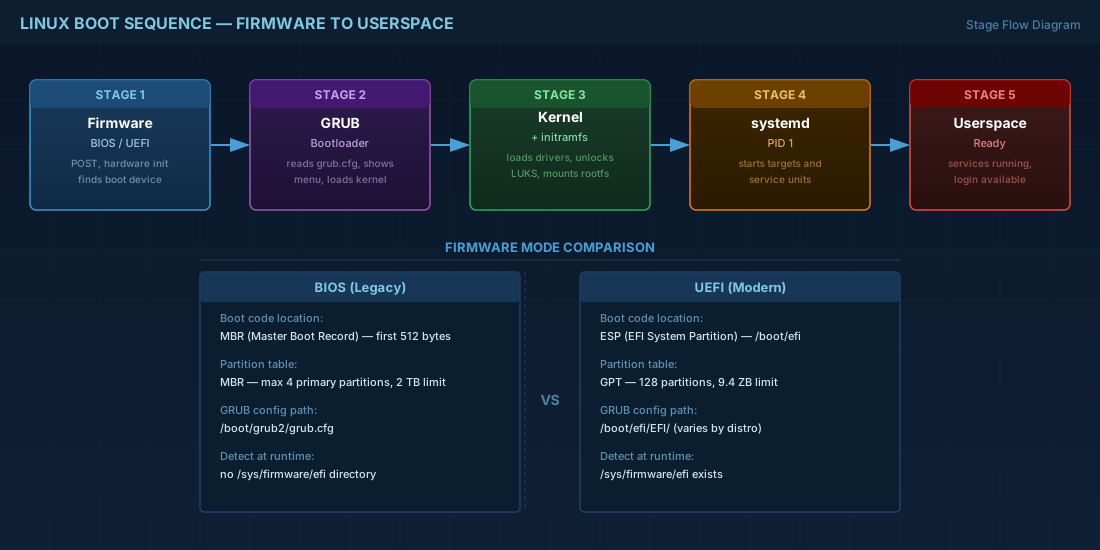
- Firmware runs (BIOS or UEFI).
- Firmware starts a bootloader (usually GRUB).
- GRUB loads a Linux kernel and an initramfs image.
- The kernel starts, detects hardware, and mounts the real root filesystem.
systemdbecomes PID 1 and starts userspace services.
In production, this sequence affects availability. A wrong firmware mode, broken GRUB config, or missing storage driver in initramfs can keep a node offline after patching.
Firmware stage: BIOS vs UEFI
BIOS and UEFI do the same basic job, but they store boot information differently.
- BIOS reads boot code from disk sectors (MBR flow).
- UEFI reads boot files from the EFI System Partition (ESP), usually mounted at
/boot/efi.
Check which mode the running OS used:
# If this directory exists, the system booted in UEFI mode.
if [ -d /sys/firmware/efi ]; then
  echo "UEFI mode"
else
  echo "Legacy BIOS mode"
fi

# UEFI boot entries (package: efibootmgr)
sudo efibootmgr -v
Compatibility notes for current distributions:
- Debian 13.3 and Ubuntu 24.04.3 LTS / 25.10 default to UEFI on modern hardware.
- Fedora 43 and RHEL 10.1 are strongly UEFI-first on server hardware.
- RHEL 9.7 uses the same UEFI concepts and tooling, so most procedures are unchanged.
Do not mix install mode and rescue mode. If the OS was installed in UEFI mode but rescue media boots in BIOS mode, GRUB repair commands can target the wrong location.
GRUB stage: loading kernel and initramfs
GRUB reads its configuration, shows a menu, and loads two important files: the kernel (vmlinuz) and initramfs (initrd or initramfs). If these files are missing or path references are wrong, boot can stop at a GRUB prompt.
Common administration commands differ by distro family:
# Debian 13.3 / Ubuntu 24.04.3 LTS / Ubuntu 25.10
sudo update-grub

# Fedora 43 / RHEL 10.1 / RHEL 9.7
sudo grub2-mkconfig -o /boot/grub2/grub.cfg

# On some UEFI systems, also verify EFI-side GRUB file path
sudo ls -l /boot/efi/EFI
Where technicians get burned in production:
- A new kernel package is installed, but GRUB config was not regenerated after manual edits.
- Kernel command line options are copied from another server and break disk discovery.
- Boot order in firmware points to an old disk after storage replacement.
If Secure Boot is enabled, unsigned custom kernels or modules can fail to load. That can look like a kernel problem, but the root cause is trust policy at boot time.
Kernel and initramfs stage: finding the real root filesystem
The kernel starts first, but it cannot always mount the final root filesystem by itself. Initramfs is a temporary mini-system in memory. It loads needed drivers, unlocks encrypted volumes, and mounts the root filesystem.
Tools differ by distribution:
- Debian 13.3 and Ubuntu releases use
initramfs-toolsby default. - Fedora 43, RHEL 10.1, and RHEL 9.7 use
dracut.
# Debian/Ubuntu: rebuild initramfs for all installed kernels
sudo update-initramfs -u -k all

# Fedora/RHEL: regenerate initramfs images
sudo dracut --force --regenerate-all

# Verify UUID references used at boot
lsblk -f
cat /etc/fstab
A practical consequence: if storage drivers are missing from initramfs after a kernel update, hosts may panic with "cannot find root filesystem." In a cluster, that means fewer healthy nodes and possible service throttling.
systemd stage: bringing userspace online
After the kernel mounts root, it starts systemd as PID 1. systemd then starts targets and service units in dependency order. Slow or failing units create the "server is up but not ready" problem.
# Overall boot timing
systemd-analyze

# Which services blocked boot sequence
systemd-analyze critical-chain
systemd-analyze blame | head -n 20

# Errors from current boot
journalctl -b -p err..alert --no-pager
For beginners, the key point is that boot complete and app ready are different states. A VM can respond to ping while database migration services are still running. Operators should wire health checks to service readiness, not only host reachability.
Troubleshooting workflow used in production
This short flow helps isolate failures quickly during outages:
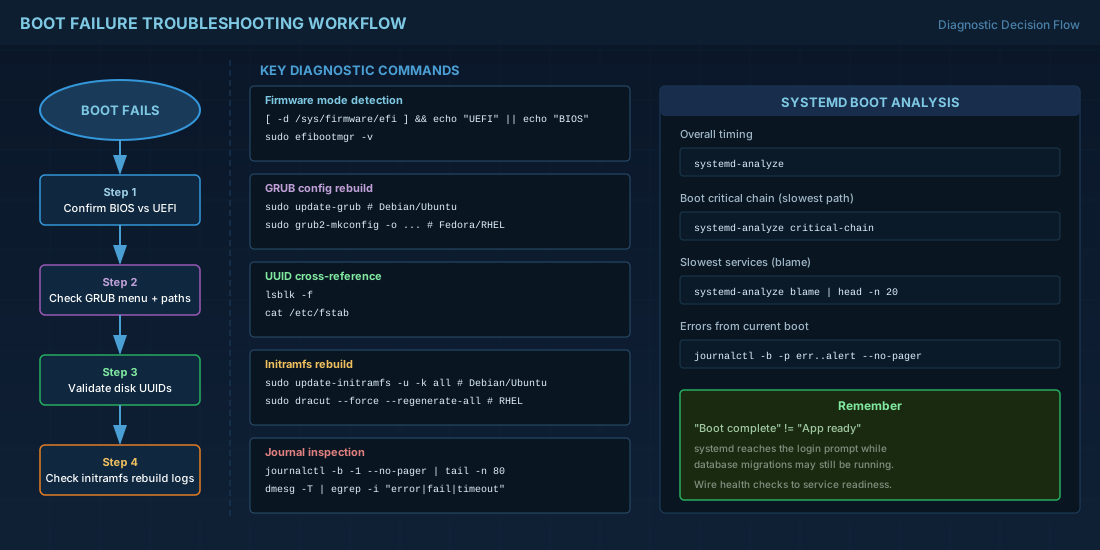
- Confirm boot mode: BIOS or UEFI.
- Check GRUB menu entries and kernel/initramfs paths.
- Validate root disk UUID values in GRUB command line and
/etc/fstab. - Inspect initramfs regeneration logs after kernel updates.
- Use
journalctl -b -1to inspect the previous failed boot.
# Last boot logs (useful when current boot succeeded after retries)
sudo journalctl -b -1 --no-pager | tail -n 80

# Kernel messages for current boot
sudo dmesg -T | egrep -i "error|fail|timeout|nvme|xfs|ext4" | tail -n 80
In real operations, this staged method reduces random guessing. Teams can assign one person to firmware/bootloader checks and another to kernel/systemd logs, then compare findings in minutes.
Summary
The Linux boot process is predictable once you split it into firmware, GRUB, kernel/initramfs, and systemd. Debian 13.3, Ubuntu 24.04.3 LTS, Ubuntu 25.10, Fedora 43, RHEL 10.1, and RHEL 9.7 all follow this model, with minor tooling differences. For production safety, keep boot mode consistent, regenerate GRUB and initramfs after critical changes, and verify service readiness with systemd-aware checks.