LDAP directory services are the backbone of centralized authentication and user management in Linux environments. Whether you are integrating with an existing Active Directory or running your own OpenLDAP server, understanding the directory structure, configuration model, and client integration is essential for managing users at scale. This article covers OpenLDAP setup using the modern OLC (cn=config) method, client configuration with sssd, and replication with syncrepl. LDAP works hand-in-hand with PAM for authentication -- for a deeper look at the PAM stack, see PAM authentication policy and account locking.
LDAP Concepts: Directory Structure and Building Blocks
Before touching configuration files, you need a clear mental model of how LDAP organizes data.
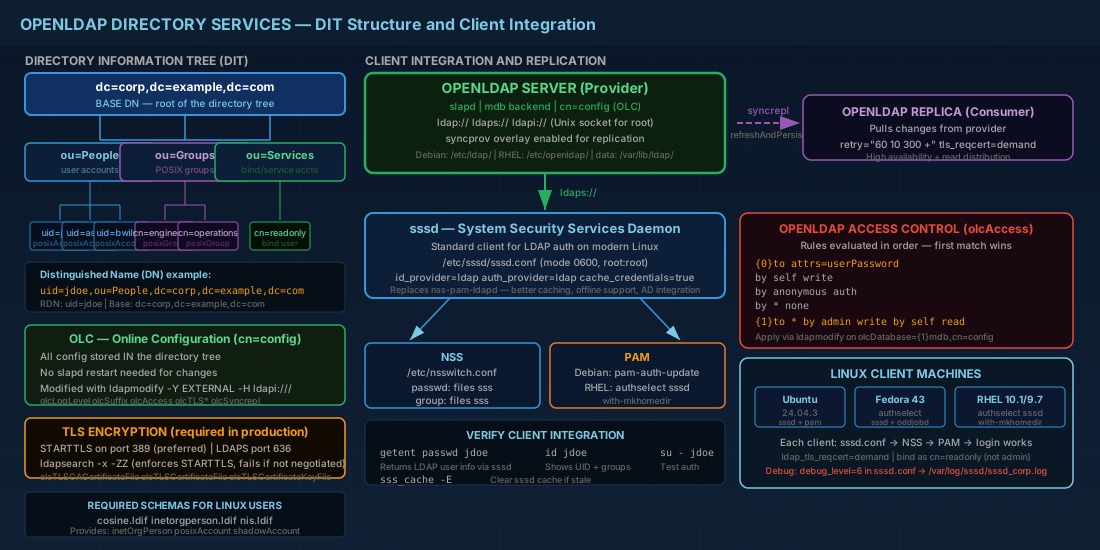
The Directory Information Tree (DIT)
LDAP stores data in a tree structure. Every entry has a unique Distinguished Name (DN) that describes its position in the tree, read from the entry up to the root:
# Example DN
uid=jdoe,ou=People,dc=corp,dc=example,dc=com

# Breaking it down:
# dc=corp,dc=example,dc=com   → the base (root) of the directory
# ou=People                    → organizational unit (a container)
# uid=jdoe                     → the actual user entry
Key terminology:
- DN (Distinguished Name) -- the full path to an entry, like a filesystem absolute path.
- RDN (Relative Distinguished Name) -- the leftmost component of the DN. For
uid=jdoe,ou=People,dc=corp,dc=example,dc=com, the RDN isuid=jdoe. - objectClass -- defines what attributes an entry can or must have. A user entry typically uses
inetOrgPersonandposixAccount. - Attributes -- the actual data fields:
cn(common name),uid,uidNumber,gidNumber,homeDirectory,userPassword, etc.
Base DN and organizational units
A typical directory for a Linux environment looks like this:
dc=corp,dc=example,dc=com
├── ou=People          # user accounts
│   ├── uid=jdoe
│   ├── uid=asmith
│   └── uid=bwilson
├── ou=Groups          # POSIX groups
│   ├── cn=engineering
│   └── cn=operations
└── ou=Services        # service accounts (bind users, etc.)
Installing and Configuring OpenLDAP with OLC (cn=config)
OpenLDAP has two configuration methods. The old method used a flat file (slapd.conf). The modern method, OLC (On-Line Configuration), stores the configuration inside the LDAP directory itself under cn=config. OLC is the default on all current distributions and allows runtime configuration changes without restarting slapd. You should use OLC exclusively for new deployments.
Installation on Debian, Ubuntu, Fedora, and RHEL
# Debian / Ubuntu
sudo apt install slapd ldap-utils

# During installation, Debian prompts for the admin password
# and base DN. You can reconfigure later with:
sudo dpkg-reconfigure slapd

# Fedora / RHEL
sudo dnf install openldap-servers openldap-clients
sudo systemctl enable --now slapd
On Debian/Ubuntu, the installer creates a basic DIT based on the hostname. On Fedora/RHEL, you may need to initialize the database manually.
Loading LDAP schemas for Linux user management
Schemas define the objectClasses and attributes available in the directory. Common schemas for Linux user management:
# Check which schemas are loaded
sudo ldapsearch -Q -LLL -Y EXTERNAL -H ldapi:/// \
  -b cn=schema,cn=config dn

# Load additional schemas (if not already present)
sudo ldapadd -Q -Y EXTERNAL -H ldapi:/// \
  -f /etc/ldap/schema/cosine.ldif
sudo ldapadd -Q -Y EXTERNAL -H ldapi:/// \
  -f /etc/ldap/schema/inetorgperson.ldif
sudo ldapadd -Q -Y EXTERNAL -H ldapi:/// \
  -f /etc/ldap/schema/nis.ldif
The -Y EXTERNAL authentication uses the system's Unix socket identity (root), bypassing the need for a password. This only works over ldapi:/// (local Unix socket), not over TCP.
Modifying cn=config with LDIF files
Configuration changes are applied through LDIF files. For example, to set the server's base suffix and root DN:
# check-config.ldif — verify current database configuration
# First, inspect current settings:
sudo ldapsearch -Q -LLL -Y EXTERNAL -H ldapi:/// \
  -b "cn=config" "(olcDatabase=*)" olcSuffix olcRootDN
To change a configuration parameter, use ldapmodify:
# set-loglevel.ldif
dn: cn=config
changetype: modify
replace: olcLogLevel
olcLogLevel: stats
sudo ldapmodify -Q -Y EXTERNAL -H ldapi:/// -f set-loglevel.ldifManaging OpenLDAP Directory Entries
Adding entries with ldapadd
Create the organizational structure and user entries using LDIF files:
# base-structure.ldif
dn: ou=People,dc=corp,dc=example,dc=com
objectClass: organizationalUnit
ou: People

dn: ou=Groups,dc=corp,dc=example,dc=com
objectClass: organizationalUnit
ou: Groups
sudo ldapadd -x -D "cn=admin,dc=corp,dc=example,dc=com" -W -f base-structure.ldifAdd a user entry:
# user-jdoe.ldif
dn: uid=jdoe,ou=People,dc=corp,dc=example,dc=com
objectClass: inetOrgPerson
objectClass: posixAccount
objectClass: shadowAccount
uid: jdoe
cn: John Doe
sn: Doe
uidNumber: 10001
gidNumber: 10001
homeDirectory: /home/jdoe
loginShell: /bin/bash
userPassword: {SSHA}hashed_password_here
Generate the hashed password with slappasswd:
slappasswd -h {SSHA}
# Enter the password interactively; paste the output into the LDIF
Add a POSIX group:
# group-engineering.ldif
dn: cn=engineering,ou=Groups,dc=corp,dc=example,dc=com
objectClass: posixGroup
cn: engineering
gidNumber: 10001
memberUid: jdoe
memberUid: asmith
Searching, modifying, and deleting entries
# Search for a specific user
ldapsearch -x -LLL -H ldap://localhost \
  -b "dc=corp,dc=example,dc=com" "(uid=jdoe)"

# Search for all users with a specific shell
ldapsearch -x -LLL -H ldap://localhost \
  -b "ou=People,dc=corp,dc=example,dc=com" "(loginShell=/bin/bash)" uid cn

# Modify an attribute
# modify-jdoe.ldif
dn: uid=jdoe,ou=People,dc=corp,dc=example,dc=com
changetype: modify
replace: loginShell
loginShell: /bin/zsh
ldapmodify -x -D "cn=admin,dc=corp,dc=example,dc=com" -W -f modify-jdoe.ldifBulk user management with LDIF scripts
In production environments, you rarely add users one at a time. A common pattern is to generate LDIF files from a CSV source using a shell script or Python. Here is an example that adds multiple users from a single LDIF:
# bulk-users.ldif
dn: uid=asmith,ou=People,dc=corp,dc=example,dc=com
objectClass: inetOrgPerson
objectClass: posixAccount
objectClass: shadowAccount
uid: asmith
cn: Alice Smith
sn: Smith
uidNumber: 10002
gidNumber: 10001
homeDirectory: /home/asmith
loginShell: /bin/bash
userPassword: {SSHA}generated_hash_1

dn: uid=bwilson,ou=People,dc=corp,dc=example,dc=com
objectClass: inetOrgPerson
objectClass: posixAccount
objectClass: shadowAccount
uid: bwilson
cn: Bob Wilson
sn: Wilson
uidNumber: 10003
gidNumber: 10001
homeDirectory: /home/bwilson
loginShell: /bin/bash
userPassword: {SSHA}generated_hash_2
# Add all users in one operation
ldapadd -x -D "cn=admin,dc=corp,dc=example,dc=com" -W -f bulk-users.ldif
# Verify the additions
ldapsearch -x -LLL -b "ou=People,dc=corp,dc=example,dc=com" uid cnFor large directories, set userPassword to a temporary value and force a password change on first login through the shadowAccount attributes (shadowLastChange: 0).
OpenLDAP Access Control with olcAccess Rules
OpenLDAP ACLs (Access Control Lists) are stored as olcAccess attributes in the cn=config database entry. They are evaluated in order, and the first match wins. Understanding access control is critical -- for the PAM side of the authentication chain, see PAM basics and account locking.
# Typical access rules (applied via ldapmodify on the database config entry)
# dn: olcDatabase={1}mdb,cn=config

# Users can read and change their own password
olcAccess: {0}to attrs=userPassword
  by self write
  by anonymous auth
  by * none

# Users can read their own entry, admins can write everything
olcAccess: {1}to *
  by dn.exact="cn=admin,dc=corp,dc=example,dc=com" write
  by self read
  by users read
  by * none
Apply access rules via LDIF:
# acl-update.ldif
dn: olcDatabase={1}mdb,cn=config
changetype: modify
replace: olcAccess
olcAccess: {0}to attrs=userPassword by self write by anonymous auth by * none
olcAccess: {1}to * by dn.exact="cn=admin,dc=corp,dc=example,dc=com" write by self read by users read by * none
sudo ldapmodify -Q -Y EXTERNAL -H ldapi:/// -f acl-update.ldifACL order matters. If you put a broad "by * none" rule before a specific allow rule, the allow rule will never be evaluated. Always test ACL changes with ldapsearch as a non-admin user to verify that permissions work as expected. This mirrors how Linux ACLs and special permissions work at the filesystem level -- order and specificity determine the effective access.
TLS Encryption for OpenLDAP
LDAP traffic is plaintext by default. In production, you must enable TLS encryption to protect passwords and directory data in transit. OpenLDAP supports both LDAPS (port 636, deprecated but still used) and STARTTLS (upgrade on port 389, preferred).
# tls-config.ldif — configure TLS certificates in cn=config
dn: cn=config
changetype: modify
replace: olcTLSCACertificateFile
olcTLSCACertificateFile: /etc/ldap/tls/ca-cert.pem
-
replace: olcTLSCertificateFile
olcTLSCertificateFile: /etc/ldap/tls/server-cert.pem
-
replace: olcTLSCertificateKeyFile
olcTLSCertificateKeyFile: /etc/ldap/tls/server-key.pem
sudo ldapmodify -Q -Y EXTERNAL -H ldapi:/// -f tls-config.ldifOn the server, enable LDAPS and STARTTLS by setting the listen URIs in /etc/default/slapd (Debian) or the slapd systemd unit (RHEL):
# /etc/default/slapd (Debian/Ubuntu)
SLAPD_SERVICES="ldap:/// ldapi:/// ldaps:///"
Verify TLS is working:
# Test STARTTLS
ldapsearch -x -ZZ -H ldap://ldapserver.corp.example.com \
  -b "dc=corp,dc=example,dc=com" "(uid=jdoe)"

# The -ZZ flag enforces STARTTLS; the command fails if TLS cannot be negotiated
Certificate files must be readable by the slapd process. On Debian, slapd runs as the openldap user; on RHEL, as ldap. Incorrect file permissions are the most common cause of TLS startup failures. Use ls -la to verify the key file is readable, and check the Linux permissions guide if you need to review ownership and mode settings.
LDAP Client Integration with sssd
sssd (System Security Services Daemon) is the standard way to connect Linux clients to LDAP directories for authentication and user lookups. It replaced older approaches like nss-pam-ldapd and pam_ldap.
# Install sssd
sudo apt install sssd sssd-ldap             # Debian/Ubuntu
sudo dnf install sssd sssd-ldap             # Fedora/RHEL
sssd.conf for LDAP authentication
# /etc/sssd/sssd.conf — must be owned by root, mode 0600
[sssd]
services = nss, pam
domains = corp

[domain/corp]
id_provider = ldap
auth_provider = ldap
ldap_uri = ldaps://ldapserver.corp.example.com
ldap_search_base = dc=corp,dc=example,dc=com
ldap_tls_reqcert = demand
ldap_tls_cacert = /etc/ssl/certs/ca-cert.pem

# Bind DN for lookups (service account, not admin)
ldap_default_bind_dn = cn=readonly,ou=Services,dc=corp,dc=example,dc=com
ldap_default_authtok = readonly_password

# User and group search bases (optional, narrows scope)
ldap_user_search_base = ou=People,dc=corp,dc=example,dc=com
ldap_group_search_base = ou=Groups,dc=corp,dc=example,dc=com

# Cache settings
cache_credentials = true
entry_cache_timeout = 300
sudo chmod 600 /etc/sssd/sssd.conf
sudo systemctl enable --now sssdConfigure NSS to use sssd:
# /etc/nsswitch.conf — add sss to passwd and group
passwd:   files sss
group:    files sss
shadow:   files sss
Configure PAM for LDAP authentication. On Debian/Ubuntu, the simplest method:
sudo pam-auth-updateSelect "SSS authentication" from the list. This updates the PAM stack automatically.
On RHEL/Fedora, use authselect:
sudo authselect select sssd with-mkhomedir
sudo systemctl enable --now oddjobd    # creates home dirs on first login
Verify the integration:
# Should return LDAP user information
getent passwd jdoe
id jdoe

# Test authentication
su - jdoe
Troubleshooting sssd and LDAP client issues
When getent passwd does not return LDAP users, work through these checks:
- Check sssd.conf permissions -- sssd refuses to start if the file is not owned by root with mode 0600. Verify with
ls -la /etc/sssd/sssd.conf. - Test LDAP connectivity directly -- run
ldapsearch -x -H ldaps://ldapserver -b "dc=corp,dc=example,dc=com" "(uid=jdoe)"to confirm the server is reachable and the bind credentials work. - Check sssd logs -- increase verbosity by adding
debug_level = 6to the domain section of sssd.conf, restart sssd, and examine/var/log/sssd/sssd_corp.log. - Clear the sssd cache -- stale cache entries can mask fixes. Run
sudo sss_cache -Eand restart sssd. - Verify nsswitch.conf -- confirm that
sssappears in the passwd, group, and shadow lines.
Legacy alternative: nss-pam-ldapd
You may encounter nslcd (the daemon behind nss-pam-ldapd) in older installations. It still works but lacks the caching, offline support, and AD integration features of sssd. For new deployments, always use sssd.
OpenLDAP Replication with syncrepl
For high availability and read performance, OpenLDAP supports replication through the syncrepl mechanism. The consumer (replica) pulls changes from the provider (master) using the LDAP sync protocol.
# On the provider: enable the syncprov overlay
# syncprov-enable.ldif
dn: olcOverlay=syncprov,olcDatabase={1}mdb,cn=config
objectClass: olcOverlayConfig
objectClass: olcSyncProvConfig
olcOverlay: syncprov
olcSpCheckpoint: 100 10
olcSpSessionlog: 200
sudo ldapadd -Q -Y EXTERNAL -H ldapi:/// -f syncprov-enable.ldifOn the consumer, configure the syncrepl directive in the database configuration:
# syncrepl-consumer.ldif
dn: olcDatabase={1}mdb,cn=config
changetype: modify
add: olcSyncrepl
olcSyncrepl: rid=001
  provider=ldaps://ldap-primary.corp.example.com
  type=refreshAndPersist
  searchbase="dc=corp,dc=example,dc=com"
  bindmethod=simple
  binddn="cn=replicator,dc=corp,dc=example,dc=com"
  credentials=replicator_password
  retry="60 10 300 +"
  tls_reqcert=demand
  tls_cacert=/etc/ssl/certs/ca-cert.pem
sudo ldapmodify -Q -Y EXTERNAL -H ldapi:/// -f syncrepl-consumer.ldifThe refreshAndPersist mode keeps a persistent connection and receives updates in real time. The retry parameter defines reconnection behavior: try every 60 seconds up to 10 times, then every 300 seconds indefinitely. The replicator bind DN needs read access to the entire directory on the provider side.
To verify replication is working, add an entry on the provider and check that it appears on the consumer within seconds:
# On provider: add a test entry
# On consumer: search for it
ldapsearch -x -H ldap://consumer.corp.example.com \
  -b "dc=corp,dc=example,dc=com" "(uid=testuser)"
OpenLDAP Directory Services Quick Reference
| Task | Command |
|---|---|
| Search for a user | ldapsearch -x -LLL -b "dc=corp,dc=example,dc=com" "(uid=jdoe)" |
| Add entries from LDIF | ldapadd -x -D "cn=admin,dc=..." -W -f file.ldif |
| Modify entries from LDIF | ldapmodify -x -D "cn=admin,dc=..." -W -f file.ldif |
| Delete an entry | ldapdelete -x -D "cn=admin,dc=..." -W "uid=jdoe,ou=People,dc=..." |
| Generate SSHA password | slappasswd -h {SSHA} |
| Modify cn=config (as root) | sudo ldapmodify -Q -Y EXTERNAL -H ldapi:/// -f file.ldif |
| List loaded schemas | sudo ldapsearch -Q -LLL -Y EXTERNAL -H ldapi:/// -b cn=schema,cn=config dn |
| Test STARTTLS | ldapsearch -x -ZZ -H ldap://server -b "dc=..." "(uid=test)" |
| Verify sssd user lookup | getent passwd username |
| Clear sssd cache | sudo sss_cache -E |
| Reconfigure slapd (Debian) | sudo dpkg-reconfigure slapd |
| Select sssd auth profile (RHEL) | sudo authselect select sssd with-mkhomedir |
Summary
OpenLDAP with OLC provides a production-grade directory service that handles centralized user management, group-based access control, and multi-server replication. The critical setup steps are: install slapd, load the necessary schemas (cosine, inetorgperson, nis), create your OU structure with LDIF, populate user and group entries, and enable TLS before exposing the service on the network. Client-side, sssd is the definitive integration tool on all current distributions -- it handles NSS lookups, PAM authentication, caching for offline access, and even home directory creation via oddjobd. The most common deployment failures come from three areas: incorrect TLS certificate permissions (slapd cannot read the key file), ACL ordering mistakes (broad deny rules evaluated before specific allow rules), and mismatched idmapd/sssd domain configuration that causes lookups to return empty results. Test every change with ldapsearch and getent before declaring the setup complete.