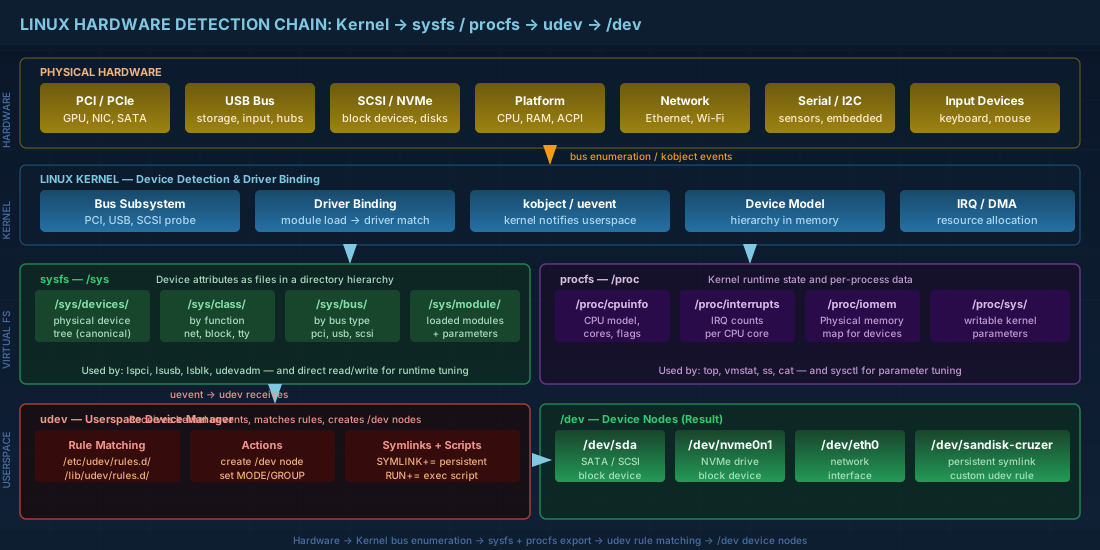
When a USB drive appears as /dev/sdb and your NVMe shows up as /dev/nvme0n1, there is a chain of kernel subsystems and userspace daemons making that happen. The kernel detects hardware through bus enumeration, exports device information via sysfs and procfs, and udev creates the device nodes in /dev and applies naming rules. Understanding this hardware detection chain lets you control device naming, set permissions, and troubleshoot hardware that refuses to appear. For the kernel module side of this process, see the guide on kernel module management with modprobe, DKMS, and blacklisting.
The /sys Filesystem (sysfs) for Linux Hardware Information
sysfs is a virtual filesystem mounted at /sys that exposes kernel objects as a directory hierarchy. Every device, driver, bus, and class gets its own directory tree with readable (and sometimes writable) attribute files.
# Top-level sysfs structure
ls /sys/
# block/  bus/  class/  dev/  devices/  firmware/  fs/  kernel/  module/  power/

# The devices tree shows the full hardware topology
# This is the canonical device path for a SATA disk:
ls /sys/devices/pci0000:00/0000:00:1f.2/ata1/host0/target0:0:0/0:0:0:0/block/sda/

# Key attribute files for a block device
cat /sys/block/sda/size        # Size in 512-byte sectors
cat /sys/block/sda/queue/scheduler   # I/O scheduler in use
cat /sys/block/sda/device/model      # Drive model string
sysfs is organized by several top-level trees:
/sys/devices/— the physical device tree, organized by bus topology. This is the authoritative device hierarchy./sys/class/— groups devices by function (net, block, tty, input). Entries here are symlinks into/sys/devices/./sys/bus/— organizes devices and drivers by bus type (pci, usb, scsi, platform)./sys/module/— one directory per loaded kernel module, with parameters and other attributes./sys/block/— shortcut to block devices (also symlinks into the devices tree).
In production, sysfs is how you tune hardware at runtime. Changing the I/O scheduler, adjusting power management, or reading sensor data all go through sysfs attribute files:
# Change I/O scheduler for an NVMe device (already none by default on NVMe)
echo mq-deadline | sudo tee /sys/block/sda/queue/scheduler

# Read CPU frequency information
cat /sys/devices/system/cpu/cpu0/cpufreq/scaling_cur_freq

# Check link speed of a network interface
cat /sys/class/net/eth0/speed   # Output: 1000 (Mbps)
Using sysfs for hardware inventory and monitoring
System administrators can use sysfs to build hardware inventories and monitor device health without installing additional tools:
# List all network interfaces with their MAC addresses
for iface in /sys/class/net/*/; do
  name=$(basename "$iface")
  mac=$(cat "$iface/address" 2>/dev/null)
  echo "$name: $mac"
done

# Check disk rotational status (0 = SSD, 1 = HDD)
cat /sys/block/sda/queue/rotational

# Read NUMA node assignment for a PCI device (important for server tuning)
cat /sys/bus/pci/devices/0000:03:00.0/numa_node

# Check power state of a device
cat /sys/bus/pci/devices/0000:00:02.0/power_state
The /proc Filesystem (procfs) for System Runtime Information
procfs at /proc is older than sysfs and serves a different purpose: it exposes kernel runtime information and per-process data. While sysfs is about devices and drivers, procfs is about system state and processes.
# Hardware-related information in /proc
cat /proc/cpuinfo      # CPU details (model, cores, flags, bugs)
cat /proc/meminfo      # Memory statistics
cat /proc/interrupts   # IRQ assignments and counts per CPU
cat /proc/iomem        # Physical memory map (address ranges for devices)
cat /proc/ioports      # I/O port allocations
cat /proc/dma          # DMA channel allocations
cat /proc/modules      # Same as lsmod output, raw format
cat /proc/cmdline      # Kernel boot parameters
Some files in /proc are writable and control kernel behavior at runtime:
# Enable IP forwarding
echo 1 | sudo tee /proc/sys/net/ipv4/ip_forward

# These are the same as sysctl commands:
sudo sysctl net.ipv4.ip_forward=1
For hardware troubleshooting, /proc/interrupts is particularly useful. If one CPU core is handling all interrupts for a network card while others sit idle, you have an IRQ affinity problem that can bottleneck high-throughput servers.
Practical example: diagnosing IRQ imbalance
On high-traffic servers, IRQ affinity directly affects network throughput. Here is how to identify and fix an IRQ imbalance using procfs:
# View interrupt counts per CPU for each IRQ line
cat /proc/interrupts | head -5
#            CPU0       CPU1       CPU2       CPU3
#   0:         38          0          0          0   IR-IO-APIC    2-edge      timer
#  18:       9823          0          0          0   IR-IO-APIC   18-fasteoi   eth0

# If eth0 IRQ only hits CPU0, set affinity to distribute across cores
# Find the IRQ number for your network interface
grep eth0 /proc/interrupts
#  18:     123456       0       0       0   IR-IO-APIC   18-fasteoi   eth0

# Set IRQ affinity to CPU 2 (bitmask: 0x4)
echo 4 | sudo tee /proc/irq/18/smp_affinity

# Or use irqbalance daemon for automatic distribution
systemctl enable --now irqbalance
Linux Hardware Enumeration Tools: lspci, lsusb, lsblk
These hardware enumeration tools parse sysfs and procfs to give you human-readable hardware listings. They are your first stop when diagnosing missing devices.
# PCI devices with kernel driver in use
lspci -k
# 00:1f.6 Ethernet controller: Intel Corporation Ethernet Connection (17) I219-V
#     Subsystem: Dell Device 0b1a
#     Kernel driver in use: e1000e
#     Kernel modules: e1000e

# Verbose PCI info for a specific device
lspci -v -s 00:02.0

# USB devices with interface details
lsusb
lsusb -t   # Tree view showing bus topology and drivers

# Block devices with filesystem, mount, and partition info
lsblk -f
# NAME   FSTYPE FSVER LABEL UUID                                 MOUNTPOINTS
# sda
# ├─sda1 vfat   FAT32       ABCD-1234                            /boot/efi
# ├─sda2 ext4   1.0         xxxxxxxx-xxxx-...                    /boot
# └─sda3 ext4   1.0         yyyyyyyy-yyyy-...                    /
When a device does not show up in lspci, the problem is at the bus level (bad slot, disabled in BIOS, or hardware failure). When it shows up in lspci but has no kernel driver, you need to load or install the right module. The -k flag on lspci makes this diagnosis fast. The module loading process is detailed in the kernel modules and hardware detection basics article.
udev: Linux Device Manager in Userspace
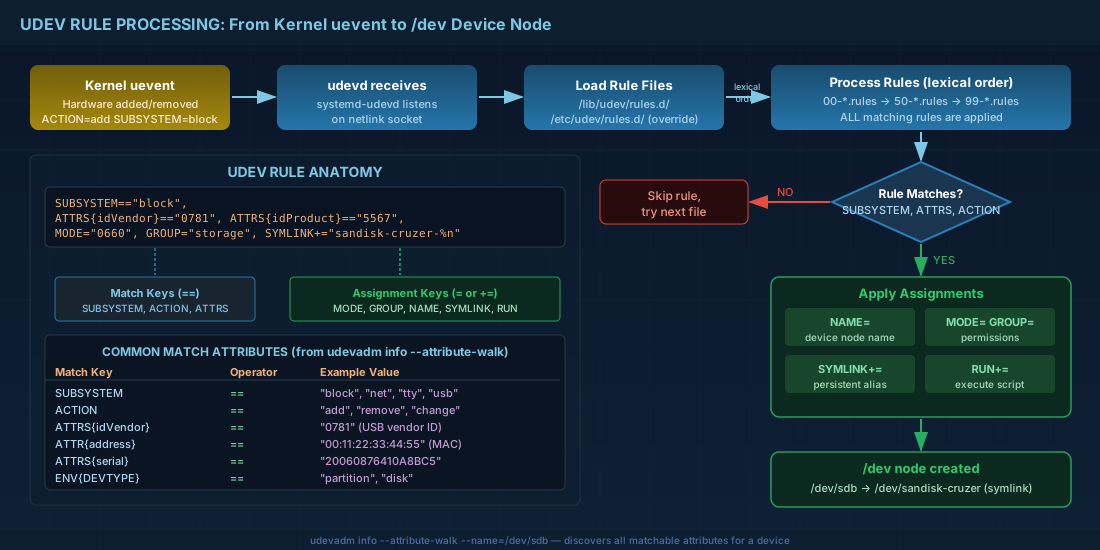
udev is the userspace device manager that creates and removes device nodes in /dev based on kernel events. When the kernel detects new hardware (a USB drive plugged in, a network interface coming up), it sends a uevent. udev receives it, matches it against rules, and takes action: creates /dev nodes, sets permissions, runs scripts, or creates symlinks.
udevadm: the udev administration tool
# Query all udev properties for a device
udevadm info --query=all --name=/dev/sda
# Shows: DEVPATH, SUBSYSTEM, ID_SERIAL, ID_VENDOR, ID_MODEL, etc.

# Find the full sysfs path for a device
udevadm info --query=path --name=/dev/sda

# Watch udev events in real-time (plug/unplug a USB device to see events)
udevadm monitor --property

# Trigger udev to re-process existing devices (useful after adding new rules)
sudo udevadm trigger

# Reload udev rules from disk without rebooting
sudo udevadm control --reload-rules
Writing udev rules in /etc/udev/rules.d/
udev rules are text files in /etc/udev/rules.d/ (for local customizations) and /lib/udev/rules.d/ (for distribution defaults). Rules in /etc override rules in /lib with the same filename. Files are processed in lexical order, so naming convention matters: use numeric prefixes like 99- for custom rules to ensure they run after distribution rules.
A udev rule is a single line with match keys (using ==) and assignment keys (using = or +=):
# /etc/udev/rules.d/99-usb-storage.rules
# Set specific permissions for a USB storage device by vendor/product ID
SUBSYSTEM=="block", ATTRS{idVendor}=="0781", ATTRS{idProduct}=="5567", \
  MODE="0660", GROUP="storage", SYMLINK+="sandisk-cruzer-%n"
This rule matches a SanDisk Cruzer USB drive by its vendor and product IDs, sets file permissions to 0660, assigns the storage group, and creates a persistent symlink at /dev/sandisk-cruzer-1 (where %n is the kernel partition number).
Finding match attributes for udev rules
To write rules, you need to know what attributes a device has. Use udevadm info with the --attribute-walk option:
# Walk the device chain to find matchable attributes
udevadm info --attribute-walk --name=/dev/sdb

# Output shows attributes at each level of the device chain:
# looking at device '/devices/pci0000:00/0000:00:14.0/usb1/1-2/1-2:1.0/host3/...':
#   ATTRS{idVendor}=="0781"
#   ATTRS{idProduct}=="5567"
#   ATTRS{serial}=="20060876410A8BC5"
#   ATTRS{manufacturer}=="SanDisk"
Creating Custom udev Rules: Practical Examples
Persistent naming for a network interface
Modern distributions use predictable network interface names by default (like enp3s0). But sometimes you need custom names, for example when migrating from a system that used eth0 and eth1 and your scripts reference those names:
# /etc/udev/rules.d/70-custom-net.rules
# Assign a custom name based on MAC address
SUBSYSTEM=="net", ACTION=="add", ATTR{address}=="00:11:22:33:44:55", NAME="mgmt0"
SUBSYSTEM=="net", ACTION=="add", ATTR{address}=="00:11:22:33:44:56", NAME="data0"
After creating this rule, reload and trigger:
sudo udevadm control --reload-rules
sudo udevadm trigger --subsystem-match=net
Renaming network interfaces on a running system can drop active connections. Test on a system with console access, not over SSH on a remote server.
Auto-mounting a backup drive with udev
# /etc/udev/rules.d/99-backup-drive.rules
# When a specific USB disk is plugged in, create a symlink and run a script
SUBSYSTEM=="block", ATTRS{serial}=="20060876410A8BC5", ENV{DEVTYPE}=="partition", \
  SYMLINK+="backup-disk", RUN+="/usr/local/bin/auto-backup.sh"
Setting permissions for a serial device
# /etc/udev/rules.d/99-serial-devices.rules
# Allow the dialout group to access a specific USB-to-serial adapter
SUBSYSTEM=="tty", ATTRS{idVendor}=="067b", ATTRS{idProduct}=="2303", \
  MODE="0660", GROUP="dialout", SYMLINK+="serial-adapter"
GPU passthrough with VFIO for virtual machines
A common use case for custom udev rules combined with module blacklisting is GPU passthrough to virtual machines using VFIO:
# Step 1: Blacklist the host driver (see kernel module management article)
# /etc/modprobe.d/vfio-gpu.conf
blacklist nouveau
options vfio-pci ids=10de:1b80

# Step 2: Create udev rule for VFIO device permissions
# /etc/udev/rules.d/99-vfio.rules
SUBSYSTEM=="vfio", OWNER="root", GROUP="kvm", MODE="0660"

# Step 3: Reload and verify
sudo udevadm control --reload-rules
sudo udevadm trigger
Persistent Device Naming in Linux
Kernel device names like /dev/sda are not stable. They depend on detection order, which can change between boots if you add or remove disks. Production systems should reference devices by persistent identifiers:
# By UUID (filesystem-level, most common for fstab)
ls -la /dev/disk/by-uuid/

# By partition label
ls -la /dev/disk/by-label/

# By hardware path (PCI slot, port number)
ls -la /dev/disk/by-path/

# By device ID (model, serial, partition)
ls -la /dev/disk/by-id/

# Example fstab entry using UUID instead of /dev/sda1
# UUID=xxxxxxxx-xxxx-xxxx-xxxx-xxxxxxxxxxxx  /boot  ext4  defaults  0 2
These /dev/disk/by-* symlinks are created by udev rules shipped with the distribution. On Debian 13.3, Fedora 43, and RHEL 10.1, these are handled by the 60-persistent-storage.rules file in /lib/udev/rules.d/. For filesystem configuration that uses these persistent names, the Linux boot process guide explains how the bootloader and initramfs use UUIDs to find the root partition.
Troubleshooting Linux Hardware Detection
When a device does not appear or behaves unexpectedly, follow this systematic hardware troubleshooting sequence:
- Check if the kernel sees the hardware:
dmesg -T | tail -30right after plugging in or at boot. - Check PCI/USB enumeration:
lspci -korlsusb -t. - Check if a driver is bound: look for "Kernel driver in use" in
lspci -koutput. - Check udev processing:
udevadm monitor --propertywhile triggering the event. - Test rule matching:
udevadm test /sys/path/to/devicesimulates rule processing.
# Simulate udev rule processing for a device (dry run)
sudo udevadm test /sys/class/block/sdb 2>&1 | tail -20

# Check if a udev rule is being applied
udevadm info --query=property --name=/dev/sdb | grep -i symlink

# View kernel messages for USB detection
dmesg -T | grep -i usb | tail -20
Common hardware detection problems and solutions
Here are the most frequent hardware detection issues and how to resolve them:
# Problem: Device shows in lspci but no driver is loaded
# Solution: Identify and load the correct kernel module
lspci -k -s 03:00.0  # Note the "Kernel modules:" line
sudo modprobe <module_name>

# Problem: Module loads but device node is not created in /dev
# Solution: Check udev rules and trigger reprocessing
udevadm info --query=all --name=/dev/sdX  # Check if udev knows about it
sudo udevadm trigger --subsystem-match=block

# Problem: Device appears with wrong name or permissions
# Solution: Write a custom udev rule to override defaults
udevadm info --attribute-walk --name=/dev/sdX  # Find unique attributes
# Then create a rule in /etc/udev/rules.d/

# Problem: Device works after manual modprobe but not at boot
# Solution: Add to modules-load.d for persistent loading
echo "module_name" | sudo tee /etc/modules-load.d/module_name.conf
sudo update-initramfs -u   # Debian/Ubuntu
sudo dracut --force        # Fedora/RHEL
Quick Reference - Cheats
| Task | Command |
|---|---|
| List PCI devices with drivers | lspci -k |
| List USB devices (tree) | lsusb -t |
| Block devices with filesystems | lsblk -f |
| Query udev device info | udevadm info --query=all --name=/dev/sdX |
| Walk device attributes | udevadm info --attribute-walk --name=/dev/sdX |
| Monitor live udev events | udevadm monitor --property |
| Reload udev rules | sudo udevadm control --reload-rules |
| Re-trigger udev for all devices | sudo udevadm trigger |
| Test udev rules (dry run) | sudo udevadm test /sys/class/block/sdX |
| Persistent disk IDs | ls -la /dev/disk/by-id/ |
| Disk UUIDs | ls -la /dev/disk/by-uuid/ |
| IRQ distribution | cat /proc/interrupts |
Summary
Hardware detection in Linux is a collaboration between kernel bus drivers, sysfs, procfs, and the udev device manager. sysfs (/sys) exposes the hardware topology and driver bindings. procfs (/proc) provides system-level runtime data like IRQ assignments and memory maps. udev turns kernel events into device nodes with stable names and correct permissions. For production administration on Debian 13.3, Fedora 43, or RHEL 10.1, the practical skills are: using lspci -k and lsusb -t for hardware enumeration, writing custom udev rules in /etc/udev/rules.d/ for persistent naming and permissions, and using /dev/disk/by-uuid/ or /dev/disk/by-id/ in configurations instead of unstable kernel names. When hardware detection fails, the troubleshooting path is clear: check kernel detection with dmesg, verify driver binding with lspci -k, and trace udev processing with udevadm monitor and udevadm test.