Production Linux servers rarely rely on a single network interface with a flat configuration. NIC bonding aggregates multiple interfaces for redundancy or throughput. Linux bridges connect virtual machines and containers to the physical network. VLANs (802.1Q) segment traffic at layer 2 without additional hardware. Mastering advanced network configuration with bonding, bridging, and VLANs is essential for enterprise infrastructure, virtualization hosts, and container platforms. This article covers all three with practical nmcli and iproute2 examples tested on Debian 13.3, Ubuntu 24.04.3 LTS, Fedora 43, and RHEL 10.1. For foundational interface configuration, see our guide on configuring network interfaces with NetworkManager and CLI.
Linux NIC Bonding: Modes, Trade-Offs, and Configuration
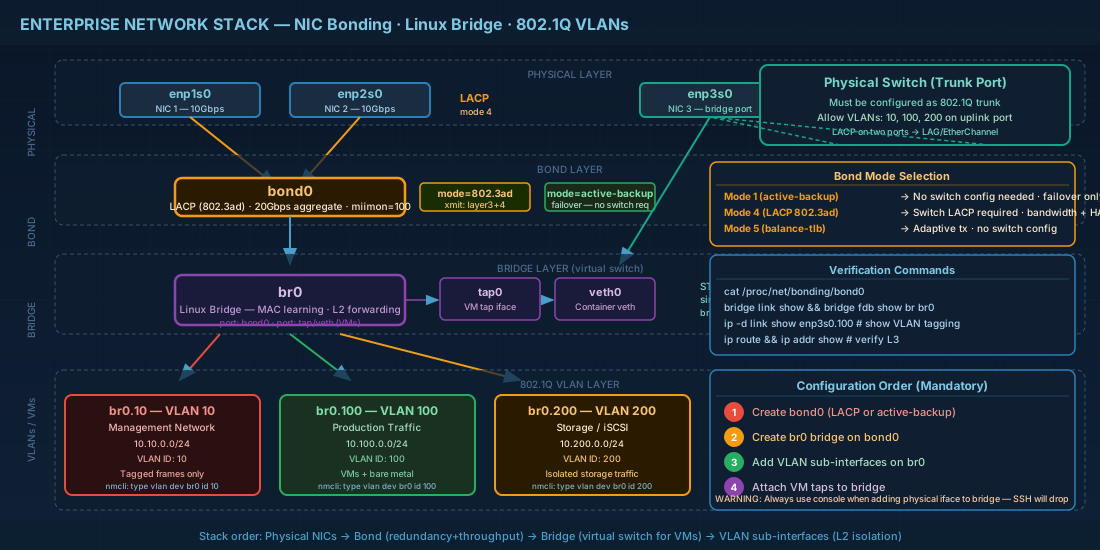
Linux bonding combines two or more physical interfaces into a single logical interface. The bonding driver supports seven modes, each with different behavior:
| Mode | Name | Behavior | Switch requirement |
|---|---|---|---|
| 0 | balance-rr | Round-robin across slaves. Packets may arrive out of order. | Requires EtherChannel or LAG |
| 1 | active-backup | One slave active, others standby. Failover on link loss. | None |
| 2 | balance-xor | Hash-based distribution (src/dst MAC). Deterministic. | Requires EtherChannel or LAG |
| 3 | broadcast | Transmit on all slaves. Niche use for fault tolerance. | Requires EtherChannel or LAG |
| 4 | 802.3ad (LACP) | Dynamic link aggregation using LACP protocol. Best throughput. | Switch must support LACP |
| 5 | balance-tlb | Adaptive transmit load balancing. No switch config needed. | None |
| 6 | balance-alb | Adaptive load balancing (tx + rx). Uses ARP negotiation. | None |
In enterprise data centers, mode 4 (LACP) is the most common choice because it provides both redundancy and aggregated bandwidth with proper switch support. Mode 1 (active-backup) is the safe default when you cannot guarantee switch configuration or when switches are from different vendors.
Configuring bond interfaces with nmcli
NetworkManager handles bonding natively. The following creates an active-backup bond on RHEL 10.1 or Fedora 43. The same commands work on any distribution running NetworkManager.
# Create the bond master interface
sudo nmcli con add type bond ifname bond0 con-name bond0 \
  bond.options "mode=active-backup,miimon=100,primary=enp1s0"

# Add slave interfaces
sudo nmcli con add type ethernet ifname enp1s0 master bond0 con-name bond0-slave1
sudo nmcli con add type ethernet ifname enp2s0 master bond0 con-name bond0-slave2

# Assign IP address to the bond
sudo nmcli con mod bond0 ipv4.addresses 10.0.1.50/24
sudo nmcli con mod bond0 ipv4.gateway 10.0.1.1
sudo nmcli con mod bond0 ipv4.dns "10.0.1.2"
sudo nmcli con mod bond0 ipv4.method manual

# Bring it up
sudo nmcli con up bond0

# Verify bond status
cat /proc/net/bonding/bond0
The miimon=100 parameter sets link monitoring every 100 ms. If a slave link drops, the bonding driver detects it within 100 ms and fails over. For LACP (mode 4), replace the bond.options line with mode=802.3ad,miimon=100,lacp_rate=fast,xmit_hash_policy=layer3+4. The xmit_hash_policy=layer3+4 distributes traffic based on IP addresses and TCP/UDP ports, which spreads load more evenly than the default layer2 hashing.
Verifying bond failover behavior
After creating a bond, you should verify that failover works as expected. This is especially important before putting a bonded interface into production:
# Check current active slave and slave statuses
cat /proc/net/bonding/bond0

# Simulate a failover by temporarily disabling the primary interface
sudo ip link set enp1s0 down

# Verify the bond switched to the backup slave
cat /proc/net/bonding/bond0
# Look for "Currently Active Slave: enp2s0"

# Confirm connectivity is maintained during failover
ping -c 5 10.0.1.1

# Bring the primary back up
sudo ip link set enp1s0 up

# For LACP bonds, verify LACP negotiation details
sudo cat /proc/net/bonding/bond0 | grep -A 5 "802.3ad"
Team device as a bonding alternative
The teamd daemon provides an alternative to kernel bonding with a user-space control plane. Team devices support the same aggregation modes plus JSON-based configuration. However, bonding remains more widely deployed in enterprise environments, and Red Hat continues to support both. Use teamd when you need its specific features like custom load-balancing runners or D-Bus integration.
Linux Bridge Configuration for VMs and Containers
A Linux bridge operates like a virtual Ethernet switch inside the kernel. It forwards frames between attached ports based on MAC address learning, just like physical switch hardware. The primary use case is connecting virtual machine tap interfaces or container veth pairs to the physical network.
Creating a bridge with nmcli
# Create a bridge interface
sudo nmcli con add type bridge ifname br0 con-name br0

# Add a physical interface as a bridge port
sudo nmcli con add type ethernet ifname enp3s0 master br0 con-name br0-port1

# Configure bridge IP (this replaces the IP on the physical interface)
sudo nmcli con mod br0 ipv4.addresses 10.0.1.50/24
sudo nmcli con mod br0 ipv4.gateway 10.0.1.1
sudo nmcli con mod br0 ipv4.dns "10.0.1.2"
sudo nmcli con mod br0 ipv4.method manual

# Optional: disable STP if only one uplink (reduces convergence delay)
sudo nmcli con mod br0 bridge.stp no

# Activate
sudo nmcli con up br0

# Verify bridge state
bridge link show
bridge fdb show br br0 | head -10
When you add a physical interface to a bridge, that interface no longer holds an IP address directly. The bridge interface itself becomes the L3 endpoint. This catches people during initial setup: if you are connected via SSH through enp3s0 and you add it to br0 without first configuring the bridge IP, you lose connectivity.
When adding a production interface to a bridge remotely, always use a console (iLO, IPMI, VM console) or script the entire operation in a single nmcli transaction. A partial configuration will disconnect your SSH session.
Bridge for KVM virtualization
KVM/libvirt guests use tap interfaces that attach to a bridge. The default libvirt network (virbr0) is NAT-based. For production VMs that need to be on the same network as the host, create a bridge with a physical port and define a libvirt network that references it:
# After creating br0 with nmcli as above, define a libvirt network
cat <<EOF > /tmp/host-bridge.xml
<network>
  <name>host-bridge</name>
  <forward mode="bridge"/>
  <bridge name="br0"/>
</network>
EOF

sudo virsh net-define /tmp/host-bridge.xml
sudo virsh net-start host-bridge
sudo virsh net-autostart host-bridge

# Attach a VM to this bridge
sudo virsh attach-interface --domain myvm --type bridge \
  --source br0 --model virtio --config --live
Troubleshooting bridge connectivity issues
Bridge misconfigurations are a frequent cause of VM and container networking failures. Use these commands to diagnose common bridge networking problems:
# Verify all bridge ports are in "forwarding" state
bridge link show
# Ports in "disabled" or "blocking" state will not pass traffic

# Check MAC address table — confirm the guest MAC is learned
bridge fdb show br br0 | grep -i "aa:bb:cc"

# Check if bridge netfilter is intercepting packets (common issue with KVM)
sysctl net.bridge.bridge-nf-call-iptables
# If set to 1, iptables/nftables rules apply to bridged traffic
# Disable if bridge traffic should bypass the firewall:
sudo sysctl -w net.bridge.bridge-nf-call-iptables=0

# Monitor bridge activity in real-time
sudo tcpdump -i br0 -nn -c 20

# Verify ARP resolution across the bridge
sudo arping -I br0 10.0.1.100
VLAN Tagging with 802.1Q on Linux
VLANs let you run multiple isolated layer-2 networks over one physical cable. The kernel uses 802.1Q tagging, adding a 4-byte header to Ethernet frames. The switch port must be configured as a trunk to carry tagged frames.
Creating VLAN interfaces with nmcli
# Create VLAN 100 on physical interface enp3s0
sudo nmcli con add type vlan ifname enp3s0.100 con-name vlan100 \
  dev enp3s0 id 100

# Assign IP to the VLAN interface
sudo nmcli con mod vlan100 ipv4.addresses 10.100.1.50/24
sudo nmcli con mod vlan100 ipv4.gateway 10.100.1.1
sudo nmcli con mod vlan100 ipv4.method manual

# Activate
sudo nmcli con up vlan100

# Verify VLAN is tagged
ip -d link show enp3s0.100
You can stack VLANs on bonds and bridges. A common enterprise pattern is: two physical NICs in an LACP bond, a bridge on top for VM access, and VLAN sub-interfaces on the bridge for traffic segmentation. The configuration order matters: create the bond first, then the bridge, then the VLANs.
# Enterprise stack example: bond + bridge + VLANs
# Step 1: LACP bond (already shown above)
# Step 2: Bridge on the bond
sudo nmcli con add type bridge ifname br0 con-name br0
sudo nmcli con add type bond-slave ifname bond0 master br0 con-name br0-bond-port

# Step 3: VLANs on the bridge
sudo nmcli con add type vlan ifname br0.200 con-name vlan200 dev br0 id 200
sudo nmcli con mod vlan200 ipv4.addresses 10.200.1.50/24
sudo nmcli con mod vlan200 ipv4.method manual
sudo nmcli con up vlan200
Persistent Network Configuration Across Distributions
NetworkManager keyfiles under /etc/NetworkManager/system-connections/ are the modern standard on Fedora 43, RHEL 10.1, and RHEL 9.7. The nmcli commands above automatically create these keyfiles. On Debian 13.3 with NetworkManager, the same files are used. On Ubuntu 24.04.3 LTS server installs that use Netplan, you write YAML in /etc/netplan/ and Netplan renders it to the backend (NetworkManager or systemd-networkd).
# Ubuntu Netplan example: bond + VLAN
# /etc/netplan/01-netcfg.yaml
network:
  version: 2
  renderer: networkd
  ethernets:
    enp1s0: {}
    enp2s0: {}
  bonds:
    bond0:
      interfaces: [enp1s0, enp2s0]
      parameters:
        mode: 802.3ad
        lacp-rate: fast
        mii-monitor-interval: 100
        transmit-hash-policy: layer3+4
  vlans:
    vlan100:
      id: 100
      link: bond0
      addresses: [10.100.1.50/24]
      routes:
        - to: default
          via: 10.100.1.1

# Apply the configuration
sudo netplan apply
Always verify the resulting configuration after applying. On systems managed by NetworkManager, use nmcli con show <name> to check every property. On Netplan-managed systems, use networkctl status and ip addr show. For more on the basics of network interface management, see Linux networking basics: IP, subnets, routing, and DNS.
Quick Reference - Cheats
| Task | Command |
|---|---|
| Create active-backup bond | nmcli con add type bond ifname bond0 bond.options "mode=active-backup,miimon=100" |
| Create LACP bond | bond.options "mode=802.3ad,miimon=100,lacp_rate=fast,xmit_hash_policy=layer3+4" |
| Check bond status | cat /proc/net/bonding/bond0 |
| Create bridge | nmcli con add type bridge ifname br0 |
| Add port to bridge | nmcli con add type ethernet ifname enp3s0 master br0 |
| Show bridge MAC table | bridge fdb show br br0 |
| Create VLAN interface | nmcli con add type vlan dev enp3s0 id 100 |
| Verify VLAN tagging | ip -d link show enp3s0.100 |
| List all connections | nmcli con show |
| Apply Netplan (Ubuntu) | sudo netplan apply |
| NM keyfile location | /etc/NetworkManager/system-connections/ |
Summary
Bonding, bridging, and VLANs are the building blocks of production network design on Linux. Bonding provides NIC redundancy and aggregated bandwidth; mode 1 is the universal fallback and mode 4 is the enterprise standard with LACP. Linux bridges turn a host into a virtual switch for VMs and containers. VLANs add layer-2 isolation without extra cables. These technologies stack: bond the NICs, bridge for VM access, then VLAN for segmentation. Use nmcli for persistent configuration on RHEL, Fedora, and Debian. Use Netplan on Ubuntu. Always test changes through a console session when working remotely, because a misconfigured bridge or bond will drop your SSH connection before you can fix it.