When a Linux service fails, logs are usually the fastest way to find the cause. On modern systems, you will work with two logging layers: systemd-journald and rsyslog. New technicians often think these tools compete, but in practice they often work together.
journalctl reads structured logs from the systemd journal. rsyslog can receive messages from the journal and write classic text files like /var/log/syslog or /var/log/messages, then forward copies to a central log server. If you learn both, you can troubleshoot faster and build safer production logging.
How journald and rsyslog fit together

systemd-journald starts early in boot and collects kernel messages, service logs, and metadata such as unit name, PID, UID, and boot ID. This metadata is useful when you need to filter quickly.
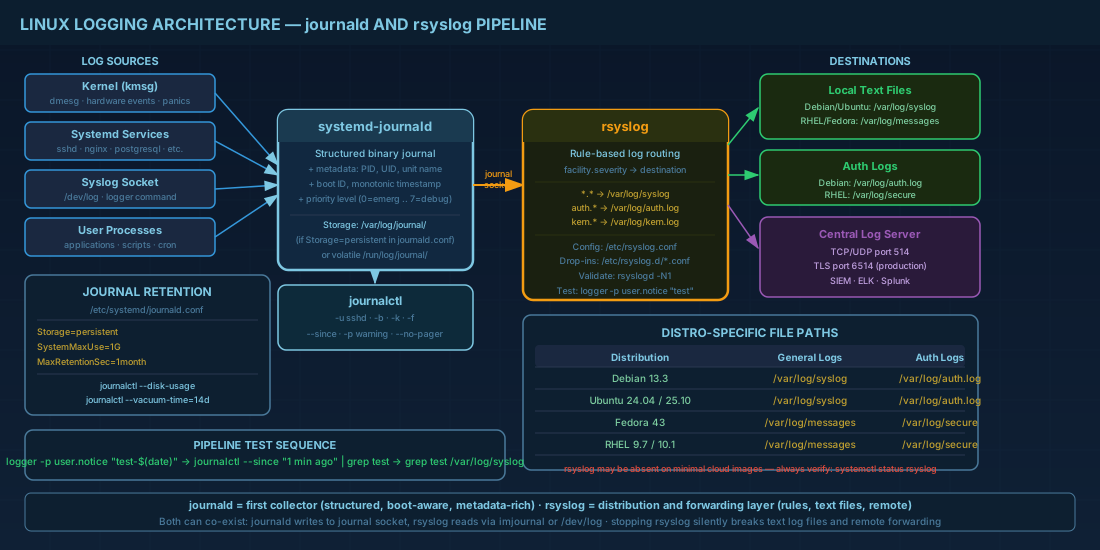
rsyslog is a separate daemon. It usually reads from the journal socket or traditional syslog socket, applies rules, writes log files, and can forward logs to remote systems. In many environments, journald is the first collector and rsyslog is the distribution and retention layer.
# Check that journald is running
systemctl status systemd-journald

# Check whether rsyslog is installed and active
systemctl status rsyslog

# See where rsyslog config lives
ls -1 /etc/rsyslog.conf /etc/rsyslog.d 2>/dev/null
Production consequence: if rsyslog is stopped, journalctl may still show recent logs, but text log files or remote forwarding can silently stop. Alerts based on central logging may then miss incidents.
Daily journalctl commands you will use
Start with journalctl during incidents because it is fast and has reliable filters. Use time filters and service filters together so your output stays readable.
# Most recent log lines across the host
journalctl -n 80 --no-pager

# Current boot only
journalctl -b --no-pager

# Previous boot (good for reboot-related incidents)
journalctl -b -1 --no-pager

# Follow live logs for one service
journalctl -u sshd -f

# Show warnings and errors since 30 minutes ago
journalctl --since "30 min ago" -p warning --no-pager

# Kernel messages only
journalctl -k -b --no-pager
For beginners, the most helpful pattern is: start broad, then narrow by unit and time. For operators, this reduces mean-time-to-repair because you avoid reading unrelated noise.
Reading classic rsyslog files and knowing what they contain
Many scripts and monitoring tools still parse plain text logs. Those files usually come from rsyslog rules.
- Debian and Ubuntu commonly use
/var/log/syslogfor general system messages. - Fedora and RHEL commonly use
/var/log/messagesfor similar data. - Authentication logs are often
/var/log/auth.log(Debian/Ubuntu) or/var/log/secure(Fedora/RHEL).
# Debian 13.3, Ubuntu 24.04.3 LTS, Ubuntu 25.10
sudo tail -n 60 /var/log/syslog
sudo tail -n 60 /var/log/auth.log

# Fedora 43, RHEL 10.1, RHEL 9.7
sudo tail -n 60 /var/log/messages
sudo tail -n 60 /var/log/secure

# Watch a file in real time
sudo tail -f /var/log/syslog
Production consequence: if your runbook says "check /var/log/messages" on a Debian host, you can miss the real error because the file name differs. Keep distro-aware paths in incident documentation.
Persisting journal data and controlling disk usage
By default, journald may keep logs only in memory on some minimal images. In that state, logs disappear after reboot. For production systems, persistent storage is usually required for incident forensics.
# Create persistent journal directory (if missing)
sudo mkdir -p /var/log/journal
sudo systemd-tmpfiles --create --prefix /var/log/journal

# Open journald config
sudo editor /etc/systemd/journald.conf

# Typical settings inside journald.conf
# Storage=persistent
# SystemMaxUse=1G
# MaxRetentionSec=1month

# Apply changes
sudo systemctl restart systemd-journald

# Check disk use by journal files
journalctl --disk-usage

# Reduce size safely
sudo journalctl --vacuum-time=14d
sudo journalctl --vacuum-size=1G
Do not set retention only by guess. If retention is too short, audit and security teams may lose required evidence. If limits are too large, a busy host can run out of disk and fail other services.
Forwarding logs with rsyslog to a central server
Central logging protects you when a single host is lost or compromised. Rsyslog can forward almost all messages to a collector, where SIEM or alerting tools process them.
# /etc/rsyslog.d/60-central-forwarding.conf
# Send all facilities and severities to a TCP collector
*.* action(type="omfwd" target="10.20.30.40" port="514" protocol="tcp"
           action.resumeRetryCount="-1" queue.type="linkedList" queue.size="10000")

# Validate config before restart
sudo rsyslogd -N1

# Restart and verify
sudo systemctl restart rsyslog
sudo systemctl status rsyslog
sudo ss -tnp | grep ':514'
The example above uses TCP without encryption so it is easy to test in a lab. In production, prefer TLS on port 6514 with certificate validation. This prevents log tampering and credential leakage on shared networks.
Troubleshooting missing logs in production
If logs appear incomplete, use a fixed checklist. Random command guessing usually wastes time.
- Confirm the service is active:
systemctl status systemd-journald rsyslog. - Confirm the event exists in journal first:
journalctl -u your-service --since "10 min ago". - If journal has the event but log file does not, inspect rsyslog rules and syntax.
- If file has the event but central server does not, test network path and firewall.
- After any config change, validate and restart daemon, then generate a test message.
# Generate a test entry and trace it
logger -p user.notice "log-pipeline-test $(date '+%F %T')"

# Find it in journal
journalctl --since "2 min ago" | grep log-pipeline-test

# Find it in local rsyslog file (path varies by distro)
sudo grep -R "log-pipeline-test" /var/log/syslog /var/log/messages 2>/dev/null

# If forwarding is enabled, verify packets
sudo tcpdump -ni any port 514 or port 6514 -c 20
For beginners, this method gives a clear path from source to destination. For production teams, it gives evidence for handoff between Linux, network, and security groups.
Compatibility notes: Debian 13.3, Ubuntu 24.04.3/25.10, Fedora 43, RHEL 10.1 and RHEL 9.7
The core commands in this article work across all listed distributions, but defaults can differ.
- Debian 13.3 and Ubuntu 24.04.3 LTS usually include journald and rsyslog on standard server installs. Some minimal cloud images may omit rsyslog.
- Ubuntu 25.10 follows the same journald workflow; file paths remain Debian-family style when rsyslog is installed.
- Fedora 43, RHEL 10.1, and RHEL 9.7 commonly use
/var/log/messagesand/var/log/securefor classic text logs. - RHEL 9.7 remains operationally compatible with these journald and rsyslog procedures, so mixed RHEL 9.7 and 10.1 fleets can use one runbook with minor package-name checks.
Summary
Use journalctl for fast, structured troubleshooting and boot-aware history. Use rsyslog when you need classic files, rule-based routing, and central forwarding. Keep retention explicit, test the full pipeline with logger, and document distro-specific file paths. That combination gives entry-level technicians a reliable workflow and gives production teams audit-ready evidence during outages.