The terminal is the fastest way to inspect and control a Linux system, but new technicians often treat the prompt like decoration. It is not decoration. Your prompt tells you who you are, where you are, and how much power your next command has. The Linux help system gives you verified details for commands before you run them in production. If you learn these two pieces early, you make fewer mistakes and recover faster when something fails.
What the shell prompt tells you before you type
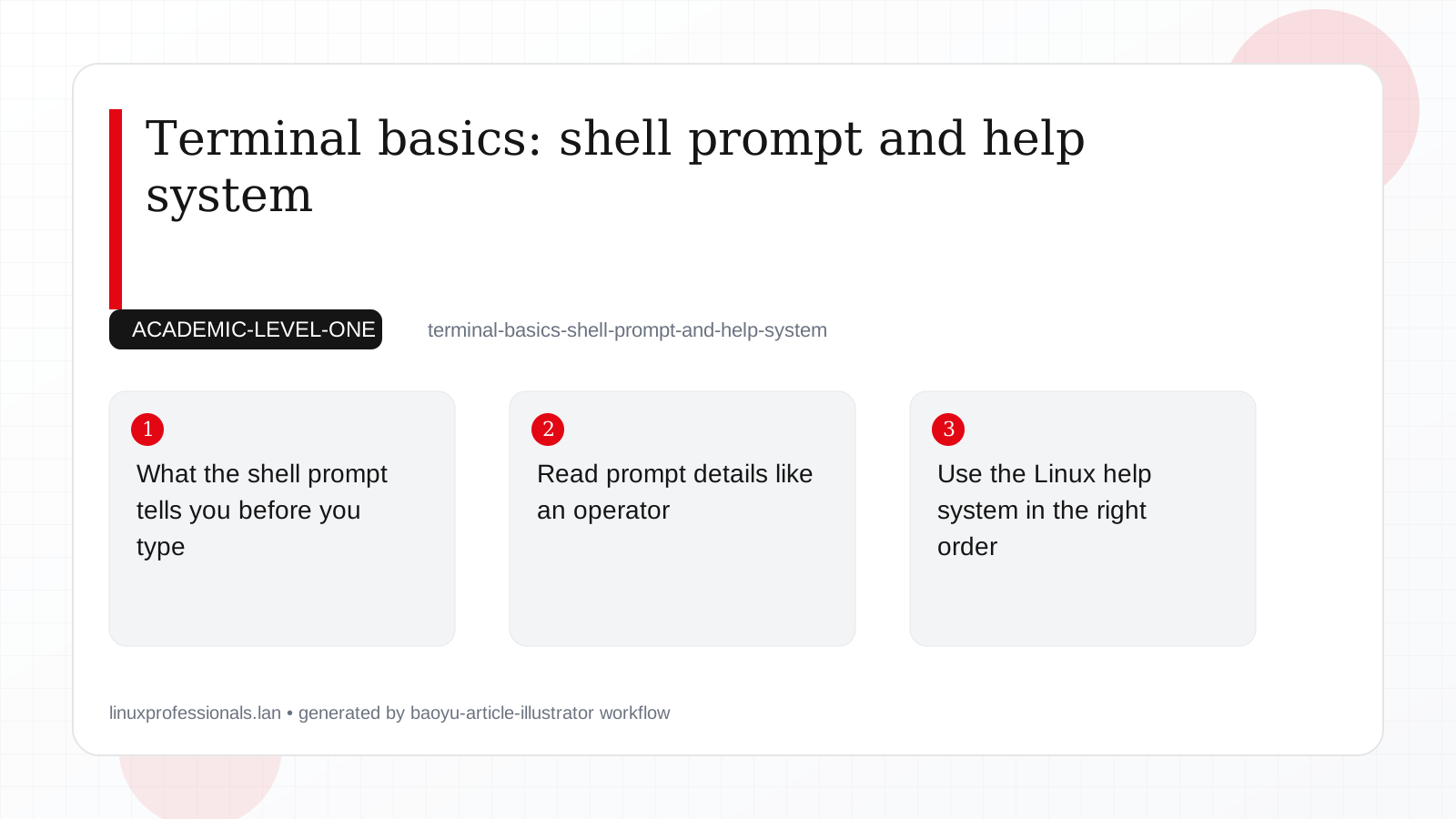
On most systems, the shell prompt looks similar to user@host:~$. Each part matters:
user: current accounthost: machine name~or path: current working directory$or#: privilege level
When the prompt ends in $, you are usually a normal user. When it ends in #, you are root. Root can change almost any file, stop services, and delete critical data. That is useful for admin work, but risky if you forget where you are.
# Check identity and current location before risky commands
whoami
id
hostnamectl --static
pwd
Production consequence: if you run a cleanup command as root in the wrong directory, damage is immediate. A 5 second check with whoami and pwd prevents long recovery work.
Read prompt details like an operator
Path awareness
Your prompt path helps prevent "wrong server" and "wrong directory" errors. In multi-server work, it is common to have several SSH sessions open. Confirm host and path before each change window.
# Show shell and prompt format
printf 'SHELL=%s\n' "$SHELL"
printf 'PS1=%q\n' "$PS1"

# Add a temporary clearer prompt in current session
PS1='[\u@\h \W]\\$ '
The command above changes the prompt only for the current shell. For persistent prompt changes, place settings in ~/.bashrc (per user) or managed shell profile files used by your team.
Exit status awareness
After every command, the shell stores an exit code in $?. Code 0 means success. Non-zero means failure. This is key for scripts and manual troubleshooting.
# Success then failure example
grep "PermitRootLogin" /etc/ssh/sshd_config
echo "$?"   # 0 if found

grep "NoSuchSetting" /etc/ssh/sshd_config
echo "$?"   # usually 1 when no match
Production consequence: if you ignore exit codes and continue with dependent commands, you can apply partial changes and leave services in inconsistent states.
Use the Linux help system in the right order
Do not guess command flags from memory when the system is live. Use a repeatable lookup order:
command --helpfor quick syntaxman commandfor full referencehelp builtinfor shell builtins likecd,test, andexportapropos keywordwhen you know the task but not the command name
# Fast syntax view
ls --help | head -n 20

# Manual page
man rsync

# Bash builtin help
help cd

# Find commands by topic
apropos "archive"
whatis tar
man pages are local documentation installed from packages. On minimal cloud images and containers, they may be missing. Install them before incident response work so documentation is available even without internet access.
# Debian 13.3, Ubuntu 24.04.3 LTS, Ubuntu 25.10
sudo apt update
sudo apt install -y man-db manpages

# Fedora 43, RHEL 10.1, RHEL 9.7
sudo dnf install -y man-db man-pages
For scripts that use /bin/sh, remember that help text can differ from interactive Bash behavior. Check the real shell with ps -p $$ -o comm= in your current session, and test scripts with the interpreter in the shebang.
Distro compatibility notes you should know in 2026
These baseline checks are useful across current training targets:
- Debian 13.3 and Ubuntu 24.04.3 LTS generally provide GNU userland tools and Bash for interactive shells.
- Ubuntu 25.10 keeps similar user tools, but package versions are newer, so option defaults can differ from LTS systems.
- Fedora 43 often ships newer command versions than enterprise distributions, which is useful for learning but can hide compatibility issues.
- RHEL 10.1 environments should still be validated against RHEL 9.7 fleets when mixed versions exist. Shared scripts must avoid flags introduced only in newer tool releases.
# Capture versions during troubleshooting and change records
cat /etc/os-release
bash --version | head -n 1
man --version | head -n 1
Production consequence: if a runbook is tested only on Fedora 43 and then executed on RHEL 9.7 nodes, unsupported options can break automation. Recording OS and tool versions in tickets makes failures easier to reproduce and fix.
Common mistakes and safer habits
Entry-level technicians repeat a few patterns that cause avoidable incidents:
- Running commands as root when read-only checks were enough
- Copying commands without reading
--helpfor current version behavior - Skipping directory checks before file operations
- Trusting aliases that hide real command options
# Good pre-flight sequence for file changes
whoami
pwd
type rm
rm --help | head -n 15

# Dry-run style checks where available
rsync -avhn /source/ /target/
For team operations, add these checks to runbooks. A runbook that says "verify prompt identity and path" looks basic, but it directly lowers outage risk, especially during late-night maintenance.
Summary
Your prompt is a safety panel, not a banner. Read it before you act. The help system is your local source of truth for syntax and behavior, especially when systems differ between Debian 13.3, Ubuntu 24.04.3 LTS/25.10, Fedora 43, and mixed RHEL 10.1 and 9.7 environments. If you consistently check identity, path, privilege, and command documentation, you prevent most beginner terminal mistakes and produce cleaner operational work.