On Linux systems, text tools are part of daily operations. You read logs, inspect configs, and change settings under time pressure. Three tools cover most of that work: less for safe viewing, nano for simple edits, and vim for fast, repeatable edits. If you choose the wrong tool at the wrong time, you can miss an error line, break syntax, or push a bad reload into production. This guide explains where each tool fits and how to use them with fewer mistakes.
Choose the right tool for the job
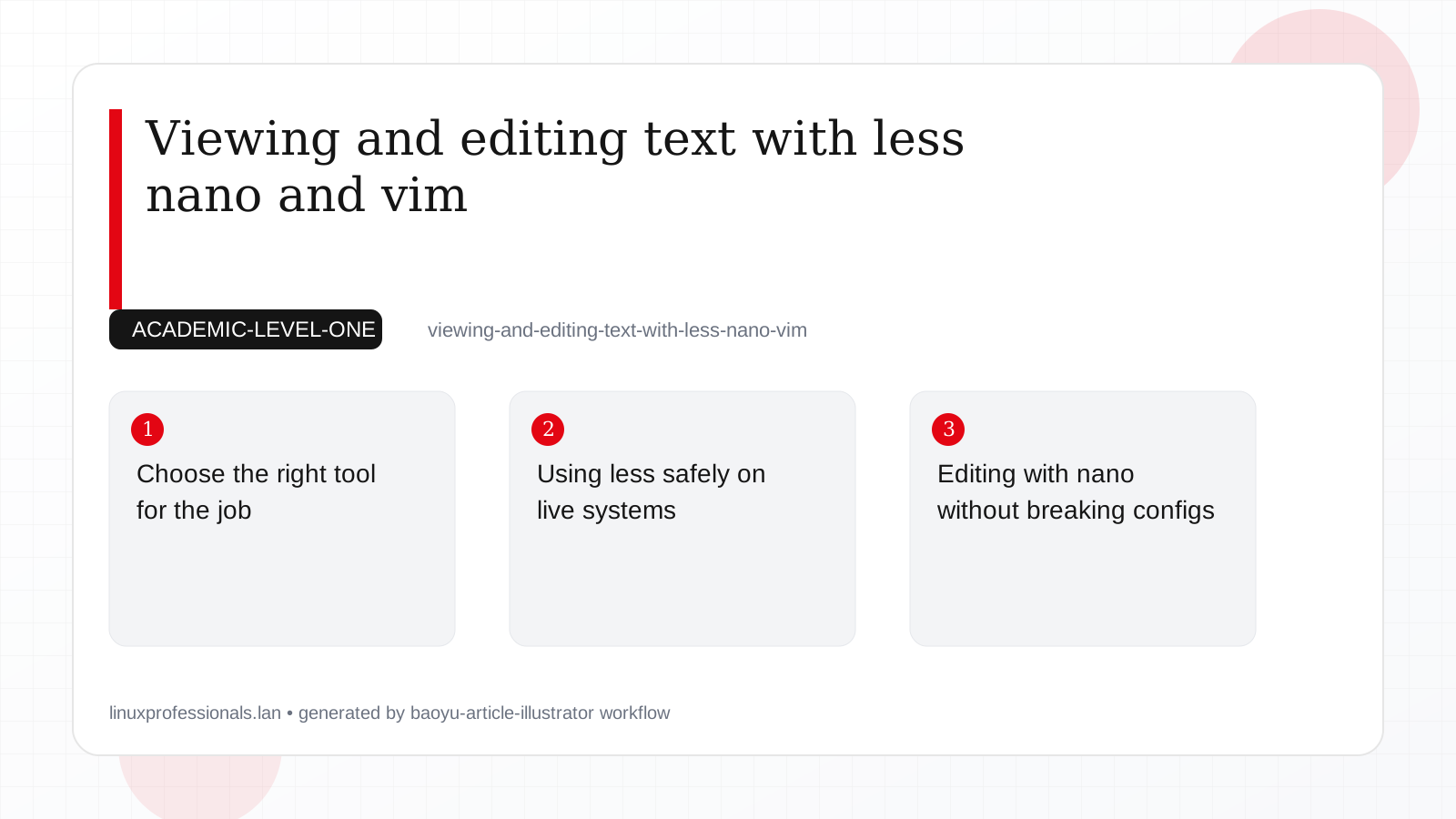
Start with intent: do you need to read, or do you need to change? If you only need to inspect a file, use less. It opens quickly, uses low memory, and cannot modify the file. That protects you during incident response.
Use nano when the edit is small and you want visible shortcuts on screen. It is friendly for newer technicians and helps when you need one quick change and a safe exit.
Use vim when you need speed, repeatable search/replace, macros, or precise navigation in very large files. Vim has a learning curve, but it saves time in repetitive operations.
| Tool | Best use | Risk profile |
|---|---|---|
less |
Read logs and configs safely | Very low: read-only workflow |
nano |
Small direct edits | Medium: easy to edit wrong line if rushed |
vim |
Complex edits and bulk changes | Medium to high until workflow is disciplined |
Using less safely on live systems
less is a pager, not an editor. That is why operators trust it during outages. You can move through huge files without loading everything into memory.
# View a large log with line numbers
sudo less -N /var/log/nginx/error.log

# Inside less:
# /timeout      search forward
# n             next match
# N             previous match
# g             top of file
# G             end of file
# q             quit

# Follow a growing file, similar to tail -f
sudo less +F /var/log/nginx/access.log
# Press Ctrl+C to stop follow mode and search in the same session
Production consequence: if you use cat on a huge file over SSH, you can flood your terminal and lose useful context. With less, you keep control and can search backward and forward during the same investigation.
Also remember compressed logs. On many systems, rotated logs are .gz. Use zless so you can inspect old failures without manual decompression.
Editing with nano without breaking configs
nano is a good first editor for production edits because it shows keys at the bottom: write out, exit, search, cut, and paste. The common failure is not the editor itself; it is skipping validation after save.
# 1) Backup first
sudo cp /etc/ssh/sshd_config /etc/ssh/sshd_config.bak.$(date +%F_%H%M%S)

# 2) Edit
sudo nano /etc/ssh/sshd_config

# 3) Validate syntax before reload
sudo sshd -t

# 4) Apply safely
sudo systemctl reload sshd
If validation fails, fix the file before reload. Reloading a broken daemon can cut remote access. On Ubuntu and Debian, service naming may be ssh on some installations, while RHEL and Fedora normally use sshd. Confirm with systemctl status sshd or systemctl status ssh.
Another practical habit: keep one SSH session open while testing changes in a second session. If you lock yourself out, the first session lets you revert immediately.
Editing with vim for repeatable operations
Vim is strong when edits must be exact and repeatable. Think of it as a tool for operators who edit daily and need precision. The key is mode awareness: normal mode for movement and commands, insert mode for typing.
# Open config with elevated privileges
sudo vim /etc/nginx/nginx.conf

# Useful commands inside vim
:set number          " show line numbers
:/server_name        " search text
n                    " next match
:%s/old/new/gc       " replace with confirmation
:w                   " save
:q                   " quit

# Safe quit if unsure
:q!                  " quit without saving
Watch for swap-file warnings like E325: ATTENTION. That often means another session is editing the same file or a previous session crashed. In production, this warning matters because two engineers changing one file can overwrite each other.
If your team prefers change tracking, combine vim with version control for application configs. For system configs under /etc, at least keep timestamped backups before major edits.
Compatibility notes for current distributions
Command behavior is mostly consistent across modern distributions, but packaging and defaults differ.
- Debian 13.3:
lessandnanoare commonly present. Full vim features may require thevimpackage. - Ubuntu 24.04.3 LTS and Ubuntu 25.10:
nanois typically the default editor for new users. Vim is available and stable in repositories. - Fedora 43:
viusually links to vim. Installvim-enhancedwhen minimal images lack full features. - RHEL 10.1 and RHEL 9.7: workflows are compatible. Package naming for full vim features remains
vim-enhancedin standard repos.
# Debian 13.3 / Ubuntu 24.04.3 LTS / Ubuntu 25.10
sudo apt update
sudo apt install less nano vim

# Fedora 43 / RHEL 10.1 / RHEL 9.7
sudo dnf install less nano vim-enhanced
On stripped-down cloud images, one or more editors may be missing. Verify early in provisioning scripts so emergency access is not blocked by missing tools.
Operational habits that prevent outages
Editors do not cause outages by themselves. Process gaps do. These habits reduce risk:
- Use
lessfirst to inspect current state before touching files. - Take a backup of any critical config before edit.
- Validate syntax with the service checker before reload or restart.
- Prefer
reloadoverrestartwhen supported, so active connections survive. - Record what changed and why in your ticket or change log.
# Example validation-first deployment for nginx
sudo cp /etc/nginx/nginx.conf /etc/nginx/nginx.conf.bak.$(date +%F_%H%M%S)
sudo vim /etc/nginx/nginx.conf
sudo nginx -t && sudo systemctl reload nginx
This sequence is simple, but it prevents many avoidable incidents in small and large environments.
Summary
Use less when reading, nano for straightforward edits, and vim when you need speed and advanced control. The tool choice matters, but your safety steps matter more: backup, edit, validate, and then reload. With that loop, these editors work reliably on Debian 13.3, Ubuntu 24.04.3 LTS and 25.10, Fedora 43, and both RHEL 10.1 and RHEL 9.7.