Many command-line mistakes come from one detail people learn late: the shell changes your command before the program starts. This process is called shell expansion. Globbing is one part of it, where patterns like *.log become real file names.
If you understand expansion early, you avoid risky deletions, broken loops, and scripts that behave differently between laptops and servers. For beginners, this means fewer surprises. For production operators, it means safer automation.
What shell expansion does before a command runs
When you type a command, Bash does not pass it to the program exactly as written. First, it expands parts of the line. A simple example:
echo /var/log/*.logIf matching files exist, Bash turns that into something like:
echo /var/log/auth.log /var/log/kern.log /var/log/syslogThen echo receives the expanded arguments. It never sees the * pattern. This distinction matters when troubleshooting. If a command behaves oddly, ask: did the shell expand something in an unexpected way?
One more important point: quoting controls expansion. Compare these:
pattern="*.log"

echo $pattern    # expands to matching files
echo "$pattern"  # prints literal *.log
Unquoted variables can trigger globbing and word splitting. In scripts, that is a common source of bugs.
Expansion order in Bash and why order creates bugs
Bash applies expansions in a defined order. The short version for day-to-day work is:
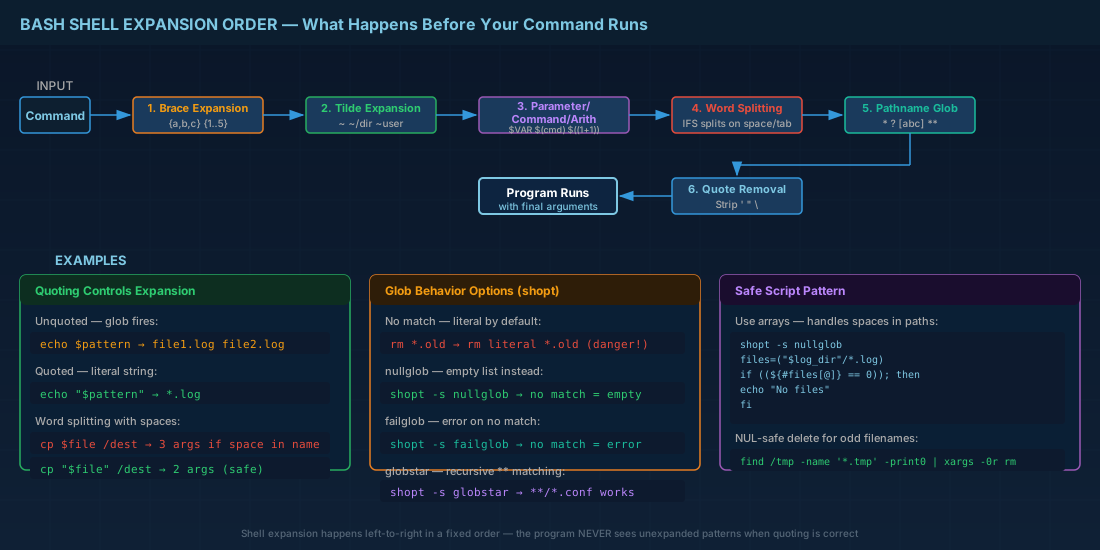
- Brace expansion
- Tilde expansion
- Parameter, command, and arithmetic expansion
- Word splitting
- Pathname expansion (globbing)
- Quote removal
This order explains confusing output. Example:
dir="/var/log"
pattern="*.log"

# First $dir and $pattern expand, then globbing runs on the result
printf '%s\n' $dir/$pattern

# Safer when you want literal text
printf '%s\n' "$dir/$pattern"
The first command may print many files or keep a literal pattern if no files match, depending on shell options. The second command always prints one literal string.
Production consequence: if a deployment script builds paths with unquoted variables, a directory with spaces or wildcard characters can split into extra arguments. That can break cp, rsync, or service restart logic.
Globbing patterns and edge cases you should know
Basic patterns are simple:
*: any string?: one character[abc]: one character from a set[0-9]: one character from a range
But three edge cases matter in real systems.
1) Hidden files are skipped by default
* does not match dotfiles such as .env unless the pattern starts with a dot or dotglob is enabled.
ls -1 .*          # explicit dotfiles
shopt -s dotglob # Bash: include dotfiles in globs
printf '%s\n' *
2) No-match behavior can hide mistakes
In default Bash, if no file matches, the pattern stays literal. That can be dangerous with cleanup commands.
rm /var/tmp/app/*.old
# If no matches, rm receives literal '/var/tmp/app/*.old'
# Usually harmless, but still not what many people expect
Two Bash options help:
shopt -s nullglob   # unmatched globs become empty
# or
shopt -s failglob   # unmatched globs become an error
For production scripts, failglob is often useful in strict pipelines because it fails fast when patterns are wrong.
3) Recursive globbing is not always on
The ** pattern needs globstar in Bash.
shopt -s globstar
printf '%s\n' /etc/**/*.conf
If globstar is off, ** behaves like * in many cases. Never assume recursive behavior without enabling it.
Safe scripting patterns for beginners and operators
Use these habits in every shell script:
- Quote variable expansions unless you explicitly want splitting and globbing.
- Use arrays to hold file lists.
- Use
--before user-controlled paths to stop option parsing. - For large trees, prefer
find ... -print0with NUL-safe loops.
#!/usr/bin/env bash
set -euo pipefail
shopt -s nullglob

log_dir="/var/log/myapp"
archive_dir="/var/backups/myapp"
mkdir -p "$archive_dir"

files=("$log_dir"/*.log)
if ((${#files[@]} == 0)); then
  echo "No logs to archive"
  exit 0
fi

tar -czf "$archive_dir/logs-$(date +%F).tar.gz" -- "${files[@]}"
This script handles spaces safely and avoids accidental literal patterns. In production, that reduces failed cron jobs and partial backups.
# NUL-safe delete pattern for old temp files
find /var/tmp/myapp -type f -name '*.tmp' -mtime +7 -print0 |
  xargs -0r rm -f --
This approach is safer than plain globs when file names may contain spaces, newlines, or unusual characters.
Compatibility notes: Debian 13.3, Ubuntu 24.04.3/25.10, Fedora 43, RHEL 10.1 and 9.7
Across these current releases, basic globbing behavior is consistent in Bash. The main compatibility issue is which shell runs your script:
- Debian 13.3 and Ubuntu 24.04.3 LTS/25.10:
/bin/shis typicallydash. - Fedora 43, RHEL 10.1, and RHEL 9.7:
/bin/shis typically Bash in POSIX mode.
Why this matters: Bash features such as shopt, arrays, globstar, and failglob are not portable to plain POSIX sh. If you need Bash behavior, use an explicit shebang:
#!/usr/bin/env bash
# Bash-specific script: arrays and shopt are used below
If you need cross-shell portability, keep to POSIX patterns and test with dash on Debian/Ubuntu style systems.
Conclusion
Globbing and shell expansion look small, but they directly affect safety and reliability. For entry-level technicians, the key rule is simple: quote variables, test patterns, and do not assume what * matches. For operators, the practical rule is stricter: make expansion behavior explicit with shell options and script guards, especially on mixed distro fleets. These habits work well on Debian 13.3, Ubuntu 24.04.3 LTS and 25.10, Fedora 43, and both RHEL 10.1 and RHEL 9.7 environments.