In Linux operations, you often need to move many files as one unit, keep backups smaller, or ship logs to another system. That is where tar and compression tools come in. A common mistake is to treat them as one thing. They are two separate steps: tar creates an archive, and tools like gzip, xz, and zstd compress the archive.
This article uses simple language, but the examples are production oriented. Commands are compatible with Debian 13.3, Ubuntu 24.04.3 LTS, Ubuntu 25.10, Fedora 43, RHEL 10.1, and RHEL 9.7 unless noted.
what tar does and what it does not do
tar (tape archive) packages files and directories into one stream. By itself, it does not reduce size. This matters in real work. If you archive 50 GB of text logs without compression, you still transfer roughly 50 GB over the network.
Good reasons to use tar even without compression:
- Preserve file ownership, permissions, and timestamps.
- Keep directory structure intact during transfer.
- Apply one checksum to one file instead of thousands.
# Create an uncompressed archive
# c = create, f = output file
sudo tar -cf /backups/etc-2026-02-26.tar /etc

# List archive contents without extracting
# t = list
sudo tar -tf /backups/etc-2026-02-26.tar | head -n 20
Production consequence: if you extract as root, ownership can be restored exactly, which is useful for disaster recovery. If you extract as a regular user, ownership will usually map to that user, which can break service files after restore.
choosing gzip xz or zstd for the job
Compression choice is mostly a tradeoff between CPU time and final size.
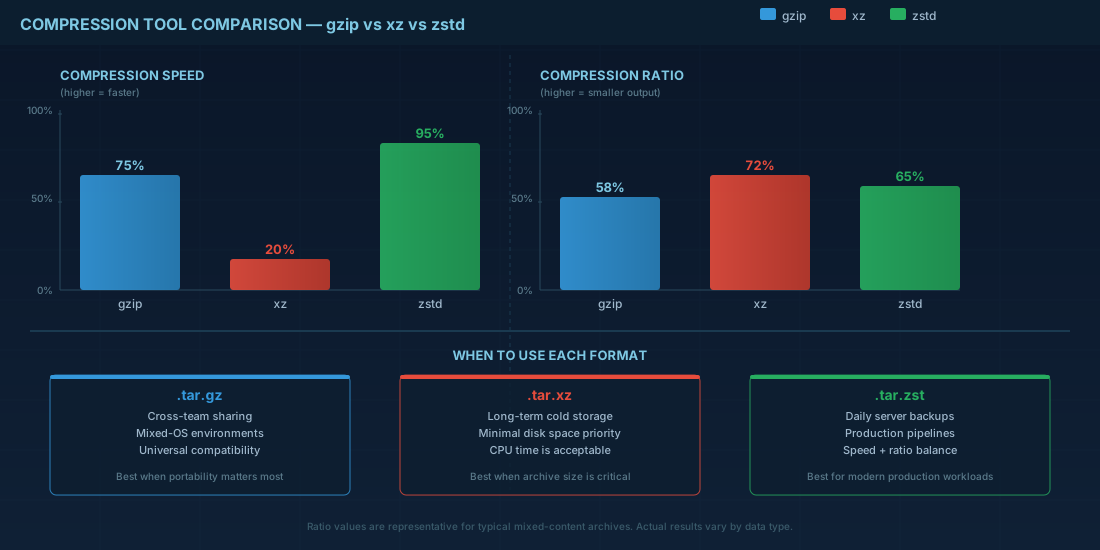
gzip: fast and widely compatible. Good default for cross-team sharing.xz: smaller files than gzip, but slower compression and decompression.zstd: usually near-gzip speed with better ratios, or very fast with lower levels.
For daily backups on active servers, zstd often gives the best operational balance. For long-term cold storage where CPU time is less important, xz may save more disk. For scripts that must run everywhere, gzip remains the safest baseline.
# Tar + gzip (common and portable)
sudo tar -czf /backups/home-$(date +%F).tar.gz /home

# Tar + xz (better ratio, slower)
sudo tar -cJf /backups/home-$(date +%F).tar.xz /home

# Tar + zstd (modern balance)
sudo tar --zstd -cf /backups/home-$(date +%F).tar.zst /home
If you need predictable CPU use on busy systems, set levels explicitly. Lower levels are faster but bigger. Higher levels are smaller but cost more CPU and can affect application latency when backups run during business hours.
# Example with explicit zstd level (fast backup window)
sudo tar -I 'zstd -3' -cf /backups/varlog-$(date +%F).tar.zst /var/log

# Example with stronger xz compression for archive storage
sudo tar -I 'xz -6' -cf /archive/reports-2026-02.tar.xz /srv/reports
safe create and extract patterns
Most operational mistakes happen during extraction, not creation. Before extracting, inspect the archive and target path. Do not extract unknown archives directly into /.
# 1) Inspect first
tar -tf app-release.tar.zst | head -n 30

# 2) Extract into a staging path for review
mkdir -p /tmp/restore-check
sudo tar --zstd -xf app-release.tar.zst -C /tmp/restore-check

# 3) Compare before replacing live files
sudo rsync -aHAX --dry-run /tmp/restore-check/ /opt/app/
Use -C to control where files land. This prevents accidental writes into the current directory. On production systems, this one flag avoids many incidents.
# Extract specific file from a backup without full restore
sudo tar -xzf /backups/etc-2026-02-26.tar.gz -C /tmp/restore-check ./etc/ssh/sshd_config

# Preserve permissions when extracting as root
sudo tar -xpf /backups/etc-2026-02-26.tar -C /tmp/full-restore
Another practical point: verify archives before deleting source data. A fast check is to list content and run a checksum over the archive. For critical backups, do a test extraction on a non-production host.
distribution compatibility notes you should know
On Debian 13.3, Ubuntu 24.04.3 LTS, Ubuntu 25.10, Fedora 43, RHEL 10.1, and RHEL 9.7, GNU tar is the standard tar implementation, so basic flags in this guide are portable.
gzip and xz are normally present by default. zstd is common on modern installs, but minimal images may not include the zstd binary. In that case, tar --zstd fails until you install it.
# Debian 13.3, Ubuntu 24.04.3 LTS, Ubuntu 25.10
sudo apt update
sudo apt install -y zstd xz-utils gzip tar

# Fedora 43, RHEL 10.1, RHEL 9.7
sudo dnf install -y zstd xz gzip tar
For mixed fleets, do not assume every node supports every compression format. A restore can fail if one server only has gzip tools but your backup pipeline switched to .tar.zst. Define one standard in team documentation and enforce it in scripts.
production consequences and a simple policy
Beginners often focus on command syntax. Operators focus on recovery time and risk. Both matter. A backup that compresses well but takes too long to decompress can miss an outage recovery target. A fast backup format that no one can extract on an older node is also a failure.
A practical starter policy for small teams:
- Use
.tar.zstfor daily server backups when all hosts supportzstd. - Use
.tar.gzfor files shared across unknown environments. - Reserve
.tar.xzfor long-term storage where compression time is acceptable. - Run one scheduled restore test each month and document exact commands.
This keeps your process understandable for new technicians and still reliable in production. The command line is only half the task. The real goal is consistent recovery under pressure.
summary
tar packages files; gzip, xz, and zstd compress them with different speed and size tradeoffs. Pick format based on recovery needs, not habit. Verify archives before deleting originals, and test extraction on the target distributions you actually run: Debian 13.3, Ubuntu 24.04.3 LTS and 25.10, Fedora 43, RHEL 10.1, and RHEL 9.7. If restore works on paper but fails on a real host, the backup was never complete.