Running Red Hat Enterprise Linux on a Raspberry Pi 4 sounds like a contradiction. RHEL targets certified ARM servers, not a $35 single-board computer. But it works, and thousands of homelabbers and edge-computing experimenters have done it. The catch: WiFi is the single most frustrating part of the setup, and Red Hat will not help you fix it because the Pi 4 is not on their supported hardware list.
This guide covers every step from flashing UEFI firmware to getting the Pi 4's Infineon CYW43455 WiFi chip working on RHEL 9. It includes the exact firmware files you need, the driver reload workaround that fixes the most common failure, and the nmcli commands to connect. If you hit a wall, the troubleshooting section at the end covers the errors that trip up most people.
RHEL 9 on Raspberry Pi 4: support status and compatibility
Red Hat does not support the Raspberry Pi 4. The Pi is absent from the Red Hat Ecosystem Catalog, and support tickets about Pi hardware issues will be refused. RHEL 9 for aarch64 is designed for ARM SystemReady-certified server hardware, which the Pi 4 is not.
That said, RHEL 9's kernel 5.14 includes enough BCM2711 support (the Pi 4's SoC) that the system boots and runs through UEFI firmware. If you are not sure which RHEL version to target, see our RHEL version comparison covering RHEL 6 through 10. Multiple community guides have confirmed RHEL 9.0 works reliably on Pi 4. Later point releases (9.3 and 9.4) have had reported boot regressions on Pi hardware, so stick with 9.0 or 9.2 for the smoothest experience.
What works out of the box: Ethernet, USB ports, HDMI output (basic framebuffer), storage (SD card and USB SSD). What does not work out of the box: WiFi, Bluetooth, GPIO pins, hardware video decoding, and the camera interface. This article focuses on getting WiFi working because that is the gap most people need to close first.
Raspberry Pi 4 WiFi hardware: the CYW43455 and brcmfmac driver
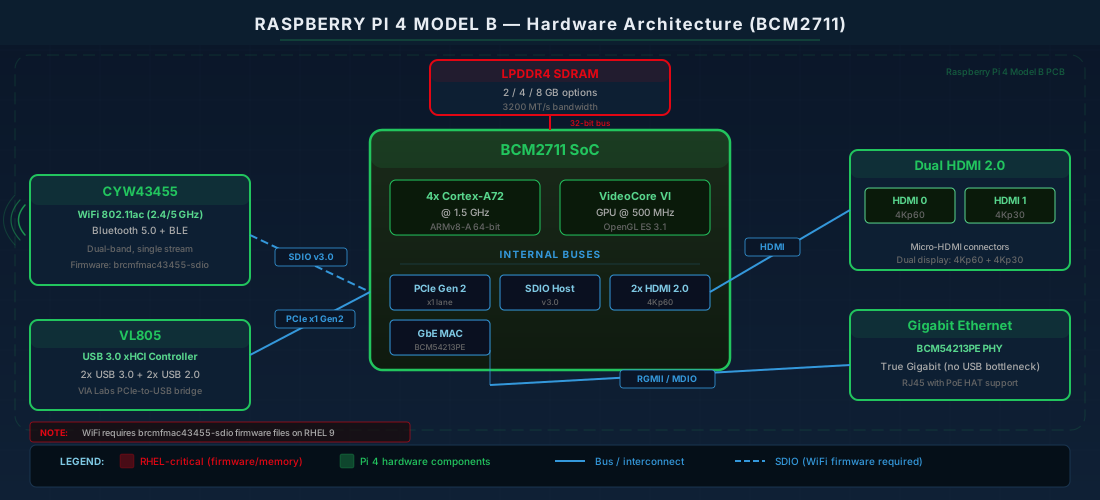
The Raspberry Pi 4 Model B uses the Broadcom BCM2711 SoC with four Cortex-A72 cores at 1.5 GHz. It ships with 1, 2, 4, or 8 GB of LPDDR4 RAM. For running RHEL, 4 GB is the practical minimum and 8 GB is recommended, especially if you plan to run containers or MicroShift.
The CYW43455 WiFi Chip
The Pi 4's wireless is handled by the Infineon CYW43455 (originally Broadcom, acquired by Cypress, then Infineon). It is a combo WiFi + Bluetooth chip connected to the BCM2711 SoC via SDIO.
| Specification | Detail |
|---|---|
| Chip | Infineon CYW43455 (CYW4345C0 stepping) |
| WiFi standard | 802.11ac (Wi-Fi 5), dual-band 2.4/5 GHz |
| Max PHY rate | 433 Mbps (80 MHz, 1x1 SISO, 256-QAM) |
| Real-world throughput | ~58 Mbps (2.4 GHz), ~114 Mbps (5 GHz) |
| Bluetooth | 5.0 + BLE (same chip, UART interface) |
| Host interface | SDIO v3.0 |
| Linux driver | brcmfmac (FullMAC, in mainline kernel) |
The brcmfmac driver has been part of the mainline Linux kernel for years and is included in RHEL 9's kernel. If you want to understand how kernel modules like brcmfmac are loaded, see our article on kernel module management with modprobe and DKMS. The driver itself is not the problem. The problem is firmware files and a timing race during boot.
Installing RHEL 9 on the Pi 4 via UEFI
The recommended method uses the community-maintained EDK2 UEFI firmware from the pftf/RPi4 project. This gives the Pi a standard UEFI boot environment that RHEL's installer recognizes. If you want to understand the UEFI boot flow in more detail, see our guide on the Linux boot process from BIOS/UEFI through GRUB and systemd.
What You Need
- Raspberry Pi 4 (4 GB or 8 GB)
- MicroSD card (for UEFI firmware, 256 MB is enough)
- USB drive (for RHEL 9 installer ISO)
- Ethernet cable (WiFi does not work during installation)
- HDMI monitor and USB keyboard
- RHEL 9 aarch64 Binary DVD ISO from developers.redhat.com
- UEFI firmware v1.34 from pftf/RPi4 (v1.35 has reported install issues)
Step 1: Prepare the SD Card
# Format SD card with a single FAT32 partition
# On Linux:
sudo parted /dev/sdX mklabel msdos
sudo parted /dev/sdX mkpart primary fat32 1MiB 256MiB
sudo mkfs.vfat -F 32 /dev/sdX1

# Mount and extract UEFI firmware
sudo mount /dev/sdX1 /mnt
cd /mnt
# Extract RPi4_UEFI_Firmware_v1.34.zip contents here
sudo unzip /path/to/RPi4_UEFI_Firmware_v1.34.zip -d /mnt/
sudo umount /mnt
Step 2: Write the RHEL ISO to USB
# Use dd to write the Binary DVD ISO
sudo dd if=rhel-9.0-aarch64-dvd.iso of=/dev/sdY bs=4M status=progress conv=fsync
Use the Binary DVD ISO, not the Boot ISO. The Boot ISO hangs on Pi 4 because it cannot fetch packages over the network during UEFI boot.
Step 3: Configure UEFI Settings
Insert the SD card, connect the monitor and keyboard, then power on. Press Esc at the Raspberry Pi splash screen to enter the UEFI setup menu.
- Go to Device Manager → Raspberry Pi Configuration → Advanced Settings
- Set Limit RAM to 3 GB to Disabled. This is critical. The BCM2711 has a DMA addressing limitation that the UEFI firmware works around by limiting RAM. Linux kernel 5.8 and later (RHEL 9 ships 5.14) handle this properly, so the limit is unnecessary and wastes RAM.
- Optionally set boot order to USB first under Boot Manager
Step 4: Install RHEL
Insert the USB drive and boot. The RHEL Anaconda installer should start. If graphical mode fails, select the text installer from the GRUB menu. Complete the standard installation: set timezone, create a user, register your Red Hat subscription (a free developer subscription works), and choose your storage layout.
One important detail: the installer reformats the EFI partition, which overwrites the Pi's UEFI firmware files. After installation, the Pi will not boot until you restore them.
Step 5: Restore UEFI Firmware After Install
Mount the EFI partition and copy the pftf firmware files back alongside the RHEL bootloader:
# Mount EFI partition (usually /dev/mmcblk0p1 on SD card)
mount /dev/mmcblk0p1 /boot/efi

# Copy UEFI firmware files (config.txt, fixup4.dat, start4.elf, etc.)
# alongside the existing EFI/redhat/ directory
cp -r /path/to/uefi-firmware-files/* /boot/efi/

# If the EFI bootloader is not detected, register it manually
# from the UEFI Shell (press F1 at boot):
# bcfg boot add 0 FS0:\EFI\redhat\grubaa64.efi "RHEL 9"
Getting WiFi Working on RHEL 9
This is where most Pi 4 + RHEL setups stall. WiFi does not work after installation because of three compounding issues: missing firmware files, a missing NetworkManager WiFi subpackage, and a kernel driver timing race. You need an Ethernet connection to fix all of them.
Step 1: Install WiFi Packages
sudo dnf install -y NetworkManager-wifi wpa_supplicant iw wireless-regdbNetworkManager-wifi adds WiFi capability to NetworkManager. Without it, nmcli dev wifi list returns "Error: No WiFi device found" even if the hardware is present. wpa_supplicant handles WPA/WPA2/WPA3 authentication. iw is a debugging tool for wireless configuration. wireless-regdb contains the regulatory database that controls which channels and power levels are legal in your country.
Step 2: Check and Install Firmware Files
The brcmfmac driver needs four files in /lib/firmware/brcm/:
| File | Purpose |
|---|---|
brcmfmac43455-sdio.bin | Main WiFi firmware binary |
brcmfmac43455-sdio.clm_blob | Regulatory/channel calibration data |
brcmfmac43455-sdio.txt | Generic NVRAM configuration (fallback) |
brcmfmac43455-sdio.raspberrypi,4-model-b.txt | Pi 4-specific NVRAM (board calibration, antenna config) |
Check what is already there:
ls -la /lib/firmware/brcm/brcmfmac43455-sdio*RHEL 9's linux-firmware package includes the generic binary and CLM blob, but the Pi 4-specific NVRAM file is often missing. Without it, the driver may fail to initialize or produce degraded radio performance. Download any missing files from the upstream linux-firmware repository:
# Download firmware files if missing
FW_BASE="https://git.kernel.org/pub/scm/linux/kernel/git/firmware/linux-firmware.git/plain/brcm"

sudo curl -L -o /lib/firmware/brcm/brcmfmac43455-sdio.bin \
  "${FW_BASE}/brcmfmac43455-sdio.bin"

sudo curl -L -o /lib/firmware/brcm/brcmfmac43455-sdio.clm_blob \
  "${FW_BASE}/brcmfmac43455-sdio.clm_blob"

sudo curl -L -o /lib/firmware/brcm/brcmfmac43455-sdio.txt \
  "${FW_BASE}/brcmfmac43455-sdio.txt"

sudo curl -L -o "/lib/firmware/brcm/brcmfmac43455-sdio.raspberrypi,4-model-b.txt" \
  "${FW_BASE}/brcmfmac43455-sdio.raspberrypi,4-model-b.txt"
Step 3: Fix the brcmfmac Module Load Race Condition
This is the most common reason WiFi fails on Pi 4 with RHEL. The brcmfmac module loads during boot before the SDIO bus has fully enumerated the CYW43455 chip. When that happens, the driver initializes but wlan0 never appears. The kernel log (dmesg | grep brcmfmac) shows the module loading but no "brcmf_fw_alloc_request" line confirming firmware was loaded.
The fix is to unload and reload the module after boot. Create a systemd service that does this automatically:
# Create the reload script
sudo tee /usr/local/bin/wifi-reload.sh > /dev/null << 'SCRIPT'
#!/bin/bash
# Wait for SDIO bus enumeration to complete
sleep 10
# Unload the WiFi driver
rmmod brcmfmac 2>/dev/null
sleep 3
# Reload the driver (now SDIO device is present)
modprobe brcmfmac
sleep 2
# Bring up the interface
ip link set wlan0 up 2>/dev/null
SCRIPT
sudo chmod +x /usr/local/bin/wifi-reload.sh

# Create the systemd service
sudo tee /etc/systemd/system/wifi-reload.service > /dev/null << 'UNIT'
[Unit]
Description=Reload brcmfmac WiFi driver for Raspberry Pi 4
After=network-pre.target systemd-modules-load.service
Before=NetworkManager.service

[Service]
Type=oneshot
ExecStart=/usr/local/bin/wifi-reload.sh
RemainAfterExit=yes

[Install]
WantedBy=multi-user.target
UNIT

sudo systemctl daemon-reload
sudo systemctl enable wifi-reload.service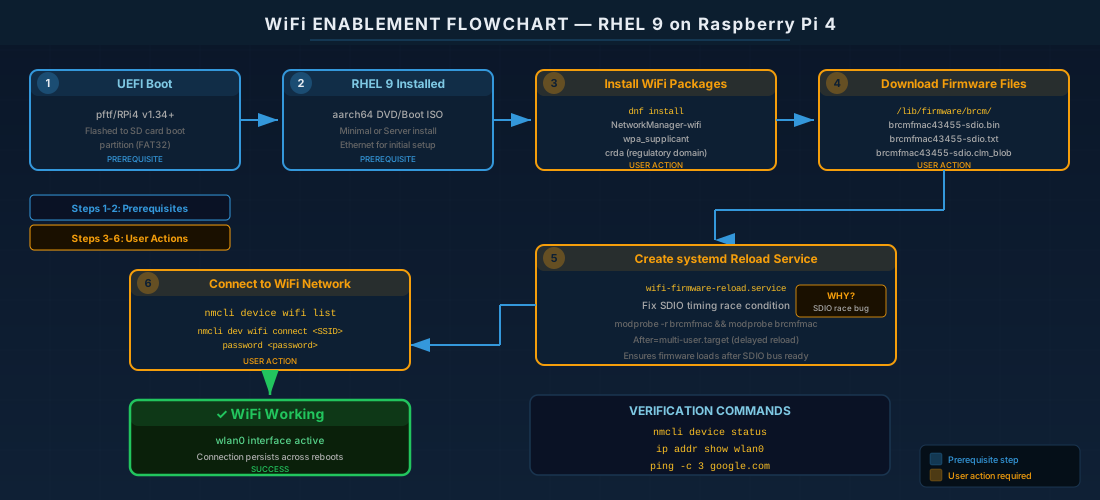
Step 4: Unblock WiFi and Set Regulatory Domain
# Check if WiFi is blocked
rfkill list all

# If soft-blocked, unblock it
sudo rfkill unblock wifi

# Set your country's regulatory domain
sudo iw reg set IE    # Ireland
# or: US, GB, DE, FR, etc.

# Verify
iw reg get
Making the regulatory domain persistent across reboots on RHEL 9:
echo 'COUNTRY=IE' | sudo tee /etc/sysconfig/regdomainStep 5: Connect to WiFi
# Reload the module now (or reboot for the systemd service to handle it)
sudo modprobe -r brcmfmac && sleep 3 && sudo modprobe brcmfmac

# Verify wlan0 appeared
ip link show wlan0

# Check driver loaded with correct firmware
dmesg | grep -i brcmfmac
# Look for: "brcmf_fw_alloc_request: using brcm/brcmfmac43455-sdio for chip BCM4345/6"

# Enable WiFi radio in NetworkManager
nmcli radio wifi on

# Scan for networks
nmcli dev wifi list

# Connect (replace SSID and password)
nmcli dev wifi connect "YourNetwork" password "YourPassword"

# Verify the connection
nmcli device status
ip addr show wlan0
ping -c 4 8.8.8.8
Step 6: Verify After Reboot
sudo reboot

# After reboot, verify WiFi came up automatically
nmcli device status
ip addr show wlan0
nmcli connection show --active
WiFi Troubleshooting Reference
| Symptom | Cause | Fix |
|---|---|---|
No WiFi device found | NetworkManager-wifi not installed | dnf install NetworkManager-wifi |
wlan0 missing despite module loaded | SDIO enumeration race condition | modprobe -r brcmfmac && sleep 3 && modprobe brcmfmac |
firmware load failed with error -2 | Missing NVRAM file for Pi 4 | Download brcmfmac43455-sdio.raspberrypi,4-model-b.txt |
HT Avail timeout in dmesg | Main firmware binary missing or corrupt | Re-download brcmfmac43455-sdio.bin |
| WiFi connects, no internet | Regulatory domain blocking channels | iw reg set YOUR_COUNTRY |
| NetworkManager not running | Service not enabled | systemctl enable --now NetworkManager |
| 2.4 GHz WiFi drops when USB 3 active | BCM2711 USB3/WiFi interference (hardware) | Use 5 GHz band or move USB 3 devices away |
Known Limitations of RHEL on Pi 4
Even with WiFi working, RHEL on Pi 4 has real limits compared to running it on proper ARM server hardware:
- No official support. Red Hat will not accept support cases for Pi-related issues. You are on your own for kernel bugs, firmware problems, and hardware-specific failures.
- UEFI firmware version matters. Version 1.34 from the pftf/RPi4 project is the most tested. Version 1.35 has caused installation failures. Check the project's GitHub issues before upgrading.
- GPIO, camera, and hardware video are unavailable. These require Pi-specific device tree overlays that are not present in a UEFI/ACPI boot environment. If you need GPIO, use Raspberry Pi OS or a distro with Pi-patched kernels.
- Point release upgrades can break boot. Upgrading from RHEL 9.0 to 9.3 or 9.4 on Pi 4 has caused boot failures in some configurations. Test upgrades carefully and keep a known-working backup.
- Bluetooth requires additional work. The CYW43455's Bluetooth is on a UART interface (
/dev/ttyAMA0). Under UEFI/ACPI boot, UART initialization may not happen automatically, requiring manualhciattachconfiguration. - SD card storage is unreliable for enterprise workloads. Use a USB SSD for the root filesystem. SD cards wear out fast under journaling filesystem writes.
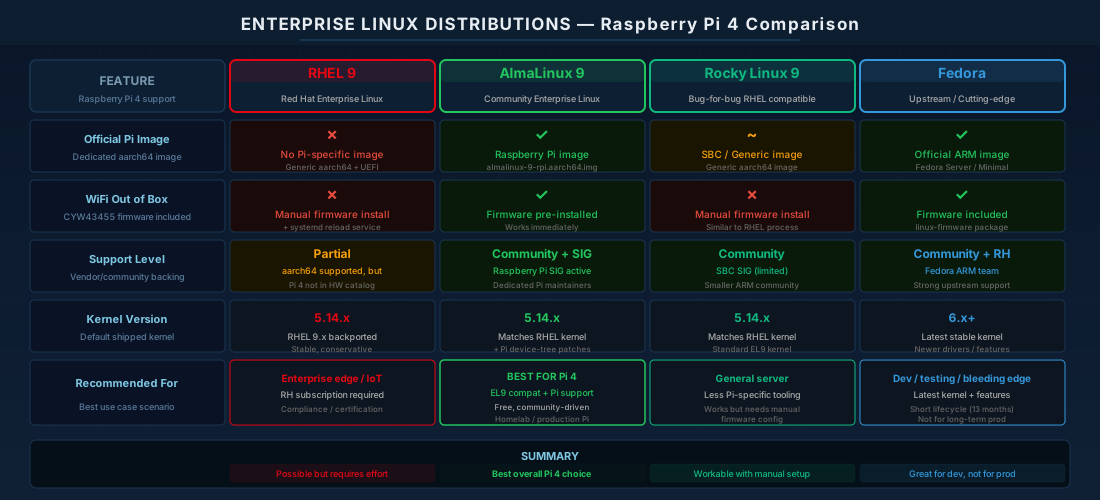
Alternatives: RHEL-Compatible Distributions with Better Pi Support
If you want RHEL-compatible packages on a Pi 4 without the UEFI workarounds and firmware headaches, these binary-compatible distributions ship official Pi images:
AlmaLinux (Recommended)
AlmaLinux provides official Raspberry Pi images for versions 8, 9, and 10. Starting with the June 2023 image, AlmaLinux ships a supplemental linux-firmware-raspberrypi package that includes all the WiFi firmware files discussed above. WiFi works with a simple nmcli command after first boot.
# AlmaLinux WiFi setup (this is all you need)
nmcli dev wifi connect "YourSSID" password "YourPassword"
Rocky Linux
Rocky Linux provides community Pi 4 images for Rocky 9 and 10. WiFi firmware is included with a fix for the linux-firmware bug. Setup is similar to AlmaLinux.
Fedora
Fedora has the most polished Pi 4 support among Red Hat-family distributions. WiFi, Bluetooth, and 3D graphics work after first boot. The trade-off is Fedora's rapid release cycle: a new version every six months, which is fast for production environments.
Red Hat Device Edge and MicroShift
The main reason someone would insist on actual RHEL (not AlmaLinux) on a Pi 4 is Red Hat Device Edge with MicroShift. MicroShift is a lightweight single-node Kubernetes distribution, and the Pi 4 (8 GB model) just barely meets the minimums: 2 CPU cores, 3 GB RAM, 10 GB storage.
# Enable MicroShift repos (requires RHEL subscription)
sudo subscription-manager repos \
  --enable rhocp-4.13-for-rhel-9-aarch64-rpms \
  --enable fast-datapath-for-rhel-9-aarch64-rpms

# Install MicroShift
sudo dnf install -y microshift

# Place your OpenShift pull secret
sudo cp pull-secret.json /etc/crio/openshift-pull-secret
sudo chmod 600 /etc/crio/openshift-pull-secret

# Configure firewall for Kubernetes networking
sudo firewall-cmd --permanent --zone=trusted --add-source=10.42.0.0/16
sudo firewall-cmd --permanent --zone=trusted --add-source=169.254.169.1
sudo firewall-cmd --reload

# Start MicroShift
sudo systemctl enable --now microshift
MicroShift on Pi 4 requires Ethernet. WiFi is not supported for Kubernetes networking on this platform.
Quick Reference - Cheats
| Task | Command |
|---|---|
| Install WiFi packages | dnf install NetworkManager-wifi wpa_supplicant iw wireless-regdb |
| Reload WiFi driver | modprobe -r brcmfmac && sleep 3 && modprobe brcmfmac |
| Unblock WiFi radio | rfkill unblock wifi |
| Set regulatory domain | iw reg set IE |
| Scan WiFi networks | nmcli dev wifi list |
| Connect to WiFi | nmcli dev wifi connect "SSID" password "PASS" |
| Check WiFi firmware in dmesg | dmesg | grep brcmfmac |
| Check WiFi interface | ip link show wlan0 |
| UEFI firmware (recommended) | pftf/RPi4 v1.34 |
Frequently Asked Questions
Does RHEL officially support Raspberry Pi 4?
No. Red Hat does not officially support the Raspberry Pi 4. The Pi 4 is not listed in the Red Hat Ecosystem Catalog, and support tickets about Pi hardware will be refused. RHEL 9 boots on Pi 4 through community-maintained UEFI firmware (pftf/RPi4 v1.34), but you are entirely on your own for troubleshooting. If you need vendor-backed support, consider AlmaLinux, which ships official Pi 4 images.
How do I enable WiFi on RHEL 9 running on Raspberry Pi 4?
Three steps: install the NetworkManager-wifi and wpa_supplicant packages, download the Pi 4-specific NVRAM firmware file (brcmfmac43455-sdio.raspberrypi,4-model-b.txt) to /lib/firmware/brcm/, and create a systemd service that reloads the brcmfmac kernel module after boot to work around the SDIO timing race condition. After that, use nmcli dev wifi connect "SSID" password "PASS" to connect. The full procedure is documented in the "Getting WiFi Working on RHEL 9" section above.
What WiFi chip does the Raspberry Pi 4 use?
The Raspberry Pi 4 uses the Infineon CYW43455 (originally Broadcom). It supports 802.11ac (Wi-Fi 5) on both 2.4 GHz and 5 GHz bands, with a maximum PHY rate of 433 Mbps. Real-world throughput is about 58 Mbps on 2.4 GHz and 114 Mbps on 5 GHz. The chip connects to the BCM2711 SoC via SDIO and uses the brcmfmac kernel driver.
What is the best RHEL alternative for Raspberry Pi 4?
AlmaLinux 9 is the recommended alternative. It ships official Raspberry Pi images with WiFi firmware pre-installed, meaning WiFi works from the first boot with a single nmcli command. AlmaLinux is binary-compatible with RHEL, so all RHEL packages and repositories work. Rocky Linux and Fedora are also options, though Fedora has a faster release cycle that may not suit production environments.
Summary
RHEL 9 runs on the Raspberry Pi 4 through the community UEFI firmware, but WiFi requires manual work: installing the NetworkManager-wifi package, downloading the Pi 4-specific NVRAM firmware file, and creating a systemd service to work around the brcmfmac SDIO timing race. The Infineon CYW43455 chip is well-supported by the brcmfmac kernel driver once these pieces are in place.
For production or long-term use, AlmaLinux 9 is the easier path. It provides official Pi 4 images with WiFi working from the first boot, while remaining binary-compatible with RHEL packages. If your goal is specifically RHEL (for subscription access, MicroShift, or certification testing), the UEFI method described above is the most reliable approach.