Why an SMS Server on a Raspberry Pi?
Plenty of remote locations have decent cell coverage but terrible Internet access. A cabin in the mountains, a weather station on a hillside, a pump controller at a rural well site. If you can get a text message through, you can monitor and control equipment without paying for satellite Internet or running cable.
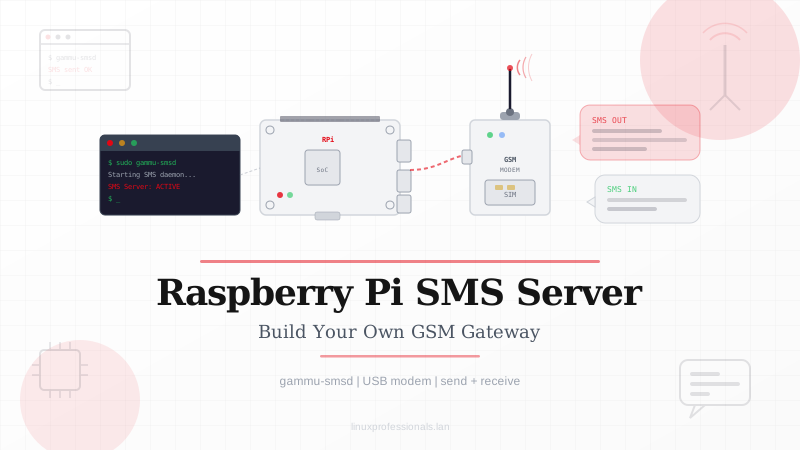
A Raspberry Pi paired with a GSM modem gives you a compact, low-power device that sends and receives SMS text messages over the cellular network. You write scripts in Bash, Python, or Node-RED to react to incoming commands and report sensor data back. The total hardware cost sits between $50 and $150 depending on which modem you pick.
This guide walks through the entire build: choosing hardware, wiring it up, testing the modem, and writing server scripts in three different languages. By the end, you will have a working SMS-based remote control system.
This tutorial is inspired by Pete Metcalfe's "Create a Pi Text Message Server" article in Linux Magazine #304 (March 2026). The implementation below is original and extends the concepts with additional security hardening, systemd integration, and expanded troubleshooting.
Bill of Materials
| Component | Notes | Approx. Cost |
|---|---|---|
| Raspberry Pi 4 or 5 | 2 GB RAM is enough; a Pi Zero 2 W also works | $35 – $80 |
| GSM/4G Modem | SIM7600-based HAT or USB dongle — supports 4G LTE | $25 – $100 |
| Active SIM Card | Prepaid plan with SMS allowance; check carrier bands match the modem | $5 – $15/month |
| Antenna | Usually included with the modem; external SMA antenna improves reception | $0 – $10 |
| MicroSD Card | 16 GB or larger with Raspberry Pi OS Lite | $8 – $15 |
| Power Supply | Official 5V/3A USB-C PSU; solar+battery for off-grid use | $10 – $15 |
Before buying a GSM modem, verify that it supports the frequency bands used by your local carrier. A modem built for European bands will not register on a North American network. Check the modem datasheet for supported LTE bands and cross-reference them with your carrier's published band list.
How the Architecture Works
The signal path is straightforward. Your GSM modem connects to the cellular tower over radio frequencies, just like a phone. The Raspberry Pi talks to the modem through a serial port, typically /dev/ttyUSB2 for USB dongles or /dev/ttyS0 for GPIO-connected HATs. Communication uses AT commands, a text-based protocol that dates back to the Hayes modem era of the 1980s and remains the standard way to control cellular modems today.
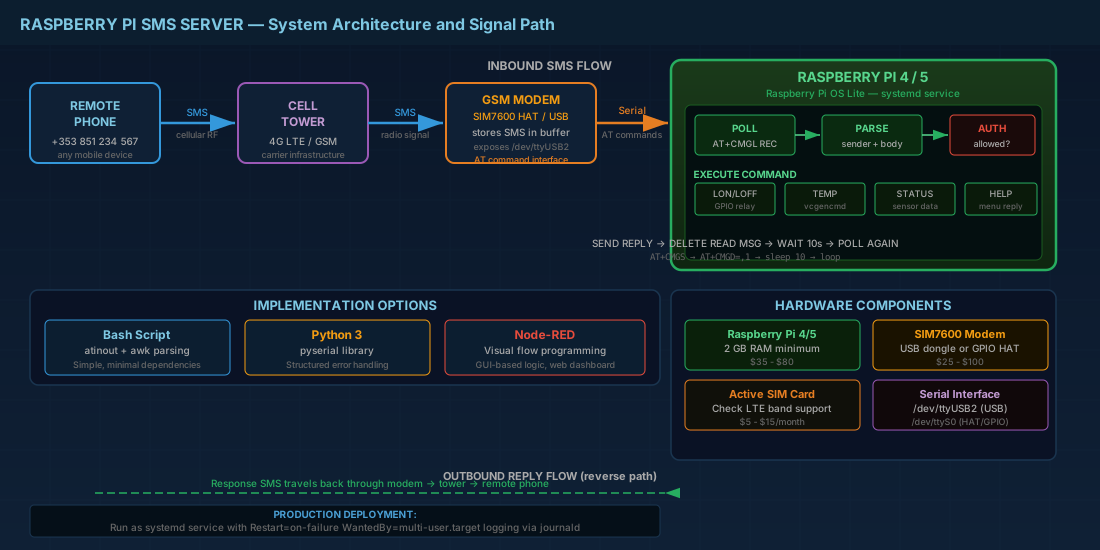
When someone sends an SMS to the SIM card's phone number, the modem stores the message in an internal buffer. Your script polls the modem for unread messages, parses the sender and message body, runs whatever logic you have defined, and sends a response back through the same modem. No Internet connection is involved at any point.
# Simplified data flow
[Remote Phone] --SMS--> [Cell Tower] --SMS--> [GSM Modem] --Serial--> [Raspberry Pi]
                                                                           |
                                                                     Parse command
                                                                     Execute action
                                                                     Send response
                                                                           |
[Remote Phone] <--SMS-- [Cell Tower] <--SMS-- [GSM Modem] <--Serial-- [Raspberry Pi]
Step 1: Set Up the Raspberry Pi
Start with a fresh Raspberry Pi OS Lite image. Desktop environments are unnecessary for a headless SMS server and waste RAM.
# Flash the image (adjust device path for your SD card)
sudo dd if=2026-01-raspios-bookworm-arm64-lite.img of=/dev/sdX bs=4M status=progress

# Enable SSH before first boot by creating an empty file
touch /media/$USER/bootfs/ssh

# Boot the Pi, find its IP, and SSH in
ssh pi@192.168.1.x
Once you are logged in, update packages and install the tools you will need throughout this tutorial:
sudo apt update && sudo apt upgrade -y
sudo apt install -y minicom python3-serial git build-essential
Step 2: Connect and Test the GSM Modem
Plug in your GSM modem (USB dongle or HAT), insert an active SIM card, and attach the antenna. Give the modem 15 to 30 seconds to register on the network. Then check whether the Pi detected the serial ports:
ls /dev/ttyUSB*
# Expected output for a USB GSM dongle:
# /dev/ttyUSB0  /dev/ttyUSB1  /dev/ttyUSB2
Most SIM7600-based modems expose three serial ports. The data/AT command port is typically /dev/ttyUSB2, but this can vary. Check your modem's documentation. For HAT-style modems that connect over GPIO pins, the port is usually /dev/ttyS0 at 115200 baud.
Test with Minicom
Minicom is a terminal emulator that lets you type AT commands by hand, which is the fastest way to verify that the modem is working:
sudo minicom -D /dev/ttyUSB2 -b 115200Once Minicom connects, type the following AT commands (press Enter after each one):
AT
# Expected response: OK

AT+COPS?
# Returns the network operator your SIM is registered with
# Example: +COPS: 0,0,"Vodafone",7

AT+CPBS="ON"
# Selects the own-number phone book
AT+CPBR=1
# Reads entry 1, which is the SIM's phone number
# Example: +CPBR: 1,"+353851234567",145
If AT+COPS? returns an empty operator name, the SIM is not registered. Check that the SIM has credit, the antenna is attached, and the modem supports your carrier's frequency bands. To exit Minicom, press Ctrl+A then X.
Install atinout for Scripted AT Commands
Minicom is great for manual testing, but scripts need a non-interactive way to send AT commands. The atinout utility does exactly this: it pipes AT commands to the modem and returns the response on stdout.
git clone https://github.com/beralt/atinout.git
cd atinout
make
sudo cp atinout /usr/local/bin/
cd ..
Verify that it works:
echo 'AT+COPS?' | atinout - /dev/ttyUSB2 -
# Should print the network operator
Step 3: Send and Receive SMS with Bash
Before building a full server loop, get comfortable with the raw AT commands for sending and reading messages. Bash, Python, and Node-RED all use the same AT command set underneath, so what you learn here carries over.
Sending a Text Message
#!/bin/bash
MODEM="/dev/ttyUSB2"
RECIPIENT="+353851234567"
MESSAGE="Hello from the Raspberry Pi SMS server"

# Set text mode (as opposed to PDU mode)
echo -e "AT+CMGF=1\r" > "$MODEM"
sleep 1

# Specify recipient
echo -e "AT+CMGS=\"$RECIPIENT\"\r" > "$MODEM"
sleep 1

# Send message body, terminated by Ctrl+Z (0x1A)
echo -e "${MESSAGE}\x1A" > "$MODEM"
The critical detail here is the \x1A (Ctrl+Z) character at the end. Without it, the modem waits indefinitely for more text and eventually times out. Every SMS send operation must end with this terminator.
Reading Unread Messages
# Read all unread SMS messages
echo -e 'AT+CMGF=1;+CMGL="REC UNREAD"' | atinout - /dev/ttyUSB2 -

# Sample output:
# +CMGL: 3,"REC UNREAD","+353857654321",,"26/02/27,14:30:22+00"
# STATUS
# OK
The response is a comma-separated string containing the message index, status, sender number, timestamp, and the actual message text on the following line.
Step 4: Build a Bash SMS Server
Now wrap these commands into a server script that polls for new messages every 10 seconds, parses incoming commands, and sends responses. The example below implements a simple remote control: send LON to turn on a GPIO-connected relay, LOFF to turn it off, and anything else gets a menu of available commands.
#!/bin/bash
# sms_server.sh - Bash SMS server for Raspberry Pi
# Polls for incoming SMS and controls a relay on GPIO pin 17

MODEM="/dev/ttyUSB2"
GPIO_PIN=17
ALLOWED_NUMBER="+353851234567"

# Configure GPIO pin as output
echo "$GPIO_PIN" > /sys/class/gpio/export 2>/dev/null
echo "out" > /sys/class/gpio/gpio${GPIO_PIN}/direction

# Function: send an SMS reply
send_sms() {
    local number="$1"
    local text="$2"
    echo -e "AT+CMGF=1\r" > "$MODEM"
    sleep 0.5
    echo -e "AT+CMGS=\"${number}\"\r" > "$MODEM"
    sleep 0.5
    echo -e "${text}\x1A" > "$MODEM"
    sleep 2
}

MENU="Pi SMS Server\n\nCommands:\nLON  - Relay ON\nLOFF - Relay OFF\nTEMP - Read CPU temp"

echo "SMS server started. Listening on $MODEM..."

while true; do
    # Poll for unread messages
    response=$(echo -e 'AT+CMGF=1;+CMGL="REC UNREAD"' \
        | atinout - "$MODEM" -)

    if echo "$response" | grep -q '+CMGL:'; then
        # Extract sender number
        sender=$(echo "$response" \
            | grep '+CMGL:' \
            | awk -F',' '{gsub(/"/, "", $3); print $3}')

        # Extract message body (line after the +CMGL header)
        body=$(echo "$response" \
            | grep -A1 '+CMGL:' \
            | tail -1 \
            | tr -d '\r' \
            | xargs)

        echo "[$(date)] From: $sender | Message: $body"

        # Security: only accept commands from the allowed number
        if [ "$sender" != "$ALLOWED_NUMBER" ]; then
            echo "  Rejected: unauthorized number"
            send_sms "$sender" "Unauthorized. This incident is logged."
        elif [[ "$body" == "LON" ]]; then
            echo "1" > /sys/class/gpio/gpio${GPIO_PIN}/value
            send_sms "$sender" "Relay ON"
        elif [[ "$body" == "LOFF" ]]; then
            echo "0" > /sys/class/gpio/gpio${GPIO_PIN}/value
            send_sms "$sender" "Relay OFF"
        elif [[ "$body" == "TEMP" ]]; then
            cpu_temp=$(vcgencmd measure_temp | cut -d= -f2)
            send_sms "$sender" "CPU temperature: $cpu_temp"
        else
            send_sms "$sender" "$MENU"
        fi

        # Delete read messages to prevent buffer overflow
        echo -e 'AT+CMGD=,1' | atinout - "$MODEM" -
    fi

    sleep 10
done
Save this as sms_server.sh, make it executable with chmod +x sms_server.sh, and run it with sudo ./sms_server.sh (root is needed for GPIO access).
Step 5: Python Implementation
Python is a better fit if you want structured error handling and access to sensor libraries. Parsing AT command responses is also less painful than doing it in Bash with awk. The pyserial package handles the serial communication.
#!/usr/bin/env python3
"""sms_server.py - Python SMS server for Raspberry Pi"""

import serial
import time
import subprocess
import logging

logging.basicConfig(
    level=logging.INFO,
    format='%(asctime)s %(levelname)s %(message)s'
)
log = logging.getLogger(__name__)

MODEM_PORT = '/dev/ttyUSB2'
BAUD_RATE = 115200
ALLOWED_NUMBERS = ['+353851234567']
GPIO_PIN = 17

def open_modem():
    """Open serial connection to the GSM modem."""
    ser = serial.Serial(MODEM_PORT, BAUD_RATE, timeout=5)
    time.sleep(1)
    return ser

def send_at(ser, command, wait=1):
    """Send an AT command and return the response."""
    ser.write((command + '\r').encode())
    time.sleep(wait)
    return ser.read_all().decode(errors='replace')

def send_sms(ser, number, message):
    """Send an SMS text message."""
    send_at(ser, 'AT+CMGF=1')
    send_at(ser, f'AT+CMGS="{number}"')
    send_at(ser, message + '\x1A', wait=3)
    log.info(f'Sent SMS to {number}: {message[:50]}')

def read_unread(ser):
    """Read all unread SMS messages. Returns list of (sender, body) tuples."""
    send_at(ser, 'AT+CMGF=1')
    raw = send_at(ser, 'AT+CMGL="REC UNREAD"', wait=2)
    messages = []
    lines = raw.strip().split('\n')
    for i, line in enumerate(lines):
        if '+CMGL:' in line:
            parts = line.split(',')
            sender = parts[2].strip().strip('"') if len(parts) > 2 else ''
            body = lines[i + 1].strip() if i + 1 < len(lines) else ''
            messages.append((sender, body))
    return messages

def set_gpio(pin, value):
    """Set a GPIO pin high (1) or low (0)."""
    subprocess.run(
        ['gpioset', 'gpiochip0', f'{pin}={value}'],
        check=True
    )

def get_cpu_temp():
    """Read the Pi's CPU temperature."""
    result = subprocess.run(
        ['vcgencmd', 'measure_temp'],
        capture_output=True, text=True
    )
    return result.stdout.strip().split('=')[1]

def handle_command(ser, sender, body):
    """Process an incoming SMS command."""
    cmd = body.upper().strip()

    if sender not in ALLOWED_NUMBERS:
        log.warning(f'Unauthorized sender: {sender}')
        send_sms(ser, sender, 'Unauthorized. This incident is logged.')
        return

    if cmd == 'LON':
        set_gpio(GPIO_PIN, 1)
        send_sms(ser, sender, 'Relay turned ON')
    elif cmd == 'LOFF':
        set_gpio(GPIO_PIN, 0)
        send_sms(ser, sender, 'Relay turned OFF')
    elif cmd == 'TEMP':
        temp = get_cpu_temp()
        send_sms(ser, sender, f'CPU temperature: {temp}')
    elif cmd == 'STATUS':
        temp = get_cpu_temp()
        send_sms(ser, sender, f'Online. CPU: {temp}. Uptime: OK.')
    else:
        menu = 'Pi SMS Server\nLON - Relay on\nLOFF - Relay off\nTEMP - CPU temp\nSTATUS - System status'
        send_sms(ser, sender, menu)

    log.info(f'Handled: {sender} -> {cmd}')

def main():
    ser = open_modem()
    log.info(f'SMS server started on {MODEM_PORT}')

    while True:
        try:
            messages = read_unread(ser)
            for sender, body in messages:
                handle_command(ser, sender, body)
            if messages:
                # Clear read messages to free modem memory
                send_at(ser, 'AT+CMGD=,1')
        except serial.SerialException as e:
            log.error(f'Serial error: {e}. Reconnecting...')
            ser.close()
            time.sleep(5)
            ser = open_modem()
        except Exception as e:
            log.error(f'Unexpected error: {e}')

        time.sleep(10)

if __name__ == '__main__':
    main()
Step 6: Node-RED for Scheduled Reporting
Node-RED works well for scheduled tasks like sending a daily sensor report without writing much code. If you do not have Node-RED installed yet:
bash <(curl -sL https://raw.githubusercontent.com/node-red/linux-installers/master/deb/update-nodejs-and-nodered)
sudo systemctl enable --now nodered
For a daily temperature report, you need six nodes wired in sequence:
- An Inject node, set to fire once daily at 08:00 (or click manually during testing).
- A Change node that sets
msg.payloadtoAT+CMGF=1(text mode). - A Serial out node that sends the payload to
/dev/ttyUSB2at 115200 baud. - A second Change node that sets
msg.payloadtoAT+CMGS="+353851234567"(the recipient). - A Function node that reads the CPU temperature and builds the message body with a Ctrl+Z terminator.
- A final Serial out node that sends the completed message through the modem.
The function node JavaScript looks like this:
// Node-RED function node: build SMS body with temperature
const exec = require('child_process').execSync;
const temp = exec('vcgencmd measure_temp').toString().split('=')[1].trim();
const now = new Date().toLocaleString('en-IE');

msg.payload = `Daily Report - ${now}\nCPU Temp: ${temp}\x1A`;
return msg;
Node-RED is a good fit when you want to add logic visually, especially if the Pi is also collecting data from I2C or SPI sensors that have Node-RED nodes available.
Step 7: Run as a systemd Service
A server script is only useful if it starts automatically on boot and restarts after crashes. Create a systemd unit file for whichever implementation you chose:
sudo tee /etc/systemd/system/sms-server.service <<'EOF'
[Unit]
Description=Raspberry Pi SMS Server
After=dev-ttyUSB2.device
Wants=dev-ttyUSB2.device

[Service]
Type=simple
ExecStart=/usr/bin/python3 /home/pi/sms_server.py
Restart=always
RestartSec=10
User=root
StandardOutput=journal
StandardError=journal

[Install]
WantedBy=multi-user.target
EOF

sudo systemctl daemon-reload
sudo systemctl enable --now sms-server.service

# Check the logs
journalctl -u sms-server -f
The After=dev-ttyUSB2.device directive ensures systemd waits until the modem's serial port appears before starting the script. Restart=always with RestartSec=10 means systemd will bring the service back up 10 seconds after any unexpected exit.
Security Considerations
An SMS server that executes commands based on incoming text messages is a potential attack vector. Treat it seriously.
Restrict Allowed Senders
Both the Bash and Python examples above check the sender's phone number against a whitelist. This is the minimum required security measure. Only accept commands from phone numbers you control.
Limit Command Scope
Never pass SMS message content directly to a shell. A message containing ; rm -rf / should not do anything dangerous. The examples above use strict string matching (if cmd == 'LON') rather than eval or shell expansion, which prevents injection attacks.
Never use eval(), exec(), or os.system() with SMS message content as input. Treat every incoming message as untrusted user input.
Log Everything
Both scripts log every incoming message with the sender number and timestamp. If someone sends unexpected commands, you have a record. The Python version logs to the systemd journal, which you can search with journalctl -u sms-server --since "1 hour ago".
Manage the Message Buffer
GSM modems have limited storage for SMS messages. If the buffer fills up, the modem stops accepting new messages. Delete read messages after processing them with AT+CMGD=,1 (deletes all read messages) or AT+CMGD=,4 (deletes everything including unread). The scripts above handle this automatically.
Physical Security
If the Pi is in a remote location, consider tamper-evident enclosures and disable unused interfaces (Bluetooth, Wi-Fi, HDMI) to reduce the attack surface. Disable password-based SSH login and use key-based authentication only.
Troubleshooting Common Issues
Modem Not Detected
If ls /dev/ttyUSB* returns nothing after plugging in the modem:
- Check
dmesg | tail -20for USB errors. - Try a different USB cable. Some cables are charge-only and lack data lines.
- For HAT modems, verify that the serial interface is enabled in
raspi-configunder Interface Options. - Make sure the modem has adequate power. Some USB modems draw enough current to cause brownouts on unpowered USB hubs.
SIM Not Registering on the Network
If AT+COPS? returns no operator:
- Verify the SIM has credit or an active plan.
- Confirm the modem supports your carrier's frequency bands (check with
AT+CBANDCFG?on SIM7600 modems). - Attach the external antenna. Indoor reception with the tiny onboard antenna is often too weak.
- Try the SIM in a phone to confirm it works at all.
Messages Sending But Not Arriving
- Verify the recipient number includes the country code (e.g.,
+353for Ireland,+1for the US). - Check that the modem is in text mode (
AT+CMGF=1). In PDU mode (the default), the message format is completely different. - Ensure the Ctrl+Z terminator (
\x1A) is being sent. Without it, the modem waits forever for the message to finish.
Modem Becomes Unresponsive
If the modem stops responding to AT commands, an earlier command may have left it in an error state. Try these recovery steps:
# Send ATZ to reset the modem to factory defaults
echo 'ATZ' | atinout - /dev/ttyUSB2 -

# If that fails, power cycle the modem
# For USB modems:
sudo usbreset $(lsusb | grep -i simcom | awk '{print $6}')

# For HAT modems: toggle the power pin or reboot the Pi
sudo reboot
Where to Go from Here
Once the basic send-and-receive loop is working, there is a lot you can bolt on:
- Connect a DHT22 or BME280 sensor and have the Pi text you temperature and humidity readings on demand or on a schedule.
- Use
rpicam-stillto snap a photo and send it as an MMS. This requires an MMS-capable modem and a different set of AT commands, but the same serial wiring. - Swap the single relay for a multi-channel relay module or an IoT Power Relay board to control several devices independently.
- Add a watchdog that texts you if the Pi reboots unexpectedly. The systemd
OnFailure=directive can trigger a one-shot SMS script. - If you are running on battery and solar, monitor the charge level with a UPS HAT and send a low-power warning before the Pi shuts down.
- For anything destructive, add a confirmation step. Have the Pi reply "Text CONFIRM-7392 to proceed" and only execute after getting the right code back.
AT Command Quick Reference - Cheats
| Command | Purpose |
|---|---|
AT |
Basic modem test (should return OK) |
AT+CMGF=1 |
Set text mode for SMS (vs. PDU mode) |
AT+CMGS="number" |
Send SMS to the specified number |
AT+CMGL="REC UNREAD" |
List all unread messages |
AT+CMGL="ALL" |
List all messages (read and unread) |
AT+CMGD=,1 |
Delete all read messages |
AT+CMGD=,4 |
Delete all messages |
AT+COPS? |
Query network operator |
AT+CSQ |
Check signal strength (0-31 scale; 10+ is usable) |
ATZ |
Reset modem to factory defaults |
Summary
For under $150 in hardware, a Raspberry Pi and a GSM modem give you a working SMS gateway that runs anywhere with cell coverage. No Internet, no cloud service, no monthly subscription beyond the SIM plan. Bash is fine for simple relay control. Python is better when you need to parse sensor data or handle errors properly. Node-RED saves time on scheduled jobs. They all speak the same AT commands, so you can mix approaches as your project grows.
Start with the Minicom tests to confirm the hardware works, then pick whichever language you already know. Wrap it in a systemd service, restrict the sender whitelist, and you are done. The whole thing runs on a $35 computer that draws about 5 watts.
Sources and Further Reading
- Pete Metcalfe, "Create a Pi Text Message Server: Message Me," Linux Magazine, Issue 304, March 2026, pp. 58-62. The original article that inspired this tutorial.
- Waveshare SIM7600G-H 4G HAT documentation: waveshare.com/wiki/SIM7600G-H_4G_HAT
- atinout — AT command line utility: github.com/beralt/atinout
- Raspberry Pi GPIO documentation: raspberrypi.com/documentation
- 3GPP AT Command Reference (TS 27.005): The formal specification for SMS-related AT commands.